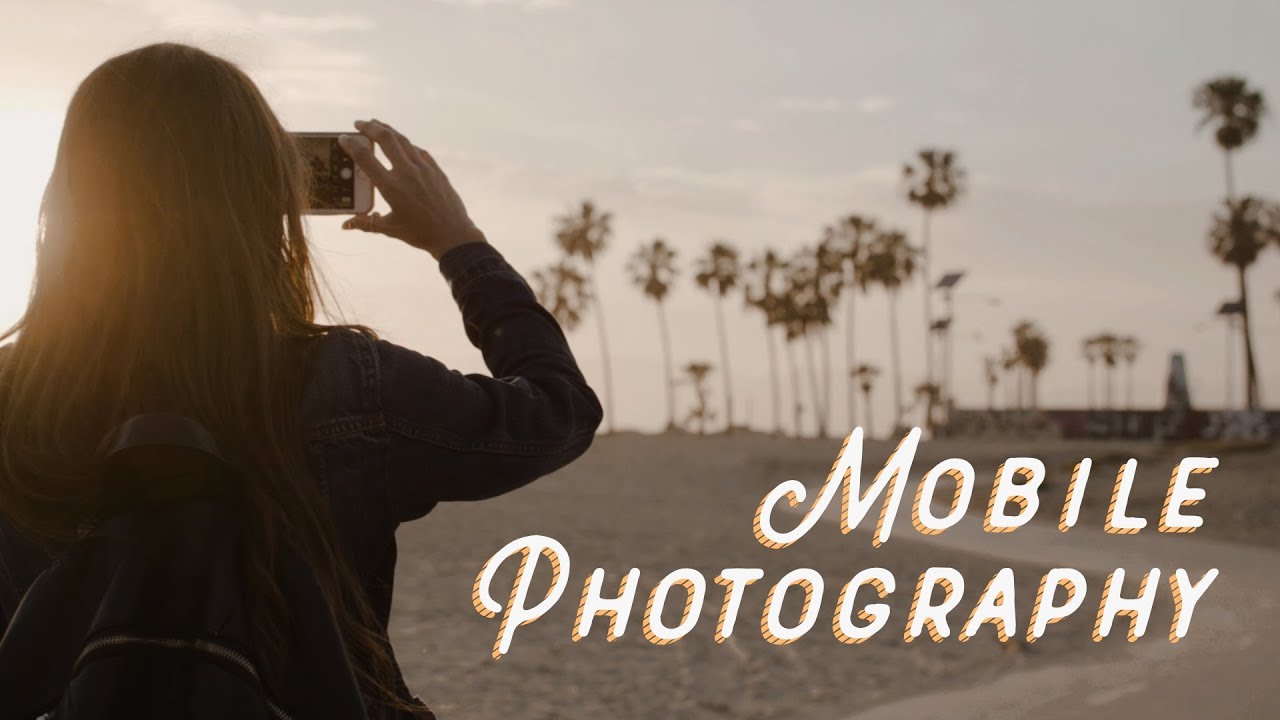
My phone camera has quietly become my most-used camera. Not because it’s better than my mirrorless, but because it’s always in my pocket when something worth shooting actually happens. The problem is that most people shooting on iPhone are leaving serious quality on the table before they even open an editing app, and then trying to fix it all in post. I’ve watched that cycle play out with photographers I’ve mentored, and honestly, I’ve done it myself.
Watch the full tutorial on YouTube
In this Mango Street tutorial, Rachel and Daniel walk through their complete mobile workflow, from how they set up the camera before pressing the shutter to the specific tone curve and HSL adjustments they use in Lightroom Mobile to get their signature moody look. What I appreciate about their approach is that it’s not just an editing tutorial. It starts with capture, which is where most mobile photography actually falls apart. Here’s my breakdown of every step, with enough detail that you can follow along without needing to pause and rewind.
Step 1: Enable RAW Shooting in Lightroom Mobile
 Lightroom Mobile camera interface with RAW mode visible
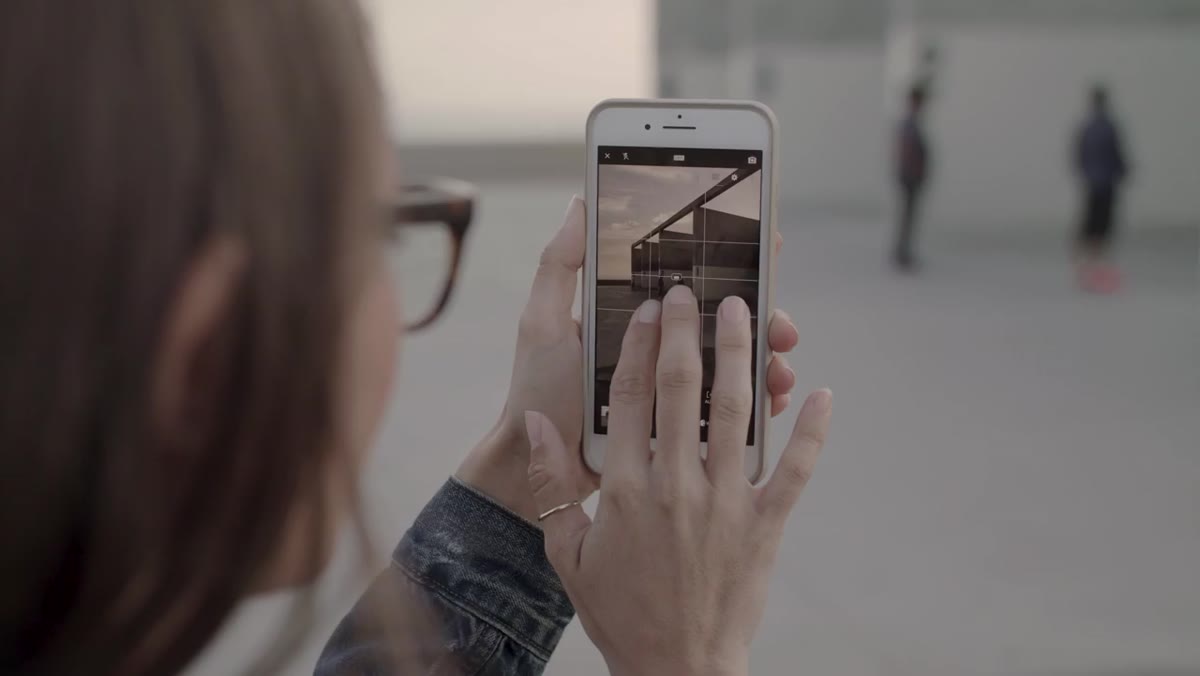
If your phone supports it, shoot RAW. Full stop. The native iPhone camera saves JPEGs, which means the phone has already made decisions about sharpening, noise reduction, and color processing before you ever open Lightroom. Shooting RAW in the Lightroom Mobile app keeps all of that data intact so you make those calls yourself. Open the Lightroom Mobile camera, and you’ll see the format options at the top of the screen. Switch to RAW and you’re working with real editing latitude.
Lightroom Mobile camera interface with RAW mode visible
If your phone supports it, shoot RAW. Full stop. The native iPhone camera saves JPEGs, which means the phone has already made decisions about sharpening, noise reduction, and color processing before you ever open Lightroom. Shooting RAW in the Lightroom Mobile app keeps all of that data intact so you make those calls yourself. Open the Lightroom Mobile camera, and you’ll see the format options at the top of the screen. Switch to RAW and you’re working with real editing latitude.
Step 2: Set Up Your Camera Before You Shoot
 Phone camera with grid overlay and level indicator turned on
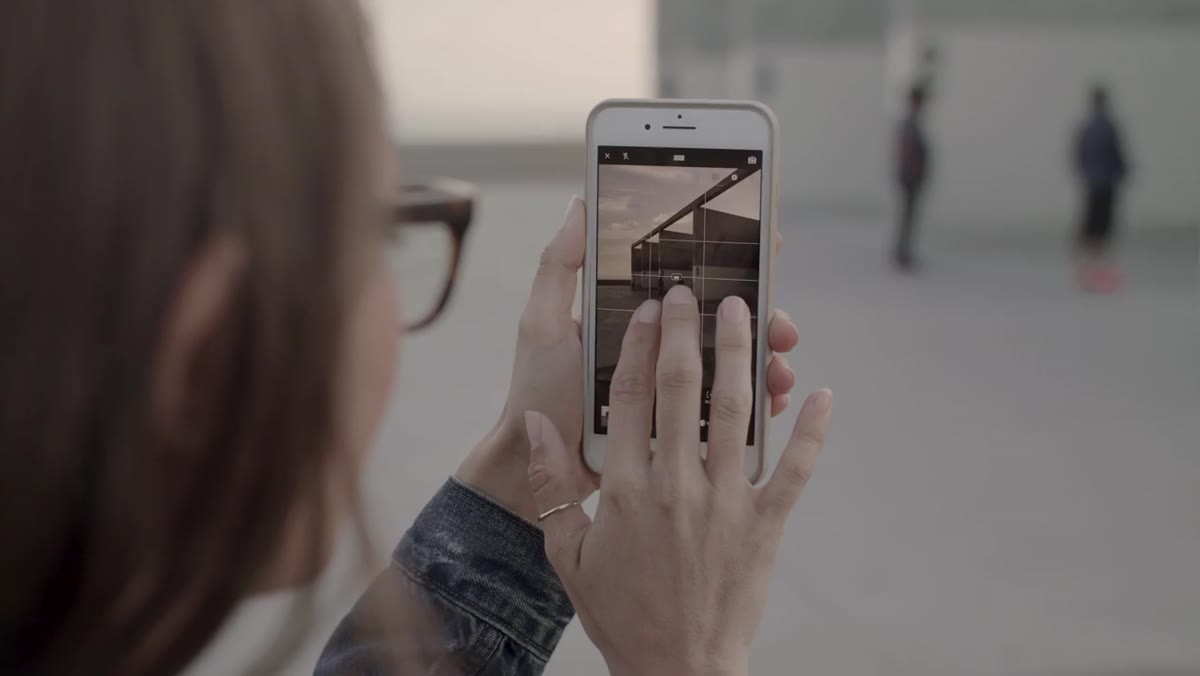
Three quick setup steps that most people skip: turn off digital zoom, clean your lens, and enable the grid and level overlays. Digital zoom is just a crop, and it degrades your image quality immediately. A fingerprint on your lens will scatter light and kill contrast in a way that no amount of Lightroom work will fully fix. The grid helps you keep your horizon lines straight and your compositions intentional. These aren’t glamorous tips, but they’re the difference between a photo you can actually use and one that almost works.
Phone camera with grid overlay and level indicator turned on
Three quick setup steps that most people skip: turn off digital zoom, clean your lens, and enable the grid and level overlays. Digital zoom is just a crop, and it degrades your image quality immediately. A fingerprint on your lens will scatter light and kill contrast in a way that no amount of Lightroom work will fully fix. The grid helps you keep your horizon lines straight and your compositions intentional. These aren’t glamorous tips, but they’re the difference between a photo you can actually use and one that almost works.
Step 3: Set White Balance and Exposure Before You Shoot
 Lightroom Mobile Pro mode showing white balance options dropdown
This is the step I wish someone had drilled into me earlier. In the Lightroom Mobile camera, switch from Auto to Pro mode. This unlocks manual white balance options including Tungsten, Fluorescent, Daylight, Cloudy, and Custom. Mango Street’s preferred method is using the eyedropper tool to set a custom white balance. You point it at something neutral, ideally a gray or white surface in your scene, and the app locks the color temperature to match. Getting white balance right in-camera saves you from chasing a color cast in post that was never supposed to be there.
Lightroom Mobile Pro mode showing white balance options dropdown
This is the step I wish someone had drilled into me earlier. In the Lightroom Mobile camera, switch from Auto to Pro mode. This unlocks manual white balance options including Tungsten, Fluorescent, Daylight, Cloudy, and Custom. Mango Street’s preferred method is using the eyedropper tool to set a custom white balance. You point it at something neutral, ideally a gray or white surface in your scene, and the app locks the color temperature to match. Getting white balance right in-camera saves you from chasing a color cast in post that was never supposed to be there.
For exposure, tap your subject on screen and drag left to bring the brightness down slightly. Mango Street shoots a little underexposed intentionally because their style skews moody and dark, and it’s generally easier to lift shadows in editing than to recover blown highlights. You don’t have to copy their aesthetic, but do set your exposure deliberately before you shoot rather than leaving it on auto and hoping for the best.
Step 4: Build a Tone Curve with a Slight S-Shape
 Tone curve panel in Lightroom Mobile with S-curve applied
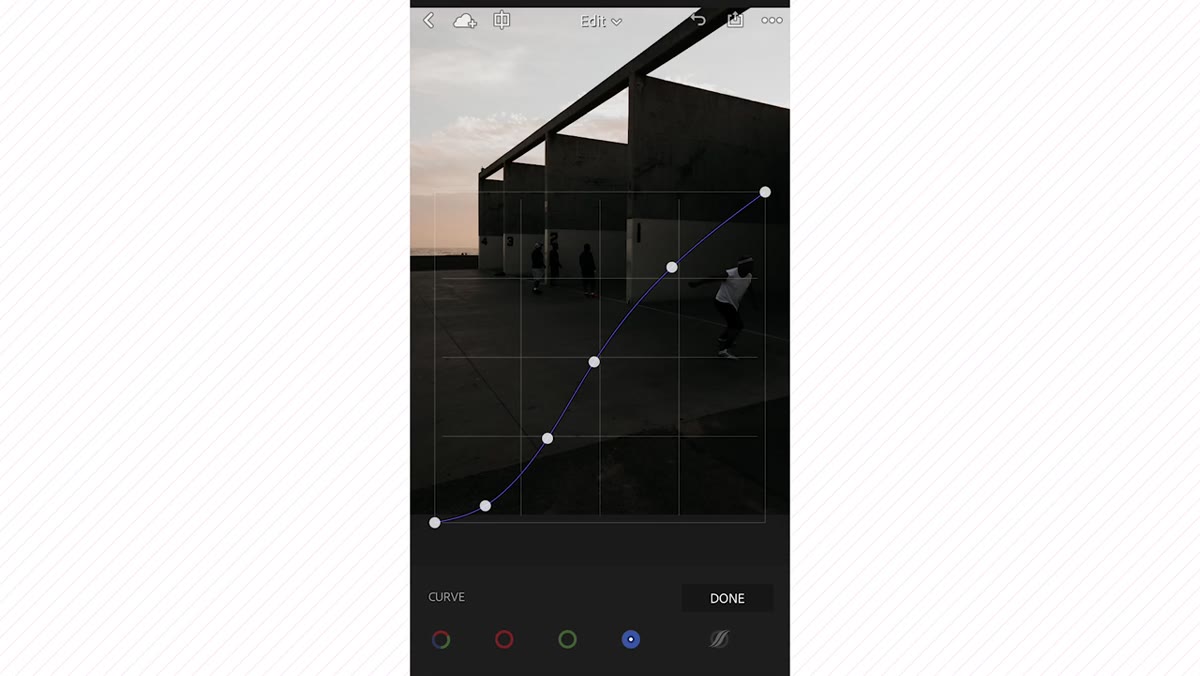
Once you’re in the editing panel, the tone curve is where contrast gets shaped with precision. A standard S-curve lifts the highlights slightly and pulls the shadows down, which adds depth and punch without just cranking the contrast slider. In Lightroom Mobile, you can also work inside the individual RGB channels, which opens the door to color grading and cross-processing effects. Mango Street notes those techniques are beyond the scope of this particular tutorial, but it’s worth knowing the capability exists when you’re ready to explore it.
Tone curve panel in Lightroom Mobile with S-curve applied
Once you’re in the editing panel, the tone curve is where contrast gets shaped with precision. A standard S-curve lifts the highlights slightly and pulls the shadows down, which adds depth and punch without just cranking the contrast slider. In Lightroom Mobile, you can also work inside the individual RGB channels, which opens the door to color grading and cross-processing effects. Mango Street notes those techniques are beyond the scope of this particular tutorial, but it’s worth knowing the capability exists when you’re ready to explore it.
Step 5: Dial In Highlights, Shadows, Whites, and Blacks
 Light panel showing highlights, shadows, whites, blacks sliders adjusted
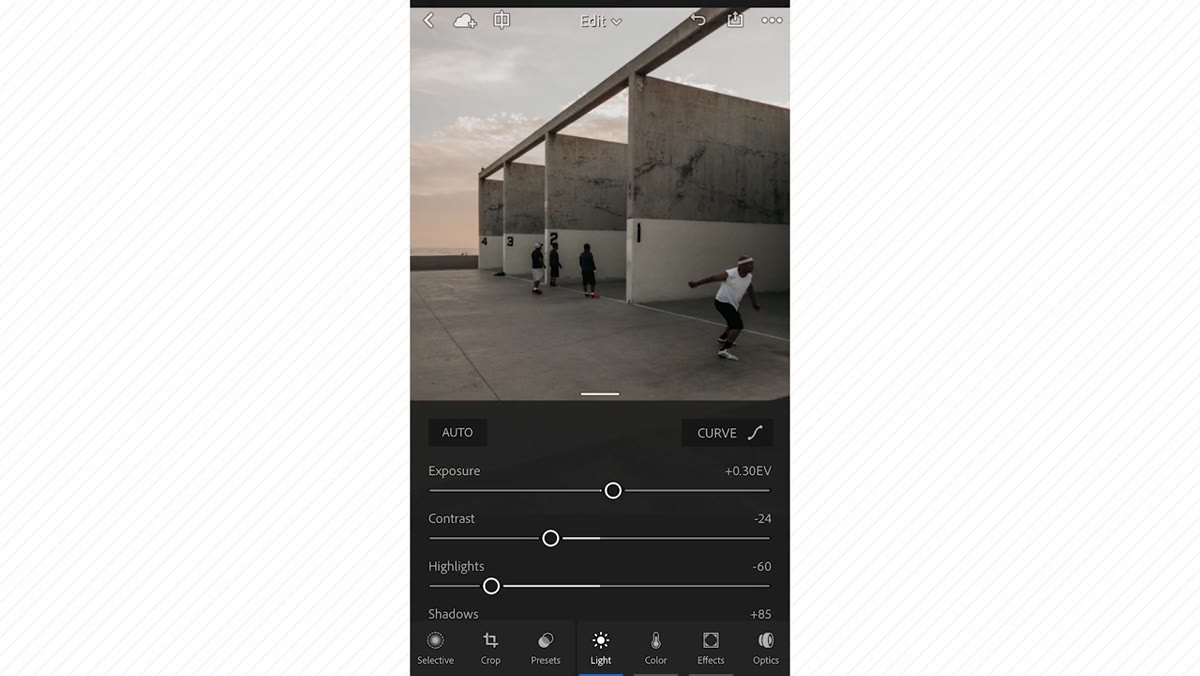
The tone curve will often darken your image overall, so the next step is using the individual light controls to bring back detail and balance. Mango Street’s typical approach here: pull highlights down to retain detail in bright areas, lift shadows to open up the darker parts of the frame, nudge blacks up slightly, and bring whites down a touch. Then reduce overall contrast and add a small bump to exposure. These adjustments work together to create an image that feels full and detailed across the whole tonal range, rather than one that’s just “not too dark and not too bright.”
Light panel showing highlights, shadows, whites, blacks sliders adjusted
The tone curve will often darken your image overall, so the next step is using the individual light controls to bring back detail and balance. Mango Street’s typical approach here: pull highlights down to retain detail in bright areas, lift shadows to open up the darker parts of the frame, nudge blacks up slightly, and bring whites down a touch. Then reduce overall contrast and add a small bump to exposure. These adjustments work together to create an image that feels full and detailed across the whole tonal range, rather than one that’s just “not too dark and not too bright.”
The key thing to understand is why these sliders matter more than just pushing the exposure up or down. Exposure affects everything at once. Highlights, shadows, whites, and blacks each target a specific part of the histogram. Using them together gives you surgical control over where the detail lives in your image.
Step 6: Fine-Tune Colors with HSL
 HSL color mix panel with orange and yellow hue sliders visible
The last piece of the Mango Street edit is the HSL panel, which stands for Hue, Saturation, and Luminance. You get individual sliders for every major color range in the image. Their focus tends to be on the oranges, yellows, and greens, which makes sense because skin tones and natural environments live in those ranges. Shifting the hue of oranges slightly and dialing back saturation on greens can shift a photo from feeling like a casual snapshot to something with a real intentional mood.
HSL color mix panel with orange and yellow hue sliders visible
The last piece of the Mango Street edit is the HSL panel, which stands for Hue, Saturation, and Luminance. You get individual sliders for every major color range in the image. Their focus tends to be on the oranges, yellows, and greens, which makes sense because skin tones and natural environments live in those ranges. Shifting the hue of oranges slightly and dialing back saturation on greens can shift a photo from feeling like a casual snapshot to something with a real intentional mood.
This is where your personal style starts to show up in the editing. I name my own presets after songs, and a lot of what makes each one feel different comes down to specific HSL decisions. There’s no universal right answer here. The goal is to make these adjustments deliberately rather than randomly dragging sliders until something looks cool.
One Thing I’d Add: Save a Starting Preset
After you get a look you like from this workflow, save it as a custom preset in Lightroom Mobile before you close the app. A lot of people build something they love, export the image, and then have no idea how they got there when they try to replicate it. I’ve given away preset packs based on exactly this kind of carefully documented editing process, and the value isn’t in the preset itself. It’s in having a repeatable starting point you can adjust per image rather than starting from scratch every time.
Also worth noting: this whole workflow improves dramatically if you shoot in consistent lighting conditions. The white balance and exposure habits from the first half of this tutorial do a lot of the work so the editing in the second half doesn’t have to compensate for problems you introduced at capture.
The single most important thing in this tutorial is the shift in mindset it encourages. Great mobile photos don’t happen by fixing bad captures in Lightroom. They happen when you treat the Lightroom Mobile camera app as a real camera with real controls, make intentional decisions before you shoot, and then use editing to refine rather than rescue. Every step in this workflow follows that logic.
Watch the full tutorial on YouTube and follow along with Mango Street’s own examples to see the before-and-after difference these adjustments make in practice.
Comments
Leave a Comment