Every so often I fall down a rabbit hole that saves me real money. This was one of those times. I was putting together a new export workflow for a client gallery delivery system and kept running into paywalls for tools that felt like they should just… exist. That’s when I sat down with Watch the full tutorial on YouTube from Tony & Chelsea Northrup, and it reframed how I think about extending Lightroom’s capabilities without spending a dime.
The short version: Lightroom has a plugin ecosystem that most photographers barely touch, and the free options buried one Google search away are almost always better than whatever Adobe’s own marketplace is trying to sell you. Tony walks through publish services, plugin installation, and a few utility tools that fly under the radar. I’ve added my own layer of context below for anyone who wants to actually implement this, not just watch it.
Step 1: Find the Publish Services Panel in the Library Module
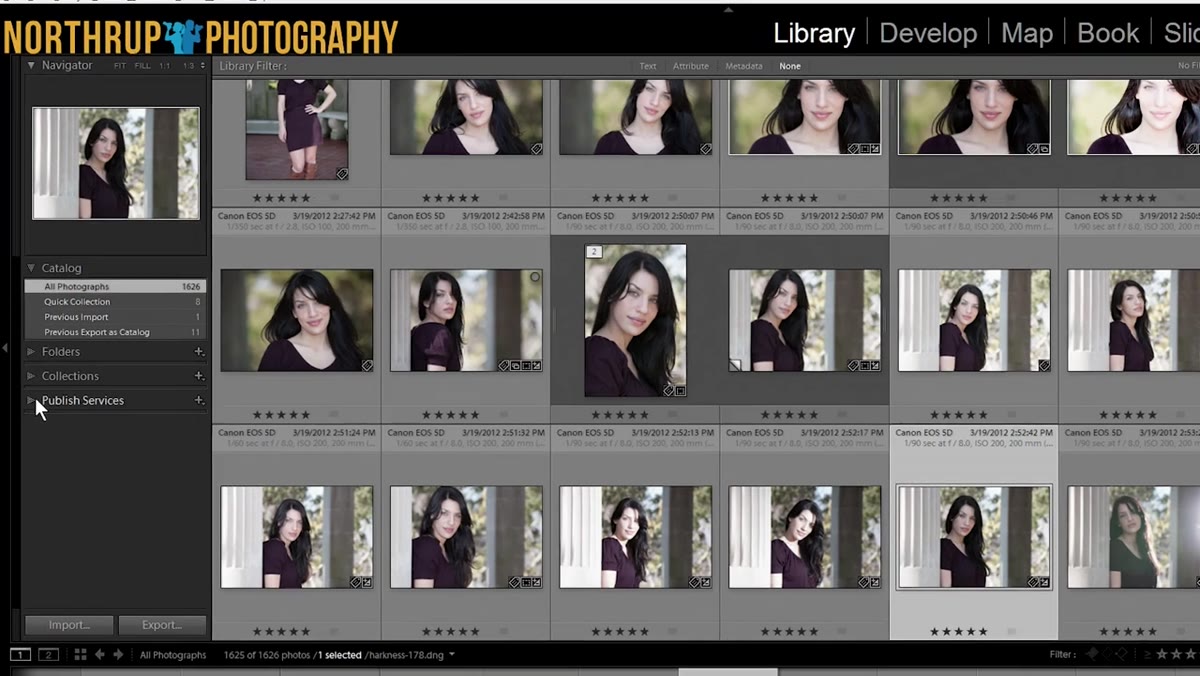 Lightroom Library module with Publish Services panel visible
Publish Services live in the lower-left corner of the Library module, and there’s a good chance you’ve scrolled past them a hundred times. By default, Lightroom ships with a handful of built-in options: a hard drive export shortcut, Behance (which Tony diplomatically describes as “some social network”), Flickr, and Facebook. These aren’t just export shortcuts. They maintain a live connection to the platform, tracking what’s been published and flagging anything that’s been updated since.
Lightroom Library module with Publish Services panel visible
Publish Services live in the lower-left corner of the Library module, and there’s a good chance you’ve scrolled past them a hundred times. By default, Lightroom ships with a handful of built-in options: a hard drive export shortcut, Behance (which Tony diplomatically describes as “some social network”), Flickr, and Facebook. These aren’t just export shortcuts. They maintain a live connection to the platform, tracking what’s been published and flagging anything that’s been updated since.
The practical difference between a Publish Service and a regular export is version awareness. If you re-edit a photo after publishing it, Lightroom marks it as “modified to republish” rather than making you hunt through your history. For anyone managing an active portfolio or client-facing gallery, this is a genuinely useful distinction.
Step 2: Authorize and Configure a Built-In Service Like Flickr or Facebook
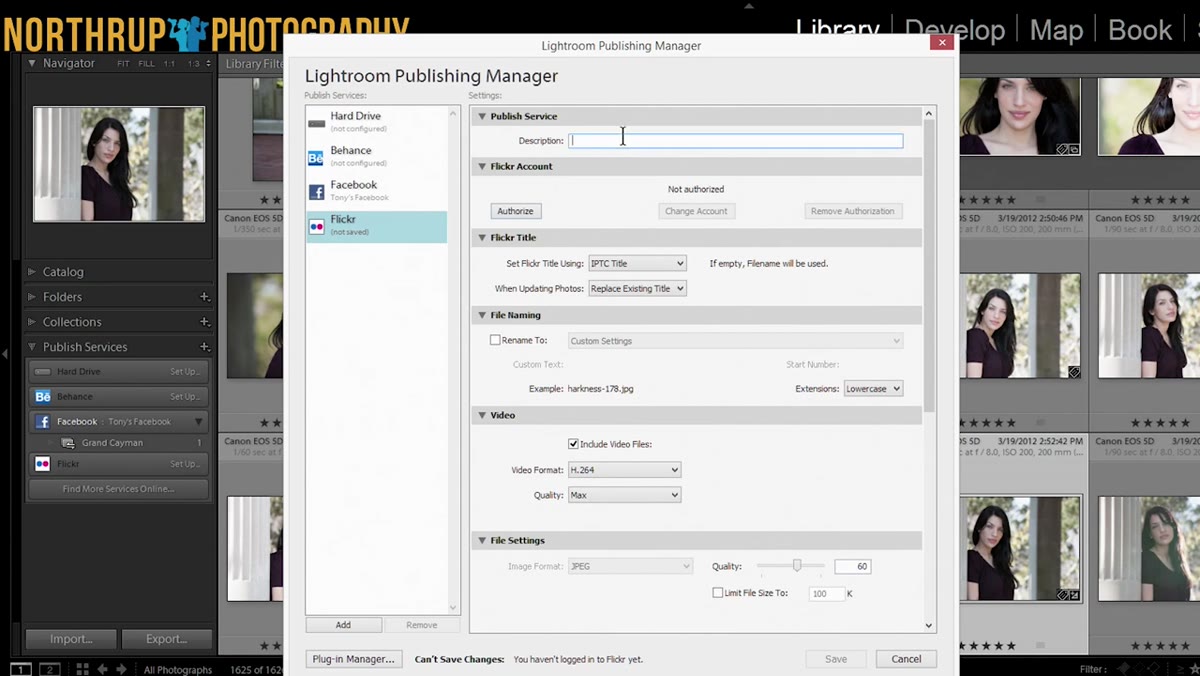 Publish Services setup dialog with authorization button
Click “Set Up” next to any built-in service and you’ll get a configuration panel. Give the connection a name that makes sense for your catalog, then hit “Authorize.” Lightroom will open a browser window where you log into the platform and grant access. The permissions prompt is standard OAuth stuff, nothing unusual.
Publish Services setup dialog with authorization button
Click “Set Up” next to any built-in service and you’ll get a configuration panel. Give the connection a name that makes sense for your catalog, then hit “Authorize.” Lightroom will open a browser window where you log into the platform and grant access. The permissions prompt is standard OAuth stuff, nothing unusual.
Once authorized, you can create named albums or galleries inside the service directly from Lightroom. Drag photos into those albums, and they queue up as “New Photos to Publish.” Nothing uploads until you click the Publish button manually, which is the right call. You want to be intentional about what goes live.
Step 3: Search Google for Third-Party Publish Plugins Before Buying Anything
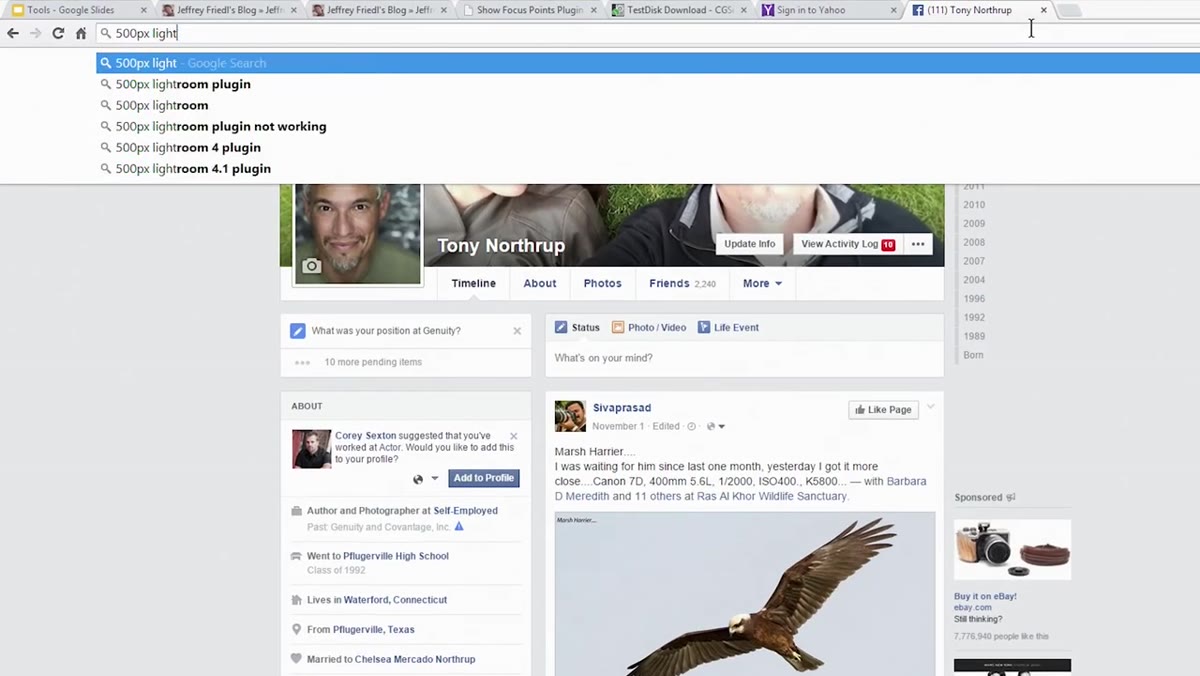 Google search results for Lightroom 500px plugin
This is the step that actually changes your workflow. If you want to publish to a platform that isn’t in Lightroom by default, like 500px, Instagram-adjacent tools, or any number of portfolio sites, don’t go to Adobe’s Plugin Exchange first. Tony’s advice here is blunt and correct: Google it. Search for “Lightroom plugin” plus the platform name, and the first result is often a free, well-maintained option hosted directly on Adobe’s own site or a developer’s page.
Google search results for Lightroom 500px plugin
This is the step that actually changes your workflow. If you want to publish to a platform that isn’t in Lightroom by default, like 500px, Instagram-adjacent tools, or any number of portfolio sites, don’t go to Adobe’s Plugin Exchange first. Tony’s advice here is blunt and correct: Google it. Search for “Lightroom plugin” plus the platform name, and the first result is often a free, well-maintained option hosted directly on Adobe’s own site or a developer’s page.
Tony demonstrates this with 500px, finding a free plugin in about thirty seconds that does exactly what the paid Plugin Exchange listing charges $10 for. The free version and the paid version are functionally the same tool. That pattern repeats across dozens of platforms.
Step 4: Download and Extract the Plugin ZIP File
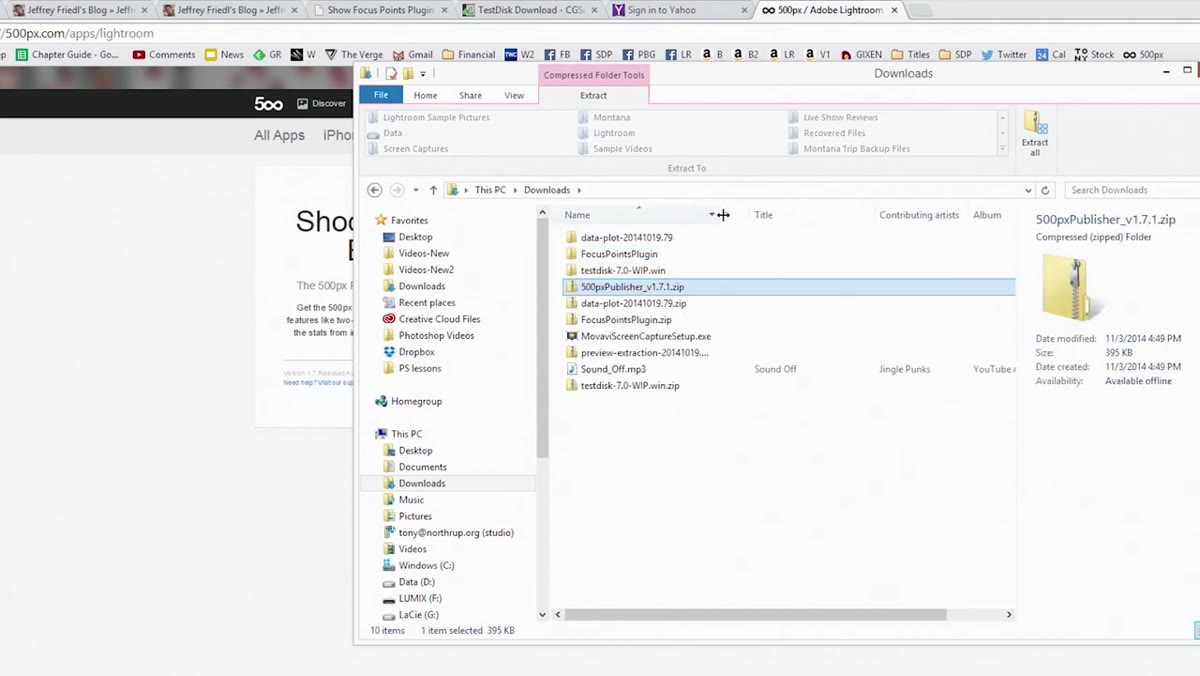 Downloaded ZIP file in the system file browser
Most Lightroom plugins come packaged as ZIP files. Once downloaded, extract the archive using whatever your operating system provides natively. Windows and macOS both handle ZIPs without any third-party software. After extraction, look for a folder with an
Downloaded ZIP file in the system file browser
Most Lightroom plugins come packaged as ZIP files. Once downloaded, extract the archive using whatever your operating system provides natively. Windows and macOS both handle ZIPs without any third-party software. After extraction, look for a folder with an .lrplugin extension. That’s the actual plugin, and it’s a folder, not a single file. Keep it somewhere stable, like a dedicated Plugins folder in your Documents directory, because Lightroom links to it by path.
Don’t drop it in your Downloads folder and forget about it. If you ever clean out Downloads, you’ll break the plugin connection and have to reinstall. I keep mine in a folder called LR_Plugins next to my presets folder, which I’ve named after Wilco albums. Old habits.
Step 5: Install the Plugin via Lightroom’s Plugin Manager
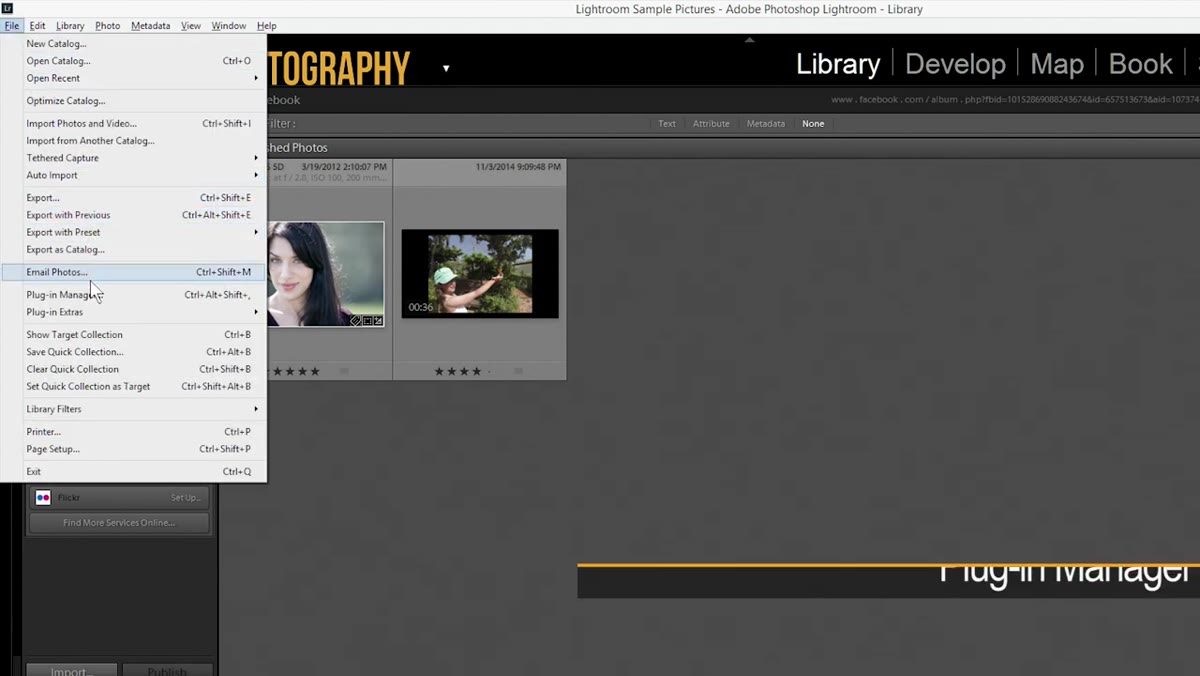 Lightroom Plugin Manager dialog with Add button
Go to File and select Plug-in Manager. Click Add in the lower-left corner of the dialog, then navigate to where you saved the extracted plugin folder. Select the
Lightroom Plugin Manager dialog with Add button
Go to File and select Plug-in Manager. Click Add in the lower-left corner of the dialog, then navigate to where you saved the extracted plugin folder. Select the .lrplugin folder itself, not a file inside it, and click Select Folder. Lightroom will import the plugin and may prompt you to update your catalog. Allow it.
The plugin will now appear in the Plugin Manager list with a green dot indicating it’s active. Click Done and head back to the Publish Services panel in the Library module. Your new service will be there waiting for setup.
Step 6: Skip the Adobe Plugin Exchange for Anything You Can Google Instead
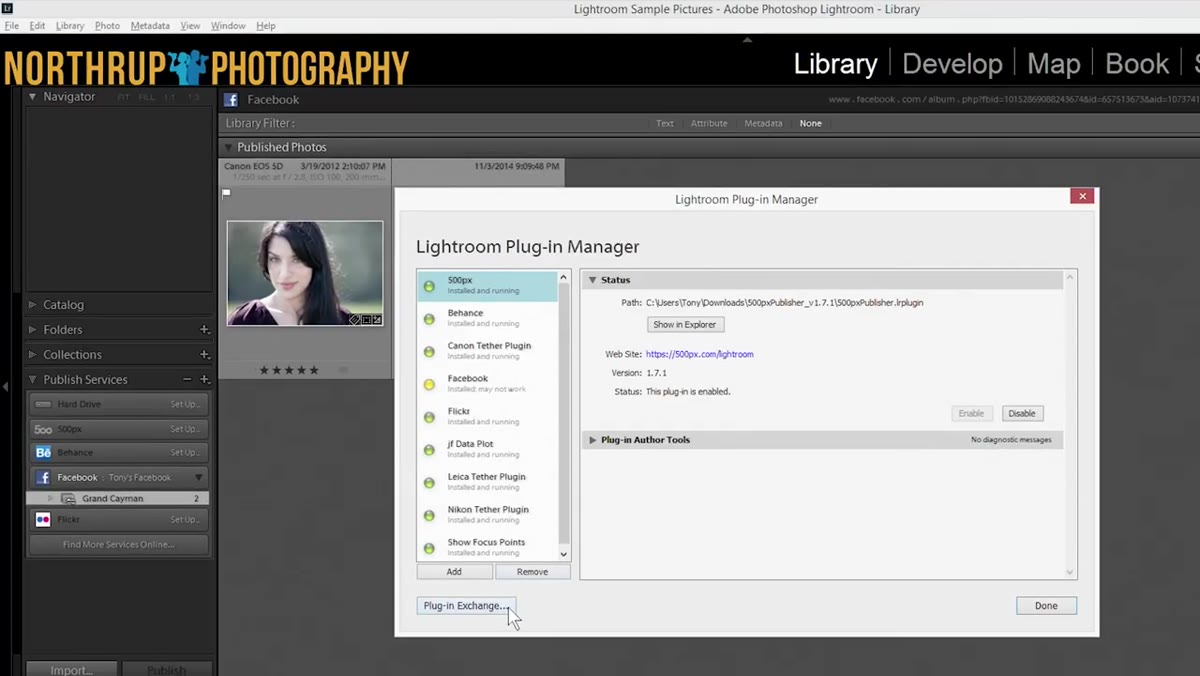 Adobe Plugin Exchange website shown in browser
The Plugin Exchange button inside the Plugin Manager looks tempting. It’s right there, it’s official, it has a clean interface. But as Tony points out, the plugins listed there are almost universally overpriced and frequently unmaintained. You’ll find tools with no update history, paid listings for plugins available free elsewhere, and a general sense that the marketplace was set up and then quietly forgotten.
Adobe Plugin Exchange website shown in browser
The Plugin Exchange button inside the Plugin Manager looks tempting. It’s right there, it’s official, it has a clean interface. But as Tony points out, the plugins listed there are almost universally overpriced and frequently unmaintained. You’ll find tools with no update history, paid listings for plugins available free elsewhere, and a general sense that the marketplace was set up and then quietly forgotten.
Use it to browse categories if you’re looking for inspiration about what kinds of plugins exist. But once you have a name or a function in mind, close the tab and search Google. The community-maintained ecosystem outside Adobe’s walled garden is more active, better documented, and almost always free.
Step 7: Explore Utility Plugins Like Jeffrey Friedl’s Data Plot Tool
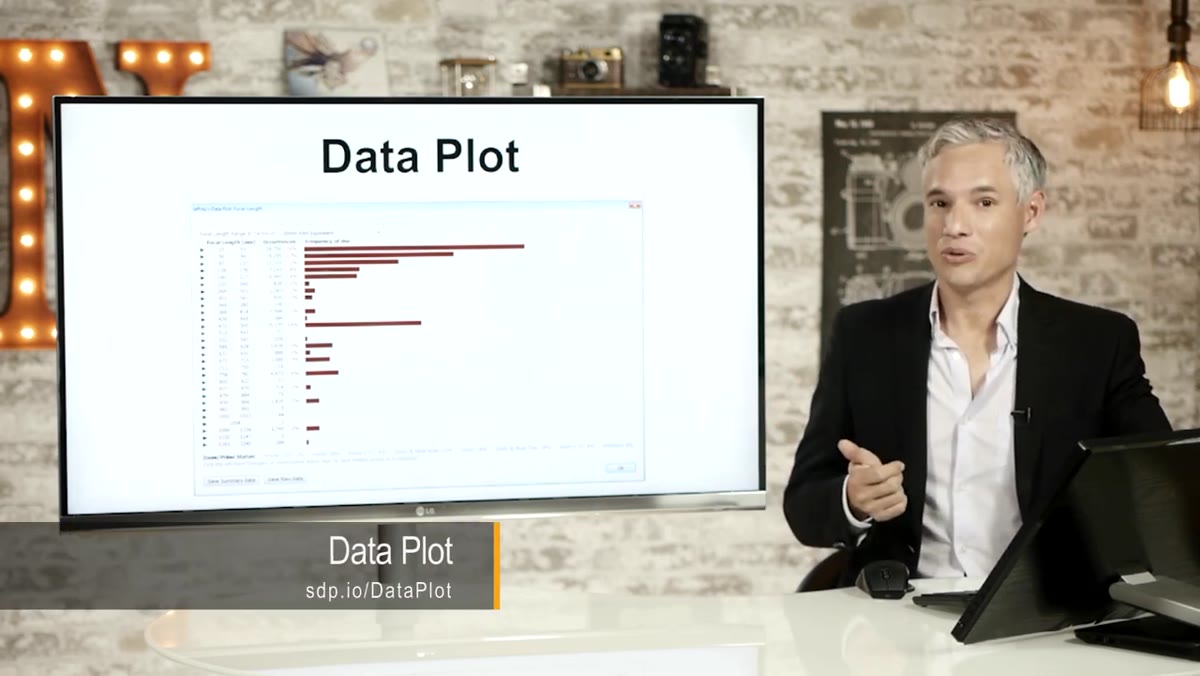 Data plot visualization of library metadata stats
Tony briefly mentions a metadata analysis plugin from developer Jeffrey Friedl that scans your entire Lightroom library and generates visual breakdowns of your shooting data. Which focal lengths do you reach for most? What apertures dominate your catalog? What time of day do you actually shoot?
Data plot visualization of library metadata stats
Tony briefly mentions a metadata analysis plugin from developer Jeffrey Friedl that scans your entire Lightroom library and generates visual breakdowns of your shooting data. Which focal lengths do you reach for most? What apertures dominate your catalog? What time of day do you actually shoot?
There’s no direct editing workflow application here, but I’ve found tools like this genuinely useful for identifying blind spots. I ran something similar on my catalog last year and realized I had almost nothing shot between f/2 and f/2.8, which told me something about how I was (not) using my fast primes. If you’re a data person, this kind of plugin is a rabbit hole worth exploring.
What I’d Add From My Own Experience
The one thing Tony doesn’t dig into is plugin hygiene over time. I’ve installed and abandoned enough plugins to know that the Plugin Manager gets cluttered fast. Every few months I go through and disable anything I haven’t used in 90 days. Disabled plugins don’t run in the background or slow catalog operations, but they stay listed so you can re-enable without reinstalling.
Also worth noting: if you switch computers or move your Lightroom catalog, you’ll need to repoint the Plugin Manager to wherever your plugin folders landed. Building that LR_Plugins folder habit early makes migration dramatically less painful.
The real takeaway from this tutorial is that Lightroom’s publish and plugin infrastructure is more capable than most photographers realize, and the best tools for extending it are almost always free if you know where to look. Adobe’s marketplace isn’t the answer. A targeted Google search almost always is.
Watch the full tutorial on YouTube and see Tony’s live demonstration of the whole install process, especially if you’re new to working with the Plugin Manager.
Comments
Leave a Comment