Split Toning in Lightroom: The Secret Weapon for Cinematic Color Grading

Split Toning in Lightroom: The Secret Weapon for Cinematic Color Grading

Split Toning in Lightroom: The Secret Weapon for Cinematic Color Grading I used to think my photos looked flat compared to what I saw in professional cinematography. The colors felt one-dimensional, like someone had dumped a single Instagram filter over everything. Then I discovered split toning, and suddenly my images had that moody, cinematic depth I’d been chasing. If you’re serious about color grading in Lightroom, this technique is non-negotiable.

Split Toning in Lightroom: The Secret Weapon for Cinematic Color

Split Toning in Lightroom: The Secret Weapon for Cinematic Color

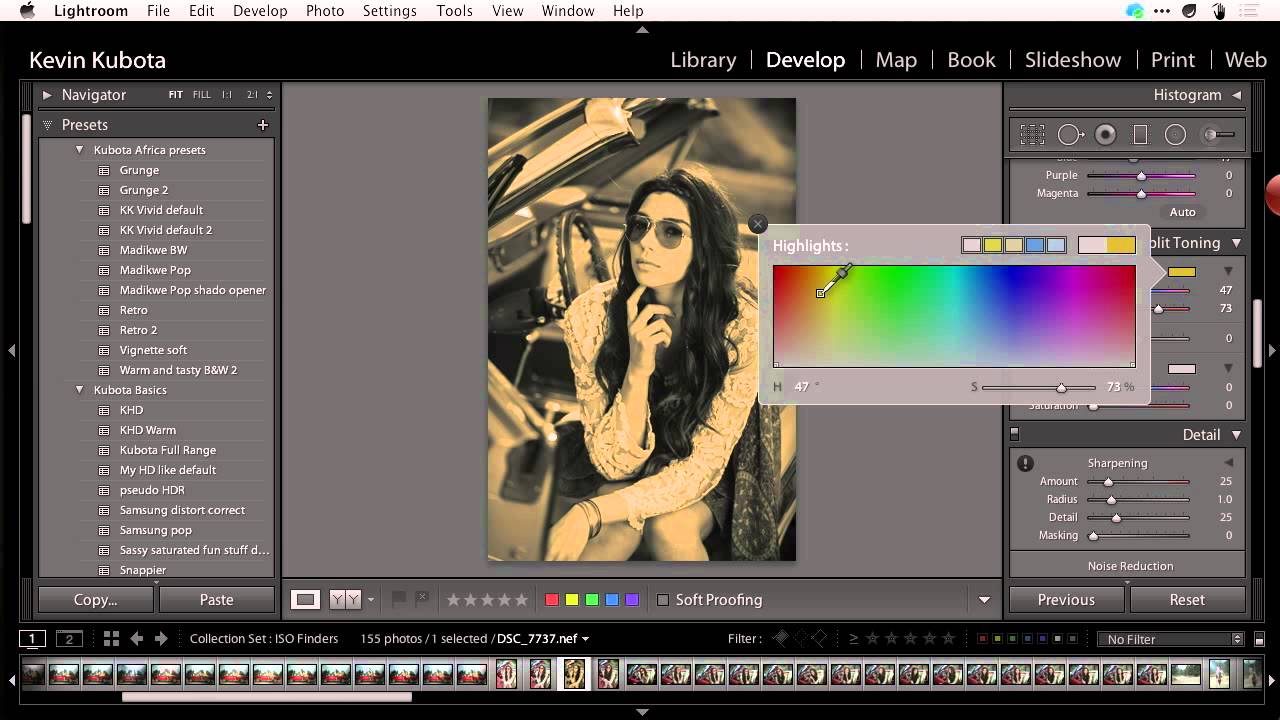
Split Toning in Lightroom: The Secret Weapon for Cinematic Color I remember the first time I really understood split toning. I was editing a sunset portrait that felt flat despite nailing the exposure, and I thought: “This needs something.” I opened the Split Toning panel in Lightroom, threw a cool blue into the shadows while keeping the highlights warm, and suddenly the image had dimension. It looked like a film still instead of a snapshot.

Split Toning: Adding Mood with Color Contrast

Split Toning: Adding Mood with Color Contrast

Split toning adds different color tints to the shadows and highlights of an image. It’s one of the most powerful mood-setting tools in Lightroom, and it works on both color and black and white images. The principle is simple: warm highlights and cool shadows (or vice versa) create a color contrast that adds dimension and atmosphere to any image. Understanding the Color Grading Panel Lightroom’s Color Grading panel (formerly called Split Toning) gives you three color wheels: