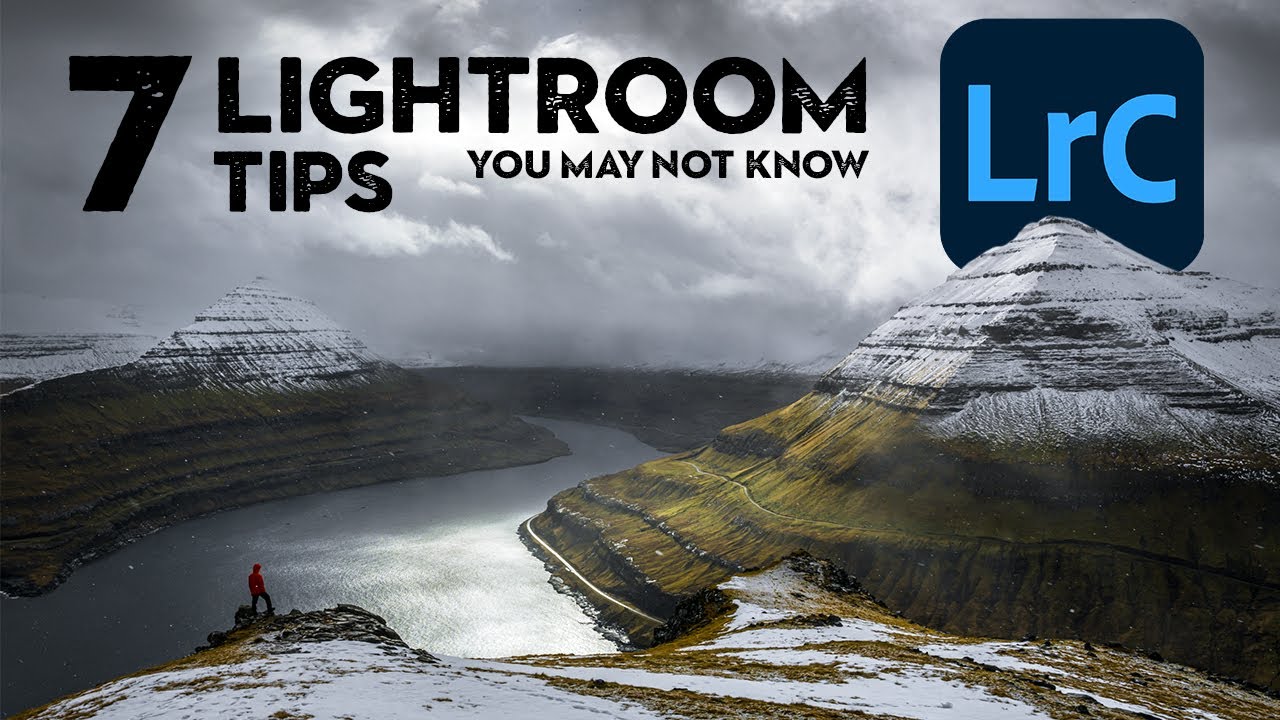
There’s a specific kind of frustration that comes from knowing a tool exists inside Lightroom but never quite trusting it enough to build it into your workflow. For me, that was local adjustments. I spent years doing most of my work on the global panels, nudging exposure and HSL sliders, and treating the brush tool like a last resort. It wasn’t until I started paying closer attention to how working landscape photographers actually edit that I realized how much I was leaving on the table.
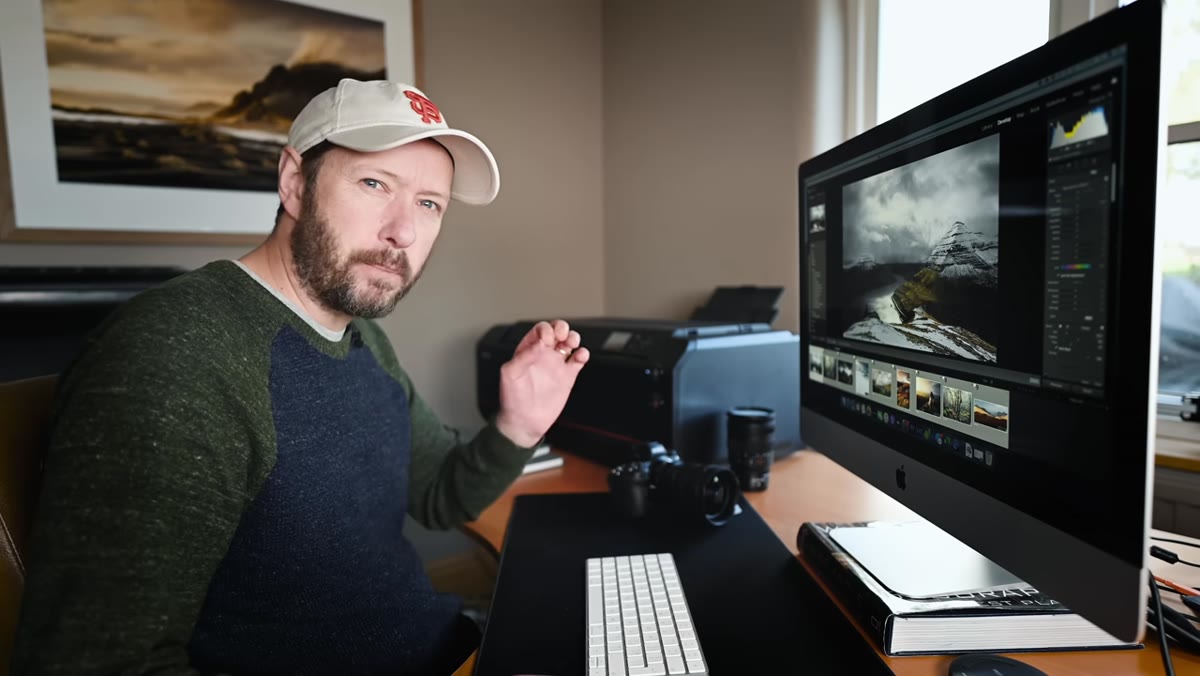
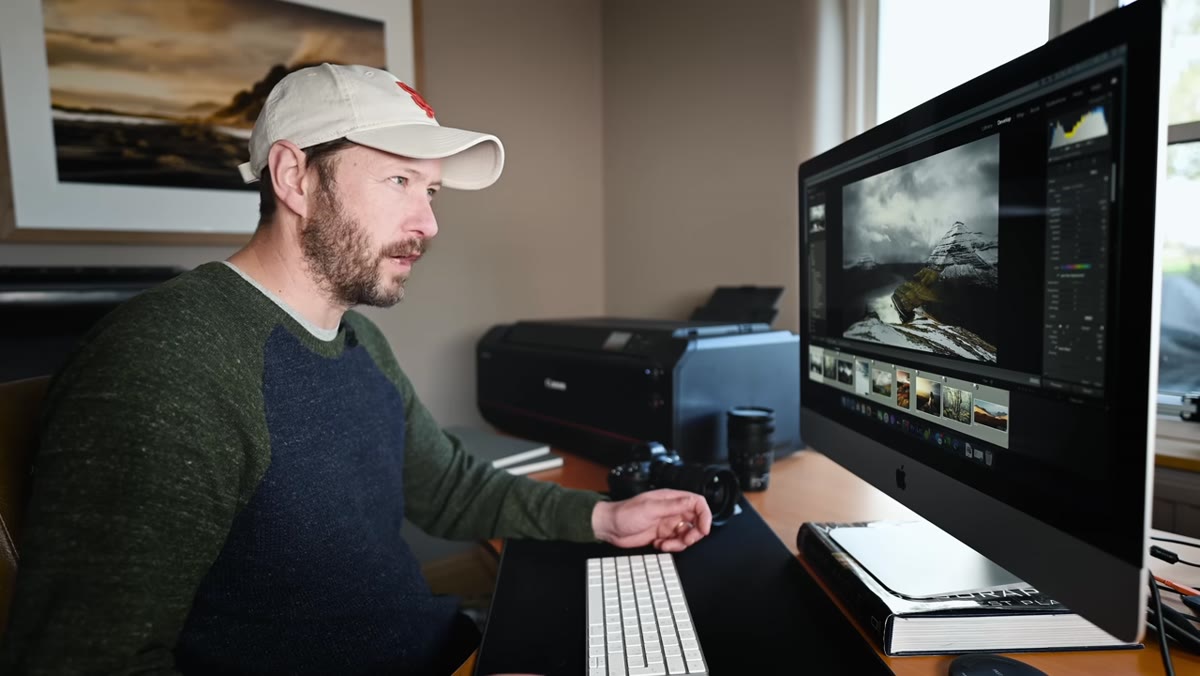
In this Nigel Danson tutorial, Watch the full tutorial on YouTube, Danson walks through seven Lightroom techniques he relies on regularly, including some that arrived in recent Lightroom updates. I’m focusing here on the brush workflow he opens with, because it’s the most immediately transferable and it reframed how I think about local editing entirely. The core idea is simple: stop treating brushes as a one-off fix and start building a small library of preset brushes you reach for the way a painter reaches for a familiar tool.
Step 1: Reset the Brush Tool Before You Start
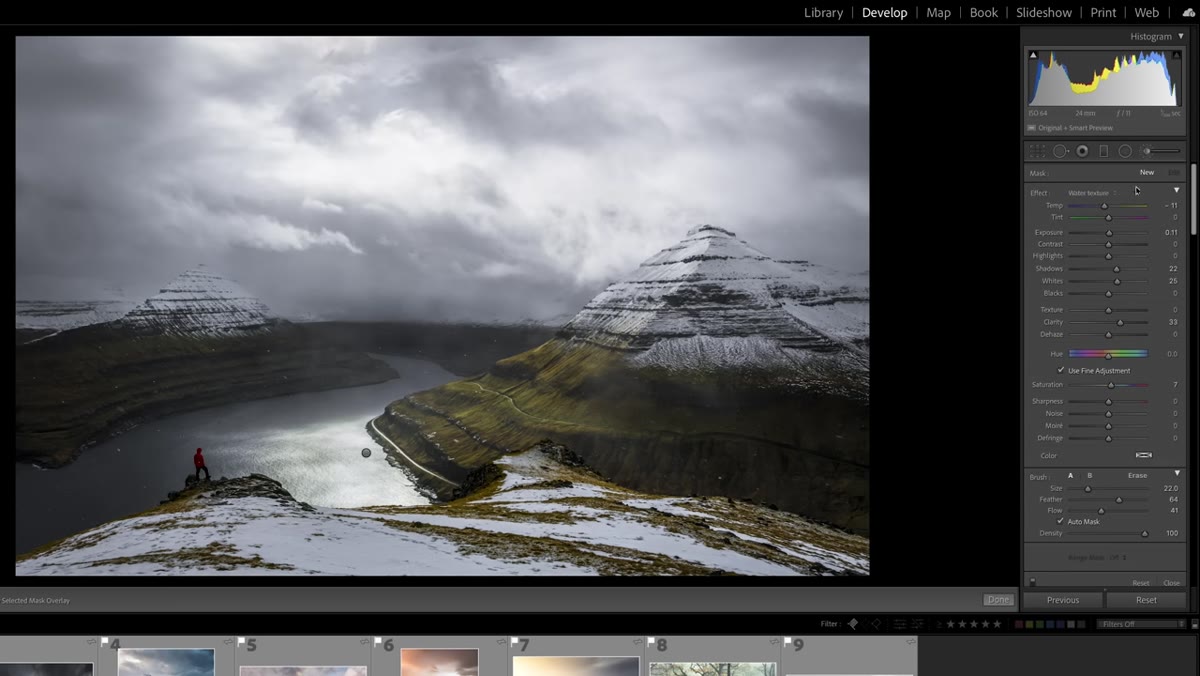 Double-clicking Effect label to reset brush settings
Before painting anything, Danson demonstrates a quick reset trick that most people skip. If you double-click directly on the word “Effect” at the top of the brush panel, Lightroom resets all the sliders to zero in one move. No hunting through individual sliders. This works the same way in Graduated Filters and Radial Filters too, so it’s worth making it muscle memory across all three tools. Starting with a clean slate means your preset loads predictably every time, which matters when you’re working fast.
Double-clicking Effect label to reset brush settings
Before painting anything, Danson demonstrates a quick reset trick that most people skip. If you double-click directly on the word “Effect” at the top of the brush panel, Lightroom resets all the sliders to zero in one move. No hunting through individual sliders. This works the same way in Graduated Filters and Radial Filters too, so it’s worth making it muscle memory across all three tools. Starting with a clean slate means your preset loads predictably every time, which matters when you’re working fast.
Step 2: Build a Small Set of Brush Presets for Repeated Tasks
 Brush preset dropdown showing custom saved presets
This is the core habit Danson is teaching, and it’s the one that changes everything. Instead of dialing in brush settings from scratch on every image, save a handful of presets for the adjustments you make constantly. Danson keeps a tight selection: a dodge preset for brightening without shifting color, a contrast-and-clarity preset for pulling texture out of foliage or rock faces, and a few others built around specific subjects. The presets aren’t meant to be perfect final looks. They’re starting points that get you 80% of the way there in one click, and you tweak from there.
Brush preset dropdown showing custom saved presets
This is the core habit Danson is teaching, and it’s the one that changes everything. Instead of dialing in brush settings from scratch on every image, save a handful of presets for the adjustments you make constantly. Danson keeps a tight selection: a dodge preset for brightening without shifting color, a contrast-and-clarity preset for pulling texture out of foliage or rock faces, and a few others built around specific subjects. The presets aren’t meant to be perfect final looks. They’re starting points that get you 80% of the way there in one click, and you tweak from there.
To save a brush preset, configure your sliders however you want, then open the Effect dropdown at the top of the brush panel and choose “Save Current Settings as New Preset.” Name it something specific. I name mine after songs, because I’ll actually remember what “Desolation Row” does to a sky faster than I’ll remember what “Preset 07” does. Whatever system makes you reach for the right one quickly is the right system.
Step 3: Use Flow Instead of Opacity for Gradual Buildup
 Brush settings panel showing Flow set to 41
Danson sets his brush flow to around 41 for texture work, and this is worth understanding properly because flow and opacity behave differently. Opacity sets a ceiling on how strong the effect gets. Flow controls how much of the effect is applied with each pass, but you can build intensity by brushing over the same area multiple times. It’s closer to how paint actually works, layering up gradually. For dodging and burning, lower flow gives you more control, especially on transitions where a hard edge would look artificial. Start around 30-50 and paint in multiple light passes rather than one heavy one.
Brush settings panel showing Flow set to 41
Danson sets his brush flow to around 41 for texture work, and this is worth understanding properly because flow and opacity behave differently. Opacity sets a ceiling on how strong the effect gets. Flow controls how much of the effect is applied with each pass, but you can build intensity by brushing over the same area multiple times. It’s closer to how paint actually works, layering up gradually. For dodging and burning, lower flow gives you more control, especially on transitions where a hard edge would look artificial. Start around 30-50 and paint in multiple light passes rather than one heavy one.
Step 4: Paint Texture Into Specific Areas With a Targeted Preset
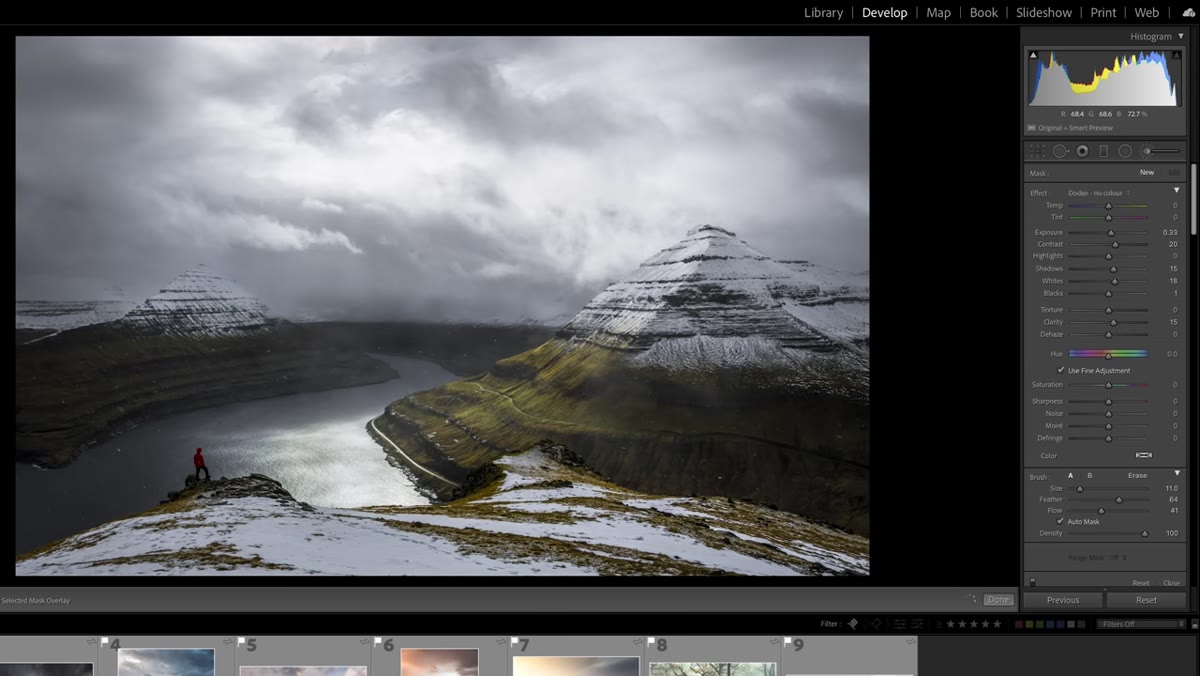 Brush being applied to mountain texture in Faroe Islands image
On a landscape image from the Faroe Islands, Danson selects his dodge preset and paints over a mountain face to pull out surface detail and texture. The preset in this case adds contrast, lifts shadows slightly, and brings in some clarity, all calibrated for rock and terrain. He reduces the brush size before painting so he can stay precise on the area he wants to affect without spilling onto the sky or foreground.
Brush being applied to mountain texture in Faroe Islands image
On a landscape image from the Faroe Islands, Danson selects his dodge preset and paints over a mountain face to pull out surface detail and texture. The preset in this case adds contrast, lifts shadows slightly, and brings in some clarity, all calibrated for rock and terrain. He reduces the brush size before painting so he can stay precise on the area he wants to affect without spilling onto the sky or foreground.
The before and after here is subtle, which is actually the point. Good local adjustment work usually is. If the viewer can tell you used a brush, you probably went too far. You’re looking for the image to feel more dimensional and detailed, not for a specific zone to look like it was composited in from somewhere else.
Step 5: Use the Overlay View to Check Your Mask
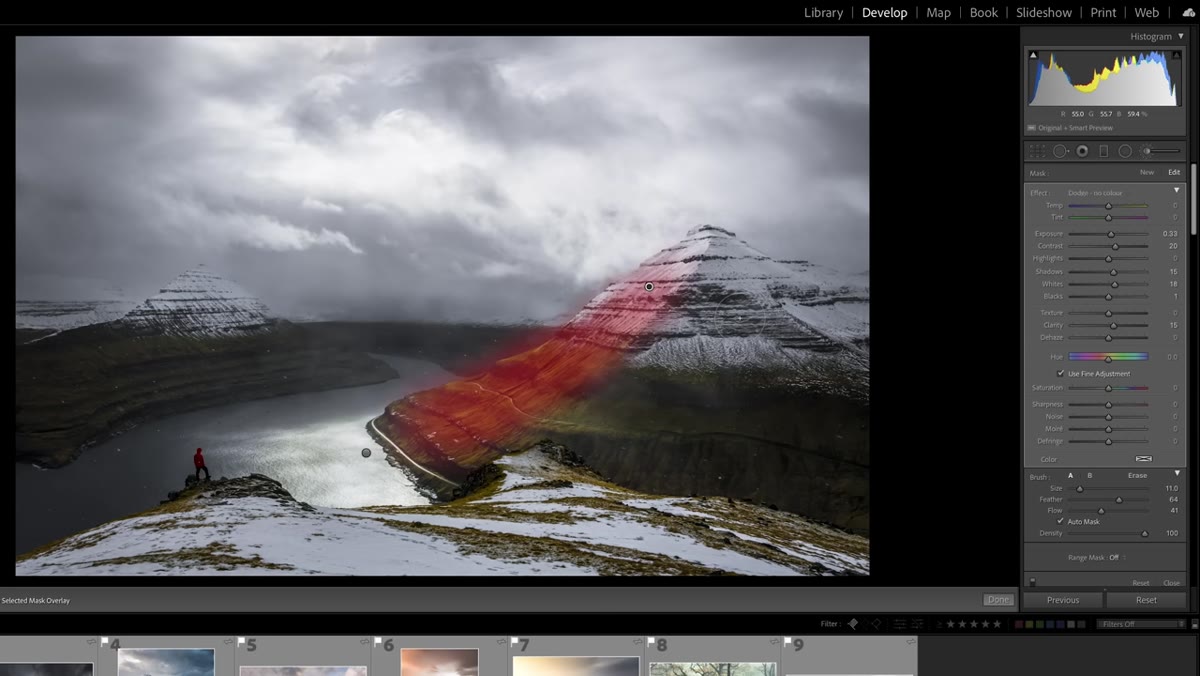 Red overlay showing brush mask coverage with ‘O’ key active
Press O on your keyboard while a brush adjustment is active and Lightroom will display a colored overlay showing exactly where the brush has been applied. This is one of those features that sounds minor until the first time you catch yourself with paint bleeding into an area you didn’t intend to affect. The overlay makes it immediately obvious. You can erase from your mask using the brush in Erase mode (hold Alt/Option to toggle) and the overlay will update in real time so you can see what you’re removing.
Red overlay showing brush mask coverage with ‘O’ key active
Press O on your keyboard while a brush adjustment is active and Lightroom will display a colored overlay showing exactly where the brush has been applied. This is one of those features that sounds minor until the first time you catch yourself with paint bleeding into an area you didn’t intend to affect. The overlay makes it immediately obvious. You can erase from your mask using the brush in Erase mode (hold Alt/Option to toggle) and the overlay will update in real time so you can see what you’re removing.
Danson mentions this briefly but I’d argue it deserves more airtime in any brush workflow. Before committing to a look, flip the overlay on, check your coverage, and clean up the edges. It takes thirty seconds and saves you from the subtle weirdness that happens when dodging bleeds into a sky.
Step 6: Apply Subject-Specific Presets for Common Details
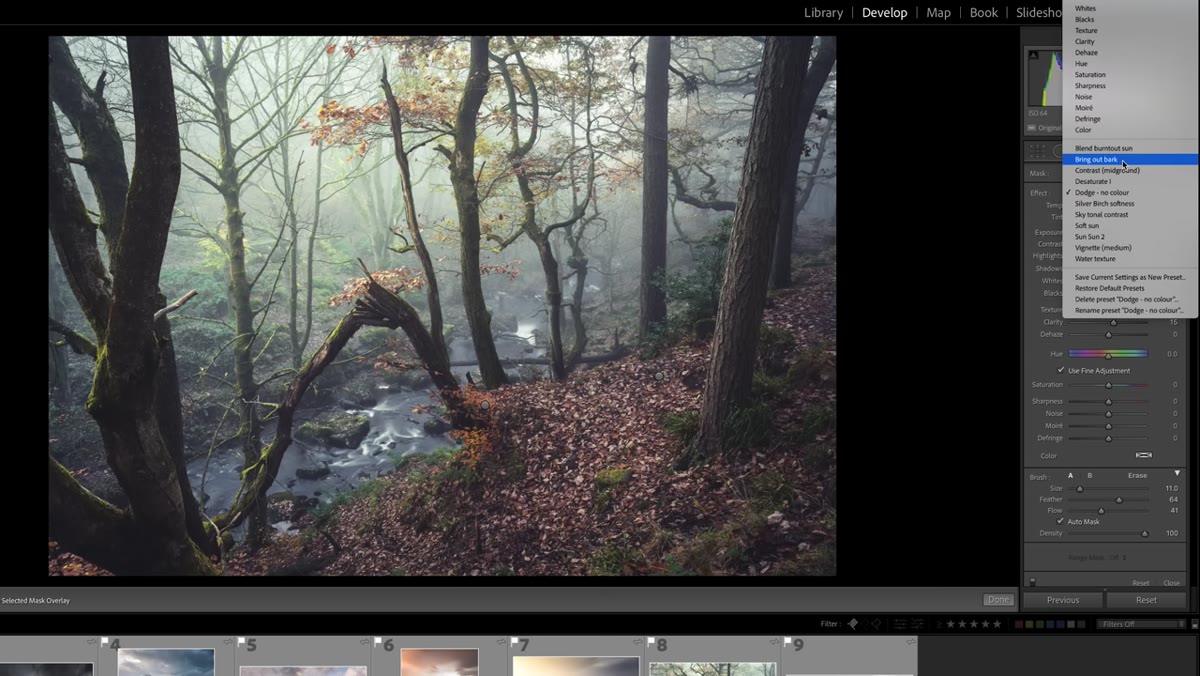 Brush preset selected for bark and tree texture in woodland image
On a second image, this one a foggy woodland scene with autumn color, Danson switches to a preset he’s specifically built for tree bark. Same logic as before: the preset is dialed in for the contrast and texture characteristics of that particular surface. He resizes the brush and paints along the trunk and branches to make the detail read more clearly without brightening the overall scene.
Brush preset selected for bark and tree texture in woodland image
On a second image, this one a foggy woodland scene with autumn color, Danson switches to a preset he’s specifically built for tree bark. Same logic as before: the preset is dialed in for the contrast and texture characteristics of that particular surface. He resizes the brush and paints along the trunk and branches to make the detail read more clearly without brightening the overall scene.
This is where having multiple presets earns its keep. A setting that works great on rough granite reads completely differently on smooth birch bark. Rather than reconfiguring everything from scratch, having two or three terrain-specific presets means you can match your tool to your subject in seconds.
My Own Addition: Combine Brush Presets With Luminance Masking
One thing Danson doesn’t get into here, but that I’d stack on top of this workflow, is using Lightroom’s masking tools to restrict where your brush can paint. If you create a luminance range mask and limit it to midtones before painting, you can use a more aggressive clarity or contrast preset without it crunching your highlights or blocking up shadows. It’s especially useful on high-contrast scenes where you want to bring out texture in a mid-bright area without touching the bright sky right next to it. Think of it as a guard rail for your brush work.
The biggest thing I took from watching this tutorial is that local adjustments stop being tedious the moment you stop reinventing them from scratch every time. Build a small preset library, keep it named clearly, and treat your brushes like actual tools rather than emergency fixes. That shift in mindset is what separates editors who feel like they’re fighting Lightroom from editors who feel like they’re fluent in it.
Watch the full tutorial on YouTube to see all seven of Danson’s tips in action, including the ones beyond the brush workflow covered here.
Comments
Leave a Comment