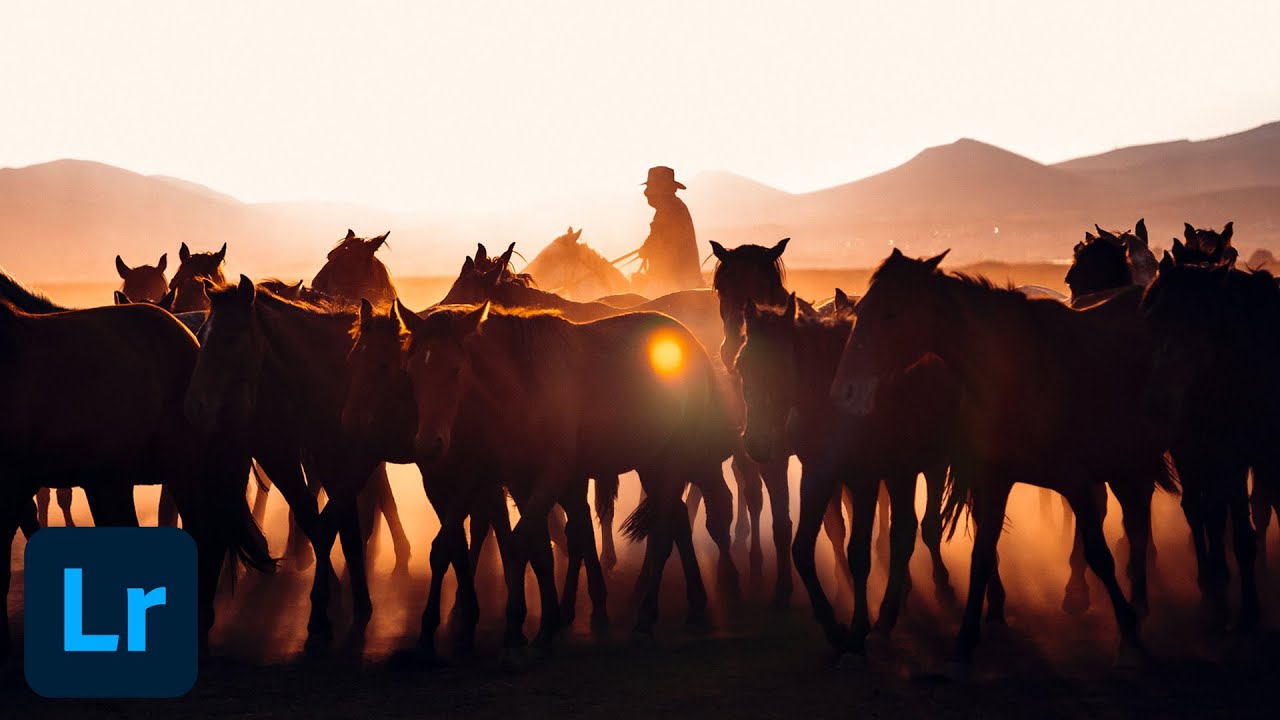
There’s a specific kind of frustration that comes with shooting on an overcast afternoon when the light is flat, the sky is gray, and the image you captured looks nothing like the warm, cinematic scene you had in your head. I’ve been there more times than I’d like to count. What saves those photos, consistently, isn’t a reshoot. It’s knowing how to build the light you wanted directly inside Lightroom. Once you understand how highlights, shadows, and color grading interact, you stop being at the mercy of whatever the sky decided to do that day.
In this Aaron Nace (PHLEARN) tutorial, Watch the full tutorial on YouTube, he walks through a complete sunset color grading workflow using Lightroom Desktop. The technique covers white balance adjustments, targeted color grading across tonal ranges, and radial masks to simulate actual directional light from a sun source. It’s one of those workflows that looks complicated from the outside but makes total sense once you see the logic underneath it.
What I appreciate most about Aaron’s approach here is that he treats color grading as a conversation between tonal ranges rather than a single global adjustment. The shadows don’t have to match the highlights. In fact, they shouldn’t. Real sunset light creates a split, warm shadows lifting from reflected ground light, and hot orange-gold highlights coming directly from the low sun. Replicating that split is the whole game.
Step 1: Set Your White Balance to Warm
 White balance slider being dragged toward warm end
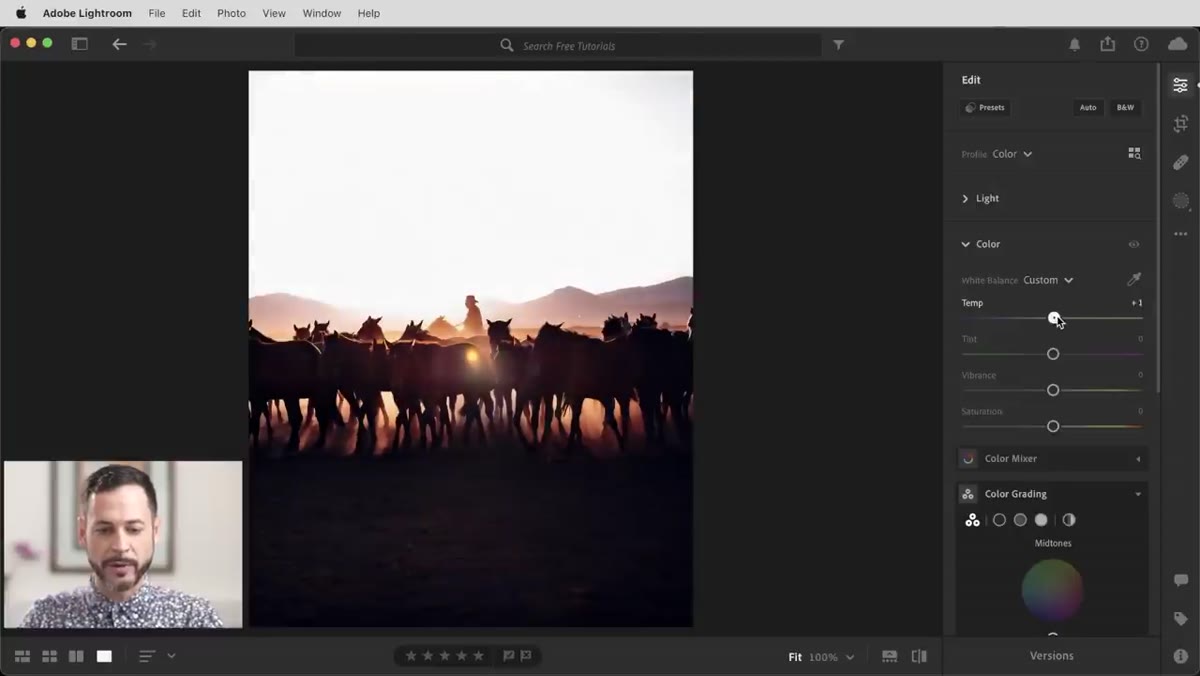
Start in the Edit panel. Before touching anything else, pull the Color Temperature slider to the right to push the overall image toward warm. Aaron’s starting image reads cool and flat, and his first move is correcting that at the global level. How far you go depends on your photo, but you’re looking for that yellow-orange warmth to start bleeding into the highlights without making skin tones look sunburned.
White balance slider being dragged toward warm end
Start in the Edit panel. Before touching anything else, pull the Color Temperature slider to the right to push the overall image toward warm. Aaron’s starting image reads cool and flat, and his first move is correcting that at the global level. How far you go depends on your photo, but you’re looking for that yellow-orange warmth to start bleeding into the highlights without making skin tones look sunburned.
Follow this with a slight Tint adjustment to the left, pulling back any excess magenta. Cool-to-warm shifts often introduce unwanted pink tones, and this small correction keeps your colors reading as natural sunlight rather than a color filter.
Step 2: Open the Color Grading Panel
 Color Grading panel open with three tonal wheels visible
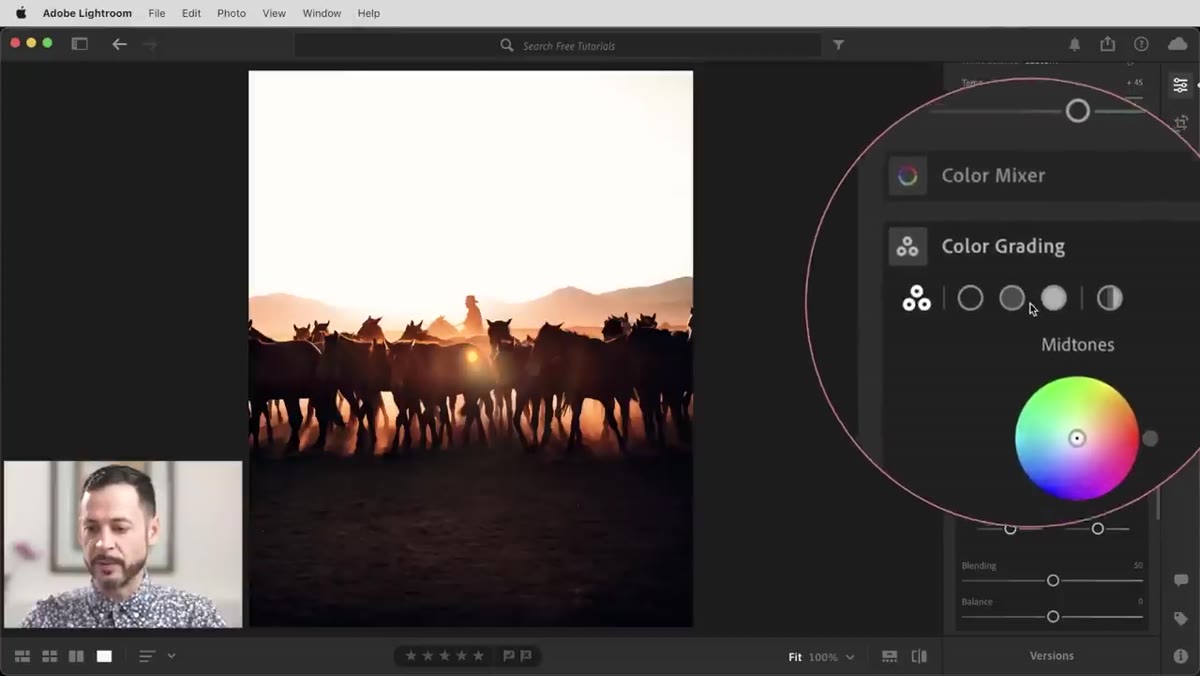
Navigate to the Color Grading panel. You’ll see three color wheels representing your Shadows, Midtones, and Highlights, each with its own hue, saturation, and luminance controls. If you’ve only used Hue/Saturation or the basic Tone Curve before, this panel is going to change how you think about color. You’re not adjusting all colors globally. You’re painting specific color casts into specific tonal zones.
Color Grading panel open with three tonal wheels visible
Navigate to the Color Grading panel. You’ll see three color wheels representing your Shadows, Midtones, and Highlights, each with its own hue, saturation, and luminance controls. If you’ve only used Hue/Saturation or the basic Tone Curve before, this panel is going to change how you think about color. You’re not adjusting all colors globally. You’re painting specific color casts into specific tonal zones.
Think of it this way: you can make your darkest shadows glow amber while keeping your highlights a true golden orange. That’s the split-toning logic that makes sunset edits feel real rather than filtered.
Step 3: Color Grade the Shadows Warm
 Shadow color wheel being dragged to warm orange position
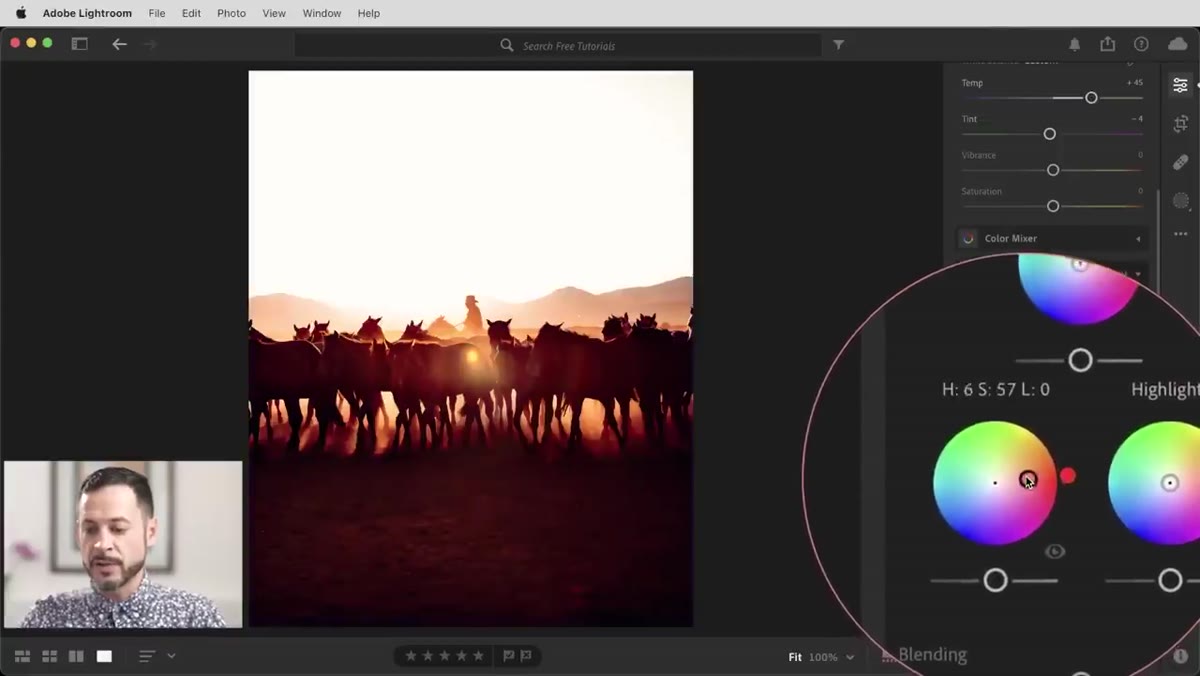
Click on the central dot inside the Shadows wheel and drag it toward the warm orange-red zone. As you pull outward from center, you’re increasing saturation. The direction you drag sets the hue. Aaron initially pulls toward yellow, then corrects slightly toward red-orange for a more realistic sunset shadow tone. Sunset shadows aren’t pure yellow. They pick up reflected warm light from the ground and atmosphere, which skews slightly reddish.
Shadow color wheel being dragged to warm orange position
Click on the central dot inside the Shadows wheel and drag it toward the warm orange-red zone. As you pull outward from center, you’re increasing saturation. The direction you drag sets the hue. Aaron initially pulls toward yellow, then corrects slightly toward red-orange for a more realistic sunset shadow tone. Sunset shadows aren’t pure yellow. They pick up reflected warm light from the ground and atmosphere, which skews slightly reddish.
Use the luminance slider at the bottom of the wheel to bring your shadows up in brightness a little. One of the things that makes golden hour images feel so alive is that the shadows aren’t crushing to black. They stay relatively open and warm. Lift them just enough that detail starts showing up in the darker areas of the frame.
Step 4: Darken and Warm the Highlights
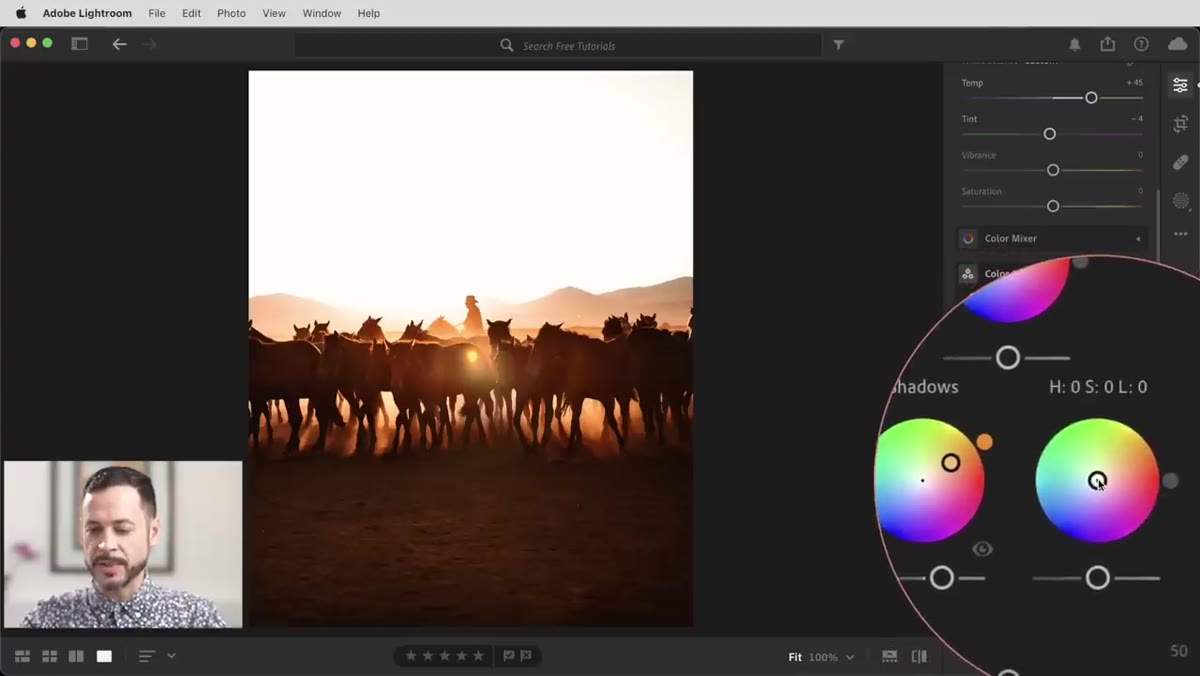 Highlights color wheel adjusted to orange with luminance reduced
Move to the Highlights wheel and repeat the drag outward, this time aiming for a warmer orange. Where shadows benefit from some lift, highlights often need to come down slightly in luminance to sell the sunset feel. A noon sky is bright and white. A sunset sky is saturated and slightly darker in feel. Pulling the highlight luminance down a notch creates that characteristic richness without blowing the tones out.
Highlights color wheel adjusted to orange with luminance reduced
Move to the Highlights wheel and repeat the drag outward, this time aiming for a warmer orange. Where shadows benefit from some lift, highlights often need to come down slightly in luminance to sell the sunset feel. A noon sky is bright and white. A sunset sky is saturated and slightly darker in feel. Pulling the highlight luminance down a notch creates that characteristic richness without blowing the tones out.
The color you’re aiming for here is something close to a warm amber or deep orange. If it’s starting to look like a sepia filter, you’ve pushed too far on saturation. Aaron keeps his highlights punchy but still photographic.
Step 5: Correct the Midtones
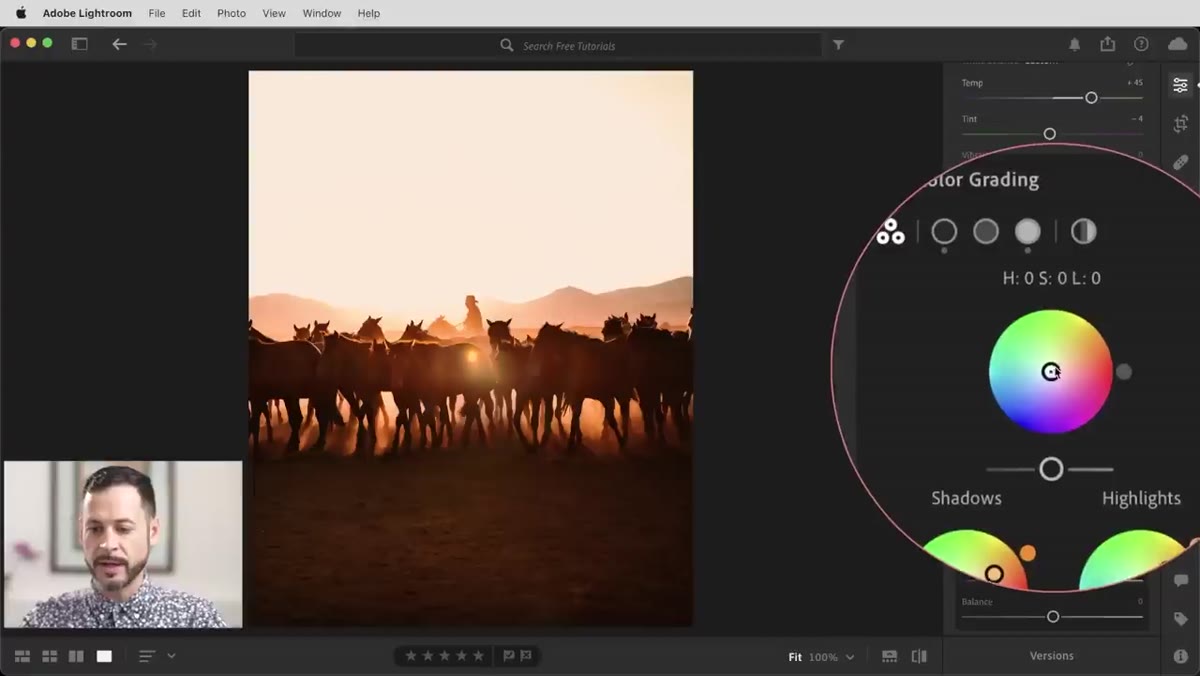 Midtones wheel being adjusted away from magenta
The midtones often get neglected in color grading tutorials, but this is where your image can silently go wrong. Aaron notes that his midtones are reading slightly magenta after the shadow and highlight adjustments, which is a common side effect of warming the outer tonal ranges. He pulls the midtone wheel slightly to correct this, pushing toward a more neutral or subtly warm color.
Midtones wheel being adjusted away from magenta
The midtones often get neglected in color grading tutorials, but this is where your image can silently go wrong. Aaron notes that his midtones are reading slightly magenta after the shadow and highlight adjustments, which is a common side effect of warming the outer tonal ranges. He pulls the midtone wheel slightly to correct this, pushing toward a more neutral or subtly warm color.
Your midtones cover a lot of the image’s visible real estate, faces, foreground objects, mid-distance elements. If they’re pulling magenta, the overall image starts feeling sickly rather than warm. A small correction here does a lot of heavy lifting.
Step 6: Add a Radial Mask to Simulate Sun Glow
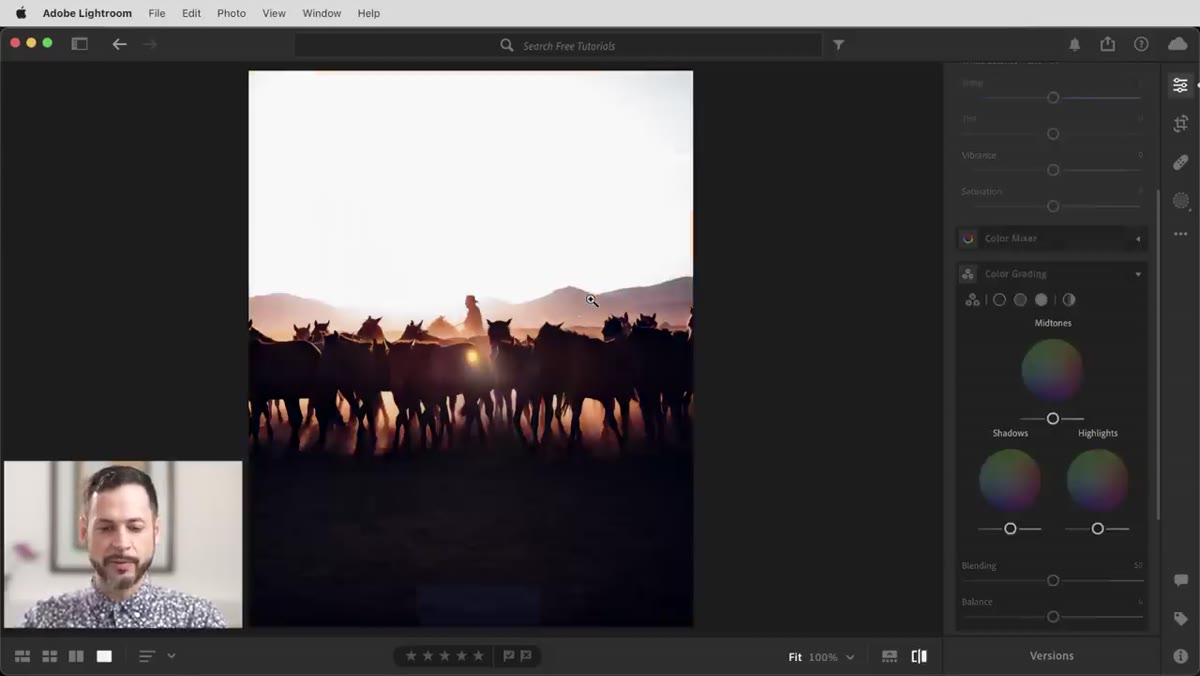 Radial gradient mask placed near sun position in frame
This is where the tutorial moves from color grading into light simulation. Use a Radial Gradient mask and place it near where your sun source is in the frame, or where you want it to appear. Inside the mask, increase exposure and warmth to create a concentrated pool of bright, hot light. Feather the edges heavily so the glow bleeds naturally into the surrounding sky rather than creating a hard circle.
Radial gradient mask placed near sun position in frame
This is where the tutorial moves from color grading into light simulation. Use a Radial Gradient mask and place it near where your sun source is in the frame, or where you want it to appear. Inside the mask, increase exposure and warmth to create a concentrated pool of bright, hot light. Feather the edges heavily so the glow bleeds naturally into the surrounding sky rather than creating a hard circle.
The effect mimics the way real lens flare and atmospheric glow work around a low sun. It’s subtle when done right, and dramatic in the before-and-after comparison. Aaron’s tip of hitting the slash key to toggle between before and after is worth using here to calibrate how far to push the glow.
My Take: Use This as a Starting Point, Not a Recipe
I’ve run this exact workflow on a range of photos, portraits, landscapes, architecture shots, and the thing I keep coming back to is that the values Aaron uses are highly specific to his source image. The technique transfers completely. The numbers don’t. Your shadows might need less saturation if there are people in the frame. Your highlights might need more luminance lift if you’re working with a darker base exposure.
What I’d suggest is saving your own version of this as a starting preset once you’ve dialed it in for your typical shooting conditions. I have a preset I named after a Wilco song that lives somewhere around these settings, and it’s become my first stop whenever I open a flat afternoon shot that needs some life. The Color Grading panel holds these adjustments in a way that makes them easy to tweak per image even after the preset applies, which is exactly what you want.
The single most important idea in this tutorial is that sunset light isn’t one color, it’s a system of color relationships between tonal zones. Get those relationships right and the image reads as real golden hour. Get them wrong and it reads as filtered. The difference is in the split between your shadows and highlights, and that’s exactly what the Color Grading panel is built to control.
Watch the full tutorial on YouTube to follow along with Aaron’s original walkthrough and download the practice image he uses.
Comments
Leave a Comment