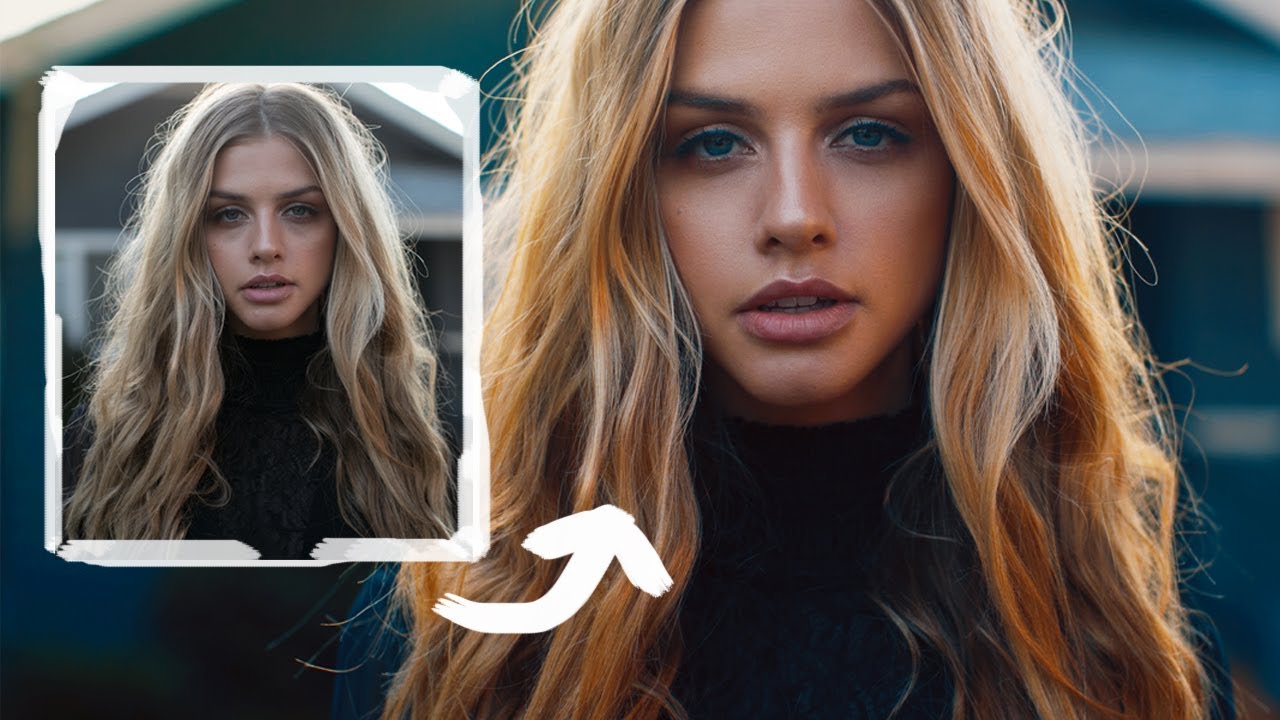
Most of my work lives in Lightroom. That’s where I’m comfortable, where my presets are, where I do about 90% of my editing before I ever think about opening Photoshop. But there’s a category of result that Lightroom just doesn’t get you to on its own, and cinematic color grading for portraits is at the top of that list. The look I’m talking about is that film-adjacent, intentional, slightly desaturated-but-still-rich tone you see in editorial work and high-end portrait photography. It looks like the photographer knew exactly what they were doing at every stage. Because they did.
In this Jessica Kobeissi tutorial, she walks through her full portrait editing workflow in Photoshop, specifically focused on frequency separation for skin retouching and a cinematic coloring approach she developed for her video work and started applying to stills. Watch the full tutorial on YouTube before or after reading this, but the breakdown below is designed so you can follow along without having the video open.
What caught my attention was the detail in her skin retouching technique. Frequency separation is one of those tools that sounds more complicated than it is, but the execution matters enormously. She shows exactly what goes wrong when you rush it, and that alone is worth your time.
Step 1: Set Up Frequency Separation With an Action
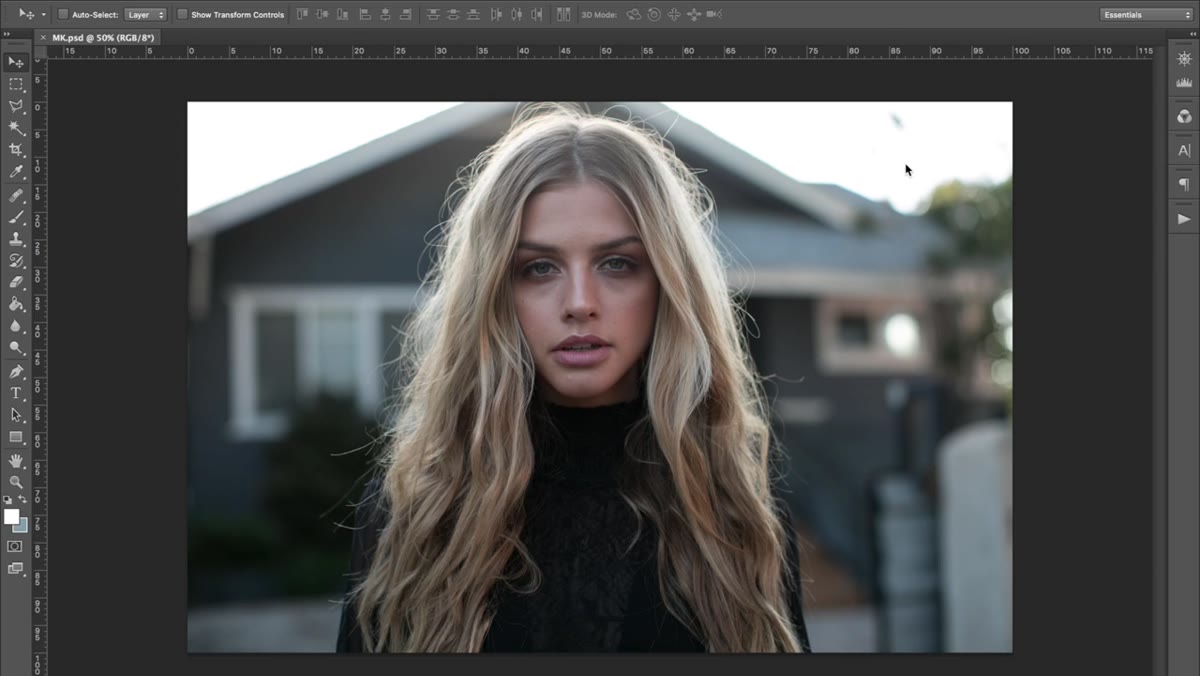 Frequency separation action running in the Actions panel
If you’re doing frequency separation regularly and you’re still setting it up manually every time, stop. Jessica uses a saved Photoshop action to run the entire frequency separation setup automatically, which creates two layers: one for texture, one for color and tone. This is the correct way to build the habit. You can find free frequency separation actions online, or record your own once you know the steps.
Frequency separation action running in the Actions panel
If you’re doing frequency separation regularly and you’re still setting it up manually every time, stop. Jessica uses a saved Photoshop action to run the entire frequency separation setup automatically, which creates two layers: one for texture, one for color and tone. This is the correct way to build the habit. You can find free frequency separation actions online, or record your own once you know the steps.
If you’re new to frequency separation entirely, the short version is this: it splits your image into a high-frequency layer (fine skin texture, pores, hair detail) and a low-frequency layer (color, tone, broader shading). Editing them separately means you can smooth skin tone without destroying texture, which is how retouching should work.
Step 2: Duplicate Your Working Layer Before You Touch Anything
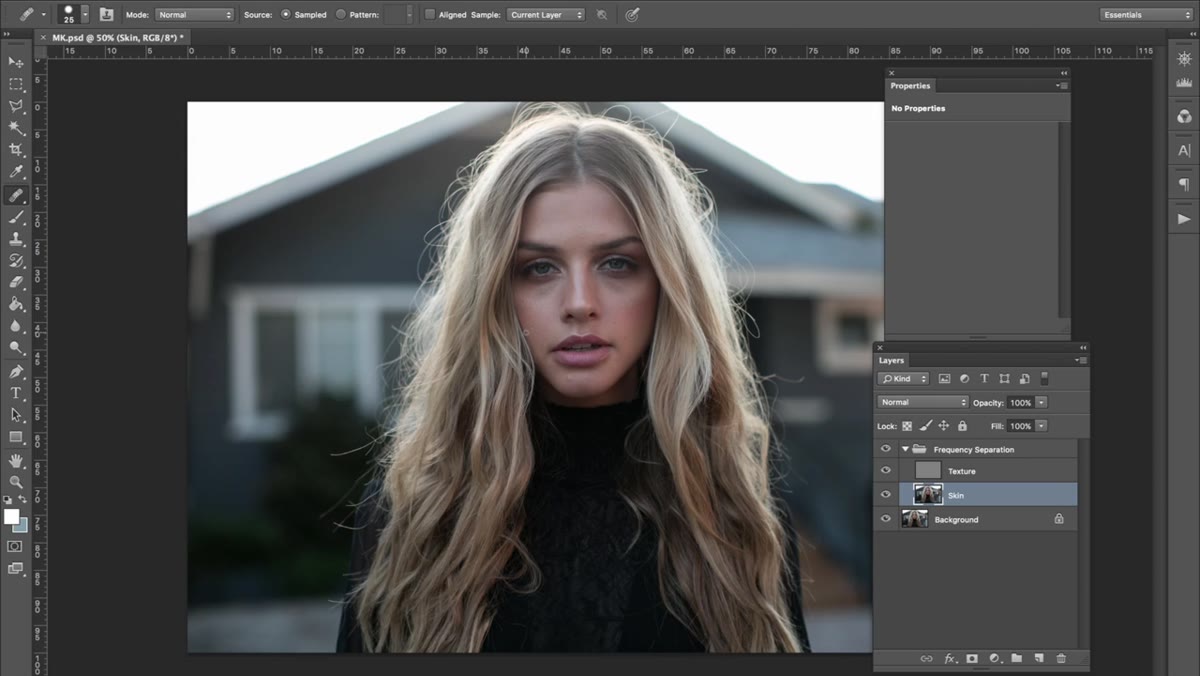 Duplicate layer created above original in the Layers panel
Before any retouching begins, Jessica duplicates the skin layer with Command+J (Ctrl+J on Windows). This is non-negotiable for her, and it should be for you too. The duplicate sits above the original and acts as your safety net. If your retouching goes sideways 45 minutes in, the original is right there, untouched.
Duplicate layer created above original in the Layers panel
Before any retouching begins, Jessica duplicates the skin layer with Command+J (Ctrl+J on Windows). This is non-negotiable for her, and it should be for you too. The duplicate sits above the original and acts as your safety net. If your retouching goes sideways 45 minutes in, the original is right there, untouched.
This is one of those habits that separates people who edit confidently from people who edit nervously. Work on the copy. Always.
Step 3: Turn Off the Texture Layer to See Tonal Problems Clearly
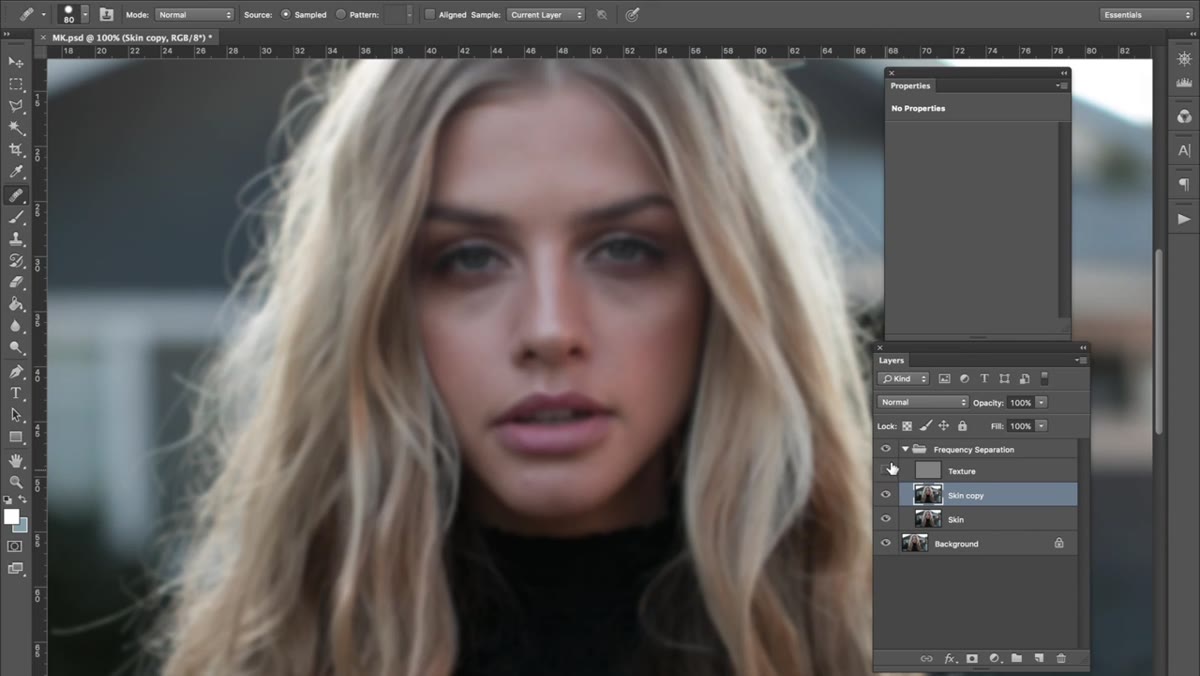 Texture layer visibility turned off, low-frequency layer visible
Once you’re inside the low-frequency (color and tone) layer, turn off the texture layer above it. With texture hidden, the image looks slightly blurry and painterly, and that’s exactly the point. You’re now looking at pure tonal information without the distraction of pores and fine detail. Uneven patches, shadows that shouldn’t be there, discoloration under the eyes, all of it becomes much easier to identify.
Texture layer visibility turned off, low-frequency layer visible
Once you’re inside the low-frequency (color and tone) layer, turn off the texture layer above it. With texture hidden, the image looks slightly blurry and painterly, and that’s exactly the point. You’re now looking at pure tonal information without the distraction of pores and fine detail. Uneven patches, shadows that shouldn’t be there, discoloration under the eyes, all of it becomes much easier to identify.
This is the layer where you’ll do most of your corrective work before touching texture. Most people skip this visibility toggle and wonder why their retouching looks off.
Step 4: Use the Clone Stamp With Alt-Click and a Clicking Technique (Not Dragging)
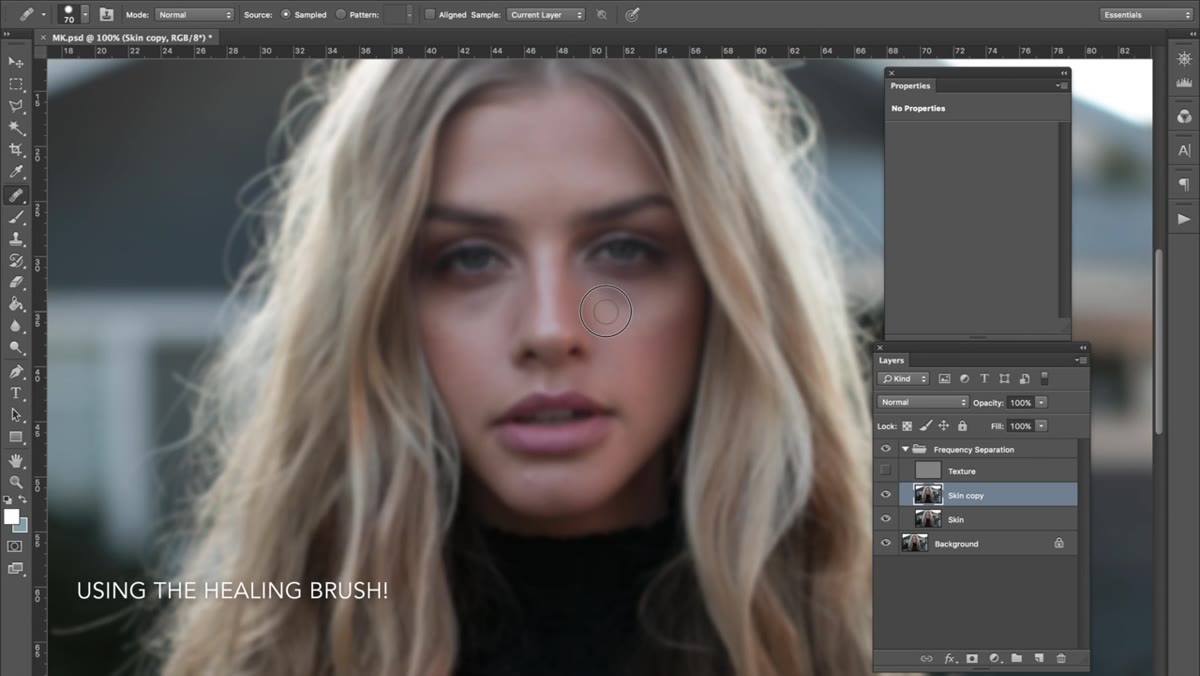 Clone stamp sampling skin tone on the low-frequency layer
Here’s the core of Jessica’s skin retouching method, and the part most people get wrong. On the low-frequency layer, she uses the Clone Stamp tool with the Alt key (Option on Mac) held down to sample nearby skin tones. The critical detail is that she clicks repeatedly rather than dragging the brush across the skin.
Clone stamp sampling skin tone on the low-frequency layer
Here’s the core of Jessica’s skin retouching method, and the part most people get wrong. On the low-frequency layer, she uses the Clone Stamp tool with the Alt key (Option on Mac) held down to sample nearby skin tones. The critical detail is that she clicks repeatedly rather than dragging the brush across the skin.
Dragging smears. Clicking builds. Each click deposits a small, controlled sample from a nearby area, and picking up the cursor and repositioning between clicks keeps the blending natural. She also stays within the same tonal zone: light skin samples from light areas, shadow samples from shadows. Mixing those zones is what creates that telltale plastic, over-retouched look. Patience here is the actual skill. This technique took her months to feel natural with, and she says so directly. Give yourself that same grace period.
Step 5: Reintroduce the Texture Layer and Assess
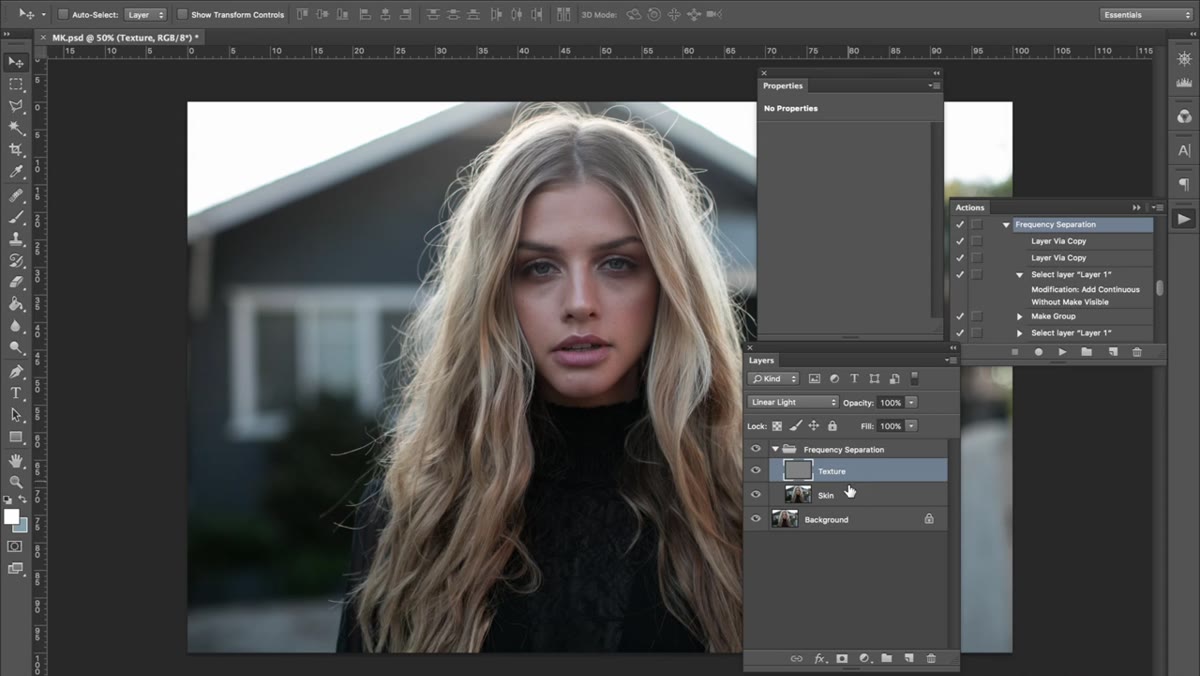 Texture layer toggled back on over corrected low-frequency layer
Once you’ve corrected the tone and color on the low-frequency layer, turn the texture layer back on. This is the moment of truth. What looked smooth on the color layer should now look natural and three-dimensional with texture restored on top. If something looks patchy or fake, it’s almost always a tonal mismatch on the lower layer, not a texture problem.
Texture layer toggled back on over corrected low-frequency layer
Once you’ve corrected the tone and color on the low-frequency layer, turn the texture layer back on. This is the moment of truth. What looked smooth on the color layer should now look natural and three-dimensional with texture restored on top. If something looks patchy or fake, it’s almost always a tonal mismatch on the lower layer, not a texture problem.
Make any additional corrections with the texture layer visible so you’re seeing the full composite result. Small adjustments at this stage carry a lot of weight.
Step 6: Apply Cinematic Color Grading
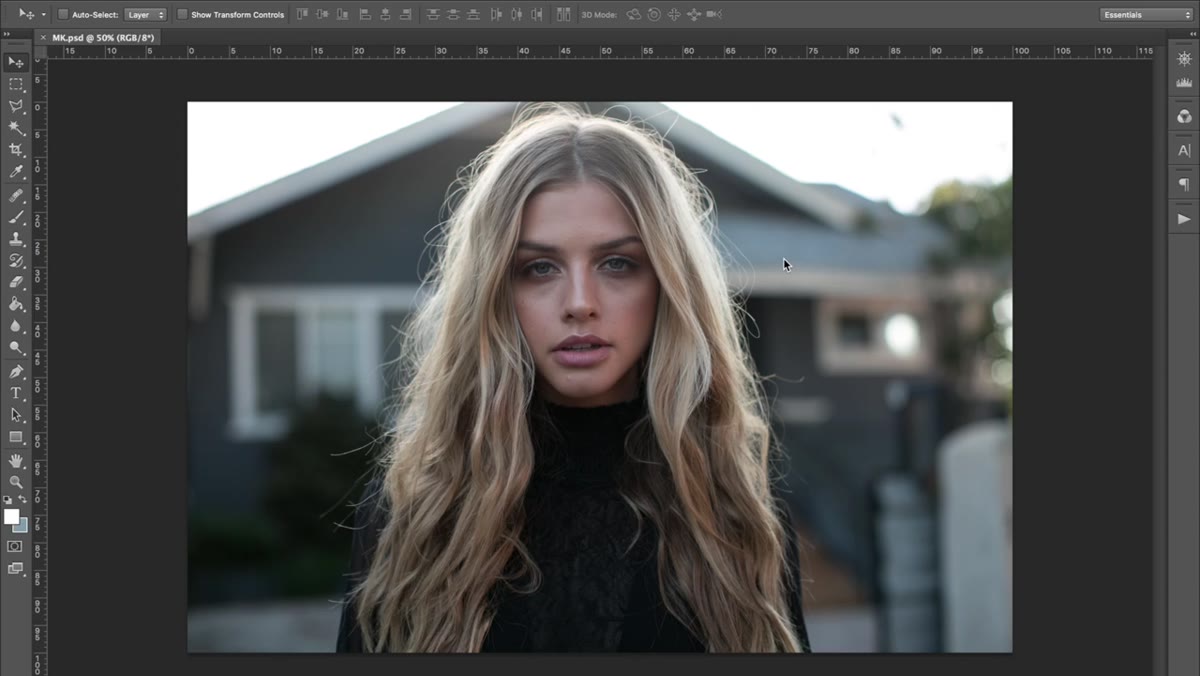 Final color-graded portrait shown in comparison to original
After retouching, Jessica moves into her cinematic coloring approach, which she originally developed for video work and adapted for still portraits. The core idea is color contrast rather than tonal contrast alone. Where standard portrait editing might push saturation or use HSL sliders to pop specific colors, cinematic grading uses complementary tones in the shadows and highlights to create depth.
Final color-graded portrait shown in comparison to original
After retouching, Jessica moves into her cinematic coloring approach, which she originally developed for video work and adapted for still portraits. The core idea is color contrast rather than tonal contrast alone. Where standard portrait editing might push saturation or use HSL sliders to pop specific colors, cinematic grading uses complementary tones in the shadows and highlights to create depth.
Think warm highlights and cool shadows, or the reverse depending on your image. The result feels intentional and filmic rather than processed. In Photoshop, this can be achieved through Color Balance adjustment layers, Curves with per-channel adjustments, or a combination of both. The specific values depend entirely on your image, but the principle is consistent: give your shadows and highlights different color identities.
What I Do Differently (And Why You Might Too)
Jessica’s workflow lives in Photoshop start to finish, which makes sense given the complexity of what she’s doing. My own version of this technique actually splits across two applications. I handle initial color grading in Lightroom first, using a base preset (currently a moody one I built around a Nick Drake record) to set the overall tone, then I bring the file into Photoshop for frequency separation and final cinematic color work.
The advantage is that Lightroom’s HSL panel and Color Grading module let me establish the shadow and highlight tones quickly before I commit to anything in Photoshop. The cinematic color adjustments I make in Photoshop then become refinements rather than starting points, which saves time. If you’re already comfortable in Lightroom, this hybrid approach might feel more natural than jumping straight into Photoshop color work.
One thing I’d add to Jessica’s skin retouching section: zoom out and check your work at 50% and 100% view regularly. Errors that are invisible at 200% zoom become obvious at print size, and the reverse is also true. What looks too heavy zoomed in often disappears at a natural viewing distance.
The single most transferable idea from this whole tutorial is the separation of tone from texture. When you stop trying to fix both at once, both improve. That’s the insight that makes frequency separation worth learning, and it’s the same logic that makes cinematic color grading work: you’re making decisions about one thing at a time instead of moving sliders and hoping.
Watch the full tutorial on YouTube to see Jessica’s before and after, which is genuinely striking and worth ten minutes of your afternoon.
Comments
Leave a Comment