There’s a specific kind of dread that hits when you get home from a shoot, open Lightroom, and realize your field edits are stranded in a separate catalog that doesn’t talk to your master library. I’ve been there. You end up either re-editing everything or doing a clunky import dance that somehow still leaves things out of order. It’s the unglamorous side of location photography that nobody talks about enough.
Watch the full tutorial on YouTube
In this Nigel Danson tutorial, he walks through his complete field file management system, from folder structure to physical card habits to getting everything back into a single master catalog when he’s home. Danson shoots landscape photography and spends a lot of time working from a camper van, which means he’s stress-tested this workflow in real conditions. What makes his approach worth studying isn’t that it’s complicated. It’s that it’s simple in a way that took real thought to arrive at.
Step 1: Build a Folder Structure You’ll Still Understand in Ten Years
 Lightroom catalog showing folders organized by year
Danson’s folder hierarchy goes: Year, then Quarter, then Location. So a Scotland trip in October 2023 lives under 2023 > Q4 > Scotland. That’s it. No overthinking, no nesting folders five levels deep.
Lightroom catalog showing folders organized by year
Danson’s folder hierarchy goes: Year, then Quarter, then Location. So a Scotland trip in October 2023 lives under 2023 > Q4 > Scotland. That’s it. No overthinking, no nesting folders five levels deep.
The reason this holds up over time is that location names stay meaningful but date-only folders get confusing fast. You will not remember what “November Shoot 3” means in four years. Organizing by year and quarter first means your catalog stays browsable even as it grows into the thousands. Danson has kept a single catalog running for close to two decades, and this structure is a big part of why that’s actually workable rather than a nightmare.
Step 2: Keep Your Master Catalog on a Portable SSD, Not Your Laptop’s Internal Drive
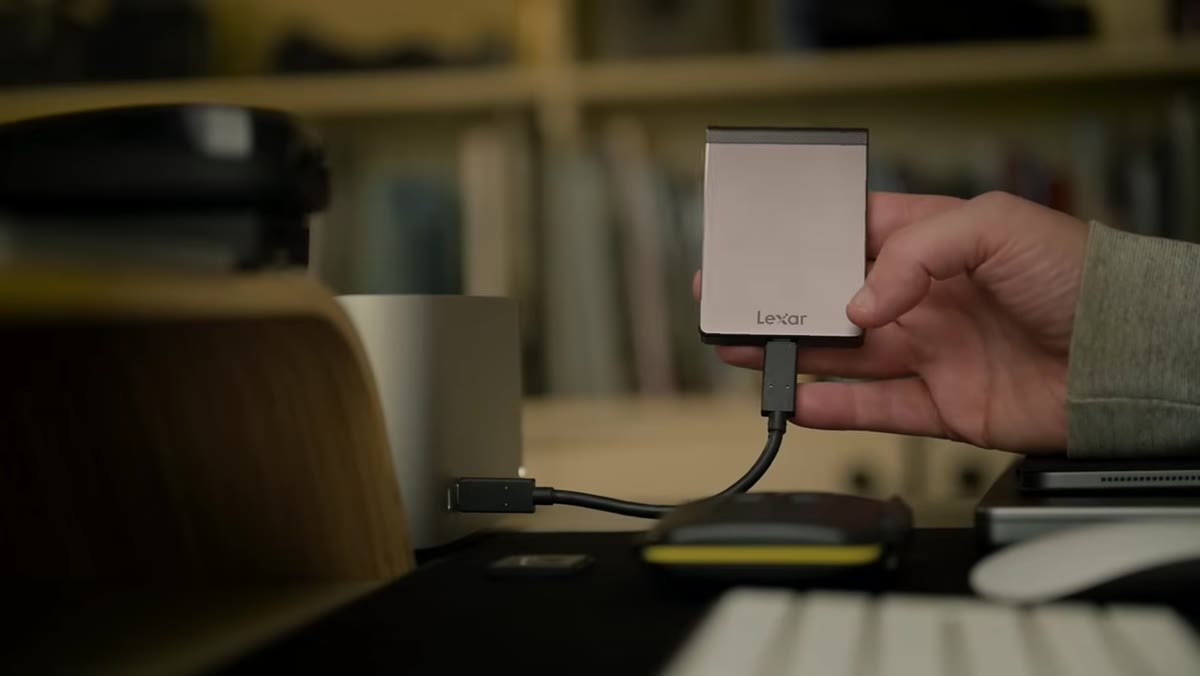 Lexar SSD shown next to SD and CFexpress cards on a desk
This is the move that makes everything else click. Danson keeps his Lightroom master catalog on an external SSD, not on the laptop itself. When he leaves for a trip, he takes the SSD with him. When he comes back, he plugs it into his studio machine. No importing, no merging catalogs, no re-editing.
Lexar SSD shown next to SD and CFexpress cards on a desk
This is the move that makes everything else click. Danson keeps his Lightroom master catalog on an external SSD, not on the laptop itself. When he leaves for a trip, he takes the SSD with him. When he comes back, he plugs it into his studio machine. No importing, no merging catalogs, no re-editing.
The laptop’s internal drive stores the application, but the catalog and any locally-cached previews live on the portable drive. A fast SSD matters here because Lightroom’s performance is tied to how quickly it can read and write catalog data. Danson uses a 2TB drive, which gives plenty of room for the catalog plus scratch space without constantly managing storage. If you’re currently keeping your catalog buried in your Documents folder on a single machine, moving it to a portable drive is the single highest-leverage change you can make to your travel workflow.
Step 3: Back Up the Catalog Before You Leave
 Lightroom backup dialog appearing on screen during close
When you close Lightroom, it gives you the option to back up the catalog. Don’t skip this. Danson backs his up to a NAS drive, which is a network-attached storage device that sits on his home network. This means he always has a current backup in a separate physical location from the SSD he’s taking on the road.
Lightroom backup dialog appearing on screen during close
When you close Lightroom, it gives you the option to back up the catalog. Don’t skip this. Danson backs his up to a NAS drive, which is a network-attached storage device that sits on his home network. This means he always has a current backup in a separate physical location from the SSD he’s taking on the road.
You don’t need a NAS to apply this principle. An external hard drive, a second SSD, or even a cloud backup service works. The point is that your catalog backup should live somewhere other than the drive you’re about to put in your camera bag. Two copies, two locations, before you walk out the door.
Step 4: Never Delete Your Memory Cards in the Field
 Memory cards shown face-up and face-down to indicate full vs. empty
Danson’s card management habit is so low-tech it almost feels like cheating. When a card is full, he flips it upside down in his card wallet. Empty cards sit right-side up. Full cards stay face-down. That’s the whole system.
Memory cards shown face-up and face-down to indicate full vs. empty
Danson’s card management habit is so low-tech it almost feels like cheating. When a card is full, he flips it upside down in his card wallet. Empty cards sit right-side up. Full cards stay face-down. That’s the whole system.
More importantly, he never formats or deletes cards in the field. He brings enough cards to cover the entire trip without reusing any of them. That means his original RAW files exist in three places at minimum: the cards, the SSD backup he makes each evening, and eventually the NAS when he gets home. Losing a day’s shooting to a corrupted card or accidental format is genuinely avoidable, and this habit is why it hasn’t happened to him.
Step 5: Download Each Day’s Shoot to the SSD Using a Consistent Naming Convention
 Camper van interior, laptop open, Danson beginning evening download process
At the end of each day in the field, Danson downloads from his cards directly to a folder on the SSD that matches his catalog’s folder structure. So if he shot at Glencoe on day two of a Scotland trip, the files go into a folder that will slot cleanly into Q4 > Scotland when he’s back home.
Camper van interior, laptop open, Danson beginning evening download process
At the end of each day in the field, Danson downloads from his cards directly to a folder on the SSD that matches his catalog’s folder structure. So if he shot at Glencoe on day two of a Scotland trip, the files go into a folder that will slot cleanly into Q4 > Scotland when he’s back home.
This step matters because it means the SSD isn’t just a backup. It’s a working copy that’s already organized the way your master catalog expects. When you get home and plug the SSD back into your primary machine, there’s nothing to reorganize. Lightroom just sees the catalog and the files right where it left them.
Step 6: Sync the SSD Back to Your NAS When You Return
 Diagram of SSD being reconnected to studio setup with NAS visible
Back in the studio, the final step is copying the new folders from the SSD over to the NAS, then pointing Lightroom to those final locations. Since the folder names and structure are identical, Lightroom doesn’t register anything as missing or moved. Your edits, flags, and star ratings all come through intact.
Diagram of SSD being reconnected to studio setup with NAS visible
Back in the studio, the final step is copying the new folders from the SSD over to the NAS, then pointing Lightroom to those final locations. Since the folder names and structure are identical, Lightroom doesn’t register anything as missing or moved. Your edits, flags, and star ratings all come through intact.
Danson does any initial culling and rough edits on the road precisely so this sync step is lightweight. By the time he’s home, he already knows which frames are worth developing fully. That pre-selection work on the iPad or laptop means the NAS gets organized, edited files, not a raw dump that still needs hours of sorting.
What I’d Add: Use Smart Previews to Edit on the iPad Without the Files Present
One thing Danson touches on but that deserves more emphasis: if you generate Smart Previews in Lightroom before you leave, you can continue editing in Lightroom Mobile on an iPad even when the original RAW files aren’t accessible. Smart Previews are compressed DNG versions of your files that Lightroom syncs to the cloud, and any develop adjustments you make to them sync back to the full-resolution files when you reconnect. For landscape work where I’m making broad tonal and color decisions rather than pixel-level retouching, Smart Previews are genuinely indistinguishable from working on the originals. It turns the iPad into a full editing station on a long flight home, not just a viewing screen.
The biggest thing this workflow gets right is that it treats the catalog as the single source of truth, and it never splits that source across two separate catalog files. One catalog, one drive you take everywhere, one folder structure that stays consistent from card to NAS. Everything else follows from those three decisions.
Watch the full tutorial on YouTube to see Danson walk through the setup from his camper van. The visual of him actually working through this in a real field environment makes the folder structure logic click faster than any diagram would.
Comments (2)
My workflow just got 10x faster. Not even kidding.
This should be required reading for anyone starting out.
Leave a Comment