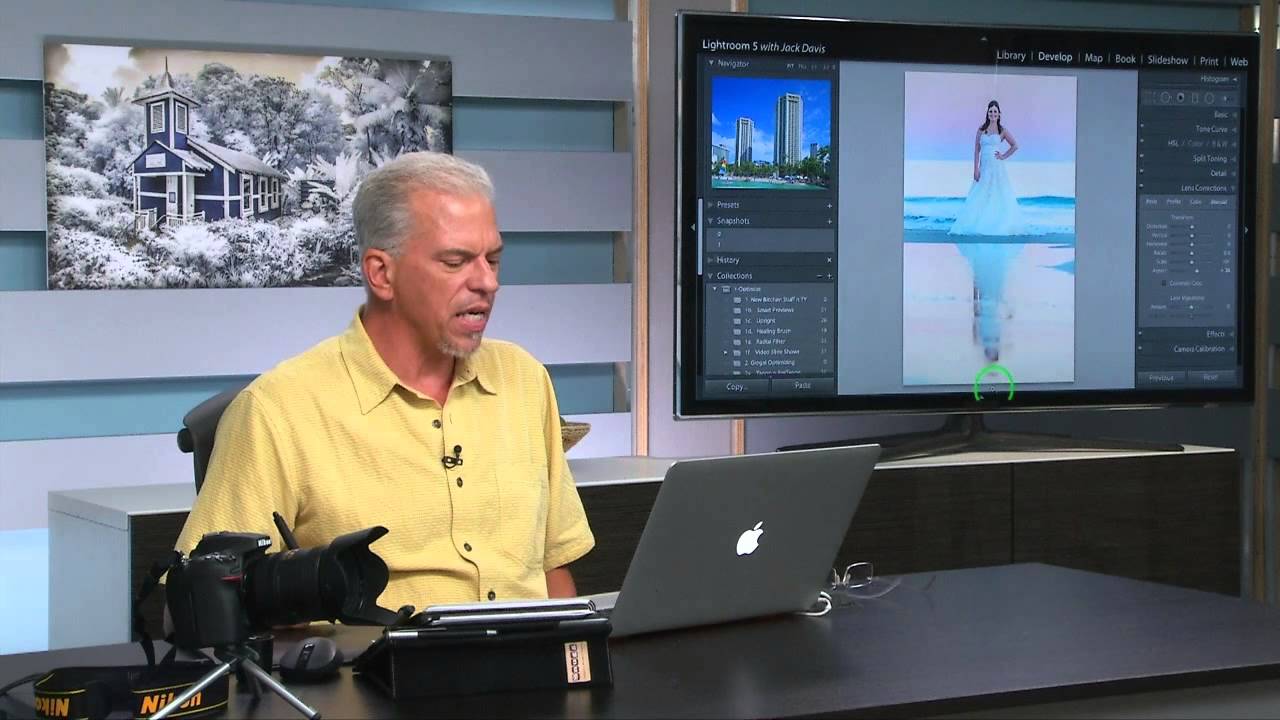
Wedding photographers, here is a scenario you have lived a hundred times. The bride loves every frame from the reception. The light was perfect, the moment was real, the dress caught the golden hour just right. Then she asks if you can “do something” about how the dress bunches at the hips. You open Photoshop, fire up Liquify, spend 25 minutes pushing pixels around, and end up with a result that looks either great or like a funhouse mirror, with no middle ground.
I’ve been there more times than I’d like to admit. What changed for me was discovering that Lightroom 5 quietly added two lens-based distortion tools that handle a lot of this work without ever leaving the application. Watch the full tutorial on YouTube - it’s a CreativeLive lesson that walks through both methods using a real wedding portrait, and the before/after is genuinely striking. Below is my breakdown of what they’re doing and how to replicate it yourself.
The core idea is elegant: instead of painting over a person’s body with warp tools, you use optical distortion to reshape the entire frame in a way that reads as natural. The eye accepts lens behavior in a way it doesn’t accept cloning or smearing. That’s the trick.
Step 1: Open the Lens Corrections Panel
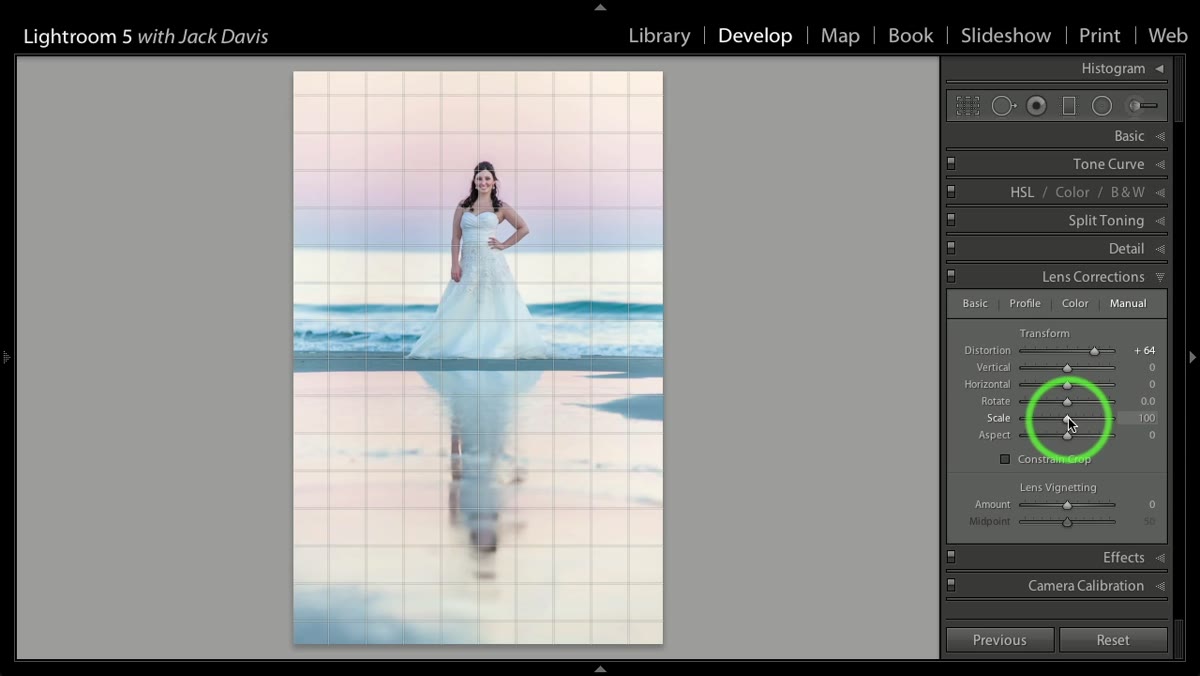 Lightroom Lens Corrections panel open on a wedding portrait
Start in Lightroom’s Develop module and scroll to the Lens Corrections panel. You’re going to be working in the Manual tab, not the Profile tab. The Profile tab corrects distortion based on your actual lens data, which is useful elsewhere, but here you want to introduce distortion intentionally. Make sure your subject is centered or near-centered in the frame before you begin - asymmetrical slimming effects go wrong fast if the subject is hard to one side.
Lightroom Lens Corrections panel open on a wedding portrait
Start in Lightroom’s Develop module and scroll to the Lens Corrections panel. You’re going to be working in the Manual tab, not the Profile tab. The Profile tab corrects distortion based on your actual lens data, which is useful elsewhere, but here you want to introduce distortion intentionally. Make sure your subject is centered or near-centered in the frame before you begin - asymmetrical slimming effects go wrong fast if the subject is hard to one side.
Step 2: Apply Pincushion Distortion
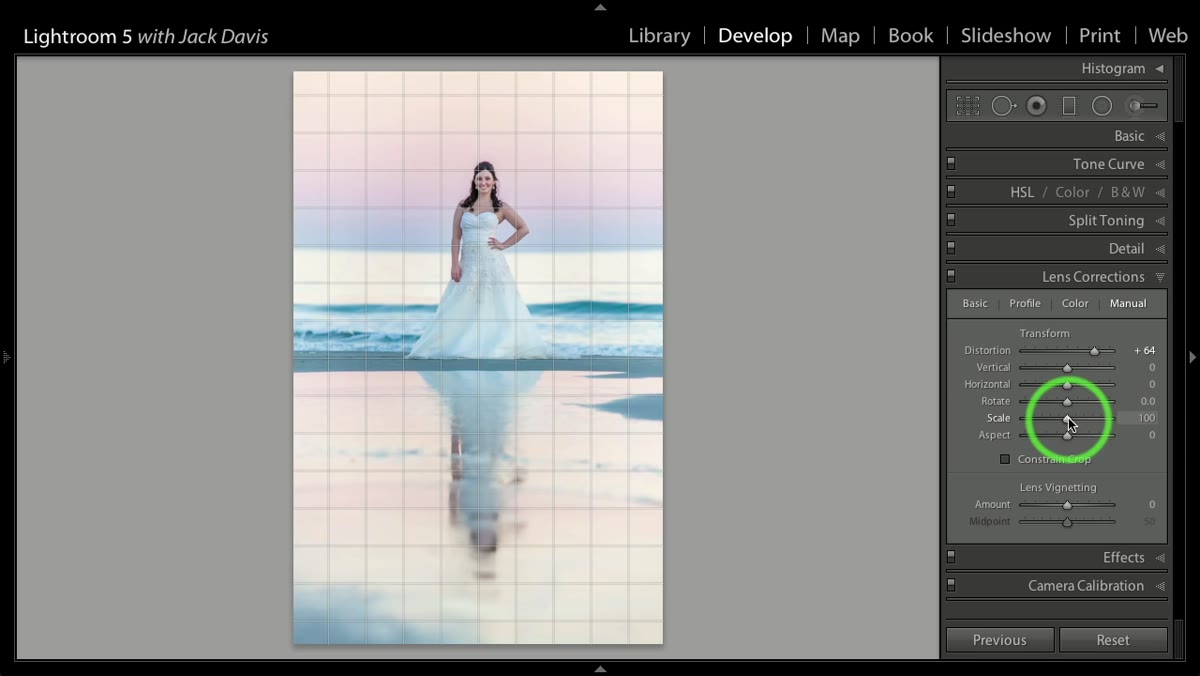 Distortion slider being pulled toward pincushion in Manual tab
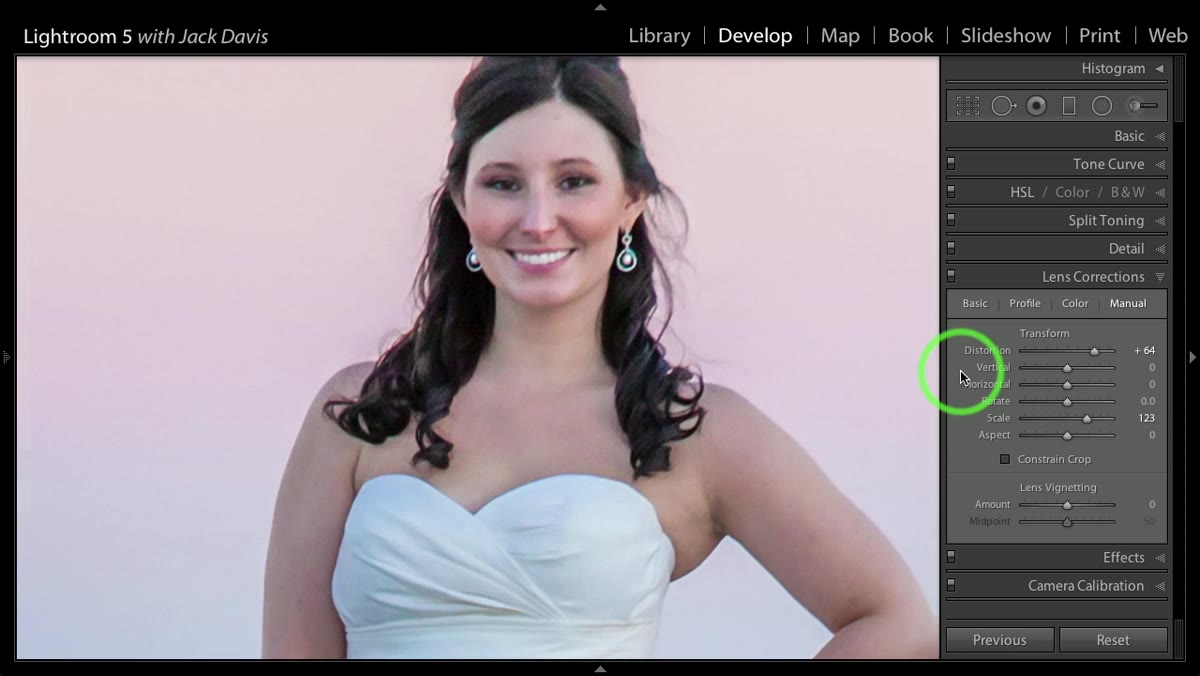
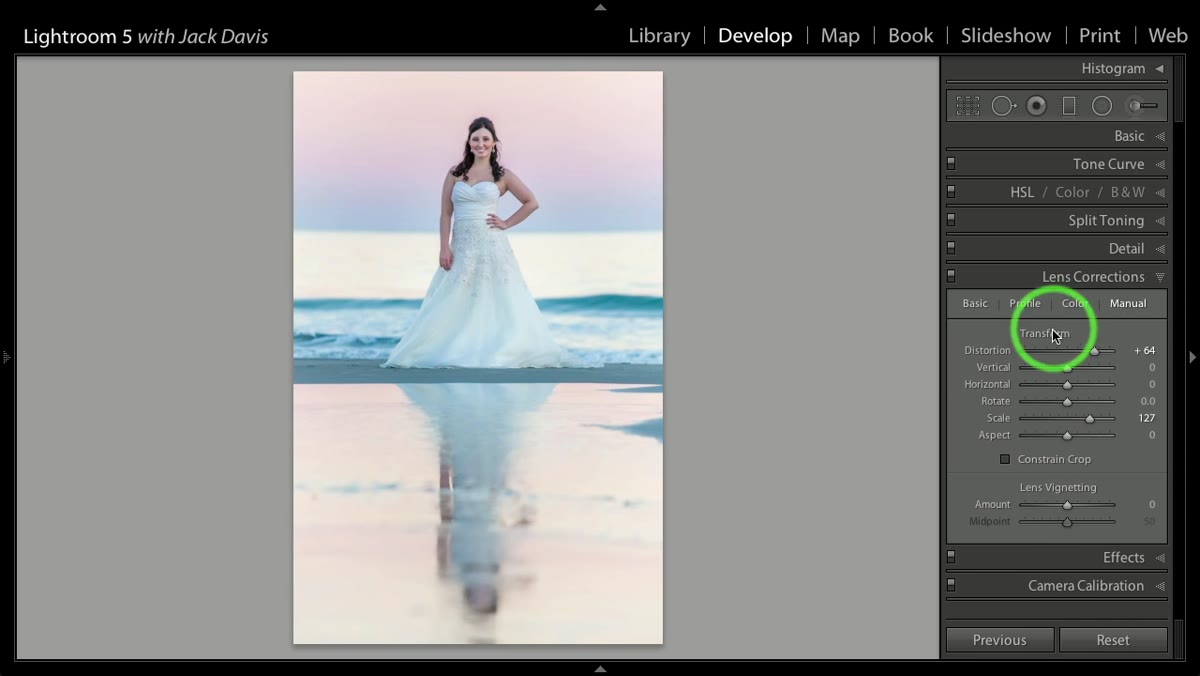
In the Manual tab, find the Distortion slider. Pulling it toward the negative end creates barrel distortion, which bows outward. Pulling it toward the positive end creates pincushion distortion, which pulls the edges of the image inward toward the center. For slimming, you want pincushion, so move the slider in the positive direction. The tutorial works with a modest amount - think single digits to low teens. Go too far and the background lines start bending visibly, which immediately reads as fake.
Distortion slider being pulled toward pincushion in Manual tab
In the Manual tab, find the Distortion slider. Pulling it toward the negative end creates barrel distortion, which bows outward. Pulling it toward the positive end creates pincushion distortion, which pulls the edges of the image inward toward the center. For slimming, you want pincushion, so move the slider in the positive direction. The tutorial works with a modest amount - think single digits to low teens. Go too far and the background lines start bending visibly, which immediately reads as fake.
The pincushion effect works because it narrows the middle of the frame optically. A figure standing center-frame gets gently compressed horizontally. On a wedding dress with heavy fabric, this reads as the silhouette falling more cleanly. The effect is subtle per slider tick, which is a feature, not a bug.
Step 3: Compensate with Scale to Restore Height
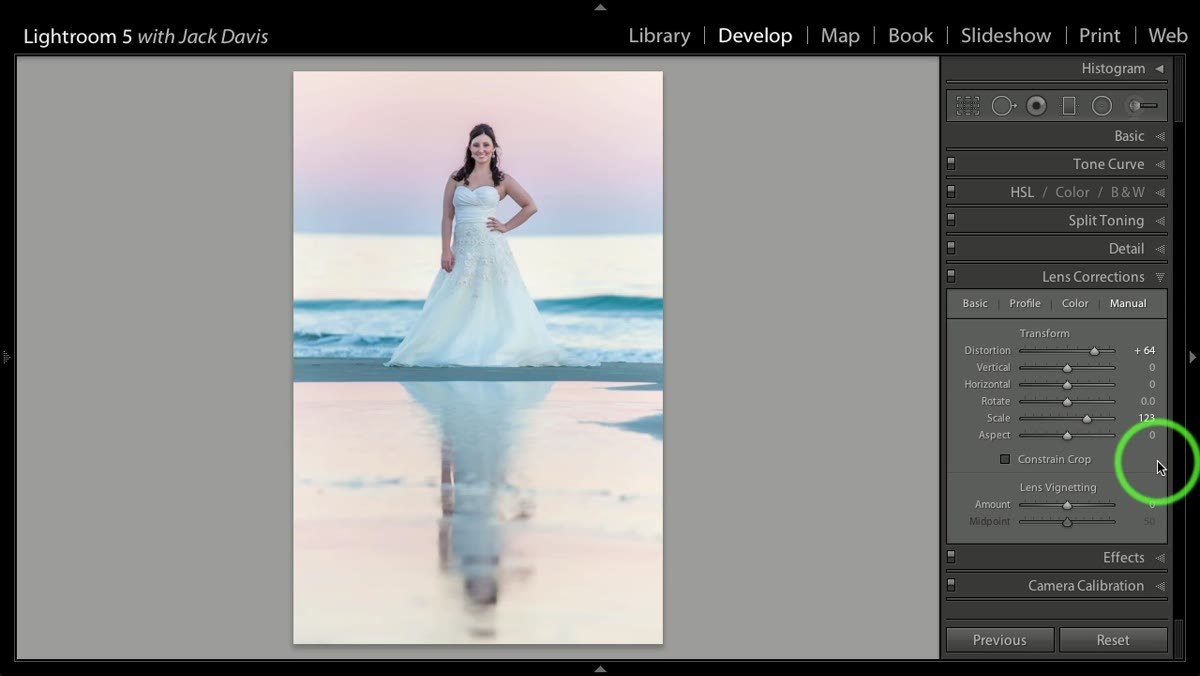 Scale slider being adjusted upward after pincushion distortion applied
Here is the part people skip, and it’s the reason their pincushion results look squished. When you pull in the edges with pincushion distortion, the image gets slightly shorter at the same time. The subject loses a few virtual inches of height. To fix this, drag the Scale slider upward until the figure looks proportional again. You’re essentially zooming in slightly to undo the vertical compression while keeping the horizontal slimming effect.
Scale slider being adjusted upward after pincushion distortion applied
Here is the part people skip, and it’s the reason their pincushion results look squished. When you pull in the edges with pincushion distortion, the image gets slightly shorter at the same time. The subject loses a few virtual inches of height. To fix this, drag the Scale slider upward until the figure looks proportional again. You’re essentially zooming in slightly to undo the vertical compression while keeping the horizontal slimming effect.
The tutorial is explicit about this: don’t use pincushion without having Scale nearby to correct the height. Otherwise you’ve traded width for height and the result looks worse than the original. Think of it as a two-part move - pincushion narrows, Scale restores. Together they produce something that looks like the subject simply stood up straighter.
Step 4: Use Aspect Ratio for a Simpler One-Slider Approach
 Aspect Ratio slider in Transform panel being extended to the right
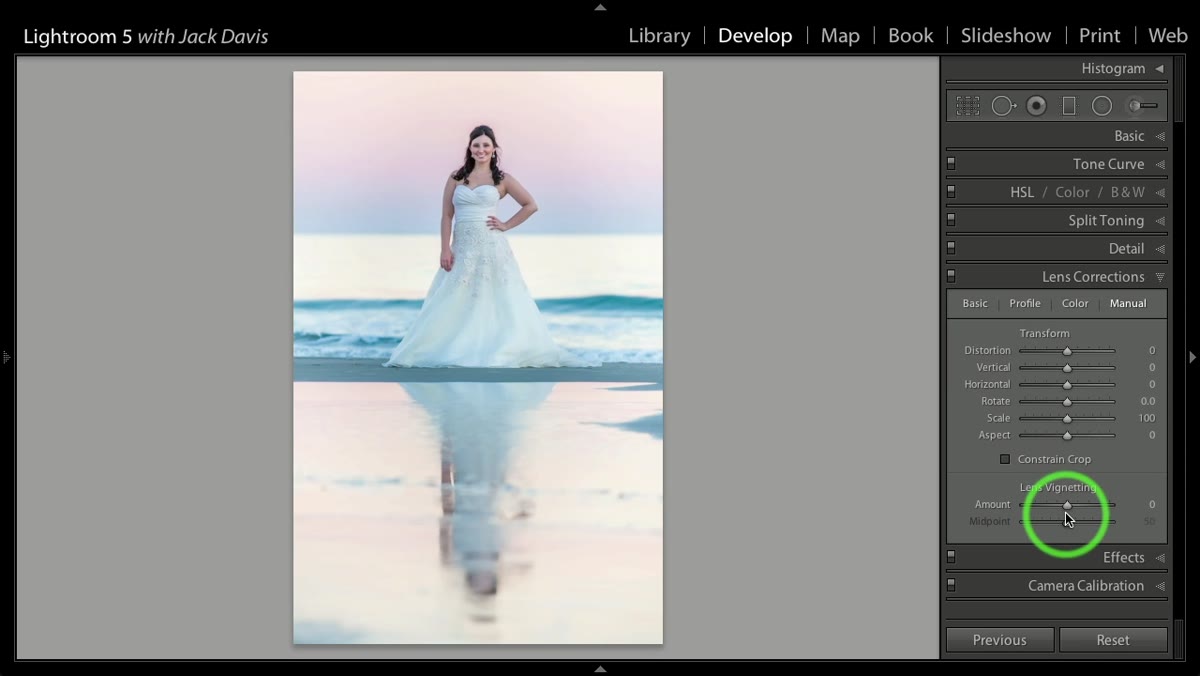
The second method the tutorial covers is newer and more straightforward. In the Transform section of Lens Corrections (or the standalone Transform panel depending on your version), there’s an Aspect Ratio slider. This lets you apply asymmetrical distortion to the image - stretching vertically without stretching horizontally, which is exactly what you want for a slimming effect.
Aspect Ratio slider in Transform panel being extended to the right
The second method the tutorial covers is newer and more straightforward. In the Transform section of Lens Corrections (or the standalone Transform panel depending on your version), there’s an Aspect Ratio slider. This lets you apply asymmetrical distortion to the image - stretching vertically without stretching horizontally, which is exactly what you want for a slimming effect.
The tutorial demonstrates pushing Aspect Ratio to around 25 on the positive side. At that setting, the vertical dimension of the image extends while the width stays constant, making the subject appear taller and proportionally narrower. The key word in the tutorial is “don’t be greedy.” A 25-point push is already significant. Beyond that, you start to see the effect in architectural lines and backgrounds, and it stops reading as optical and starts reading as manipulation.
Step 5: Compare Before and After with the Backslash Key
 Before and after view toggled on the portrait of Brooke Crystal
Once you’ve applied either technique (or both in combination), use the backslash key to toggle between the original and your edited version. Don’t rely on memory. Your eye adapts to what it’s been staring at, and what felt like a subtle change when you were making it can look obvious or look invisible when you haven’t seen the original in a few minutes. The toggle snaps you back to objective comparison.
Before and after view toggled on the portrait of Brooke Crystal
Once you’ve applied either technique (or both in combination), use the backslash key to toggle between the original and your edited version. Don’t rely on memory. Your eye adapts to what it’s been staring at, and what felt like a subtle change when you were making it can look obvious or look invisible when you haven’t seen the original in a few minutes. The toggle snaps you back to objective comparison.
The tutorial does this at the end of the demonstration and the difference on the wedding dress is clear - not dramatic in a way that shouts “this was edited,” but meaningful enough that the dress reads as fitted rather than straining. That’s the target: a result that makes the viewer think the subject looked like that, not that the photo was adjusted.
Step 6: Reset and Experiment Before Committing
 Reset Transform button clicked to clear distortion settings
Before you finalize anything, use the Reset button in the Transform panel to clear all your values and start over at least once. This sounds counterproductive but it’s one of the better habits you can build. When you start from zero a second time and get to the same result faster, you’re confirming the settings were intentional and not just sliders you nudged until it looked okay. It also helps you develop a feel for how much distortion a given shot can absorb before it starts looking wrong.
Reset Transform button clicked to clear distortion settings
Before you finalize anything, use the Reset button in the Transform panel to clear all your values and start over at least once. This sounds counterproductive but it’s one of the better habits you can build. When you start from zero a second time and get to the same result faster, you’re confirming the settings were intentional and not just sliders you nudged until it looked okay. It also helps you develop a feel for how much distortion a given shot can absorb before it starts looking wrong.
Different images have very different tolerances. A portrait shot on a long lens in front of a plain background can take more distortion than a wide-angle shot with visible architecture or tile floors. The background geometry will expose you every time.
A Note From My Own Workflow
I use the Aspect Ratio method more than the pincushion-plus-scale combination, mostly because it’s a single slider and the math is more predictable. But I’ve found it works better on images where the subject fills the vertical frame - full-length portraits, standing shots, anything where you want to imply height. For three-quarter shots or seated subjects, pincushion distortion often does a cleaner job because it works on the horizontal compression directly rather than making the person taller.
One thing neither method handles well: groups. The moment you have two people standing side by side, asymmetrical distortion reads differently on each of them and the results get inconsistent fast. For group portraits, I still go to Photoshop and use Liquify on individual subjects. But for single-subject work, especially weddings, this Lightroom-native approach has saved me a significant amount of time and back-and-forth with clients.
The single most important thing to take from this technique is that optical distortion reads as natural because it behaves the way glass behaves. Your viewer’s eye expects some amount of lens character in a photograph. Lean into that expectation and the edits become nearly invisible - which is the best outcome any retouching work can have.
Watch the full tutorial on YouTube to see the before/after on the actual wedding portrait and get a feel for the slider values in motion. Watching the distortion happen in real time makes the relationship between pincushion and scale much easier to internalize than reading about it.
Comments
Leave a Comment