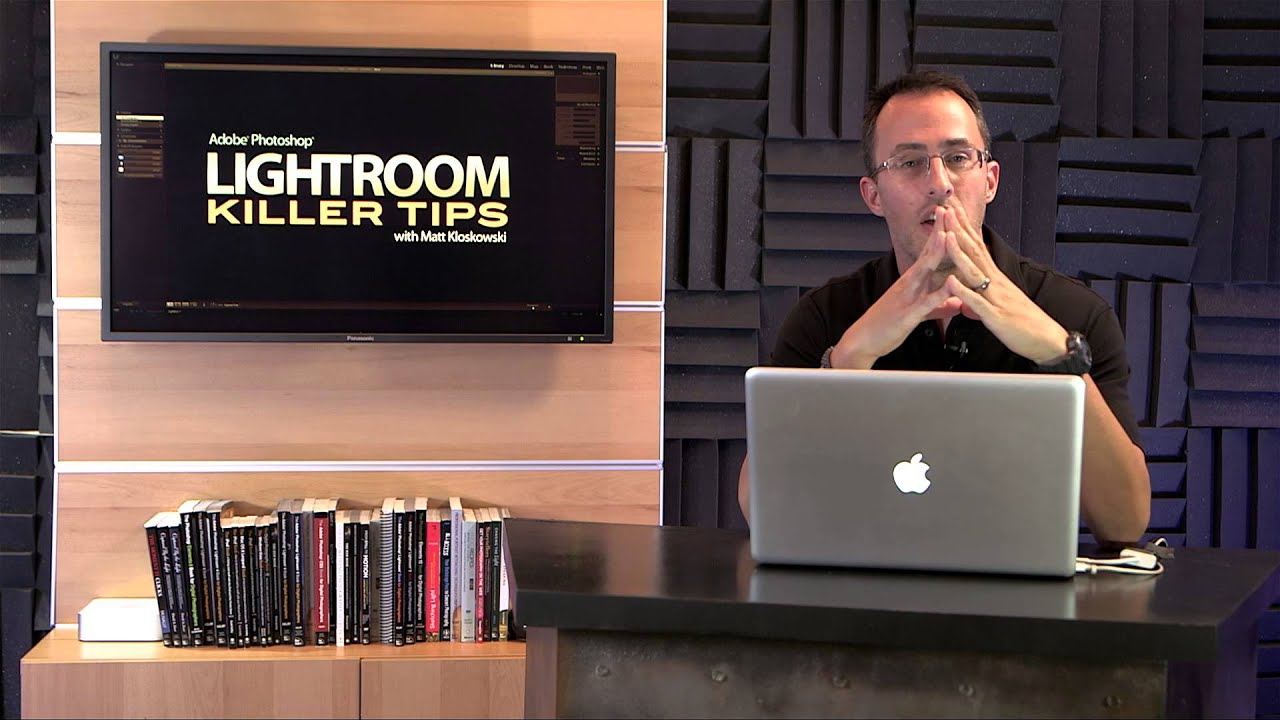
My photo library organization is, let’s say, aggressively chaotic. I’ve got folders nested inside folders, shoot dates mixed with location names, and at least three folders I named “FINAL” at different points in my life. For a long time, Lightroom’s Folders panel made this worse, not better, because it only shows you the folder you imported rather than where that folder actually lives on your drive. You’d see “Nashville_Session_03” floating in the panel with zero context about what drive it’s on or how deep it’s buried in your directory structure.
I kept running into this problem until I watched a tutorial from the KelbyOne channel that cracked it open in about three minutes flat. Watch the full tutorial on YouTube - it’s short, but the technique is genuinely one of those things that makes you reorganize how you think about the Folders panel entirely.
The core insight is this: the Folders panel isn’t just a visual shortcut to your photos. It’s a live reference to your actual file system. And once you understand that, the right-click menu on any folder becomes a tool for navigating your whole directory, not just the one folder Lightroom decided to show you.
Step 1: Import a Folder Into Lightroom
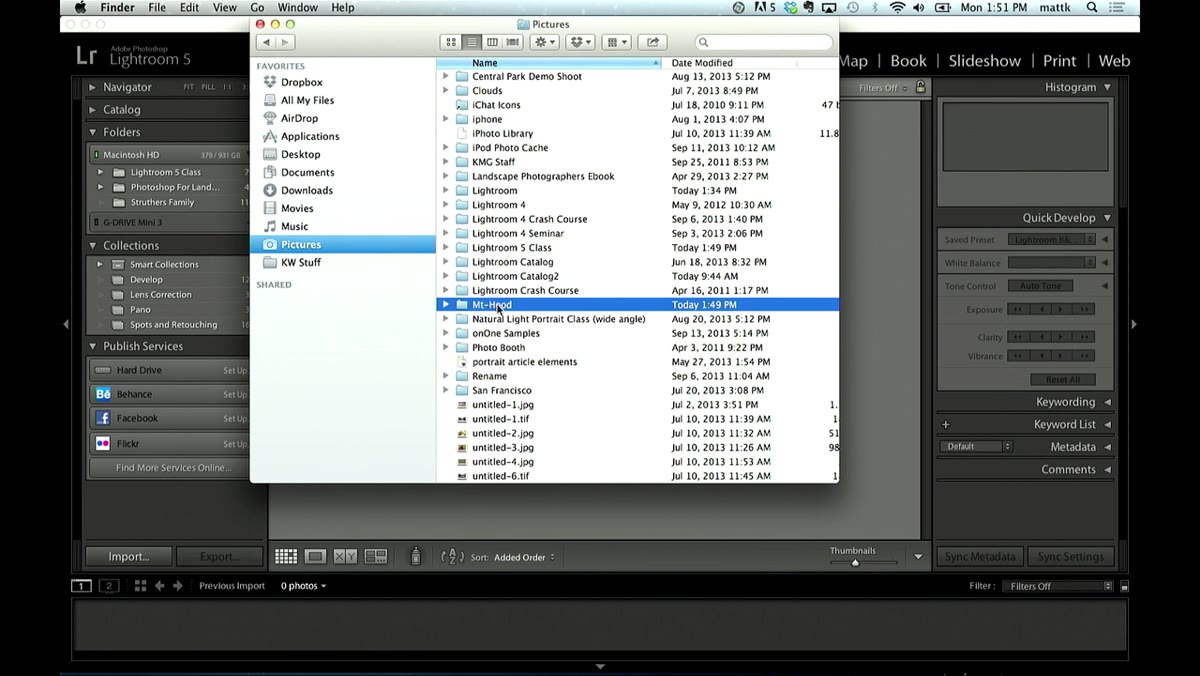 Dragging a folder onto the Lightroom icon to import
The fastest way to bring a folder into Lightroom is to drag it directly onto the Lightroom icon in your dock. This bypasses the Import dialog for quick test runs and drops the folder straight into your catalog. In the tutorial, the example folder is called Mount Hood, a single-photo folder used just to demonstrate the technique cleanly. You don’t need a massive shoot for this to be useful - in fact, testing it with one small folder makes it easier to see exactly what’s happening in the panel.
Dragging a folder onto the Lightroom icon to import
The fastest way to bring a folder into Lightroom is to drag it directly onto the Lightroom icon in your dock. This bypasses the Import dialog for quick test runs and drops the folder straight into your catalog. In the tutorial, the example folder is called Mount Hood, a single-photo folder used just to demonstrate the technique cleanly. You don’t need a massive shoot for this to be useful - in fact, testing it with one small folder makes it easier to see exactly what’s happening in the panel.
After you drag and drop, Lightroom imports the photos and the folder name appears in the Folders panel on the left side of the Library module. At first glance, it looks like just a label. What you’re actually looking at is a direct link to a specific folder on your hard drive.
Step 2: Understand That the Folder Panel Reflects Your Real File System
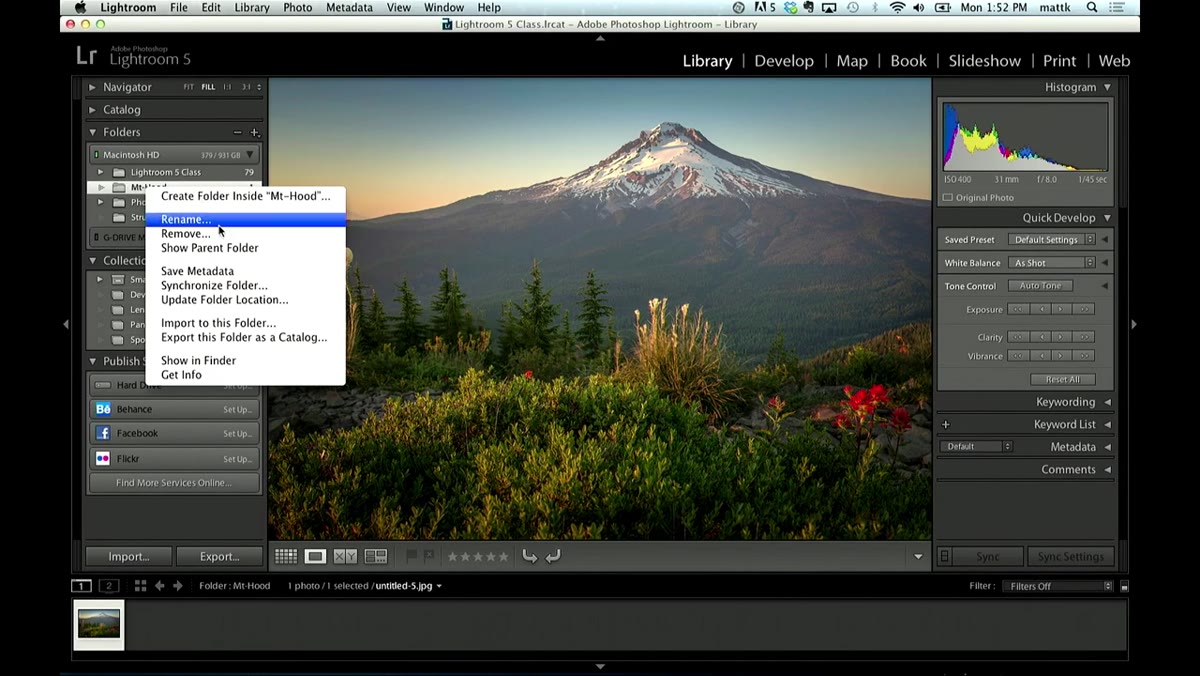 Right-click menu open on a folder in the Folders panel
Here’s the thing that trips people up: because the Folders panel looks like a Lightroom-native interface element, it’s easy to treat it like a catalog tag or a collection. It’s not. When you right-click a folder in this panel and choose Rename, it renames the actual folder on your drive. Not a Lightroom label, not metadata - the real folder sitting in your Finder or Windows Explorer.
Right-click menu open on a folder in the Folders panel
Here’s the thing that trips people up: because the Folders panel looks like a Lightroom-native interface element, it’s easy to treat it like a catalog tag or a collection. It’s not. When you right-click a folder in this panel and choose Rename, it renames the actual folder on your drive. Not a Lightroom label, not metadata - the real folder sitting in your Finder or Windows Explorer.
The tutorial demonstrates this clearly. Rename the folder to “Mount Hood 2” inside Lightroom, flip over to your Finder window, and the folder on disk has already changed. This is important to internalize before you start using the show/hide parent folder feature, because it means the hierarchy you’re navigating is your real directory structure - not some Lightroom-specific abstraction.
Step 3: Right-Click and Choose “Show Parent Folder”
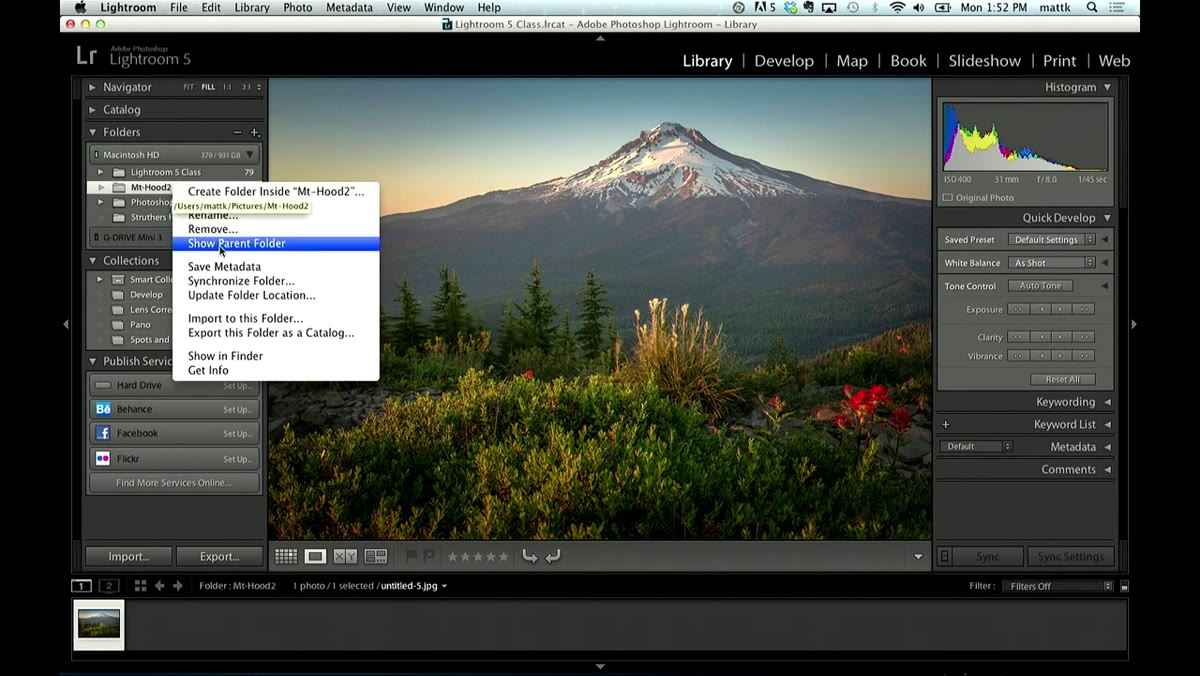 “Show Parent Folder” option highlighted in the right-click context menu
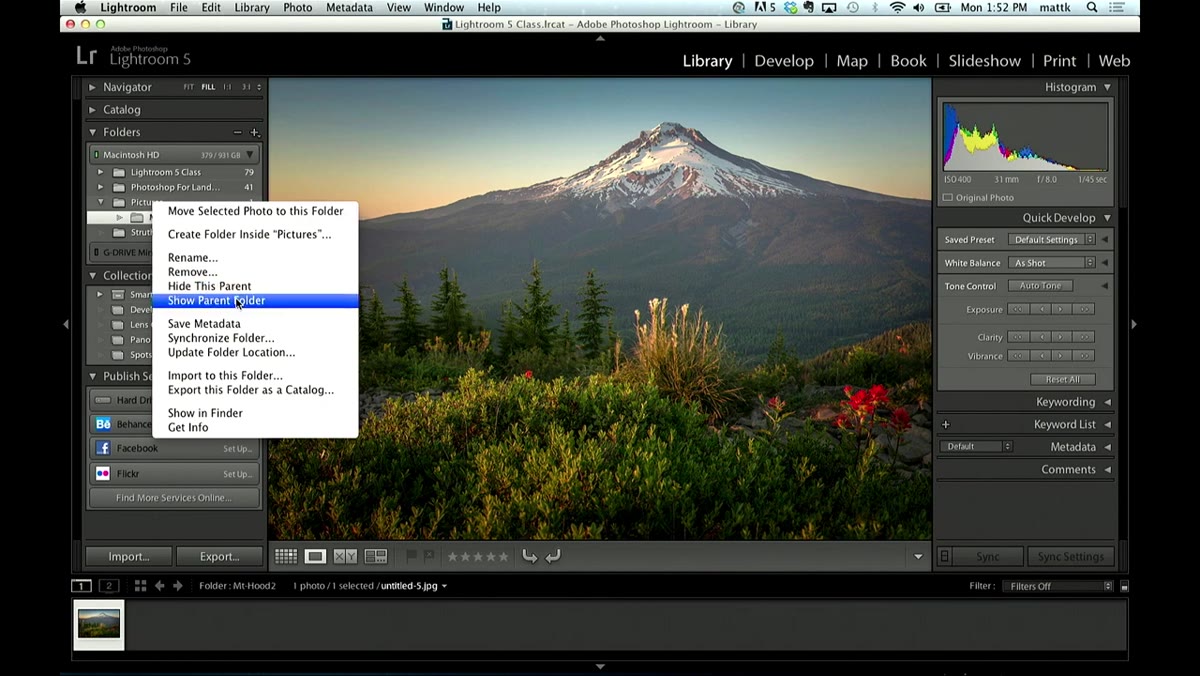
Right-click on any folder in the Folders panel and you’ll see the option “Show Parent Folder.” Click it, and Lightroom immediately expands the view upward - one level at a time. If your imported folder is called Mount Hood and it lives inside a folder called Pictures, clicking Show Parent Folder reveals Pictures above it in the panel hierarchy.
“Show Parent Folder” option highlighted in the right-click context menu
Right-click on any folder in the Folders panel and you’ll see the option “Show Parent Folder.” Click it, and Lightroom immediately expands the view upward - one level at a time. If your imported folder is called Mount Hood and it lives inside a folder called Pictures, clicking Show Parent Folder reveals Pictures above it in the panel hierarchy.
This is the main trick. You’re not moving files, not changing your catalog, not doing anything destructive. You’re just telling Lightroom to show you more of the surrounding context for where that folder actually lives. Think of it like zooming out on a map. The photo hasn’t moved, you’re just seeing more of the neighborhood around it.
Step 4: Keep Going Up the Hierarchy as Needed
 Folder hierarchy expanded to show drive name, Pictures folder, and Mount Hood
You can repeat the process. Right-click on the newly revealed Pictures folder, choose Show Parent Folder again, and Lightroom expands one more level up - now showing the drive name at the top of the chain. In the tutorial, this reveals the full path: the drive, then Pictures, then Mount Hood nested inside it. Three levels of real directory structure, visible right inside the Folders panel.
Folder hierarchy expanded to show drive name, Pictures folder, and Mount Hood
You can repeat the process. Right-click on the newly revealed Pictures folder, choose Show Parent Folder again, and Lightroom expands one more level up - now showing the drive name at the top of the chain. In the tutorial, this reveals the full path: the drive, then Pictures, then Mount Hood nested inside it. Three levels of real directory structure, visible right inside the Folders panel.
This is especially useful when you’re working across multiple drives or have a folder structure with several layers of organization. Instead of opening Finder separately to figure out where something lives, you can trace the path directly in Lightroom while you’re editing.
Step 5: Hide Parent Folders to Clean Up the View
 Right-click menu showing “Hide This Parent Folder” option
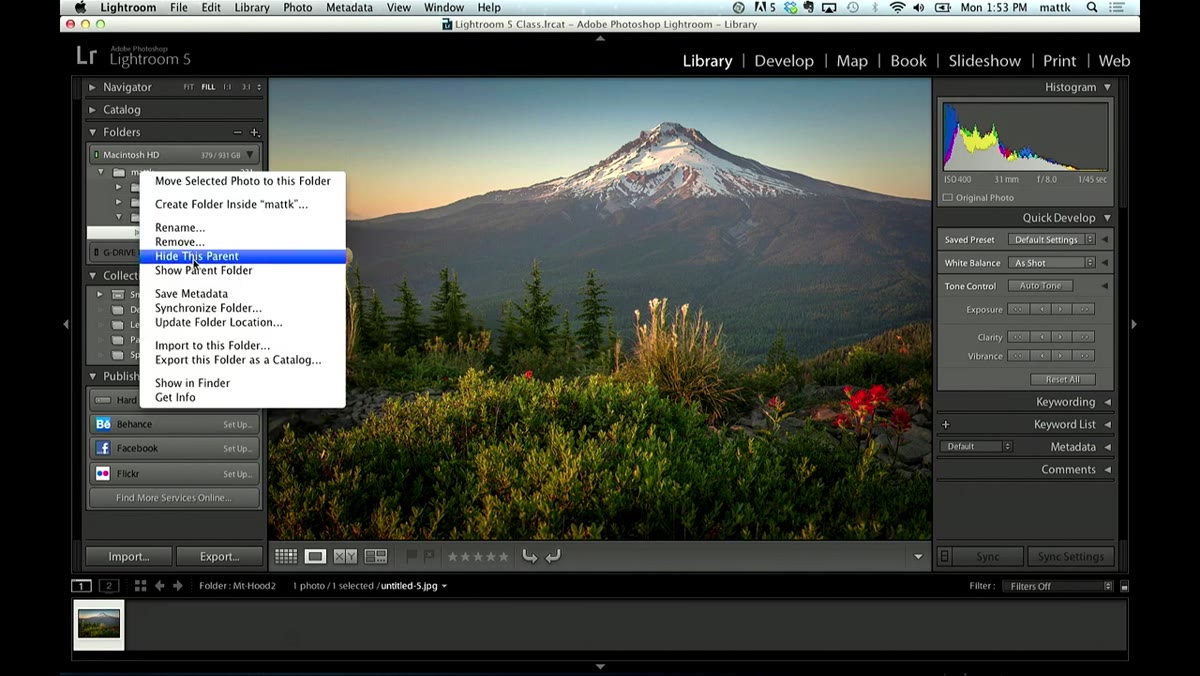
Once you’ve used the hierarchy for navigation or context, you can collapse it back down just as easily. Right-click on the top-level folder you want to remove from view, choose “Hide This Parent Folder,” and Lightroom removes that level from the panel display. Work your way back down and you’re back to just seeing the folder you originally imported.
Right-click menu showing “Hide This Parent Folder” option
Once you’ve used the hierarchy for navigation or context, you can collapse it back down just as easily. Right-click on the top-level folder you want to remove from view, choose “Hide This Parent Folder,” and Lightroom removes that level from the panel display. Work your way back down and you’re back to just seeing the folder you originally imported.
Nothing was deleted, nothing was moved. The folder structure on your drive is completely unchanged. All you did was toggle the visibility of those parent levels inside Lightroom’s panel view. It’s a display preference, not a file operation - and that distinction matters.
How I Actually Use This Day-to-Day
The tutorial covers the core mechanic cleanly, but here’s where it gets more useful in a real workflow. I keep my shoots organized by year and city - something like Drives/Photos_2024/Nashville/Session_Name. When I import a session and later forget which drive it landed on (it happens more than I want to admit), Show Parent Folder is the fastest way to trace it back without touching Finder.
I’ve also found this helpful when I’m handing off a drive to a client or collaborator and need to verify the exact folder path before I reference it in a shared document. Instead of going back and forth between Lightroom and the OS, I just walk the hierarchy right inside the Folders panel. It keeps me in one window, which keeps me focused. And honestly, staying focused is half the battle when you’ve got a record playing and a cat walking across your keyboard.
One caveat worth mentioning: if you have a lot of imported folders across different drives, using Show Parent Folder repeatedly can make the Folders panel visually dense. It’s worth hiding parent levels again once you’ve gotten the context you needed - otherwise the panel starts to look like a directory tree you’d see in a terminal window, which is fine if that’s your thing, but not exactly quick to scan.
The single most important thing to take away from this tutorial is that the Folders panel is a live mirror of your file system, and the right-click menu is a two-way window into your directory structure. Once you start using Show Parent Folder as a navigation tool rather than just an organizational label, the panel becomes a lot more powerful than it looks.
Watch the full tutorial on YouTube - at under four minutes, it’s worth seeing the Finder window update in real time when the folder gets renamed. That one moment makes the whole concept click.
Comments
Leave a Comment