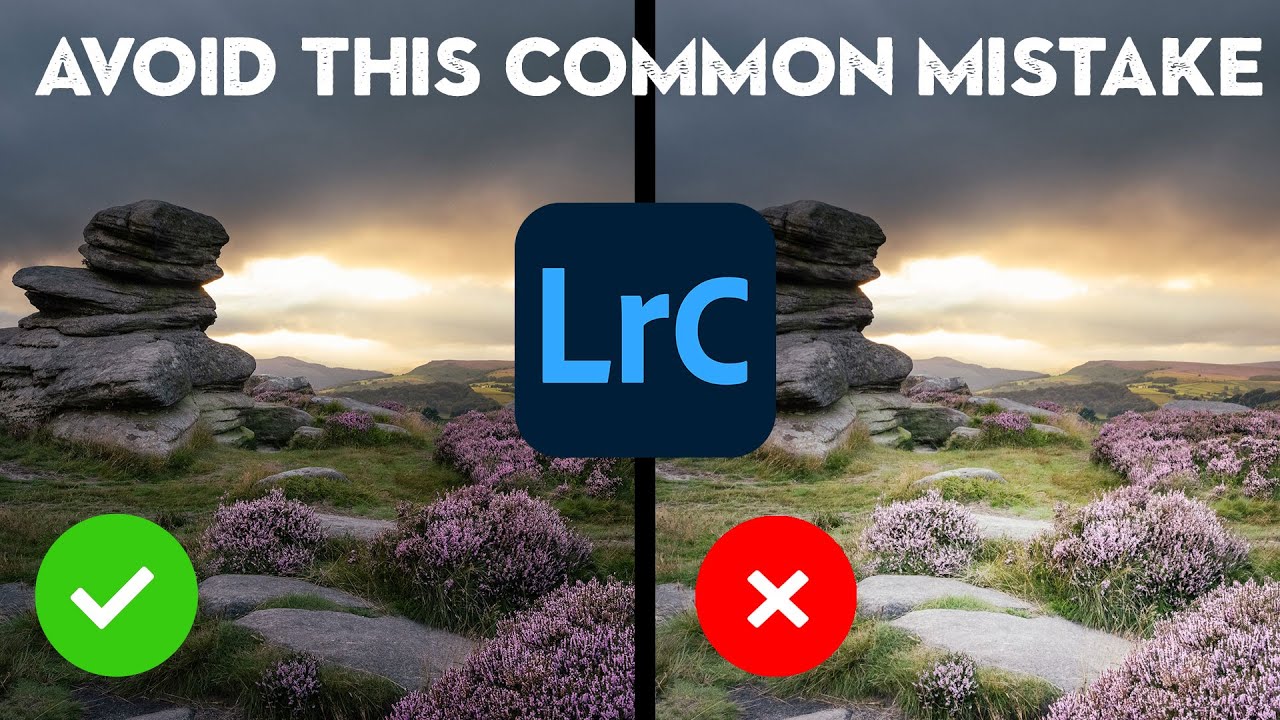
There’s a particular kind of editing disaster I kept making when I first started shooting landscapes. I’d get a moody, dramatic raw file into Lightroom, slap on a gradient, crank the exposure in the foreground, and then sit back feeling like I’d “fixed” it. The photo looked brighter. More inviting. More finished. Except it also looked completely wrong in a way I couldn’t quite name. The light didn’t make sense. The shadows were suspiciously cheerful. The whole thing had the vibe of a real place that someone had very obviously tampered with.
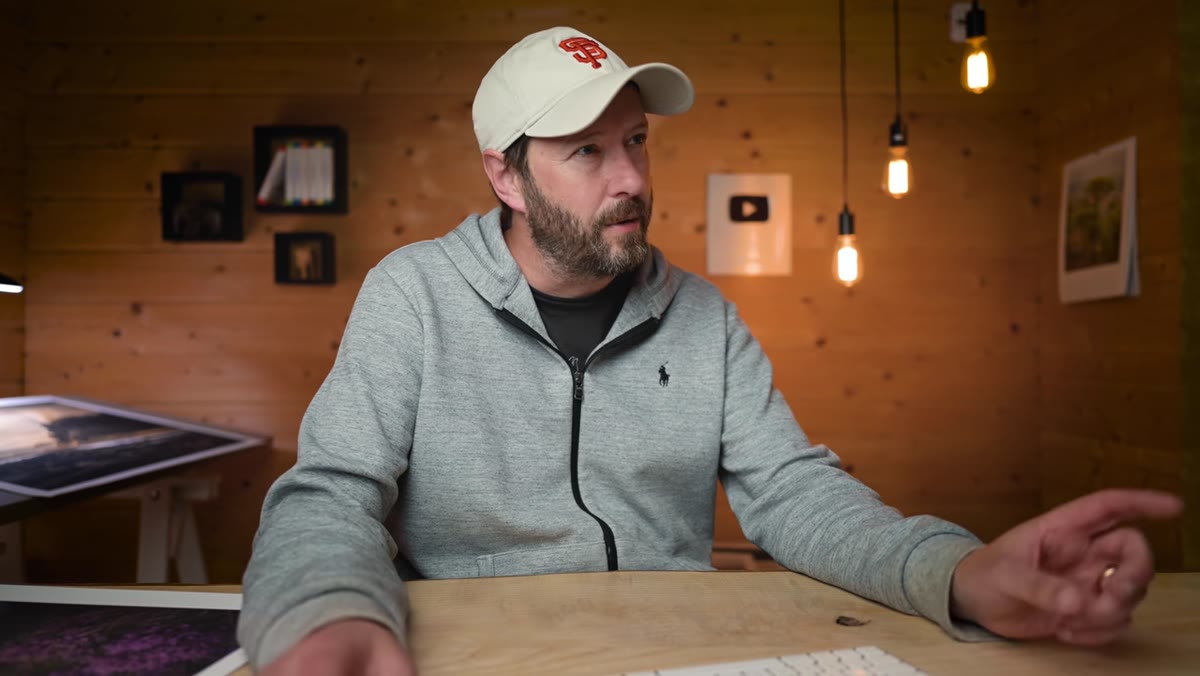
It took me an embarrassingly long time to understand that luminosity, specifically the relative brightness of different parts of a frame, is the thing that tells your brain whether a photo is believable. Get it wrong and viewers feel it before they can explain it. In Watch the full tutorial on YouTube, landscape photographer Nigel Danson walks through exactly this problem using a moody heather scene shot on a stormy day. His fix is precise, practical, and honestly changed the way I think about the develop module.
What follows is my breakdown of his approach, step by step, with the actual Lightroom moves spelled out so you can apply them to your own work without having to pause and rewind.
Step 1: Read the Raw File Before You Touch Anything
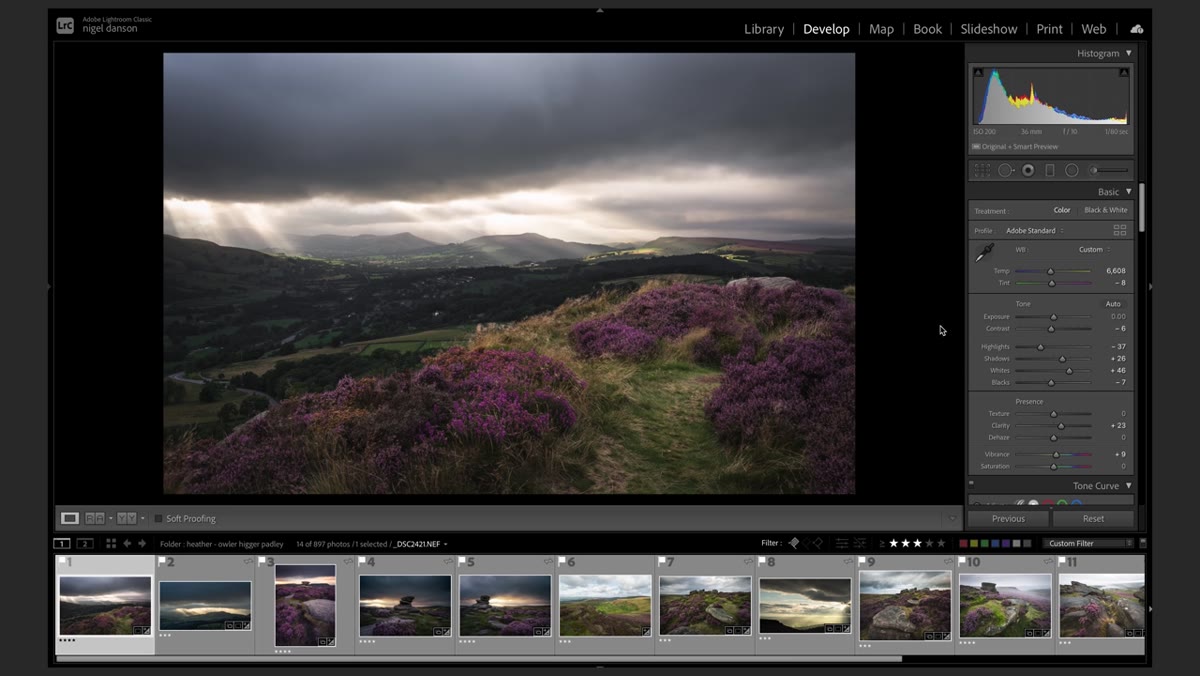
 Raw unedited heather landscape showing dark foreground and moody sky
Before you apply a preset, pull a slider, or even think about what the photo “should” look like, stop and study what the camera actually captured. Danson makes this point early and I think it’s the most underrated habit in landscape editing. Your raw file is a luminosity map. The dark areas are dark because the light didn’t reach them. The bright areas are bright because it did. That information is real, and blowing past it is where most edits go sideways.
Raw unedited heather landscape showing dark foreground and moody sky
Before you apply a preset, pull a slider, or even think about what the photo “should” look like, stop and study what the camera actually captured. Danson makes this point early and I think it’s the most underrated habit in landscape editing. Your raw file is a luminosity map. The dark areas are dark because the light didn’t reach them. The bright areas are bright because it did. That information is real, and blowing past it is where most edits go sideways.
In his heather example, the foreground is noticeably darker than the midground, and the sky is heavy and overcast. That’s not a flaw in the capture. That’s the scene. Train yourself to look at the histogram and the image together and ask: does this tonal distribution match the physics of the light in the frame?
Step 2: Apply Your Preset or Base Edit, Then Pause
 Before and after toggle showing preset applied to heather scene
Danson applies one of his presets as a starting point, which gets the image to a reasonable baseline quickly. Nothing wrong with that workflow. But he pauses here to do something a lot of people skip: he toggles the before/after view and reassesses the luminosity relationships. The preset has done its job stylistically, but he’s checking whether it has introduced any tonal lies.
Before and after toggle showing preset applied to heather scene
Danson applies one of his presets as a starting point, which gets the image to a reasonable baseline quickly. Nothing wrong with that workflow. But he pauses here to do something a lot of people skip: he toggles the before/after view and reassesses the luminosity relationships. The preset has done its job stylistically, but he’s checking whether it has introduced any tonal lies.
This is a good habit to build into your own process. Presets are great for consistency and speed, but they’re blunt instruments. They don’t know that your foreground is supposed to be in shadow. After your base edit is in, take thirty seconds and ask whether the light still makes sense.
Step 3: Resist the Graduated Filter Reflex
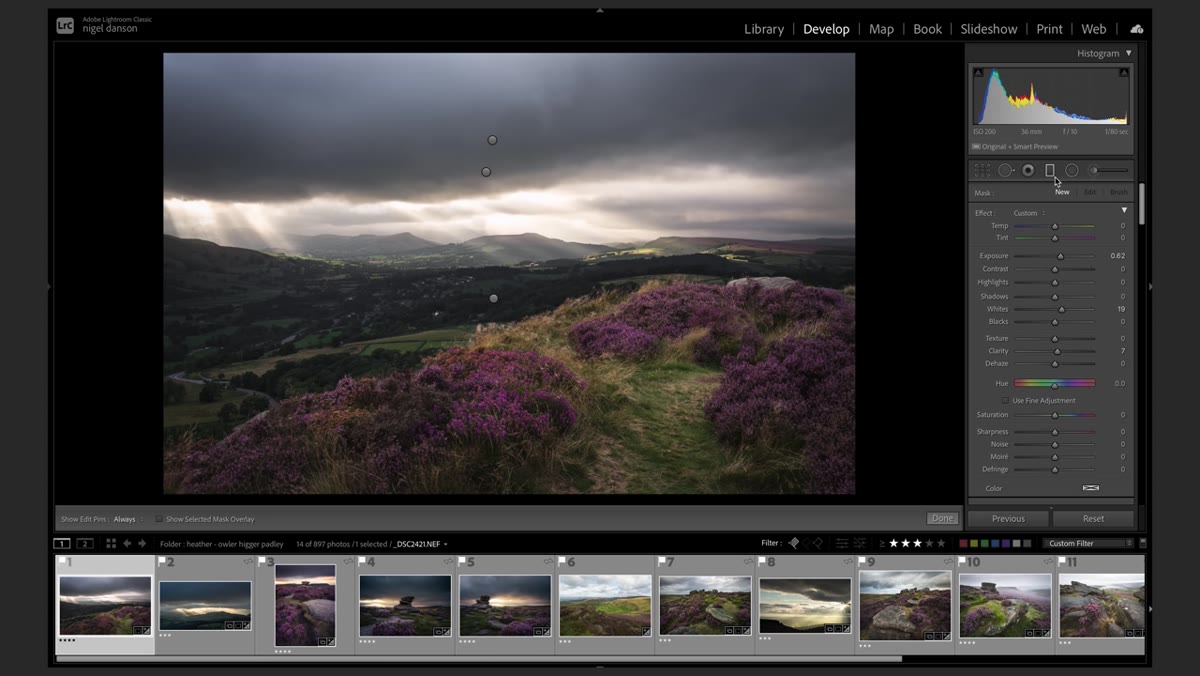 Graduated filter dragged over dark foreground, exposure pushed too high
Here’s where Danson names the mistake. The instinct when you see a dark foreground is to grab a graduated filter, drag it across the bottom half of the frame, and push the exposure up. It’s fast, it feels decisive, and it almost always produces a result that looks over-edited. The foreground gets lifted into a brightness range that has no relationship to the actual light conditions of the scene.
Graduated filter dragged over dark foreground, exposure pushed too high
Here’s where Danson names the mistake. The instinct when you see a dark foreground is to grab a graduated filter, drag it across the bottom half of the frame, and push the exposure up. It’s fast, it feels decisive, and it almost always produces a result that looks over-edited. The foreground gets lifted into a brightness range that has no relationship to the actual light conditions of the scene.
Danson shows this in action, pulling his foreground up to a brightness level that he admits feels tempting in the moment. The shadows fill in, the flowers pop, and there’s a split second where it looks good. Then you compare it to the original and realize the foreground is now brighter than logic allows for a stormy overcast day. The graduated filter treats your foreground as a uniform zone. Light almost never works that way.
Step 4: Delete the Gradient and Switch to the Brush Tool
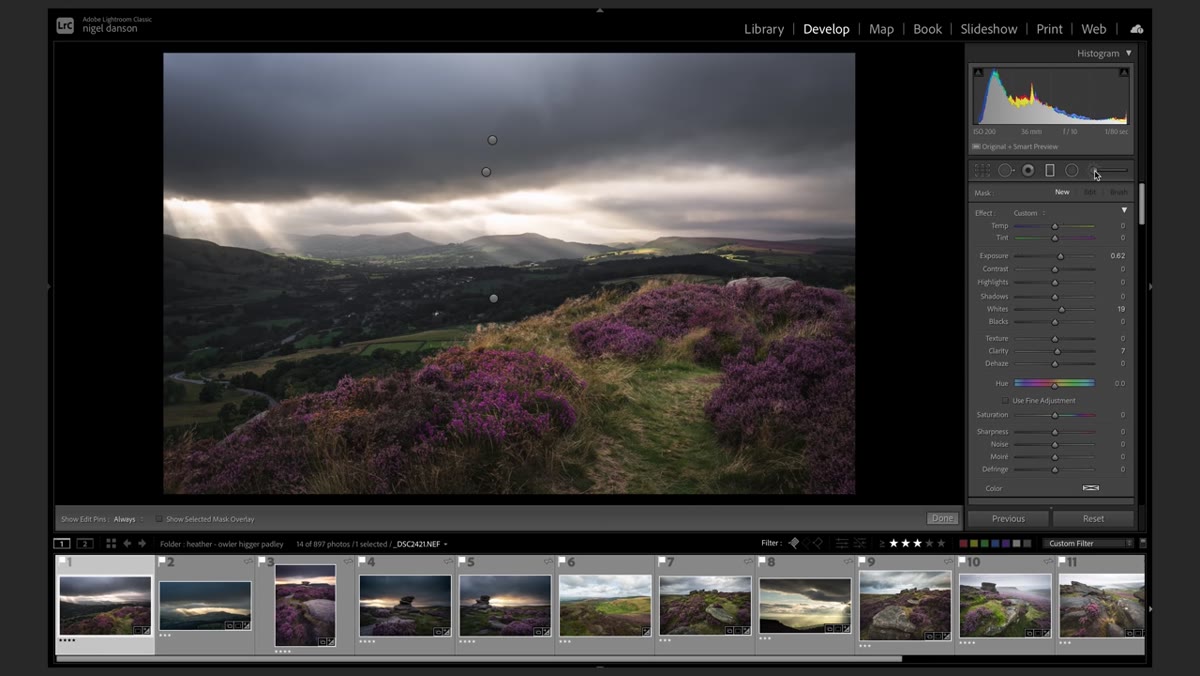 Graduated filter removed, adjustment brush selected in develop module
Remove the gradient entirely. Danson’s replacement approach starts from scratch with the adjustment brush, which gives you the spatial control that a gradient flat-out cannot. Instead of lifting an entire zone of the image, you’re going to make targeted, physically motivated brightness decisions.
Graduated filter removed, adjustment brush selected in develop module
Remove the gradient entirely. Danson’s replacement approach starts from scratch with the adjustment brush, which gives you the spatial control that a gradient flat-out cannot. Instead of lifting an entire zone of the image, you’re going to make targeted, physically motivated brightness decisions.
Set your exposure bump conservatively before you start painting. Danson keeps this modest because the goal isn’t to fight the darkness, it’s to reveal the parts of the scene where light would have logically touched. The brush is your instrument for making that distinction.
Step 5: Paint Light Where Physics Would Put It
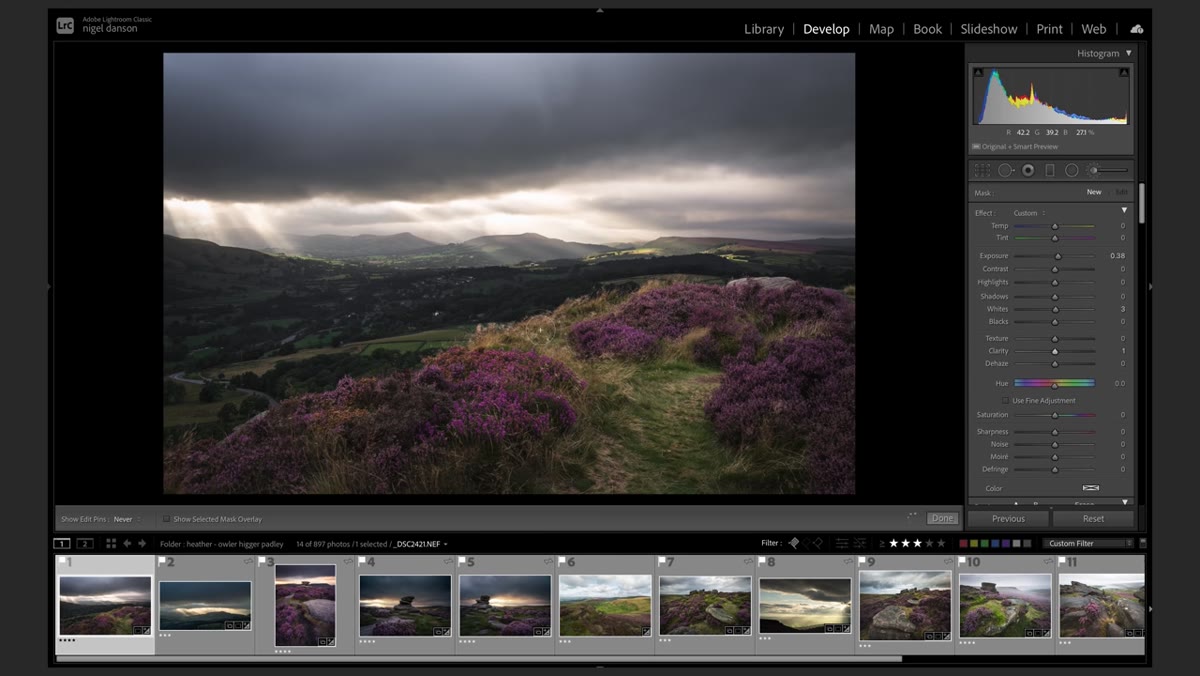 Brush painting brighter exposure onto heather flowers and rock highlights
This is the core of Danson’s technique and the step that separates edits that feel real from edits that feel processed. He identifies which parts of the foreground are higher up, more exposed, more likely to catch whatever diffused light was available on that stormy morning. The tops of the heather flowers. The face of a nearby rock. He paints those areas with a modest exposure increase and leaves the deeper shadows alone.
Brush painting brighter exposure onto heather flowers and rock highlights
This is the core of Danson’s technique and the step that separates edits that feel real from edits that feel processed. He identifies which parts of the foreground are higher up, more exposed, more likely to catch whatever diffused light was available on that stormy morning. The tops of the heather flowers. The face of a nearby rock. He paints those areas with a modest exposure increase and leaves the deeper shadows alone.
You’re essentially recreating the lighting logic of the scene rather than overriding it. Spend time here. Zoom in, use a smaller brush for detail areas, and keep checking your work against the original read of the file from Step 1. If an area looks brighter than the sky, you’ve probably gone too far.
Step 6: Add Warmth and Clarity to Finish the Affected Areas
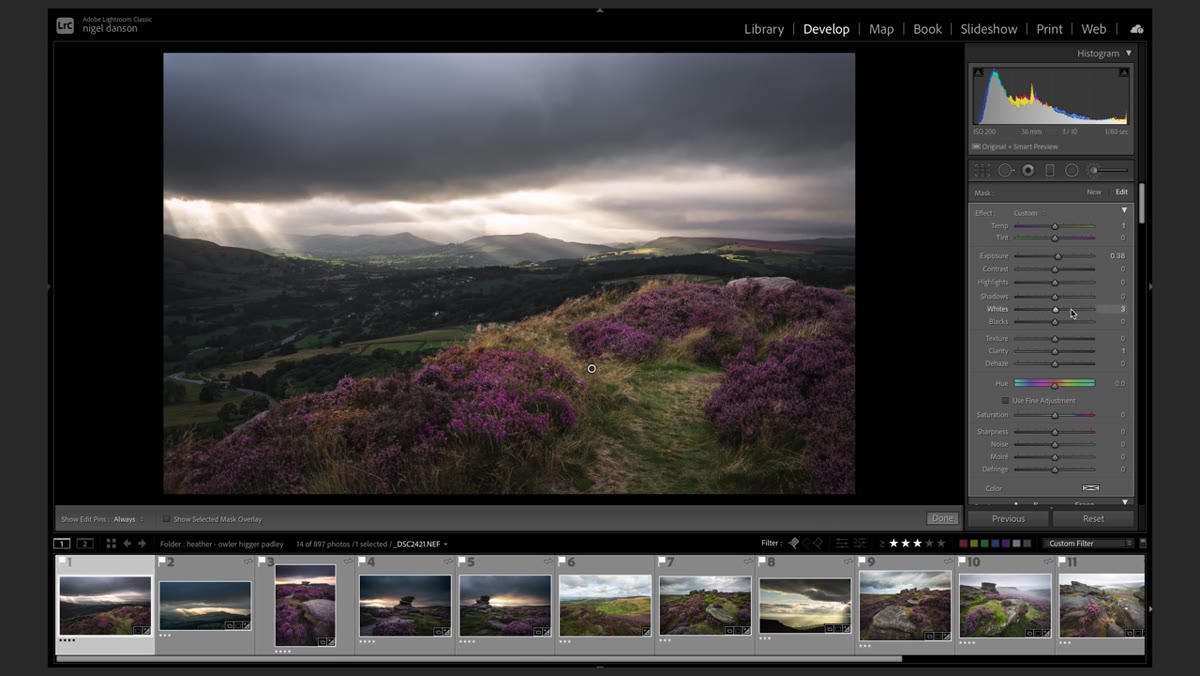 Warmth and clarity sliders adjusted within the dodge and burn brush mask
With your exposure adjustments painted in, Danson makes two smaller moves inside the same brush adjustment: a touch of warmth and a bump of clarity. The warmth reflects how natural light, even diffuse light on overcast days, tends to carry some color temperature as it catches on organic surfaces like heather and moss. The clarity adds micro-contrast that helps the brightened areas feel three-dimensional rather than flat.
Warmth and clarity sliders adjusted within the dodge and burn brush mask
With your exposure adjustments painted in, Danson makes two smaller moves inside the same brush adjustment: a touch of warmth and a bump of clarity. The warmth reflects how natural light, even diffuse light on overcast days, tends to carry some color temperature as it catches on organic surfaces like heather and moss. The clarity adds micro-contrast that helps the brightened areas feel three-dimensional rather than flat.
Neither of these moves needs to be dramatic. We’re talking minor additions that reinforce the realism of the luminosity work you’ve already done.
My Own Caveat: Don’t Skip This Step on Interior and Portrait Work Either
I’ve started applying this same luminosity-first thinking outside of landscapes. When I edit architectural interiors or environmental portraits, I always ask whether the shadows I’m recovering are shadows for a reason. A lamp-lit room has a specific logic. A window creates a falloff. Pushing shadows up uniformly on those scenes flattens the very thing that made the original shot interesting. Danson’s framework is built around landscapes, but the underlying principle is universal: light has physics, and your edit should respect them.
The single most important thing I took from this tutorial is the habit of reading the raw file before touching anything. If you know what the camera captured, you have a reference point for every decision that follows. Brighten things with intention, and only where light would have logically landed.
Watch the full tutorial on YouTube to see Nigel walk through the heather scene in real time. His before/after comparisons make the luminosity difference much more visible than any description can.
Comments
Leave a Comment