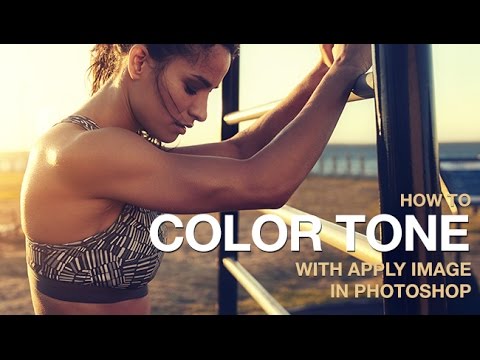
Most of my color grading life happens in Lightroom. HSL sliders, tone curves, color mixer — I live there. But every once in a while a technique surfaces from the Photoshop side of the fence that makes me stop whatever record is spinning on the turntable and actually pay attention. Apply Image is one of those techniques. It’s been sitting inside Photoshop for years, quietly being one of the most powerful color tools in the entire application, and the majority of editors I talk to have never touched it.
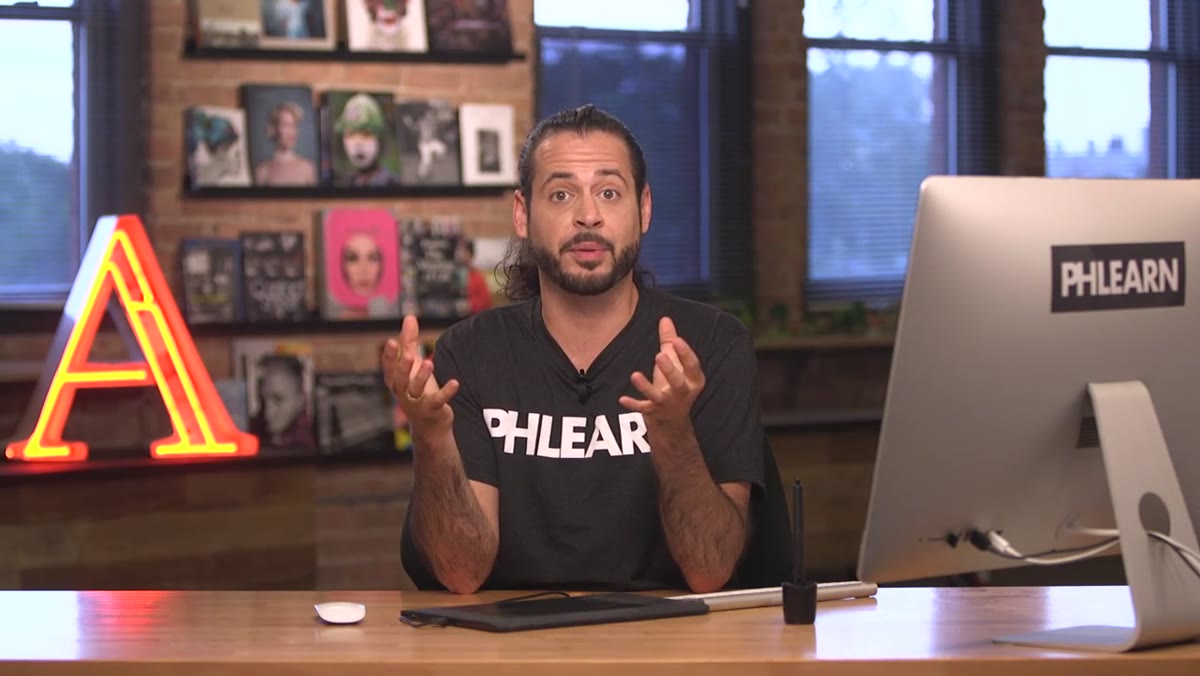
In this Aaron Nace tutorial from PHLEARN (Watch the full tutorial on YouTube), Aaron walks through exactly what Apply Image does under the hood and then uses it to do something genuinely useful: color grade highlights and shadows completely independently using luminosity-based layer masks. No plugins, no third-party tools. Just a feature that was already there. I picked this apart so you can follow along without needing to pause and rewind every thirty seconds.
The core problem this solves is one I run into constantly. You want warm tones in the highlights and cool tones in the shadows, but any adjustment layer you add affects the whole image. Split toning in Lightroom helps, but it’s blunt. Apply Image gives you surgical control by using the actual luminosity data in your photo to build the mask automatically.
Step 1: Create a New Blank Layer
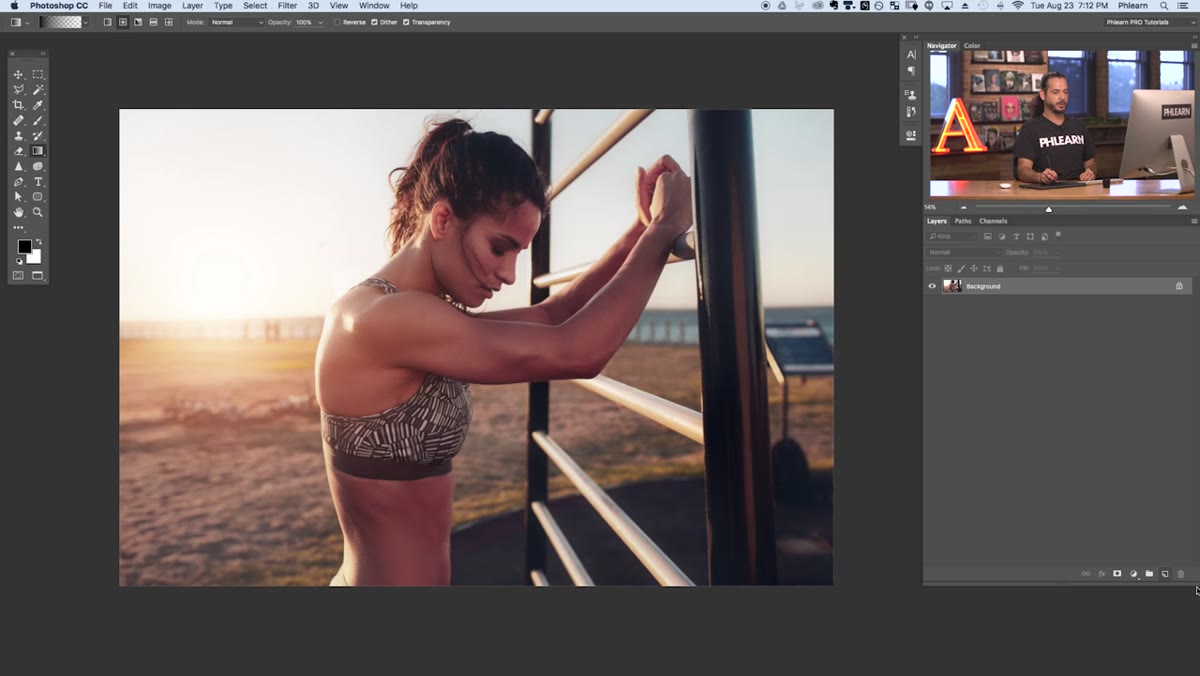 New blank layer created above background in Layers panel
Start with your image open in Photoshop. Click the new layer icon at the bottom of the Layers panel. You’ll get a blank, empty layer sitting above your background. Nothing on it yet. That matters because Apply Image is going to fill it based on what you tell it to look at, not what’s already on the layer.
New blank layer created above background in Layers panel
Start with your image open in Photoshop. Click the new layer icon at the bottom of the Layers panel. You’ll get a blank, empty layer sitting above your background. Nothing on it yet. That matters because Apply Image is going to fill it based on what you tell it to look at, not what’s already on the layer.
This is also a good moment to understand the mental model: Apply Image takes pixel data from somewhere else in your document and applies it to wherever your cursor currently is, whether that’s a layer or a layer mask. That distinction becomes everything in a few steps.
Step 2: Run Apply Image on the Layer
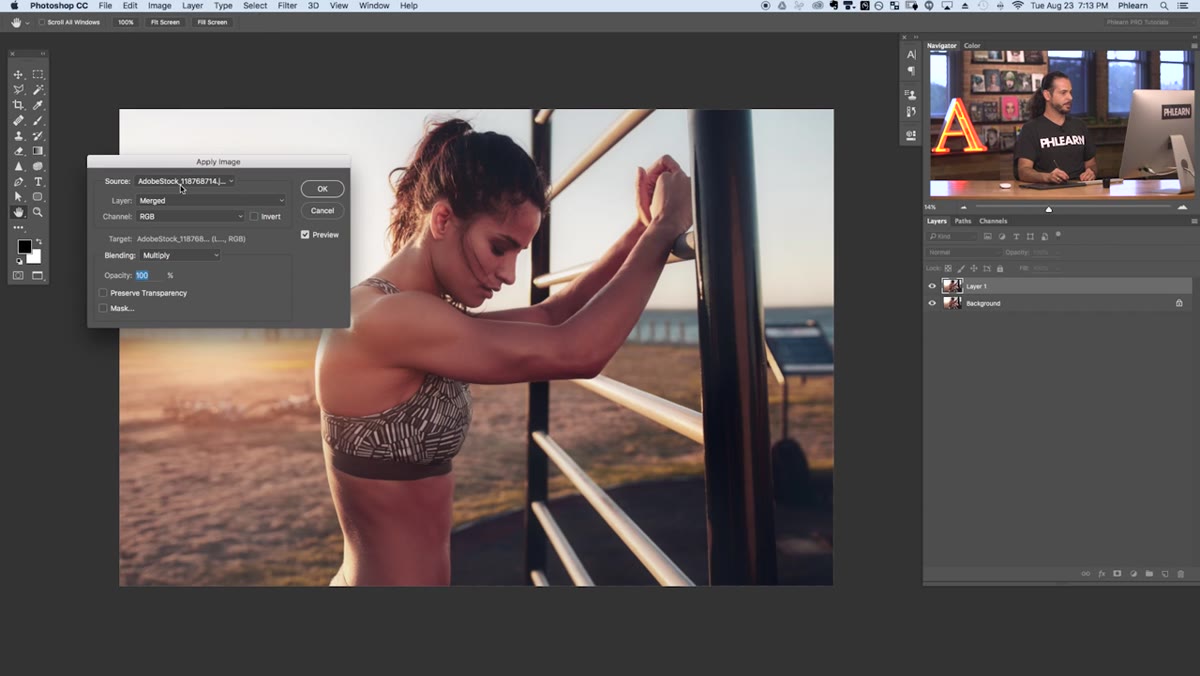 Apply Image dialog box open with source and layer options visible
With your new blank layer selected, go to Image in the top menu and choose Apply Image. The dialog that opens has a few key settings. Source is your document. Layer should be set to Merged, which tells Photoshop to grab a composite of everything currently visible in your image rather than just one layer. Channel should be RGB. Blending Mode set to Normal.
Apply Image dialog box open with source and layer options visible
With your new blank layer selected, go to Image in the top menu and choose Apply Image. The dialog that opens has a few key settings. Source is your document. Layer should be set to Merged, which tells Photoshop to grab a composite of everything currently visible in your image rather than just one layer. Channel should be RGB. Blending Mode set to Normal.
Hit OK and Photoshop stamps a flattened copy of your entire visible image onto that blank layer. It sounds simple because it is, but this is the foundation of every advanced use case that follows. Aaron demonstrates this by actually writing his name on a lower layer before running Apply Image on the layer above it, and the merged result includes the handwriting. What you see is what you get.
Step 3: Understand Why Merged Matters
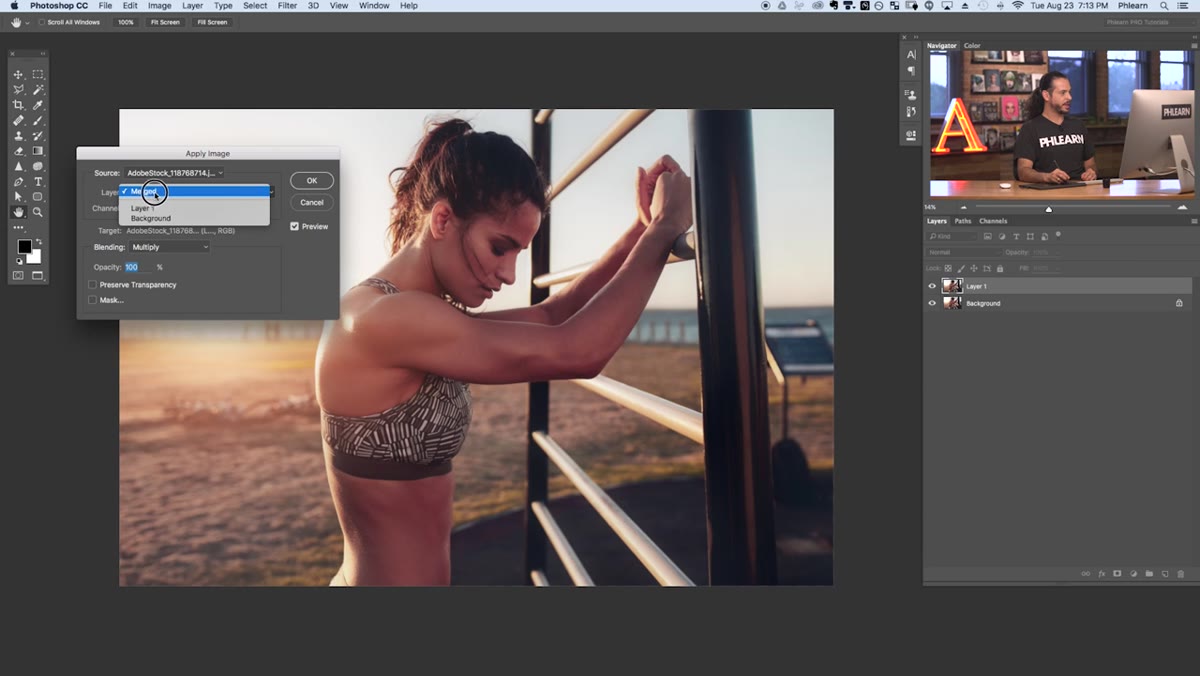 Layer two showing merged copy including text from layer below
If you have a multi-layer document with retouching, adjustment layers, and composited elements, you need a single flattened version of that work to do things like run Liquify or apply certain filters. Apply Image with Layer set to Merged is how you get there without actually flattening your document and losing your edit history.
Layer two showing merged copy including text from layer below
If you have a multi-layer document with retouching, adjustment layers, and composited elements, you need a single flattened version of that work to do things like run Liquify or apply certain filters. Apply Image with Layer set to Merged is how you get there without actually flattening your document and losing your edit history.
This is the part of the tutorial that made me rethink how I approach complex retouching jobs. Instead of duplicating and merging visible layers, which always feels slightly dangerous, Apply Image gives you the same result on a fresh layer while keeping everything below it intact.
Step 4: Apply Image on a Layer Mask
 Layer mask selected with Apply Image dialog open
Here is where it gets powerful for color grading. Create a Color Balance adjustment layer. This is what you’ll use to push warm tones into the highlights or cool tones into the shadows. Before you adjust anything, click directly on the layer mask thumbnail on that adjustment layer to select the mask, not the layer itself. The mask is the white rectangle next to the adjustment layer icon.
Layer mask selected with Apply Image dialog open
Here is where it gets powerful for color grading. Create a Color Balance adjustment layer. This is what you’ll use to push warm tones into the highlights or cool tones into the shadows. Before you adjust anything, click directly on the layer mask thumbnail on that adjustment layer to select the mask, not the layer itself. The mask is the white rectangle next to the adjustment layer icon.
Now go back to Image and Apply Image. Same dialog, same settings: Merged, RGB, Normal. But this time you’re running it on a mask, not a layer. Photoshop fills the mask with the luminosity data from your image. Bright areas of your photo become white in the mask, which means the adjustment shows through in the highlights. Dark areas become black, hiding the adjustment in the shadows.
Step 5: Invert the Mask for Shadow Control
 Invert checkbox highlighted in Apply Image dialog
To target the shadows instead, you have two options. You can check the Invert checkbox inside the Apply Image dialog before hitting OK, which flips the luminosity data so dark areas become white in the mask and the adjustment hits the shadows instead. Or you can run Apply Image normally and then press Command+I (Ctrl+I on Windows) to invert the mask afterward.
Invert checkbox highlighted in Apply Image dialog
To target the shadows instead, you have two options. You can check the Invert checkbox inside the Apply Image dialog before hitting OK, which flips the luminosity data so dark areas become white in the mask and the adjustment hits the shadows instead. Or you can run Apply Image normally and then press Command+I (Ctrl+I on Windows) to invert the mask afterward.
Create a second Color Balance adjustment layer and run the inverted version on its mask. Now you have two adjustment layers: one targeting highlights, one targeting shadows. Dial in warm oranges and yellows on the highlights layer, push cool blues and cyans on the shadows layer, and you have a cinematic split tone that actually respects the tonal structure of your image.
Step 6: Fine-Tune With Color Balance
 Color Balance panel open with highlight and shadow sliders visible
Inside each Color Balance adjustment, you can push the sliders toward whichever color direction fits the mood. For a classic film look, warm highlights sit around plus 15 to 20 on the yellow-to-red side. Shadow tones going slightly teal, around minus 10 to minus 15 on the cyan slider, create the separation that makes an image feel graded rather than filtered. The luminosity mask handles the transition between the two, so you don’t get a hard line. It feathers naturally because it’s built from the photo’s own tonal data.
Color Balance panel open with highlight and shadow sliders visible
Inside each Color Balance adjustment, you can push the sliders toward whichever color direction fits the mood. For a classic film look, warm highlights sit around plus 15 to 20 on the yellow-to-red side. Shadow tones going slightly teal, around minus 10 to minus 15 on the cyan slider, create the separation that makes an image feel graded rather than filtered. The luminosity mask handles the transition between the two, so you don’t get a hard line. It feathers naturally because it’s built from the photo’s own tonal data.
How I’d Build This Into a Lightroom-to-Photoshop Workflow
I almost always start in Lightroom. Basic exposure work, noise reduction, lens corrections – all of that stays there. But when a portrait or landscape needs that next level of tonal separation, I send it over to Photoshop as a smart object, run this Apply Image technique on a pair of Color Balance adjustment layers, and come back. The smart object link means I can still tweak my Lightroom adjustments and have them update in Photoshop. Apply Image re-runs on the updated composite data. It stays live.
One caveat worth naming: Apply Image reads what’s currently visible. If you have hidden layers or turn on an adjustment after the fact, the mask won’t update automatically. You’d need to re-run Apply Image on the mask. It’s not a dynamic link. Build the habit of running it last, after your other adjustments are roughly where you want them.
Apply Image is one of those features that rewards you for taking thirty minutes to actually understand it rather than skimming the surface. Aaron’s walkthrough is the clearest explanation I’ve seen, and the color grading application at the end is immediately usable in real work. Watch the full tutorial on YouTube and run through it once with a test image. You’ll find yourself reaching for it more than you expect.
Comments
Leave a Comment