Every photographer who prints their own work has lived this exact nightmare. You spend an hour getting the edit exactly right on screen. The colors are balanced, the highlights are where you want them, the whole thing looks clean and intentional. You send it to the printer. It comes out looking like the photo was taken inside a storm drain. Dark, muddy, lifeless.
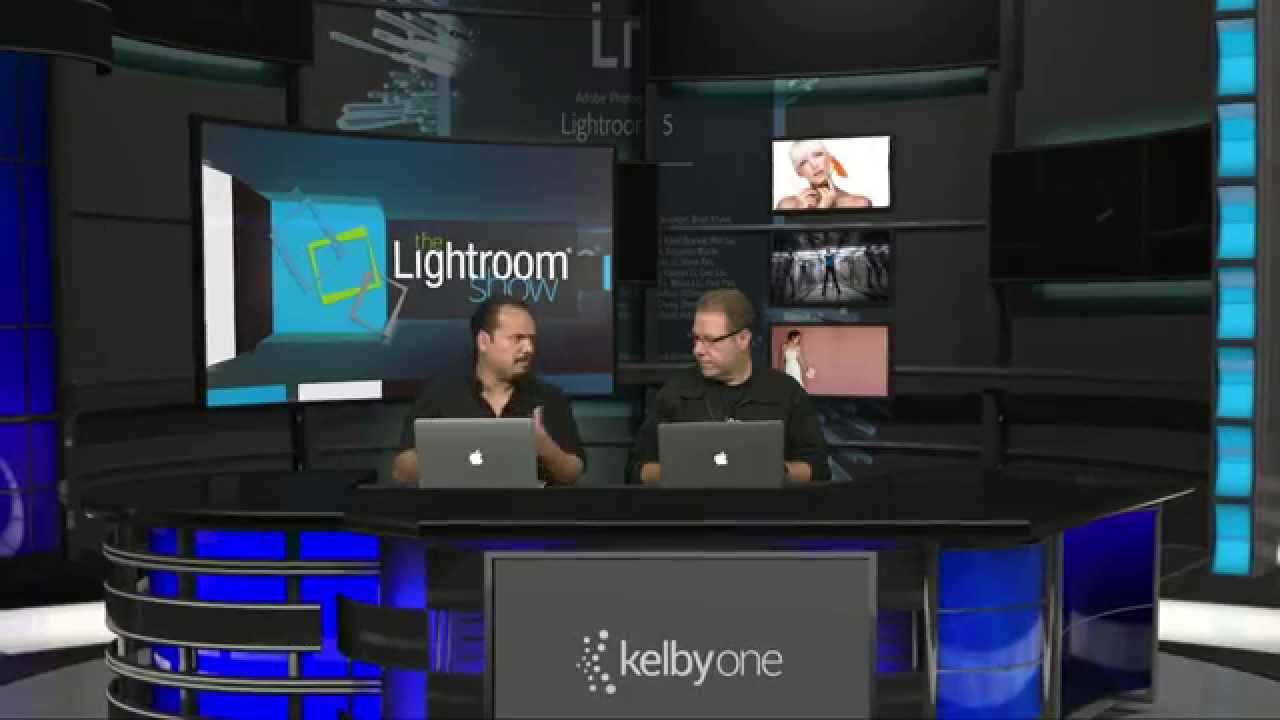
I’ve thrown away more paper than I care to admit chasing that problem. For a long time my workaround was the same Photoshop-based hack a lot of people use, duplicating the layer, switching the blend mode to Screen, and dialing the opacity down until the print matched the screen. It works, but it’s clunky, it adds steps, and it means bouncing out of Lightroom right at the moment you should be done. When I came across Watch the full tutorial on YouTube from the KelbyOne team, hosted by RC Concepcion and Scott Kelby in their debut episode of The Lightroom Show, I finally had a cleaner answer. They cover two separate techniques in this first episode, and both of them are the kind of thing you use immediately and then wonder how you went without.
Here’s a full walkthrough of both, with the settings spelled out so you can follow along without pausing the video every thirty seconds.
Step 1: Navigate to the Print Module
 Print module panel visible in Lightroom’s right sidebar
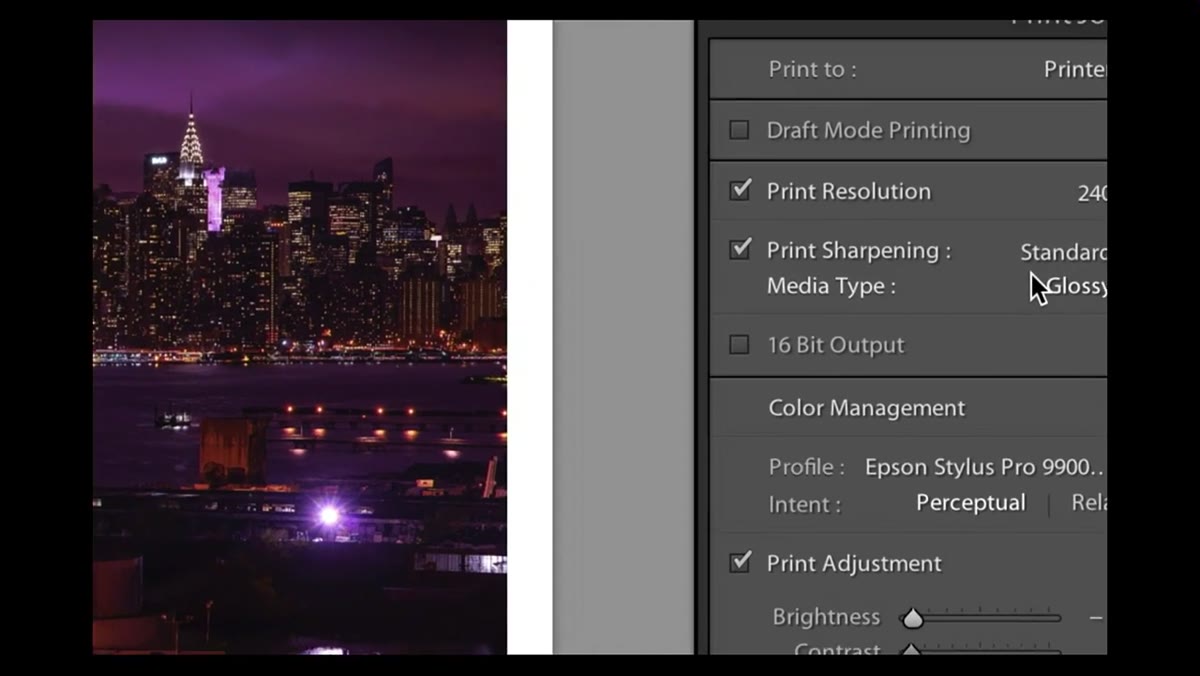
Open the image you want to print and switch from the Develop module to the Print module using the module picker at the top of the Lightroom interface. This is where a lot of photographers only go to set paper size and call it a day. There’s actually a lot more happening in that right-hand panel, and most of it goes ignored.
Print module panel visible in Lightroom’s right sidebar
Open the image you want to print and switch from the Develop module to the Print module using the module picker at the top of the Lightroom interface. This is where a lot of photographers only go to set paper size and call it a day. There’s actually a lot more happening in that right-hand panel, and most of it goes ignored.
Step 2: Find the Print Adjustment Panel
 Print Adjustment section at the bottom of the Print module panel
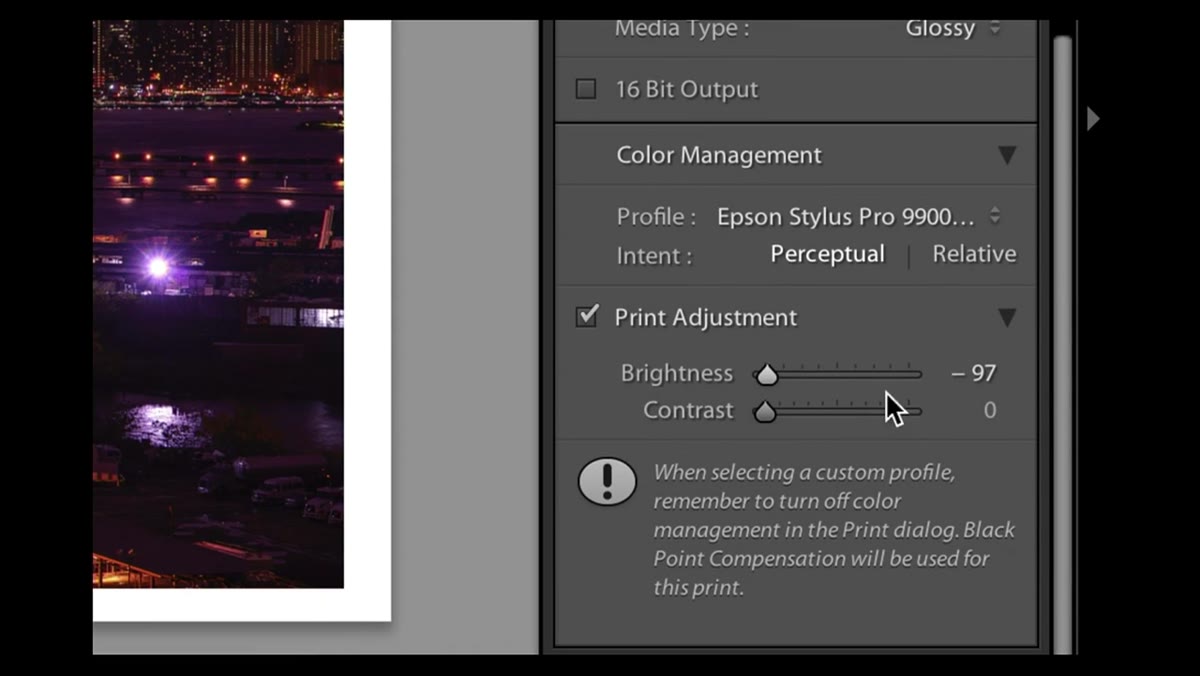
Scroll down to the bottom of the right-hand panel inside the Print module. You’ll find a section called Print Adjustment. It’s easy to miss because it sits below the more commonly used options like color management and print resolution. Make sure the checkbox next to Print Adjustment is enabled. Nothing in this section does anything until that box is checked.
Print Adjustment section at the bottom of the Print module panel
Scroll down to the bottom of the right-hand panel inside the Print module. You’ll find a section called Print Adjustment. It’s easy to miss because it sits below the more commonly used options like color management and print resolution. Make sure the checkbox next to Print Adjustment is enabled. Nothing in this section does anything until that box is checked.
Step 3: Dial In the Brightness and Contrast Sliders
 Brightness slider being adjusted in the Print Adjustment section
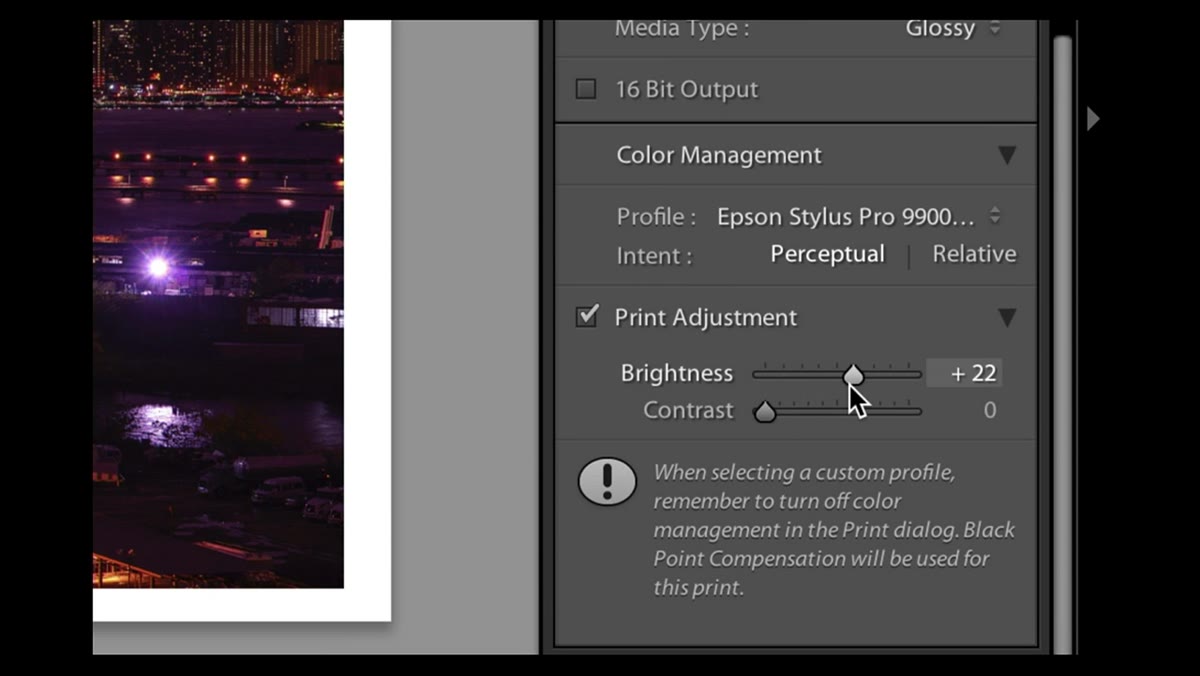
Once Print Adjustment is active, you’ll see two sliders: Brightness and Contrast. RC’s starting range for brightness is somewhere between 20 and 30, which lines up with my own experience. Think of it as a calibration number specific to your printer and paper combination rather than a universal setting. Boosting contrast slightly alongside brightness keeps the print from looking washed out as you brighten it up.
Brightness slider being adjusted in the Print Adjustment section
Once Print Adjustment is active, you’ll see two sliders: Brightness and Contrast. RC’s starting range for brightness is somewhere between 20 and 30, which lines up with my own experience. Think of it as a calibration number specific to your printer and paper combination rather than a universal setting. Boosting contrast slightly alongside brightness keeps the print from looking washed out as you brighten it up.
The thing that makes this technique genuinely useful is that the change is invisible on screen. Your image in the preview looks exactly the same. The adjustment only applies at the moment of printing, and it never touches the underlying file. You’re not baking anything in. If you print the same image to a different printer or paper stock next week, you just change the slider and go.
Step 4: Run a Test Print to Find Your Number
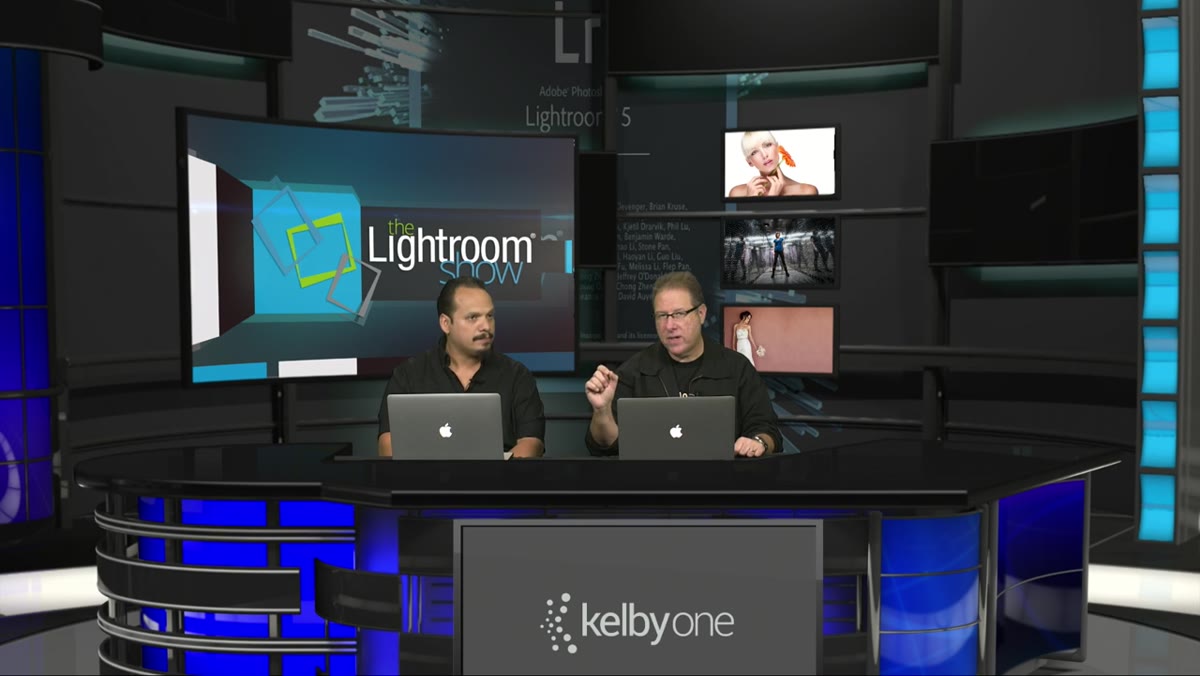 Hosts discussing test prints and matching screen brightness
Don’t guess at your brightness value and commit to a full print run. Run a small test print, ideally a cropped section of your image, and compare it to your screen. Adjust the brightness slider up or down and print again until the output matches what you’re seeing in Lightroom. Once you’ve found that number for a specific printer and paper type, write it down or save it somewhere. It becomes your default starting point every time you print on that setup.
Hosts discussing test prints and matching screen brightness
Don’t guess at your brightness value and commit to a full print run. Run a small test print, ideally a cropped section of your image, and compare it to your screen. Adjust the brightness slider up or down and print again until the output matches what you’re seeing in Lightroom. Once you’ve found that number for a specific printer and paper type, write it down or save it somewhere. It becomes your default starting point every time you print on that setup.
Step 5: Understand the White Balance Limitation with JPEG Files
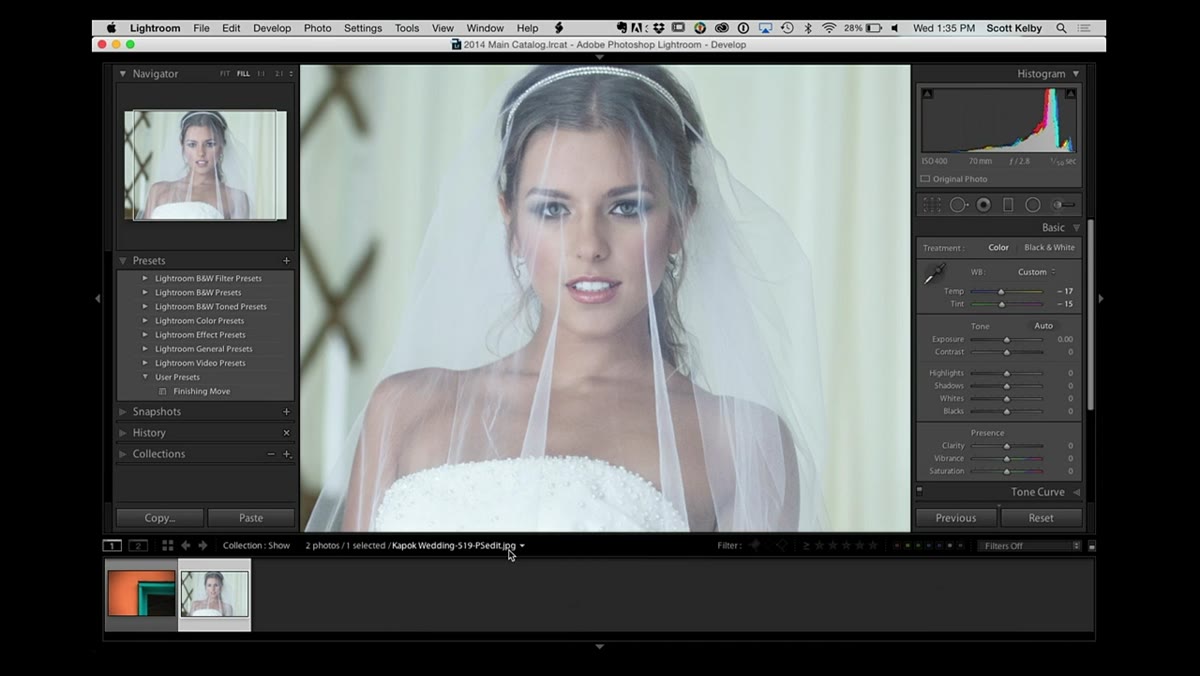 White balance dropdown showing only “Auto” for a JPEG image
The second technique in the episode addresses something that catches a lot of photographers off guard. When you import a JPEG into Lightroom and open the white balance dropdown in the Develop module, you’ll notice the preset list is stripped down to almost nothing. With a RAW file you get the full menu: Daylight, Cloudy, Shade, Tungsten, Fluorescent, and so on. With a JPEG, those options disappear. All you have is Auto.
White balance dropdown showing only “Auto” for a JPEG image
The second technique in the episode addresses something that catches a lot of photographers off guard. When you import a JPEG into Lightroom and open the white balance dropdown in the Develop module, you’ll notice the preset list is stripped down to almost nothing. With a RAW file you get the full menu: Daylight, Cloudy, Shade, Tungsten, Fluorescent, and so on. With a JPEG, those options disappear. All you have is Auto.
The reason is that a JPEG already has a white balance baked in at the moment of capture. The camera made that decision and encoded it into the file. Lightroom can still shift the temperature and tint sliders, but it can’t offer the same named presets because the underlying data that those presets work with isn’t there the same way it is in a RAW file.
Step 6: Use a RAW File to Generate White Balance Presets You Can Apply to JPEGs
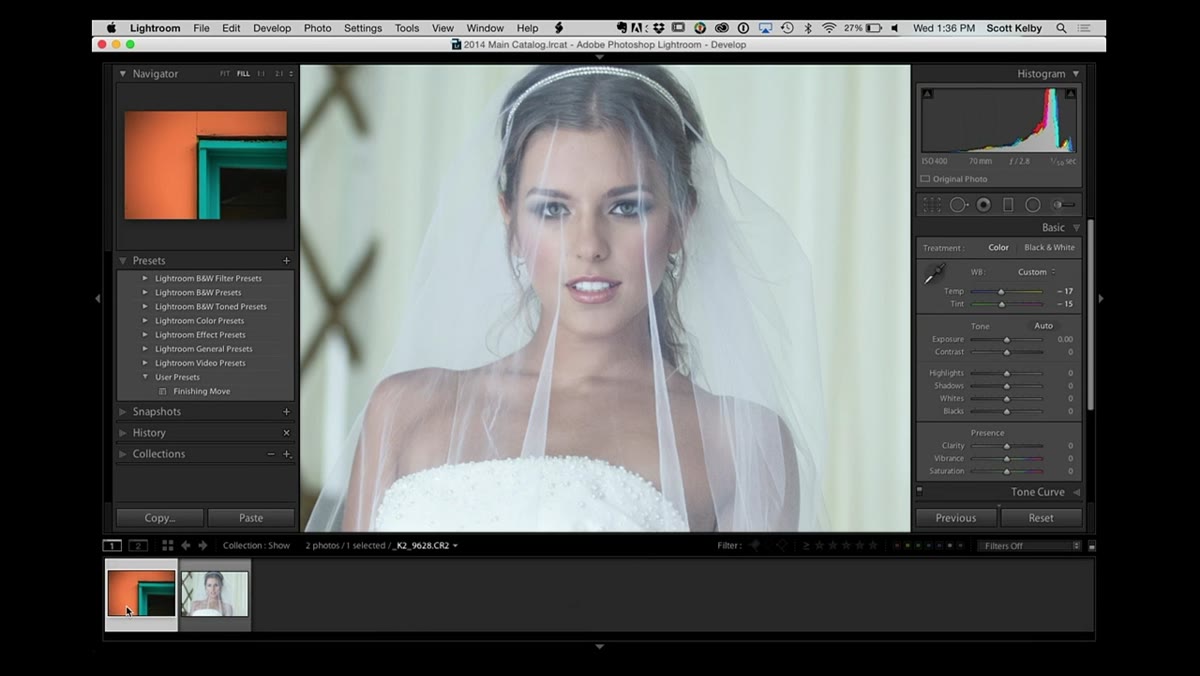 White balance preset list open on a RAW image in Develop module
Here’s the workaround RC demonstrates, and it’s a clever one. Open any RAW image in Lightroom. It doesn’t need to be related to the project you’re working on. With the RAW file selected in the Develop module, open the white balance preset dropdown. You’ll see the full list. Select whichever preset matches the shooting conditions of your JPEG, Daylight if it was shot outdoors in sun, Cloudy if it was overcast, and so on.
White balance preset list open on a RAW image in Develop module
Here’s the workaround RC demonstrates, and it’s a clever one. Open any RAW image in Lightroom. It doesn’t need to be related to the project you’re working on. With the RAW file selected in the Develop module, open the white balance preset dropdown. You’ll see the full list. Select whichever preset matches the shooting conditions of your JPEG, Daylight if it was shot outdoors in sun, Cloudy if it was overcast, and so on.
From there you can save that white balance setting as a user preset. Once it’s saved as a preset, it becomes available to apply to JPEG files as well, giving you something close to the one-click white balance options that RAW files get natively. It’s not a perfect recreation of what RAW processing does under the hood, but in practice it gets you where you need to go without manually nudging temperature and tint sliders from scratch.
A Note on Calibrating the Print Adjustment Slider Over Time
The print brightness fix is one of those settings that rewards consistency. I keep a simple note in my phone with the brightness values I’ve landed on for each paper stock I use regularly. Matte paper, fine art cotton rag, and glossy all behave differently, and I’ve found that matte stocks generally need a higher brightness boost because of how much they absorb ink compared to glossy surfaces. If you shoot a lot of client work and fulfill print orders, even occasionally, treating this slider as part of your print profile rather than something you eyeball each time will save you paper and patience.
The white balance preset trick is also worth saving properly. Name the preset something specific enough that you’ll know what it does in six months. I name mine after songs, which probably only makes sense to me, but the point is that “WB-Daylight-Warm” tells you more than “Preset 3.”
Both of these techniques share the same underlying logic: Lightroom can do more than most people ask it to do, and the tools to fix common problems are usually already sitting in a panel you’ve scrolled past. The print adjustment fix alone has probably saved me more time than any other single setting in my workflow. Watch the full episode to see RC and Scott demonstrate both techniques live, including the white balance preview feature that RC mentions toward the end: Watch the full tutorial on YouTube.
Comments
Leave a Comment