
I’ve had the same conversation probably a hundred times. Someone corners me after a workshop, or slides into my DMs, and the question is always some version of the same thing: “Wait, so where are my photos actually going when I use Lightroom Mobile?” It’s one of those questions that sounds simple but opens up into something genuinely confusing if you haven’t had it laid out clearly. Adobe’s documentation doesn’t exactly make it easy either. So when I came across this Matt Kloskowski tutorial covering exactly this topic, I kept nodding along because he explains it the way I wish someone had explained it to me the first time I opened the mobile app.
Watch the full tutorial on YouTube
What makes this lesson click is the analogy Matt uses throughout. He keeps drawing a straight line between how Lightroom Mobile works and how the desktop version works, which is a smart approach. If you’ve spent any time in Lightroom Classic, you already understand catalogs, folders, and collections. Lightroom Mobile follows the same logic. You just need someone to map one onto the other. That’s exactly what this lesson does.
Step 1: Understand Where Your Photos Are Stored
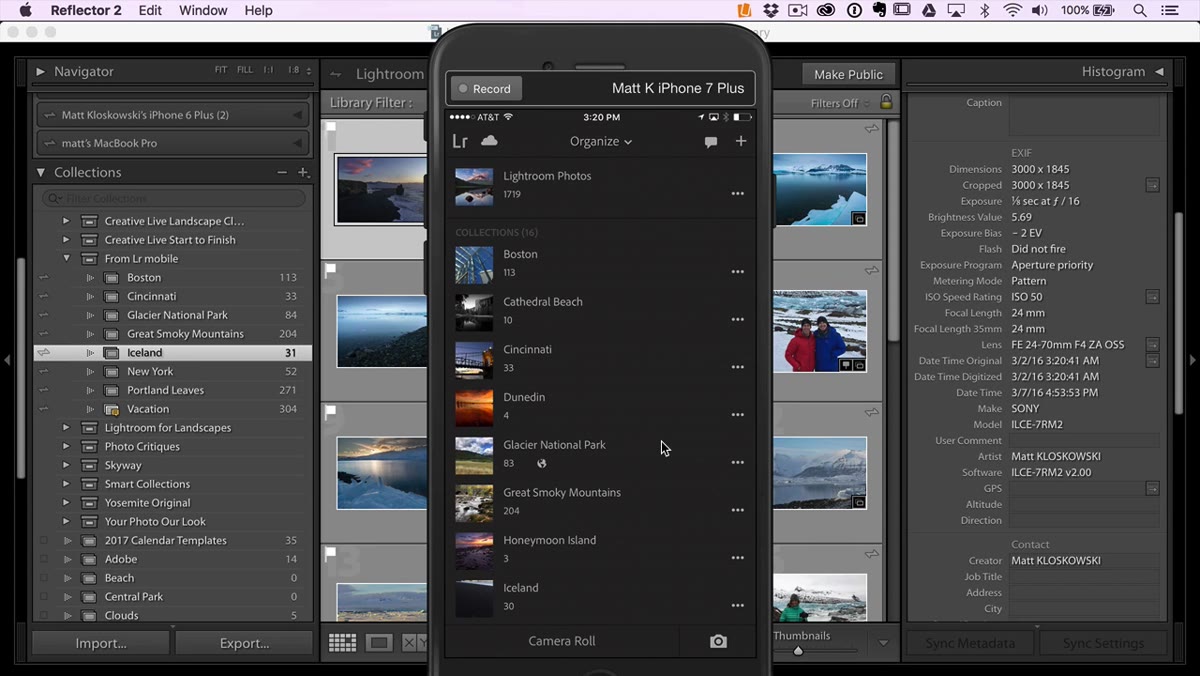 Lightroom Mobile photo library screen shown on device
Every photo that makes it into Lightroom Mobile, no matter how it got there, is automatically backed up to the Adobe Cloud. Doesn’t matter if you shot it directly through the app’s built-in camera, or if you pulled it in from your phone’s camera roll. Once it lives in Lightroom Mobile, it’s syncing to the cloud. Think of that as your safety net. The photo isn’t just sitting on your phone and hoping for the best.
Lightroom Mobile photo library screen shown on device
Every photo that makes it into Lightroom Mobile, no matter how it got there, is automatically backed up to the Adobe Cloud. Doesn’t matter if you shot it directly through the app’s built-in camera, or if you pulled it in from your phone’s camera roll. Once it lives in Lightroom Mobile, it’s syncing to the cloud. Think of that as your safety net. The photo isn’t just sitting on your phone and hoping for the best.
At the time this tutorial was recorded, Adobe hadn’t imposed a hard storage limit for Lightroom Mobile cloud storage. Matt’s honest about this being a “for now” situation rather than a permanent guarantee, and that’s the right framing. Don’t treat unlimited cloud storage as a reason to abandon your regular backup strategy. Treat it as a bonus layer.
Step 2: Know the Real Storage Limit (It’s Your Phone)
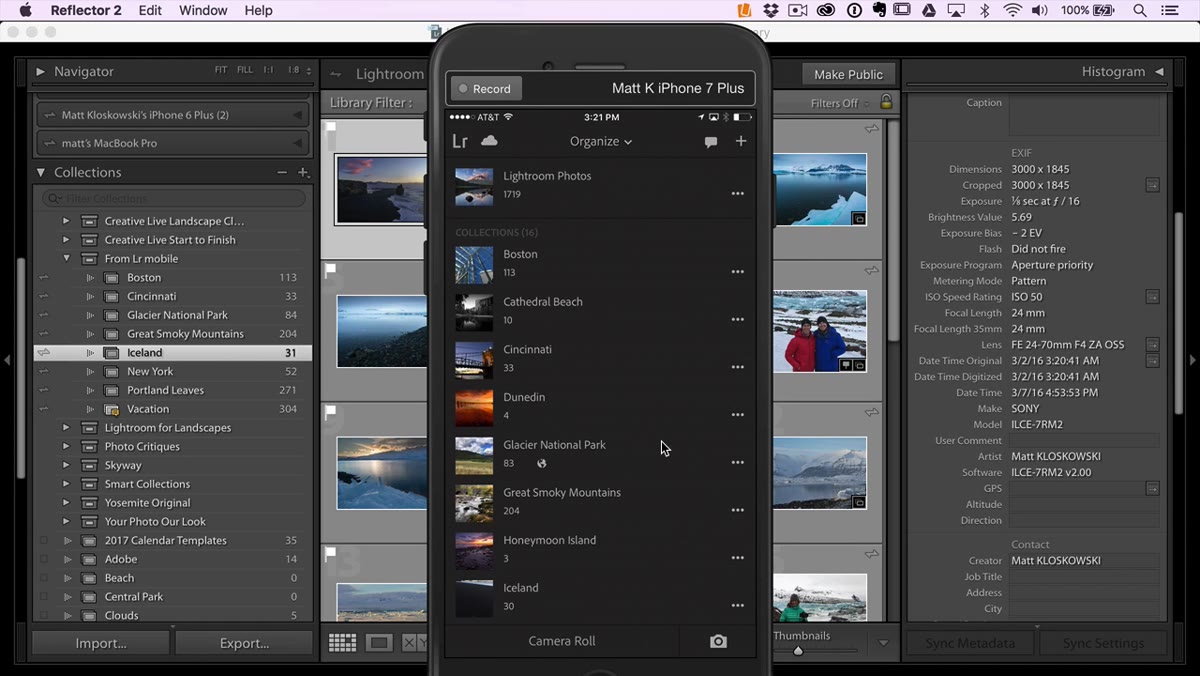 Phone storage limit discussion, Lightroom Mobile interface visible
Here’s the practical ceiling you’ll actually hit before you ever bump into a cloud limit: your phone’s internal storage. The cloud can theoretically hold a lot, but what your device can handle is finite. If you’re trying to bring hundreds of high-resolution RAW files into Lightroom Mobile, your phone is going to push back before Adobe’s servers do.
Phone storage limit discussion, Lightroom Mobile interface visible
Here’s the practical ceiling you’ll actually hit before you ever bump into a cloud limit: your phone’s internal storage. The cloud can theoretically hold a lot, but what your device can handle is finite. If you’re trying to bring hundreds of high-resolution RAW files into Lightroom Mobile, your phone is going to push back before Adobe’s servers do.
This matters for how you plan your mobile editing workflow. Think of Lightroom Mobile as a precision tool for active projects, not a permanent archive for your entire catalog. Use it for the shoot you’re currently working on, the travel photos from this trip, the client selects you’re reviewing. Keep your long-term storage strategy on an external drive or in a proper backup system.
Step 3: Understand the Difference Between Lightroom Photos and Camera Roll Photos
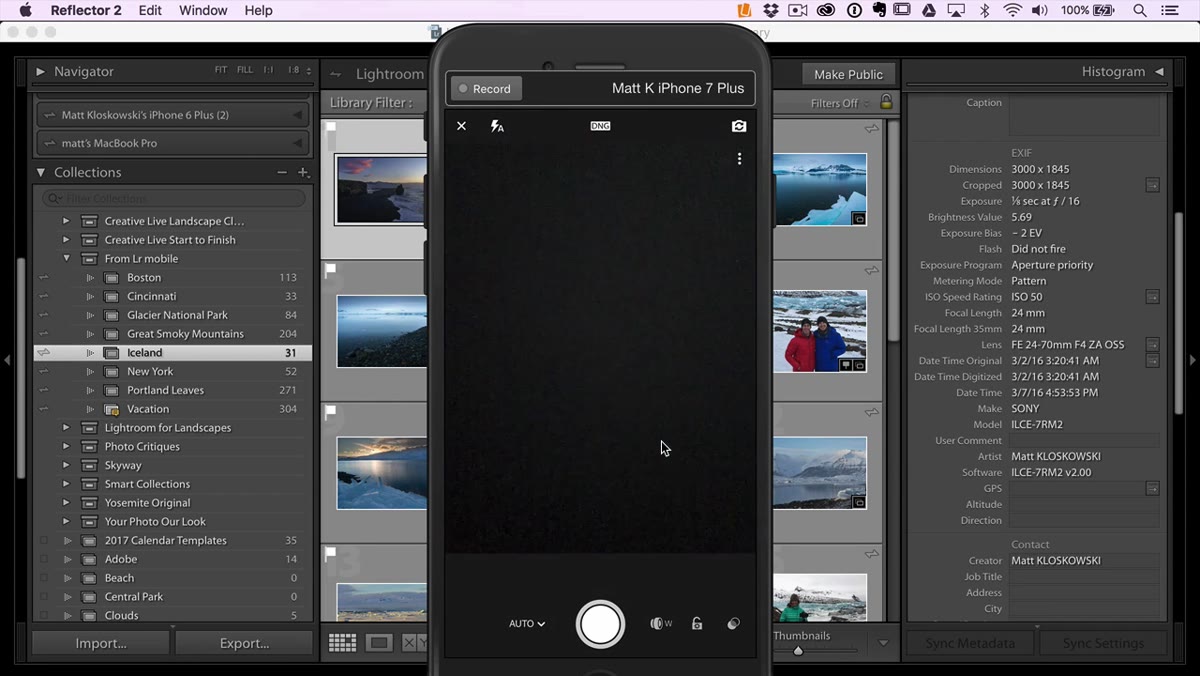 Camera roll import option shown at bottom of Lightroom Mobile screen
This is where a lot of people get tripped up. When you import photos from your phone’s camera roll into Lightroom Mobile, the app makes a copy of those photos. Both versions now exist independently. The original stays on your camera roll. The copy lives inside Lightroom Mobile and syncs to the cloud.
Camera roll import option shown at bottom of Lightroom Mobile screen
This is where a lot of people get tripped up. When you import photos from your phone’s camera roll into Lightroom Mobile, the app makes a copy of those photos. Both versions now exist independently. The original stays on your camera roll. The copy lives inside Lightroom Mobile and syncs to the cloud.
That sounds convenient, but it means you need to track two separate files if you’re not careful. Edits you make in Lightroom Mobile don’t touch the camera roll version. If you delete the Lightroom Mobile copy, the camera roll version survives. They are not linked after that initial import.
Step 4: Deleting from Lightroom Photos Means Permanent Deletion
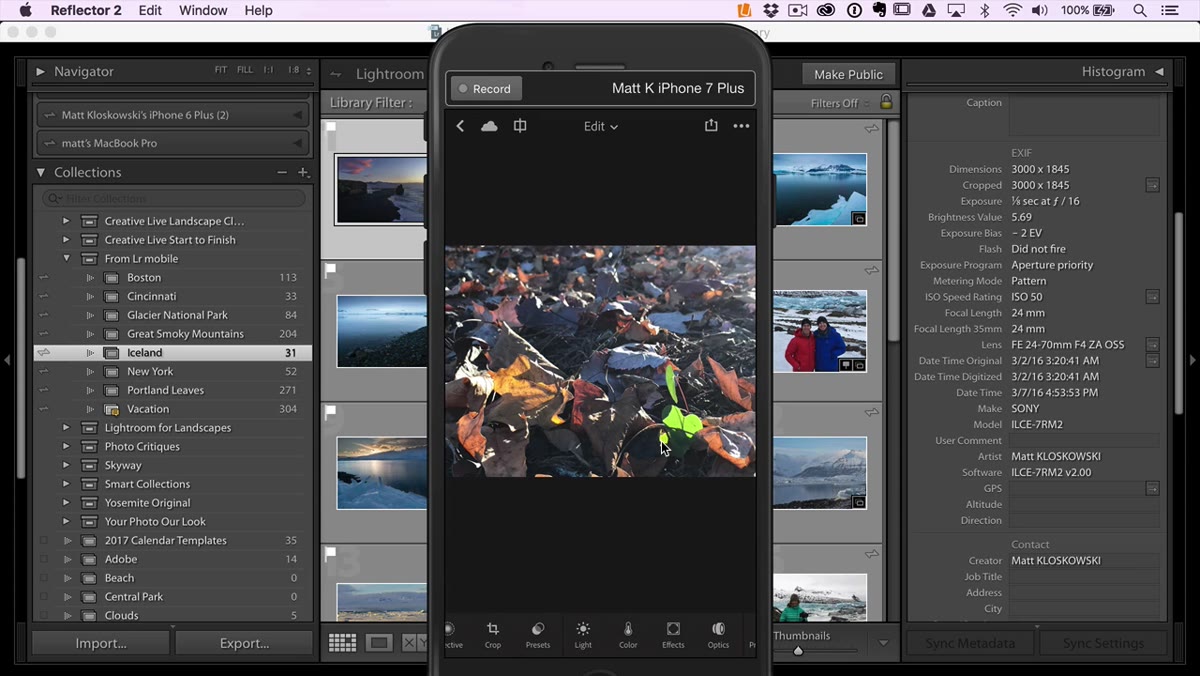 Three-dot menu open on a photo in Lightroom Photos folder
When you tap the three-dot menu on a photo inside the main Lightroom Photos section and choose “Remove,” that photo is gone from the Lightroom ecosystem entirely. Matt compares this to deleting a file directly from your hard drive in Lightroom Classic, which is exactly the right comparison. There’s no trash can waiting to save you. The photo is removed from the cloud, removed from your device, and removed from any collections it was part of.
Three-dot menu open on a photo in Lightroom Photos folder
When you tap the three-dot menu on a photo inside the main Lightroom Photos section and choose “Remove,” that photo is gone from the Lightroom ecosystem entirely. Matt compares this to deleting a file directly from your hard drive in Lightroom Classic, which is exactly the right comparison. There’s no trash can waiting to save you. The photo is removed from the cloud, removed from your device, and removed from any collections it was part of.
The one exception, as noted above, is if that photo originally came from your camera roll. In that case, the camera roll copy is still sitting on your phone. Everything else is gone, but at least that original exists somewhere.
Step 5: Removing from a Collection Is Not the Same as Deleting
 Photo being removed from a collection, not from Lightroom Photos
Collections in Lightroom Mobile work exactly like collections in Lightroom Classic. They are not storage locations. They are references, organizational shortcuts that point back to photos stored in the main Lightroom Photos section. When you remove a photo from a collection, you’re just pulling it out of that grouping. The photo itself stays put in Lightroom Photos.
Photo being removed from a collection, not from Lightroom Photos
Collections in Lightroom Mobile work exactly like collections in Lightroom Classic. They are not storage locations. They are references, organizational shortcuts that point back to photos stored in the main Lightroom Photos section. When you remove a photo from a collection, you’re just pulling it out of that grouping. The photo itself stays put in Lightroom Photos.
This distinction matters enormously for how you organize your work. You can have a photo in multiple collections simultaneously, like one collection for a client gallery and another for your portfolio, without duplicating the actual file. Remove it from one collection and nothing is lost. It’s still in the other collection, and it’s still in Lightroom Photos where the real file lives.
Step 6: Think of Lightroom Photos as Your Hard Drive
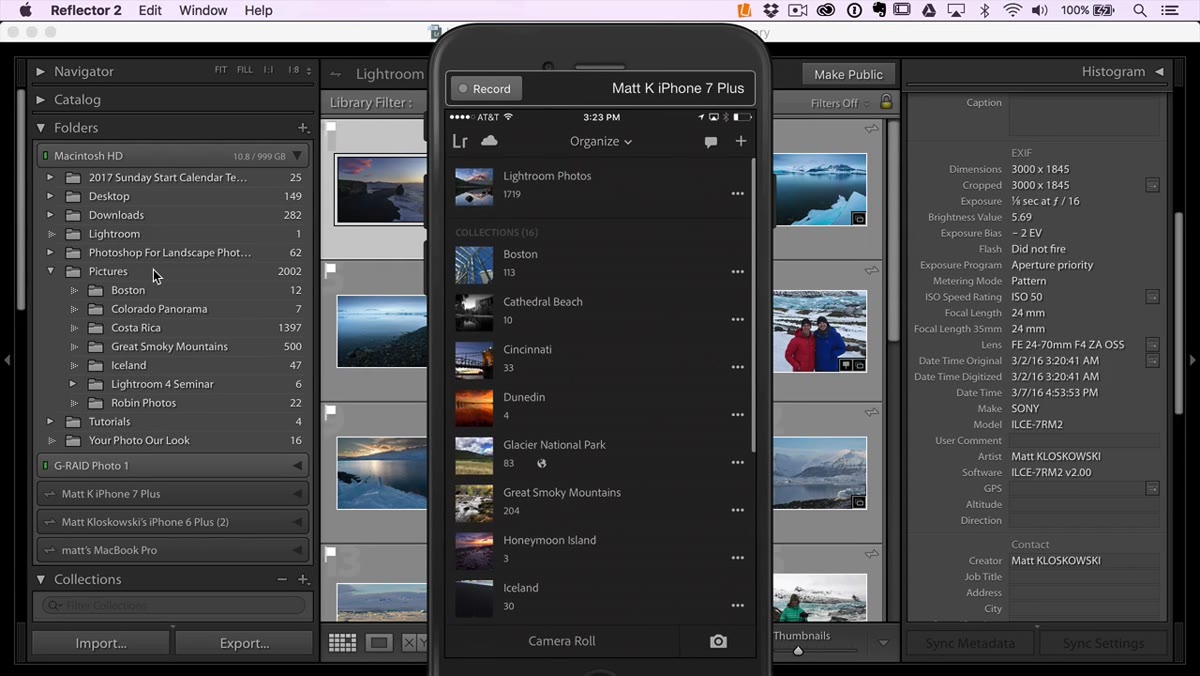 Lightroom Photos folder highlighted at the top of the folder list
The mental model that ties all of this together is simple: Lightroom Photos equals your hard drive. Every other feature in Lightroom Mobile, every collection, every shared album, every synced project, is just a different way of viewing and organizing what’s stored in that one central location. If something happens to the Lightroom Photos folder, everything downstream is affected.
Lightroom Photos folder highlighted at the top of the folder list
The mental model that ties all of this together is simple: Lightroom Photos equals your hard drive. Every other feature in Lightroom Mobile, every collection, every shared album, every synced project, is just a different way of viewing and organizing what’s stored in that one central location. If something happens to the Lightroom Photos folder, everything downstream is affected.
Keep that hierarchy in mind whenever you’re making decisions about moving, removing, or reorganizing photos. Ask yourself whether you’re working with the file itself or just a reference to it. That one question will save you from a lot of painful mistakes.
What I’d Add From My Own Experience
The cloud sync in Lightroom Mobile is genuinely useful, but it works best when you pair it with intentional organization. I learned this the hard way after a session where I imported an entire shoot’s worth of photos, made selects across a few different collections, and then panicked when I couldn’t remember which version of a photo was the “real” one.
Now I treat the Lightroom Photos folder like the raw catalog on my desktop: the source of truth, always organized, never cluttered. I only import what I’m actively editing, and I clear out finished projects before they pile up. The cloud backup is reassuring, but good habits make it unnecessary to ever test that safety net.
The single most important takeaway from this tutorial is the hard drive analogy. Once you understand that Lightroom Photos is your storage and everything else is just organization, the entire app starts to make sense. Collections are labels, not buckets. Deletion from the source is permanent. Everything flows from that one mental model.
Watch the full tutorial on YouTube to see Matt walk through each of these steps live on his device. Watching someone actually navigate the menus makes the logic even clearer.
Comments
Leave a Comment