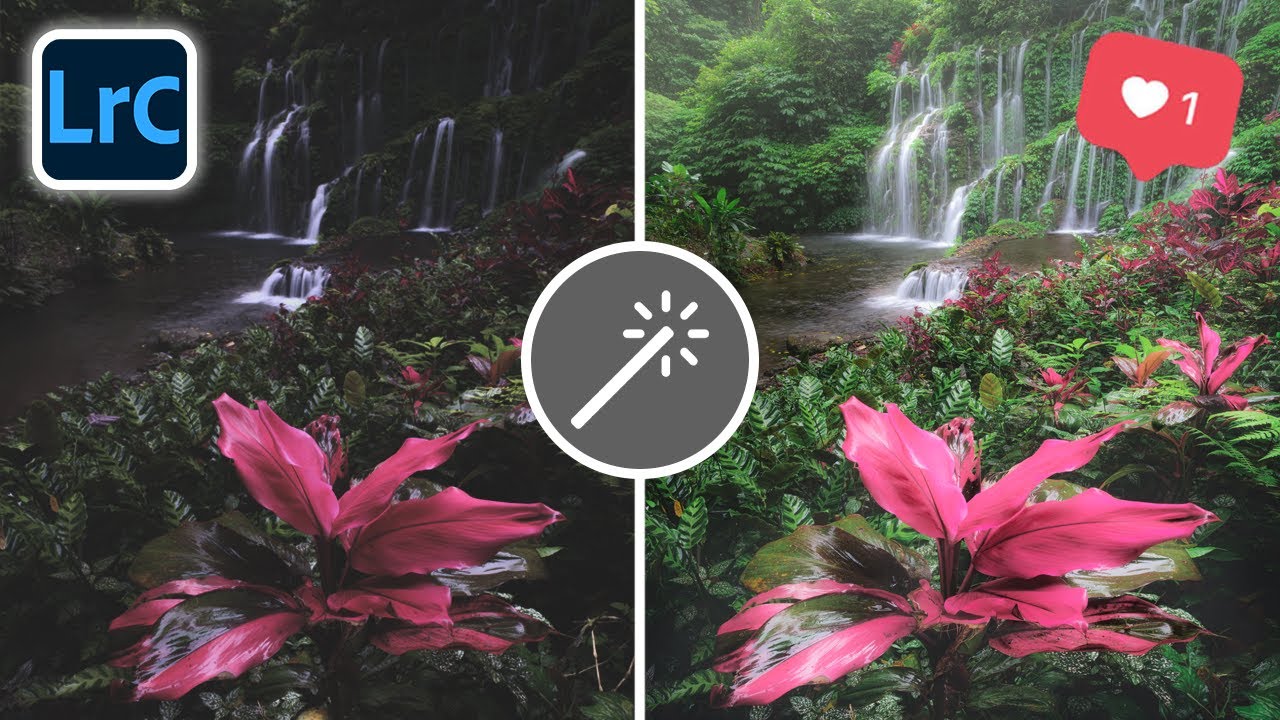
There’s a specific kind of frustration that hits when you get home from a shoot, pull up your RAW files, and realize the light you felt in the field just didn’t translate. You were standing next to a waterfall at golden hour, mist catching the early sun, the whole scene doing exactly what you hoped it would do, and the camera gave you something flat and unconvincing. You know the light was there. The histogram doesn’t care.
I’ve been editing landscape and portrait work for years, and this gap between what I experienced and what the file shows is the problem I spend most of my time solving. So when I came across a Mark Denney tutorial walking through what he calls “boundary glow,” I stopped whatever preset I was tinkering with and watched the whole thing twice. Watch the full tutorial on YouTube – it covers five other techniques beyond this one that are worth your time. But the boundary glow technique alone is worth a dedicated breakdown, because the combination of tools he uses isn’t obvious, and the order matters.
The core idea is this: when a photo has a real light source in it, even a subtle one, you can amplify and sculpt that light using a Radio Gradient paired with a negative Dehaze value. It sounds simple. The execution has a few details that make or break whether it looks real or looks like you slid a slider around.
Step 1: Shrink the Canvas and Pull Up the Filters Panel
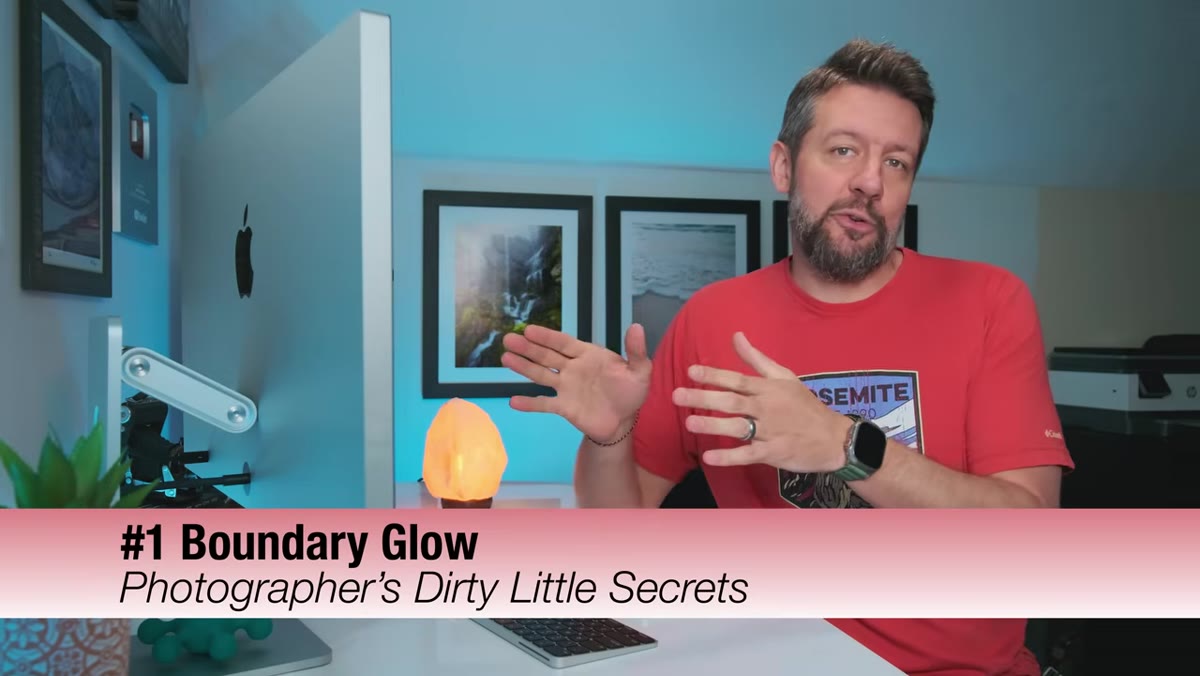 Lightroom develop module with waterfall image loaded
Before you draw anything, zoom out so you can see the full image with some breathing room around it. You want to be able to pull your gradient wider than the frame if needed. In Lightroom’s Develop module, head to the masking or filters area and select Radio Gradient (sometimes listed as Radial Filter depending on your version). You’re not drawing a subtle oval – you’re thinking big from the start.
Lightroom develop module with waterfall image loaded
Before you draw anything, zoom out so you can see the full image with some breathing room around it. You want to be able to pull your gradient wider than the frame if needed. In Lightroom’s Develop module, head to the masking or filters area and select Radio Gradient (sometimes listed as Radial Filter depending on your version). You’re not drawing a subtle oval – you’re thinking big from the start.
This step is mostly about setup, but skipping the zoom-out causes people to draw gradients that are too small and too centered. The whole effect depends on getting the gradient positioned correctly relative to the light source in the scene, so give yourself room to work.
Step 2: Draw the Gradient to Match the Real Light Source
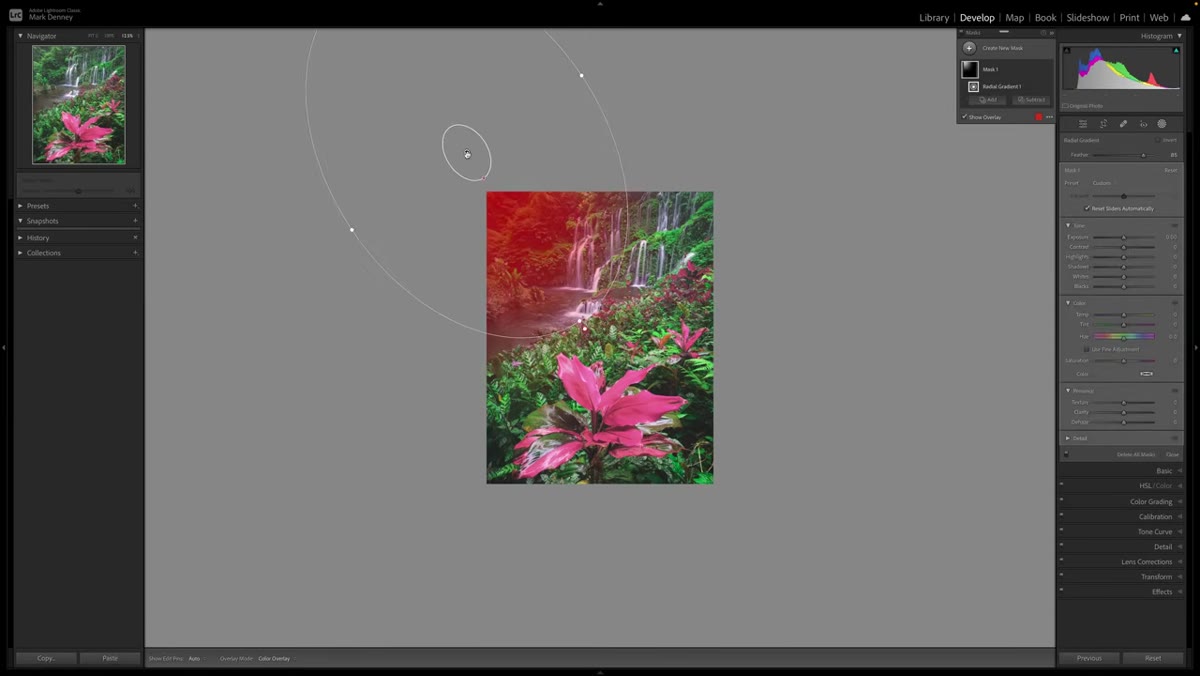 Large radio gradient drawn across upper corner of waterfall image
Draw a large radio gradient that covers the area where your light source exists – or existed. In Mark’s example, light was rising from the upper left corner through waterfall mist, so the gradient follows that diagonal angle. You’re not centering it on the photo. You’re placing it where the light actually came from, even if it’s way off to one side or partially outside the frame.
Large radio gradient drawn across upper corner of waterfall image
Draw a large radio gradient that covers the area where your light source exists – or existed. In Mark’s example, light was rising from the upper left corner through waterfall mist, so the gradient follows that diagonal angle. You’re not centering it on the photo. You’re placing it where the light actually came from, even if it’s way off to one side or partially outside the frame.
This is the part that separates a convincing result from a generic vignette effect. The gradient has to mimic the physics of the scene. If your light was raking across from a low angle, tilt the gradient accordingly. A centered, perfectly round gradient will always look artificial. An asymmetrical one placed at the actual angle of incidence looks like you just exposed for it correctly.
Step 3: Increase the Mask Overlay Opacity to Check Your Coverage
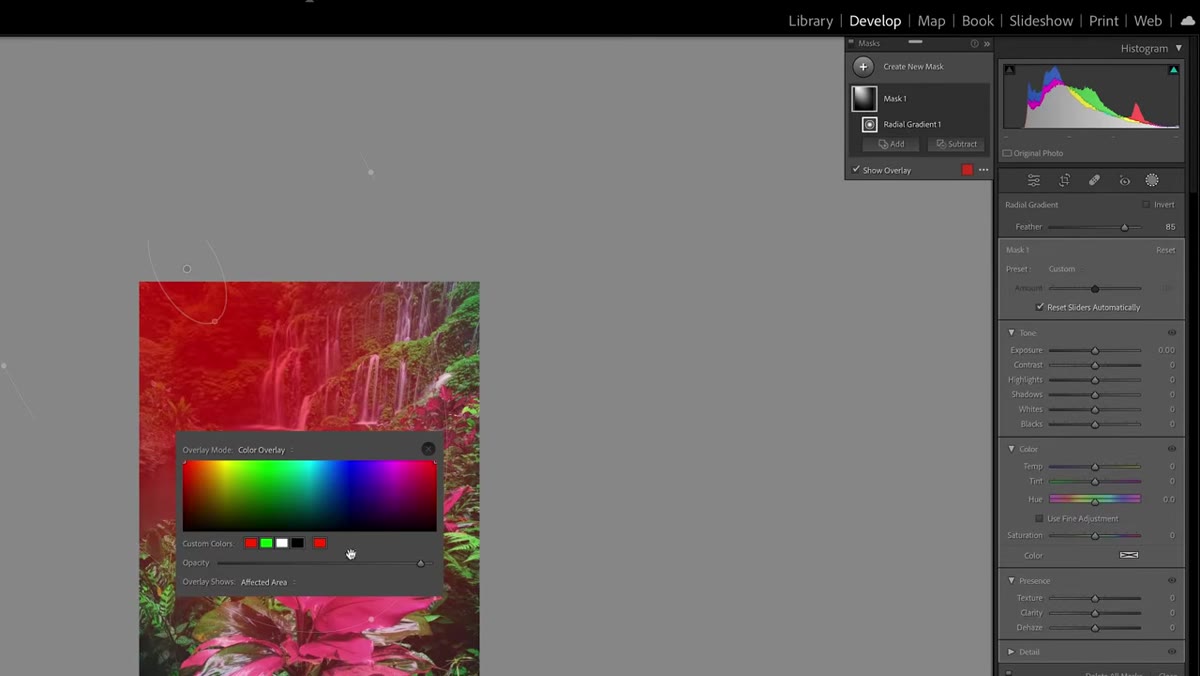 Mask overlay color panel open with opacity slider cranked up
Before you touch any sliders, verify exactly where your gradient is affecting the image. Click the overlay options (the small box or icon near the mask controls) and drag the opacity of the mask overlay all the way up. Lightroom lets you change the overlay color too, but the opacity is what matters here – crank it so the affected area is clearly visible.
Mask overlay color panel open with opacity slider cranked up
Before you touch any sliders, verify exactly where your gradient is affecting the image. Click the overlay options (the small box or icon near the mask controls) and drag the opacity of the mask overlay all the way up. Lightroom lets you change the overlay color too, but the opacity is what matters here – crank it so the affected area is clearly visible.
Most people skip this and end up adjusting sliders while guessing at coverage. Checking the overlay first means you can nudge the gradient’s position, rotation, or size until it lands exactly where you want it. Once the placement looks right, you can reduce the overlay opacity back down to zero and move on.
Step 4: Set the Feather to Around 70-75
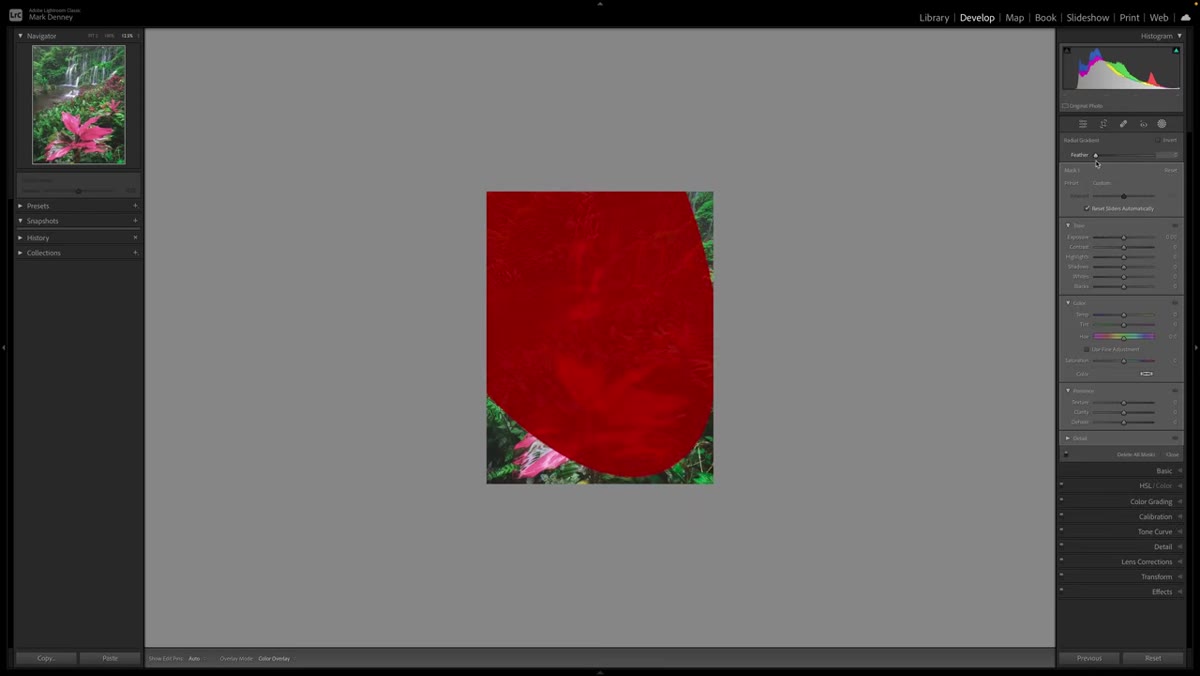 Feather slider set to approximately 75 in radio gradient panel
With the gradient placed, set the Feather value somewhere in the 70-75 range. This controls how gradually the effect transitions from the center of the gradient outward. Too low and you’ll see a visible ring. Too high and the whole effect spreads out and loses its sense of direction.
Feather slider set to approximately 75 in radio gradient panel
With the gradient placed, set the Feather value somewhere in the 70-75 range. This controls how gradually the effect transitions from the center of the gradient outward. Too low and you’ll see a visible ring. Too high and the whole effect spreads out and loses its sense of direction.
Mid-70s gives you a transition that reads as natural falloff. Think about how light actually behaves when it diffuses through atmosphere or mist – it doesn’t have a hard edge, but it does have a clear center of intensity. The feather value is how you communicate that in Lightroom.
Step 5: Pull Dehaze Into Negative Territory
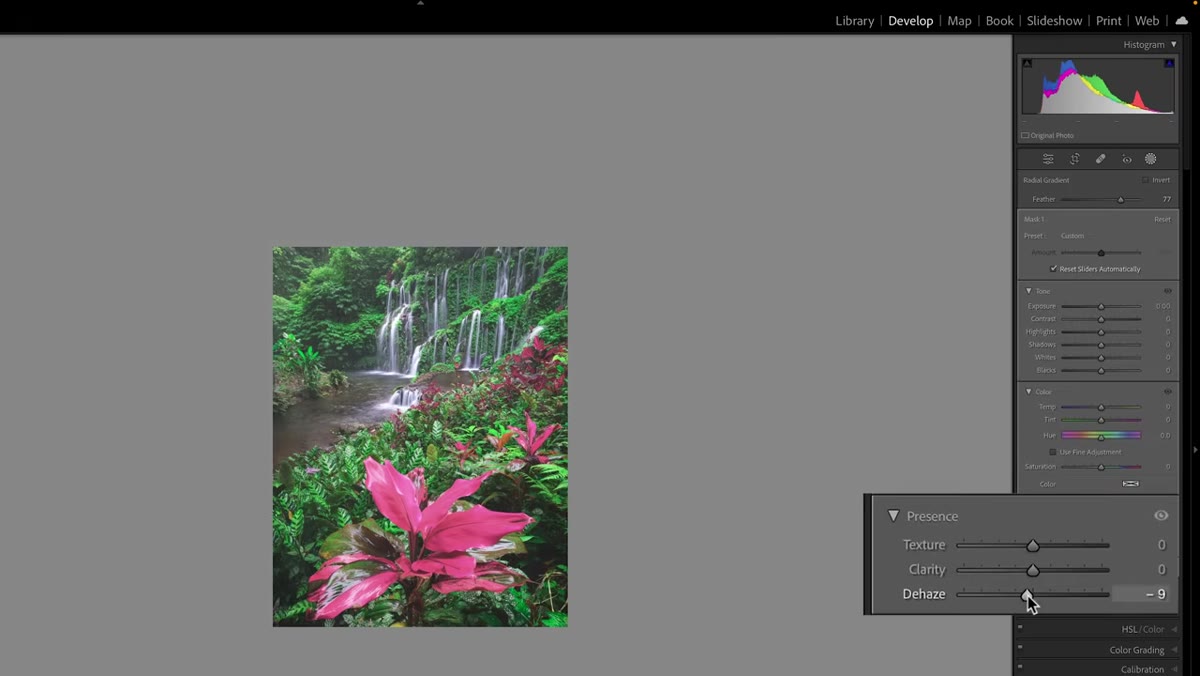 Dehaze slider being dragged left toward negative 10
Here’s the part that surprised me the first time I tried it. Go to the Dehaze slider inside your gradient’s settings (not the global Dehaze in the basic panel) and pull it down to somewhere around negative 9 or 10. Don’t overdo it.
Dehaze slider being dragged left toward negative 10
Here’s the part that surprised me the first time I tried it. Go to the Dehaze slider inside your gradient’s settings (not the global Dehaze in the basic panel) and pull it down to somewhere around negative 9 or 10. Don’t overdo it.
Dehaze was built to cut through atmospheric haze by boosting contrast and saturation in a specific way. Run it in reverse and it introduces a soft, milky atmospheric quality that behaves completely differently from lowering exposure or adding a simple glow effect. It’s not perfectly predictable, which is part of why it works – the result looks organic rather than processed.
Step 6: Reduce Clarity Slightly to Soften the Glow Area
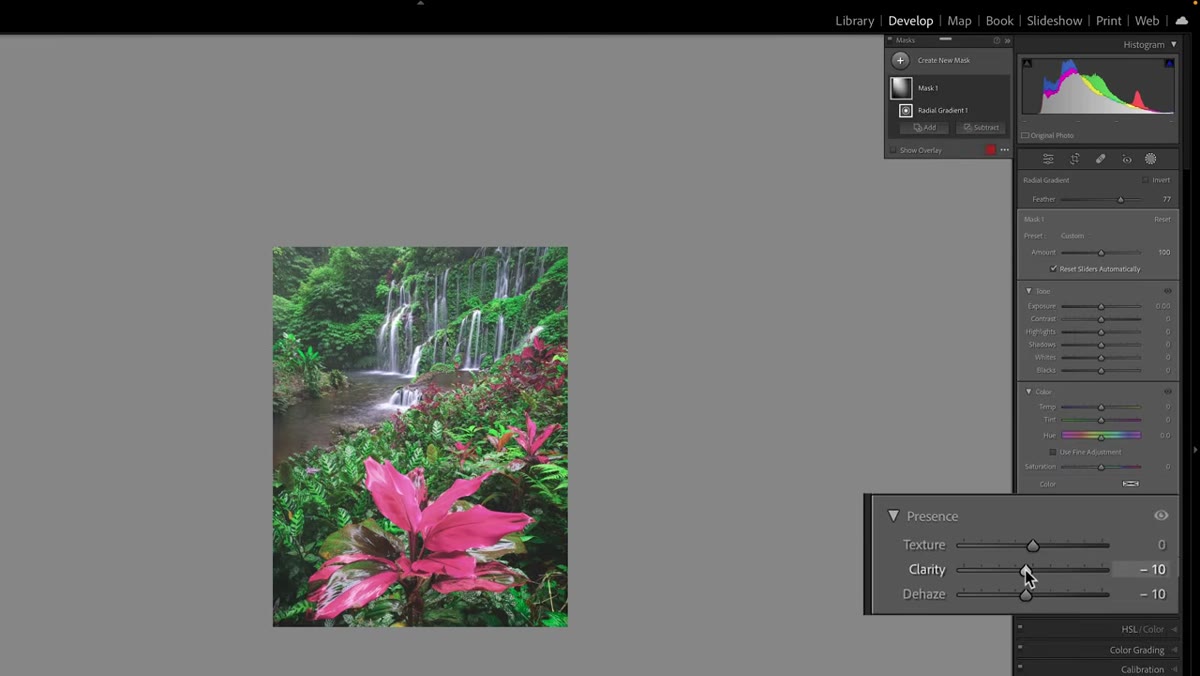 Clarity slider pulled slightly negative within radio gradient
Still inside the gradient settings, bring Clarity down a few ticks – not dramatically, just enough to soften the local contrast in the glow area. The reasoning is intuitive once you think about it: strong raking light through mist or spray physically softens the edges of things. It scatters before it defines. A little negative clarity recreates that softening effect without making the whole area look blurry.
Clarity slider pulled slightly negative within radio gradient
Still inside the gradient settings, bring Clarity down a few ticks – not dramatically, just enough to soften the local contrast in the glow area. The reasoning is intuitive once you think about it: strong raking light through mist or spray physically softens the edges of things. It scatters before it defines. A little negative clarity recreates that softening effect without making the whole area look blurry.
The combination of negative Dehaze and slightly negative Clarity is what gives this technique its signature look. Either one alone reads as a mistake. Together they read as atmosphere.
One Caveat From My Own Workflow
I’ve applied this technique to a few dozen images since working through Mark’s tutorial, and the one consistent thing I’ll add: this only works if there’s a legitimate reason for the light to be there. Mark makes this point in the video, but it bears repeating. If your image was shot in flat overcast light with no directional source at all, boundary glow will look exactly like what it is – a filter sitting on top of a photo. But if you shot at golden hour, at dawn, near a window, near any real atmospheric scatter, and the camera just compressed it out of the scene, this technique gives it back. The file has to have something real to work with. You’re enhancing, not inventing.
The single most important takeaway here is that Dehaze is not just a haze-removal tool. It’s a contrast and atmosphere modifier that behaves differently in reverse, and most photographers never touch the negative side of it. Building it into a Radio Gradient gives you precise spatial control over where that atmosphere lands. That combination is what makes boundary glow feel like light and not like editing.
Watch the full tutorial on YouTube – Mark covers five more techniques in the same video, and they’re all at the same level of specificity as this one.
Comments
Leave a Comment