Lightroom's Adaptive Presets Finally Made Me a Preset Person (And I've Been Resisting for Years)

Lightroom's Adaptive Presets Finally Made Me a Preset Person (And I've Been Resisting for Years)

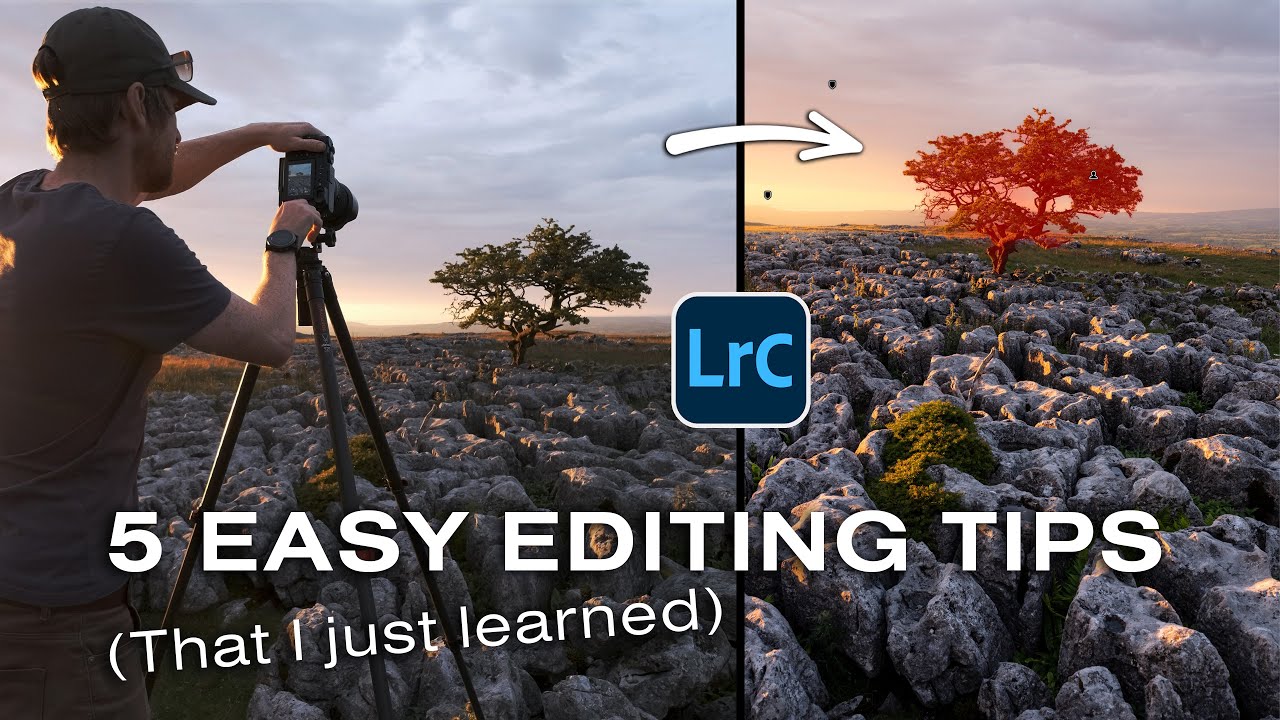
There’s a version of me from about two years ago who would have rolled his eyes at presets. Hard. I named my own presets after Wilco songs and built every mask by hand because I believed that was the only honest way to edit a photo. Then I watched Thomas Heaton — a landscape photographer I respect precisely because he’s methodical and unsentimental about gear and software — admit on camera that he’d been running an outdated version of Lightroom for so long that he used it during a paid Adobe presentation.

Lightroom's Masking Tools Are Smarter Than You Think — Here's How to Actually Use Them

Lightroom's Masking Tools Are Smarter Than You Think — Here's How to Actually Use Them

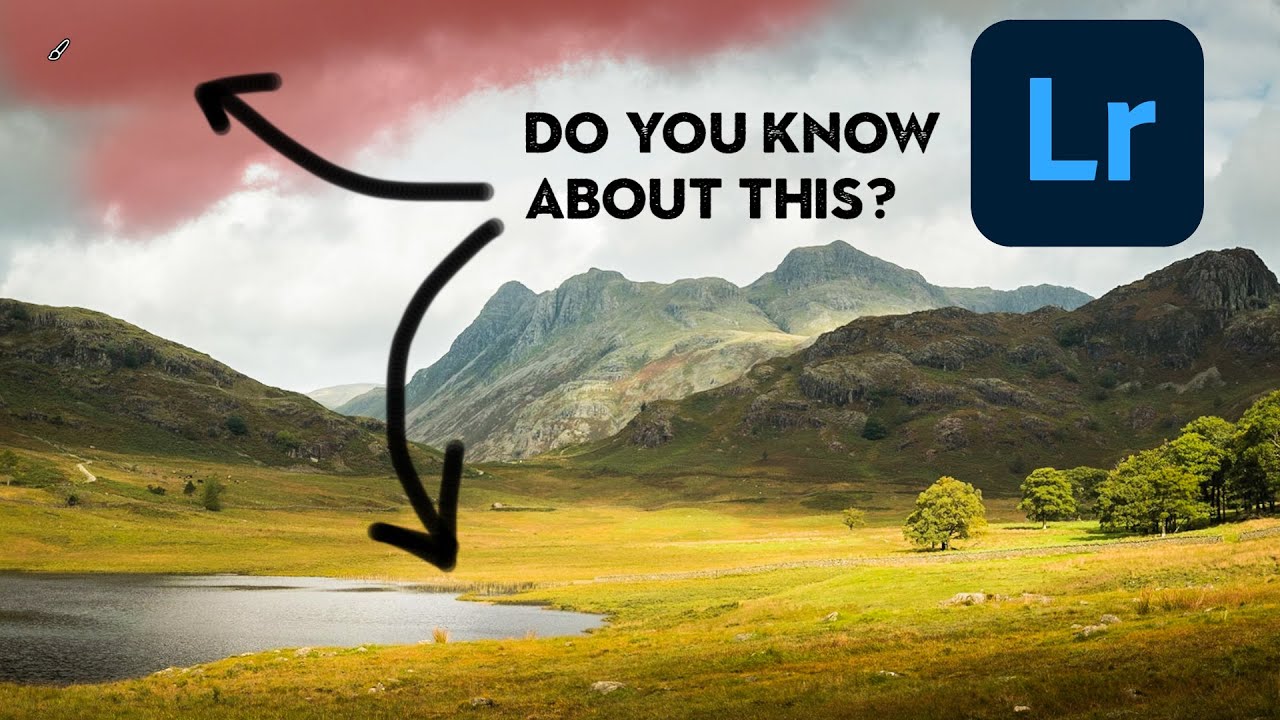
I was editing a portrait session last spring, rushing to get a gallery delivered before my copy of Rumours finished its second side, when I realized I’d been doing it wrong for years. Not wrong-wrong. Just inefficient. I was still painting adjustment brushes over skies by hand like it was 2015, carefully avoiding tree branches like I was defusing something. Then I clicked “Select Sky” in the Masking panel and watched Lightroom trace every pine needle in about four seconds.

Lightroom's Most Underused Tool (And How Nigel Danson Actually Uses It)

Lightroom's Most Underused Tool (And How Nigel Danson Actually Uses It)

I spent years treating the Lightroom brush tool like a finishing move — something you reached for at the end of an edit when everything else had failed. Broad adjustments first, local adjustments never, maybe a graduated filter if I was feeling ambitious. It wasn’t until I started studying how working landscape photographers actually move through an edit that I realized I had it completely backwards. The brush isn’t a rescue tool.

Lightroom Tricks I Wish I'd Known Years Ago (Breaking Down Nigel Danson's Hidden Tips)

Lightroom Tricks I Wish I'd Known Years Ago (Breaking Down Nigel Danson's Hidden Tips)

There’s a certain kind of Lightroom knowledge that doesn’t come from reading the manual. It comes from sitting inside a big editing session, staring at a problem, and stumbling onto a solution you immediately wish you’d found two years earlier. I’ve been editing in Lightroom long enough to have a system I trust, but I still catch myself learning new things from photographers who spend more time shooting in the field than I do.

How to Change Any Color in Lightroom Using Masks (No Photoshop Required)

How to Change Any Color in Lightroom Using Masks (No Photoshop Required)

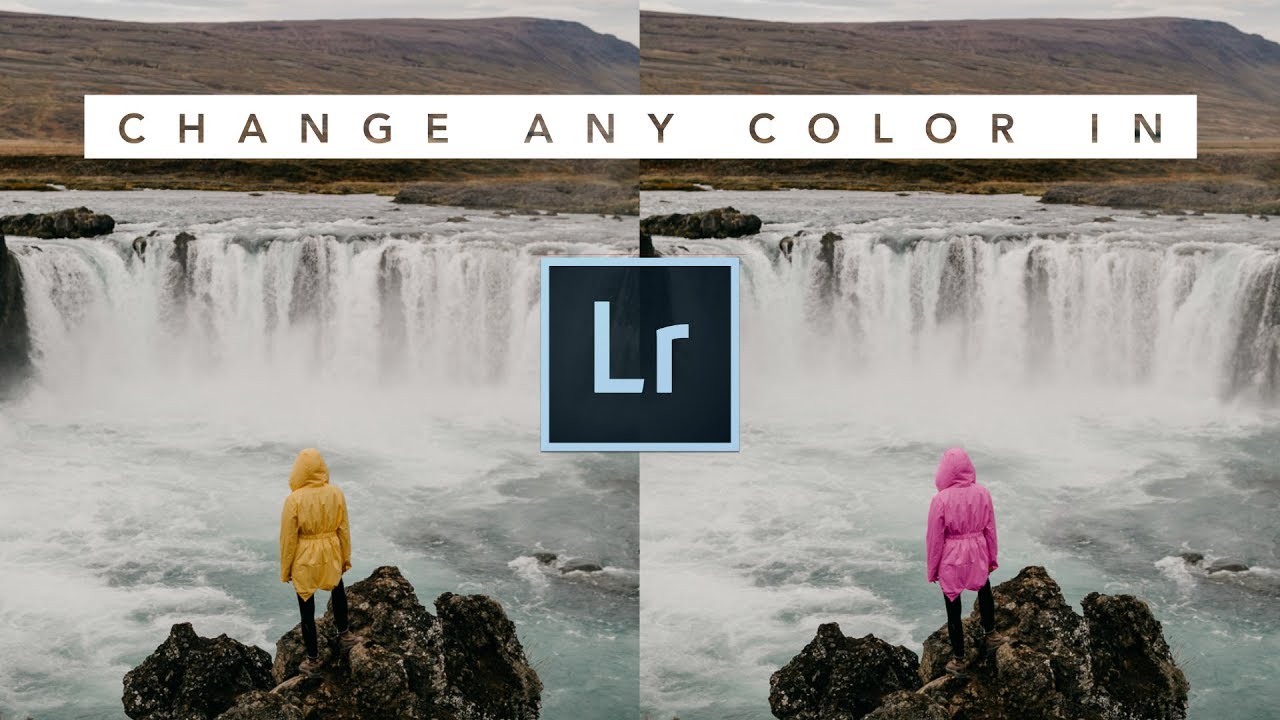
Most of my clients have no idea how much color work happens after the shutter clicks. A jacket that photographs as a muddy burgundy. A sky that came out flat and grey when it was golden in real life. A product shot where the background color just isn’t sitting right against the subject. These are the kinds of problems I used to punt to Photoshop, fire up a Select and Mask workflow, and spend twenty minutes fixing what should have taken five.

Edit Your Subject and Background Like They're on Separate Layers - Without Leaving Lightroom

Edit Your Subject and Background Like They're on Separate Layers - Without Leaving Lightroom

One problem that used to send me into Photoshop almost every single shoot was this: the subject looks great but the background is flat, or the background has beautiful color and the subject is overexposed. Treating them as one image and dragging sliders around never actually solves it. You end up compromising both. For a long time, the clean solution meant round-tripping to Photoshop, painting masks by hand, and praying your selection held up at 100%.

How to Control Where the Viewer's Eye Goes (And Why It Changes Everything)

How to Control Where the Viewer's Eye Goes (And Why It Changes Everything)

There’s a specific frustration I kept running into early in my editing workflow. I’d spend an hour on a landscape photo, get the tones looking clean, the colors feeling right, and then show it to someone who immediately looked at the wrong part of the frame. Not because the subject was unclear. Because the edit wasn’t doing its job. A technically correct photo and a visually directed photo are two completely different things, and for a long time I didn’t have the vocabulary to explain the gap between them.

Stop Using Lightroom's Built-In Vignette Tool (Do This Instead)

Stop Using Lightroom's Built-In Vignette Tool (Do This Instead)

Every few months I’ll open a photo I edited a year ago and cringe at something I thought was clever at the time. The vignette is almost always the culprit. Too heavy, too symmetrical, darkening a sky that didn’t need any help looking dramatic. I kept reaching for the Effects panel out of habit, the same way you autopilot your coffee order at 7am, and getting the same mediocre results.

The Sky Masking Trick That Changed How I Edit Landscape Photos in Lightroom

The Sky Masking Trick That Changed How I Edit Landscape Photos in Lightroom

There’s a specific kind of frustration that landscape photographers know well. You’re standing somewhere incredible, the sky is doing something wild, the light is golden and dramatic, and you think “this is the shot.” Then you get home, open Lightroom, and the image looks like a weather forecast graphic. Flat. Lifeless. The drama you felt in person just didn’t make it through the lens, and no amount of crushing the highlights slider seems to fix it without wrecking everything else in the frame.

The Brightness Trick That Makes Dark-Background Extractions Actually Work in Photoshop

The Brightness Trick That Makes Dark-Background Extractions Actually Work in Photoshop

There’s a specific kind of frustration that comes from trying to select a subject standing against a dark background. The Quick Selection tool fumbles around the edges, the contrast isn’t there for it to grab onto, and you end up with a selection that looks like it was cut out with safety scissors. I’ve been there more times than I’d like to admit, including on some early band press shots where the lighting was, let’s say, “creative” in all the wrong ways.

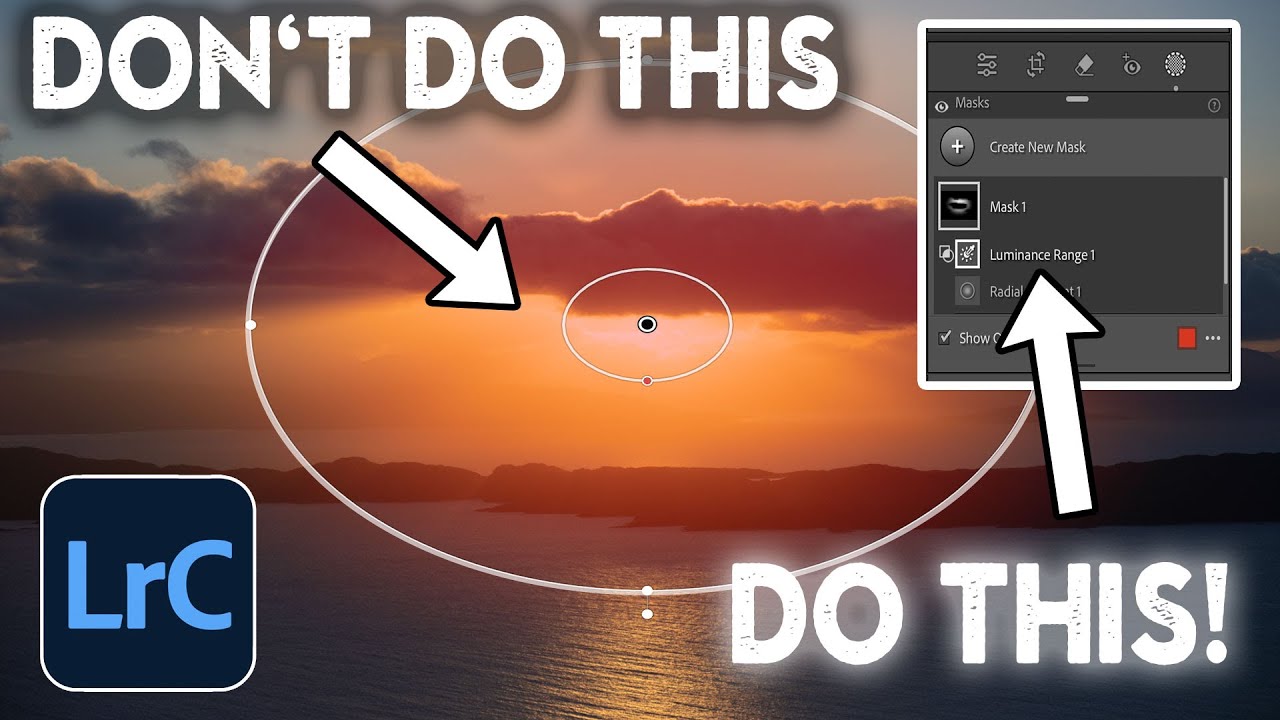
The Radial Gradient Is Doing Heavy Lifting in My Edits — Here's How I Actually Use It

The Radial Gradient Is Doing Heavy Lifting in My Edits — Here's How I Actually Use It

There’s a version of me from about four years ago who used the radial gradient exactly once, decided it was “just for vignettes,” and moved on. I was wrong, and I’ve been quietly making up for it ever since. The radial gradient - or radial filter, depending on which version of Lightroom you’re running - is one of those tools that looks simple on the surface and then turns out to have serious depth the moment someone who actually knows what they’re doing walks you through it.

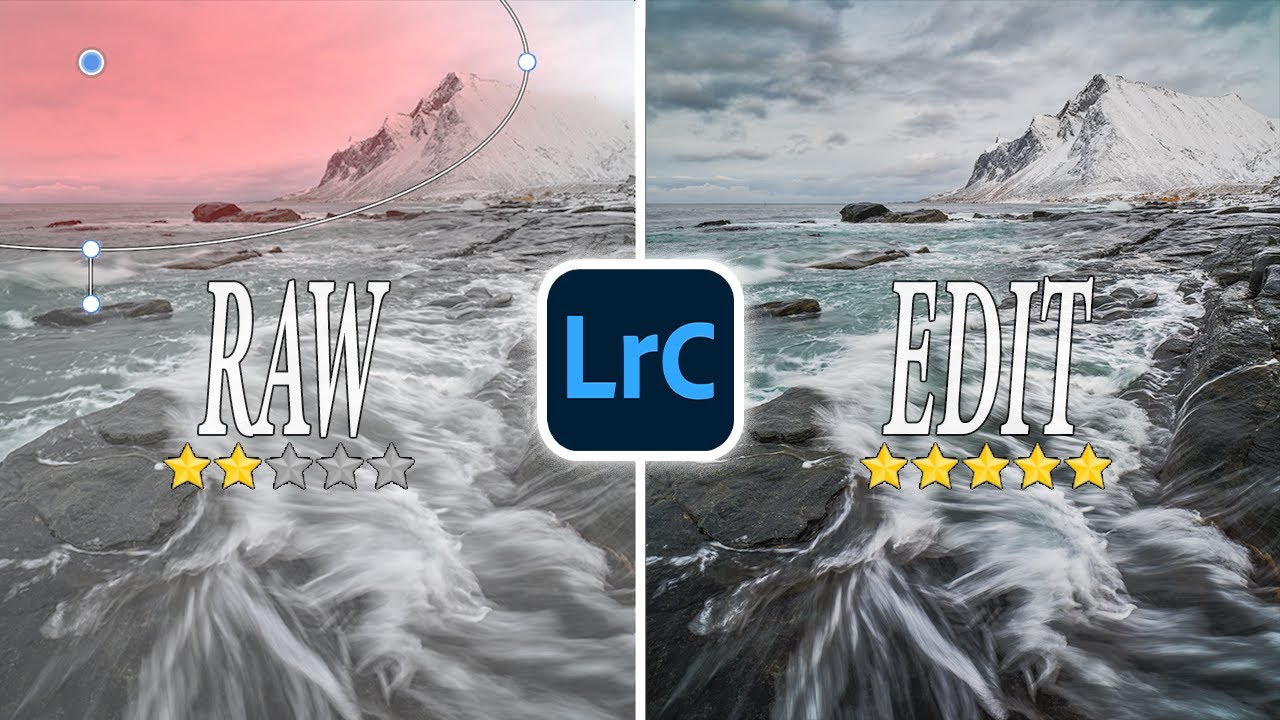
How to Fix Blown Skies and Flat Light in Landscape Photos Using Lightroom Masks

How to Fix Blown Skies and Flat Light in Landscape Photos Using Lightroom Masks

Landscape editing has a way of humbling you fast. You come home with a shot that looked incredible in the field, load it into Lightroom, and suddenly the sky is a blown-out white smear and the water looks like concrete. I’ve been there more times than I want to count. The problem isn’t usually the photo. It’s that landscapes have an extreme dynamic range that a single global edit almost never handles gracefully.