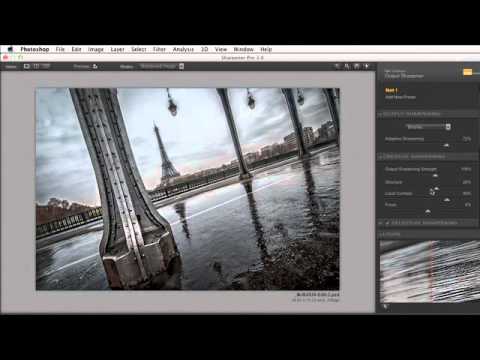
There’s a specific kind of travel photo that lives on your hard drive for months before you touch it. You know the shot has something, but the sky is half-blown, the shadows are muddy, and there’s some rogue object near the frame edge you’ve been quietly ignoring. I have a folder of those. Most of them come from trips where I was shooting fast and hoping the light would cooperate. It usually doesn’t.
In this KelbyOne tutorial, the instructor walks through exactly that kind of image — a slightly tilted Eiffel Tower shot with a blown-out sky, sensor dust everywhere, and a dangling light fixture ruining one corner. Watch the full tutorial on YouTube before or after reading this, because watching someone’s mouse move through these panels teaches things that text alone can’t fully carry. What I’m going to do here is slow it down, give you the specific values and reasoning, and add a few things I’ve learned editing similar shots myself.
What makes this walkthrough worth studying isn’t the location. It’s the workflow logic: fix the tonal range in Lightroom first, stack clarity for localized punch, then hand off cleanly to Photoshop for the stuff that Lightroom’s healing brush shouldn’t be trusted with when you have a lot of it. That three-stage thinking applies to almost any difficult travel photo you’ll encounter.
Step 1: Recover the Sky with Highlights Before Touching Exposure
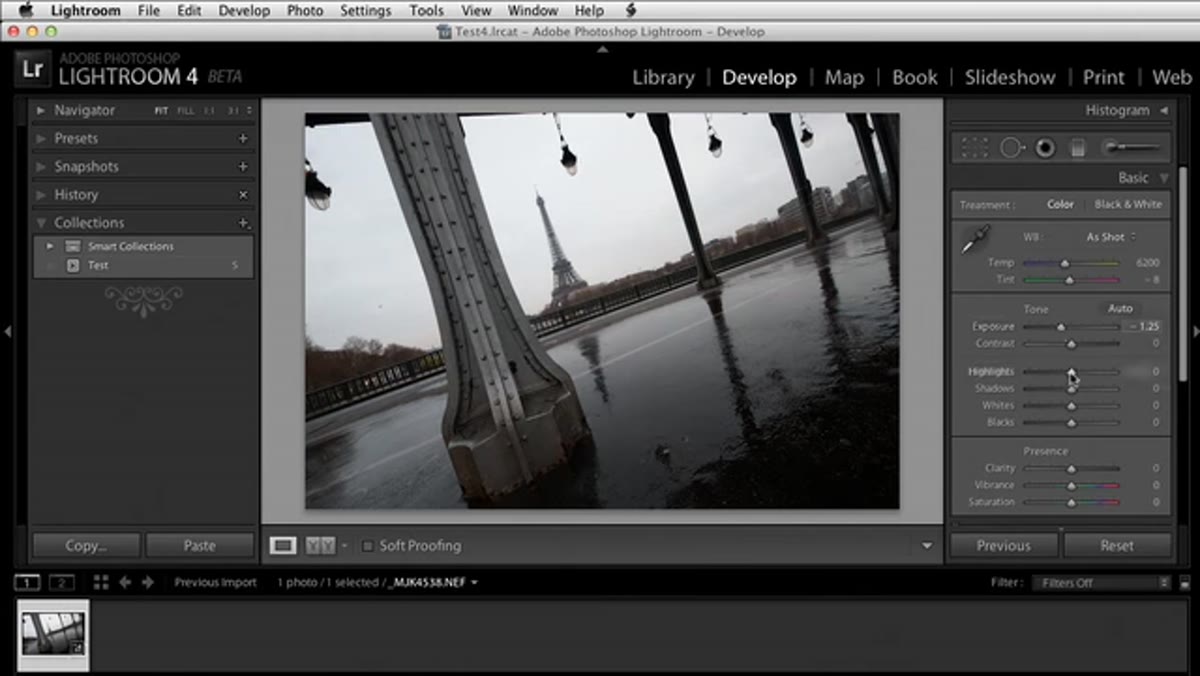 Highlights slider being pulled left on near-blown sky
When a sky is nearly blown out, the instinct is to drag Exposure down. Don’t. Exposure is a blunt instrument – it darkens everything together, which means you lose detail in the shadows just to save the sky. Instead, go straight to the Highlights slider and pull it left. In this edit, that targeted recovery is what brings cloud texture back while leaving the foreground largely untouched.
Highlights slider being pulled left on near-blown sky
When a sky is nearly blown out, the instinct is to drag Exposure down. Don’t. Exposure is a blunt instrument – it darkens everything together, which means you lose detail in the shadows just to save the sky. Instead, go straight to the Highlights slider and pull it left. In this edit, that targeted recovery is what brings cloud texture back while leaving the foreground largely untouched.
After reigning in Highlights, a small Exposure reduction can nudge the overall brightness down without the heavy-handed feel you get from relying on Exposure alone. The key is sequence: Highlights first, Exposure as a trim. It keeps your midtones from going gray and murky before you’ve even started on shadows.
Step 2: Lift Shadows and Set Your Black Point for Contrast
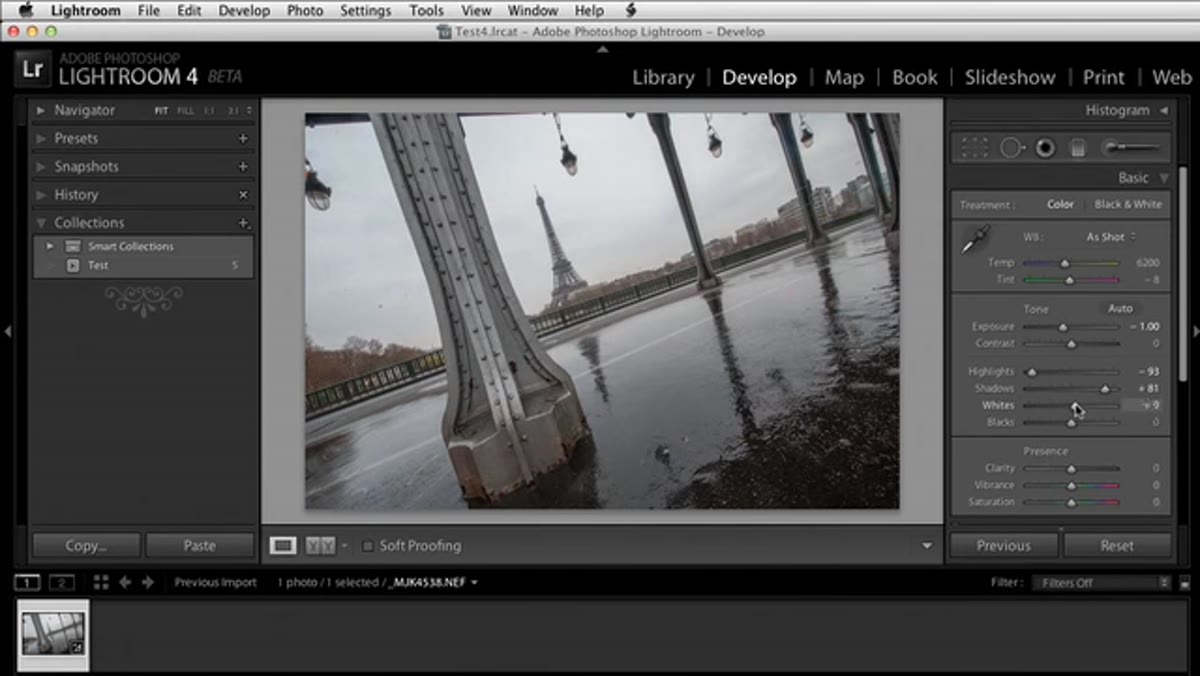 Shadows slider raised, dark areas opening up in the frame
Once the sky is manageable, the dark areas in the frame – the base of the tower, architectural shadows, street details – need to be opened up. Bringing Shadows up pulls out information that was buried without making the image look flat, because you’re only affecting the lower tonal range. Think of it as a separate conversation with the dark parts of your photo.
Shadows slider raised, dark areas opening up in the frame
Once the sky is manageable, the dark areas in the frame – the base of the tower, architectural shadows, street details – need to be opened up. Bringing Shadows up pulls out information that was buried without making the image look flat, because you’re only affecting the lower tonal range. Think of it as a separate conversation with the dark parts of your photo.
After lifting shadows, bring Blacks slightly down. This sounds counterintuitive after just brightening things, but it’s what preserves the sense of depth and keeps the edit from looking like an HDR mistake from 2009. Whites can stay mostly alone or get a small boost depending on your image. The goal at this stage is a tonal range that feels full – bright enough in the highlights, open in the shadows, with anchored blacks giving the whole thing structure.
Step 3: Apply Global Clarity, Then Stack It Locally with the Adjustment Brush
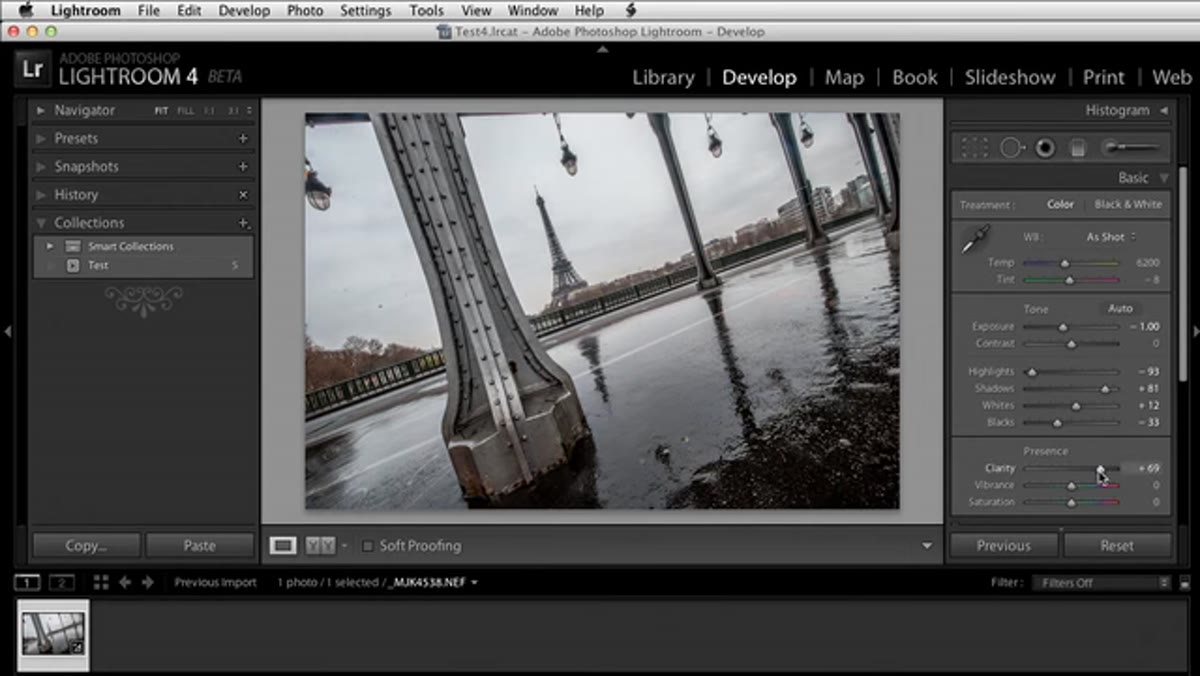 Clarity slider in Basic panel being increased
Clarity in Lightroom works on midtone contrast. It makes textures pop – stone, metal, fabric, clouds – without the halo artifacts that aggressive sharpening creates. Add some globally in the Basic panel, but don’t stop there.
Clarity slider in Basic panel being increased
Clarity in Lightroom works on midtone contrast. It makes textures pop – stone, metal, fabric, clouds – without the halo artifacts that aggressive sharpening creates. Add some globally in the Basic panel, but don’t stop there.
Here’s the move that takes it further: grab the Adjustment Brush, set its Clarity to around 50, and paint over specific areas where you want that texture effect amplified. The brush effect stacks on top of what you already applied globally. Paint across the tower structure, the clouds, any architectural detail you want to read more clearly. This is essentially getting double the clarity impact in targeted zones without blowing the effect across areas where you don’t want it, like skin tones or soft backgrounds.
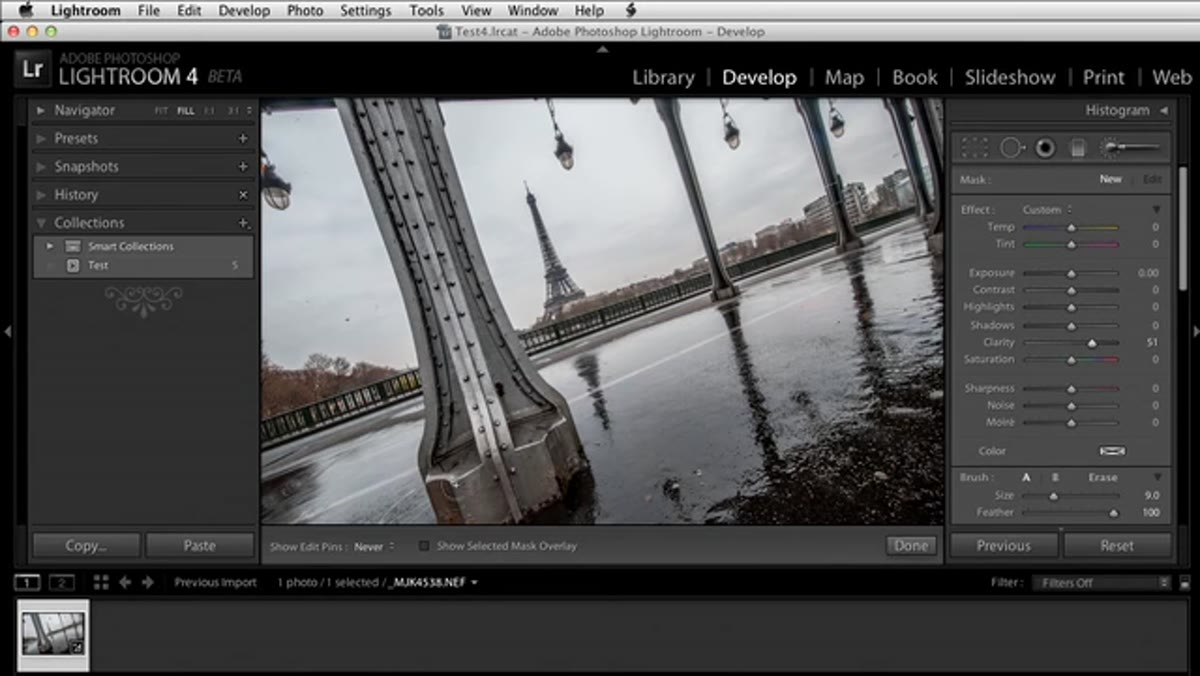 Adjustment Brush being painted over tower structure
Step 4: Straighten and Crop to Your Intent
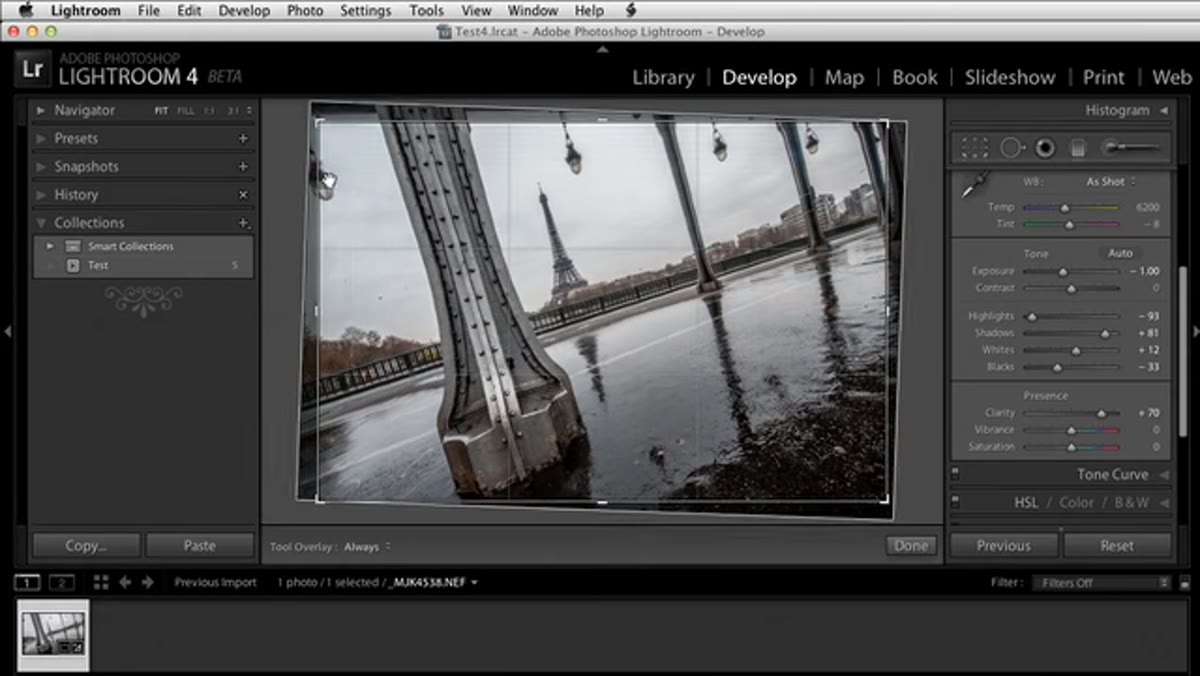 Crop tool open with slight rotation applied to the frame
The photo in this tutorial is intentionally tilted – that was a compositional choice in the field, not a mistake to fix. But even within that crooked framing, a small rotational adjustment through the Crop tool can tighten things up and remove dead space. Drag the crop handles to rotate slightly, then commit.
Crop tool open with slight rotation applied to the frame
The photo in this tutorial is intentionally tilted – that was a compositional choice in the field, not a mistake to fix. But even within that crooked framing, a small rotational adjustment through the Crop tool can tighten things up and remove dead space. Drag the crop handles to rotate slightly, then commit.
What this step also does is force you to confront objects near the frame edges. In this case, a dangling light fixture is just barely inside the frame in a distracting way. The crop can minimize it but not eliminate it. That’s an important signal: some cleanup jobs are better accepted as Photoshop work than forced through Lightroom’s Spot Removal tool.
Step 5: Hand Off to Photoshop for Serious Cleanup
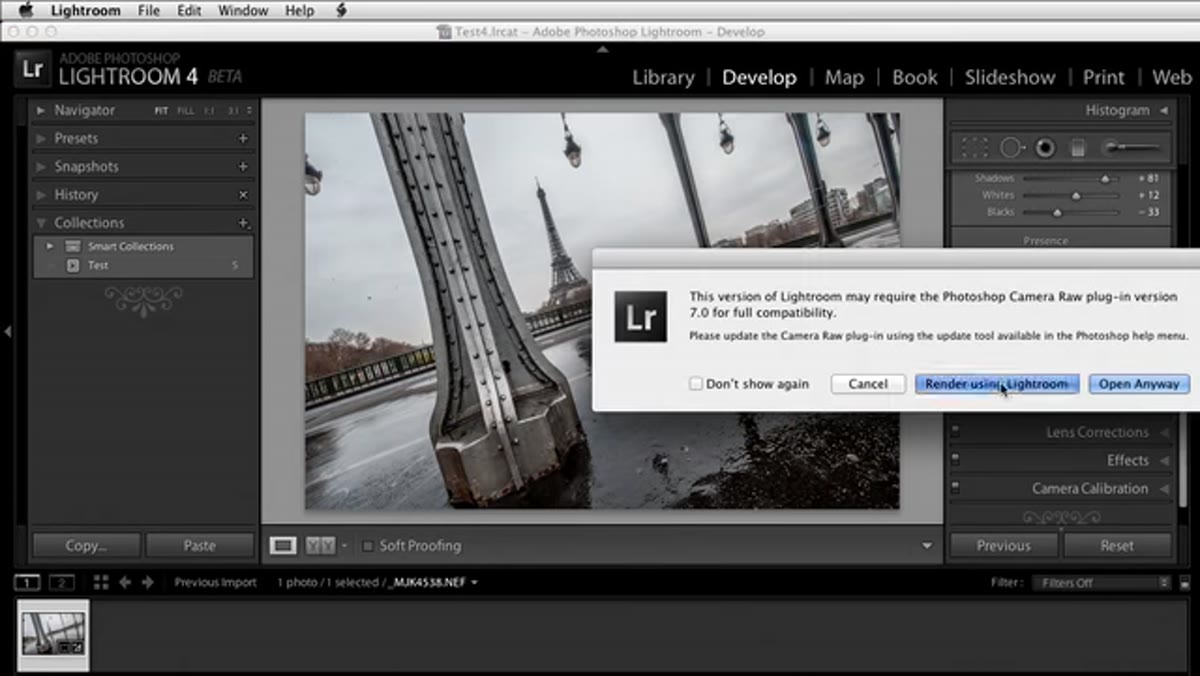 Image opened in Photoshop, sensor dust spots visible across the sky
Use Cmd+E (Mac) or Ctrl+E (Windows) to send the image to Photoshop as a TIFF. This is where sensor dust, small distractions, and anything that needs precise healing gets handled. The instructor in this tutorial is refreshingly honest about it: Lightroom has a spot removal tool, but when you’re dealing with a sky full of dust spots or rain droplets, doing that work in Photoshop is faster and cleaner.
Image opened in Photoshop, sensor dust spots visible across the sky
Use Cmd+E (Mac) or Ctrl+E (Windows) to send the image to Photoshop as a TIFF. This is where sensor dust, small distractions, and anything that needs precise healing gets handled. The instructor in this tutorial is refreshingly honest about it: Lightroom has a spot removal tool, but when you’re dealing with a sky full of dust spots or rain droplets, doing that work in Photoshop is faster and cleaner.
Clone Stamp and Healing Brush in Photoshop give you more control over source selection and blending. For a clear sky with lots of specks, the Healing Brush usually handles it quickly. For edges or areas near contrast transitions, Clone Stamp lets you be more deliberate. Don’t try to be a hero and do all of this in Lightroom if the volume of cleanup is significant.
What I Do Differently: Pre-Check Your Edges Before the Crop
One thing this tutorial demonstrates through the light fixture problem is something I now do as a habit before I even reach for the Crop tool: I scan the frame edges first. Corners and edges are where visual noise hides – a power line, a tourist’s elbow, a lens flare catching the border. Identifying these before you crop means you can make a smarter decision about whether to crop them out entirely, or whether you’re going to Photoshop anyway and can handle it there.
I usually do a quick zoom to 100% and drag along each edge before committing to a crop. Takes maybe 30 seconds. It has saved me from re-opening files in Photoshop more times than I can count. If you’re on a deadline, that matters.
The single most useful thing this edit demonstrates is that the Highlights slider and the Adjustment Brush clarity stack are not advanced techniques – they’re just underused ones. Most people under-recover their skies and under-apply clarity because they do it once and move on. Doing it in layers, globally and then locally, is what separates an edit that looks corrected from one that looks intentional.
Watch the full tutorial on YouTube to see all of this in motion, including the Photoshop cleanup and plug-in work that follows the Lightroom steps.
Comments
Leave a Comment