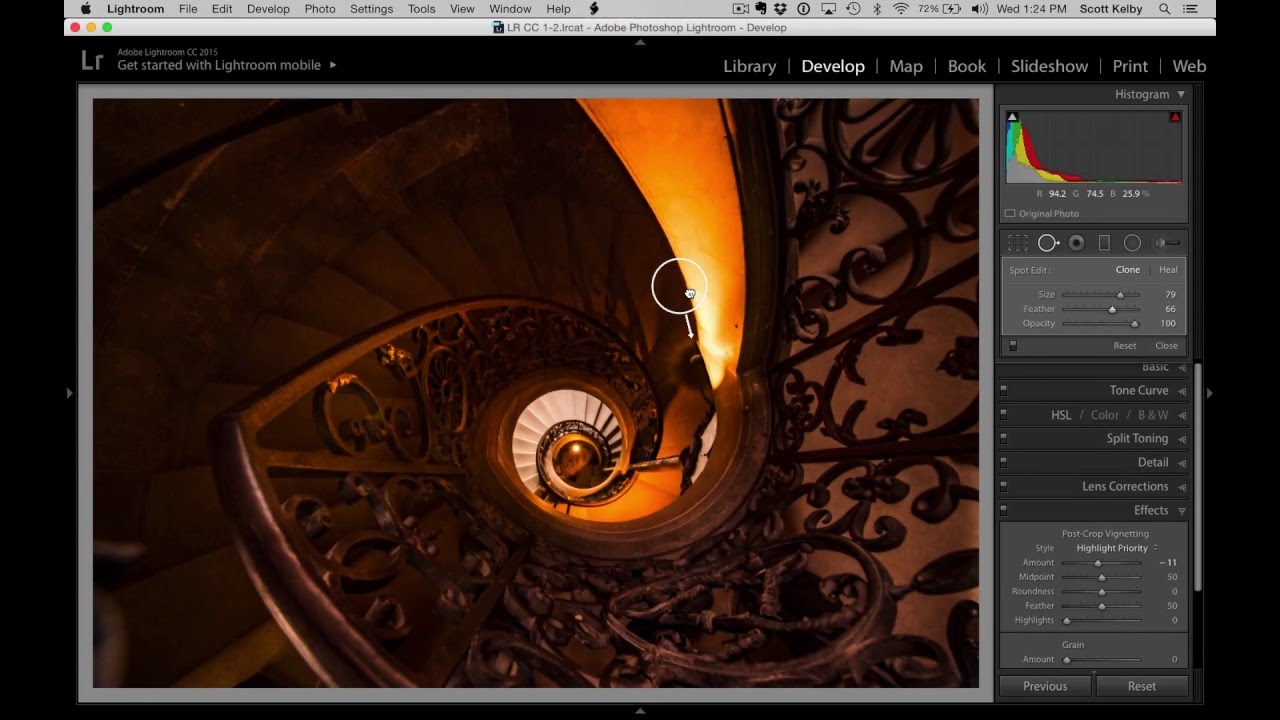
I shoot a lot of interiors and architectural spaces, and the problem I run into almost every single time is the same: the camera lies. You’re standing in some breathtaking location, your eye is pulling in all the depth and detail and warmth, and then you open the RAW file and it looks like someone photographed a hospital waiting room. Flat, color-casted, lifeless. That gap between what I see and what the camera captures used to genuinely frustrate me until I started paying close attention to how experienced editors diagnose and work through that exact problem.
In this KelbyOne tutorial, Scott Kelby walks through a complete start-to-finish edit of a spiral staircase photo taken inside the Palace of Versailles. No plugins, no presets, no HDR tricks. Just Lightroom, a methodical eye, and a willingness to work the problem one issue at a time. Watch the full tutorial on YouTube if you want to follow along in real time. For everyone who wants the technique pulled apart and explained, keep reading.
What stuck with me most is how Kelby opens the edit not by reaching for a slider, but by asking a simple question: where do I want the viewer to look? That question drives every decision that follows. It’s the kind of editorial thinking that separates editors who get lucky from editors who get consistent results.
Step 1: Diagnose the Image Before You Touch Anything
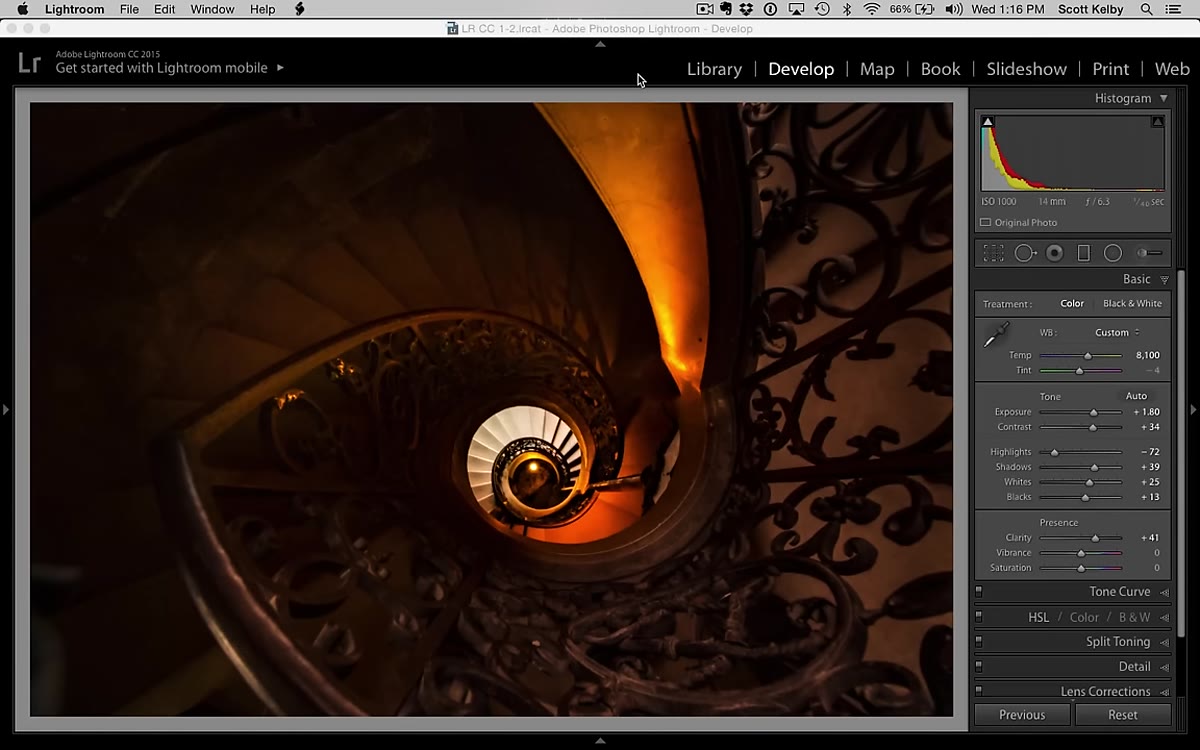 Flat, blue-casted RAW file of Versailles spiral staircase
Before opening a single panel, Kelby spends time identifying what’s actually wrong with the image. The Versailles shot has two obvious problems: a heavy blue color cast from auto white balance, and a brightness distribution that buries the detail in the staircase itself, which is the entire subject. He also identifies what he calls “distracting” areas, the overly bright upper sections that pull the eye away from the focal point.
Flat, blue-casted RAW file of Versailles spiral staircase
Before opening a single panel, Kelby spends time identifying what’s actually wrong with the image. The Versailles shot has two obvious problems: a heavy blue color cast from auto white balance, and a brightness distribution that buries the detail in the staircase itself, which is the entire subject. He also identifies what he calls “distracting” areas, the overly bright upper sections that pull the eye away from the focal point.
This diagnostic step sounds obvious but most people skip it. I used to skip it. I’d just start dragging the Exposure slider and see what happened. Training yourself to read the image first, to name the specific problems before you try to fix them, means every adjustment you make has a purpose. You’re not wandering around in the sliders. You’re solving a list.
Step 2: Use Auto as a Rough Draft, Not a Final Answer
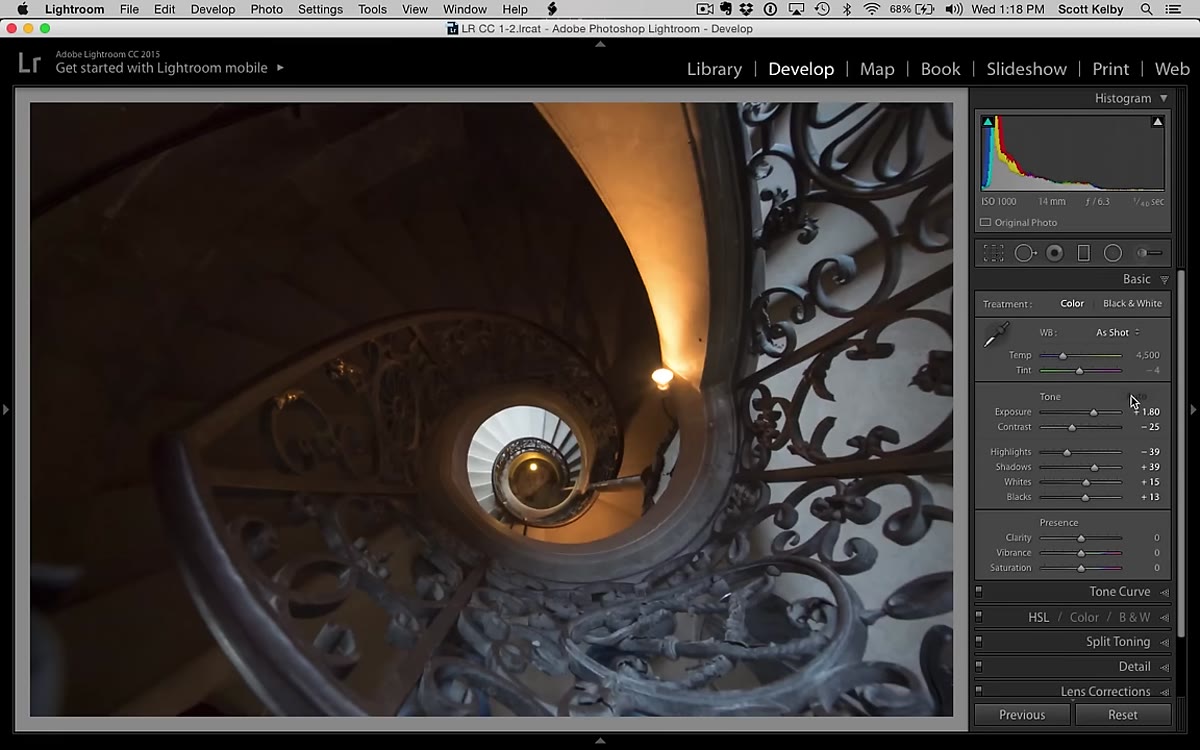 Auto button clicked, showing initial tone adjustments applied
Kelby hits the Auto button in the Basic panel as a starting point, and he’s quick to acknowledge it produces an ugly result. But that’s not the point. The Auto adjustment gives you a rough draft of where Lightroom thinks the tones should land. Exposure gets bumped, shadows open up, and suddenly you can at least see what you’re working with. Think of it like roughing in a sketch before you draw the final lines.
Auto button clicked, showing initial tone adjustments applied
Kelby hits the Auto button in the Basic panel as a starting point, and he’s quick to acknowledge it produces an ugly result. But that’s not the point. The Auto adjustment gives you a rough draft of where Lightroom thinks the tones should land. Exposure gets bumped, shadows open up, and suddenly you can at least see what you’re working with. Think of it like roughing in a sketch before you draw the final lines.
From there, he manually pushes the Shadows slider further than Auto took it, because the dark areas of the staircase still aren’t revealing enough detail. Auto got him to the ballpark. His own eye got him to the right seat.
Step 3: Fix the White Balance and Add Warmth
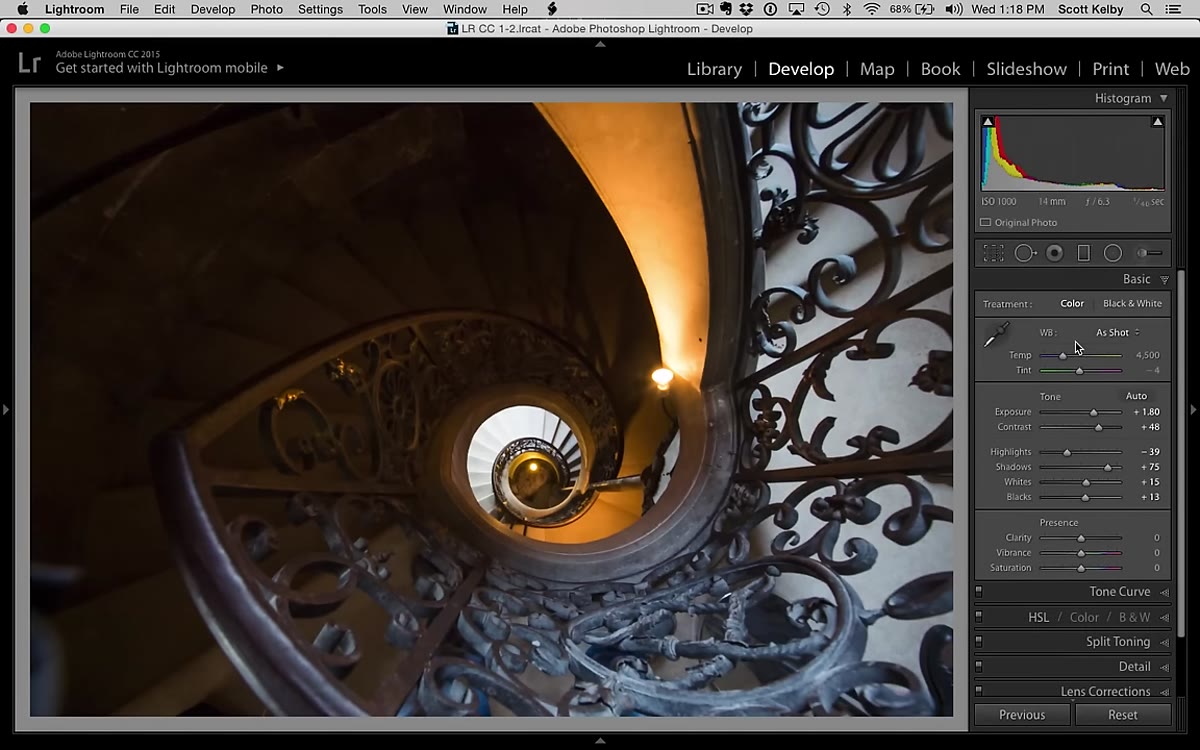 Temperature slider being dragged right to remove blue cast
This is where the image starts to feel alive. The blue cast, caused by the camera’s auto white balance reading the light in that interior space, needs to go. Kelby drags the Temperature slider to the right, toward yellow and warmth, and the photo immediately starts reading as a place rather than a data file.
Temperature slider being dragged right to remove blue cast
This is where the image starts to feel alive. The blue cast, caused by the camera’s auto white balance reading the light in that interior space, needs to go. Kelby drags the Temperature slider to the right, toward yellow and warmth, and the photo immediately starts reading as a place rather than a data file.
He also nudges the Tint slider away from green and toward magenta. It’s a subtle move but it matters. Interior spaces shot under mixed or diffused light often have a green-yellow contamination hiding in the midtones. A small push toward magenta on the Tint slider cleans that up without making the image look artificially warm. Together these two adjustments, Temperature and Tint, do more perceptual heavy lifting than almost anything else in the Basic panel.
Step 4: Add Contrast to Fight Flatness
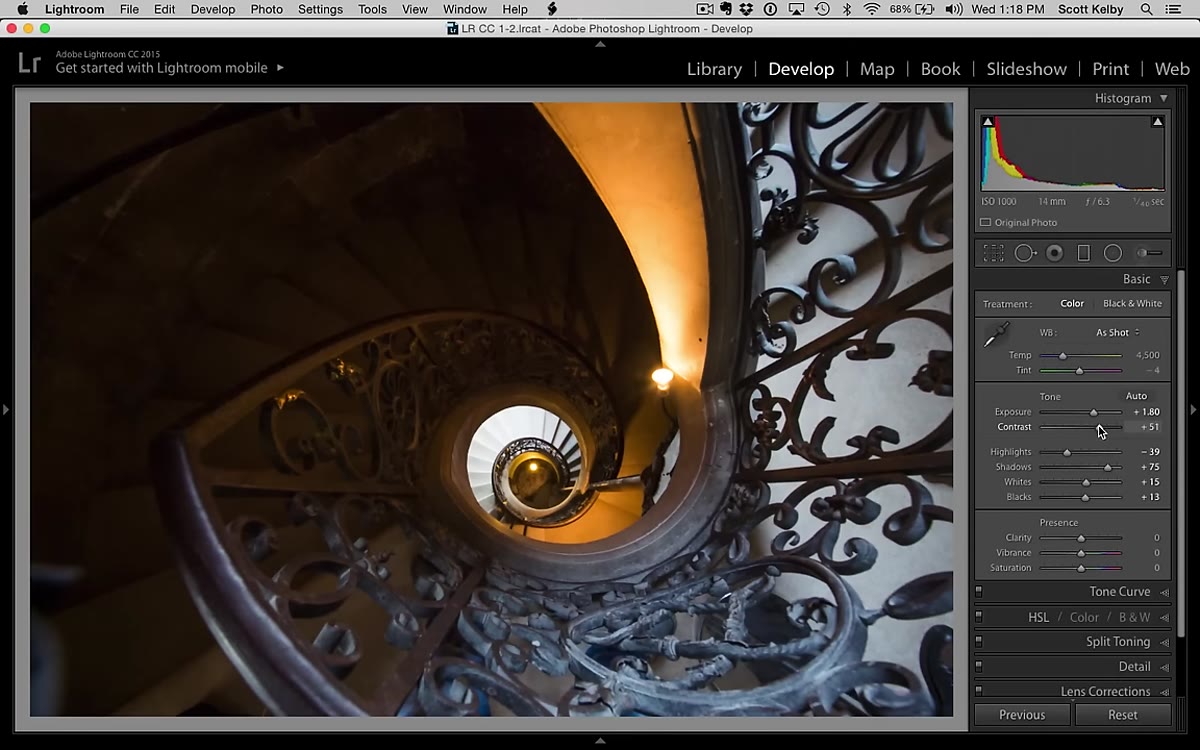 Contrast slider increased, image gaining visible depth
After the Auto adjustment and shadow recovery, the image looks washed out and flat. Kelby increases the Contrast slider significantly. Contrast in Lightroom works on the midtones specifically, darkening the lower midtones and brightening the upper ones, which gives the image a sense of dimension and weight.
Contrast slider increased, image gaining visible depth
After the Auto adjustment and shadow recovery, the image looks washed out and flat. Kelby increases the Contrast slider significantly. Contrast in Lightroom works on the midtones specifically, darkening the lower midtones and brightening the upper ones, which gives the image a sense of dimension and weight.
A lot of beginner edits stop at lifting the shadows and call it done. But lifting shadows without adding contrast just makes everything look like a faded photograph. The contrast pull is what gives the recovered shadow detail something to push against. Without it, the image floats.
Step 5: Use Clarity to Bring Out Texture
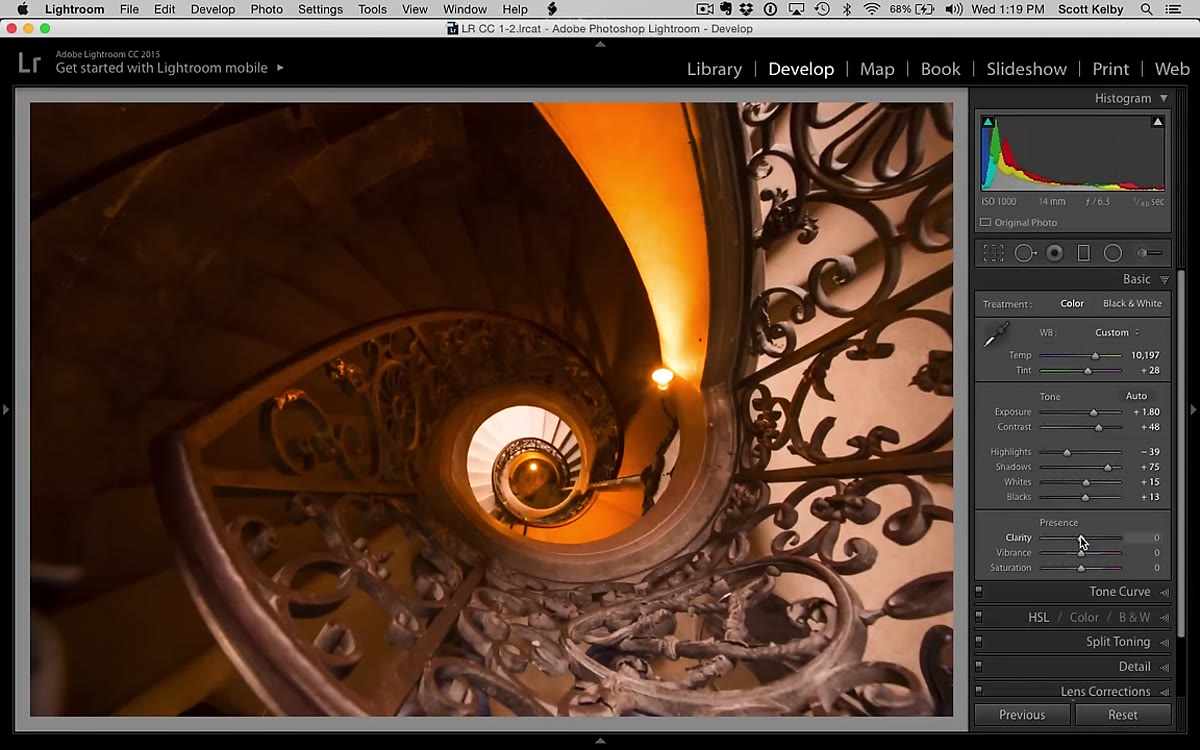 Clarity slider increased, stone staircase texture becoming visible
The Versailles staircase has extraordinary architectural texture, carved stone, worn edges, layered steps. Kelby increases the Clarity slider to enhance that midtone contrast and make the surface detail pop. Clarity is different from Contrast in that it works locally within the midtones rather than across the full tonal range. It’s the slider I reach for when I want a surface to feel physical.
Clarity slider increased, stone staircase texture becoming visible
The Versailles staircase has extraordinary architectural texture, carved stone, worn edges, layered steps. Kelby increases the Clarity slider to enhance that midtone contrast and make the surface detail pop. Clarity is different from Contrast in that it works locally within the midtones rather than across the full tonal range. It’s the slider I reach for when I want a surface to feel physical.
Don’t slam Clarity to 100 and walk away. Kelby applies it with purpose because there’s real texture worth emphasizing. On a portrait, heavy Clarity is unflattering. On stone, metal, wood, or any architectural surface, it’s one of the most effective tools in the panel.
Step 6: Use the Adjustment Brush to Solve Local Problems
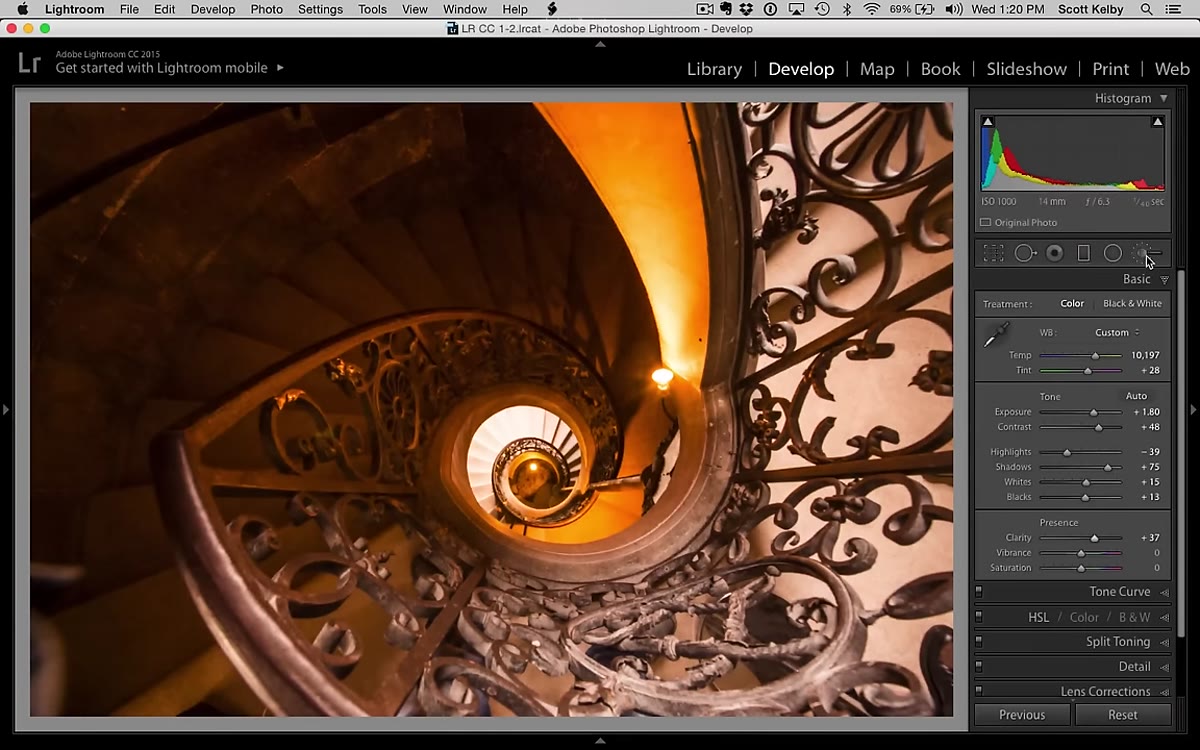 Adjustment brush selected, painting over dark staircase area
This is where the edit moves from global corrections to targeted ones, and it’s the part a lot of people skip because it takes more effort. Kelby switches to the Adjustment Brush to address areas that the global sliders can’t fix without breaking something else. Specifically, the bottom of the staircase is still losing detail, and there are problem areas at the top of the frame that are too bright and not matching the warmer tone of the rest of the image.
Adjustment brush selected, painting over dark staircase area
This is where the edit moves from global corrections to targeted ones, and it’s the part a lot of people skip because it takes more effort. Kelby switches to the Adjustment Brush to address areas that the global sliders can’t fix without breaking something else. Specifically, the bottom of the staircase is still losing detail, and there are problem areas at the top of the frame that are too bright and not matching the warmer tone of the rest of the image.
He zeroes out all the brush settings by double-clicking the word “Effect,” which resets everything to neutral. Then he dials in only the adjustments that specific area needs. This is the right workflow. A clean brush with targeted settings beats a brush loaded with six half-considered adjustments every time.
What I’d Add from My Own Experience
The thing Kelby demonstrates throughout this edit is what I’d call working the problem in layers, fixing the biggest issues first and letting the smaller corrections follow. What I’ve found in my own work is that the order matters more than most tutorials admit. If you fix color cast before you fix exposure, you’re grading tones that are going to shift on you. If you add Clarity before you’ve corrected white balance, the texture enhancement is working on the wrong color information.
I also want to flag something for anyone shooting interiors regularly: auto white balance in mixed-light spaces is almost always going to give you a blue or green cast. Setting a custom white balance in-camera, or shooting a gray card you can use as a reference in Lightroom, saves you time in post and gives you a more accurate starting point than the Auto button can.
The biggest takeaway from watching Kelby work through this edit is that editing is diagnosis first, treatment second. Every adjustment he makes is in service of a specific problem he identified before he touched a slider. That discipline is the difference between an edit that looks intentional and one that just looks processed.
Watch the full tutorial on YouTube to see Kelby finish the edit, including how he handles that bare bulb in the frame and the bright upper section of the image. The detail work in the second half of the video is worth your time.
Comments
Leave a Comment