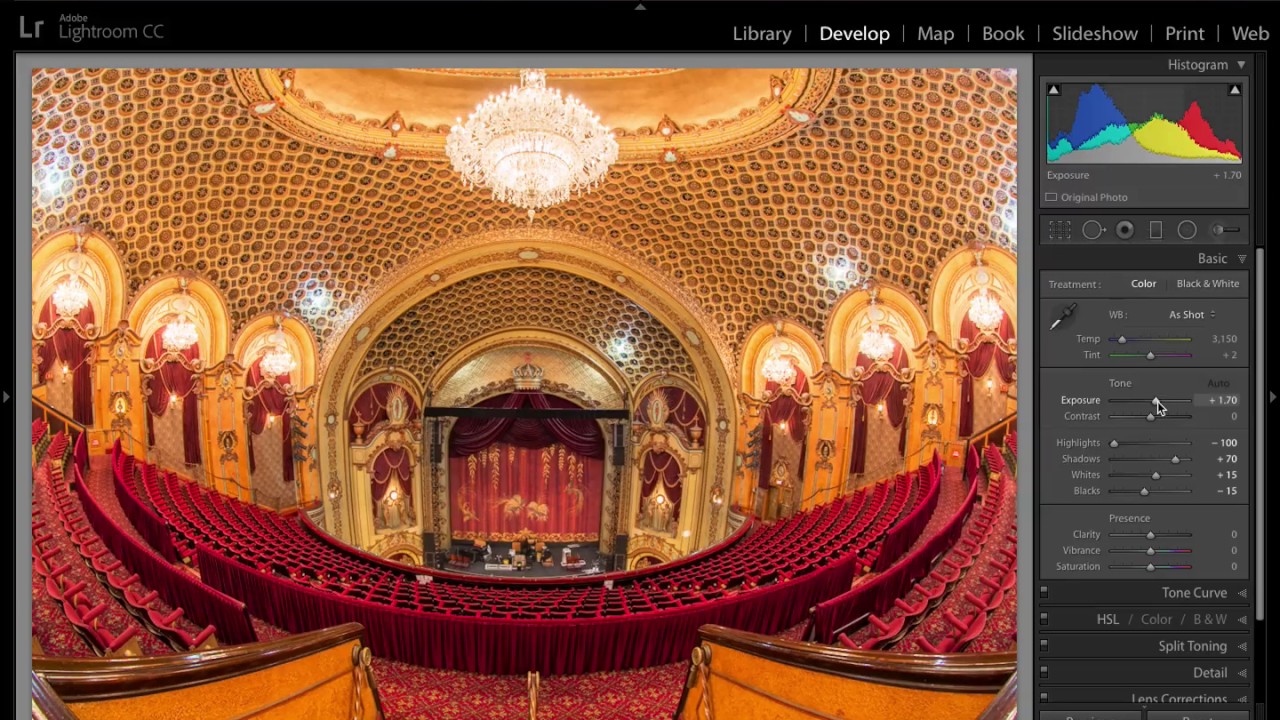
Somewhere in every photographer’s hard drive is a folder of interior shots where the chandeliers look like tiny supernovas and the shadows are basically black holes. I know mine is full of them. Venues, churches, theaters, restaurants, anywhere with dramatic overhead lighting and deep corners — these scenes punish single exposures. You expose for the room and lose the lights. You expose for the lights and lose everything else. For a long time, I accepted that as a camera limitation and moved on.
Then I watched Scott Kelby work through this exact problem in a KelbyOne tutorial, Watch the full tutorial on YouTube, using a fisheye shot of the State Theatre in Sydney as his example. The chandelier was completely blown out in the normal exposure. Blown out in that way where no amount of Highlights dragging in Lightroom brings it back, because the data simply isn’t there. What Kelby demonstrates is not the heavy-handed, hyper-toned HDR that gave the technique its bad reputation. It’s a quieter, more practical version of HDR that gets you one clean file with detail in both the highlights and the shadows. It looks the way the scene actually looked to your eye when you were standing in it.
The whole process lives inside Lightroom’s Photo Merge panel, and once you’ve done it twice, it becomes part of your regular workflow for any interior or high-contrast scene. Here’s how it works.
Step 1: Shoot Bracketed Exposures in Camera
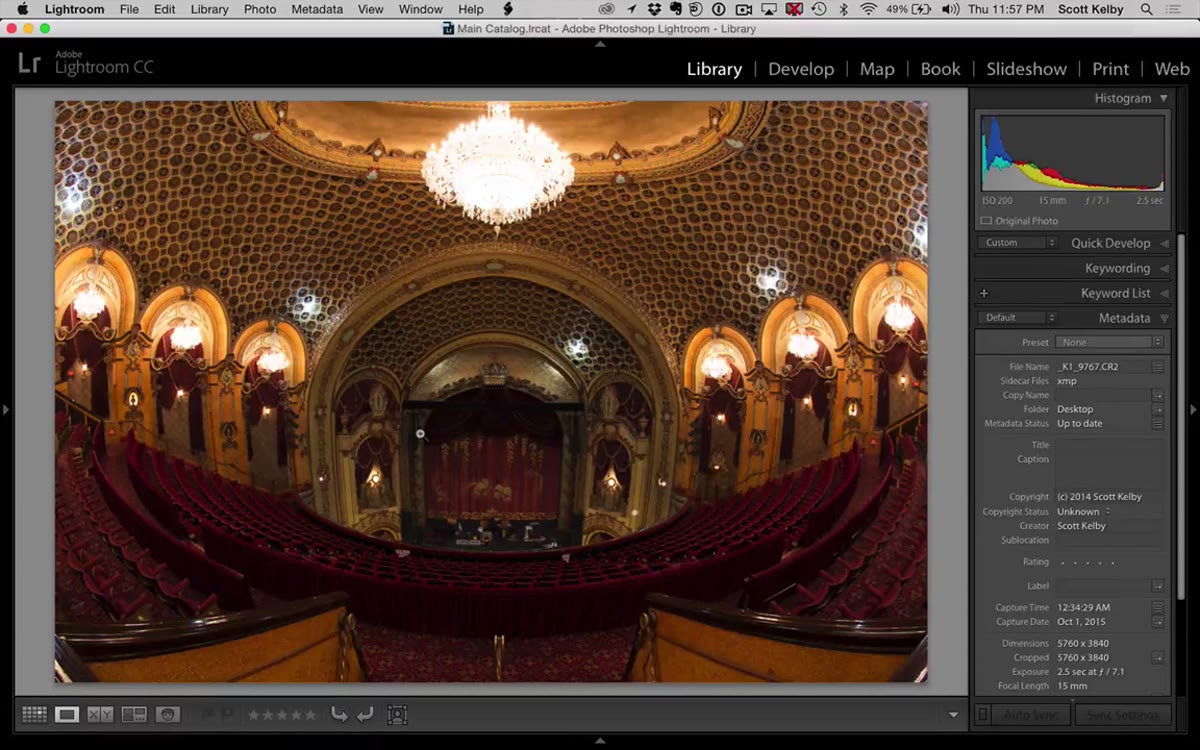 Camera bracket sequence: normal, minus two stops, plus two stops
Before you even open Lightroom, you need three raw files from the same scene. Set your camera to auto-bracket at two stops in each direction. Most modern mirrorless and DSLR bodies let you fire all three with a single shutter press. You end up with a normal exposure, one that’s two stops underexposed (which reveals highlight detail that looks completely blown out at normal exposure), and one that’s two stops overexposed (which opens up shadows). Use a tripod if you can. Lightroom’s merge tool has alignment options, but cleaner source files always give you a cleaner result.
Camera bracket sequence: normal, minus two stops, plus two stops
Before you even open Lightroom, you need three raw files from the same scene. Set your camera to auto-bracket at two stops in each direction. Most modern mirrorless and DSLR bodies let you fire all three with a single shutter press. You end up with a normal exposure, one that’s two stops underexposed (which reveals highlight detail that looks completely blown out at normal exposure), and one that’s two stops overexposed (which opens up shadows). Use a tripod if you can. Lightroom’s merge tool has alignment options, but cleaner source files always give you a cleaner result.
Step 2: Select All Three Images in Lightroom
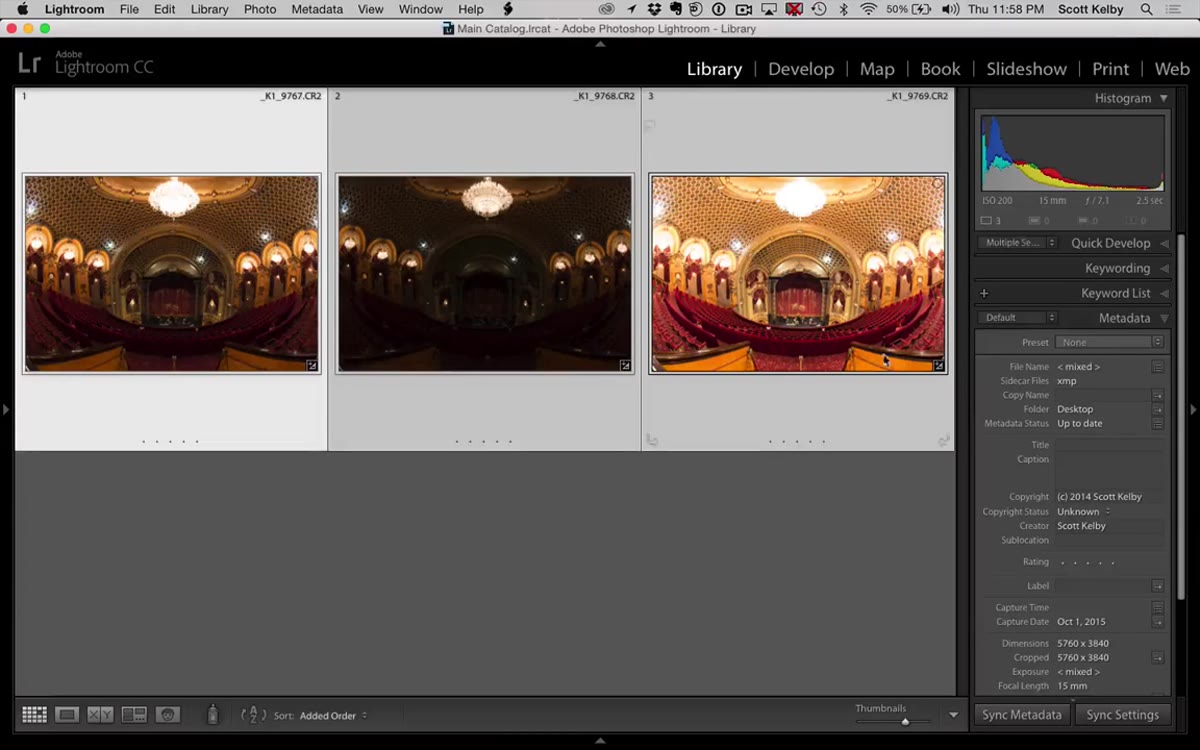 Three bracketed frames selected in Lightroom grid view
In Lightroom’s Library module, click your normal exposure, then Shift-click the other two to select all three. You should see all of them highlighted in the filmstrip. If you’re working in Camera Raw inside Photoshop, the process is the same - select all three thumbnails in the filmstrip at the top of the panel. The merge tool works identically in both places, so your preferred workspace doesn’t matter here.
Three bracketed frames selected in Lightroom grid view
In Lightroom’s Library module, click your normal exposure, then Shift-click the other two to select all three. You should see all of them highlighted in the filmstrip. If you’re working in Camera Raw inside Photoshop, the process is the same - select all three thumbnails in the filmstrip at the top of the panel. The merge tool works identically in both places, so your preferred workspace doesn’t matter here.
Step 3: Open Photo Merge and Choose HDR
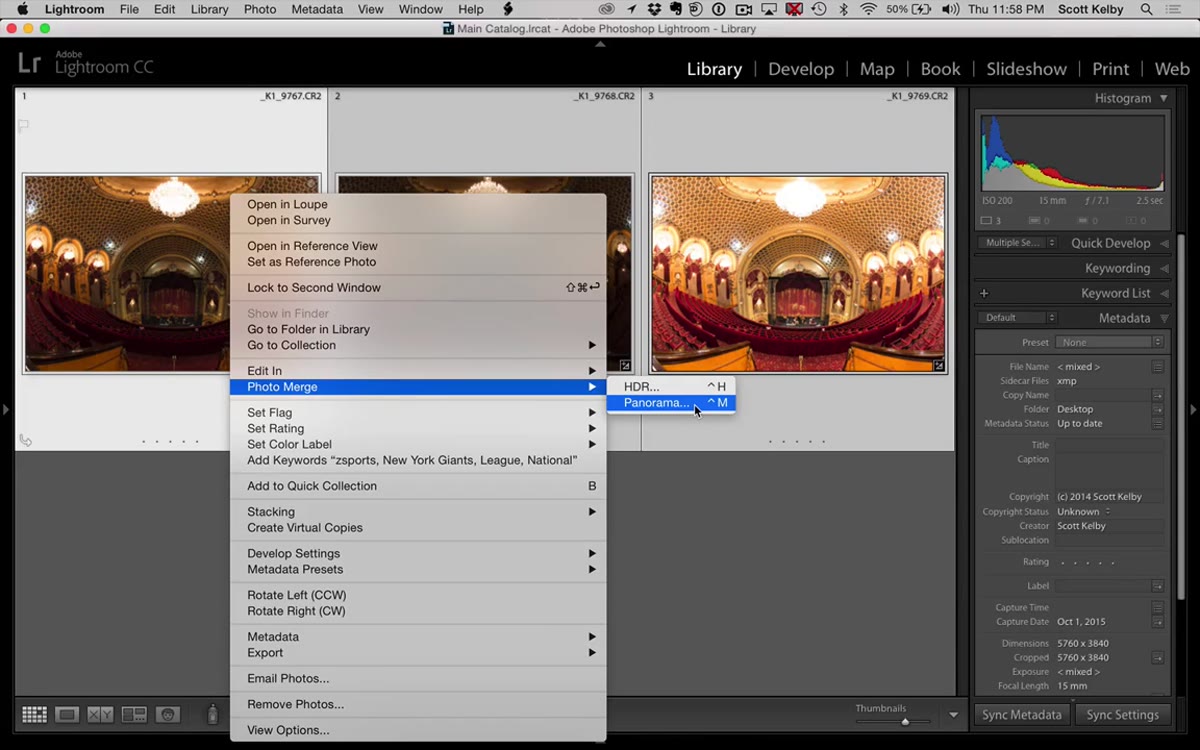 Photo Merge HDR dialog opening in Lightroom
Right-click any of the selected images, navigate to Photo Merge, and choose HDR. This is the step where a lot of people accidentally choose Panorama instead, so just slow down for a second on that submenu. The HDR preview dialog opens pretty quickly even with large raw files. What you’re looking at in the preview is already a significant improvement over your normal exposure - the chandelier or blown-out window or whatever your problem highlight was will start showing real texture and detail instead of a white void.
Photo Merge HDR dialog opening in Lightroom
Right-click any of the selected images, navigate to Photo Merge, and choose HDR. This is the step where a lot of people accidentally choose Panorama instead, so just slow down for a second on that submenu. The HDR preview dialog opens pretty quickly even with large raw files. What you’re looking at in the preview is already a significant improvement over your normal exposure - the chandelier or blown-out window or whatever your problem highlight was will start showing real texture and detail instead of a white void.
Step 4: Enable Auto Tone Before Merging
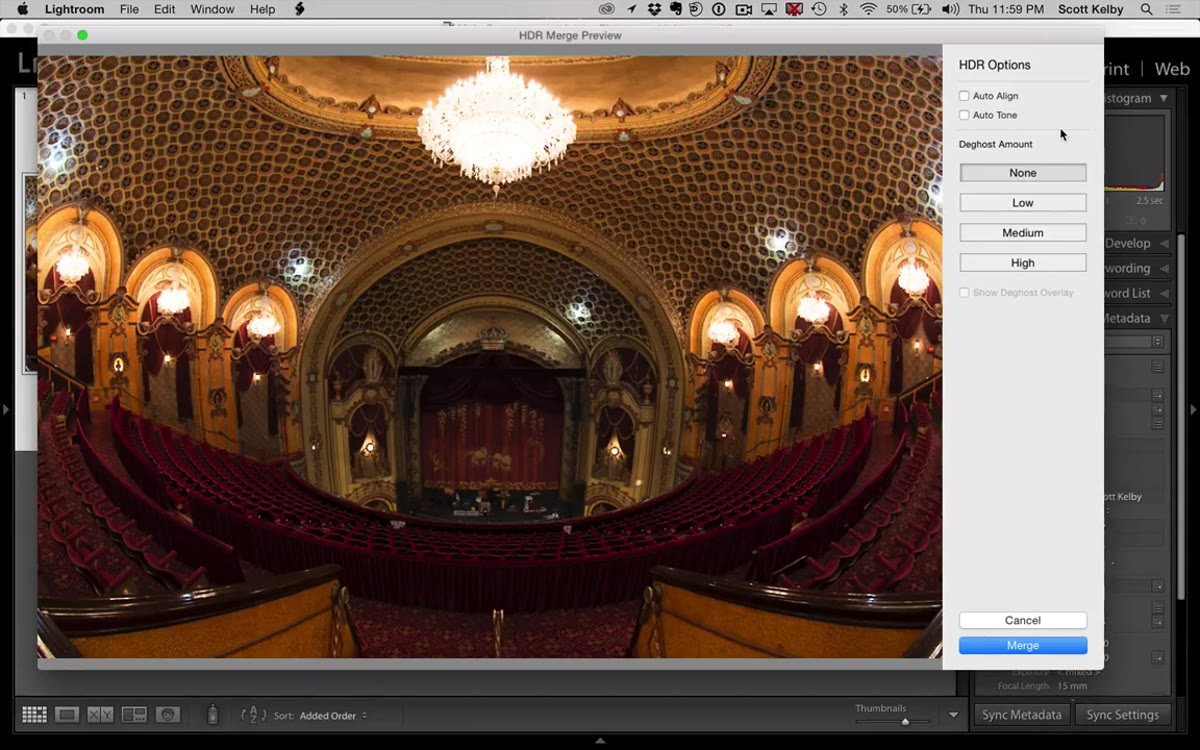 Auto Tone checkbox highlighted in HDR merge dialog
Inside the HDR merge dialog, you’ll see an Auto Tone checkbox. Turn it on. Kelby’s point here is a good one: Auto Tone in this context works similarly to hitting the Auto button in the Develop module, and it tends to give HDR merges a more balanced starting point than leaving it off. You can always override everything it does once you’re in the Develop module, so treating it as a rough first pass rather than a final edit is the right frame. Hit Merge and let Lightroom build the file. It creates a new DNG in your catalog alongside the originals.
Auto Tone checkbox highlighted in HDR merge dialog
Inside the HDR merge dialog, you’ll see an Auto Tone checkbox. Turn it on. Kelby’s point here is a good one: Auto Tone in this context works similarly to hitting the Auto button in the Develop module, and it tends to give HDR merges a more balanced starting point than leaving it off. You can always override everything it does once you’re in the Develop module, so treating it as a rough first pass rather than a final edit is the right frame. Hit Merge and let Lightroom build the file. It creates a new DNG in your catalog alongside the originals.
Step 5: Correct the Merged File’s Exposure to Match Your Normal Shot
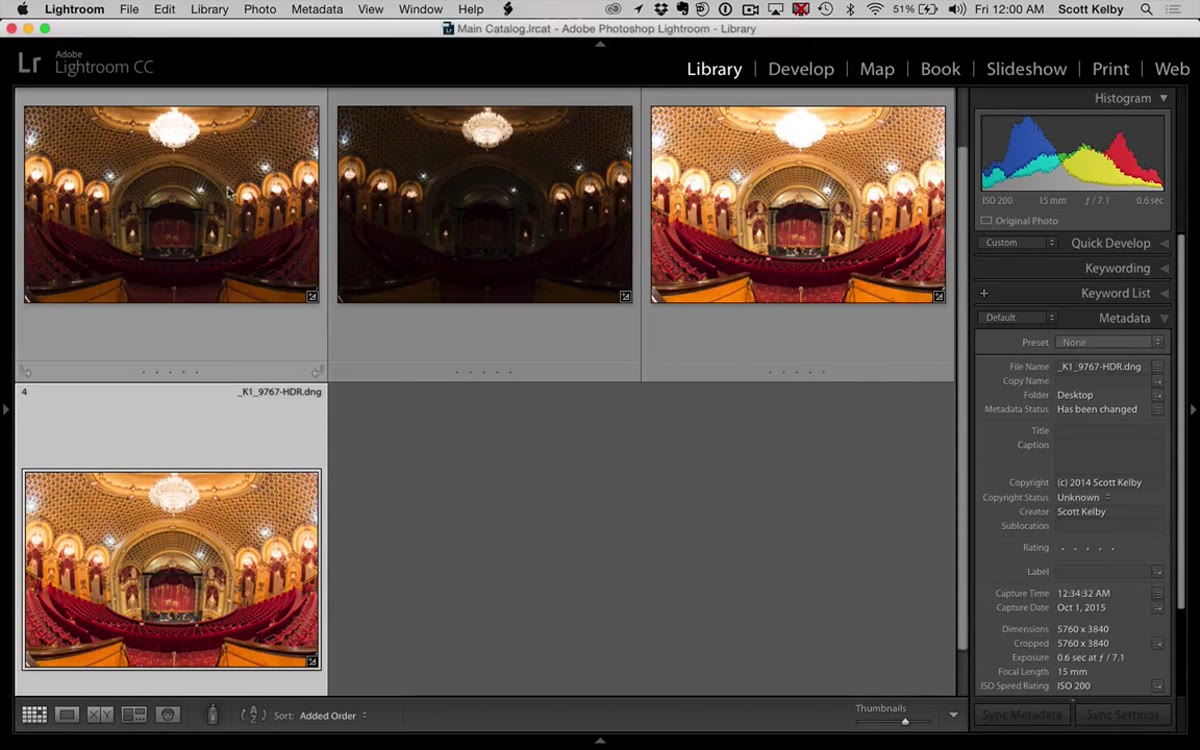 Exposure slider pulled down in Develop module on merged HDR file
Here’s the part that most HDR tutorials skip, and it’s actually the key to making the result look natural. The merged HDR file tends to skew bright, often pulling toward the exposure of the overexposed frame in the bracket. Kelby’s fix is simple: go into the Develop module and pull the Exposure slider down until the merged image roughly matches the overall brightness of your original normal exposure. In his example, the merged file came in around +1.70 and he brought it back down to something closer to +0.50. There’s no magic number here, just use your eye and compare to the original. The goal is a realistic brightness level that your camera couldn’t capture in a single frame, not a dramatic HDR look.
Exposure slider pulled down in Develop module on merged HDR file
Here’s the part that most HDR tutorials skip, and it’s actually the key to making the result look natural. The merged HDR file tends to skew bright, often pulling toward the exposure of the overexposed frame in the bracket. Kelby’s fix is simple: go into the Develop module and pull the Exposure slider down until the merged image roughly matches the overall brightness of your original normal exposure. In his example, the merged file came in around +1.70 and he brought it back down to something closer to +0.50. There’s no magic number here, just use your eye and compare to the original. The goal is a realistic brightness level that your camera couldn’t capture in a single frame, not a dramatic HDR look.
Step 6: Review and Refine the Detail You’ve Recovered
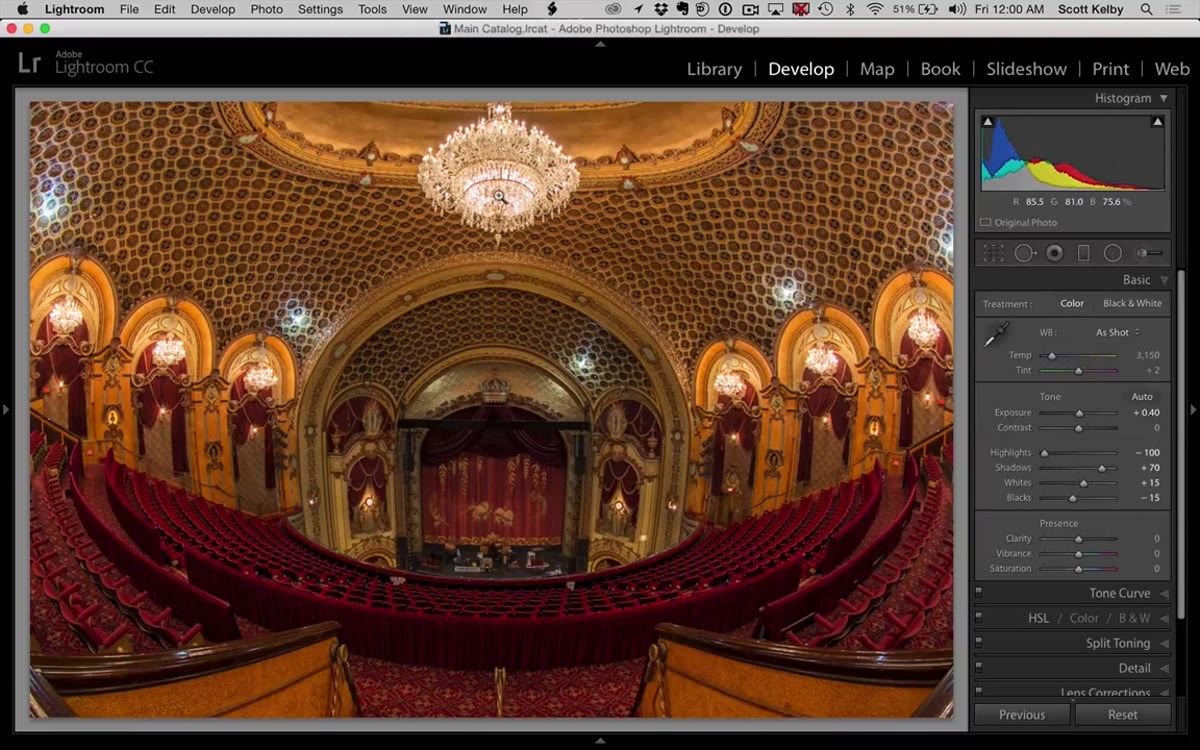 Final HDR image showing chandelier detail and open shadows
Once the exposure is corrected, zoom into your problem highlights and compare to the original normal exposure. In Kelby’s theater example, the chandelier goes from a completely blown-out disc of white to a detailed fixture with visible gold and individual bulbs. The mini-chandeliers in the frame, which were also clipping, now show structure. This is worth zooming in on and actually examining rather than just doing a quick side-by-side at fit-to-screen, because the detail recovery is often more significant than it looks at a glance. From here you treat the merged DNG exactly like any other raw file and apply whatever your usual color grading workflow looks like.
Final HDR image showing chandelier detail and open shadows
Once the exposure is corrected, zoom into your problem highlights and compare to the original normal exposure. In Kelby’s theater example, the chandelier goes from a completely blown-out disc of white to a detailed fixture with visible gold and individual bulbs. The mini-chandeliers in the frame, which were also clipping, now show structure. This is worth zooming in on and actually examining rather than just doing a quick side-by-side at fit-to-screen, because the detail recovery is often more significant than it looks at a glance. From here you treat the merged DNG exactly like any other raw file and apply whatever your usual color grading workflow looks like.
One Thing I’d Add From My Own Experience
The technique Kelby demonstrates works especially well for architecture and interiors, but I’ve started using it any time I’m shooting in a location where I know I’ll regret not having the bracket later. Concert venues, sunlit windows in otherwise dark rooms, evening outdoor receptions where there are string lights overhead. The two-stop bracket is almost always enough. Going wider than two stops tends to increase the processing time and can introduce subtle ghosting if anything in the frame moved between shots.
One adjustment I make to this workflow: after I’ve corrected the exposure on the merged file, I’ll set it side-by-side with the normal exposure using the Compare view in the Develop module. It forces me to be honest about whether the merge is actually an improvement or whether I’ve drifted into that slightly processed look that makes HDR easy to spot. If I have to ask myself whether it looks natural, it usually doesn’t, and a small Exposure bump fixes it more often than any other single slider.
The biggest thing this tutorial reframes is what HDR is actually for. It’s not a style. It’s a tool for capturing what your eye saw when your sensor couldn’t. When you use it that way - bracketing, blending, then dialing the result back to match a natural exposure - you get files with more usable data, not files that look like they belong on a 2009 photography forum. That’s a distinction worth making.
Watch the full tutorial on YouTube to see Scott Kelby walk through the entire merge in real time, including the before-and-after comparison that makes the detail recovery immediately obvious.
Comments
Leave a Comment