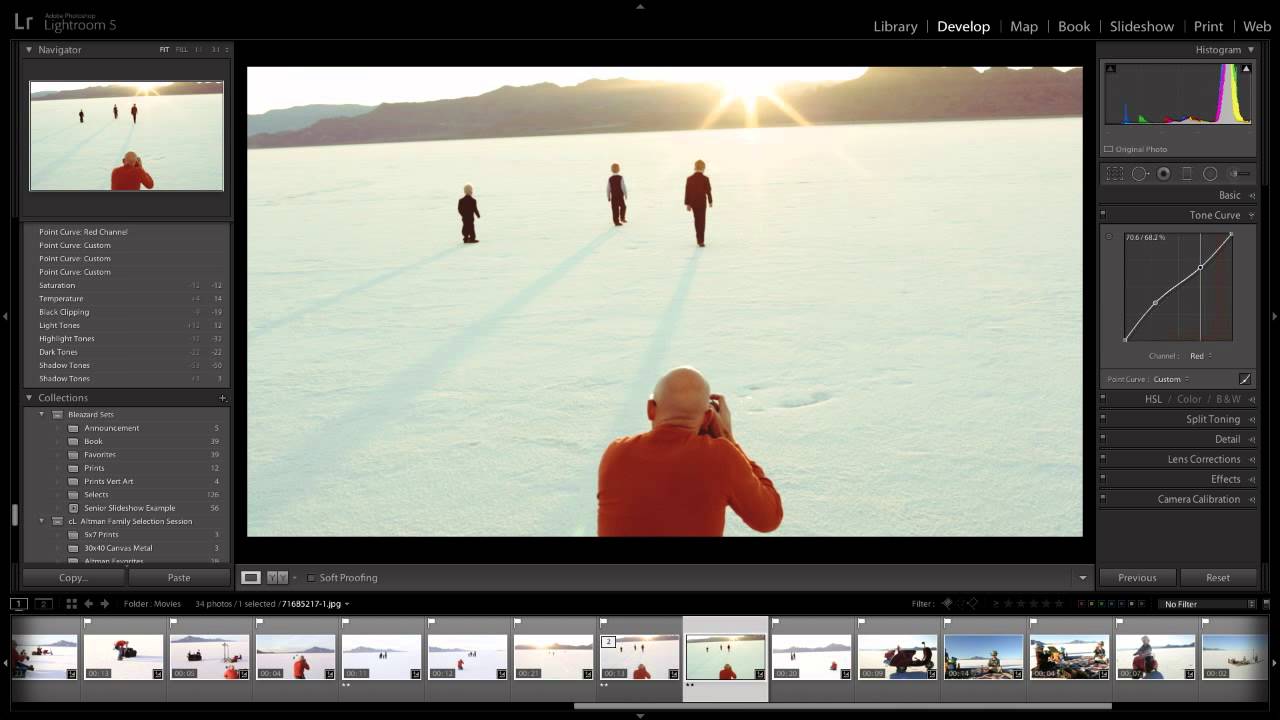
Most people don’t think of Lightroom as a video tool. Honestly, for a long time, neither did I. My workflow was always stills-first, and video felt like someone else’s problem. But if you shoot both, you know the frustration: you’ve dialed in a beautiful look on a photo, and then you’re staring at the matching video clip with no clean way to get that same grade onto it. Lightroom’s video editing capabilities are limited by design. You can’t just drop into the Develop module on a clip the way you would a RAW file.
The workaround that actually solves this is clever, and I first saw it laid out clearly in this CreativeLive tutorial on editing video in Lightroom. The core idea is to use a JPEG still frame as your editing proxy. You do all your color work on the JPEG, where you have full Develop module access, and then you sync those settings across to the video file. It sounds almost too simple, but the range of settings that actually transfer is surprisingly deep.
What follows is a step-by-step breakdown of the technique so you can follow along without needing to pause and rewind. I’ve added a few notes from my own experience along the way.
Step 1: Extract a JPEG Frame from Your Video Clip
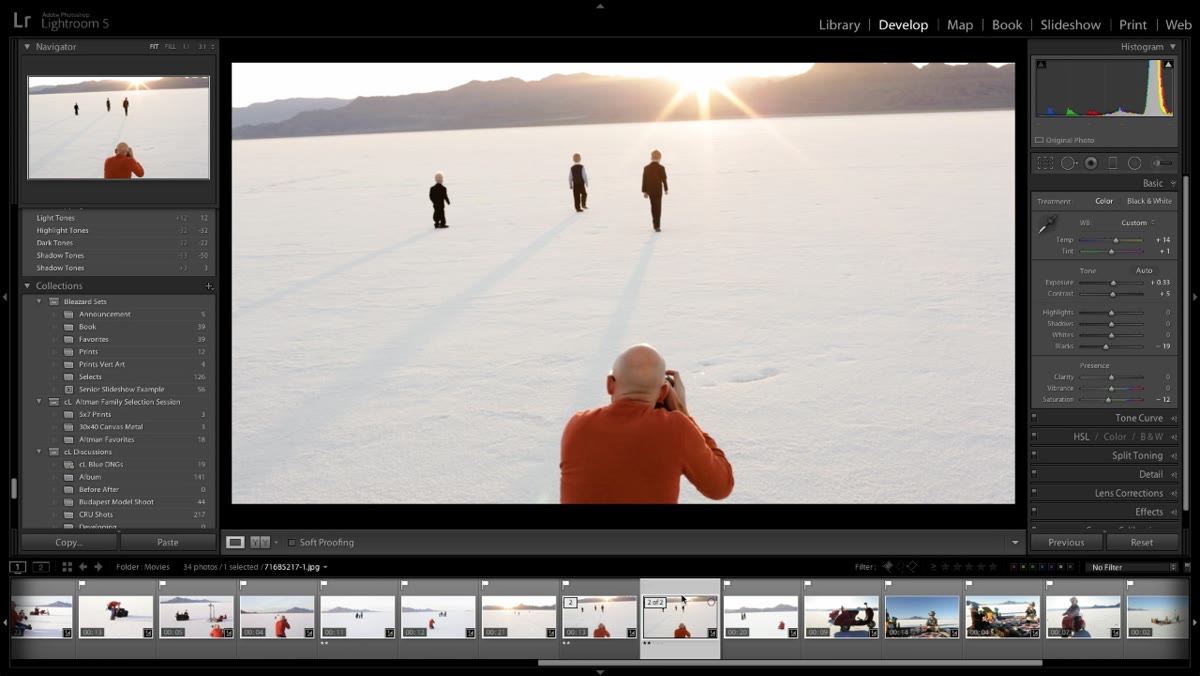 Library module open with JPEG and video clip visible
Before you can do anything, you need a still frame to edit. Lightroom doesn’t let you scrub through video and export a frame natively in any useful editing sense, so you’ll want to pull a representative frame from your clip using your camera’s in-body capture function, a screenshot at the right moment, or a frame export from your NLE. The key is that this JPEG should be a clean, unedited frame that visually matches the video footage you want to grade. Keep the two files together in the same folder so Lightroom imports them as a pair.
Library module open with JPEG and video clip visible
Before you can do anything, you need a still frame to edit. Lightroom doesn’t let you scrub through video and export a frame natively in any useful editing sense, so you’ll want to pull a representative frame from your clip using your camera’s in-body capture function, a screenshot at the right moment, or a frame export from your NLE. The key is that this JPEG should be a clean, unedited frame that visually matches the video footage you want to grade. Keep the two files together in the same folder so Lightroom imports them as a pair.
Once they’re in Lightroom, you’ll work on the JPEG alone using the full Develop module. This is where all your real editing happens.
Step 2: Edit the JPEG in the Develop Module
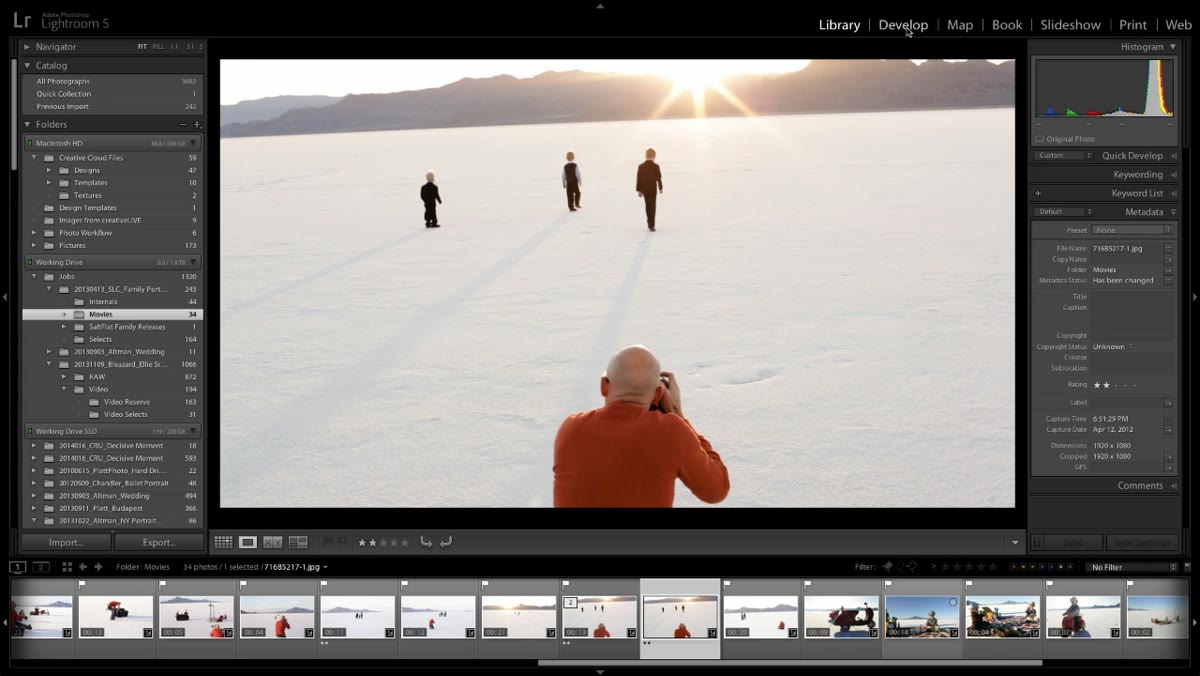 Develop module open on the JPEG with tone curve active
With your JPEG selected, head into the Develop module and treat it like any other edit. The tutorial demonstrates using the tone curve heavily, and this is where things get interesting. Lightroom actually has two tone curve systems running simultaneously: the parametric curve (the one with the Highlights, Lights, Darks, and Shadows sliders) and the Point Curve, which gives you direct anchor-point control over the luminosity and individual color channels.
Develop module open on the JPEG with tone curve active
With your JPEG selected, head into the Develop module and treat it like any other edit. The tutorial demonstrates using the tone curve heavily, and this is where things get interesting. Lightroom actually has two tone curve systems running simultaneously: the parametric curve (the one with the Highlights, Lights, Darks, and Shadows sliders) and the Point Curve, which gives you direct anchor-point control over the luminosity and individual color channels.
These two curves are additive, meaning both are active at the same time and their effects stack. So if you’ve already lifted your shadows with the parametric controls and then you pull the Point Curve down in the same region, you’re combining both adjustments. Keep that in mind as you work, because it’s easy to overdo it when you don’t realize both systems are contributing. For video grades, I tend to work mostly in the Point Curve and leave the parametric curve conservative.
Step 3: Use the Point Curve to Grade Individual Color Channels
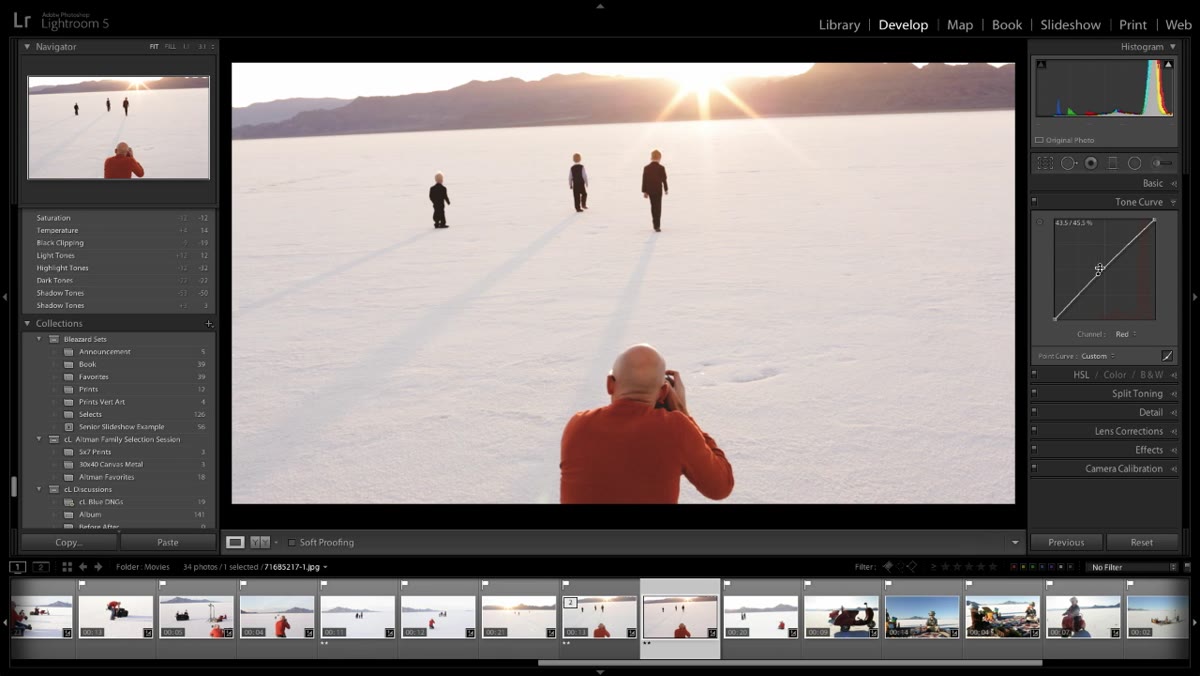 Point Curve panel open with Red channel selected
The Point Curve isn’t just for luminosity. Switch the channel selector from RGB to individual colors – Red, Green, or Blue – and you can push and pull color information in specific tonal ranges. Want warmer highlights? Pull the Red channel up in the upper range of the curve. Want a faded, cinematic look with crushed blacks that shift toward teal? Bring the Blue channel up slightly at the bottom anchor point while pulling the Reds down there.
Point Curve panel open with Red channel selected
The Point Curve isn’t just for luminosity. Switch the channel selector from RGB to individual colors – Red, Green, or Blue – and you can push and pull color information in specific tonal ranges. Want warmer highlights? Pull the Red channel up in the upper range of the curve. Want a faded, cinematic look with crushed blacks that shift toward teal? Bring the Blue channel up slightly at the bottom anchor point while pulling the Reds down there.
The tutorial shows exactly this kind of channel-level manipulation: bringing Reds up, pulling Blues down considerably, and adjusting Greens to taste. This is the same basic approach behind most cinematic LUTs, and doing it by hand gives you far more control than dropping a preset and hoping it fits your footage’s specific exposure and white balance.
Step 4: Return to the Library Module and Select Both Files
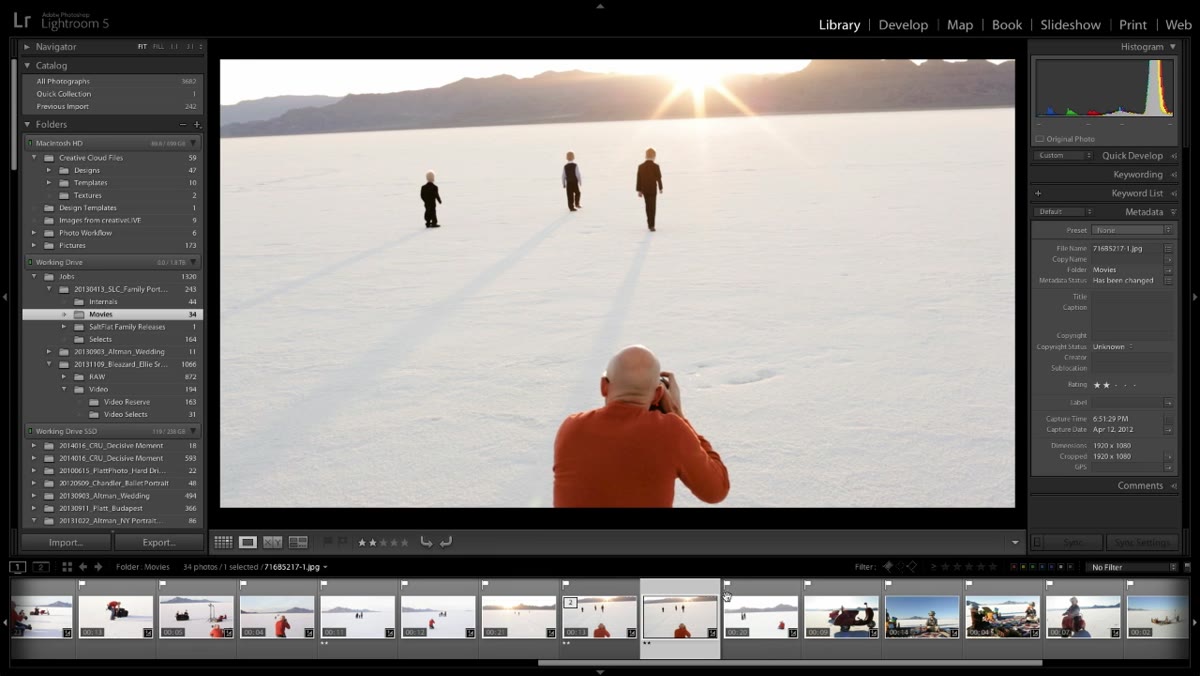 Library module showing JPEG as primary selection, video as secondary
Once you’re satisfied with the edit on the JPEG, go back to the Library module. This is important: you cannot sync settings from the Develop module. The sync function lives in Library. Select both files, and here’s the key detail – the JPEG needs to be the primary selection (the brighter highlight) and the video clip needs to be the secondary selection (the slightly dimmer highlight). You can do this by clicking the JPEG first and then Command-clicking (or Ctrl-clicking on Windows) the video.
Library module showing JPEG as primary selection, video as secondary
Once you’re satisfied with the edit on the JPEG, go back to the Library module. This is important: you cannot sync settings from the Develop module. The sync function lives in Library. Select both files, and here’s the key detail – the JPEG needs to be the primary selection (the brighter highlight) and the video clip needs to be the secondary selection (the slightly dimmer highlight). You can do this by clicking the JPEG first and then Command-clicking (or Ctrl-clicking on Windows) the video.
If you have them selected in the wrong order, the settings will try to sync from the video to the JPEG, which is the opposite of what you want and won’t do much of anything useful.
Step 5: Open Sync Settings and Choose What to Transfer
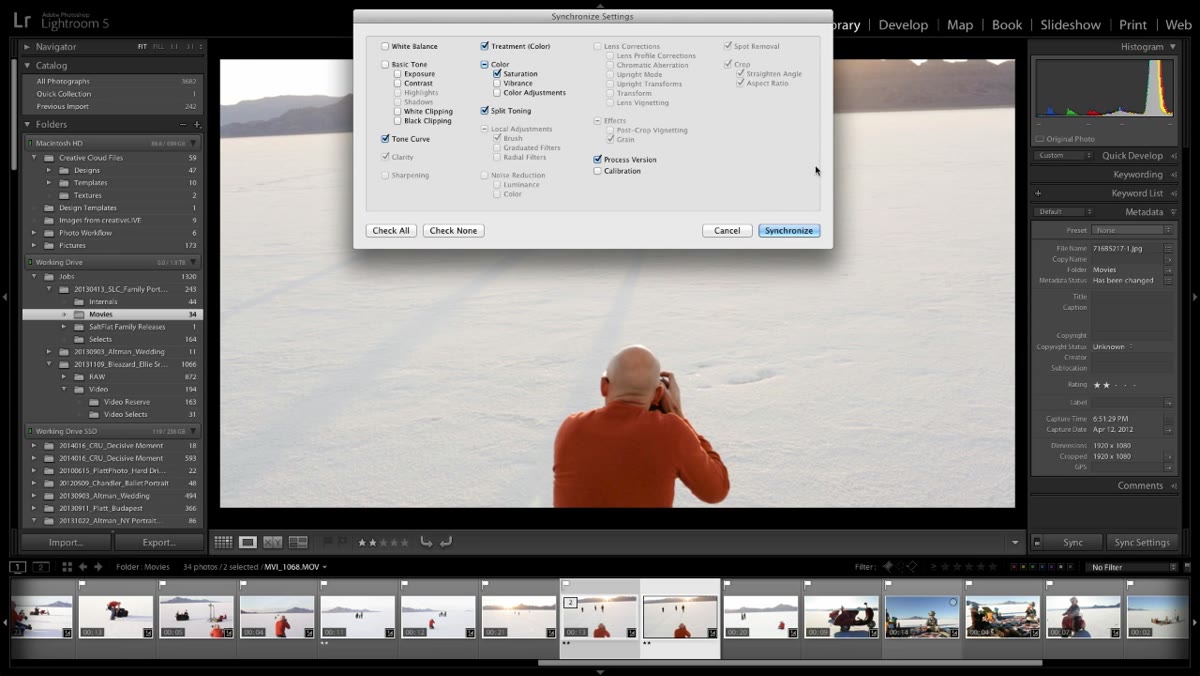 Sync Settings dialog open showing available video sync options
With both files selected and the JPEG as primary, click the “Sync Settings” button in the right panel. A dialog box opens showing all the adjustable parameters, and this is where you see which settings Lightroom actually allows to be synchronized to video. The list includes: Process Version, White Balance, Exposure, Contrast, White Clipping, Black Clipping, Tone, Vibrance, Saturation, the Tone Curve (including your Point Curve work), Split Toning, Color Adjustments (HSL), and Camera Calibration.
Sync Settings dialog open showing available video sync options
With both files selected and the JPEG as primary, click the “Sync Settings” button in the right panel. A dialog box opens showing all the adjustable parameters, and this is where you see which settings Lightroom actually allows to be synchronized to video. The list includes: Process Version, White Balance, Exposure, Contrast, White Clipping, Black Clipping, Tone, Vibrance, Saturation, the Tone Curve (including your Point Curve work), Split Toning, Color Adjustments (HSL), and Camera Calibration.
That Camera Calibration option is worth pausing on. If you’ve used a color calibration tool like an X-Rite ColorChecker to build a custom camera profile, you can sync that profile to your video clip as well. That alone can bring a lot of consistency between stills and video shot on the same camera.
Step 6: Synchronize and Preview the Result
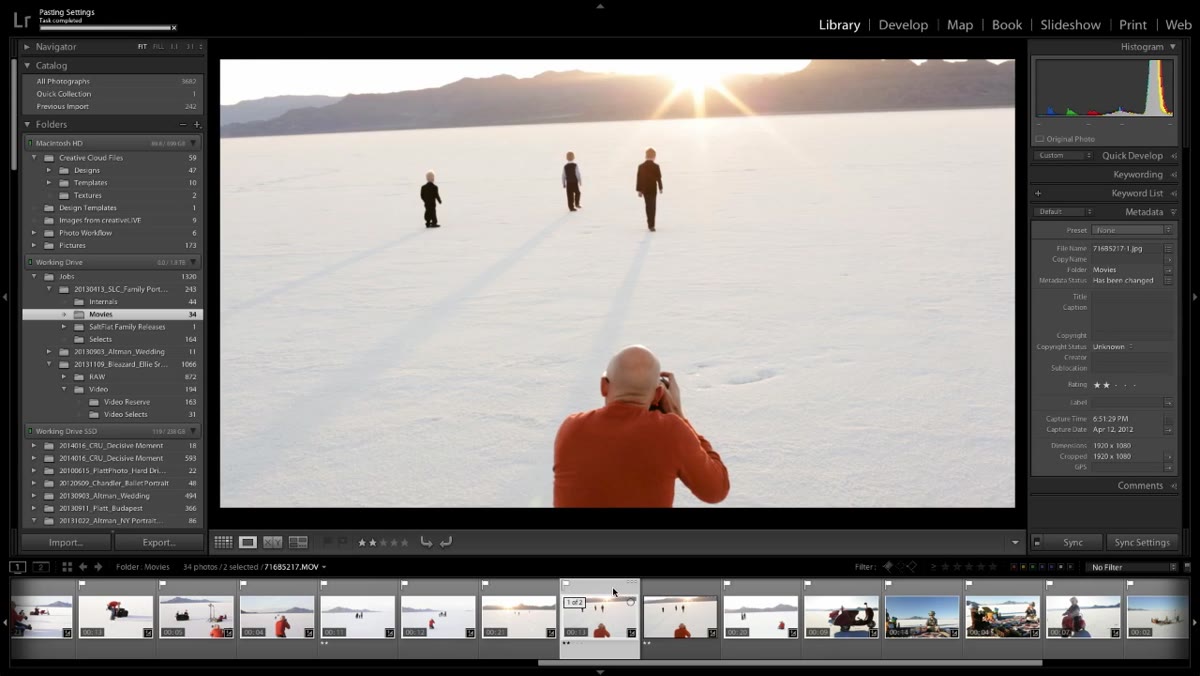 Video clip in Library module playing back with grade applied
Check the boxes for everything you want to apply, then click Synchronize. Lightroom applies the settings to the video clip in real time. Hit play on the video directly in the Library module and you’ll see your grade on the footage immediately. No export, no round-trip, no waiting.
Video clip in Library module playing back with grade applied
Check the boxes for everything you want to apply, then click Synchronize. Lightroom applies the settings to the video clip in real time. Hit play on the video directly in the Library module and you’ll see your grade on the footage immediately. No export, no round-trip, no waiting.
The playback quality in Library isn’t going to be broadcast-perfect, but it’s accurate enough to judge whether your color work is landing the way you intended before you take the clip anywhere else.
One Thing I’d Add: Test with Subtle Curves First
The Point Curve channel manipulation is genuinely powerful, but video footage is less forgiving than stills. A grade that looks great on a JPEG can feel overwhelming on moving images because your eye has more time to register color shifts across a full scene. My own habit is to dial the curve adjustments back about 20 to 30 percent from where they feel right on the still frame, then push from there if the footage needs it. Think of the JPEG edit as your ceiling, not your target.
Also: this technique works best when your JPEG frame is properly exposed and white-balanced to match the video. If the still frame is a different brightness than the clip average, your tone curve anchors will be off and the sync won’t carry across the way you expect.
The single most important thing this workflow teaches is that Lightroom’s video limitations are mostly about interface access, not actual capability. The processing engine handles video just fine once you route around the Develop module restriction with the JPEG proxy method. It’s not a hack – it’s just using the sync tools the way they were designed to work.
Watch the full tutorial on YouTube to see the full edit in action, including the tone curve work and the live playback demonstration at the end.
Comments
Leave a Comment