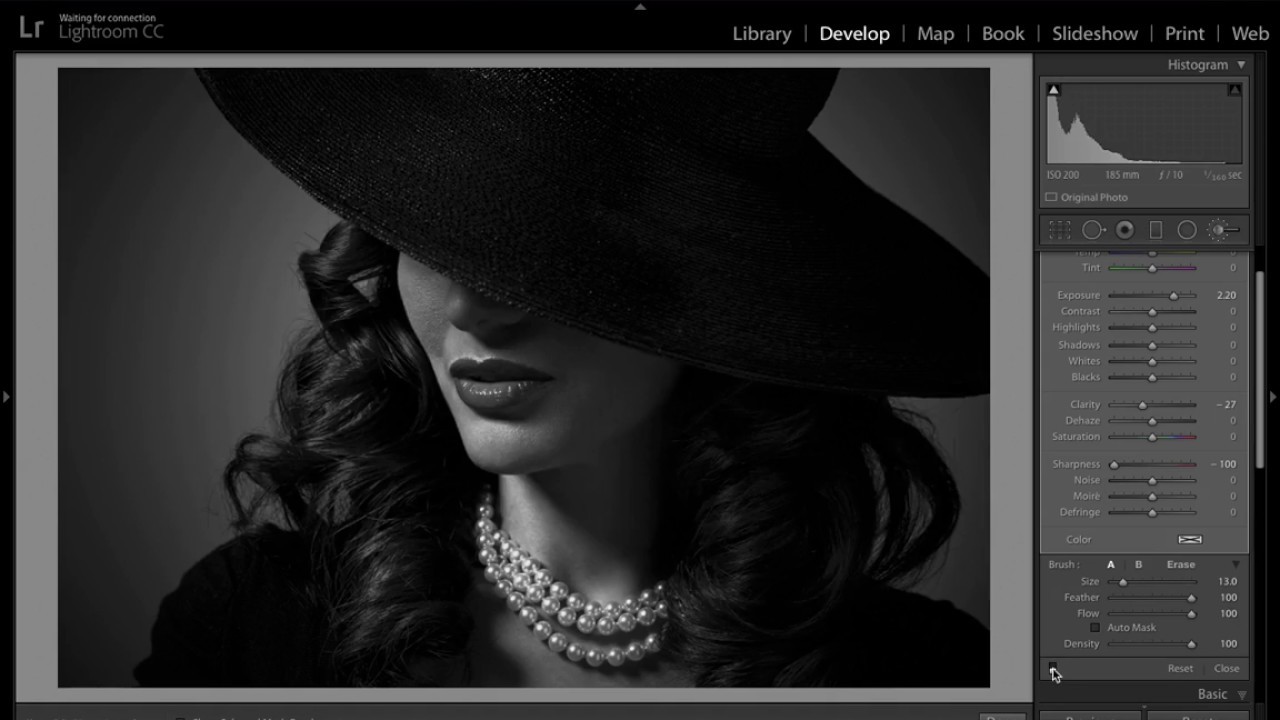
There’s a specific mood I keep chasing in portrait edits. Not moody-for-the-sake-of-moody, but that cinematic, old-detective-movie feeling where the subject looks like they’re sitting in a room they probably shouldn’t be in. The “light through the blinds” look. I’ve tried faking it with compositing, with graduated filters stacked on top of each other, even with actual props on set. All of it either looked fake or took forever. Then I watched this KelbyOne tutorial from Scott Kelby and felt mildly embarrassed that I’d been overcomplicating it. Watch the full tutorial on YouTube
The technique lives entirely inside Lightroom’s Develop module. No Photoshop. No layers. No blending modes. Just an adjustment brush, the Shift key, and a willingness to embrace imperfection. Kelby runs through it quickly, which is his style, but there’s more to unpack in each step than the runtime suggests. So here’s the full breakdown, with the settings I’d actually use in a real edit.
This is the kind of thing that works on portraits, environmental shots, anything with a strong subject and a background that isn’t doing too much. If you’ve got a street portrait or even a musician shot in a dim room, you’re already 80% of the way there before you even open Lightroom.
Step 1: Convert to Black and White
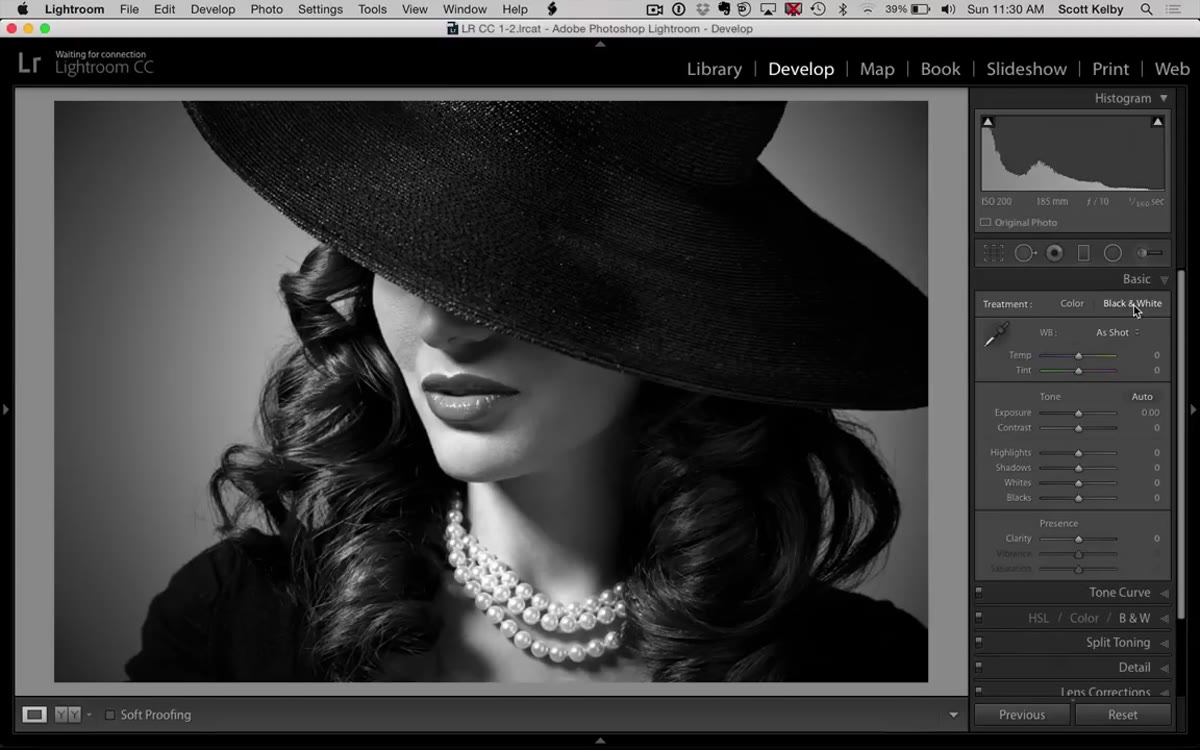
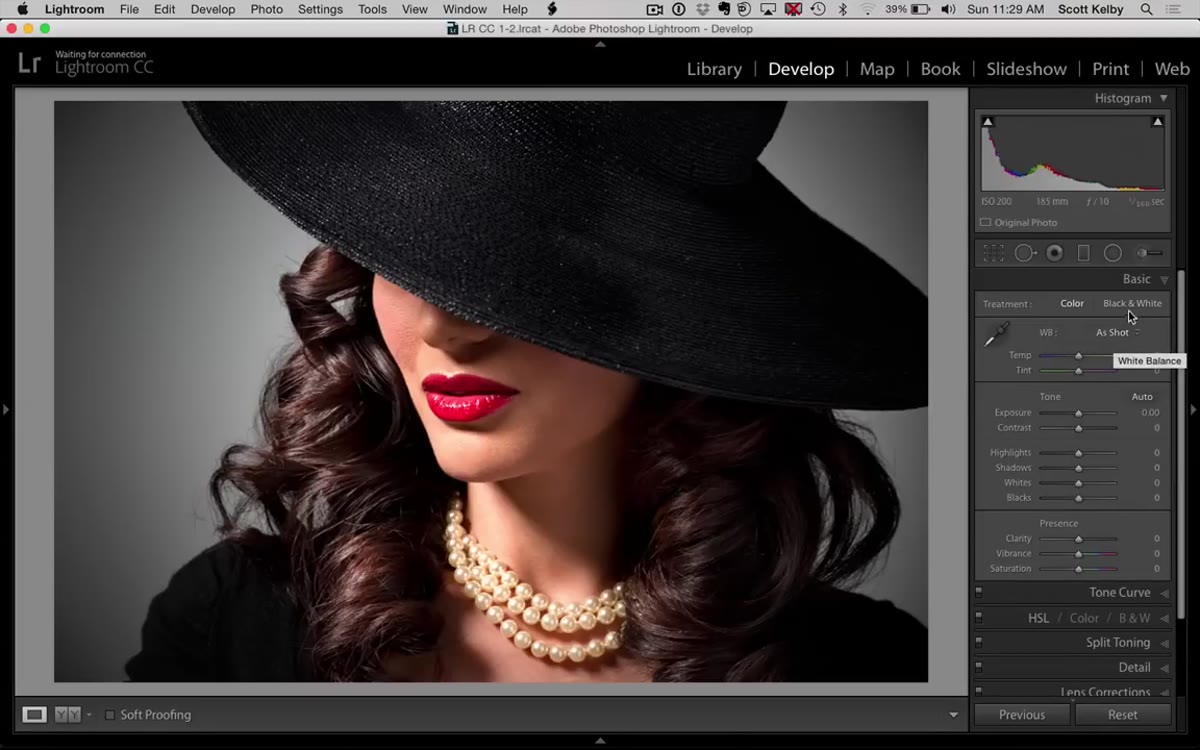 Clicking Black and White profile in the Develop module
Click the “Black & White” label in the Treatment section at the top of the Basic panel. That’s it. You’re not reaching for the HSL panel yet, you’re not doing a custom B&W mix. Just flip it over and see what you’re working with. The film noir look is almost always monochrome. Color version of this effect can work, but it reads more as “Instagram filter” than “1940s detective office.” Commit to the black and white.
Clicking Black and White profile in the Develop module
Click the “Black & White” label in the Treatment section at the top of the Basic panel. That’s it. You’re not reaching for the HSL panel yet, you’re not doing a custom B&W mix. Just flip it over and see what you’re working with. The film noir look is almost always monochrome. Color version of this effect can work, but it reads more as “Instagram filter” than “1940s detective office.” Commit to the black and white.
If the tonal range looks flat after converting, that’s fine. You’re about to reshape the whole image anyway.
Step 2: Pull the Exposure Down
 Exposure slider being dragged left in the Basic panel
Drop your overall exposure. Kelby doesn’t give a specific value here because it depends on your source image, but you’re looking at somewhere between -0.8 and -1.5 as a starting point. The goal is to create a dark base for the light beams to cut through. If the image is already bright and airy, those painted beams won’t read as light. They’ll just look like bright streaks on an already bright photo.
Exposure slider being dragged left in the Basic panel
Drop your overall exposure. Kelby doesn’t give a specific value here because it depends on your source image, but you’re looking at somewhere between -0.8 and -1.5 as a starting point. The goal is to create a dark base for the light beams to cut through. If the image is already bright and airy, those painted beams won’t read as light. They’ll just look like bright streaks on an already bright photo.
Think about how actual light through blinds works. The room is dim. The strips of light are the exception, not the rule. You’re engineering that same contrast here, artificially, by darkening everything first and then painting the light back in.
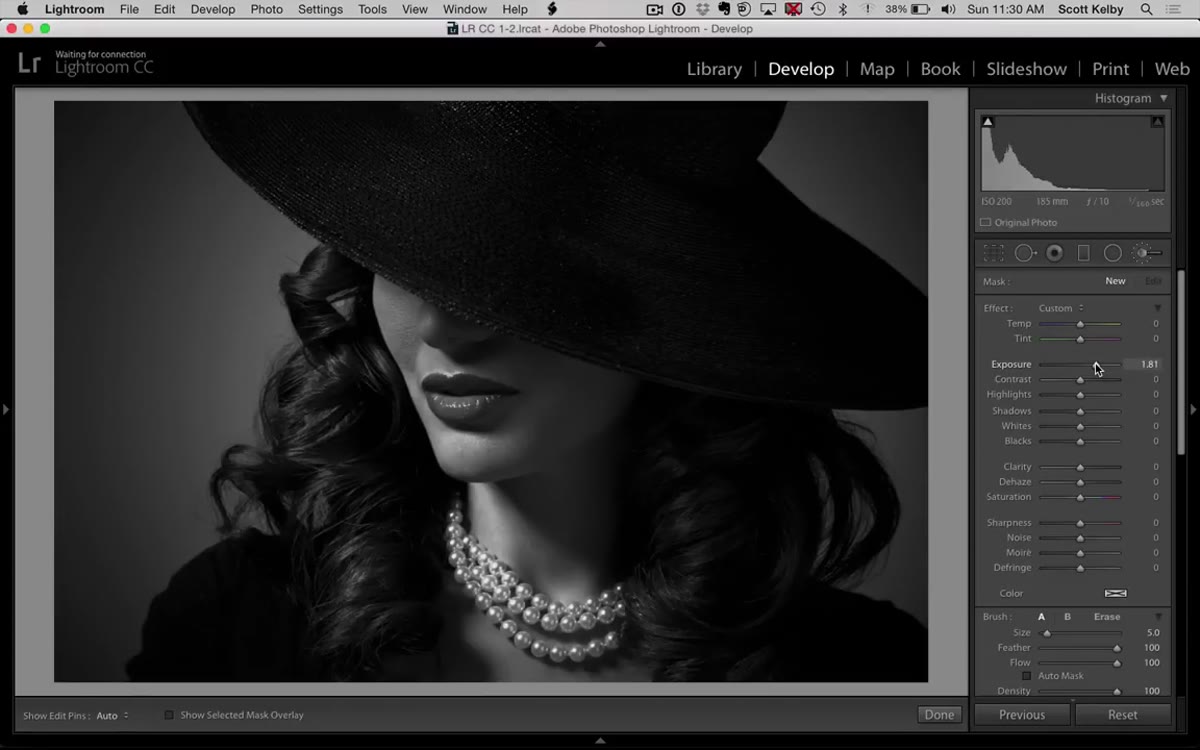
Step 3: Grab the Adjustment Brush and Set Exposure High
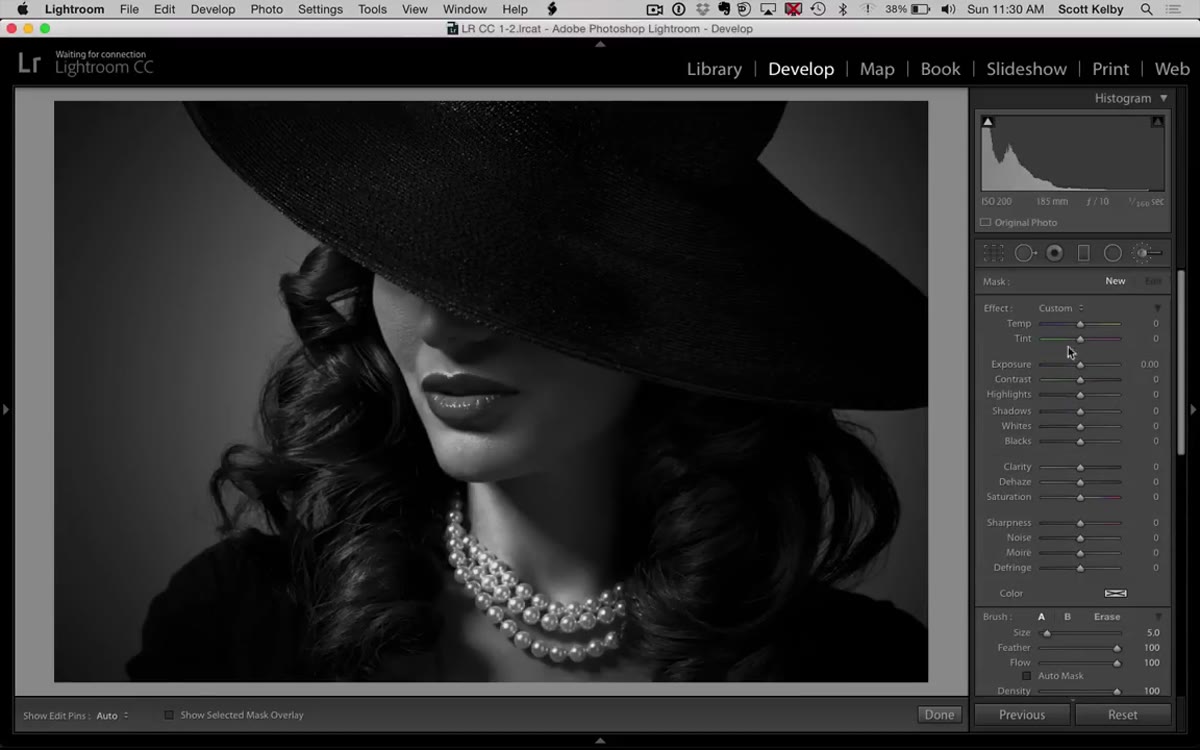 Adjustment Brush selected with Exposure slider raised
Open the Adjustment Brush (K on your keyboard) and drag the Exposure slider to somewhere in the +1.5 to +2.5 range. Again, you’ll tune this later. Right now you just want the brush painting bright. Make sure your brush has a soft edge. In the brush settings at the bottom of the Adjustment Brush panel, set Feather somewhere around 70-85. This is what keeps the beams from looking like someone used a marker on your photo.
Adjustment Brush selected with Exposure slider raised
Open the Adjustment Brush (K on your keyboard) and drag the Exposure slider to somewhere in the +1.5 to +2.5 range. Again, you’ll tune this later. Right now you just want the brush painting bright. Make sure your brush has a soft edge. In the brush settings at the bottom of the Adjustment Brush panel, set Feather somewhere around 70-85. This is what keeps the beams from looking like someone used a marker on your photo.
Don’t paint anything yet. This step is setup.
Step 4: Paint the Light Beams with Shift-Click Lines
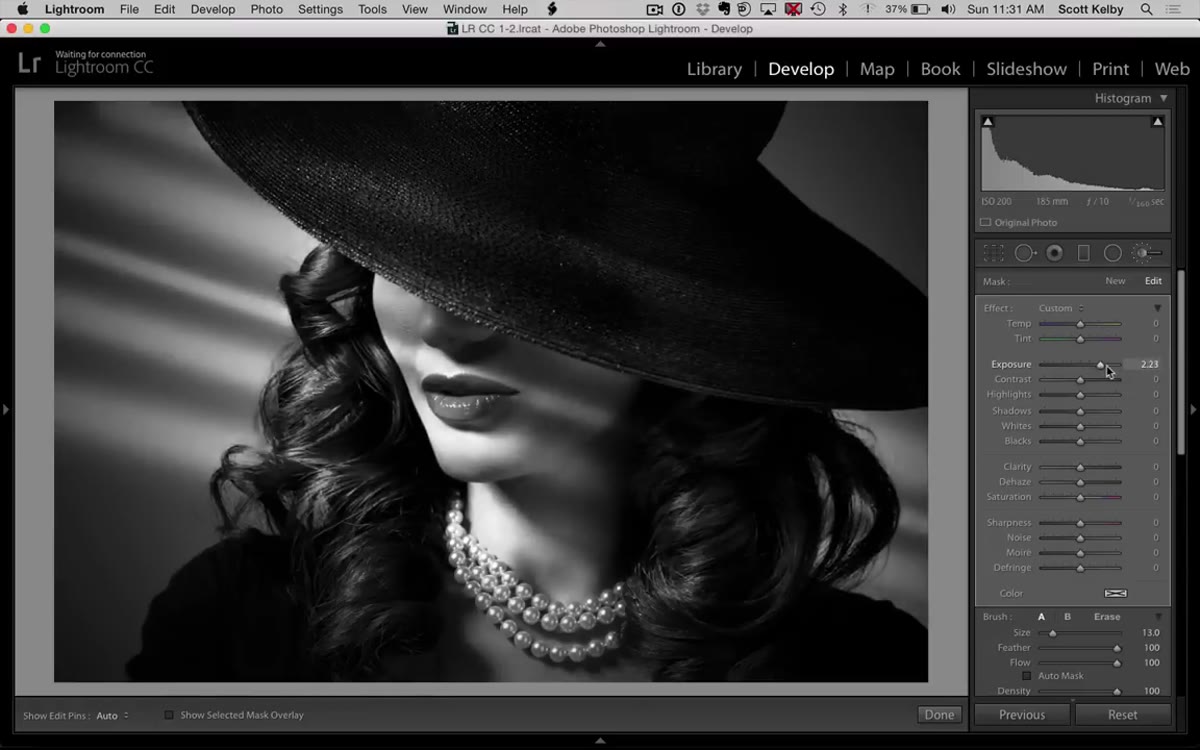
 Shift-click drawing a diagonal light beam across the subject
Here’s where the magic happens, and it’s almost insultingly simple. Click once where you want a beam to start. Hold Shift. Click where you want it to end. Lightroom draws a perfectly straight line between those two points. For the film noir look, you want these at a 45-degree angle, running diagonally across the frame, like light slanting through a window on the left or right.
Shift-click drawing a diagonal light beam across the subject
Here’s where the magic happens, and it’s almost insultingly simple. Click once where you want a beam to start. Hold Shift. Click where you want it to end. Lightroom draws a perfectly straight line between those two points. For the film noir look, you want these at a 45-degree angle, running diagonally across the frame, like light slanting through a window on the left or right.
Vary your brush size between beams using the bracket keys. Left bracket shrinks the brush, right bracket grows it. The letters are just to the right of P on a standard keyboard. Make some beams wide, some narrow. Real blinds aren’t uniform. If all your beams are the same width, the whole thing looks mechanical. Aim for three to five beams total, with uneven gaps between them. Paint one, resize, paint another, resize again. The unevenness is the point.
Step 5: Dial in Intensity and Softness
 Sharpness slider being dragged left inside the Adjustment Brush panel
Now that you have your beams roughed in, go back into the Adjustment Brush settings and bring Sharpness down. Pulling it toward -25 or -30 takes the clinical edge off the beams without blurring them into nothing. This simulates the way real light diffuses slightly as it travels through dust and air.
Sharpness slider being dragged left inside the Adjustment Brush panel
Now that you have your beams roughed in, go back into the Adjustment Brush settings and bring Sharpness down. Pulling it toward -25 or -30 takes the clinical edge off the beams without blurring them into nothing. This simulates the way real light diffuses slightly as it travels through dust and air.
You can also nudge Clarity down a few points to soften the overall feel of the effect. If you want the beams to look more like hard bars of light, reduce the Feather amount instead. Lower feather equals harder edges. It’s a look, but it works better for high-contrast scenarios or when the subject is already quite dark.
Toggle the adjustment brush overlay on and off (the switch at the bottom of the panel) to compare. That before/after check is how you catch whether the beams feel natural or whether you’ve accidentally created a barcode.
What I’d Do Differently: Add a Vignette and a Touch of Grain
Scott’s version is clean and to the point. In my own edits I take it one step further with two quick additions. First, I drop a vignette in the Effects panel, somewhere around -20 to -30, which pushes the edges of the frame darker and focuses the eye on wherever those beams are landing. Second, I add a small amount of grain, usually Amount around 20-25 with Size around 30. Film noir was shot on film. Grain belongs there.
Neither of these takes more than thirty seconds, and together they push the edit from “cool Lightroom trick” to something that actually looks like it was pulled from a contact sheet shot on a 1948 Speed Graphic. If you name your presets after songs the way I do, this one earns something in a minor key. I’ve been calling mine “Blue in Green” after the Miles Davis track, which feels about right for the mood.
One other note: this technique works better on images where the subject’s face or key feature sits between two of the beams rather than directly under one. A beam cutting right across someone’s eyes reads as a mistake. Let the light frame the subject. The shadow is doing as much work as the light itself.
The single most important thing Scott demonstrates here is that light effects don’t require compositing. You have a brush. The brush can paint in straight lines. That’s all this is. The film noir atmosphere comes from the combination of monochrome tones, a darkened base exposure, and the geometry of those diagonal strokes working together. Get that right and the rest is just refinement.
Watch the full tutorial on YouTube and see Kelby walk through it in real time. The whole thing is under four minutes, which is a good reminder that some of the best Lightroom techniques are the ones that make you wonder why you were working so hard before.
Comments
Leave a Comment