
There’s a version of me from about ten years ago who imported photos directly from his memory card into a random desktop folder, edited them in place, and then wondered why Lightroom kept showing him gray boxes where images used to be. That version of me needed this tutorial badly. Catalog confusion and import mistakes are the number one reason beginners feel like Lightroom is fighting them. It’s not the sliders that trip people up. It’s the infrastructure underneath them.
In this Aaron Nace (PHLEARN) tutorial covering Day 1 of his free 30-day Lightroom Classic series, the focus is exactly where it should be for anyone starting out: understanding what a catalog actually is, how to set one up clean, and how to bring your images in without creating a mess you’ll be untangling for months. Watch the full tutorial on YouTube and follow along with the breakdown below.
What I appreciate most about Aaron’s approach here is that he doesn’t treat the import screen like a formality you click through to get to the fun stuff. The import workflow is the foundation. Get it wrong and every edit session becomes archaeology. Get it right and Lightroom starts feeling like the organized, powerful tool it actually is.
Step 1: Create a New Catalog Before You Do Anything Else
 Brand new empty Lightroom Classic catalog with no images
Most people open Lightroom and immediately start dragging photos in, never thinking about the catalog they’re dropping them into. A catalog is Lightroom’s organizational backbone. It doesn’t store your actual image files. It stores all your edits, metadata, and organizational decisions, with pointers back to where your files live on disk. One catalog can serve an entire project, a whole year, or your full career, depending on how you like to work.
Brand new empty Lightroom Classic catalog with no images
Most people open Lightroom and immediately start dragging photos in, never thinking about the catalog they’re dropping them into. A catalog is Lightroom’s organizational backbone. It doesn’t store your actual image files. It stores all your edits, metadata, and organizational decisions, with pointers back to where your files live on disk. One catalog can serve an entire project, a whole year, or your full career, depending on how you like to work.
To create a fresh catalog, go to File, then New Catalog. Lightroom will close and reopen with a blank slate. Aaron recommends saving it inside your Pictures folder with a clear, descriptive name. For this series he uses “30 Days of Lightroom,” which is about as clear as it gets. The habit of naming catalogs intentionally matters more than most beginners realize. Future you will be grateful.
Step 2: Open the Import Dialog
 Import button highlighted in bottom-left corner of Library module
Once your catalog is ready, the next move is clicking the Import button in the bottom-left corner of the Library module. This opens Lightroom’s import dialog, which looks complicated the first time but follows a simple left-to-right logic: source on the left, preview in the center, destination and options on the right.
Import button highlighted in bottom-left corner of Library module
Once your catalog is ready, the next move is clicking the Import button in the bottom-left corner of the Library module. This opens Lightroom’s import dialog, which looks complicated the first time but follows a simple left-to-right logic: source on the left, preview in the center, destination and options on the right.
The source panel on the left lists every connected storage device available on your computer. Your internal drive, external hard drives, SD cards, compact flash cards from your camera: if it’s plugged in, it shows up here. This is the starting point for every import, no matter where your images are coming from.
Step 3: Locate Your Images Using Finder or File Explorer
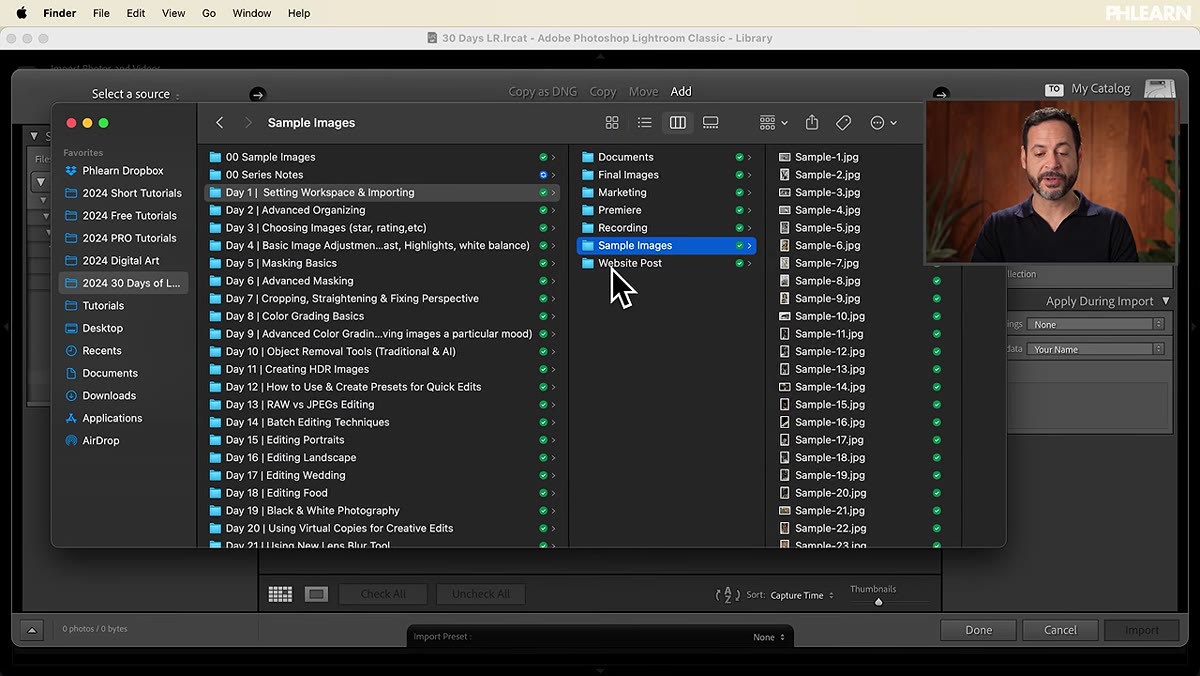 Dragging sample image folder from Finder directly into Lightroom
Here’s a tip Aaron shares that I’ve used in my own workflow for years. Instead of navigating to your images through Lightroom’s built-in file browser on the left panel, just open a Finder window (or File Explorer on Windows) alongside Lightroom, find your folder, and drag it directly into the import window. A big green plus icon confirms Lightroom has picked up the files.
Dragging sample image folder from Finder directly into Lightroom
Here’s a tip Aaron shares that I’ve used in my own workflow for years. Instead of navigating to your images through Lightroom’s built-in file browser on the left panel, just open a Finder window (or File Explorer on Windows) alongside Lightroom, find your folder, and drag it directly into the import window. A big green plus icon confirms Lightroom has picked up the files.
This sounds like a small thing but it genuinely speeds up the process. The in-app file browser works fine, but your operating system’s file manager is faster to navigate and more familiar. For this tutorial, Aaron drags the Day 1 sample images straight in from his desktop. If you’ve downloaded the course assets from PHLEARN, the same drag-and-drop approach applies.
Step 4: Choose Your Import Method
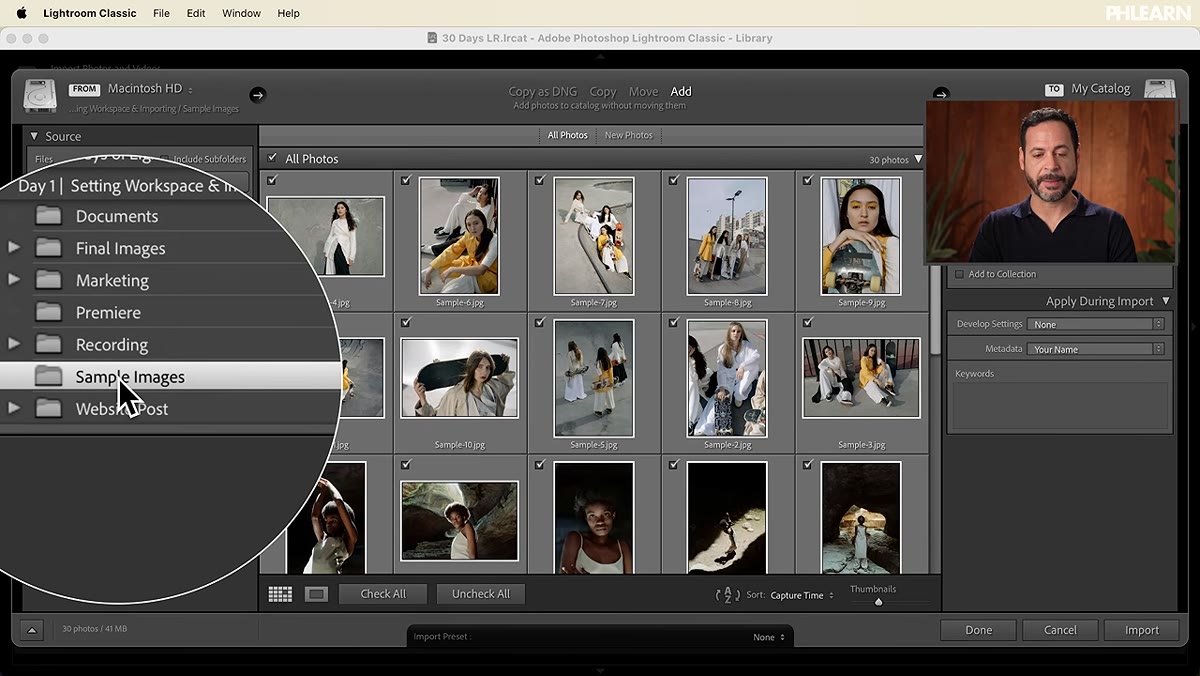 Four import method options shown at top of import dialog
At the top of the import dialog, you’ll see four options for how Lightroom handles the incoming files. This is where a lot of beginners make expensive mistakes, so pay attention.
Four import method options shown at top of import dialog
At the top of the import dialog, you’ll see four options for how Lightroom handles the incoming files. This is where a lot of beginners make expensive mistakes, so pay attention.
The first option is “Copy as DNG.” This is specifically for raw files coming off a camera memory card. DNG is Adobe’s Digital Negative format, an open standard that converts proprietary raw files (like Nikon’s NEF or Sony’s ARW) into a single standardized file type. Choosing this option copies your files to your hard drive and converts them to DNG in one step. It’s a good choice if you want long-term compatibility and slightly smaller file sizes, though purists who want to keep original raws will skip it.
Step 5: Understand All Four Import Options
 “Copy as DNG” option selected with raw file format context visible
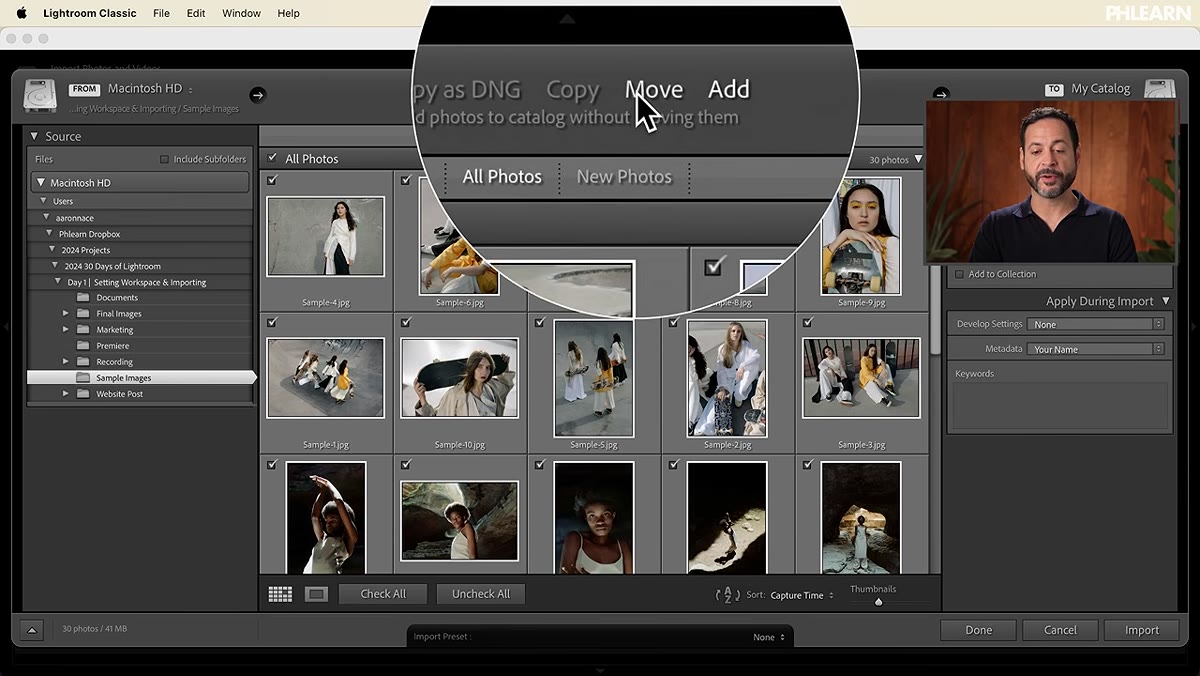
Building on Step 4: the other three import methods serve different situations. “Copy” brings files onto your drive in their original format, no conversion. “Move” transfers them from one location to another and removes them from the source, useful when pulling files off a card you’re about to reformat. “Add” is the option you’ll use most often for images already on your hard drive. It registers them in Lightroom’s catalog without copying or moving anything. The files stay exactly where they are. Lightroom just learns about them.
“Copy as DNG” option selected with raw file format context visible
Building on Step 4: the other three import methods serve different situations. “Copy” brings files onto your drive in their original format, no conversion. “Move” transfers them from one location to another and removes them from the source, useful when pulling files off a card you’re about to reformat. “Add” is the option you’ll use most often for images already on your hard drive. It registers them in Lightroom’s catalog without copying or moving anything. The files stay exactly where they are. Lightroom just learns about them.
For beginners working with the PHLEARN sample images (JPEGs and raw files downloaded to your computer), “Add” is almost always the right call. You’re not importing from a memory card. The files are already home. Add them to the catalog and start working.
Step 6: Confirm Your Destination and Import
 Destination panel on right side of import dialog showing folder structure
Before you click the Import button, check the destination panel on the right side of the dialog. If you’re using Copy or Copy as DNG, this is where you tell Lightroom where to put the files on your drive. If you’re using Add, the destination panel is less critical since files aren’t moving, but it’s still worth confirming that Lightroom is pointing at the right folder.
Destination panel on right side of import dialog showing folder structure
Before you click the Import button, check the destination panel on the right side of the dialog. If you’re using Copy or Copy as DNG, this is where you tell Lightroom where to put the files on your drive. If you’re using Add, the destination panel is less critical since files aren’t moving, but it’s still worth confirming that Lightroom is pointing at the right folder.
Aaron keeps things clean by organizing into clearly named folders, which mirrors the catalog naming habit from Step 1. A tidy folder structure and a well-named catalog work together. One without the other still leads to confusion down the road. Once you’ve confirmed everything, click Import and watch your images populate the Library grid.
My Honest Take: Catalogs Are Your Insurance Policy
I’ll be direct about something Aaron covers implicitly but that took me a while to really internalize. Your Lightroom catalog file is one of the most important files on your computer. It contains every edit, every keyword, every star rating you’ve ever applied. If you lose it and you don’t have a backup, those edits are gone, even if your original photos are safe.
Lightroom has a built-in catalog backup feature under Edit, Catalog Settings (or Lightroom, Catalog Settings on Mac). Set it to back up at least once a week. I run mine daily and save the backups to a separate external drive. It takes about thirty seconds to configure and has saved me from disaster more than once. Consider it non-negotiable.
The single biggest thing to take from Day 1 is this: your catalog setup determines how smoothly everything else goes. Editing is the exciting part, but the import workflow is what makes editing feel effortless instead of frustrating. Nail the foundation and the rest of the thirty days gets a lot more enjoyable.
Watch the full tutorial on YouTube to follow along with Aaron’s complete walkthrough, and download the free sample images from PHLEARN to practice with real files from day one.
Comments
Leave a Comment