
My catalog is a disaster. Not a “creative chaos” disaster — a genuine, scroll-for-forty-seconds-to-find-the-right-folder disaster. I organize everything by shoot name, not by date, because I think in terms of subjects and places, not years. Ask me when I shot something and I’ll have no idea. Ask me what the folder is called and I’ll get you there eventually. The problem is “eventually” adds up fast when you’re jumping between jobs.
That’s why the February 2018 Lightroom update caught my attention immediately. In Watch the full tutorial on YouTube, Matt Kloskowski walks through the new features and a performance update that landed in this release. The new features are mostly Library module improvements, and while they sound small on paper, they solve a specific frustration that anyone with a folder-heavy workflow knows intimately. Matt also ran a timed test before and after the update to give at least a personal benchmark on the performance changes, which is more rigorous than most people bother to do.
What I appreciate about how Matt frames this tutorial is his honesty that some of these features existed in a limited form before, and a lot of users simply never discovered them. The update expanded what was already there and made it harder to miss. That’s actually a common pattern in Lightroom’s development, and it’s worth paying attention to even if the headline feature sounds minor.
Step 1: Open the Library Module and Locate the Folders Panel
 Library module open with folders panel visible on left
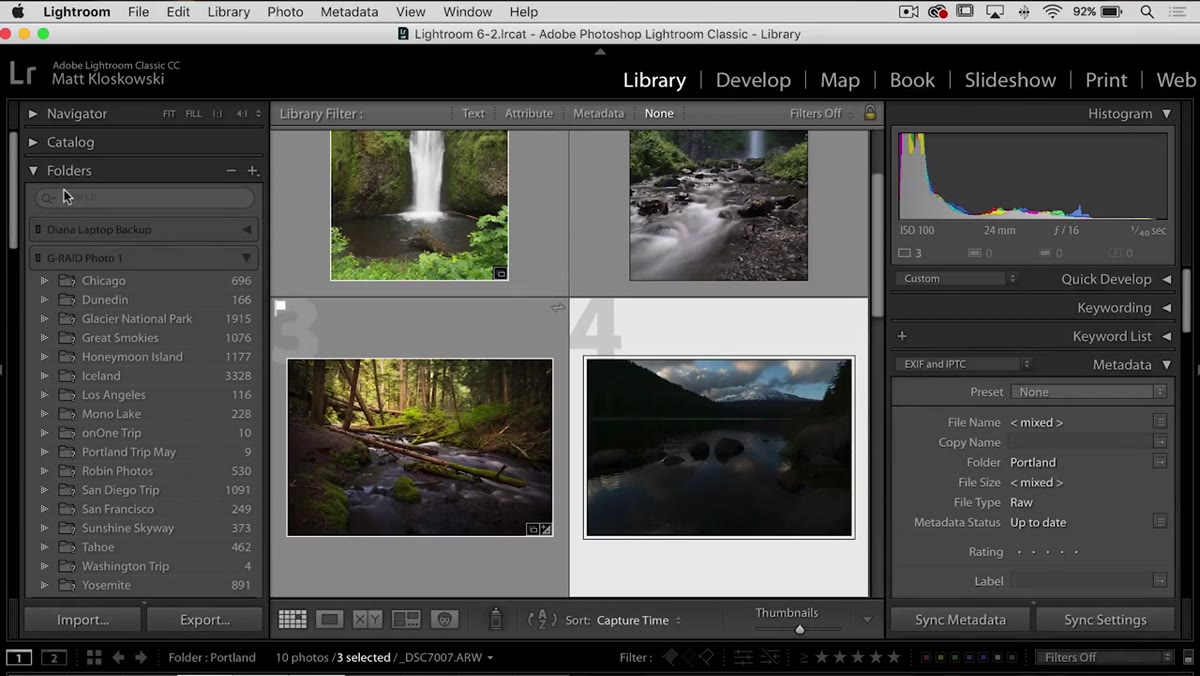
Everything in this update lives in the Library module. If you spend most of your time in Develop, that’s fine, but head back to Library first. On the left side panel, you’ll see your Folders section, which lists every folder you’ve brought into Lightroom. If your catalog is mature, this list is probably long enough that finding a specific folder requires actual scrolling effort.
Library module open with folders panel visible on left
Everything in this update lives in the Library module. If you spend most of your time in Develop, that’s fine, but head back to Library first. On the left side panel, you’ll see your Folders section, which lists every folder you’ve brought into Lightroom. If your catalog is mature, this list is probably long enough that finding a specific folder requires actual scrolling effort.
This is the starting point for the first new feature. You’re not changing any settings yet, just orienting yourself to where the new tools appear.
Step 2: Use the New Folder Search to Filter by Name
 Typing “Portland” into folder search, results filtering in real time
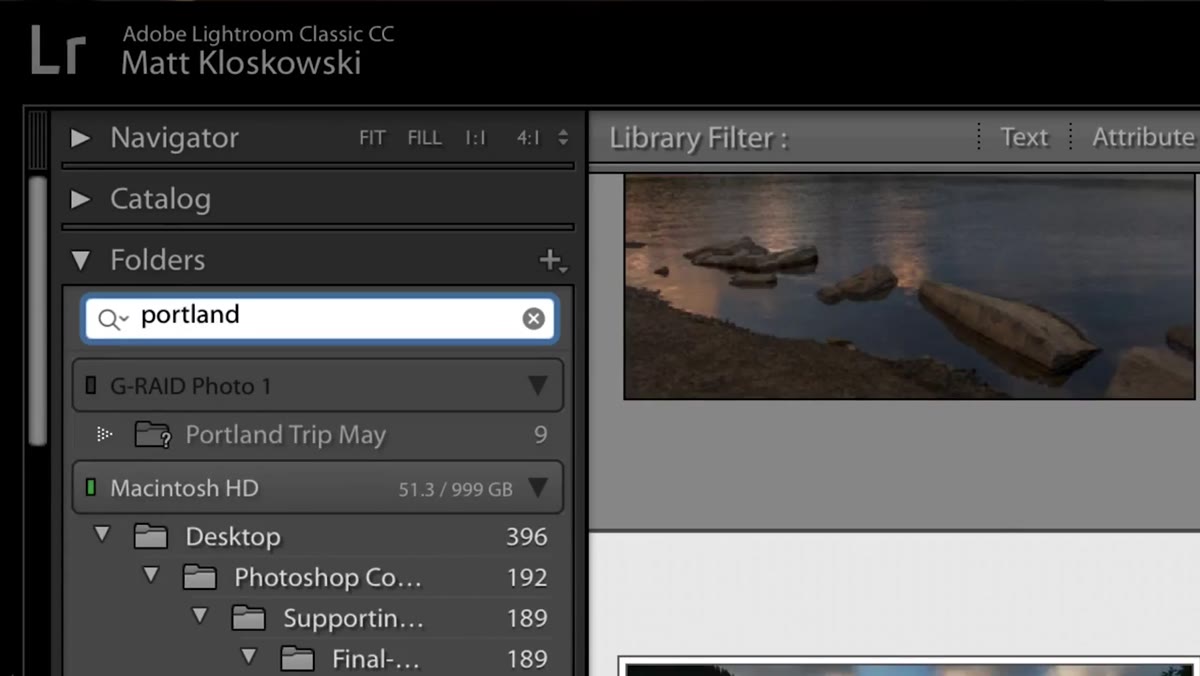
At the top of the Folders panel, there’s now a search field. Type any part of a folder name and Lightroom filters the list in real time, showing only folders that match. Matt types “Portland” in the demo and immediately sees two Portland folders appear, including one on a drive that isn’t currently connected to his machine. Lightroom still surfaces it, just flagged as offline.
Typing “Portland” into folder search, results filtering in real time
At the top of the Folders panel, there’s now a search field. Type any part of a folder name and Lightroom filters the list in real time, showing only folders that match. Matt types “Portland” in the demo and immediately sees two Portland folders appear, including one on a drive that isn’t currently connected to his machine. Lightroom still surfaces it, just flagged as offline.
A few things worth knowing here. First, this search only works on folders that have already been imported into your Lightroom catalog. It’s not a system-wide file finder. If you have photos sitting somewhere on your hard drive that you’ve never added to Lightroom, they won’t show up here. Second, when you’re done, clicking the small X clears the search and returns your full folder list. It’s a fast, low-friction lookup that takes maybe two seconds once you know it’s there.
Step 3: Mark Frequently Used Folders as Favorites
 Right-clicking a folder to reveal the “Add to Favorites” option
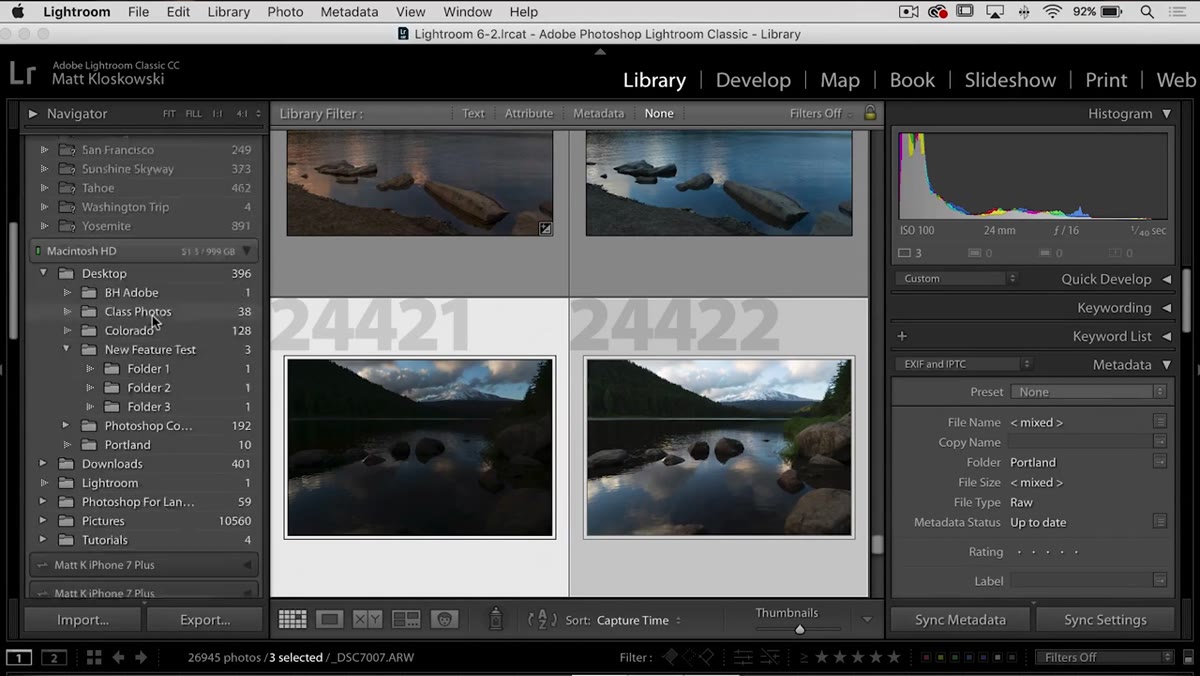
This is the feature Matt says drew people to something they didn’t realize Lightroom already had. Right-click any folder in the panel and you’ll see an option to add it to Favorites. Before this update, you could already favorite Collections, but folders were left out. Now they’re included.
Right-clicking a folder to reveal the “Add to Favorites” option
This is the feature Matt says drew people to something they didn’t realize Lightroom already had. Right-click any folder in the panel and you’ll see an option to add it to Favorites. Before this update, you could already favorite Collections, but folders were left out. Now they’re included.
Favorited folders show up in a dedicated Favorites section that stays persistent, so your most-used locations are always one click away regardless of where they fall alphabetically in your folder list. If you’re bouncing between two or three active shoots, this turns a multi-second scroll into an instant click. Set it up once and your most-referenced folders sit right at the top, waiting for you.
Step 4: Access Recent Sources from the Bottom Bar
 Clicking near breadcrumb trail at bottom to reveal recent sources panel
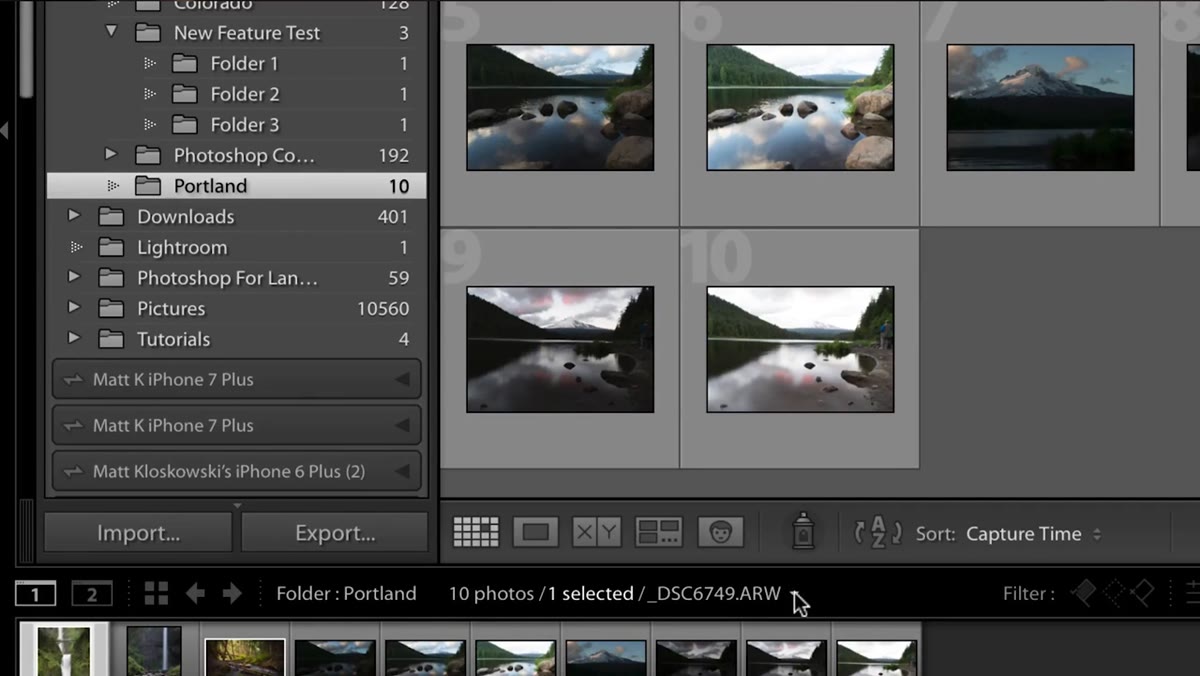
There’s a secondary navigation feature that most people have scrolled past without realizing what it does. At the very bottom of the Lightroom interface, just above the filmstrip, there’s a small breadcrumb trail showing your current location in the catalog. Click anywhere near that trail and a menu appears showing your Recent Sources, which is a running list of the folders and collections you’ve visited most recently.
Clicking near breadcrumb trail at bottom to reveal recent sources panel
There’s a secondary navigation feature that most people have scrolled past without realizing what it does. At the very bottom of the Lightroom interface, just above the filmstrip, there’s a small breadcrumb trail showing your current location in the catalog. Click anywhere near that trail and a menu appears showing your Recent Sources, which is a running list of the folders and collections you’ve visited most recently.
This existed before the update but was easy to miss because nothing visually calls attention to it. Knowing it’s there is most of the battle. Combined with the Favorites section, it means you rarely need to hunt through the full folder list at all. Recent Sources handles the short-term “where was I five minutes ago” question, and Favorites handles the long-term “where do I always end up” question.
Step 5: Understand the Performance Updates in Context
 Lightroom welcome screen showing performance update notes
Matt runs a personal before-and-after timing test to evaluate the performance update in this release. He’s upfront that benchmarking is tricky because results vary based on your machine’s specs, how large your catalog is, and how many previews you’ve built. His test isn’t a controlled lab comparison, it’s one photographer’s honest read on whether the update felt faster in daily use.
Lightroom welcome screen showing performance update notes
Matt runs a personal before-and-after timing test to evaluate the performance update in this release. He’s upfront that benchmarking is tricky because results vary based on your machine’s specs, how large your catalog is, and how many previews you’ve built. His test isn’t a controlled lab comparison, it’s one photographer’s honest read on whether the update felt faster in daily use.
The takeaway is that performance updates in Lightroom are cumulative and incremental. You’re unlikely to notice a single dramatic speed jump, but across several updates the experience does improve. If you’ve been putting off updating because you’re skeptical, Matt’s real-world test at least gives you a human data point rather than a marketing claim.
What I’d Add From My Own Workflow
The folder search feature is the one I’ve integrated most deeply since this update, and I’d push it one step further than Matt covers in the tutorial. I now name my folders with a consistent prefix system, so I can type two or three characters and pull up an entire category of shoots at once. For example, all my live music work starts with “LM-” and all portrait sessions start with “PT-”. The search field becomes exponentially more useful when your folder names have a logic to them.
If you’ve never thought about folder naming conventions, this update is honestly a good reason to start. You don’t need to rename everything retroactively. Just start the habit going forward and you’ll feel the difference within a month.
The other thing worth saying: if you skipped this update because “folder search” doesn’t sound exciting, the Favorites feature alone is worth the five-minute installation. I have four folders pinned as favorites right now, and I reach for them constantly. It’s one of those small workflow changes that makes you wonder how you tolerated the old way.
The single most important thing to take away from this tutorial is that Lightroom’s Library module has navigation tools most photographers never use, and this update made them better and more visible. Spending ten minutes learning how to actually navigate your catalog pays back faster than learning a new editing technique.
Watch the full tutorial on YouTube to see Matt walk through everything in real time, including his performance comparison and the full demo of the folder search in action.
Comments
Leave a Comment