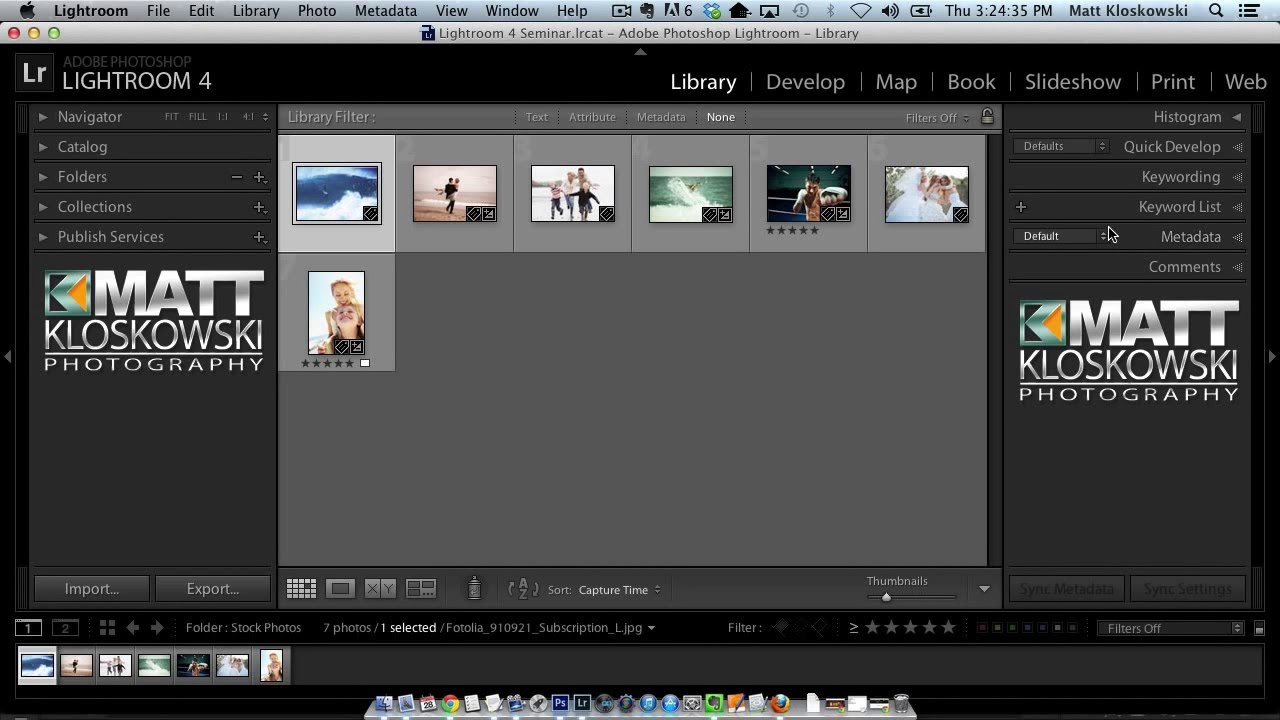
There’s a version of Lightroom on my screen that nobody else has. The panel end marks, those small decorative graphics that sit at the bottom of every panel group, don’t show the default flourish that ships with the software. They show something I made. It’s a small thing, genuinely small, but every time I open Lightroom it feels like my workspace instead of a rental. That’s the kind of customization that doesn’t make you a faster editor but absolutely makes you a more comfortable one.
I stumbled across this technique in a KelbyOne tutorial by Matt Kloskowski, and it’s one of those tips that takes about ten minutes to pull off but sticks with you. Watch the full tutorial on YouTube if you want to follow along with the original. What I want to do here is walk you through the process step by step so you can do this without pausing and rewinding.
The idea is straightforward. Lightroom has a hidden folder where it stores the graphics used for panel end marks. You can drop your own PNG files into that folder, restart Lightroom, and your custom graphic shows up in the right-click menu alongside the built-in options. That’s really all there is to it. The details are what matter, so let’s get into them.
Step 1: Find the Panel End Mark Options
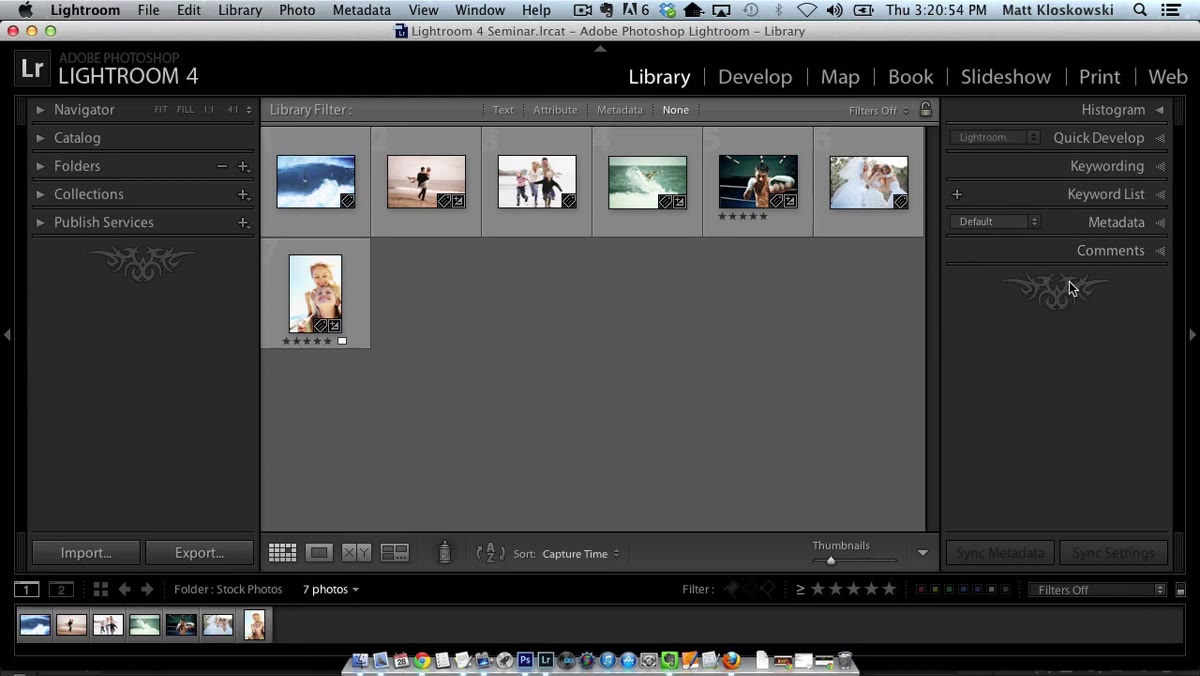 Right-clicking the panel end mark at the bottom of panels
Start in any Lightroom module and scroll to the bottom of any panel group on the right side. You’ll see a small decorative graphic sitting below the last panel. Right-click on it. A context menu appears with options like “Flourish,” “Small Flourish,” “Box,” “Flare,” “Yin-Yang,” and a few others. These are the built-in panel end marks. Take a second to click through them so you understand what you’re working with before you change anything.
Right-clicking the panel end mark at the bottom of panels
Start in any Lightroom module and scroll to the bottom of any panel group on the right side. You’ll see a small decorative graphic sitting below the last panel. Right-click on it. A context menu appears with options like “Flourish,” “Small Flourish,” “Box,” “Flare,” “Yin-Yang,” and a few others. These are the built-in panel end marks. Take a second to click through them so you understand what you’re working with before you change anything.
At the very bottom of that context menu, you’ll see an option called “Go to Panel End Marks Folder.” That’s the one you want.
Step 2: Open the Panel End Marks Folder
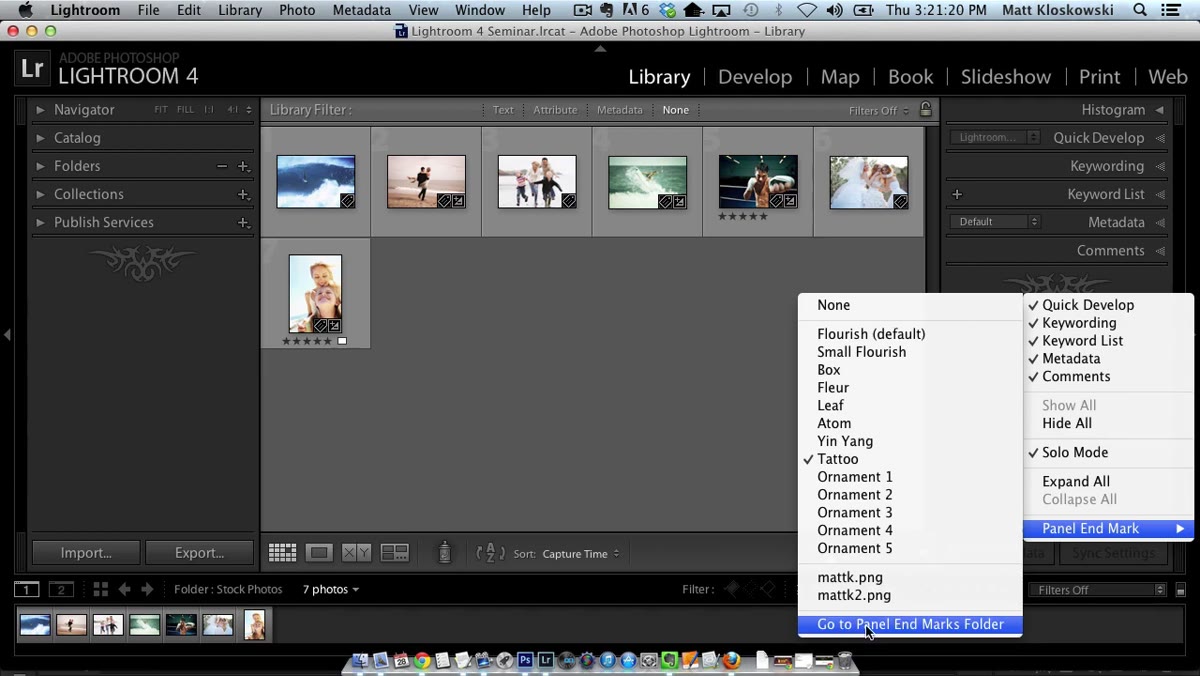 Menu option “Go to Panel End Marks Folder” highlighted
Click “Go to Panel End Marks Folder” and Lightroom will open a Finder window (Mac) or File Explorer window (Windows) pointing directly to the folder where these graphics live. Take note of where this folder is located on your system. You’ll need to come back to it later when you’re ready to drop in your custom file.
Menu option “Go to Panel End Marks Folder” highlighted
Click “Go to Panel End Marks Folder” and Lightroom will open a Finder window (Mac) or File Explorer window (Windows) pointing directly to the folder where these graphics live. Take note of where this folder is located on your system. You’ll need to come back to it later when you’re ready to drop in your custom file.
Leave this folder open. You’ll be dragging a file into it in a few minutes.
Step 3: Create Your Custom Graphic in Photoshop
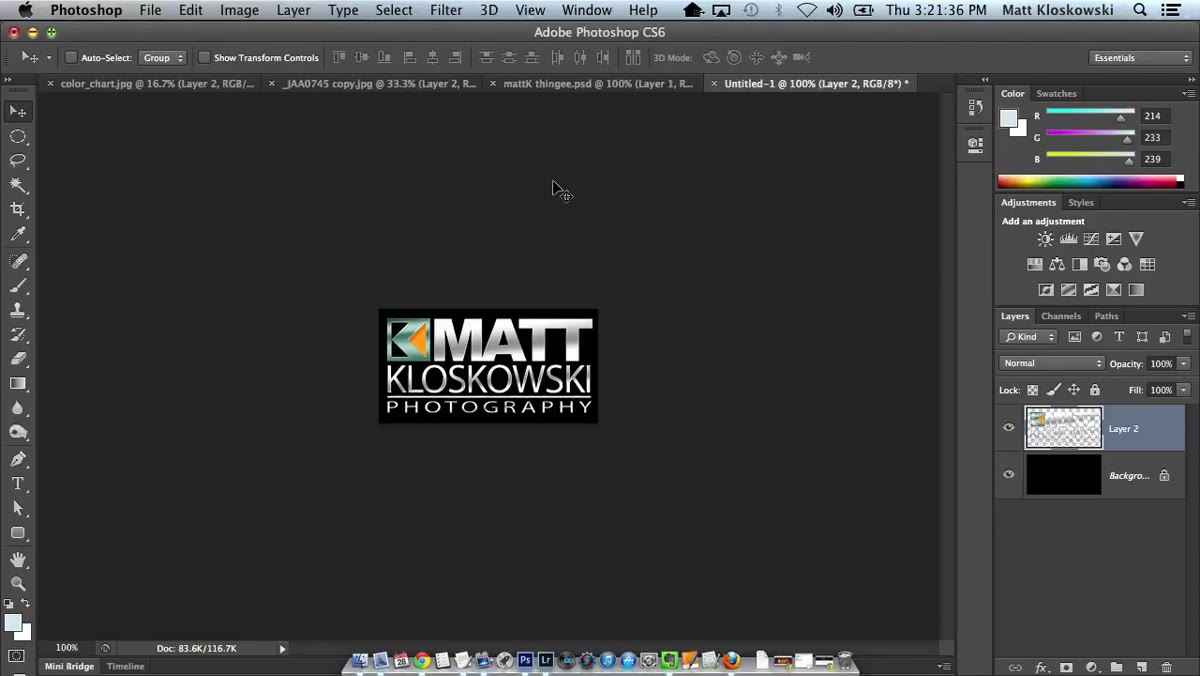 Custom graphic open in Photoshop with transparent background
Open Photoshop and create a new document. The width needs to be around 235 pixels, which matches the width of the Lightroom panel area. If you want to confirm the measurement on your own screen, take a screenshot of the panel end mark area, paste it into a new Photoshop document, and the canvas size that populates will tell you exactly what your display needs. Being one pixel off in either direction won’t break anything.
Custom graphic open in Photoshop with transparent background
Open Photoshop and create a new document. The width needs to be around 235 pixels, which matches the width of the Lightroom panel area. If you want to confirm the measurement on your own screen, take a screenshot of the panel end mark area, paste it into a new Photoshop document, and the canvas size that populates will tell you exactly what your display needs. Being one pixel off in either direction won’t break anything.
The height is more flexible. It depends on your screen resolution and how much vertical space you want the graphic to occupy. Keep it reasonable. Something between 40 and 100 pixels tall works well for most setups without looking like you’re trying too hard.
Design whatever you want inside that canvas. Matt uses a combination of text layers and a small pen tool illustration in the tutorial. I’ve used preset names, simple geometric shapes, and once, memorably, the name of the Wilco album I was listening to when I made it. The content is entirely up to you.
Step 4: Delete the Background Layer
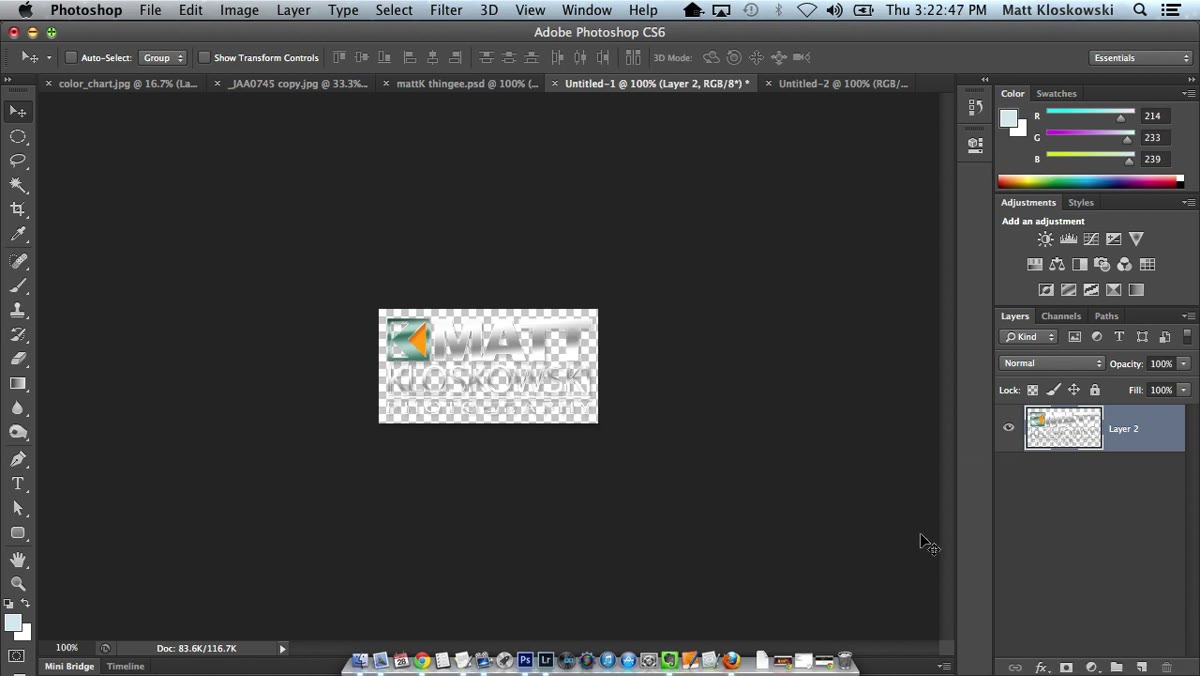 Photoshop layers panel showing background layer being deleted
This is the step people skip and then wonder why their graphic looks wrong. Before you export anything, delete the background layer in Photoshop. Drag it to the trash icon in the Layers panel. What you should see is a checkerboard pattern behind your artwork, which means the background is now transparent.
Photoshop layers panel showing background layer being deleted
This is the step people skip and then wonder why their graphic looks wrong. Before you export anything, delete the background layer in Photoshop. Drag it to the trash icon in the Layers panel. What you should see is a checkerboard pattern behind your artwork, which means the background is now transparent.
Transparency matters because Lightroom renders panel end marks against its own dark UI background. If you export a graphic with a white or black background baked in, you’ll get a hard rectangular block behind your artwork instead of a clean graphic that sits naturally against the interface. Transparency lets Lightroom show through wherever you haven’t placed any artwork.
Step 5: Export as PNG
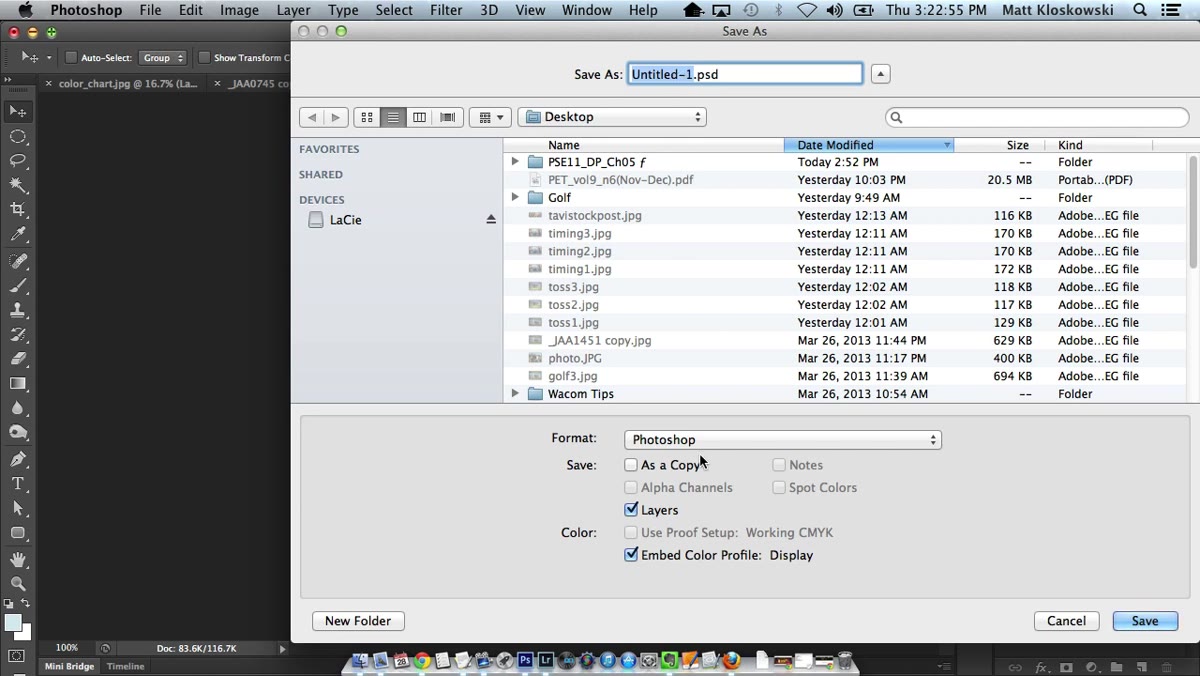 Photoshop Save As dialog with PNG format selected
Go to File, then Save As, and choose PNG as your format. PNG is the only common image format that preserves transparency, which is exactly why it’s the right choice here. Name your file something descriptive so you can identify it later if you build up a small collection. I name mine the way I name presets, after whatever song I was listening to when I made the decision that felt right.
Photoshop Save As dialog with PNG format selected
Go to File, then Save As, and choose PNG as your format. PNG is the only common image format that preserves transparency, which is exactly why it’s the right choice here. Name your file something descriptive so you can identify it later if you build up a small collection. I name mine the way I name presets, after whatever song I was listening to when I made the decision that felt right.
Hit Save and keep the default PNG settings. You don’t need to do anything special in the export options dialog.
Step 6: Drop the File Into the Panel End Marks Folder
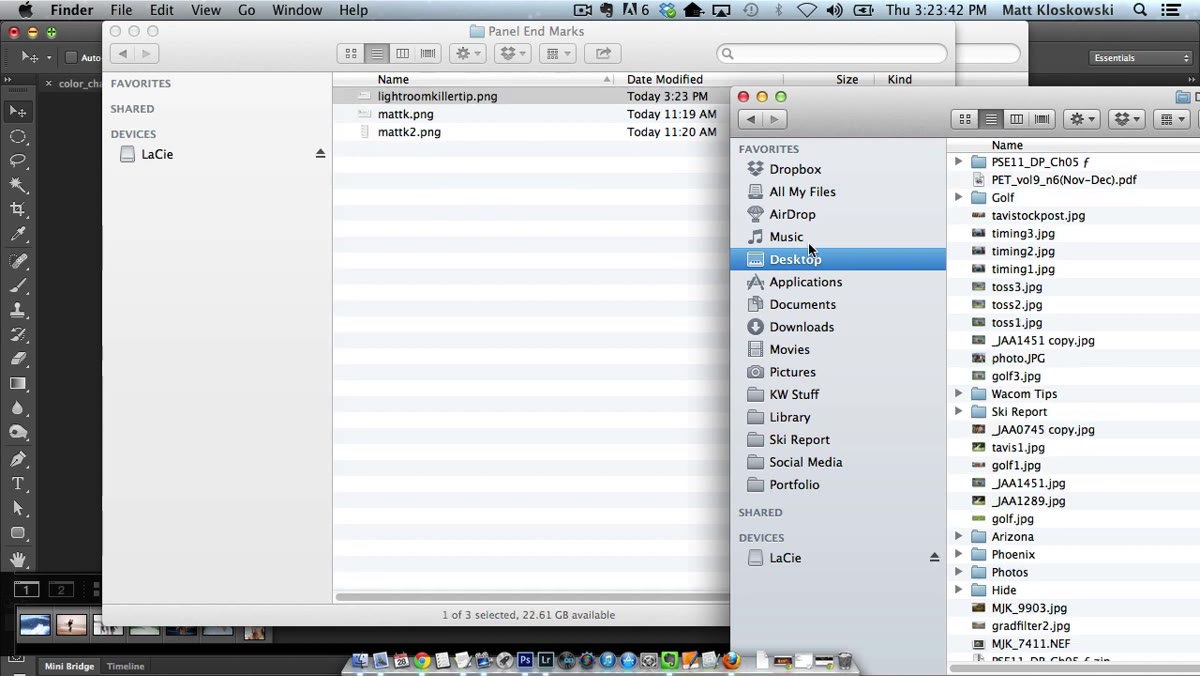 PNG file being dragged into the Panel End Marks folder in Finder
Go back to the Finder or File Explorer window you left open earlier, the one pointing to the Panel End Marks folder. Drag your new PNG file directly into that folder. That’s the entire installation process. No plugins, no scripts, nothing else required.
PNG file being dragged into the Panel End Marks folder in Finder
Go back to the Finder or File Explorer window you left open earlier, the one pointing to the Panel End Marks folder. Drag your new PNG file directly into that folder. That’s the entire installation process. No plugins, no scripts, nothing else required.
Step 7: Restart Lightroom and Select Your New Mark
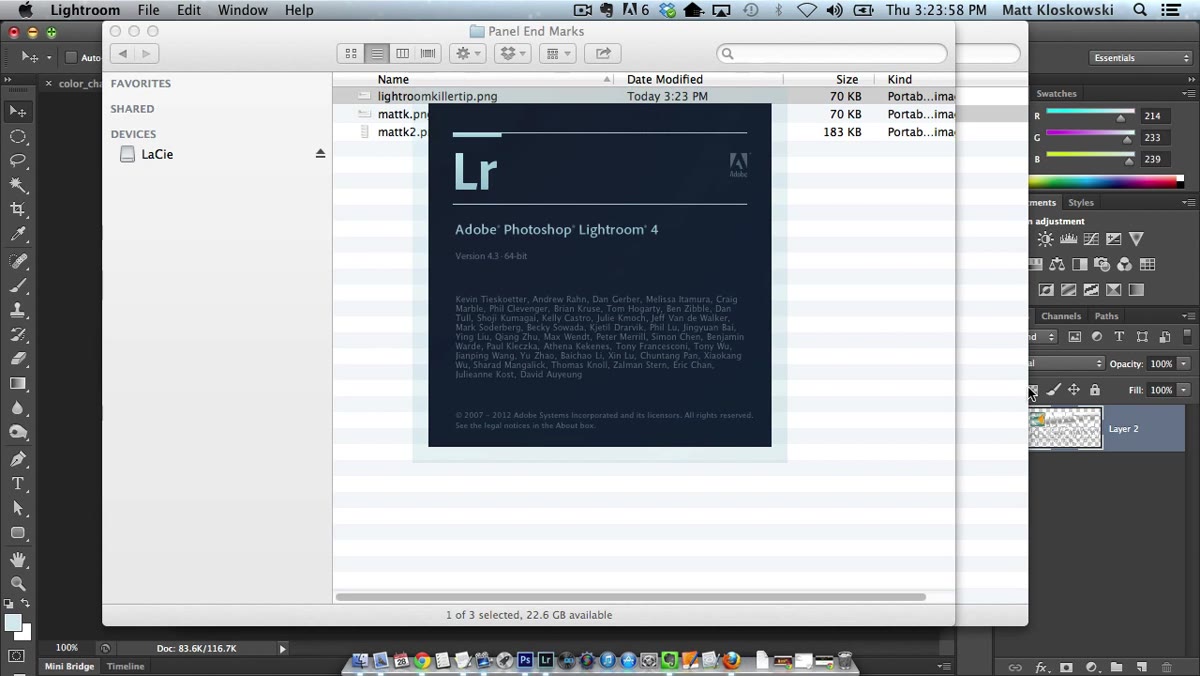 Lightroom right-click menu showing custom graphic as a new option
Lightroom reads the contents of that folder only when it launches. You have to fully close and reopen Lightroom for your new graphic to appear. Once you restart, right-click on any panel end mark again and your custom PNG will show up in the list by filename. Click it, and it applies across all modules simultaneously.
Lightroom right-click menu showing custom graphic as a new option
Lightroom reads the contents of that folder only when it launches. You have to fully close and reopen Lightroom for your new graphic to appear. Once you restart, right-click on any panel end mark again and your custom PNG will show up in the list by filename. Click it, and it applies across all modules simultaneously.
If you ever want to remove it or swap it out, just delete the file from the folder or add a new one, then restart Lightroom again.
A Note on Building a Small Collection
I keep about five or six custom panel end marks in that folder and cycle through them the way some people change their desktop wallpaper. Seasonal ones, ones that match whatever project I’m deep in, one that just says “focus” in a font I like for when I need to get through a large batch. It takes maybe twenty minutes to make a new one in Photoshop once you’ve done it the first time.
The one thing I’d add that isn’t in the tutorial: if you work across multiple machines or back up your Lightroom preferences, include that Panel End Marks folder in your backup routine. It’s easy to forget about and annoying to recreate.
Lightroom customization often gets skipped because it feels cosmetic rather than functional. But the environment you work in shapes how you feel about working, and that affects everything downstream. Swapping in a graphic you made is a five-minute investment that pays off every time you open the app.
Watch the full tutorial on YouTube to see Matt walk through the whole thing live, including some additional visual context that’s worth seeing at least once.
Comments
Leave a Comment