There is a specific kind of frustration that hits when you get back from a shoot, sit down to cull 800 raw files, and watch Lightroom churn through a 10-second render cycle between every single image. If you’re shooting on a high-megapixel body, that wait is not a quirk. It’s a workflow killer. I’ve lost count of the times I’ve sat there, coffee going cold, watching that preview build like it owes me nothing. So when I came across this KelbyOne tutorial by Matt Kloskowski on pairing Photo Mechanic with Lightroom, I paid attention. Watch the full tutorial on YouTube
The core idea is simple: Photo Mechanic renders previews almost instantly because it reads the embedded JPEG preview baked into your raw file, rather than building a full-resolution render from scratch the way Lightroom does. That difference in speed changes how culling actually feels. It goes from a chore you procrastinate on to something you can knock out before your coffee reheats.
Kloskowski is clear that this workflow is not for everyone. If Lightroom handles everything you need at a pace you’re comfortable with, there’s no problem to solve here. But if you’re a wedding photographer, portrait shooter, or anyone who wants to move fast through a large card dump, this combination is worth understanding. Here’s how it works in practice.
Step 1: Open Your Card or Folder in Photo Mechanic
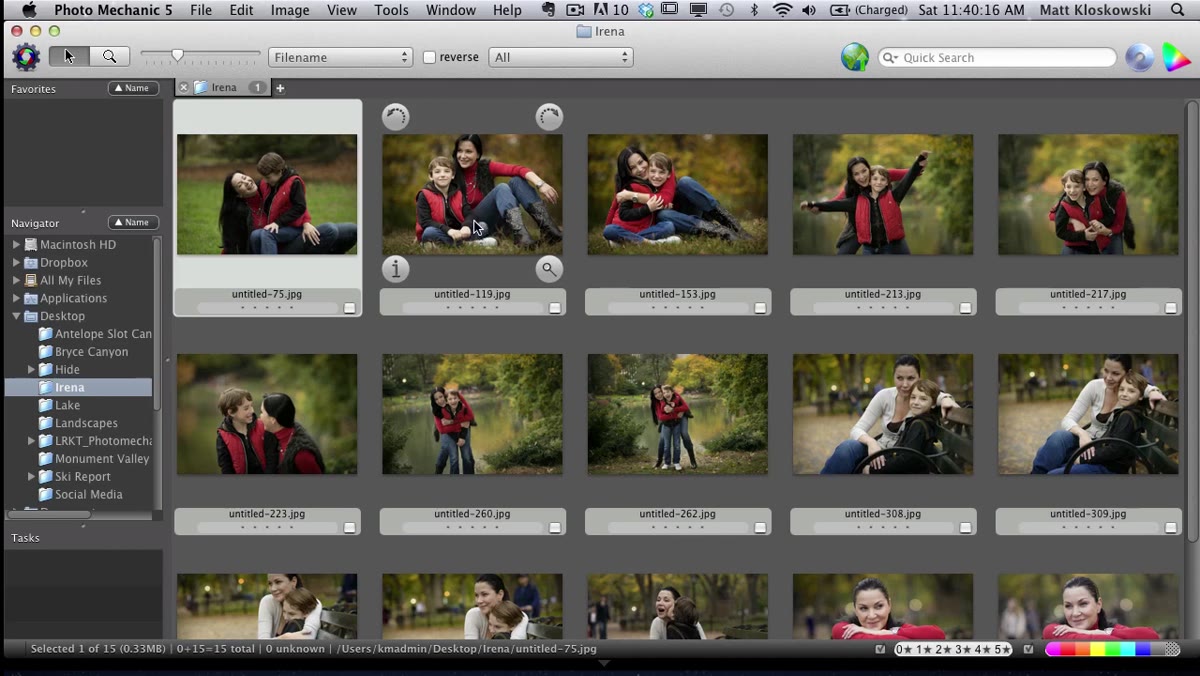
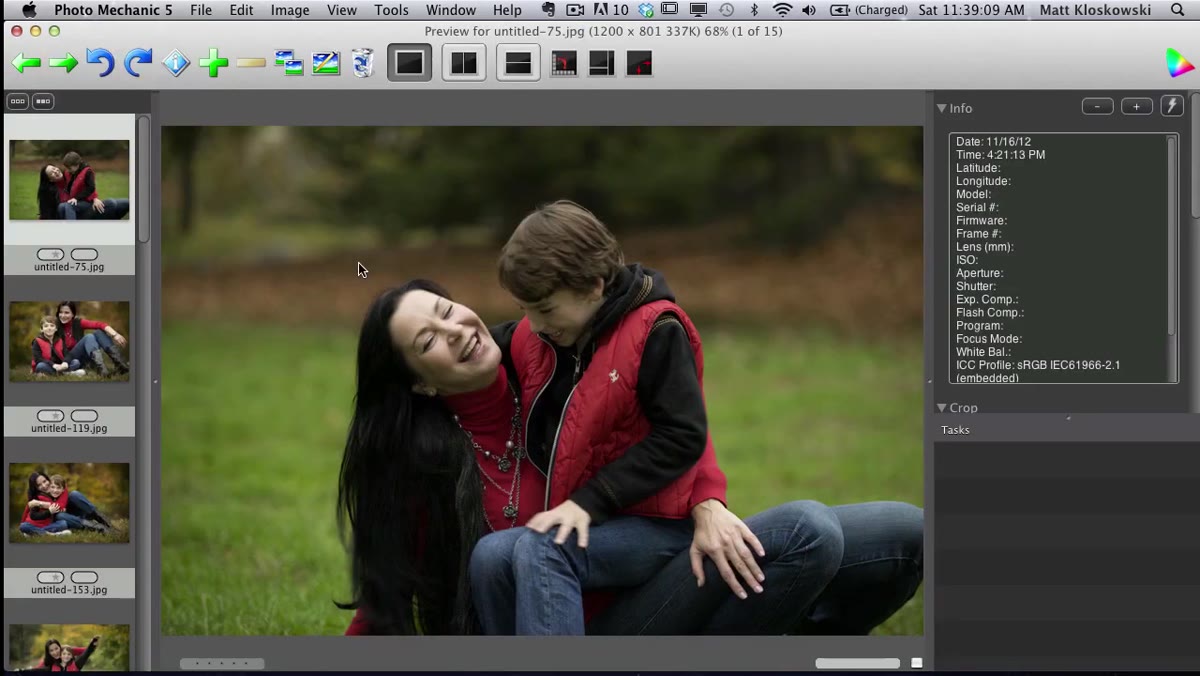 Photo Mechanic contact sheet showing thumbnails loading instantly
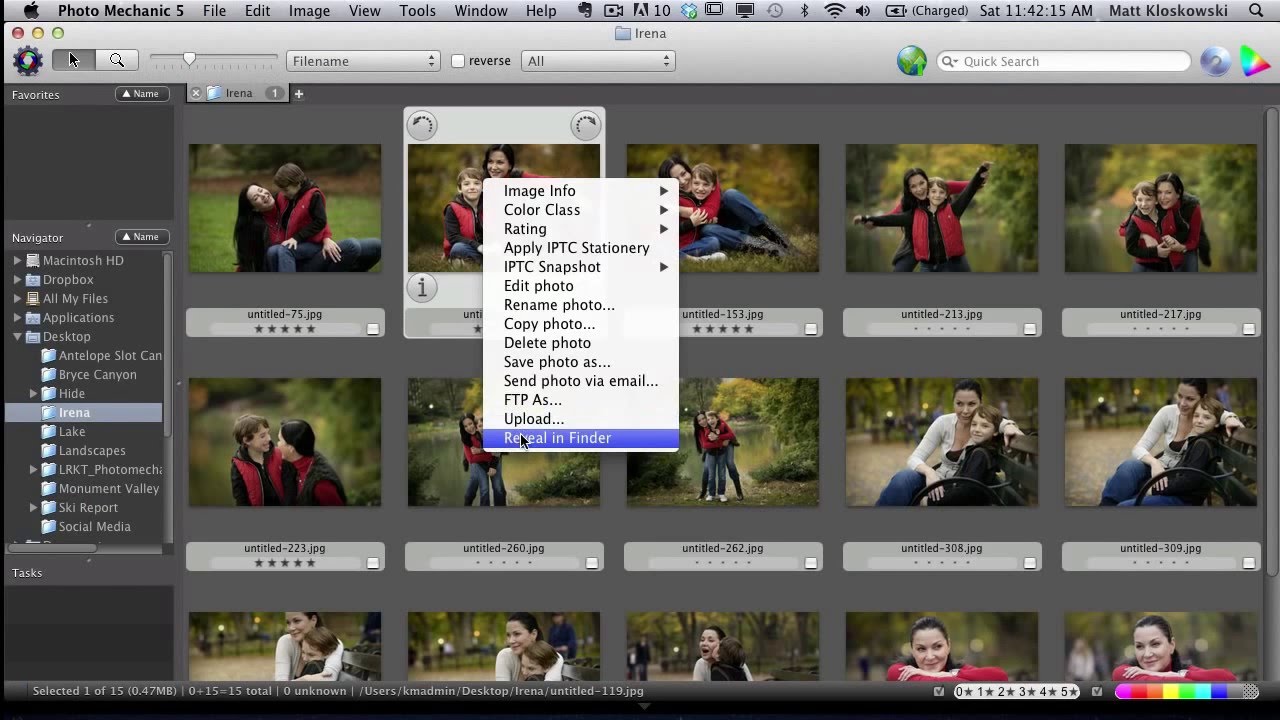
After importing your card, open the folder in Photo Mechanic. The contact sheet view loads thumbnails almost immediately. This is the part that gets people. If you’re used to Lightroom’s import screen, the speed here feels almost suspicious. Photo Mechanic is not doing the heavy lifting of a full raw decode. It’s surfacing the embedded preview, which is fast and good enough for culling purposes. You don’t need pixel-level sharpness to decide whether a shot is a keeper.
Photo Mechanic contact sheet showing thumbnails loading instantly
After importing your card, open the folder in Photo Mechanic. The contact sheet view loads thumbnails almost immediately. This is the part that gets people. If you’re used to Lightroom’s import screen, the speed here feels almost suspicious. Photo Mechanic is not doing the heavy lifting of a full raw decode. It’s surfacing the embedded preview, which is fast and good enough for culling purposes. You don’t need pixel-level sharpness to decide whether a shot is a keeper.
Step 2: Use Full-Screen View to Evaluate Shots
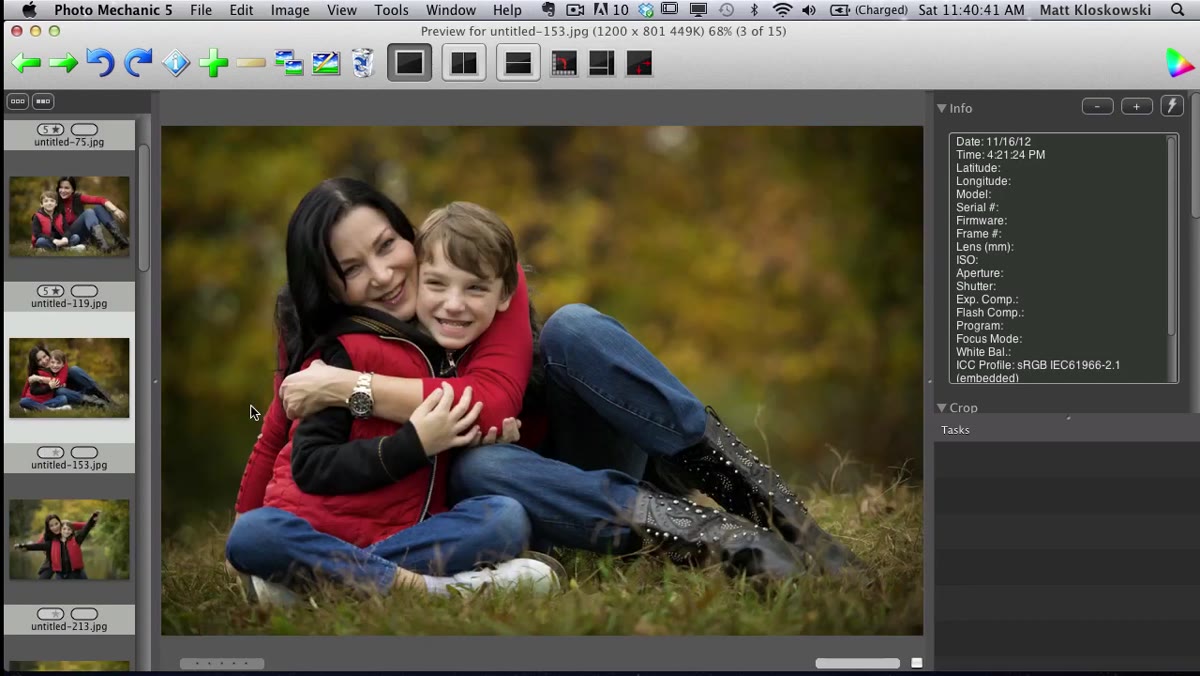
 Single image displayed full screen in Photo Mechanic viewer
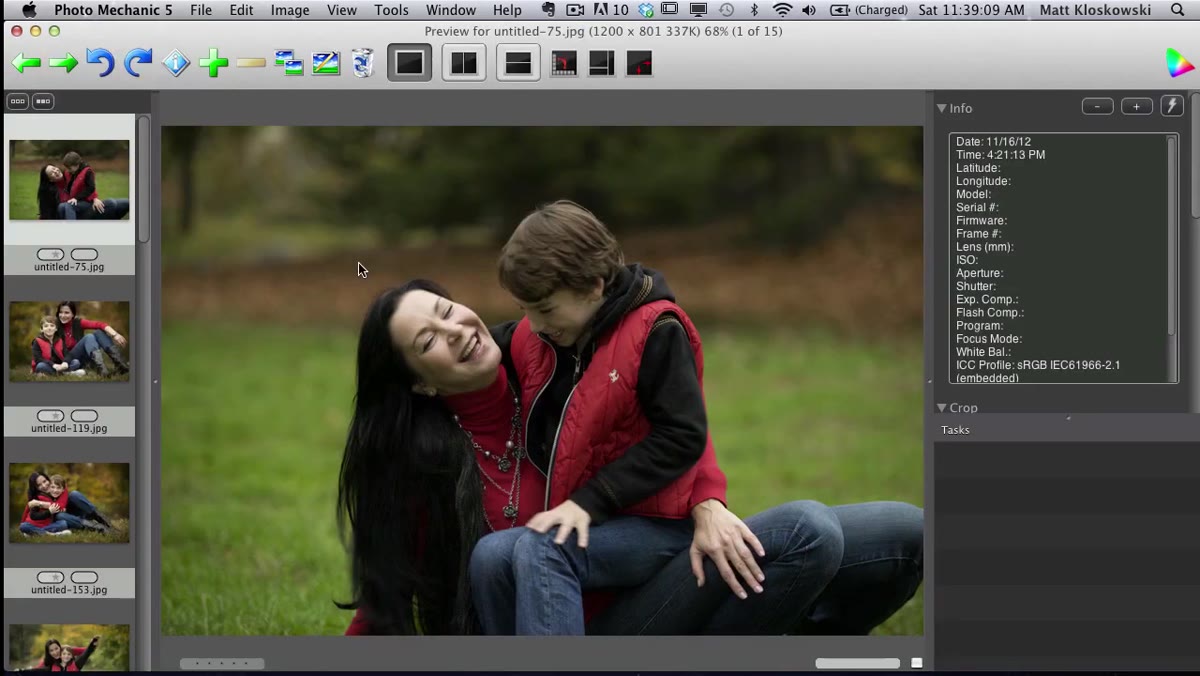
Click the zoom icon or press the keyboard shortcut to jump into full-screen view for a single image. Even at full screen, the rendering stays snappy. Kloskowski notes that on his 36-megapixel body, Lightroom can take five to ten seconds to render a comparable full-resolution preview. In Photo Mechanic, you’re flipping through frames at a pace that actually matches how your brain wants to evaluate images. You’re looking for focus, expression, composition, and light. You do not need a perfect raw decode to see any of those things.
Single image displayed full screen in Photo Mechanic viewer
Click the zoom icon or press the keyboard shortcut to jump into full-screen view for a single image. Even at full screen, the rendering stays snappy. Kloskowski notes that on his 36-megapixel body, Lightroom can take five to ten seconds to render a comparable full-resolution preview. In Photo Mechanic, you’re flipping through frames at a pace that actually matches how your brain wants to evaluate images. You’re looking for focus, expression, composition, and light. You do not need a perfect raw decode to see any of those things.
Step 3: Rate Keepers with a Five-Star Rating
 Star rating being applied below a thumbnail in Photo Mechanic
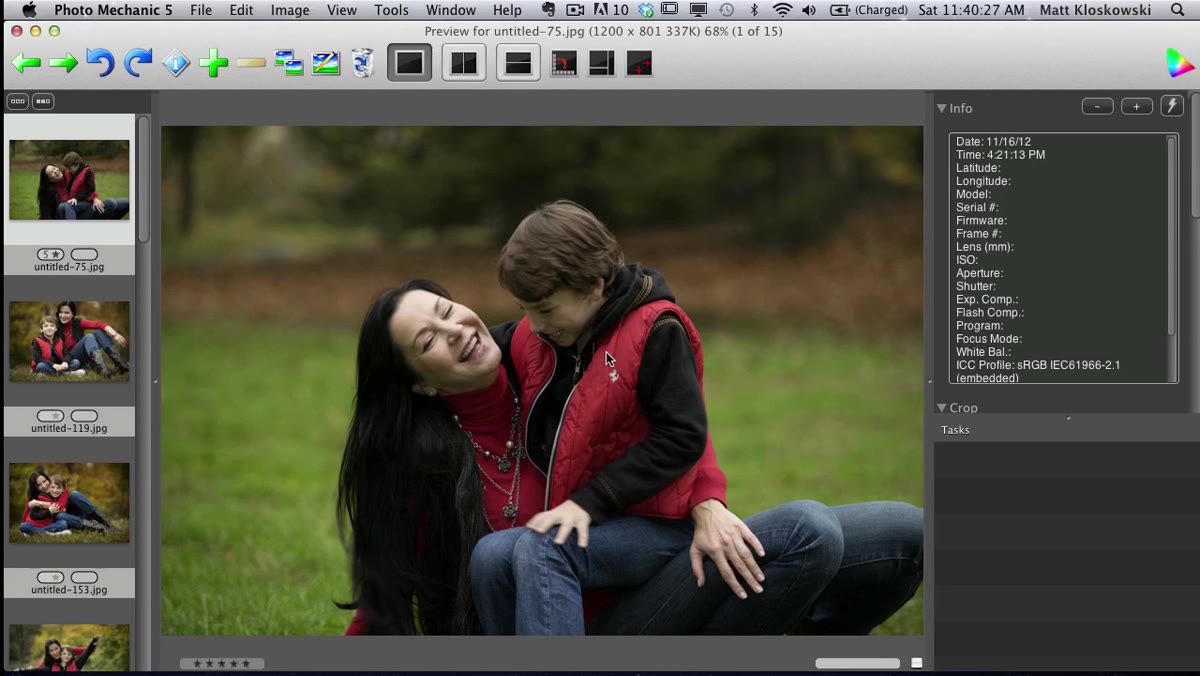
When an image earns a keep, press Control + 5 to apply a five-star rating. Kloskowski deliberately avoids Photo Mechanic’s flag system here because flags don’t carry over cleanly into Lightroom. Star ratings do. That compatibility is the whole reason the system works. You rate in Photo Mechanic, you edit in Lightroom, and the metadata speaks the same language in both places. If you’re in thumbnail view rather than full screen, you can also click the star icon directly beneath the image. Either way, the goal is fast and decisive. Five stars or move on.
Star rating being applied below a thumbnail in Photo Mechanic
When an image earns a keep, press Control + 5 to apply a five-star rating. Kloskowski deliberately avoids Photo Mechanic’s flag system here because flags don’t carry over cleanly into Lightroom. Star ratings do. That compatibility is the whole reason the system works. You rate in Photo Mechanic, you edit in Lightroom, and the metadata speaks the same language in both places. If you’re in thumbnail view rather than full screen, you can also click the star icon directly beneath the image. Either way, the goal is fast and decisive. Five stars or move on.
Step 4: Move Through the Shoot Quickly and Without Overthinking
 Multiple thumbnails in contact sheet with star ratings visible
The discipline this step requires is more mental than technical. Hit the right arrow key to advance, rate what you like, skip what you don’t. Kloskowski’s approach is binary at the culling stage: either a photo is worth five stars or it gets nothing. There’s no maybe pile, no two-star “I’ll think about it” rating. That kind of hedging slows you down and creates a second culling session you’ll resent later. The speed of Photo Mechanic supports this decisiveness. When the tool is fast, you stay in the zone instead of drifting off while a render loads.
Multiple thumbnails in contact sheet with star ratings visible
The discipline this step requires is more mental than technical. Hit the right arrow key to advance, rate what you like, skip what you don’t. Kloskowski’s approach is binary at the culling stage: either a photo is worth five stars or it gets nothing. There’s no maybe pile, no two-star “I’ll think about it” rating. That kind of hedging slows you down and creates a second culling session you’ll resent later. The speed of Photo Mechanic supports this decisiveness. When the tool is fast, you stay in the zone instead of drifting off while a render loads.
Step 5: Bring Only Your Selects Into Lightroom
 Workflow overview showing Photo Mechanic feeding into Lightroom
Once you’ve rated your keepers, open Lightroom and import only the five-star images from that folder. You can filter by star rating in Photo Mechanic before handing anything off, or set Lightroom’s import filter to show only five-star files. Either way, you’re not importing your full card into Lightroom’s catalog. You’re bringing in a curated set, which keeps your catalog leaner and means Lightroom only has to build full previews for the shots that actually matter. From here, everything Lightroom does best, color grading, local adjustments, export, takes over.
Workflow overview showing Photo Mechanic feeding into Lightroom
Once you’ve rated your keepers, open Lightroom and import only the five-star images from that folder. You can filter by star rating in Photo Mechanic before handing anything off, or set Lightroom’s import filter to show only five-star files. Either way, you’re not importing your full card into Lightroom’s catalog. You’re bringing in a curated set, which keeps your catalog leaner and means Lightroom only has to build full previews for the shots that actually matter. From here, everything Lightroom does best, color grading, local adjustments, export, takes over.
What I’d Add From My Own Experience
The part Kloskowski doesn’t spend much time on is how this affects your relationship with your own editing sessions. When I started separating culling from editing, my Lightroom sessions got shorter and more focused. I wasn’t making low-energy triage decisions in the same mental session as my creative ones. Culling is analytical. Editing is expressive. Running them back to back in the same tool, at Lightroom’s pace, blurs that line.
One practical thing I’d suggest: build a Photo Mechanic startup shortcut or dock it next to Lightroom in your workflow. The friction of opening an unfamiliar tool mid-session is enough to make you skip it. Once it’s a reflex, opening Photo Mechanic first feels as natural as pulling up a reference track before mixing. For what it’s worth, I run Photo Mechanic on the same machine where I’ve got Lightroom open, and switching between them adds maybe ten seconds to my session startup. That’s it.
Also worth knowing: if you shoot events where metadata captioning matters, like press photography or editorial work, Photo Mechanic has a robust metadata templating system that Kloskowski mentions briefly. That’s a whole separate workflow, but it’s there. For most of us, the star rating alone is the unlock.
The single most important thing this tutorial communicates is that your culling tool and your editing tool do not have to be the same program. Lightroom is exceptional at what it does. Photo Mechanic is exceptional at something different. Using both, in sequence, lets each tool do the thing it’s actually built for. If Lightroom has ever made you feel like culling is a punishment, this is the fix.
Watch the full tutorial on YouTube to see Kloskowski walk through the process in real time.
Comments
Leave a Comment