
Lightroom From the Top: How Tony Northrup's Culling-First Workflow Will Change How You Edit

Lightroom From the Top: How Tony Northrup's Culling-First Workflow Will Change How You Edit

Every photographer I know has the same problem: a memory card full of 300+ shots from one session, a vague intention to “edit those later,” and a folder that never gets touched again. I fell into this exact trap when I was editing press photos for my band on zero budget, learning Lightroom by trial and error with no system whatsoever. The editing wasn’t the hard part. The chaos before the editing was.

Stop Squinting at Your Filmstrip: How Lightroom's Survey Mode Finds Your Winner Faster

Stop Squinting at Your Filmstrip: How Lightroom's Survey Mode Finds Your Winner Faster

Culling is the part of my workflow that used to eat the most time and give me the least confidence. I’d sit there clicking through similar frames in the filmstrip, second-guessing every pick, and eventually just choosing the one that felt right in the moment, which is not exactly a repeatable system. The problem isn’t taste. The problem is that comparing eight nearly identical shots inside your own head, one at a time, is genuinely hard.

Stop Drowning in Rejected Shots: How Lightroom's AI Culling Actually Works

Stop Drowning in Rejected Shots: How Lightroom's AI Culling Actually Works

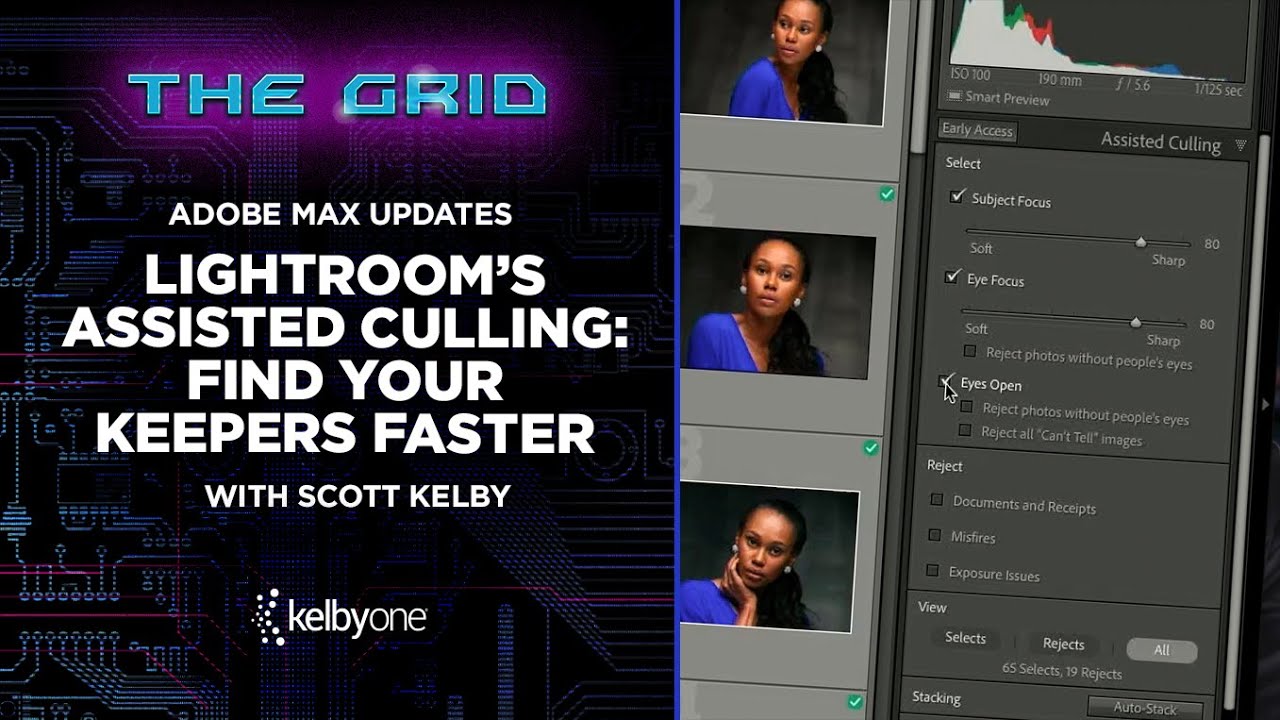
Culling is the part of my workflow I like least. I will spend an entire Sunday afternoon obsessing over a single preset’s tone curve, but asking me to sit down and reject 800 near-identical frames from a portrait session? That’s where motivation goes to die. After a while, you stop making real decisions and start clicking randomly, which defeats the whole point. So when Adobe dropped their Adobe Max announcements and Scott Kelby broke down the new Assisted Culling feature in a recent KelbyOne tutorial, I watched it twice before my coffee finished brewing.