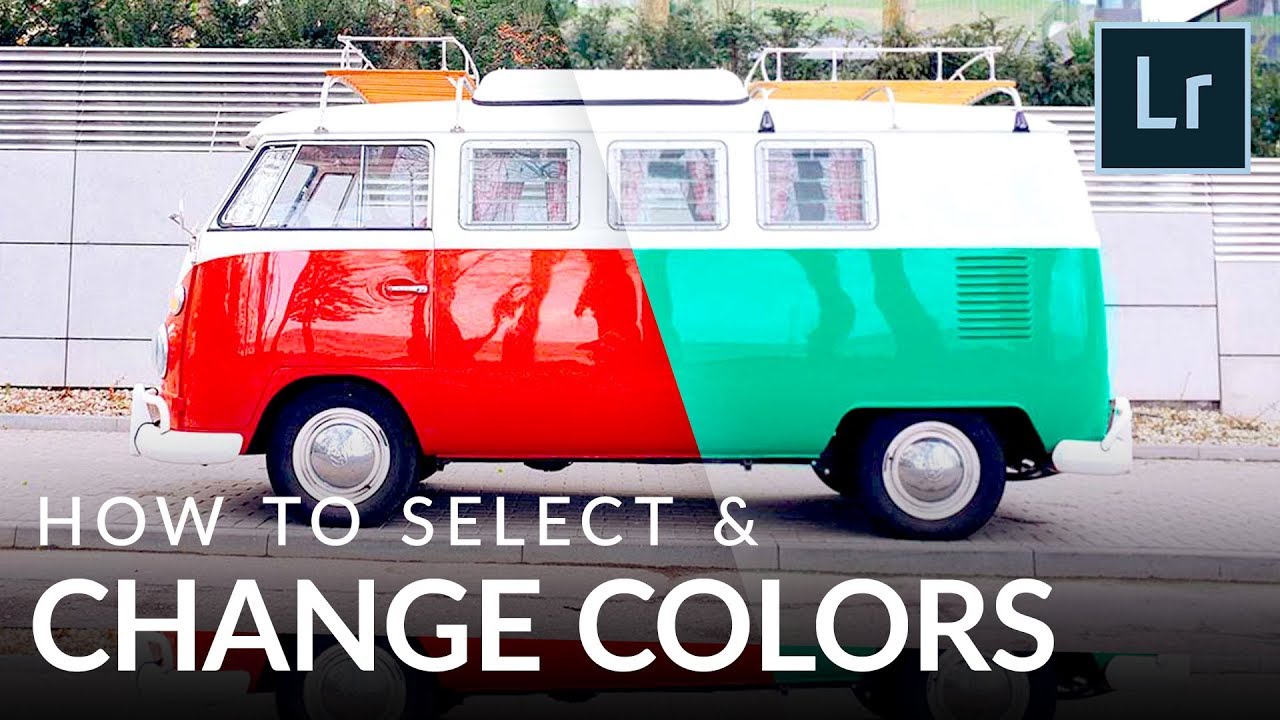
Client sends over a brief: “Can we make the car a completely different color?” You open Lightroom, reach for the HSL panel, drag the red slider, and watch half the image shift along with it. The car changes, sure, but so does the brick wall behind it and the model’s lip color. Sound familiar? This is the color selection problem that trips up photographers at every level, and it’s exactly what Aaron Nace from PHLEARN tackles head-on in his tutorial on selecting and changing colors in Lightroom. Watch the full tutorial on YouTube
I’ve run into this wall more times than I’d like to admit. The HSL panel is one of those tools that feels powerful until the moment it isn’t, and that moment usually arrives when a client wants a dramatic color change on one specific object. Aaron lays out two distinct methods here, and the real value of the tutorial is understanding not just how each one works, but why you’d reach for one over the other on any given day.
The sample image is a red Volkswagen, and the goal is shifting that body color toward yellow to match the roof rack. Simple premise, but it opens up a genuinely useful conversation about Lightroom’s color toolset.
Step 1: Navigate to the Develop Module and Open the HSL Panel
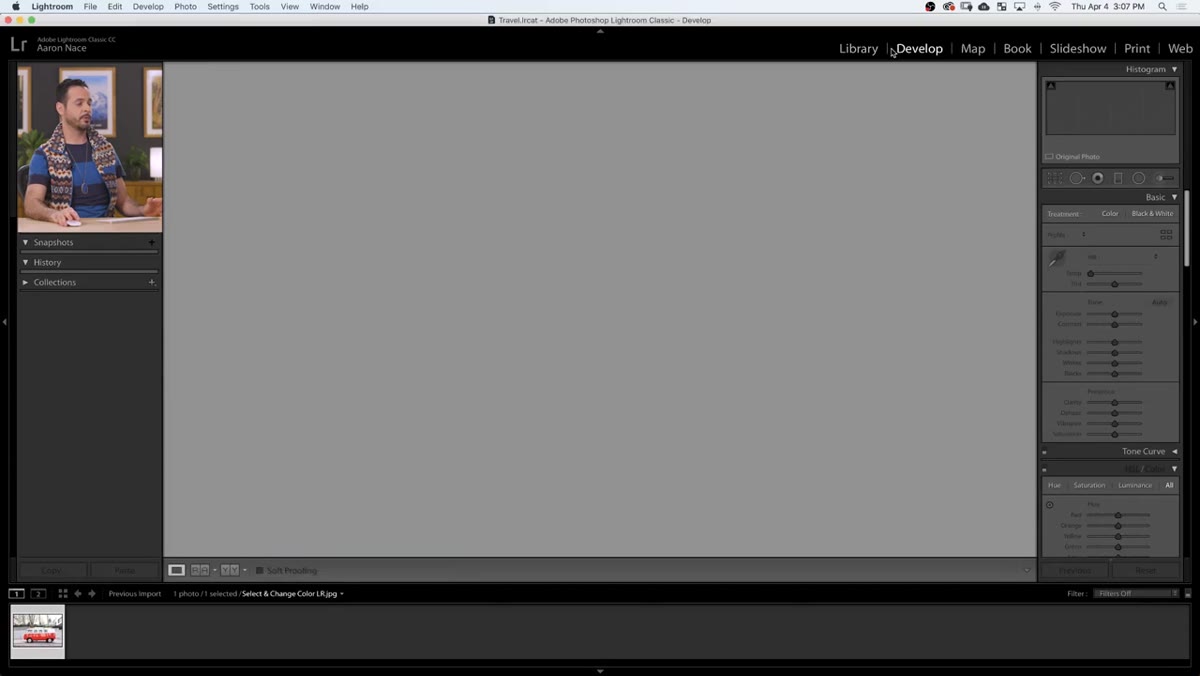 Develop module panel with HSL/Color section open
Start in the Develop module. Scroll down the right panel until you find the section labeled HSL/Color. Click it open and you’ll see four tabs: Hue, Saturation, Luminance, and All. For this technique, click into Hue. You’ll see individual sliders for each color range: red, orange, yellow, green, aqua, blue, purple, and magenta.
Develop module panel with HSL/Color section open
Start in the Develop module. Scroll down the right panel until you find the section labeled HSL/Color. Click it open and you’ll see four tabs: Hue, Saturation, Luminance, and All. For this technique, click into Hue. You’ll see individual sliders for each color range: red, orange, yellow, green, aqua, blue, purple, and magenta.
This panel is your first tool, and Aaron is upfront about what it does well. It’s fast, it’s intuitive, and for subtle corrections, like warming up a slightly cool-toned sky or nudging skin tones back from orange, it’s genuinely excellent.
Step 2: Adjust the Hue Sliders and Understand Their Limits
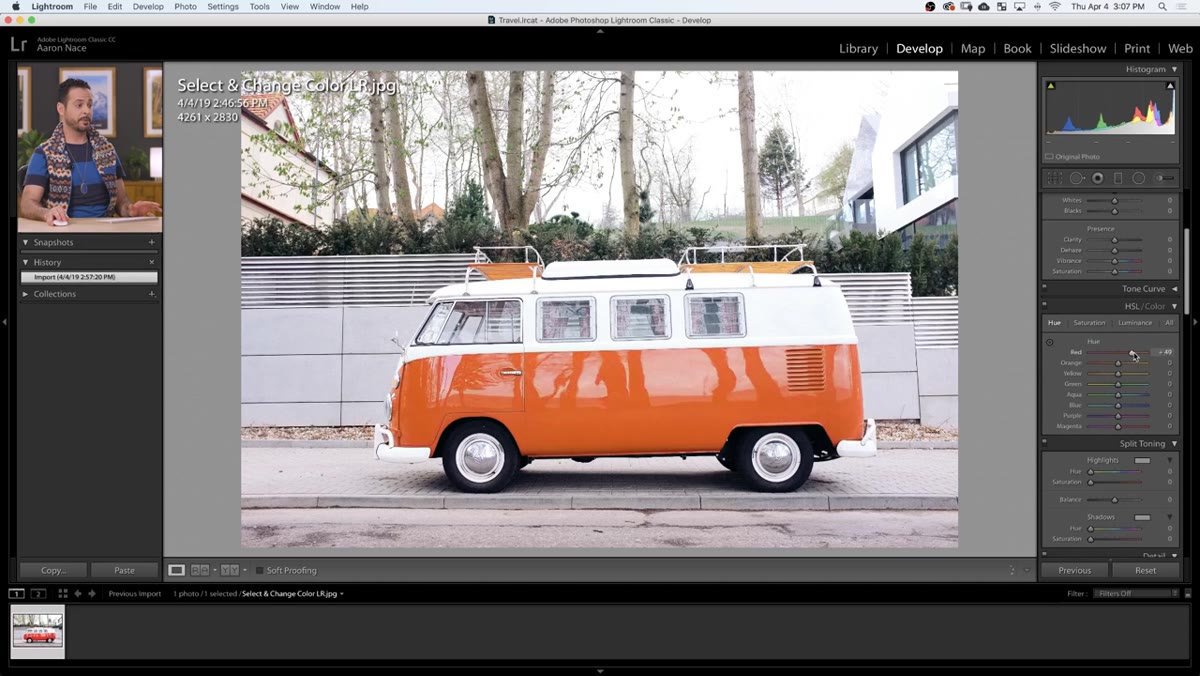 Red and orange hue sliders being adjusted on Volkswagen image
Drag the red slider toward yellow and you’ll see the car shift. But keep an eye on the rest of the frame. As Aaron points out, moving the orange slider affects more than just the car body. Roof trim, background elements, anything with similar tonal values gets pulled along for the ride. That’s not a bug, it’s just how the tool works: it targets color ranges globally across the entire image.
Red and orange hue sliders being adjusted on Volkswagen image
Drag the red slider toward yellow and you’ll see the car shift. But keep an eye on the rest of the frame. As Aaron points out, moving the orange slider affects more than just the car body. Roof trim, background elements, anything with similar tonal values gets pulled along for the ride. That’s not a bug, it’s just how the tool works: it targets color ranges globally across the entire image.
The second limitation is range. You can shift red toward magenta or toward orange-yellow, but you cannot push it all the way to green or blue the way you can in Photoshop’s Hue/Saturation adjustment layer. If your goal is a subtle color correction, the HSL panel gets you there in thirty seconds. If you need a dramatic, isolated change, you need the second method.
Step 3: Try the On-Image Adjustment Tool for Direct Control
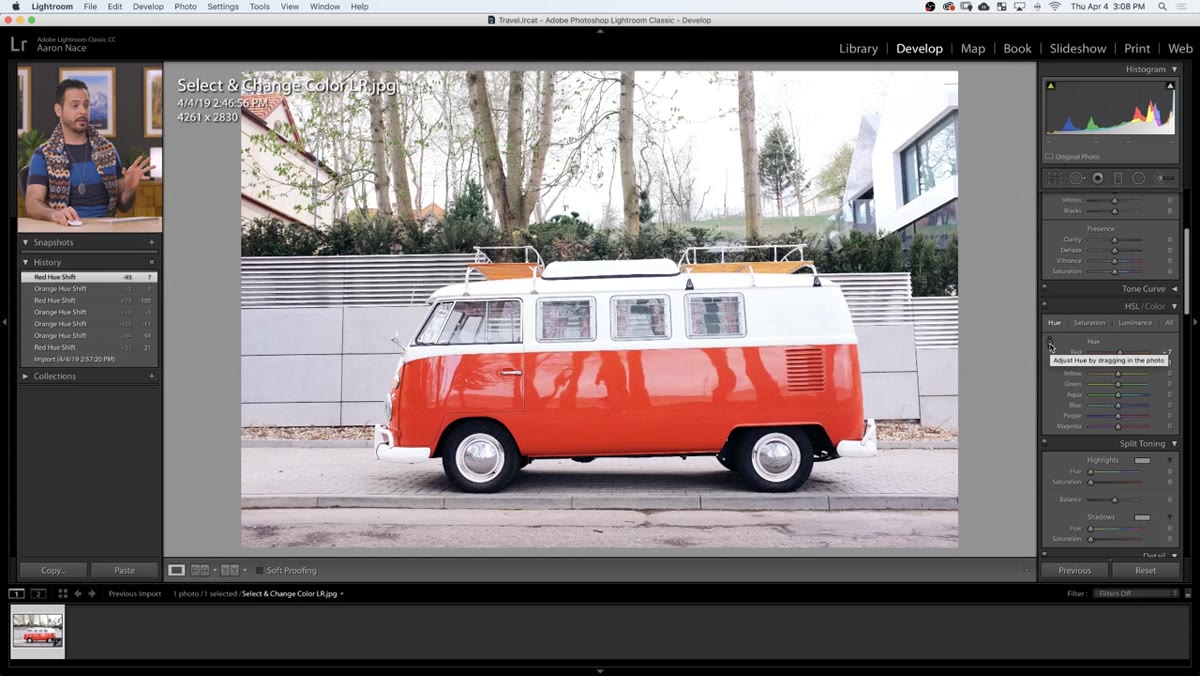 On-image adjustment icon selected, cursor dragging on car
There’s a small target-style icon in the top-left corner of the HSL panel. Click it and your cursor becomes a direct manipulation tool. Click anywhere on the photo and drag up or down to shift the hue of whatever color you’re hovering over. Dragging on the car body moves the relevant sliders automatically.
On-image adjustment icon selected, cursor dragging on car
There’s a small target-style icon in the top-left corner of the HSL panel. Click it and your cursor becomes a direct manipulation tool. Click anywhere on the photo and drag up or down to shift the hue of whatever color you’re hovering over. Dragging on the car body moves the relevant sliders automatically.
This feels more intuitive than hunting for the right slider by name, and it’s worth knowing about. But it shares the same global limitation. The precision is better from a workflow standpoint, but the underlying mechanics are identical. Think of it as a better interface for the same engine.
Step 4: Switch to the Adjustment Brush
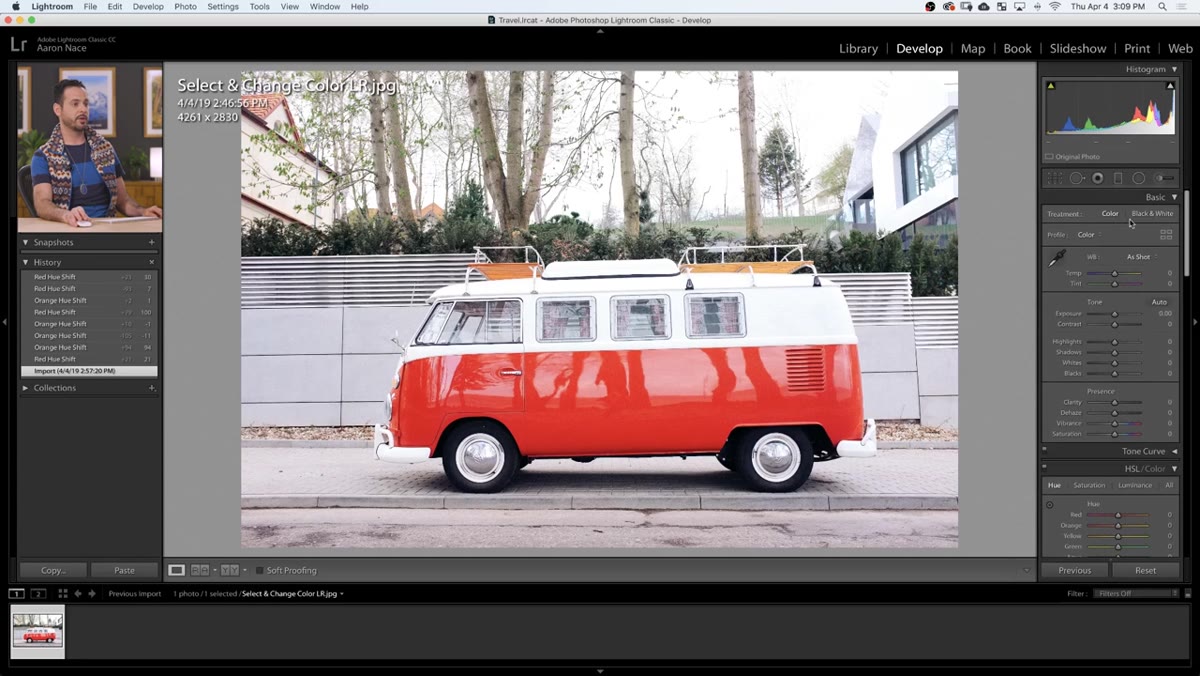 Adjustment Brush icon selected below histogram in Develop module
The Adjustment Brush is where this tutorial gets interesting. Find it just below the histogram at the top of the right panel. It looks like a paintbrush icon with small dots around it. Click to open it and a new set of controls appears below, along with brush settings at the bottom of the panel.
Adjustment Brush icon selected below histogram in Develop module
The Adjustment Brush is where this tutorial gets interesting. Find it just below the histogram at the top of the right panel. It looks like a paintbrush icon with small dots around it. Click to open it and a new set of controls appears below, along with brush settings at the bottom of the panel.
Before you start painting, do a quick settings check. Set your Feather value lower for a tighter edge, and bring Flow up toward 100 so each brushstroke applies the full effect. Use the square bracket keys on your keyboard to scale the brush up or down. If any sliders from a previous session are still dialed in, reset them to zero so you’re starting with a clean mask.
Step 5: Paint Your Selection Over the Subject
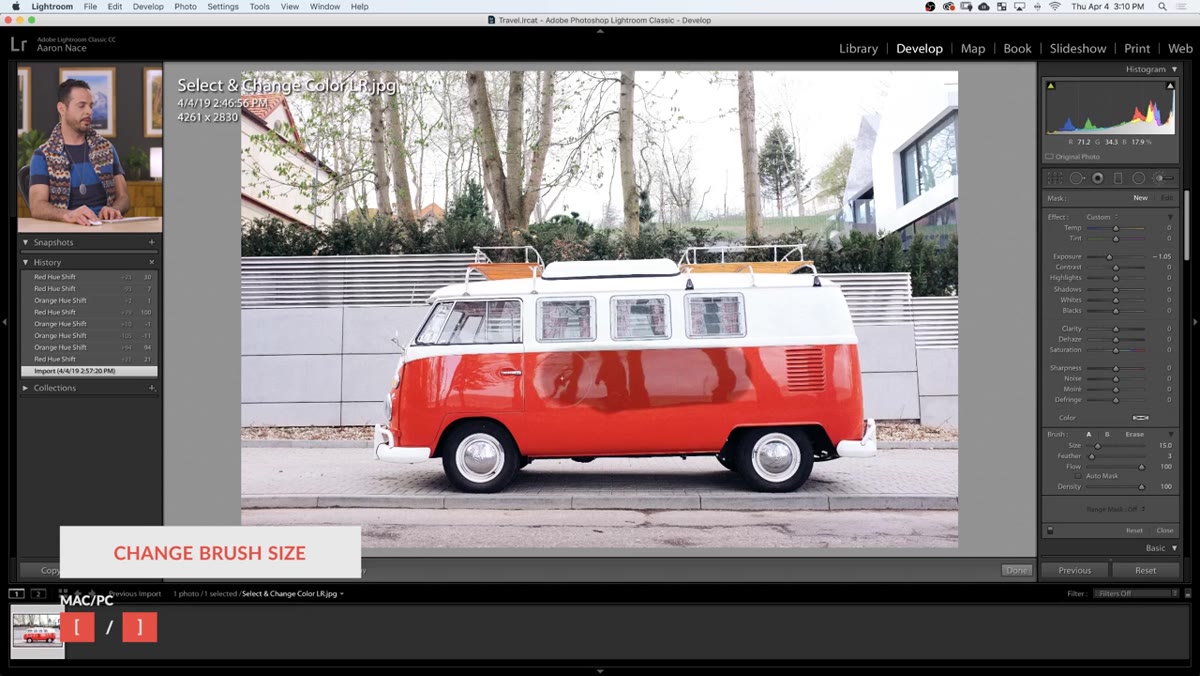 Red mask overlay visible on Volkswagen body while painting
Start painting over the area you want to change. By default, the mask is invisible, so press O on your keyboard to toggle the overlay on. You’ll see a red tint wherever your mask has been applied. This is how you verify coverage and catch any gaps before you commit to the color adjustment.
Red mask overlay visible on Volkswagen body while painting
Start painting over the area you want to change. By default, the mask is invisible, so press O on your keyboard to toggle the overlay on. You’ll see a red tint wherever your mask has been applied. This is how you verify coverage and catch any gaps before you commit to the color adjustment.
Paint over the entire car body. Don’t stress about being pixel-perfect at this stage. The next step is where you’ll clean up the selection using a feature that makes the Adjustment Brush dramatically more precise than most people realize.
Step 6: Apply a Color Range Mask to Isolate the Selection
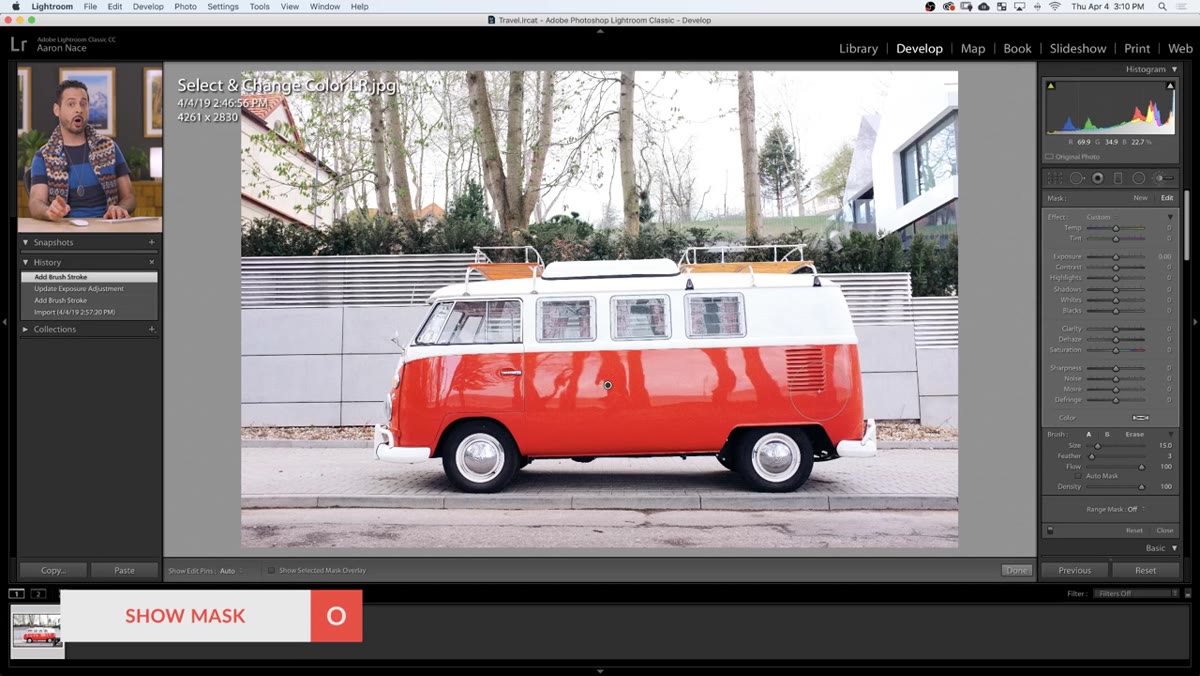 Range mask dropdown set to Color in Adjustment Brush panel
At the bottom of the Adjustment Brush panel, look for a dropdown labeled Mask. Change it from None to Color. Your cursor turns into an eyedropper. Click directly on the car body to sample the color, and Lightroom will automatically refine the mask to exclude areas that don’t match that color range. You can click and drag to sample a broader range if the color shifts across the surface.
Range mask dropdown set to Color in Adjustment Brush panel
At the bottom of the Adjustment Brush panel, look for a dropdown labeled Mask. Change it from None to Color. Your cursor turns into an eyedropper. Click directly on the car body to sample the color, and Lightroom will automatically refine the mask to exclude areas that don’t match that color range. You can click and drag to sample a broader range if the color shifts across the surface.
This is the feature Aaron flags as genuinely new and significant. The color range mask essentially does a second pass of selection logic on top of your brushwork. Where your brush was sloppy around the edges, the range mask pulls back from areas that don’t share the sampled color. The result is a much cleaner selection than you’d get from the brush alone.
My Take: Layer Both Methods When the Shot Demands It
I’ve started using these two methods in sequence rather than treating them as alternatives. A quick HSL pass first to shift the overall color into roughly the right neighborhood, then the Adjustment Brush with a color range mask to nail the isolated areas that need more dramatic treatment. The HSL work gives the masked adjustment less heavy lifting to do, which means the final color looks more natural and less processed. On product shoots especially, where you’re often delivering multiple color variants of the same image, this combination cuts the time per variant significantly.
One honest caveat: the color range mask works best when the subject has a reasonably distinct hue from its background. If you’re trying to isolate a red object against a warm-toned brick wall, the sampler will struggle. In those cases, a luminance mask or a hand-painted mask with careful erasing is still the cleaner path.
The core lesson from Aaron’s tutorial is that Lightroom’s color selection tools are a spectrum from fast-and-global to slow-and-precise, and knowing where your edit falls on that spectrum before you start saves a lot of backtracking. Watch the full tutorial on YouTube to see both methods demonstrated on the Volkswagen image, including how the range mask behaves in real time.
Comments
Leave a Comment