There’s a specific frustration I know too well: you come home from a shoot with a technically solid photo, pull it into Lightroom, and feel nothing. The histogram looks fine. The exposure is decent. But the image is flat. It doesn’t move anyone. It doesn’t even move you, and you were standing there when you took it.
The fix, most of the time, isn’t more contrast or a stronger preset. It’s selective control. Directing the viewer’s eye the same way a film director uses lighting. In this First Man Photography tutorial on easy Lightroom editing techniques, the creator works through two real landscape shots and uses two specific tools to transform them from raw captures into images with genuine atmosphere. I’ve watched a lot of Lightroom tutorials. This one is worth breaking down piece by piece.
The two tools are the Radial Filter and the Gradient Filter. You’ve probably seen them in the toolbar and maybe used them once or twice. After working through this tutorial, you’ll think about them differently. They’re not just adjustment tools. They’re storytelling tools.
Step 1: Crop With Intention Before You Touch a Single Slider
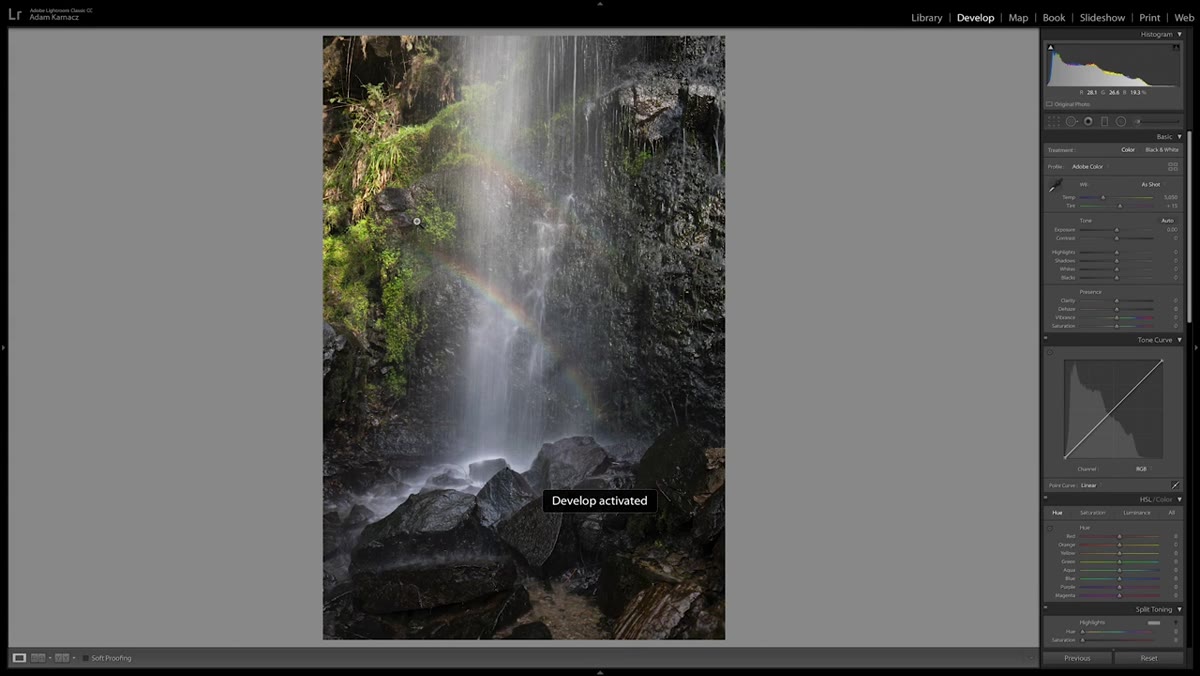 Raw waterfall image open in Lightroom Develop module
Before any editing begins, the tutorial opens the RAW file in Lightroom’s Develop module (press D to get there) and goes straight to the crop tool. Press R to open it. The key move here is locking the aspect ratio by clicking the lock icon, so resizing the frame doesn’t distort your proportions.
Raw waterfall image open in Lightroom Develop module
Before any editing begins, the tutorial opens the RAW file in Lightroom’s Develop module (press D to get there) and goes straight to the crop tool. Press R to open it. The key move here is locking the aspect ratio by clicking the lock icon, so resizing the frame doesn’t distort your proportions.
The reason this step comes first matters: the creator realized mid-edit that there was a double rainbow in the frame he hadn’t noticed while shooting. The original composition was built around one rainbow. Now the crop needs to accommodate both. He pulls the frame up to trim dead space from the bottom while widening slightly to give both rainbows room to breathe. The takeaway is simple but easy to skip. Crop before you edit. Otherwise you spend time perfecting lighting on parts of the image you’re going to cut anyway.
Step 2: Open the Radial Filter and Draw Your Focus Zone
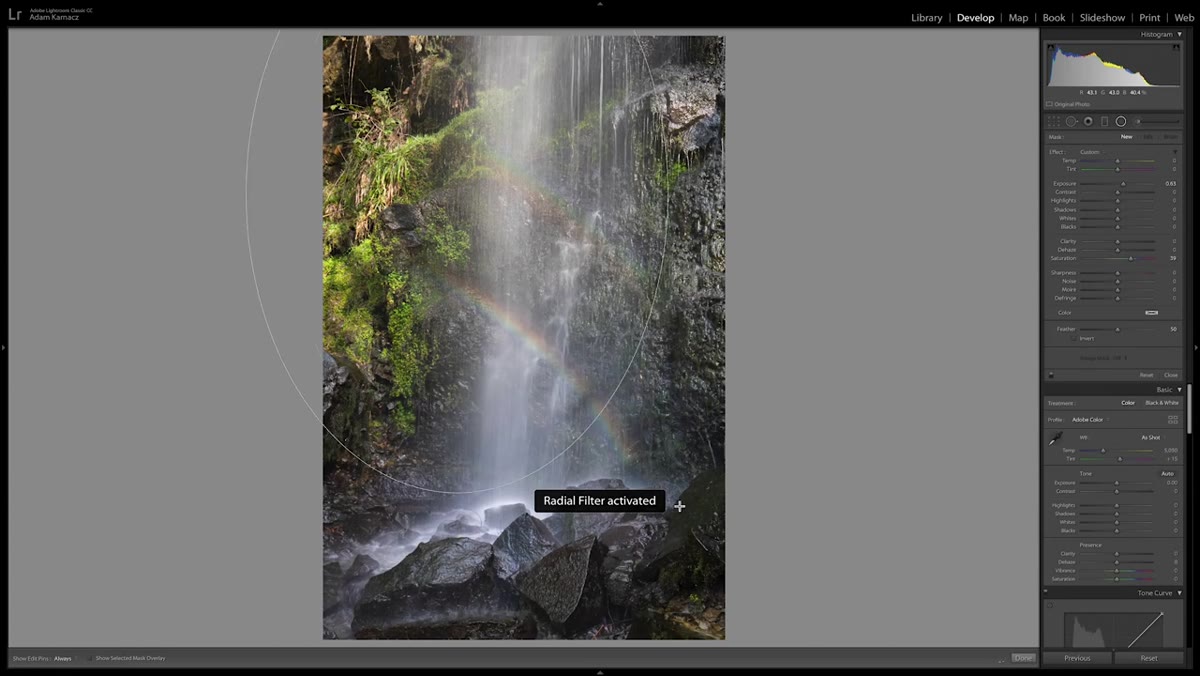 Radial filter oval drawn over waterfall and rainbow area
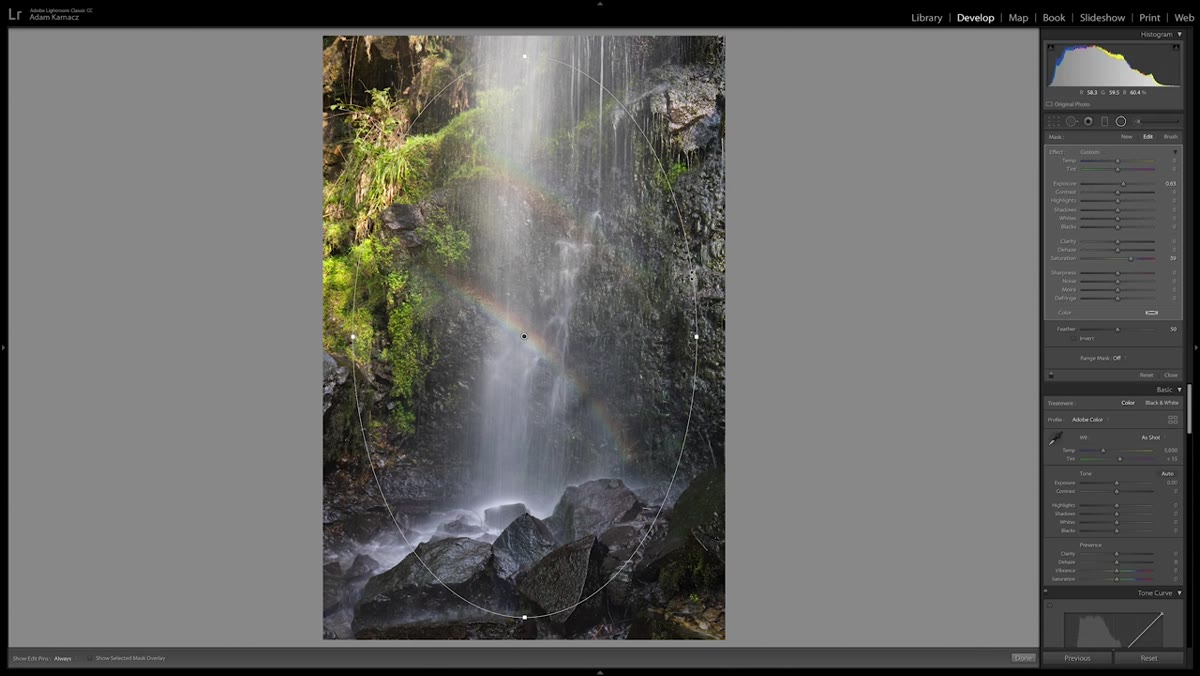
With the crop locked in, the tutorial moves directly to the Radial Filter. You’ll find it in the toolbar at the top of the right panel, or press Shift+M. Click and drag to draw an oval shape over the area you want to protect. In this case, the waterfall and the rainbows sit inside the oval.
Radial filter oval drawn over waterfall and rainbow area
With the crop locked in, the tutorial moves directly to the Radial Filter. You’ll find it in the toolbar at the top of the right panel, or press Shift+M. Click and drag to draw an oval shape over the area you want to protect. In this case, the waterfall and the rainbows sit inside the oval.
Here’s the thing most people miss about the Radial Filter: by default, the adjustments you make apply to everything OUTSIDE the oval. Think of it like cutting a spotlight shape into a piece of cardboard and holding it over your photo. Whatever is inside stays lit. Whatever is outside gets modified. The creator draws the oval to roughly encompass the waterfall and rainbow arc, then resizes and repositions it to sit just right. Getting this placement accurate is worth taking your time. A poorly placed oval will create an obvious, artificial-looking halo. Move it slowly and zoom in to check the edges.
Step 3: Darken the Exterior to Build a Natural Vignette
 Exposure and highlights being reduced outside the radial filter
With the Radial Filter in place and “Invert” left off (so edits apply outside the oval), the next move is to darken the surrounding area. This is essentially a custom vignette, but far more powerful than Lightroom’s built-in vignette tool because you control the exact shape and position.
Exposure and highlights being reduced outside the radial filter
With the Radial Filter in place and “Invert” left off (so edits apply outside the oval), the next move is to darken the surrounding area. This is essentially a custom vignette, but far more powerful than Lightroom’s built-in vignette tool because you control the exact shape and position.
Pull down the exposure slightly. Reduce highlights. You’re not trying to go dark and dramatic all at once. You’re nudging the outer area toward shadow so your eye naturally drifts toward the lighter center. The creator is specific about this: the goal is to recreate the contrast he felt standing at that waterfall, where the bright falling water popped against a moody, overcast background. Your edits should chase a feeling, not just a look.
Step 4: Use the Feathering Slider to Make It Look Real
 Feather slider being adjusted on radial filter panel
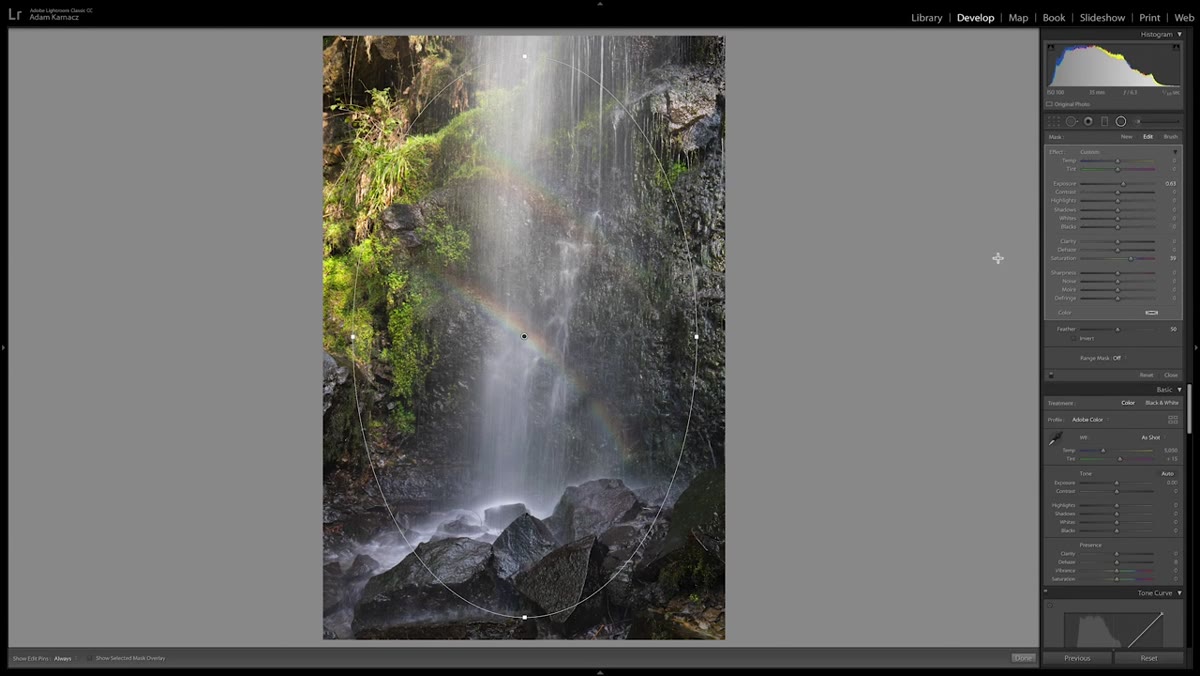
The Radial Filter has a Feather slider that controls how gradually the effect transitions from inside to outside the oval. A low feather value creates a hard, obvious edge. A high feather value blends the adjustment smoothly across a wider boundary.
Feather slider being adjusted on radial filter panel
The Radial Filter has a Feather slider that controls how gradually the effect transitions from inside to outside the oval. A low feather value creates a hard, obvious edge. A high feather value blends the adjustment smoothly across a wider boundary.
For landscape work, you almost always want this slider pushed high, somewhere in the 70-100 range. The tutorial uses a heavy feather to make the vignette feel organic rather than applied. If someone looks at your photo and thinks “oh, they used a radial filter,” the feather was probably too low. The effect should be invisible as a technique and only visible as atmosphere.
Step 5: Add a Gradient Filter to Separate Sky From Land
 Gradient filter icon highlighted in the Lightroom toolbar
The second tool introduced in the tutorial is the Gradient Filter, sometimes called a Linear Gradient. Press M to activate it. Click and drag downward from the top of the frame to create a gradient that fades from full strength at the top to nothing at the midpoint.
Gradient filter icon highlighted in the Lightroom toolbar
The second tool introduced in the tutorial is the Gradient Filter, sometimes called a Linear Gradient. Press M to activate it. Click and drag downward from the top of the frame to create a gradient that fades from full strength at the top to nothing at the midpoint.
Where the Radial Filter works in an oval shape, the Gradient Filter works in a straight line. It’s ideal for skies, horizons, and any scene where a natural divide exists between light and dark areas. You can darken an overexposed sky without touching the foreground. You can add a color cast to just the upper third of the frame. The tutorial uses this tool to deepen the mood of the sky independently from the waterfall area, layering it on top of the radial filter work already done. These two tools stack. That’s the real power.
Step 6: Adjust Color and Tone Within Each Filter Zone
 Color temperature and tint sliders inside radial filter panel
Both the Radial Filter and Gradient Filter give you access to a full suite of adjustments: temperature, tint, exposure, highlights, shadows, clarity, and saturation. You’re not limited to just brightness. This is where selective editing gets interesting.
Color temperature and tint sliders inside radial filter panel
Both the Radial Filter and Gradient Filter give you access to a full suite of adjustments: temperature, tint, exposure, highlights, shadows, clarity, and saturation. You’re not limited to just brightness. This is where selective editing gets interesting.
Inside the radial filter, you can slightly warm the waterfall area to make it feel inviting. Outside it, a slightly cooler, more desaturated treatment pushes the surrounding rock and sky toward a more dramatic, secondary role. Small shifts in temperature, maybe 10-15 points in either direction, make a significant perceptual difference. You’re not color grading the whole image the same way. You’re color grading different zones of the same image independently.
What I’d Add From My Own Work
The tutorial keeps its scope tight, which I respect. But one thing I always do on top of this workflow is duplicate the radial filter and reduce its opacity on the copy, then stack it slightly offset from the original. It softens the center of the effect and prevents the vignette from reading as perfectly symmetrical, which the human eye finds slightly uncanny. Nature doesn’t have perfect ovals. Your vignettes shouldn’t either.
I’d also recommend naming your filter masks if you’re using multiple ones on a single image. Lightroom lets you label them. I name mine after what they’re doing: “sky darkener,” “waterfall pop,” “foreground lift.” Sounds fussy, but when you come back to an edit three weeks later, you’ll thank yourself.
The single most important thing this tutorial reinforced for me: great editing is about directing attention, not just correcting exposure. The Radial Filter and Gradient Filter are your two best tools for doing exactly that, selectively, naturally, and in a way that feels like it was always part of the photo.
Watch the full tutorial on YouTube to see the before-and-after transformations on both images and follow along with the exact settings used.
Comments
Leave a Comment