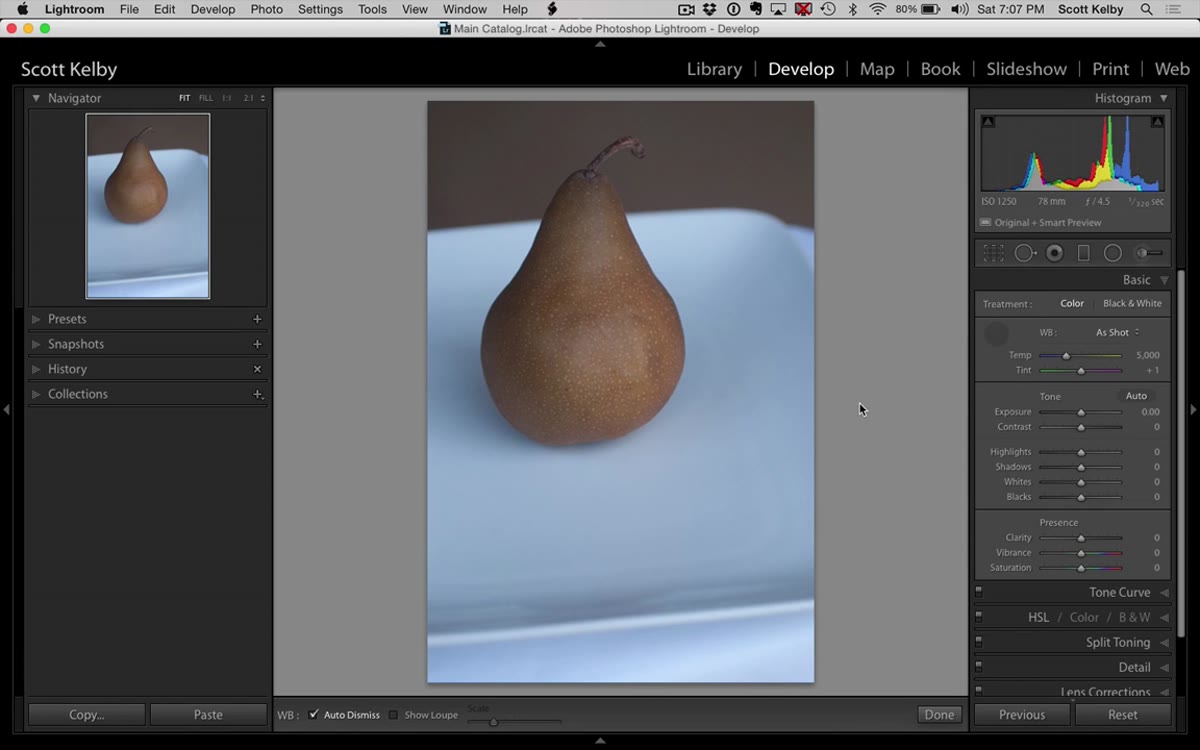
Getting white balance right is one of those things that sounds simple until you’re sitting in front of a RAW file shot under mixed tungsten and window light wondering why every neutral gray in the frame looks like a jaundiced banana. I’ve been there more times than I’d like to admit. For years my workflow involved clicking the white balance eyedropper more or less at random, hoping something clicked that felt close, and then nudging the Temperature and Tint sliders manually to finish the job. It worked, but it was slow and a little embarrassing for someone who’s supposed to know what they’re doing.
In this KelbyOne tutorial, Scott Kelby walks through three specific behaviors of Lightroom’s White Balance Selector tool that most editors either don’t know about or have quietly ignored. None of them are buried deep in preferences. They’re right there in plain sight, but they’re easy to miss if nobody points them out. This is one of those five-minute videos that actually earns its runtime. Watch the full tutorial on YouTube and then follow along with the breakdown below.
Step 1: Keep the Left Panel Open While Using the Eyedropper
 Navigator panel showing live white balance preview as cursor moves
Most of us collapse Lightroom’s left panel in the Develop module to get more screen real estate. It’s a good habit in general. But when you’re working with the White Balance Selector tool, collapsing that panel is actually costing you information.
Navigator panel showing live white balance preview as cursor moves
Most of us collapse Lightroom’s left panel in the Develop module to get more screen real estate. It’s a good habit in general. But when you’re working with the White Balance Selector tool, collapsing that panel is actually costing you information.
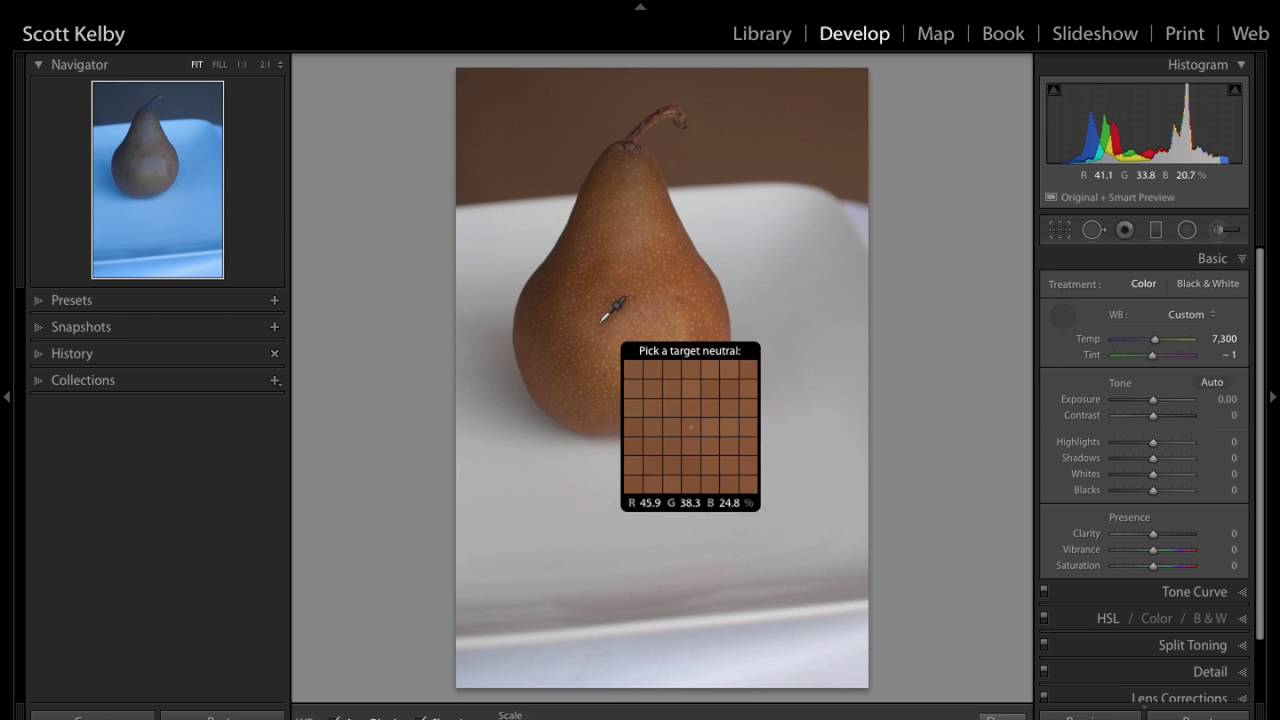
The Navigator panel in the upper-left corner provides a live preview of what your white balance will look like before you click anywhere. As you hover the eyedropper over different areas of your image, the Navigator updates in real time, showing you a full-image preview of that particular white balance setting. You can scan across your image, watch the preview shift, and only click when what you see in the Navigator actually looks right. It turns a guessing game into a visual audition.
Step 2: Understand What You’re Actually Clicking On
 Loupe overlay on image showing pixel color grid beneath cursor
The white balance eyedropper works by sampling a pixel and treating whatever it finds as a neutral reference point. The tool is not looking for white. It’s looking for gray, and ideally something close to 18% gray if you can find it.
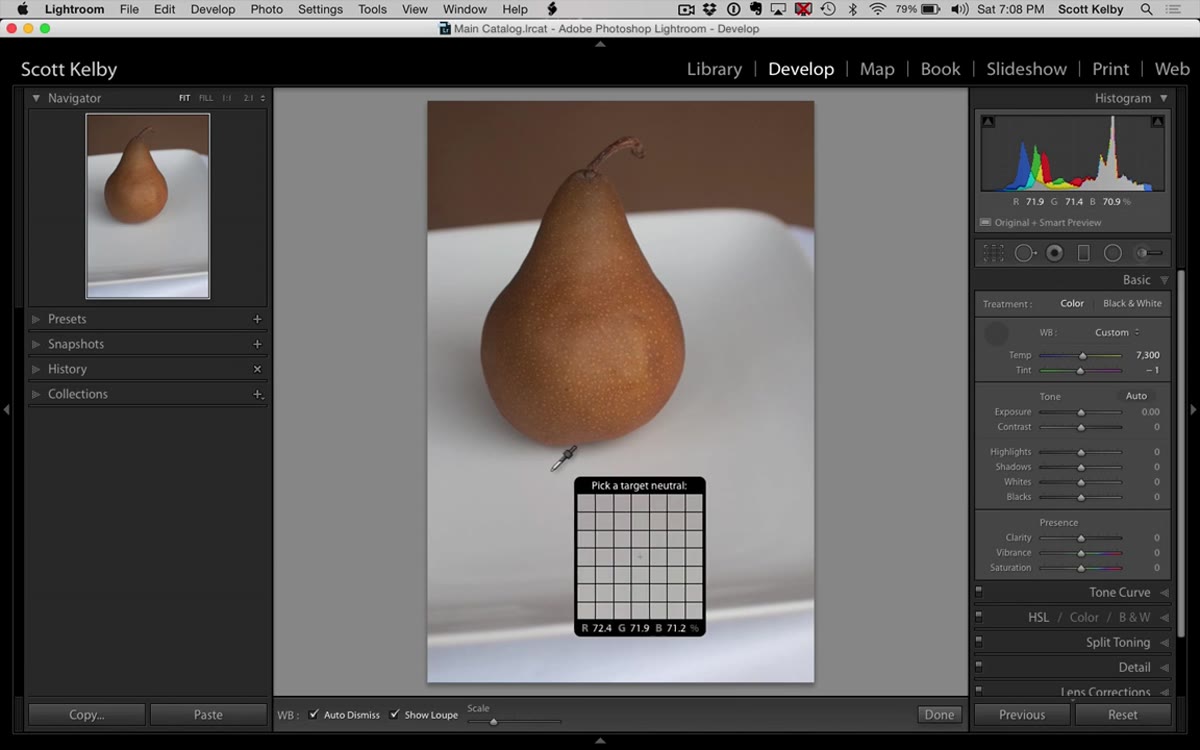
Loupe overlay on image showing pixel color grid beneath cursor
The white balance eyedropper works by sampling a pixel and treating whatever it finds as a neutral reference point. The tool is not looking for white. It’s looking for gray, and ideally something close to 18% gray if you can find it.
In practical terms, this means you want to click on something in your scene that was genuinely neutral when you photographed it: a gray card, a concrete wall in shade, a piece of asphalt, a white shirt in soft light. Clicking on a bright specular highlight or a blown-out white will throw your numbers off because the sensor clipped that area and the data there is not trustworthy. If your image has a gray card in it, even partially visible, that’s your best starting point every time.
Step 3: Use the Scale Slider to Resize the Loupe Grid
 White balance tool options bar showing Scale slider
When you grab the White Balance Selector, a small loupe overlay appears under your cursor showing a zoomed-in grid of pixel colors. A lot of photographers find this distracting and want it gone immediately. Before you dismiss it entirely, know that you can control its size.
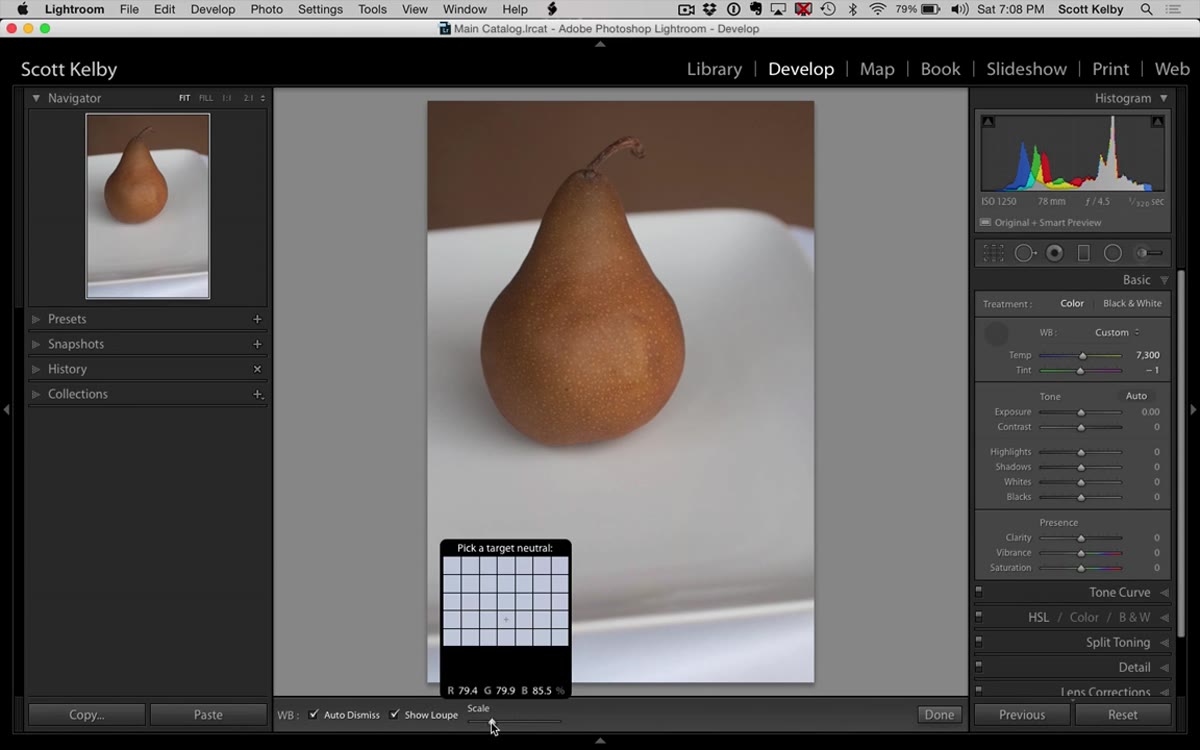
White balance tool options bar showing Scale slider
When you grab the White Balance Selector, a small loupe overlay appears under your cursor showing a zoomed-in grid of pixel colors. A lot of photographers find this distracting and want it gone immediately. Before you dismiss it entirely, know that you can control its size.
At the bottom of the screen when the tool is active, there’s a toolbar with a Scale slider. Dragging it left shrinks the grid, dragging it right expands it. A larger grid can actually be helpful when you’re trying to assess whether an area is genuinely neutral or has a subtle color cast. Seeing more pixels gives you more context. But if you find the overlay creates visual noise while you’re trying to make decisions, the Scale slider lets you dial it down to something minimal rather than all-or-nothing.
Step 4: Hide the Loupe Overlay Entirely
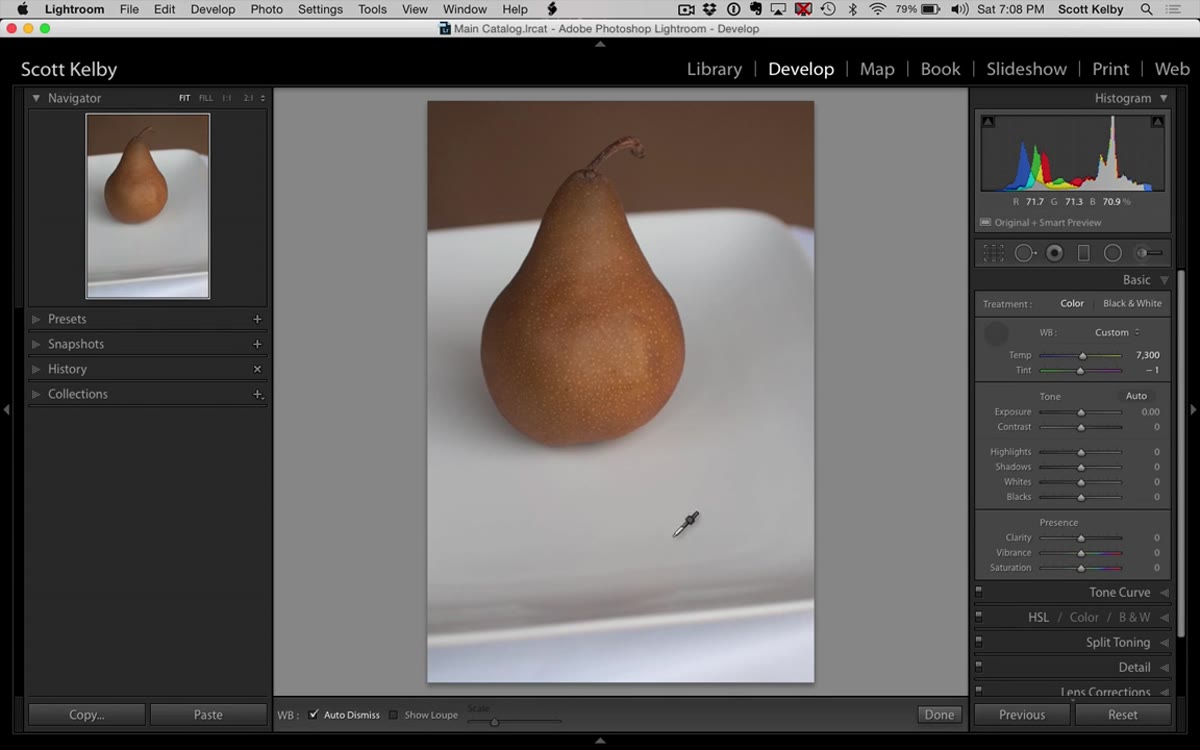 Show Loupe checkbox unchecked in tool options bar
If you’ve decided the loupe grid is not useful for your workflow, you don’t have to live with it. In the same toolbar at the bottom of the screen, there’s a “Show Loupe” checkbox. Uncheck it and the overlay disappears completely. Your cursor becomes a clean eyedropper without any grid attached.
Show Loupe checkbox unchecked in tool options bar
If you’ve decided the loupe grid is not useful for your workflow, you don’t have to live with it. In the same toolbar at the bottom of the screen, there’s a “Show Loupe” checkbox. Uncheck it and the overlay disappears completely. Your cursor becomes a clean eyedropper without any grid attached.
I ran without the loupe for about two years before I started using the Navigator preview method described in Step 1. Once I started relying on the Navigator, the loupe felt redundant. Your mileage will vary, but the option is there and more people should know about it.
Step 5: Turn Off Auto Dismiss to Click Freely
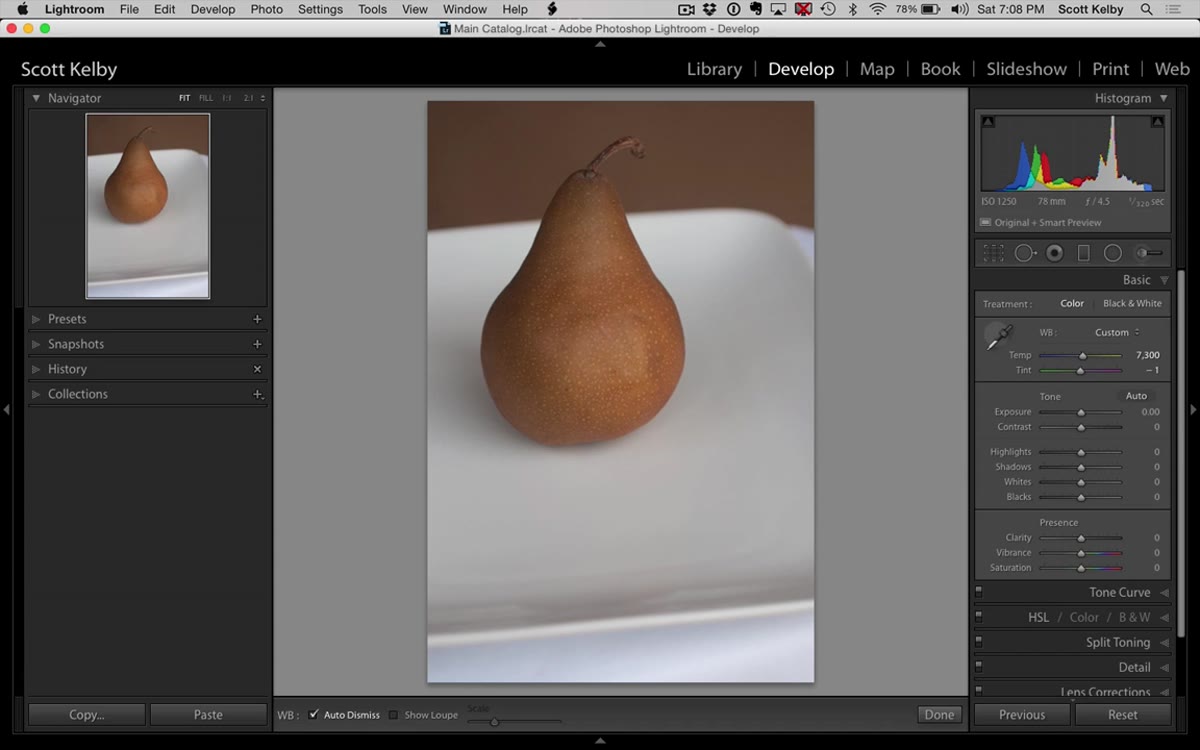 Auto Dismiss checkbox in toolbar, cursor still active after clicking
This is the one that genuinely changed how I use the tool. By default, the White Balance Selector has “Auto Dismiss” turned on. That means the moment you click once, Lightroom applies that white balance and automatically deactivates the tool, dropping you back into the standard cursor.
Auto Dismiss checkbox in toolbar, cursor still active after clicking
This is the one that genuinely changed how I use the tool. By default, the White Balance Selector has “Auto Dismiss” turned on. That means the moment you click once, Lightroom applies that white balance and automatically deactivates the tool, dropping you back into the standard cursor.
If your first click doesn’t look right, you have to go back to the Basic panel, grab the eyedropper again, and try a different spot. With complex lighting, that round-trip gets old fast. Turn off Auto Dismiss in the toolbar at the bottom of the screen and the tool stays active after every click. You can click one spot, assess the result, click a different spot, assess again, keep going until something looks right, and then simply press Escape or click somewhere else to deactivate the tool on your own terms. It makes the whole process feel exploratory instead of high-stakes.
One Thing I’d Add From My Own Editing Sessions
The Navigator preview trick in Step 1 is legitimately useful, but I’d pair it with one more habit: before you grab the eyedropper at all, zoom your image to 1:1 and scan for areas that should be neutral. Good candidates are things like concrete, gray metal, a white appliance in the background, or any area where you know the subject matter has no inherent color. Mark a few mentally, then switch to the White Balance Selector with Auto Dismiss off and work through your candidates in order. You’ll usually find the right click within three or four tries instead of clicking at random and hoping.
The Navigator preview will show you when you’re getting warm. The zoomed-in survey gets you to the right neighborhood before you start clicking. Together they cut my white balance correction time roughly in half on mixed-light scenes, which in Nashville’s venue photography tends to be basically every indoor shot I take.
The single biggest takeaway from this tutorial is the Auto Dismiss setting. It’s a small checkbox that most people never touch, and it fundamentally changes how much creative freedom you have while using the eyedropper. Combined with the Navigator live preview, you’re no longer guessing. You’re auditioning options in real time and clicking when something looks right.
Watch the full tutorial on YouTube to see Scott walk through each of these in action. It’s about three minutes long and worth every second.
Comments
Leave a Comment