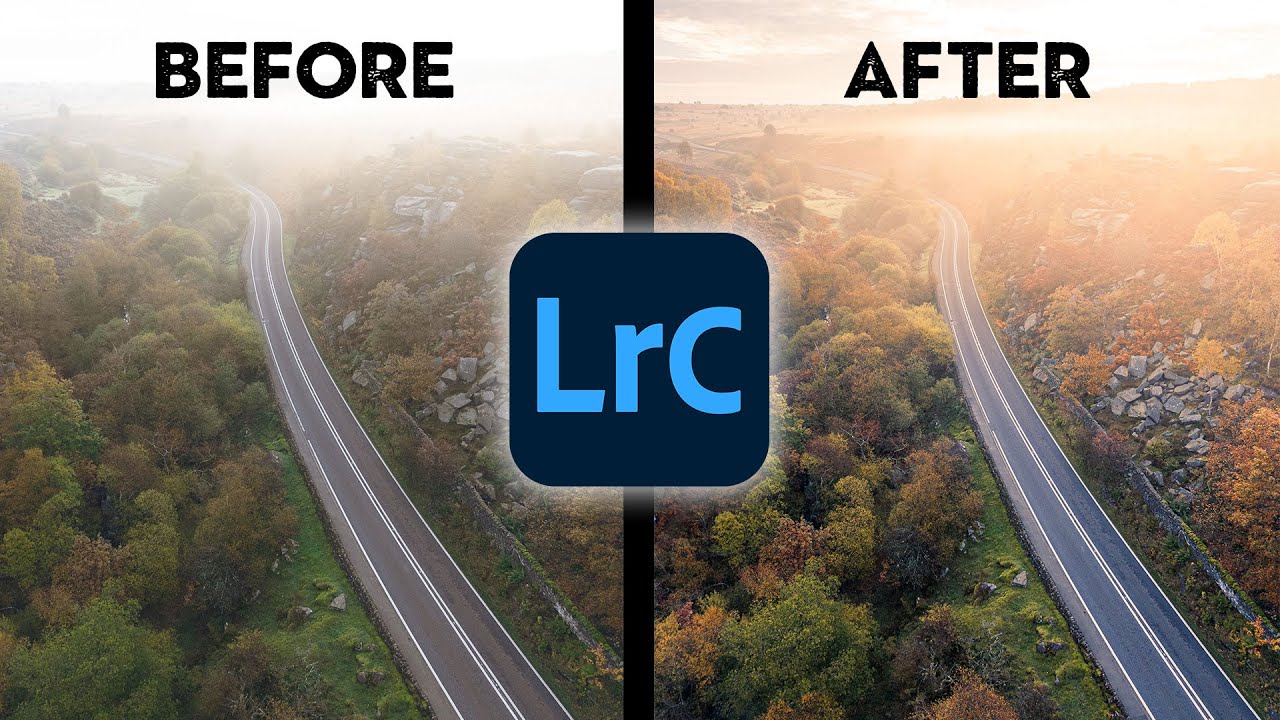
Every time I open a raw file that fought me on location, my first instinct is to just drag the temperature slider until things look “warmer” and call it a day. That worked fine when I was editing band press shots at 1 a.m. with no real system. It does not work when you’re trying to build a recognizable style that makes someone stop mid-scroll and think, “that looks like yours.”
That’s exactly the gap Nigel Danson addresses in this tutorial. Watch the full tutorial on YouTube — then come back and use this walkthrough while you have Lightroom open. Danson frames the whole conversation around something most of us skip entirely: before you reach for a preset or start pushing sliders at random, you need to understand which tool changes which pixels, and why that order matters.
The payoff is a color workflow you can repeat. Not a one-photo fix. A system that stacks, image after image, until your edits start looking like a body of work instead of a random assortment of moods.
Step 1: Start With White Balance — It Touches Every Pixel
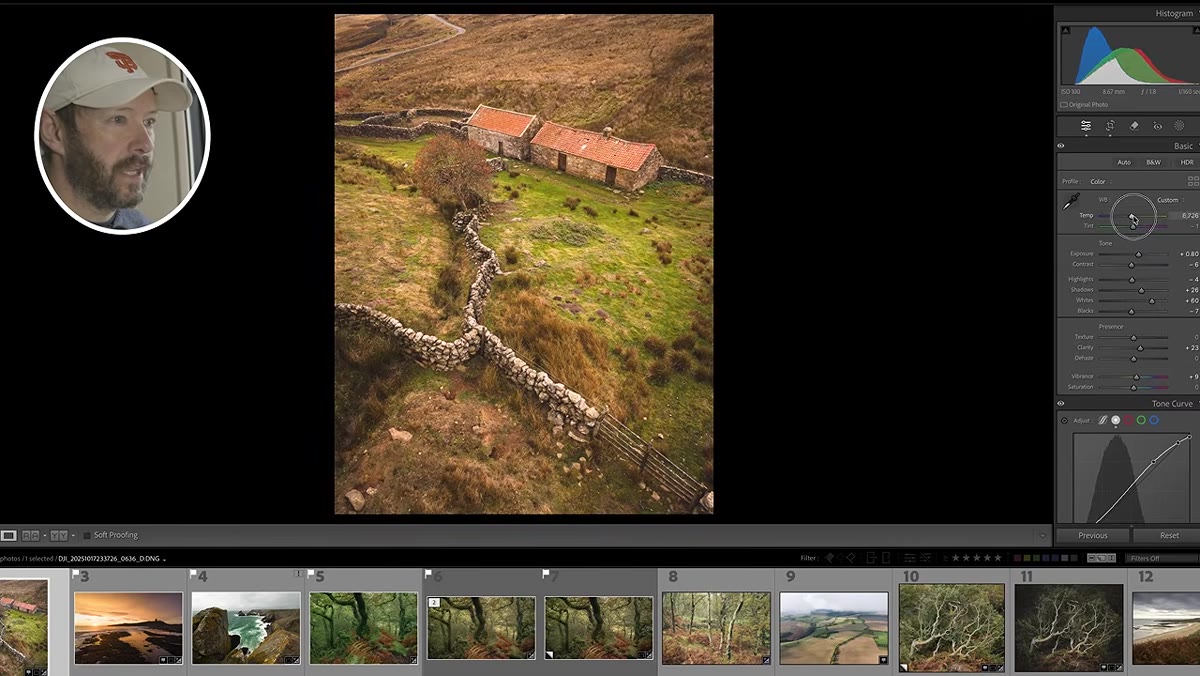 White balance panel open with temperature and tint sliders visible
White balance is the first stop for a reason. Unlike most color tools in Lightroom, white balance changes every single pixel in the frame simultaneously. It recalculates the ratio of red, green, and blue values across the entire image — which means a shift here is never subtle. Danson shows this clearly by warming a landscape shot dramatically, and the result is immediately ugly because the effect compounds across pixels that already have strong color casts.
White balance panel open with temperature and tint sliders visible
White balance is the first stop for a reason. Unlike most color tools in Lightroom, white balance changes every single pixel in the frame simultaneously. It recalculates the ratio of red, green, and blue values across the entire image — which means a shift here is never subtle. Danson shows this clearly by warming a landscape shot dramatically, and the result is immediately ugly because the effect compounds across pixels that already have strong color casts.
The practical rule: use white balance for correction first, not mood. Get your grays actually gray and your whites reasonably neutral before you start making creative moves. Small adjustments here — 200 to 400 Kelvin in either direction — go a long way. Bigger swings should be reserved for intentional stylistic choices, and even then, watch your histogram. When channel peaks start clipping at either end, you’re losing detail that no other tool can recover.
Step 2: Use Contrast Intentionally — It Affects Saturation Too
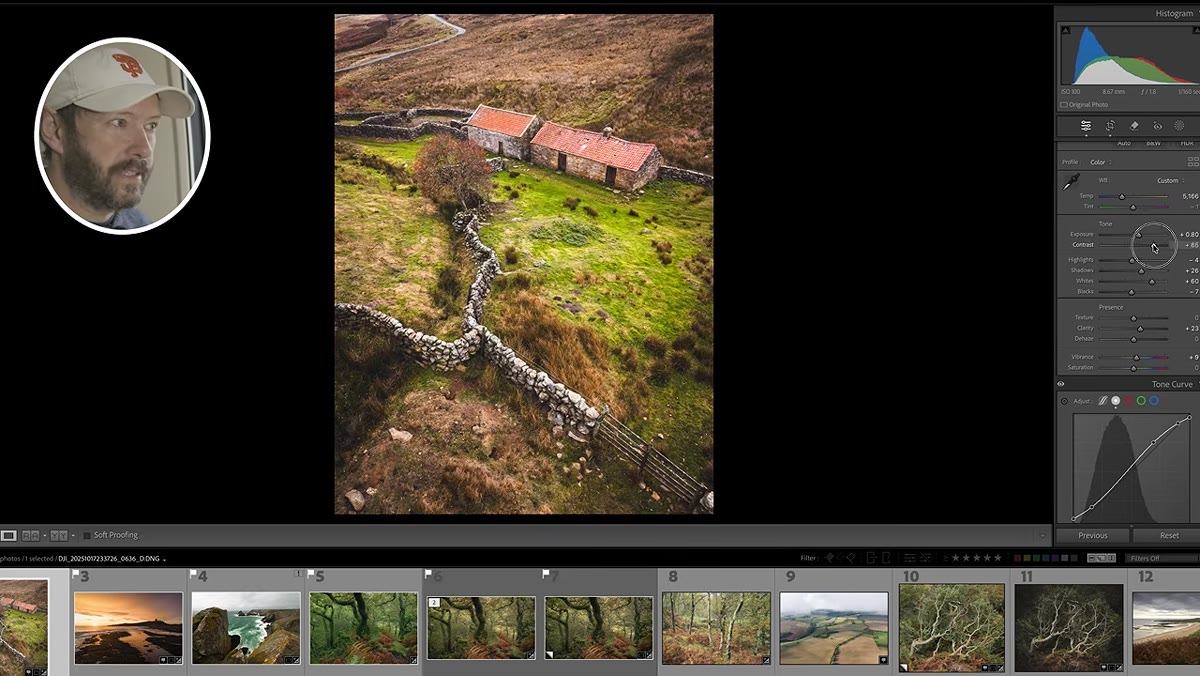 Basic panel showing contrast slider being adjusted
Most people treat contrast as a tonal tool. Danson points out that it’s also a color tool, because adding contrast increases apparent saturation as shadows deepen and highlights separate. If you pile on contrast and then wonder why your colors look blown out or muddy, this is usually why.
Basic panel showing contrast slider being adjusted
Most people treat contrast as a tonal tool. Danson points out that it’s also a color tool, because adding contrast increases apparent saturation as shadows deepen and highlights separate. If you pile on contrast and then wonder why your colors look blown out or muddy, this is usually why.
Think of contrast as the foundation under your color work. Set it conservatively early in your edit. You can always come back, but if you’ve built your color grading on top of heavy contrast and then decide to pull it back, everything shifts. I treat it like the gain on a mixing board. You want headroom, not maximum signal from the start.
Step 3: Vibrance and Saturation — Handle With Care
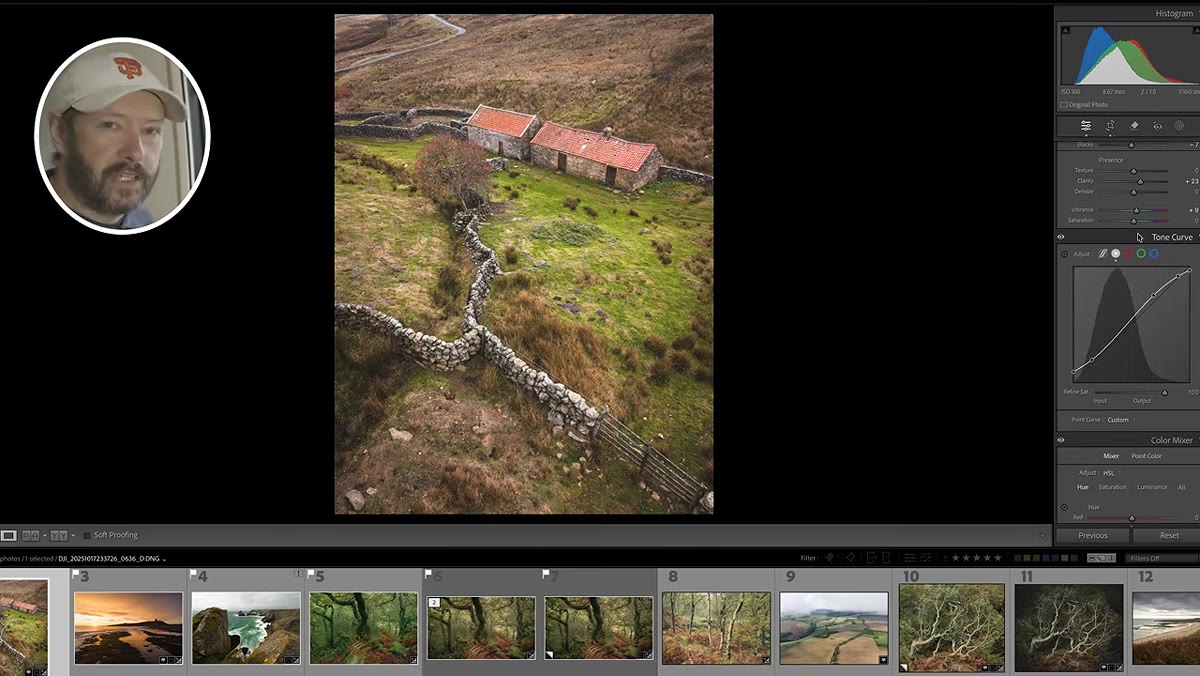 Vibrance and saturation sliders in the Basic panel
Danson admits he almost never touches saturation, and I’m in that camp too. Global saturation is a blunt instrument that hits every color channel equally, which means your already-punchy reds get more aggressive while your subtle sky tones go nuclear. Vibrance is smarter — it protects colors that are already saturated and pushes the ones that need a lift — but it still deserves a light touch.
Vibrance and saturation sliders in the Basic panel
Danson admits he almost never touches saturation, and I’m in that camp too. Global saturation is a blunt instrument that hits every color channel equally, which means your already-punchy reds get more aggressive while your subtle sky tones go nuclear. Vibrance is smarter — it protects colors that are already saturated and pushes the ones that need a lift — but it still deserves a light touch.
If you find yourself pushing vibrance above +20 regularly, that’s usually a sign that something earlier in the edit isn’t working. Vibrance is better used as a finishing nudge than a rescue tool. Set it last in the basic panel, and never use it to compensate for a weak capture.
Step 4: The HSL Color Mixer — Your Most Precise Color Control
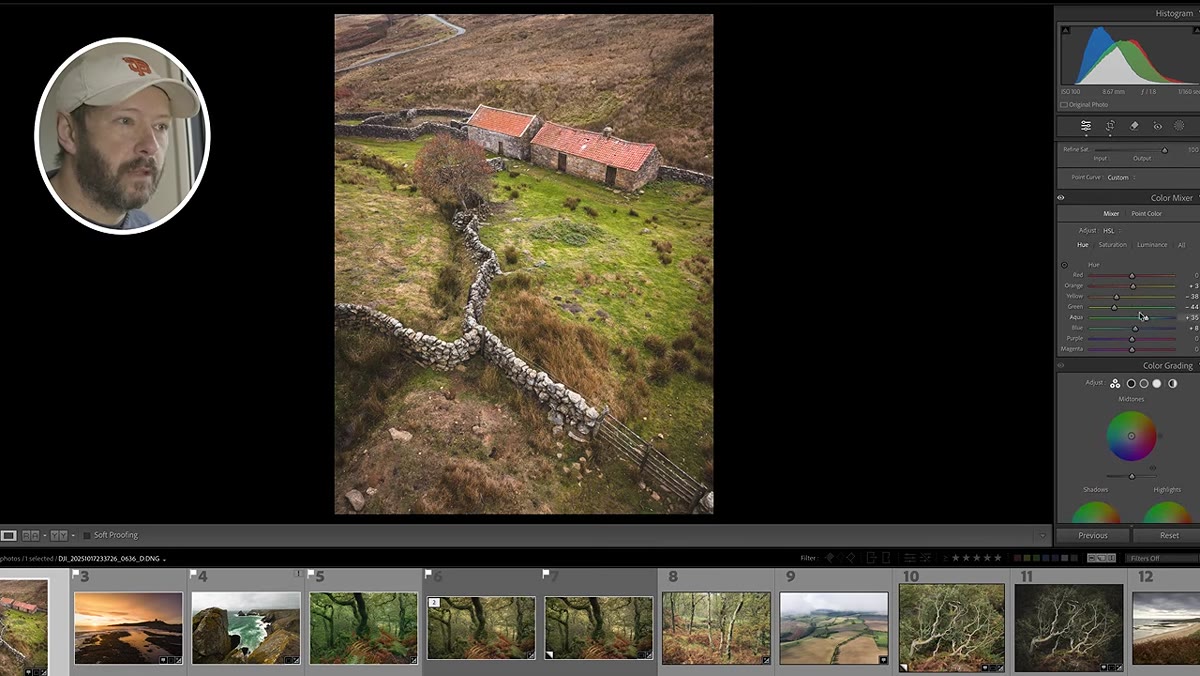 Color mixer panel open with hue, saturation, and luminance tabs
This is where selective color work actually happens. The color mixer lets you adjust the hue, saturation, and luminance of eight individual color ranges independently. Danson shows a landscape edit where he’s made significant changes here — shifting greens toward a more muted, natural tone and adjusting the luminance of blues to create depth in the sky without blowing highlights.
Color mixer panel open with hue, saturation, and luminance tabs
This is where selective color work actually happens. The color mixer lets you adjust the hue, saturation, and luminance of eight individual color ranges independently. Danson shows a landscape edit where he’s made significant changes here — shifting greens toward a more muted, natural tone and adjusting the luminance of blues to create depth in the sky without blowing highlights.
The workflow I use: go through each channel in the Hue tab first, shifting colors toward where you want them tonally. Then hit Saturation to reduce any channels that are competing too loudly. Luminance last, to balance perceived brightness between color regions. This three-pass approach keeps things from getting chaotic. The color mixer is where a lot of personal style actually lives — small, consistent shifts across images add up to a signature look.
Step 5: Color Grading for Creative Mood
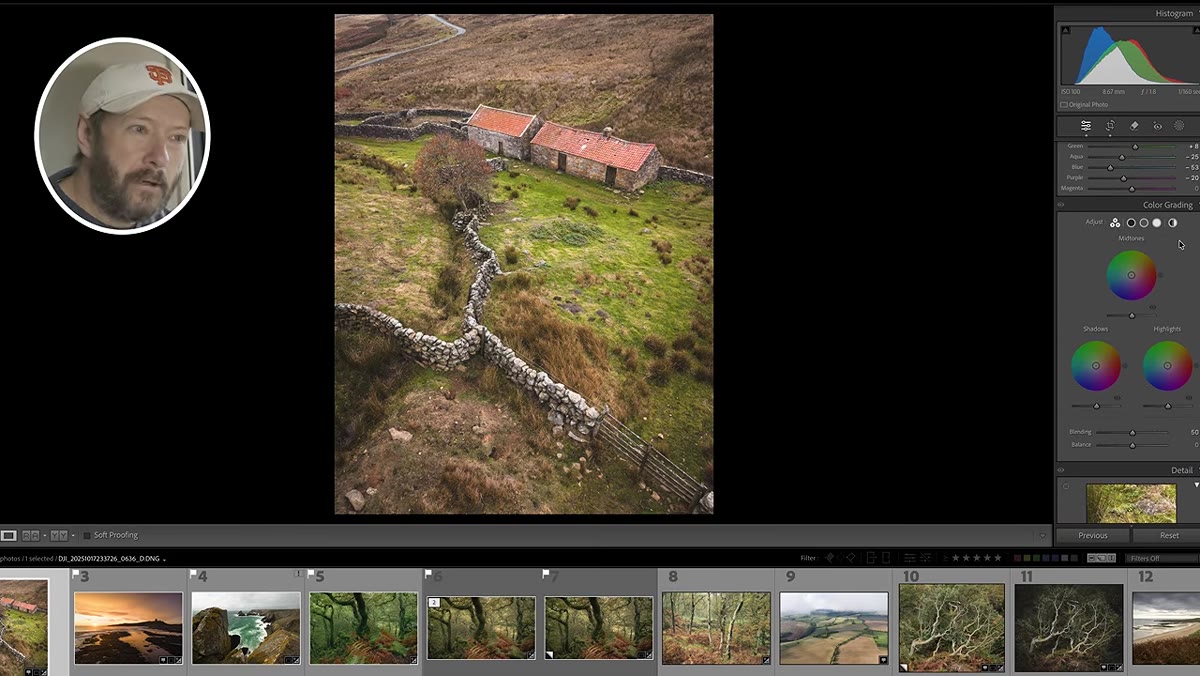 Color grading panel showing shadows, midtones, and highlights wheels
Color grading (the three-wheel panel formerly called Split Toning) is the tool Danson says most people struggle with, and it’s the one I see misused the most. The three wheels control shadows, midtones, and highlights independently, which means you can push warmth into your highlights while cooling your shadows without touching the midtones at all.
Color grading panel showing shadows, midtones, and highlights wheels
Color grading (the three-wheel panel formerly called Split Toning) is the tool Danson says most people struggle with, and it’s the one I see misused the most. The three wheels control shadows, midtones, and highlights independently, which means you can push warmth into your highlights while cooling your shadows without touching the midtones at all.
The key is subtlety. Pull the shadow wheel just a few degrees toward blue or teal. Pull the highlight wheel slightly warm. The balance slider between shadows and highlights controls where the transition point falls tonally. Small moves here read as sophisticated and intentional on screen. Large moves read as a filter slapped on at the end. If you’re naming your presets after songs — which I absolutely do – this is the panel that tends to define a preset’s “sound.”
Step 6: Camera Calibration — The Underused Foundation
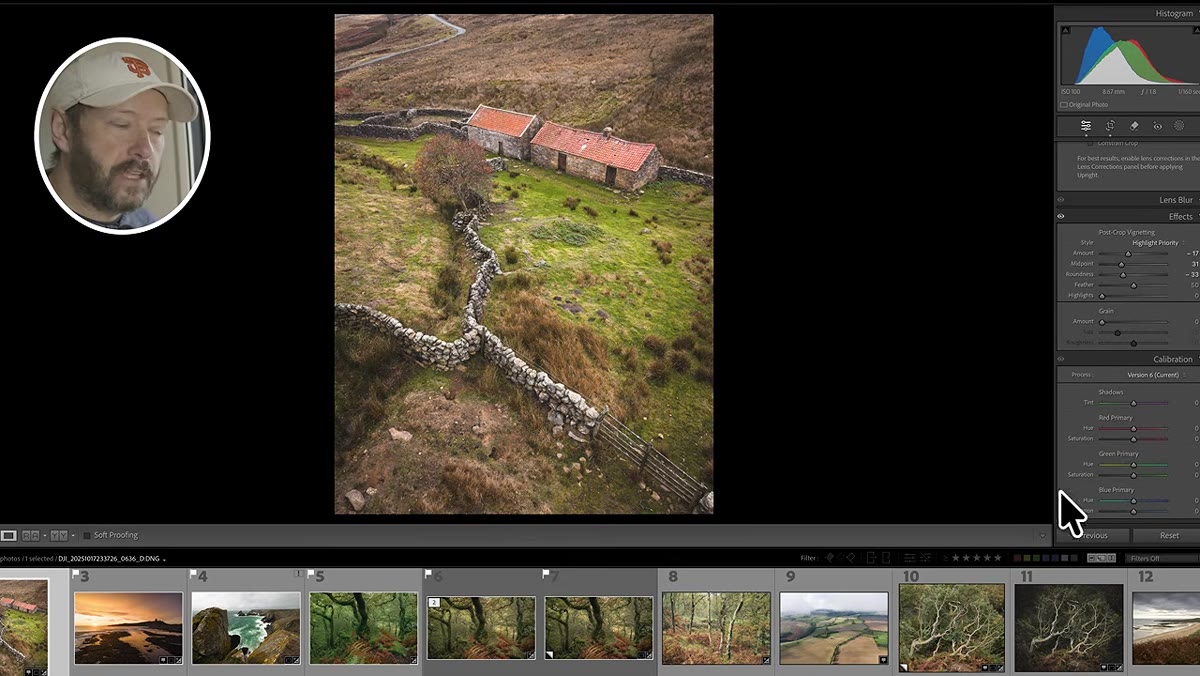 Camera calibration panel with red, green, and blue primary sliders
Danson flags calibration as an underused tool, and he’s right. Most people never scroll down that far. The calibration panel adjusts the underlying red, green, and blue primaries — think of it as changing the base behavior of your camera profile before anything else in the panel stack applies. It’s a global change like white balance, but it works at a deeper level, shifting the actual primary colors your raw file is built from.
Camera calibration panel with red, green, and blue primary sliders
Danson flags calibration as an underused tool, and he’s right. Most people never scroll down that far. The calibration panel adjusts the underlying red, green, and blue primaries — think of it as changing the base behavior of your camera profile before anything else in the panel stack applies. It’s a global change like white balance, but it works at a deeper level, shifting the actual primary colors your raw file is built from.
Danson demonstrates this by moving the blue primary slider on a landscape with almost no blue in it — and still, every pixel shifts. That’s the point. Use calibration when a particular camera’s profile renders a color in a way that consistently bothers you. It’s also useful for creating a distinct base look that feels different from standard profiles without touching any of the creative panels above it.
What I’d Add From My Own Workflow
The order Danson outlines maps closely to how I work, but I’d add one habit: keep a reference image open in a second window while you edit. It’s easy to drift when you’re deep in the color mixer and you’ve been staring at the same photo for 20 minutes. A reference shot — either one of your own that you’re happy with, or a photo whose color palette you admire — keeps you calibrated to an actual target instead of chasing something abstract.
Also, if you’re building a style from scratch, start with calibration and white balance and don’t touch anything else for a few sessions. Get comfortable with how those global tools behave before layering the mixer and color grading on top. You’ll develop better instincts for which tool is actually causing the problem when something looks wrong.
The single most important idea from this tutorial: not all color tools in Lightroom work the same way, and using them without understanding which pixels they affect is like mixing a track without knowing what each fader controls. White balance and calibration change everything. The color mixer works channel by channel. Color grading targets tonal ranges. Know the tool, then use it.
Watch the full tutorial on YouTube — Danson walks through real landscape images with all of these panels open, which makes the before/after comparisons especially clear.
Comments
Leave a Comment