
Every few months I get that nagging feeling that I need to go shoot more. More locations, more golden hours, more memory cards full of raw files. Then I open Lightroom and scroll back six months and realize I’ve been sitting on images that I never actually finished. Not because they weren’t good enough, but because I edited them once, moved on, and let my old color instincts define what they could be.
That’s the exact problem Nigel Danson addresses in this tutorial, and it hit closer to home than I expected. Watch the full tutorial on YouTube - it’s part practical Lightroom walkthrough, part creative philosophy, and entirely worth an hour of your editing time. Danson’s premise is simple: your catalog is a goldmine you haven’t fully mined. The techniques he walks through aren’t just about polish. They’re about seeing your own work differently, which is a harder skill to teach than any slider adjustment.
What I pulled from his tutorial breaks down into a handful of concrete steps. Some of these will feel obvious once you try them. That’s usually how good advice works.
Step 1: Schedule a Catalog Archaeology Session
 Lightroom catalog open, scrolling back through older photos
Before you touch a single slider, give yourself permission to go back as far as you want in your catalog. Danson treats this like a dedicated creative task, not just maintenance. Set aside an hour where your only job is scrolling backward in time through your Lightroom library. You’re not editing yet. You’re scouting.
Lightroom catalog open, scrolling back through older photos
Before you touch a single slider, give yourself permission to go back as far as you want in your catalog. Danson treats this like a dedicated creative task, not just maintenance. Set aside an hour where your only job is scrolling backward in time through your Lightroom library. You’re not editing yet. You’re scouting.
What you’re looking for is images you remember liking in the field but then undersold in post. Sort by capture date and look for folders you haven’t opened since the original cull. Flag anything that triggers a reaction, even if the original edit looks rough. The raw file is still there. The original edit is just one interpretation.
Step 2: Identify Photos Where Your Style Has Outgrown Your Edit
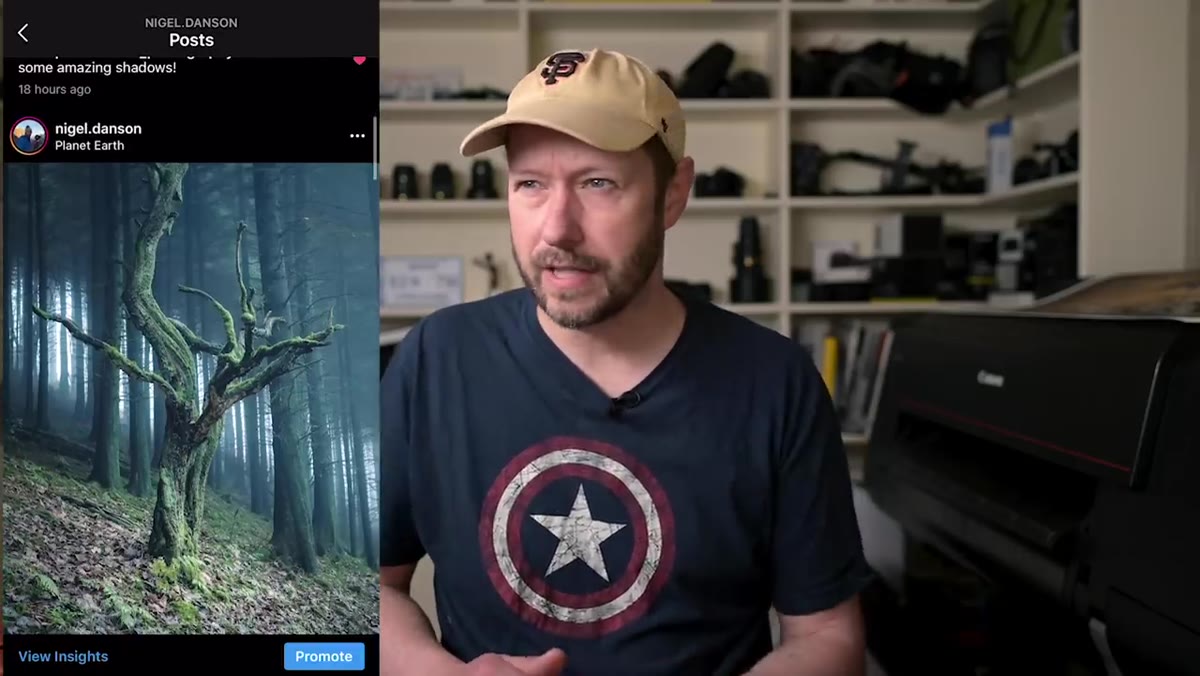 Side-by-side comparison of original vs. re-edited tree photo
Danson shows a tree photo he shot a few years earlier, and the before/after comparison is instructive. The original edit wasn’t bad. It was just the version of his eye from that moment in time. The re-edit shifts the image into something cooler and more atmospheric, with a deliberate blue tone that makes the background light feel isolated and intentional. The green in the original read as vibrant. In the re-edit, that same scene reads as cinematic.
Side-by-side comparison of original vs. re-edited tree photo
Danson shows a tree photo he shot a few years earlier, and the before/after comparison is instructive. The original edit wasn’t bad. It was just the version of his eye from that moment in time. The re-edit shifts the image into something cooler and more atmospheric, with a deliberate blue tone that makes the background light feel isolated and intentional. The green in the original read as vibrant. In the re-edit, that same scene reads as cinematic.
Ask yourself this when scanning old edits: does the mood of this image match what I actually felt standing there? If the answer is no, that’s your signal. Your current editing instincts might get closer to the truth than your original pass did. Pull those images into a “re-edit” collection and treat them like fresh shoots.
Step 3: Push the Tone in One Clear Direction
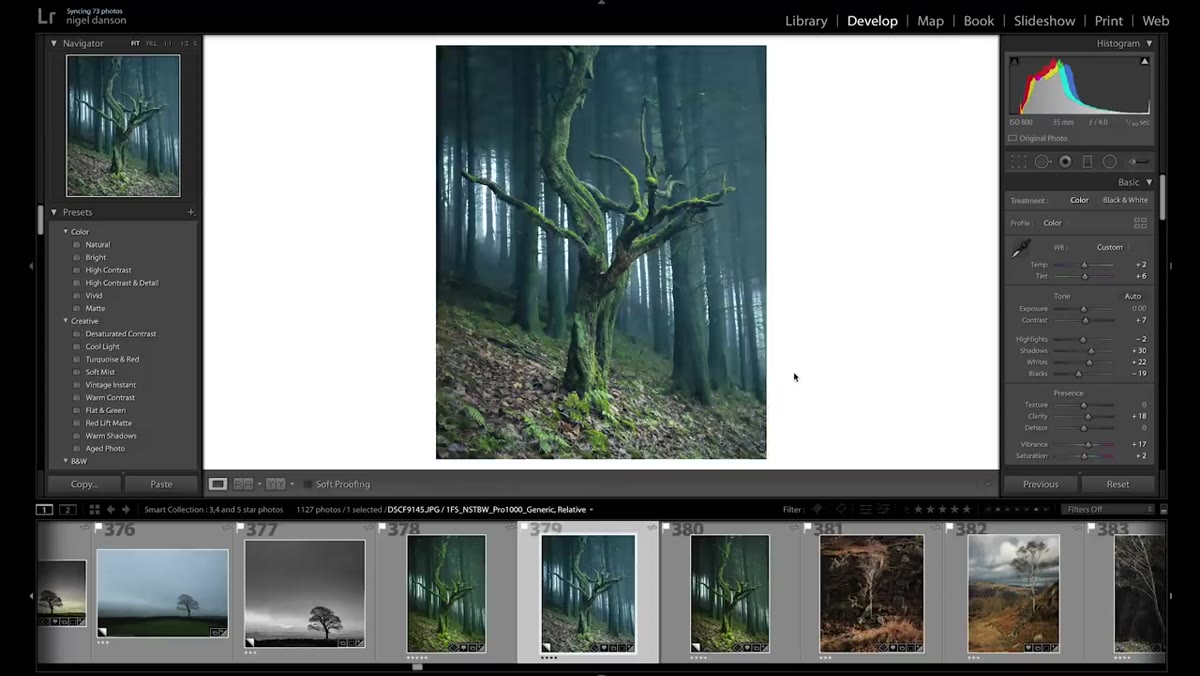 Color temperature and HSL sliders being adjusted for blue-toned edit
This is where Danson gets specific, and it’s worth paying attention to. When he re-edits the tree photo, he doesn’t try to make it look like a different scene. He picks one tonal direction and commits. In this case, that’s a cooler, more moody blue-green palette. He pulls warmth out of the image, brings the exposure down slightly, and uses the blue shift to redirect the viewer’s eye toward the light source in the background.
Color temperature and HSL sliders being adjusted for blue-toned edit
This is where Danson gets specific, and it’s worth paying attention to. When he re-edits the tree photo, he doesn’t try to make it look like a different scene. He picks one tonal direction and commits. In this case, that’s a cooler, more moody blue-green palette. He pulls warmth out of the image, brings the exposure down slightly, and uses the blue shift to redirect the viewer’s eye toward the light source in the background.
In practice: open the Color Grading panel and push your shadows toward a single cool or warm hue. Then check your white balance. If you’re going for a moody, cooler feel, drop your color temperature into the 4000-5000K range and add a touch of green on the tint slider. The goal isn’t to create a dramatic preset effect. It’s to give the image an emotional temperature that matches the story you’re trying to tell. Danson drops his exposure slightly at the end of the re-edit, almost as a final note, to bring the whole thing into balance. That last small adjustment often makes the biggest difference.
Step 4: Re-Evaluate Composition With a Fresh Crop
 Crop tool active in Lightroom, reframing a landscape image
A re-edit isn’t only about color. Danson points out that the crop tool is one of the most underused second-pass tools in Lightroom. When you first edit an image, you’re usually cropping to match what you saw in the viewfinder. Come back six months later and you might see a stronger composition hiding inside the original frame.
Crop tool active in Lightroom, reframing a landscape image
A re-edit isn’t only about color. Danson points out that the crop tool is one of the most underused second-pass tools in Lightroom. When you first edit an image, you’re usually cropping to match what you saw in the viewfinder. Come back six months later and you might see a stronger composition hiding inside the original frame.
Open the crop overlay and try a few things: tighten toward a square, try a cinematic 16:9 ratio, or deliberately break the rule of thirds to put your subject dead center. The landscape photography world tends to be conservative with crops, but competition-worthy images often have compositional confidence. They commit to a perspective. The crop tool lets you find that commitment after the fact, without touching the original raw file.
Step 5: Build Small Sets, Not Just Single Images
 Multiple re-edited images shown together as a cohesive collection
One of the most quietly useful ideas in Danson’s tutorial is the suggestion to group re-edited photos into sets. Instead of re-editing one image and posting it on its own, pull five images from the same shoot or the same season and edit them all in the same color direction. The consistency makes each individual image stronger because the viewer experiences a world, not just a moment.
Multiple re-edited images shown together as a cohesive collection
One of the most quietly useful ideas in Danson’s tutorial is the suggestion to group re-edited photos into sets. Instead of re-editing one image and posting it on its own, pull five images from the same shoot or the same season and edit them all in the same color direction. The consistency makes each individual image stronger because the viewer experiences a world, not just a moment.
In Lightroom, create a Quick Collection or a regular collection called something like “Re-edit Set 01” and drop your candidates in there. Then sync your white balance, tone curve, and color grading adjustments across all five using Sync Settings. Choose one image as your reference edit, then sync selectively, keeping exposure and highlights separate since those will vary per image, but syncing color temperature, HSL, and color grading across the whole set.
Step 6: Apply the “Does It Stand Out in Three Seconds?” Test
 Grid view in Lightroom showing multiple thumbnails for visual comparison
Danson frames this specifically around competition photography, but it applies to anything you publish. Shrink your image down to thumbnail size in Lightroom’s grid view and glance at it alongside your other recent work. If it disappears into the grid, it’s not ready. If something about it pulls your eye even at that scale, whether it’s the light, the color, the geometry, you’re onto something.
Grid view in Lightroom showing multiple thumbnails for visual comparison
Danson frames this specifically around competition photography, but it applies to anything you publish. Shrink your image down to thumbnail size in Lightroom’s grid view and glance at it alongside your other recent work. If it disappears into the grid, it’s not ready. If something about it pulls your eye even at that scale, whether it’s the light, the color, the geometry, you’re onto something.
Competition judges and Instagram scrollers are doing the same thing. They’re moving fast. An image earns attention by having one clear visual anchor: a light source, a strong diagonal, an unexpected color relationship, an unusual perspective. Go back to your re-edits and ask what the single strongest element is in each one. If you can’t name it immediately, the edit might need more work, or a tighter crop, or a more committed color push.
What I’d Add From My Own Workflow
Danson doesn’t go deep into preset use in this particular tutorial, and that’s where I’d extend his approach. When I do a catalog archaeology session, I treat it as preset-testing time. I’ll take a batch of old images and run through three or four of my go-to color grading presets to see which one sparks something. Sometimes a preset I built for one type of landscape completely transforms how a different type of image reads. That unexpected combination is often where the most interesting re-edits come from. The preset is just a starting point, but it moves you off the original edit’s logic faster than manually adjusting from scratch.
The core lesson from Danson’s tutorial is one I come back to more than almost anything else in editing: the raw file doesn’t have a definitive version. What you made the first time was just your first attempt. Going back with better instincts, or a clearer creative direction, is not admitting the original was a failure. It’s finishing the work.
Watch the full tutorial on YouTube for Danson’s visual walkthrough and the full competition context. The underlying workflow is one you can start using in your catalog tonight.
Comments
Leave a Comment