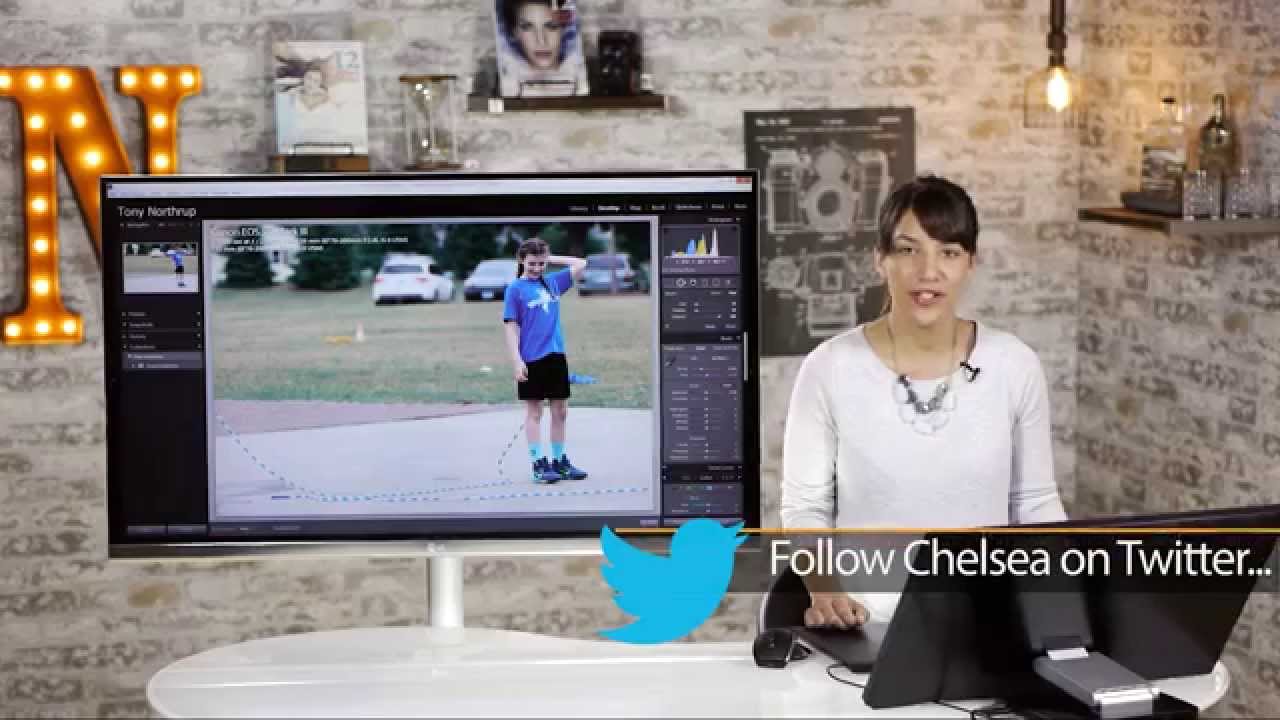
There’s a specific kind of frustration that hits when you nail the shot - great light, great expression, great moment - and then you open it in Lightroom and see it. A traffic cone. A random stranger’s blue shirt bleeding into your subject’s legs. Some piece of visual noise that the camera had absolutely no interest in ignoring. I’ve been there more times than I’d like to admit, and for a long time my solution was to crop aggressively and hope nobody noticed. That was the wrong move.
Watch the full tutorial on YouTube
In this Tony and Chelsea Northrup tutorial, Chelsea walks through exactly how to handle these situations using the clone, heal, and content-aware fill tools across both Lightroom and Photoshop. What I appreciate about her approach is that she doesn’t pretend these tools are magic. She shows you where Lightroom holds up, where it starts fighting you, and when it’s time to stop wrestling with it and move over to Photoshop. That’s honest teaching, and it matches what I’ve experienced in my own workflow. Let me break it down step by step so you can follow along even without watching first.
Step 1: Open the Healing Tool in Lightroom
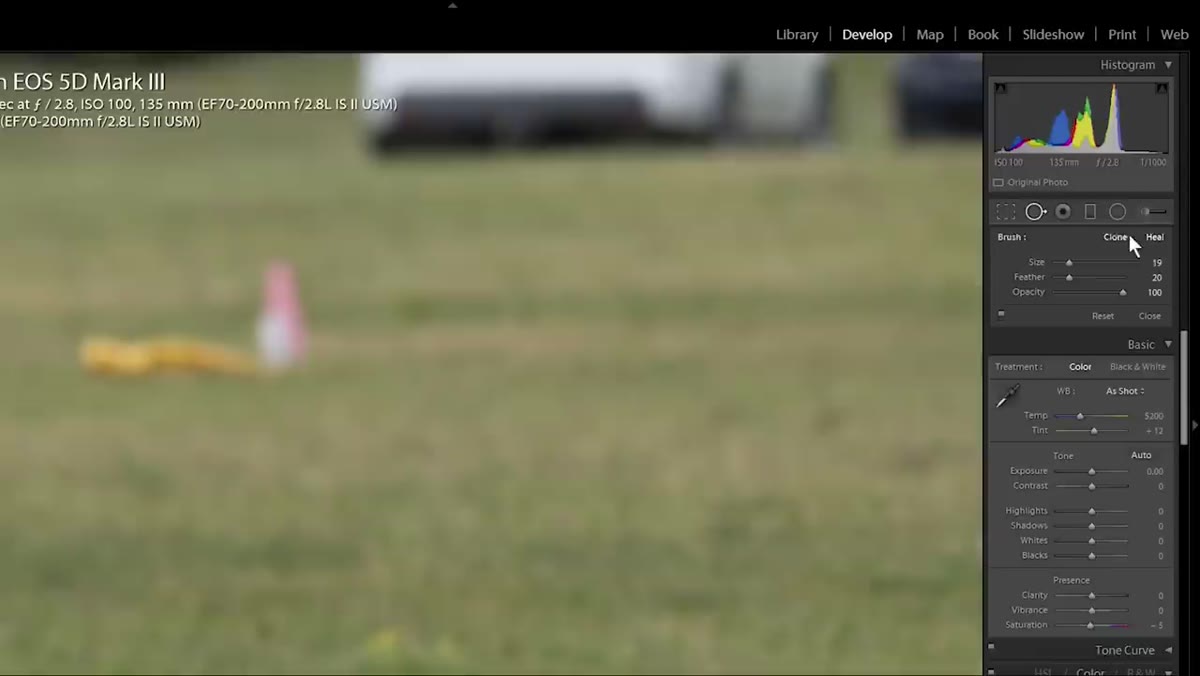 Selecting the healing tool in Lightroom’s toolbar
Start in Lightroom’s develop module and select the Healing tool from the toolbar. For straightforward distractions sitting cleanly in the background - things that aren’t overlapping your subject - this tool is often all you need. Set opacity to 100%. You want full coverage on the first pass rather than layering semi-transparent patches that compound into a muddy mess.
Selecting the healing tool in Lightroom’s toolbar
Start in Lightroom’s develop module and select the Healing tool from the toolbar. For straightforward distractions sitting cleanly in the background - things that aren’t overlapping your subject - this tool is often all you need. Set opacity to 100%. You want full coverage on the first pass rather than layering semi-transparent patches that compound into a muddy mess.
Before you paint, think about the texture of the area you’re fixing. The Healing tool samples tone, texture, and light from a nearby region and blends it into your target. If you’re working on fabric, grass, or pavement, it handles that blend intelligently. Just make sure the sample source it chooses (shown as a separate pin) is pulling from a region with matching texture and lighting direction.
Step 2: Paint Over the Distracting Element
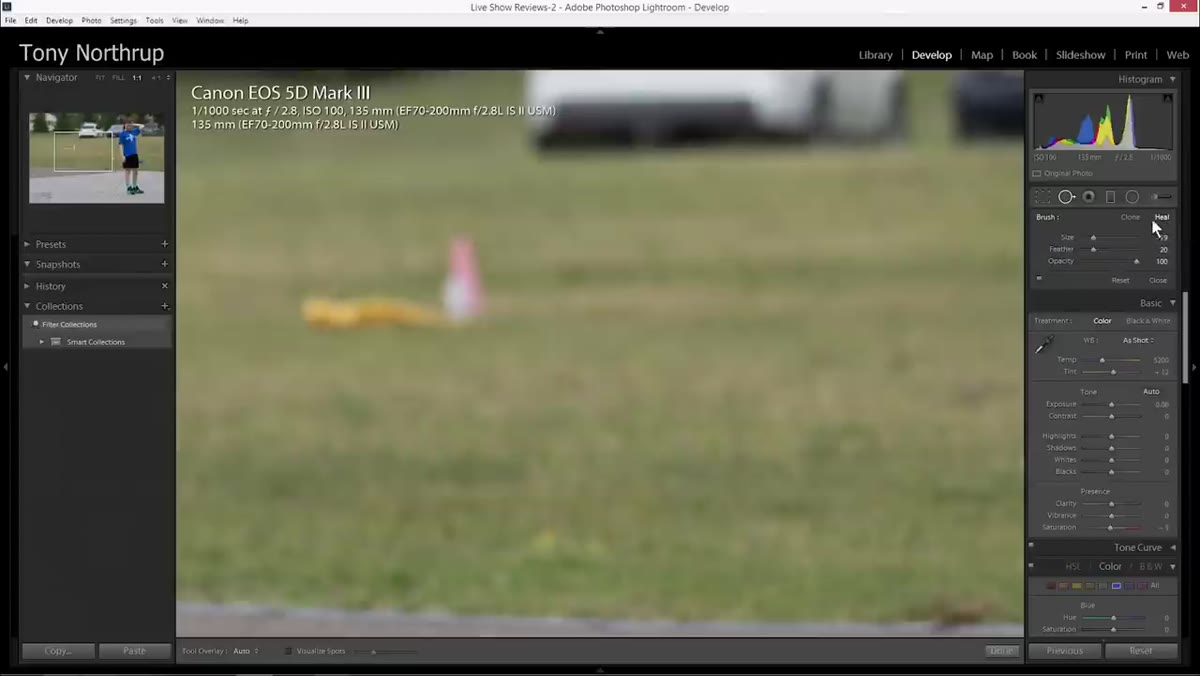 Brushing over a traffic cone on a yellow shirt
Drag your brush over the object you want to remove. You don’t need to be pixel-perfect at this stage - paint slightly inside the boundaries of the distraction rather than going wide. After you release, Lightroom will automatically place a source pin somewhere nearby. Look at both the green source circle and the yellow destination circle to evaluate whether the match makes sense visually.
Brushing over a traffic cone on a yellow shirt
Drag your brush over the object you want to remove. You don’t need to be pixel-perfect at this stage - paint slightly inside the boundaries of the distraction rather than going wide. After you release, Lightroom will automatically place a source pin somewhere nearby. Look at both the green source circle and the yellow destination circle to evaluate whether the match makes sense visually.
Adjust feathering to soften the transition between the healed area and the surrounding image. A little feathering goes a long way, especially on smooth surfaces like clothing or skin. Too much and it looks blurry. Too little and you get hard edges that read as obvious cloning to any trained eye.
Step 3: Manually Reposition the Source Pin When Needed
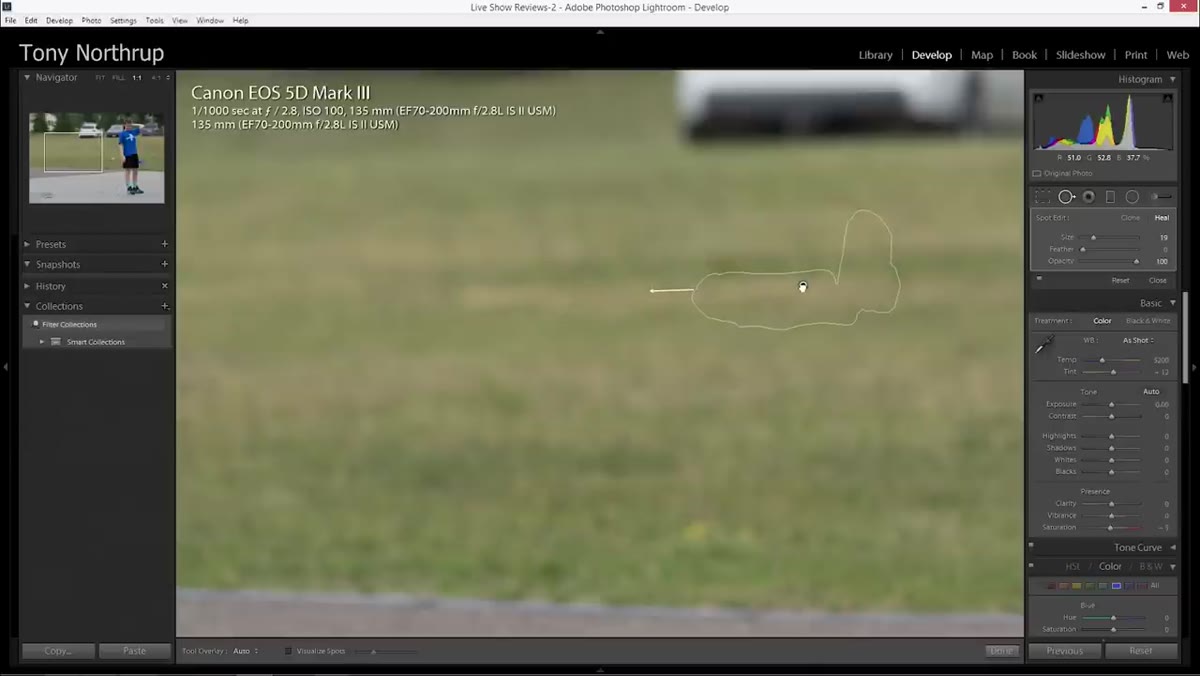 Dragging the source pin to a better matching area
Lightroom’s automatic source selection is useful but imperfect. When it places the source pin in a spot that doesn’t match - wrong texture, wrong brightness, wrong pattern direction - drag it manually to a better location. This is especially important when the area you’re healing has directional elements like fabric weave, hair, or architectural lines. Pulling from a region where those lines run in a different direction will create a visible seam even if the tones match.
Dragging the source pin to a better matching area
Lightroom’s automatic source selection is useful but imperfect. When it places the source pin in a spot that doesn’t match - wrong texture, wrong brightness, wrong pattern direction - drag it manually to a better location. This is especially important when the area you’re healing has directional elements like fabric weave, hair, or architectural lines. Pulling from a region where those lines run in a different direction will create a visible seam even if the tones match.
This step is where a lot of beginners skip over. They accept Lightroom’s first guess and wonder why their result looks off. The drag-and-place correction takes five seconds and makes the difference between a clean retouch and one that draws the eye exactly where you didn’t want it.
Step 4: Switch to the Clone Tool for Edges Near Your Subject
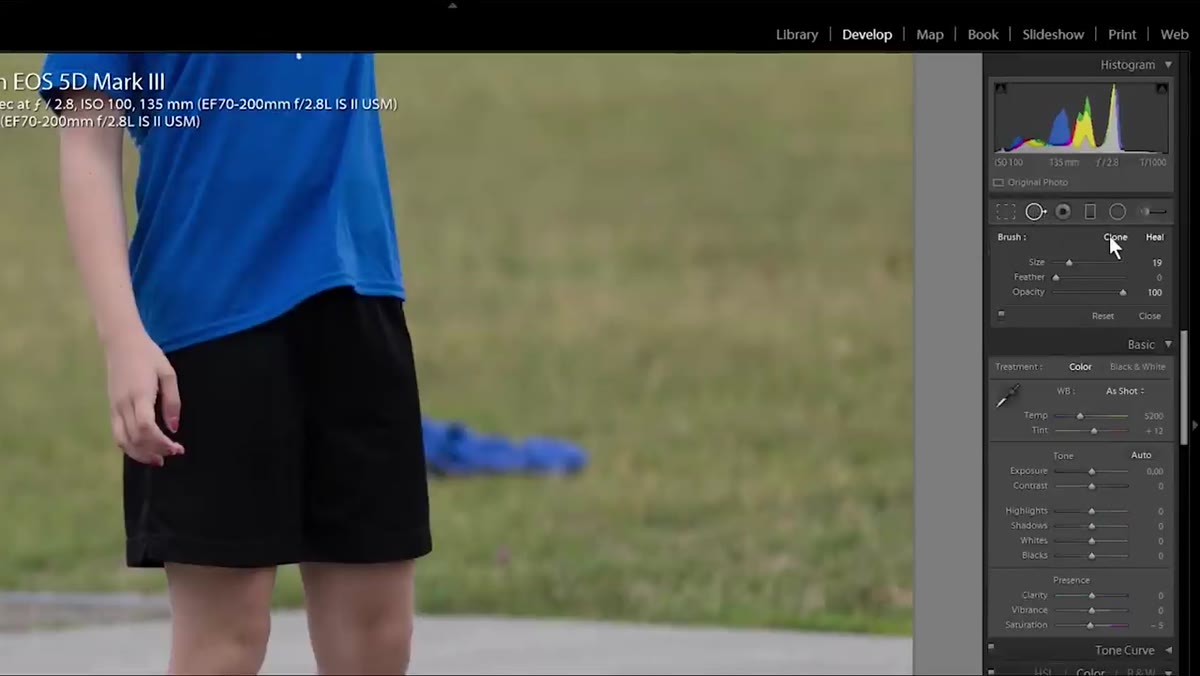 Clone tool selected with a small brush near a subject’s leg
When a distraction overlaps or sits immediately adjacent to your subject, the Healing tool starts to struggle. It blends surrounding pixels into your patch, and when “surrounding pixels” includes part of your subject, the result gets muddy fast. This is where you switch to the Clone tool.
Clone tool selected with a small brush near a subject’s leg
When a distraction overlaps or sits immediately adjacent to your subject, the Healing tool starts to struggle. It blends surrounding pixels into your patch, and when “surrounding pixels” includes part of your subject, the result gets muddy fast. This is where you switch to the Clone tool.
Reduce your brush size significantly and bring feathering down to near zero. You want precision here, not a soft blend. The Clone tool copies the source area exactly - no tone blending, no texture merging - which lets you work right up to the edge of a limb or garment without contaminating it. It’s less forgiving than Heal, but it gives you control.
Step 5: Use Heal to Soften the Clone’s Hard Edges
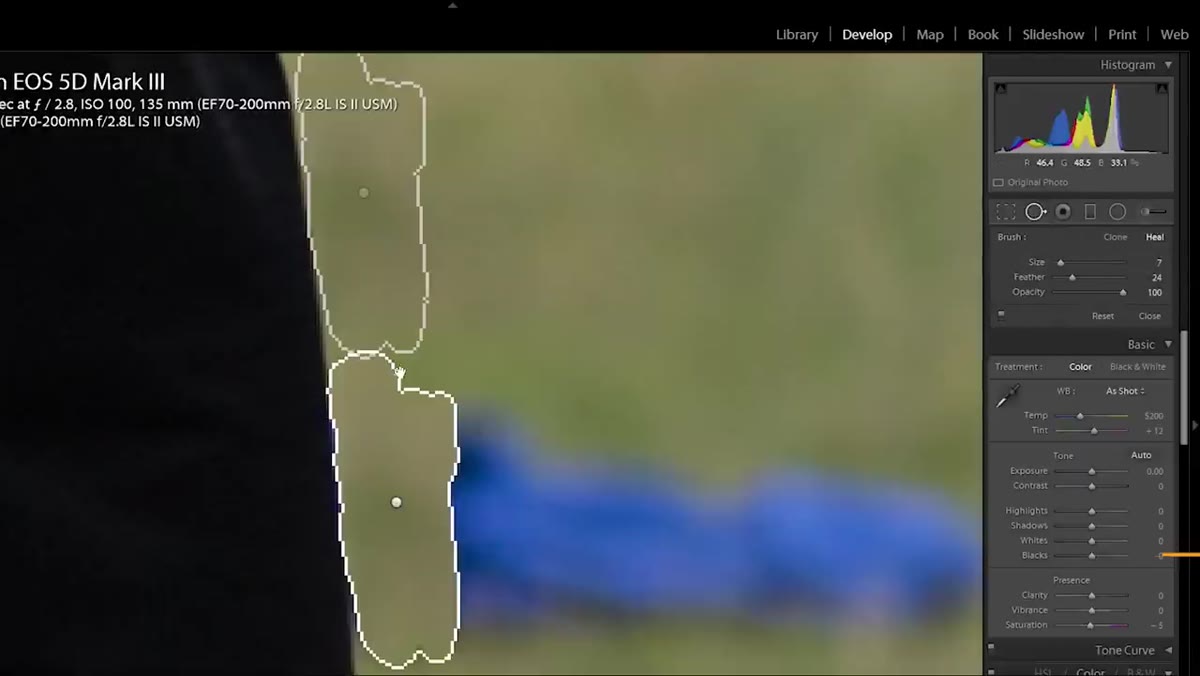 Healing brush tracing the edge of a cloned patch
A clean clone still leaves hard edges where the copied region meets the surrounding image. To fix this, switch back to the Healing tool with a small brush and trace lightly along those edges. This softens the transition without disturbing the core patch you just laid down with the Clone tool.
Healing brush tracing the edge of a cloned patch
A clean clone still leaves hard edges where the copied region meets the surrounding image. To fix this, switch back to the Healing tool with a small brush and trace lightly along those edges. This softens the transition without disturbing the core patch you just laid down with the Clone tool.
Think of Clone and Heal as a one-two combination rather than competing options. Clone handles the structure, Heal handles the finish. Used together, they cover most background removal scenarios in Lightroom without ever touching Photoshop.
Step 6: Recognize When Lightroom Is Done and Photoshop Begins
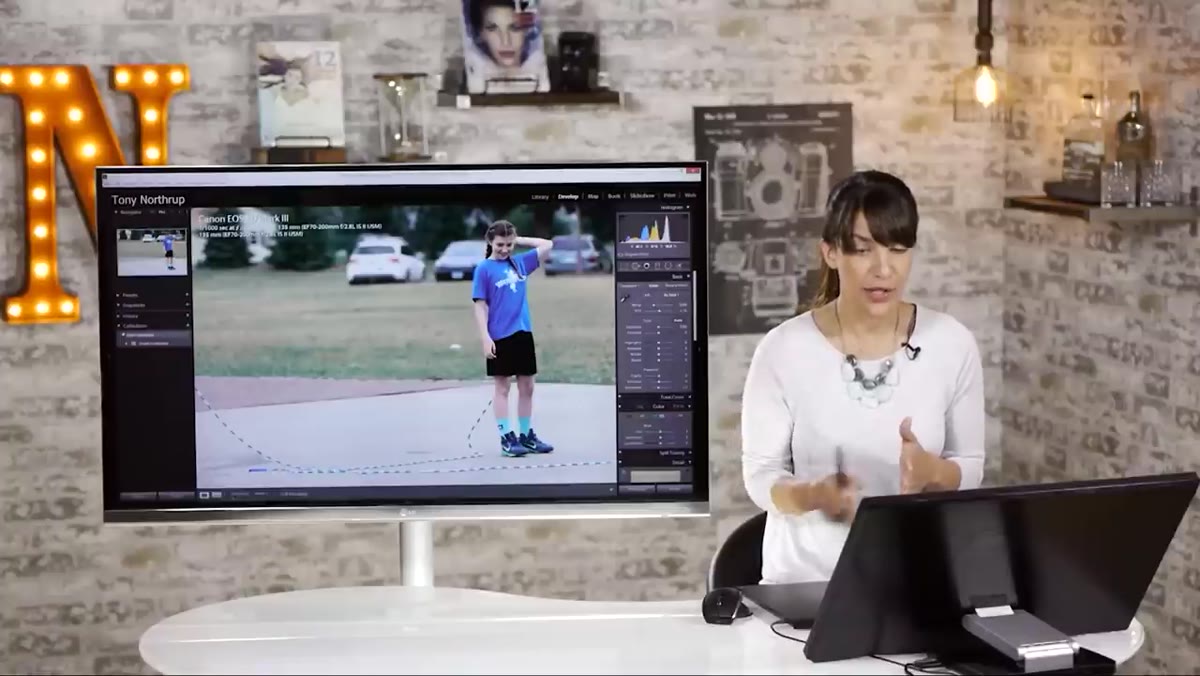 Transferring the photo from Lightroom to Photoshop
Here’s the honest part of Chelsea’s tutorial, and it resonates with my experience: Lightroom’s retouching tools are good enough for isolated, simple objects. The moment you’re dealing with complex overlaps, high-detail edges, or large areas that need to be filled with convincing background content, Lightroom becomes a frustrating exercise in diminishing returns. Multiple clone layers start interacting with each other in unpredictable ways. You undo, redo, drag pins around, and still end up with something that looks worked-over.
Transferring the photo from Lightroom to Photoshop
Here’s the honest part of Chelsea’s tutorial, and it resonates with my experience: Lightroom’s retouching tools are good enough for isolated, simple objects. The moment you’re dealing with complex overlaps, high-detail edges, or large areas that need to be filled with convincing background content, Lightroom becomes a frustrating exercise in diminishing returns. Multiple clone layers start interacting with each other in unpredictable ways. You undo, redo, drag pins around, and still end up with something that looks worked-over.
When that happens, send the file to Photoshop. Right-click the image in Lightroom, choose Edit In, and open it in Photoshop as a TIFF or PSD. You’ll pick up the walkthrough there with access to content-aware fill, which operates at a completely different level of sophistication. It’s not a failure to leave Lightroom. It’s knowing which tool belongs to which job.
A Note from My Own Workflow
I’ve found that the moment you start re-doing a healing patch more than twice, it’s time to stop and go to Photoshop. Lightroom’s tools don’t compound well. Every additional brush stroke introduces a new source pin, and managing five or six of them while trying to maintain a coherent look across a patched area gets unwieldy fast. For anything larger than a golf-ball-sized object, or anything touching a person, Photoshop’s content-aware approach saves real time.
The other thing I’d add: zoom out to 1:1 or smaller when you evaluate your work, not when you’re doing it. It’s easy to get lost at high zoom and chase artifacts that are invisible at normal viewing distance. Do your work zoomed in, then pull back and judge. You’ll make better decisions about when something is actually done.
The single biggest takeaway from Chelsea’s tutorial is that these tools have a clear hierarchy for a reason. Heal handles simple background noise. Clone handles edges near subjects. Photoshop handles everything that fights you in Lightroom. Know which rung of the ladder you’re on and you’ll stop wasting time on the wrong tool.
Watch the full tutorial on YouTube to see Chelsea walk through the complete Photoshop content-aware fill section, which picks up right where this Lightroom walkthrough ends.
Comments
Leave a Comment