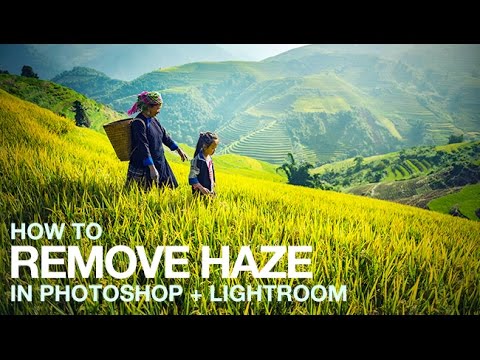
Nashville gets hazy in summer. Not San Francisco fog hazy, but that thick, humid, heat-shimmer haze that settles into the hills and wrecks the background of an otherwise solid landscape shot. I used to just live with it, nudging Clarity and Contrast sliders until I got something passable. Then I found the Dehaze tool and felt mildly embarrassed about all those hours I’d wasted. If you shoot outdoors at all, whether it’s landscapes, portraits in open fields, or cityscapes, atmospheric haze is quietly degrading your images and you might not even realize how much until you see what removing it does.
In this Aaron Nace (PHLEARN) tutorial, the whole process gets laid out clearly for both Lightroom and Photoshop. Watch the full tutorial on YouTube - it’s short and worth your time. What I want to do here is walk through every step in enough detail that you can follow along without pausing the video every thirty seconds, and add a few things I’ve picked up from using this tool on real client work.
Step 1: Open Your Image in Lightroom’s Develop Module
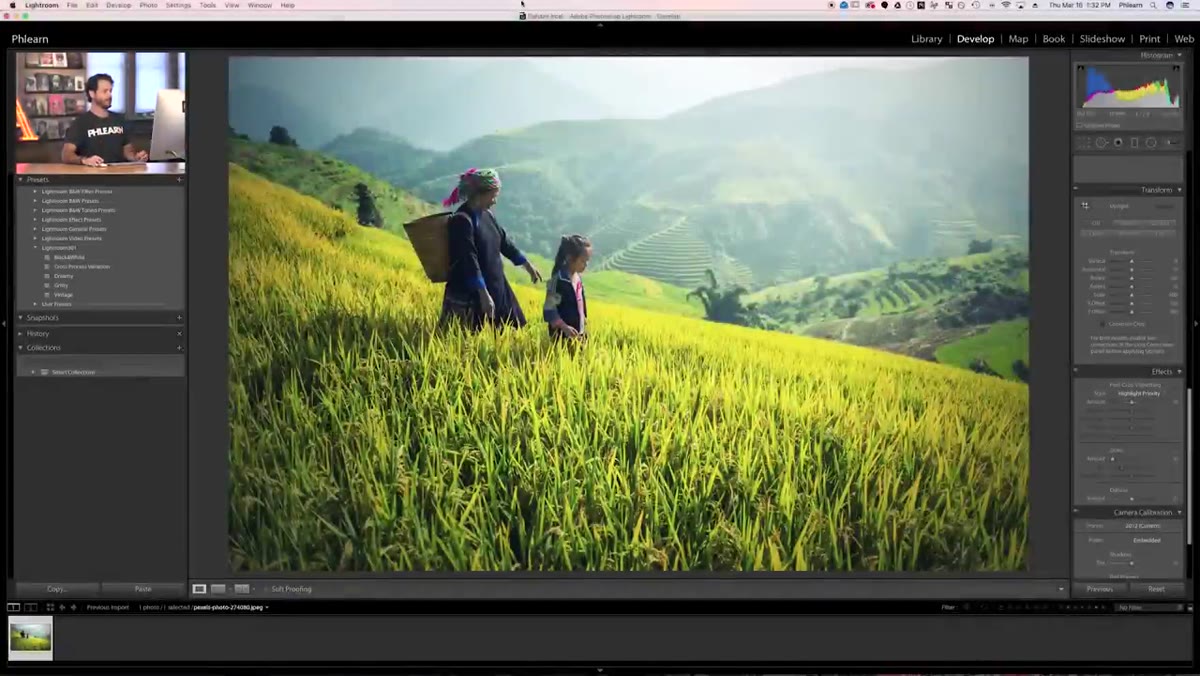 Lightroom Library module with hazy outdoor image selected
Start in the Library module, where your photos live. Click on the image you want to work with, then switch to the Develop module using the tabs at the top right of the screen. This is your editing workspace in Lightroom, where all the sliders and panels live. If you’re new to Lightroom’s layout, think of the Library as your filing cabinet and the Develop module as your darkroom.
Lightroom Library module with hazy outdoor image selected
Start in the Library module, where your photos live. Click on the image you want to work with, then switch to the Develop module using the tabs at the top right of the screen. This is your editing workspace in Lightroom, where all the sliders and panels live. If you’re new to Lightroom’s layout, think of the Library as your filing cabinet and the Develop module as your darkroom.
Once you’re in Develop, you’ll see the Basic panel open by default on the right side. Leave that alone for now. You’re going to need to scroll past it.
Step 2: Scroll Down to the Effects Panel
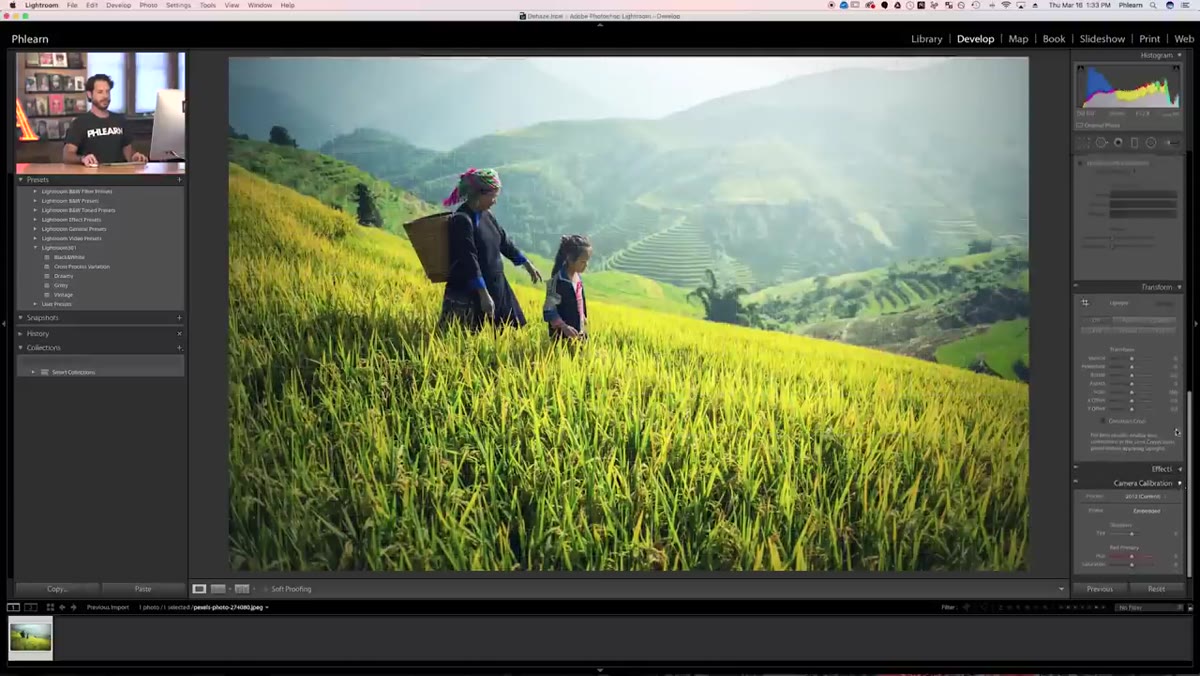 Develop module right panel with Effects tab visible near bottom
This is where a lot of people get lost. The Dehaze slider is not in the Basic panel with Exposure, Contrast, and Highlights. It’s tucked inside the Effects panel, which sits near the bottom of the right-hand panel stack. Scroll down past HSL, Color Grading, Detail, and Lens Corrections until you see the Effects tab. Click to expand it if it’s collapsed.
Develop module right panel with Effects tab visible near bottom
This is where a lot of people get lost. The Dehaze slider is not in the Basic panel with Exposure, Contrast, and Highlights. It’s tucked inside the Effects panel, which sits near the bottom of the right-hand panel stack. Scroll down past HSL, Color Grading, Detail, and Lens Corrections until you see the Effects tab. Click to expand it if it’s collapsed.
At the bottom of the Effects panel you’ll find Dehaze. It’s a single horizontal slider. Center is zero, left adds haze, right removes it. The tool is deceptively simple looking, but don’t underestimate what it’s actually doing - it’s analyzing the image for low-contrast, washed-out areas and recovering the tonal depth underneath them.
Step 3: Apply the Dehaze Slider
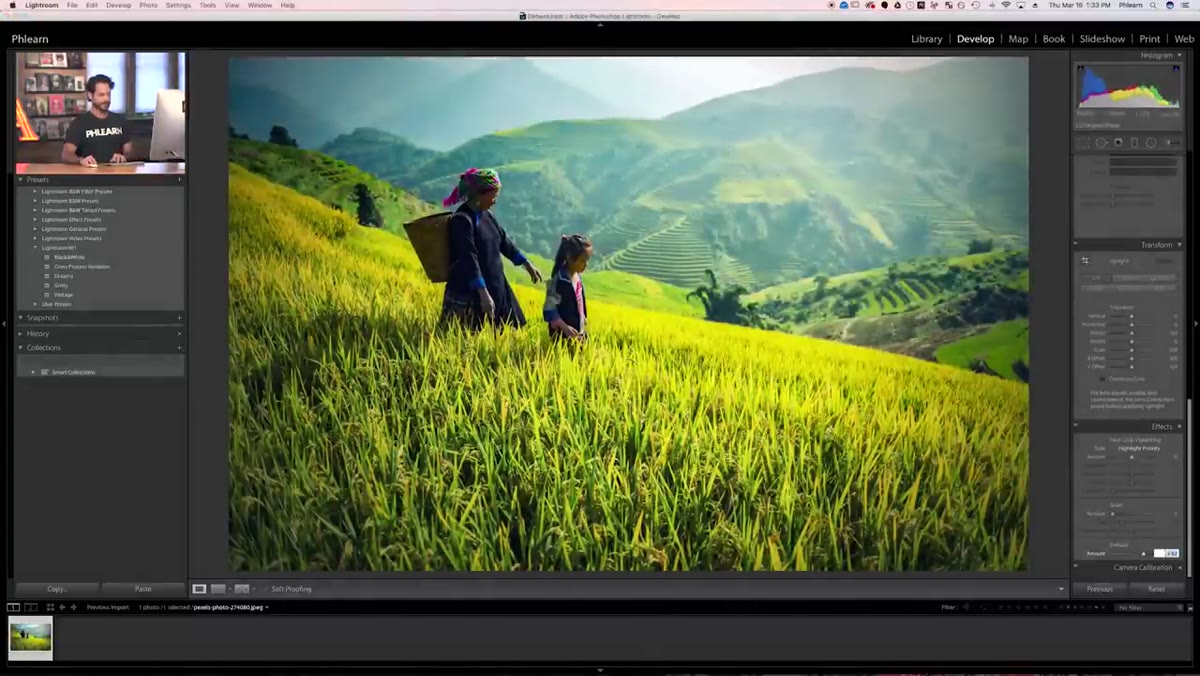 Dehaze slider being dragged right, background clearing in photo
Drag the Dehaze slider to the right. Even a modest push - somewhere between 20 and 50 - makes a visible difference on most hazy images. You’ll watch the background of your photo gain definition and color depth almost immediately. Mountains, treelines, buildings in the distance, anything that was hiding behind that atmospheric veil starts to emerge.
Dehaze slider being dragged right, background clearing in photo
Drag the Dehaze slider to the right. Even a modest push - somewhere between 20 and 50 - makes a visible difference on most hazy images. You’ll watch the background of your photo gain definition and color depth almost immediately. Mountains, treelines, buildings in the distance, anything that was hiding behind that atmospheric veil starts to emerge.
One thing to watch: Dehaze affects the whole image, not just the background. If you push it hard, your foreground subjects will get darker and more saturated too. That’s not always wrong, but it’s something to manage rather than ignore.
Step 4: Compensate with the Shadows Slider
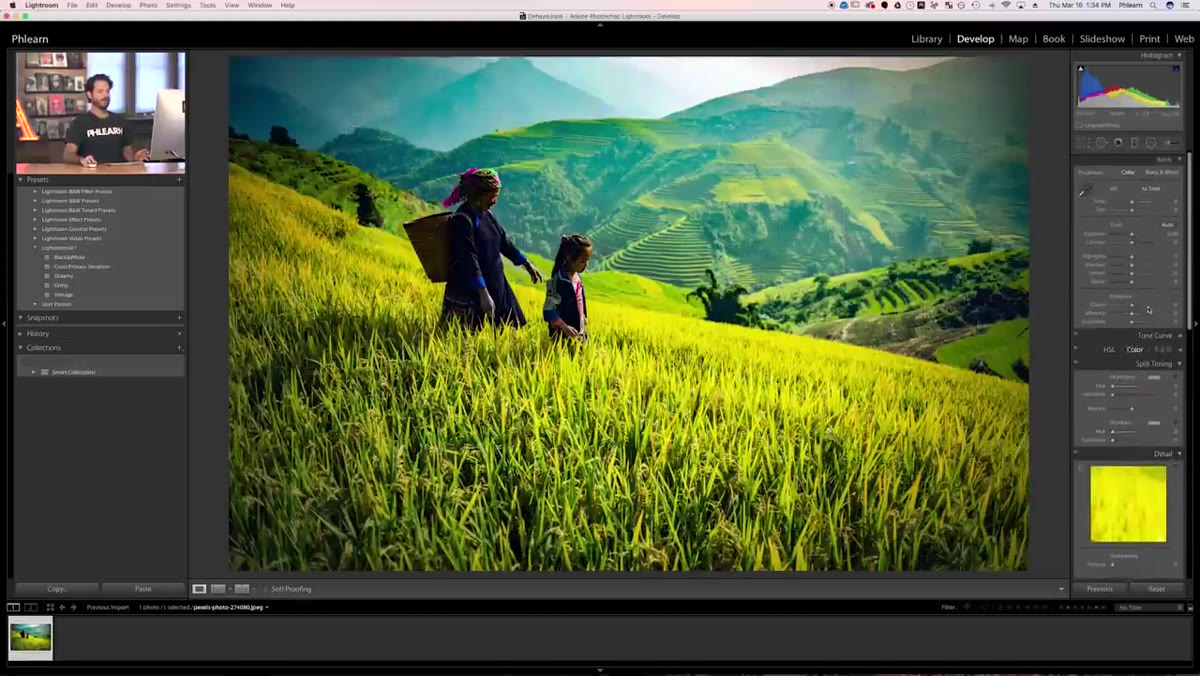 Shadows slider being raised to recover subject brightness
After applying Dehaze, scroll back up to the Basic panel and check your Shadows slider. Because Dehaze increases contrast globally, it tends to pull darker areas of the image down further. If your main subject is in shadow or mid-tone, they’ll likely look underexposed now compared to the newly punchy background.
Shadows slider being raised to recover subject brightness
After applying Dehaze, scroll back up to the Basic panel and check your Shadows slider. Because Dehaze increases contrast globally, it tends to pull darker areas of the image down further. If your main subject is in shadow or mid-tone, they’ll likely look underexposed now compared to the newly punchy background.
Lift the Shadows slider until your subject looks naturally exposed again. You’re not fighting the Dehaze effect here, you’re just balancing it. Think of it the same way you’d balance Clarity with a Highlights pull - one tool’s side effect becomes another tool’s job to clean up. A value somewhere between +20 and +50 on Shadows usually handles it, but trust your eyes over any number.
Step 5: Switch to Photoshop and Duplicate Your Layer
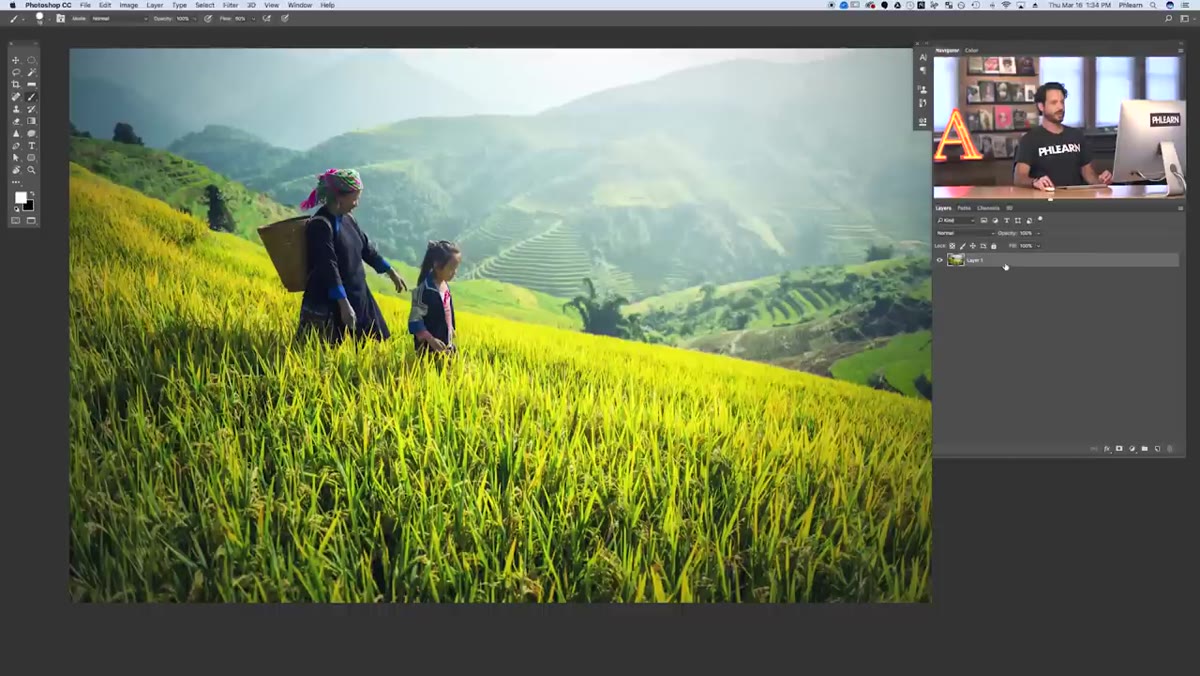 Layer panel showing original layer being dragged to New Layer icon
If you’re working in Photoshop instead of Lightroom, the Dehaze tool is not where you’d expect it. It’s not under the Filter menu next to Blur or Sharpen. Before you go digging, first duplicate your layer. Drag it to the New Layer icon at the bottom of the Layers panel. This gives you a non-destructive backup - a habit worth keeping no matter what kind of edit you’re doing.
Layer panel showing original layer being dragged to New Layer icon
If you’re working in Photoshop instead of Lightroom, the Dehaze tool is not where you’d expect it. It’s not under the Filter menu next to Blur or Sharpen. Before you go digging, first duplicate your layer. Drag it to the New Layer icon at the bottom of the Layers panel. This gives you a non-destructive backup - a habit worth keeping no matter what kind of edit you’re doing.
Working on a duplicate means if the dehaze result looks off, you can simply delete that layer and start again without touching your original pixels. It takes three seconds and saves you from a lot of undo-scrambling.
Step 6: Open the Camera Raw Filter
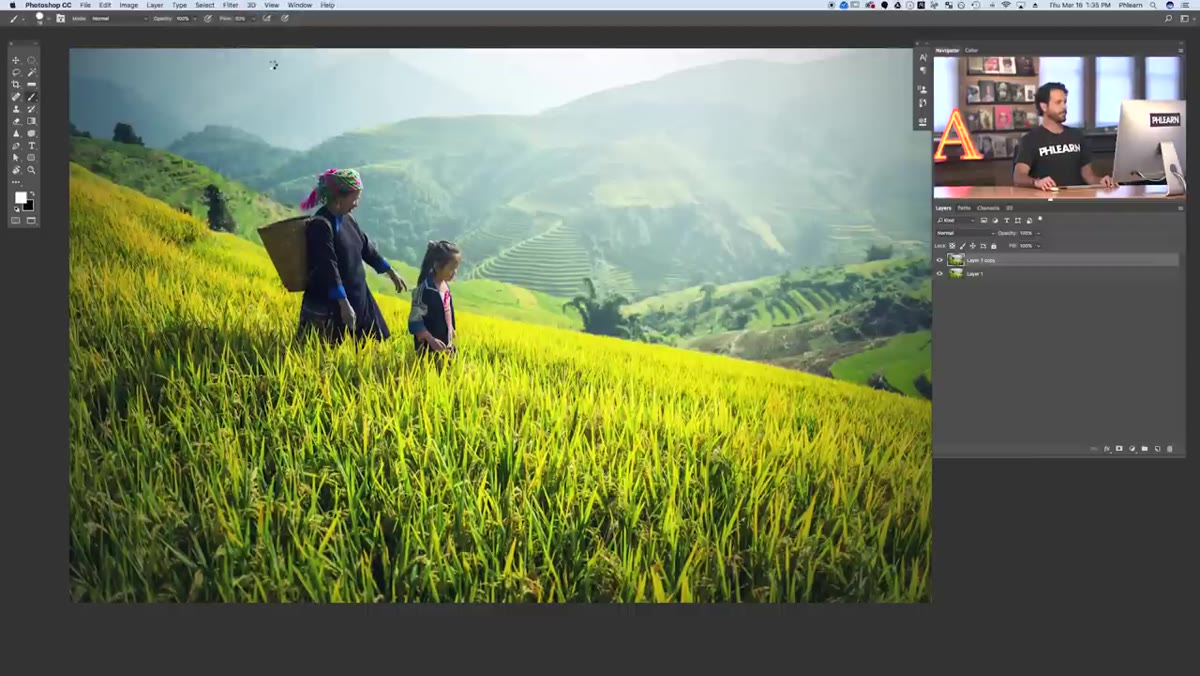 Filter menu open with Camera Raw Filter highlighted
With your duplicate layer selected, go to Filter in the top menu bar, then scroll down to Camera Raw Filter. This opens a full Lightroom-style editing interface directly inside Photoshop. A lot of photographers don’t realize this exists, and that’s a genuine shame because it’s powerful.
Filter menu open with Camera Raw Filter highlighted
With your duplicate layer selected, go to Filter in the top menu bar, then scroll down to Camera Raw Filter. This opens a full Lightroom-style editing interface directly inside Photoshop. A lot of photographers don’t realize this exists, and that’s a genuine shame because it’s powerful.
The Camera Raw Filter gives you the same sliders you’d find in Lightroom’s Develop module: Exposure, Contrast, Highlights, Shadows, and yes, Dehaze. It doesn’t have Lightroom’s cataloging or organizational features, but for pure editing capability, it’s essentially the same engine. Once the panel opens, find the Effects section - same location as in Lightroom - and you’ll find the Dehaze slider waiting there.
My Take: Dehaze Is a Starting Point, Not a Finish Line
I use Dehaze regularly, but I’ve learned to treat it as the first move in a sequence rather than the whole edit. On its own, aggressive Dehaze can make an image look overcooked - too much contrast, colors that push into oversaturation territory. What I usually do is apply a moderate Dehaze, then go back into the HSL panel and cool down any colors that went too warm or too vivid in the process. Blues and greens in landscapes especially tend to get a little loud.
One workflow I’ve settled into for portrait work outdoors: Dehaze at around 30, Shadows up by 25 to 40, then a slight Temp pull toward cool to balance the added warmth. It’s become almost its own preset in my head - I’ve been tempted to formalize it, name it after a Wilco song, and add it to my next preset pack.
The single most important thing to take away from this technique: don’t leave your Shadow and Highlight adjustments untouched after applying Dehaze. The slider does its job on the haze, but it doesn’t know what your subject is supposed to look like. That part is still yours to handle.
Watch the full tutorial on YouTube to see Aaron walk through the before and after in real time - seeing the haze lift on a real image is a good reminder of how much clarity you can recover from a shot you might have otherwise written off.
Comments
Leave a Comment