
Every time I sit down to edit a new batch of photos, I’m reminded of why I fell in love with Lightroom in the first place. Back when my band needed press shots and we couldn’t afford to hire anyone to post-process them, I had to figure this software out fast. The develop module felt overwhelming at first, like someone had handed me a mixing board with no labels. But once I understood the logic behind the sliders, everything clicked, and I’ve been teaching that logic ever since.
That’s exactly what makes this tutorial from Aaron Nace over at PHLEARN worth your time. Watch the full tutorial on YouTube and you’ll get a clear, zero-fluff walkthrough of the Lightroom Classic develop module from someone who genuinely knows how to teach. It’s the third installment in his intro series, so it picks up after culling and image selection, right at the moment you’re ready to actually make your photos look good.
What I want to do here is walk you through the same process in written form, with enough detail that you can follow along in Lightroom without having to pause and rewind every thirty seconds. Let’s get into it.
Step 1: Filter Your Selects Before You Edit
 Library filter bar open with color attribute options visible
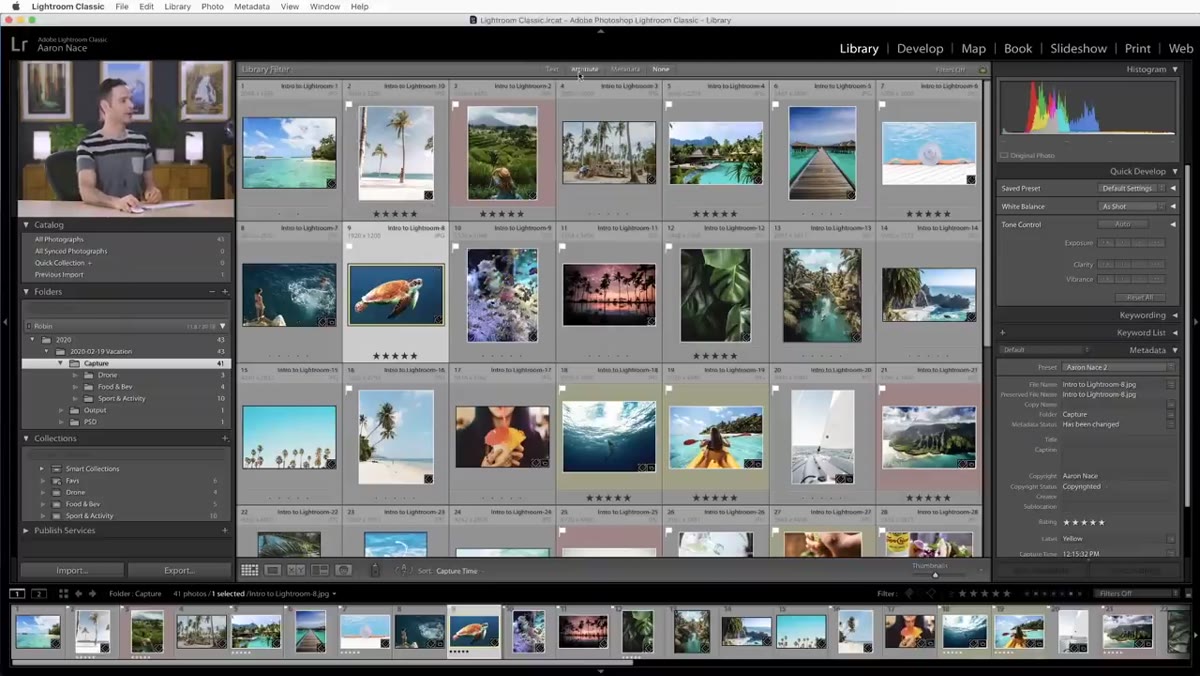
Before you touch a single slider, make sure you’re only looking at images you actually want to edit. In Lightroom Classic’s Library module, open the Filter Bar at the top of the grid. If you don’t see it, go to View and enable “Show Filter Bar.” Click the Attribute option, then filter by whichever color labels or star ratings you used during culling. Aaron filters by red and yellow in the tutorial because those were his picks from the previous session. The point is simple: editing is easier when you’re not staring at two hundred images and wondering which ones matter.
Library filter bar open with color attribute options visible
Before you touch a single slider, make sure you’re only looking at images you actually want to edit. In Lightroom Classic’s Library module, open the Filter Bar at the top of the grid. If you don’t see it, go to View and enable “Show Filter Bar.” Click the Attribute option, then filter by whichever color labels or star ratings you used during culling. Aaron filters by red and yellow in the tutorial because those were his picks from the previous session. The point is simple: editing is easier when you’re not staring at two hundred images and wondering which ones matter.
Once your filtered selects are visible, click on the image you want to start with and switch to the Develop module using the tab at the top of the screen.
Step 2: Understand the Layout of the Develop Module
 Develop module open showing left and right panel columns
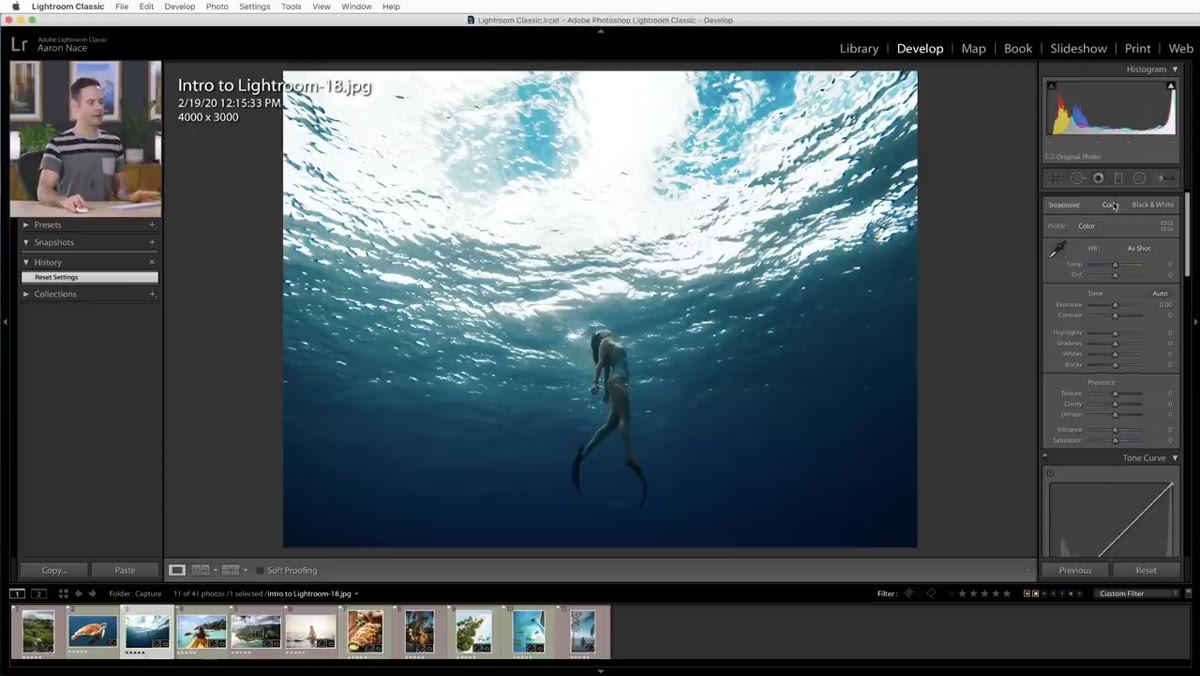
The Develop module is split into two columns. The right column is where your editing actually happens, with all the sliders and tone controls. The left column is your safety net: it holds your history, snapshots, and presets. Every single adjustment you make is logged in the history panel, which means you can scroll back to any previous state at any time. If my cat ISO decides to sprint across the keyboard mid-edit (it has happened), I can recover in about three seconds.
Develop module open showing left and right panel columns
The Develop module is split into two columns. The right column is where your editing actually happens, with all the sliders and tone controls. The left column is your safety net: it holds your history, snapshots, and presets. Every single adjustment you make is logged in the history panel, which means you can scroll back to any previous state at any time. If my cat ISO decides to sprint across the keyboard mid-edit (it has happened), I can recover in about three seconds.
There’s also a Reset button at the bottom right of the screen. New editors tend to forget it’s there, but it’s one of the most useful things in the whole interface. It wipes your edits and returns the image to its imported state, no confirmation dialog, no drama.
Step 3: Read the Histogram Before You Edit Anything
 Histogram panel with highlight clipping triangle highlighted
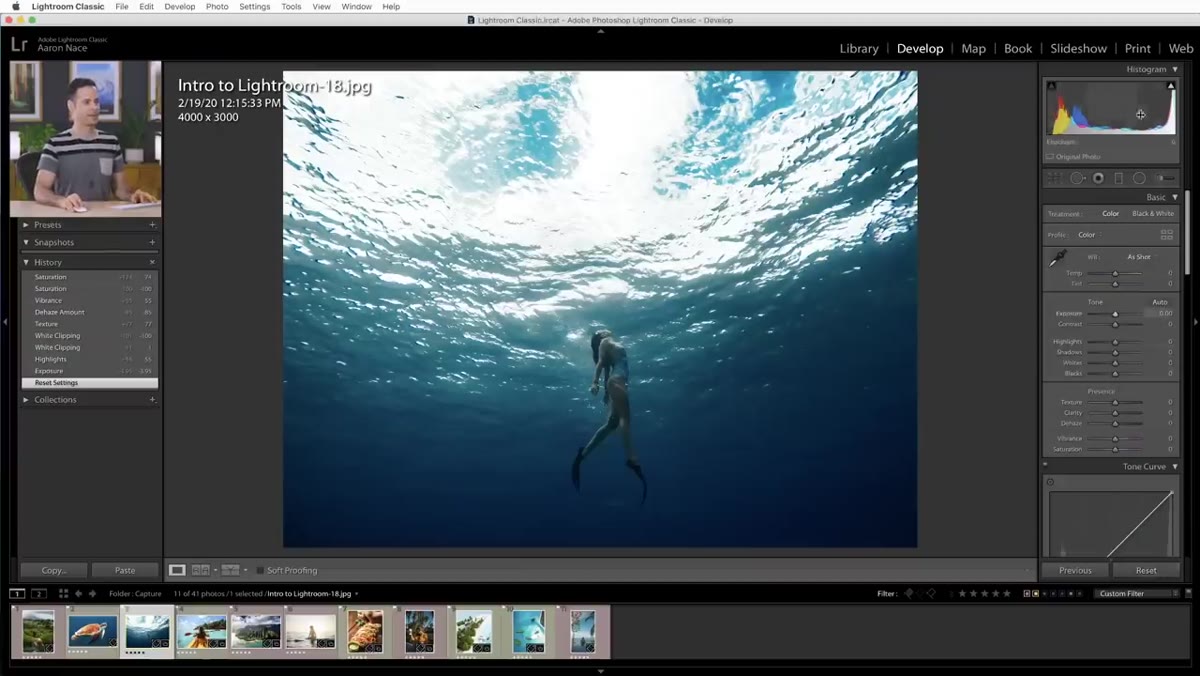
At the very top of the right panel sits the histogram, and most beginners scroll right past it. Don’t. The histogram shows you where your tonal information lives: shadows on the left, highlights on the right. If data is piling up against either edge, you’re clipping, meaning you’ve lost detail in the brightest or darkest areas of your image.
Histogram panel with highlight clipping triangle highlighted
At the very top of the right panel sits the histogram, and most beginners scroll right past it. Don’t. The histogram shows you where your tonal information lives: shadows on the left, highlights on the right. If data is piling up against either edge, you’re clipping, meaning you’ve lost detail in the brightest or darkest areas of your image.
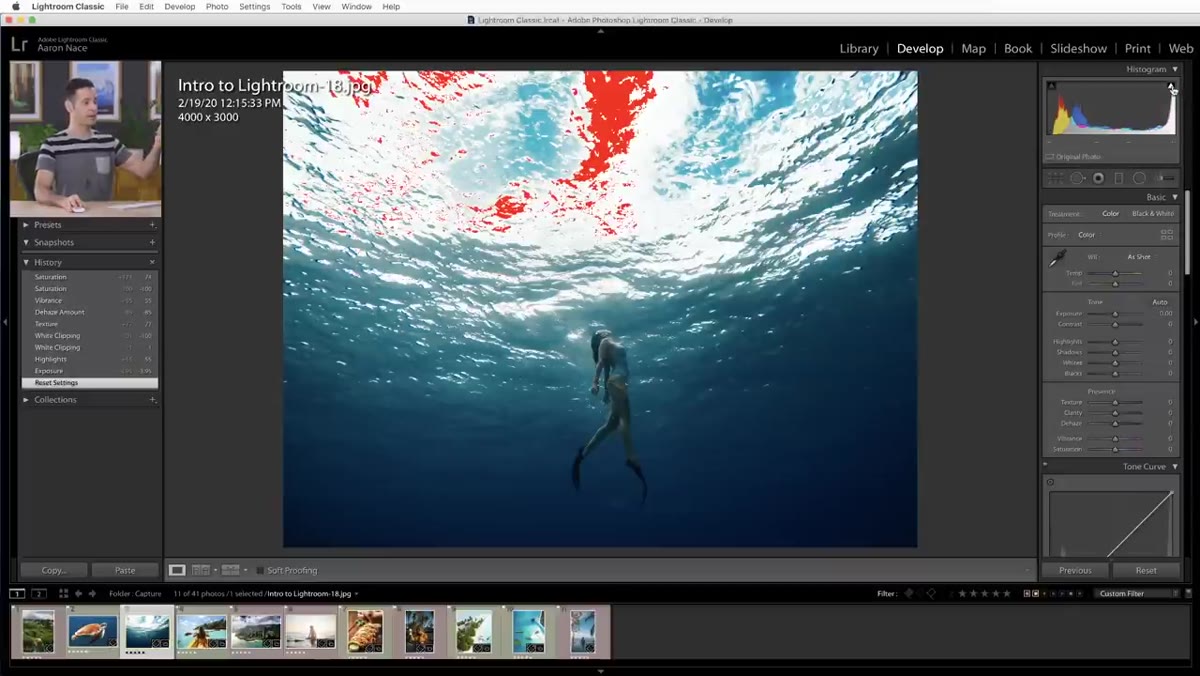
Hover over the triangle in the upper right corner of the histogram. If it lights up and shows a colored overlay on your image, that’s clipped highlight information. Aaron’s example image shows a small red overlay, which tells him the highlights are blown out in certain areas. That’s the first problem he’s going to fix, and it should be the first thing you check too.
Step 4: Recover Highlights to Bring Back Lost Detail
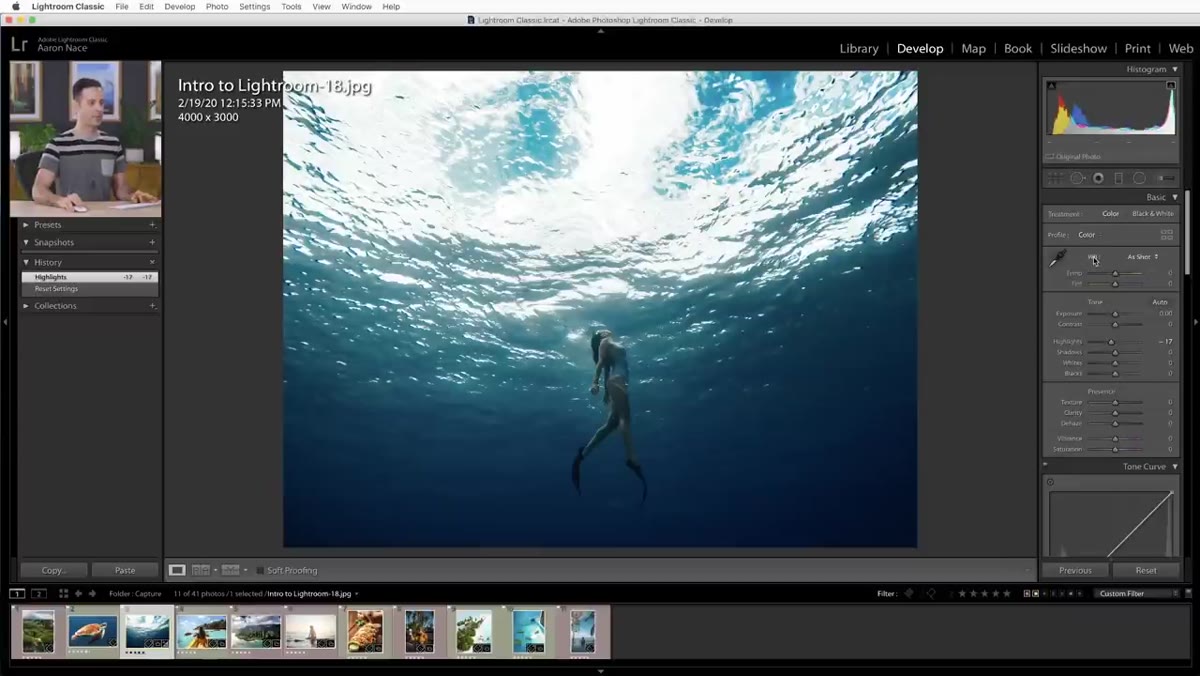
 Highlights slider being pulled left in the Basic panel
Once you’ve identified clipping, head down to the Basic panel in the right column. Find the Highlights slider and pull it to the left. You don’t need to go far, sometimes just dropping it to -20 or -30 is enough to pull that clipped data back into a usable range.
Highlights slider being pulled left in the Basic panel
Once you’ve identified clipping, head down to the Basic panel in the right column. Find the Highlights slider and pull it to the left. You don’t need to go far, sometimes just dropping it to -20 or -30 is enough to pull that clipped data back into a usable range.
This is also where shooting RAW versus JPEG makes a noticeable difference. RAW files carry significantly more recoverable information in both the highlights and shadows, so you have more latitude to push and pull without the image falling apart. If you’re editing JPEGs like Aaron does in this tutorial, you can still recover some detail, but you’ll hit a wall sooner. It’s one of the biggest practical arguments for shooting RAW, though that’s a longer conversation for another post.
Step 5: Set Your White Balance
 White balance section with eyedropper tool and temp/tint sliders
White balance is how Lightroom interprets the color temperature of the light in your scene. A photo shot in warm indoor light will look orange without correction; one shot in shade can go blue. In the Basic panel, you’ll find the White Balance section near the top, with a dropdown and two sliders: Temp (temperature) and Tint.
White balance section with eyedropper tool and temp/tint sliders
White balance is how Lightroom interprets the color temperature of the light in your scene. A photo shot in warm indoor light will look orange without correction; one shot in shade can go blue. In the Basic panel, you’ll find the White Balance section near the top, with a dropdown and two sliders: Temp (temperature) and Tint.
If you’re editing a RAW file, the dropdown gives you named presets like Daylight, Cloudy, and Tungsten, which are genuinely useful starting points. For JPEGs, you get As Shot, Auto, and Custom. The fastest way to nail a neutral white balance is to use the eyedropper tool and click on something in your frame that should be a pure gray. Lightroom will shift the temperature and tint to make that pixel neutral, which pulls the rest of the image along with it. If your scene doesn’t have a gray reference, try the Auto option first and then fine-tune manually.
My Take: Build Your Editing Order Into a Habit
One thing Aaron’s tutorial reinforces, and something I tell every person who asks me about Lightroom, is that the order of operations matters more than any individual setting. I always move top to bottom: histogram check, highlights recovery, white balance, then exposure and contrast, then shadows, then color grading. Working in a consistent order stops you from chasing your own tail, where you fix the shadows and then realize the highlights are blown again because you moved the exposure slider afterward.
I’ve named every preset I’ve ever built after a song, which is a strange habit I picked up while editing to vinyl late at night. The structure of a good edit has always reminded me of the structure of a good track: fix the foundation first, then layer on character. Get your exposure solid before you start reaching for the color curves. It sounds obvious, but it’s easy to skip when a photo looks almost right and you just want to add that one stylized push.
The single most important thing to take away from this tutorial is that Lightroom editing is not guesswork. The histogram tells you what’s wrong before you even start. The sliders fix it in a logical sequence. Your history panel means nothing is permanent. That combination makes it one of the most forgiving editing environments you’ll find anywhere in photo software, and Aaron Nace does a genuinely good job showing you how to use it without making you feel lost.
Watch the full tutorial on YouTube and follow along with your own images open in Lightroom. The difference between reading about sliders and actually moving them is where the real learning happens.
Comments
Leave a Comment