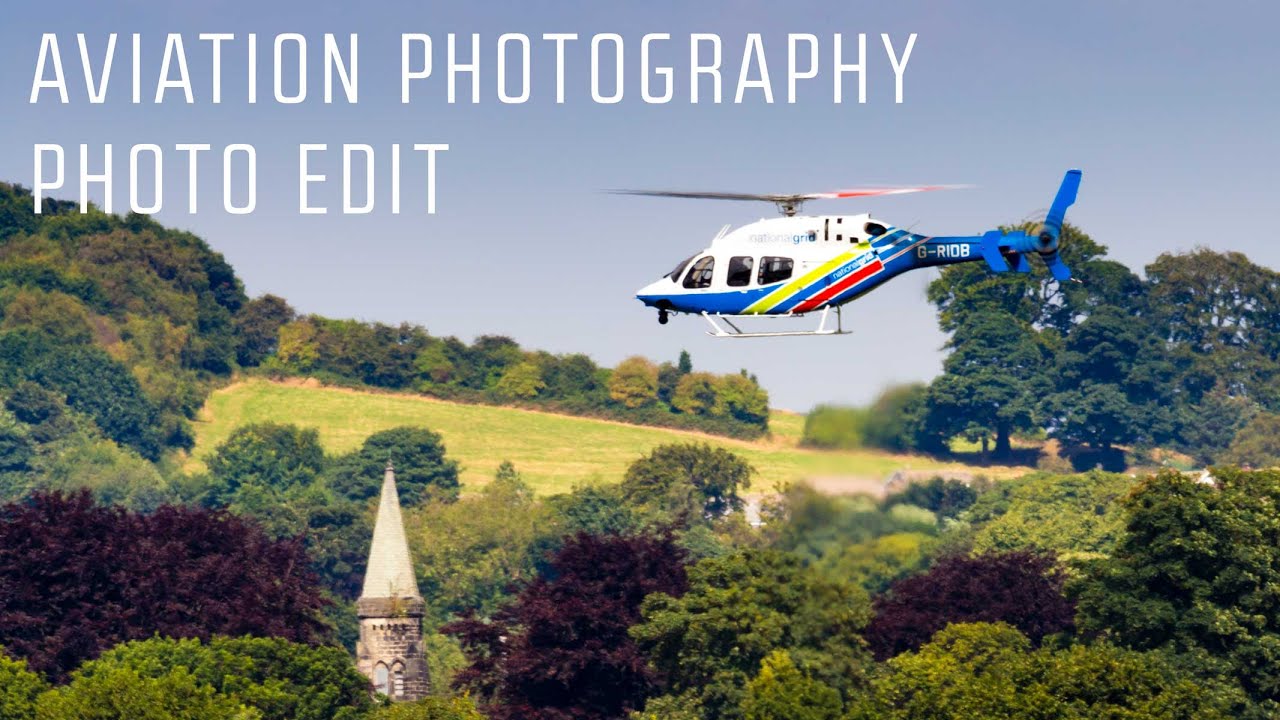
There’s a specific kind of photo that lives on your hard drive for weeks before you either delete it or figure out what it’s trying to be. Flat light, soft focus, awkward composition. On the surface it looks like a throwaway. But sometimes the exposure is solid enough that the raw file is secretly full of potential, and the whole job becomes about unlocking it rather than rescuing it. That’s exactly the scenario Adam from First Man Photography tackles in Watch the full tutorial on YouTube — he grabbed his 400mm lens, stuck it out a window when a helicopter appeared unexpectedly, and ended up with a shot worth editing. The before image is genuinely underwhelming. The after is striking. The gap between them is pure Lightroom technique.
What I like about this tutorial is that Adam doesn’t pretend he captured the perfect shot. He shot at 1/150th of a second to keep the rotor blades moving rather than frozen, which cost him some overall sharpness. He was handholding from a window. The sky is hazy and gray-blue rather than rich. Most photographers would write that off. Instead he treats the flat exposure as an asset — lots of dynamic range to push in both directions — and works the edit from there. That reframing alone is worth the watch. Let me break down every step.
Step 1: Crop for Composition First
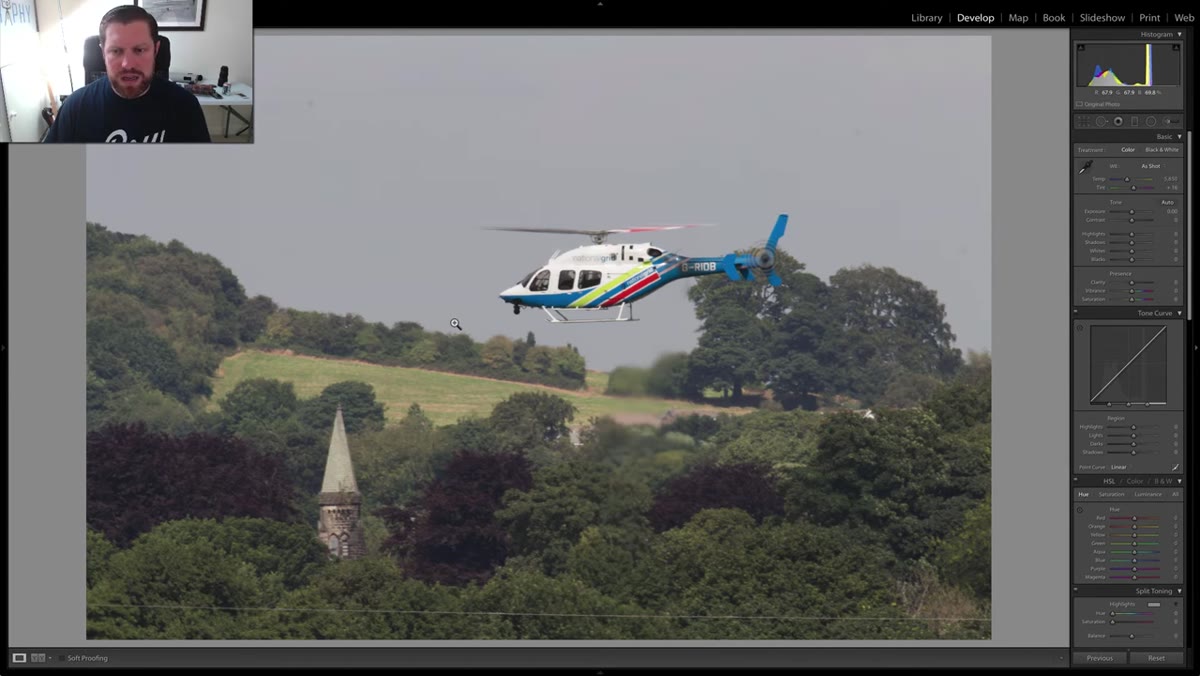 Lightroom crop tool active, helicopter repositioned using rule of thirds
Before touching a single slider, crop the image. Press R to open the crop tool in Lightroom and resist the urge to change the aspect ratio. Instead, drag the frame tighter around the subject and position the helicopter near a rule-of-thirds intersection. In Adam’s case this also meant keeping a tree line in the lower portion of the frame, which adds grounding to what would otherwise be a subject floating in empty sky. Cropping first matters because every tonal adjustment you make after this point applies only to what the viewer will actually see — you’re not wasting effort on sky you’re going to trim off later.
Lightroom crop tool active, helicopter repositioned using rule of thirds
Before touching a single slider, crop the image. Press R to open the crop tool in Lightroom and resist the urge to change the aspect ratio. Instead, drag the frame tighter around the subject and position the helicopter near a rule-of-thirds intersection. In Adam’s case this also meant keeping a tree line in the lower portion of the frame, which adds grounding to what would otherwise be a subject floating in empty sky. Cropping first matters because every tonal adjustment you make after this point applies only to what the viewer will actually see — you’re not wasting effort on sky you’re going to trim off later.
Step 2: Add a Light Contrast Boost
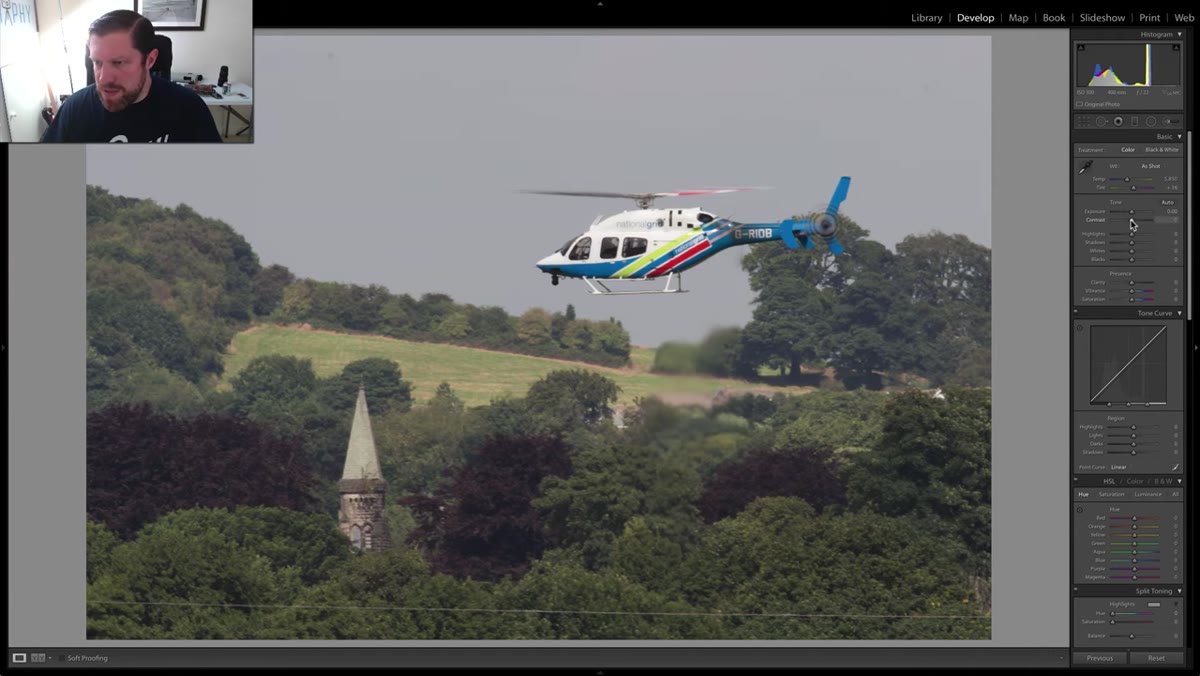 Basic panel open, Contrast slider moved to approximately +20
With the crop locked in, move to the Basic panel and bring Contrast up to around +20. This is a conservative move, not a dramatic one. The goal here isn’t to create the final look — it’s to give the image a spine. A flat raw file straight from camera tends to look muddy even at proper exposure, and a gentle contrast push separates the tones just enough to make the subsequent adjustments read clearly. Going too heavy on contrast at this stage boxes you in later, so keep it modest and let the whites and blacks sliders do the heavier lifting.
Basic panel open, Contrast slider moved to approximately +20
With the crop locked in, move to the Basic panel and bring Contrast up to around +20. This is a conservative move, not a dramatic one. The goal here isn’t to create the final look — it’s to give the image a spine. A flat raw file straight from camera tends to look muddy even at proper exposure, and a gentle contrast push separates the tones just enough to make the subsequent adjustments read clearly. Going too heavy on contrast at this stage boxes you in later, so keep it modest and let the whites and blacks sliders do the heavier lifting.
Step 3: Shape the Tonal Range with Shadows, Whites, and Blacks
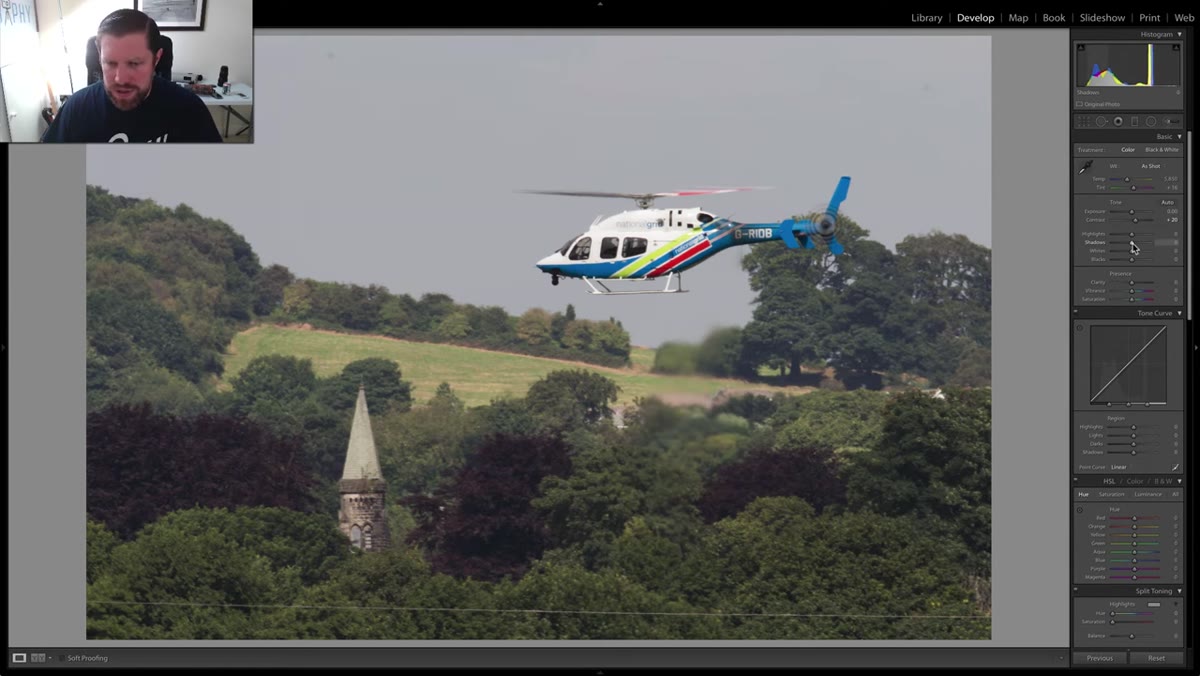 Shadows raised to around +34, Whites and Blacks sliders being adjusted
This is where the image starts to open up. Raise the Shadows to around +34 or +35 — the goal is to pull detail out of the tree line without making the dark areas look washed out. Then push the Whites up significantly while watching the histogram. You want the right edge of the histogram to just barely kiss the boundary, meaning the brightest areas of the image are reaching true white without clipping. Then pull the Blacks down in the opposite direction until the left edge of the histogram does the same thing. This technique — stretching the tonal range to fill the histogram from edge to edge — is one of the fastest ways to add perceived quality to a flat image, and it works on virtually any subject.
Shadows raised to around +34, Whites and Blacks sliders being adjusted
This is where the image starts to open up. Raise the Shadows to around +34 or +35 — the goal is to pull detail out of the tree line without making the dark areas look washed out. Then push the Whites up significantly while watching the histogram. You want the right edge of the histogram to just barely kiss the boundary, meaning the brightest areas of the image are reaching true white without clipping. Then pull the Blacks down in the opposite direction until the left edge of the histogram does the same thing. This technique — stretching the tonal range to fill the histogram from edge to edge — is one of the fastest ways to add perceived quality to a flat image, and it works on virtually any subject.
Step 4: Boost Vibrance and Saturation
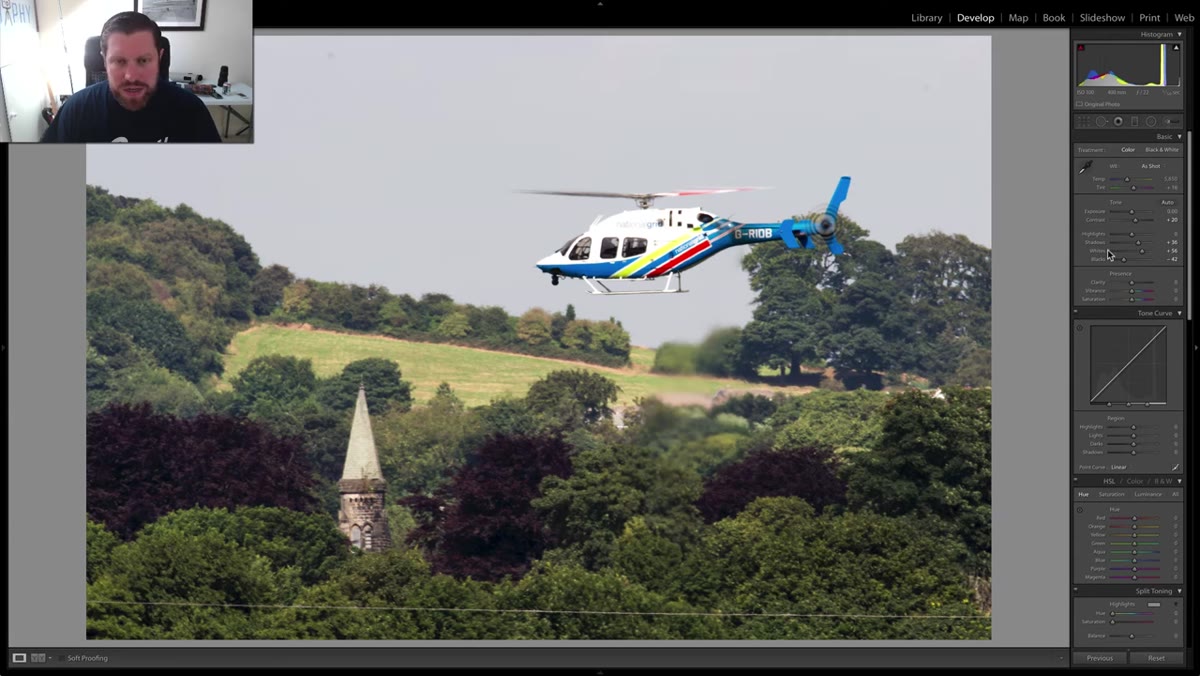 Vibrance and Saturation sliders both raised in the Basic panel
A colorful helicopter against greenery deserves color treatment. Bring Vibrance up first — this slider is intelligent in that it prioritizes less-saturated colors and protects skin tones, which means the greens in the trees will pop without the rest of the image going nuclear. Then follow with a Saturation increase, which raises all colors more uniformly. Using both together rather than just cranking Saturation gives you a richer result with more control. The sky in this shot is on the gray-blue end of dull, so the color boost mostly benefits the subject and the foliage rather than creating an unrealistic sky situation.
Vibrance and Saturation sliders both raised in the Basic panel
A colorful helicopter against greenery deserves color treatment. Bring Vibrance up first — this slider is intelligent in that it prioritizes less-saturated colors and protects skin tones, which means the greens in the trees will pop without the rest of the image going nuclear. Then follow with a Saturation increase, which raises all colors more uniformly. Using both together rather than just cranking Saturation gives you a richer result with more control. The sky in this shot is on the gray-blue end of dull, so the color boost mostly benefits the subject and the foliage rather than creating an unrealistic sky situation.
Step 5: Address Sharpness and Local Detail
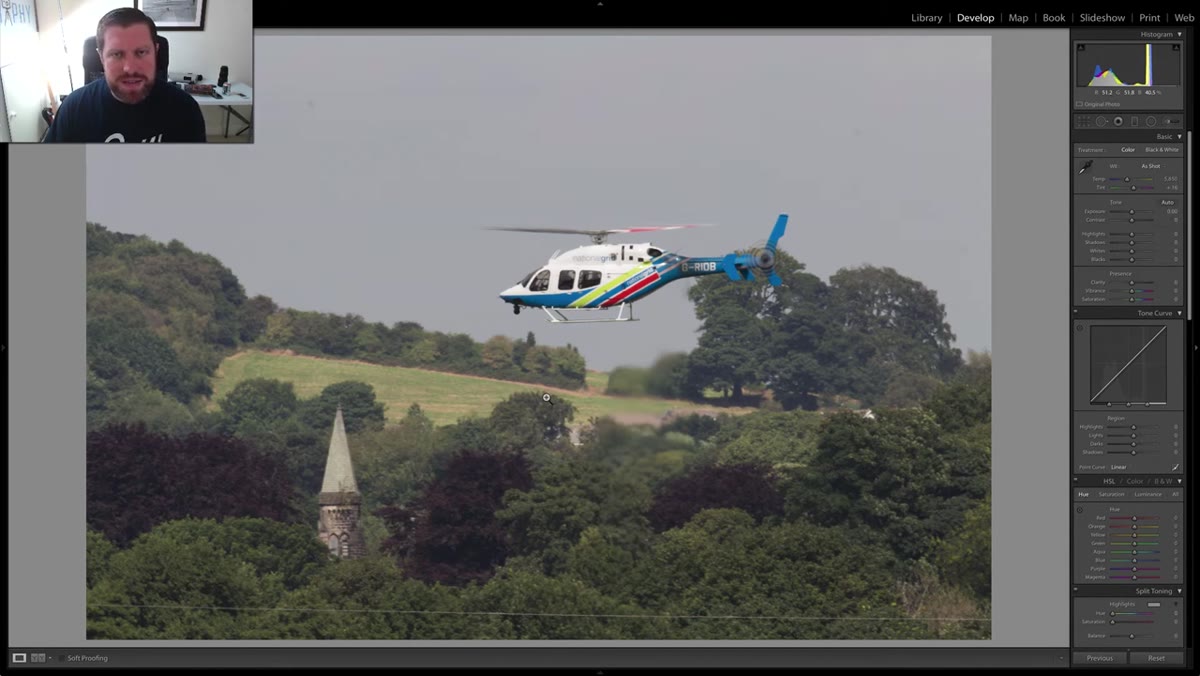 Full image visible showing slight motion blur across the frame
Because this shot was captured at a slower shutter speed and handheld, some overall softness is baked in. In Lightroom’s Detail panel, apply sharpening with the Amount around 70-80, and hold Alt while dragging the Masking slider until only the hard edges of the helicopter body are white. This focuses the sharpening where it matters and avoids crunching the sky or the softer background elements. The rotor blur is intentional and should be preserved — trying to sharpen motion blur just creates artifacts. Sharpening the fuselage and any text or detail on the body of the aircraft is enough to make the image feel crisp where the eye expects it.
Full image visible showing slight motion blur across the frame
Because this shot was captured at a slower shutter speed and handheld, some overall softness is baked in. In Lightroom’s Detail panel, apply sharpening with the Amount around 70-80, and hold Alt while dragging the Masking slider until only the hard edges of the helicopter body are white. This focuses the sharpening where it matters and avoids crunching the sky or the softer background elements. The rotor blur is intentional and should be preserved — trying to sharpen motion blur just creates artifacts. Sharpening the fuselage and any text or detail on the body of the aircraft is enough to make the image feel crisp where the eye expects it.
What I’d Add: A Targeted Hue Adjustment on the Sky
The sky in shots like this can be a problem even after the tonal work is done. That gray-blue often has an unpleasant warmth to it — somewhere between overcast and hazy in a way that doesn’t feel intentional. My go-to fix is a targeted adjustment in the HSL panel. Drop into Hue and nudge the Blue slider slightly toward a cooler, cleaner tone. Then move to Saturation and desaturate the Aqua channel just a touch. These two moves together tend to neutralize that muddy sky color without making it look artificially replaced. It takes about 20 seconds and it consistently makes aviation and bird shots feel more polished. The subject stays the visual priority, but the background stops fighting it.
The single biggest idea in this tutorial is one Adam states almost in passing: a flat, well-exposed image is an opportunity, not a failure. The edit is easier when the highlights aren’t blown and the shadows still have detail. If you’re shooting aviation, birds, or anything else in fast, unpredictable light, expose conservatively and trust that Lightroom can do the heavy lifting on the back end. That’s a much better strategy than fighting a technically broken raw file.
Watch the full tutorial on YouTube to see Adam walk through every adjustment in real time. Watching the histogram respond as he moves the sliders is worth the 10 minutes on its own.
Comments
Leave a Comment