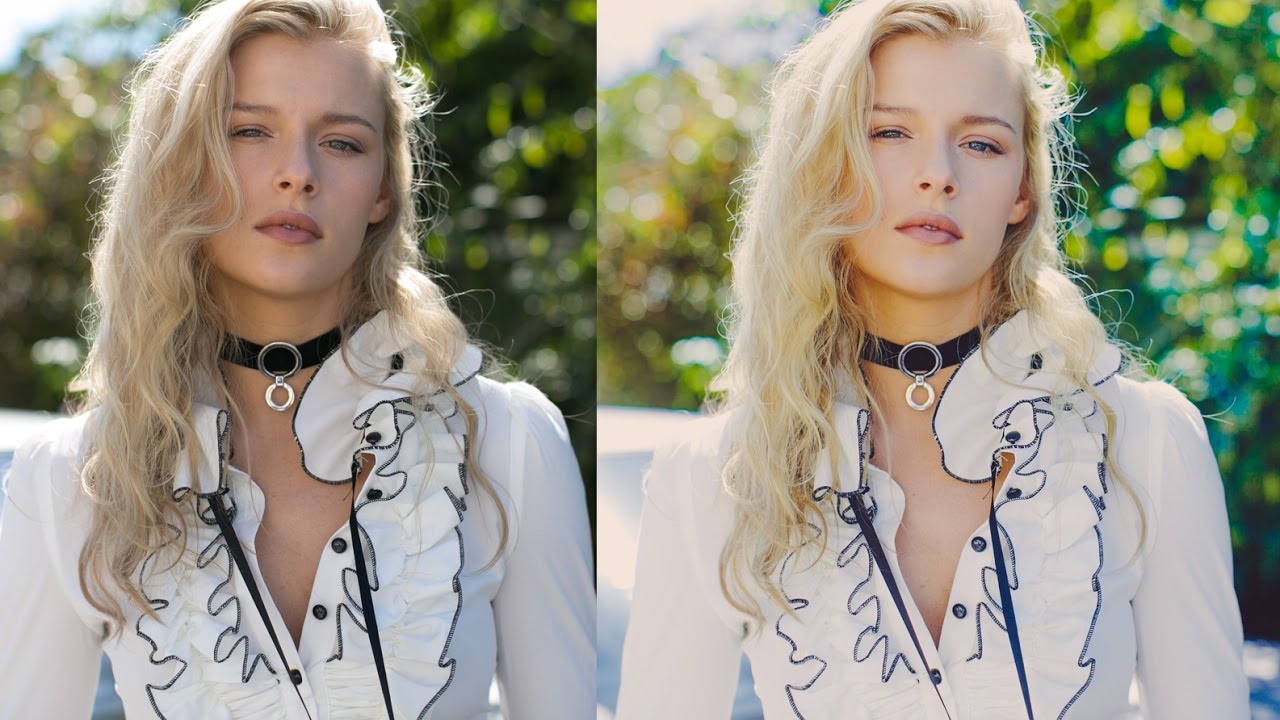
Portrait editing in Lightroom is one of those things that looks deceptively simple until you’re staring at forty-seven sliders and your subject’s skin looks like a traffic cone. I’ve been editing photos long enough to know that the difference between a polished portrait and an over-processed one usually comes down to restraint, and that’s exactly what makes Jessica Kobeissi’s approach worth studying. In this Jessica Kobeissi portrait editing tutorial, she walks through her complete Lightroom workflow on a single portrait, sharing the actual numeric values she uses and, more importantly, explaining why she’s making each call.
What I appreciate about her method is that it doesn’t chase a trendy look. The goal is a clean, neutral image with just enough tonal character to feel intentional. I’ve seen this approach work across a huge range of skin tones and lighting conditions, which makes it genuinely useful rather than a one-photo trick. The whole thing is built on a foundation of careful basic panel adjustments followed by a nuanced tone curve, and if you can nail both of those, the rest of your editing life gets easier.
Step 1: Reset and Start Clean
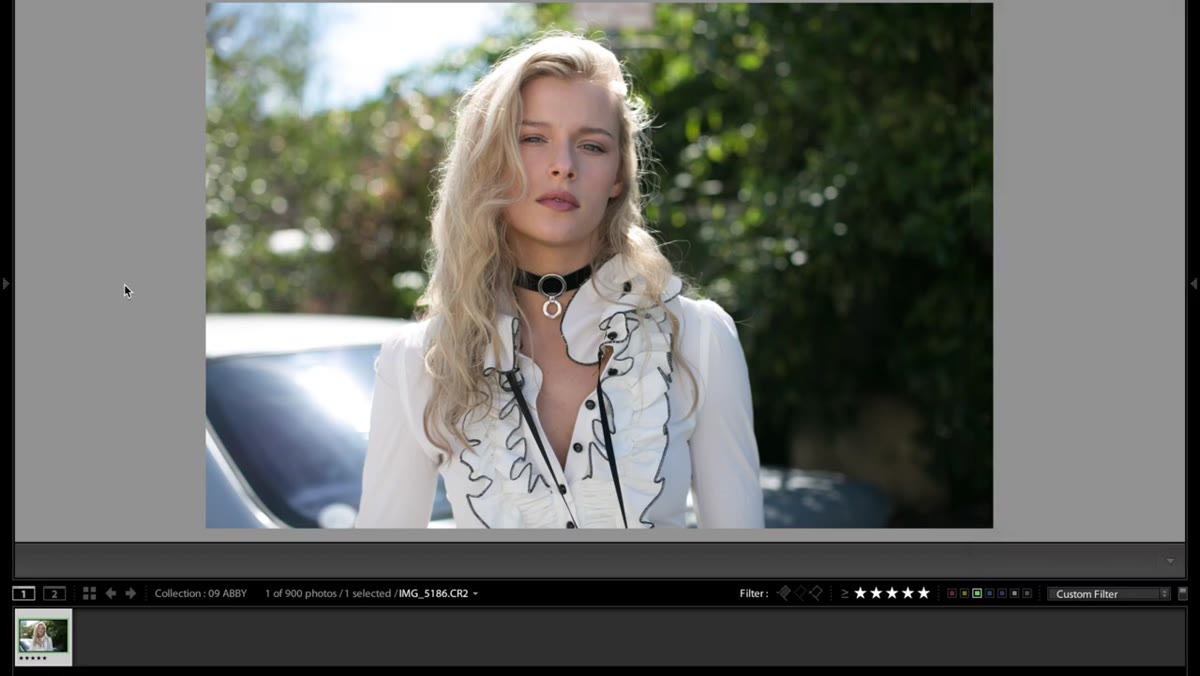 Lightroom develop module with all sliders at default zero
Before touching a single slider, Jessica resets the photo to Lightroom’s default settings using Command + Shift + R on Mac. This sounds obvious, but it matters more than people think. If you’re working from a camera profile or a previous import with embedded adjustments, you might be fighting corrections you don’t even know are there. Starting from zero means every decision you make is yours. Get in the habit of doing this any time you’re building a look from scratch rather than applying a preset.
Lightroom develop module with all sliders at default zero
Before touching a single slider, Jessica resets the photo to Lightroom’s default settings using Command + Shift + R on Mac. This sounds obvious, but it matters more than people think. If you’re working from a camera profile or a previous import with embedded adjustments, you might be fighting corrections you don’t even know are there. Starting from zero means every decision you make is yours. Get in the habit of doing this any time you’re building a look from scratch rather than applying a preset.
Step 2: Set Temperature and Tint
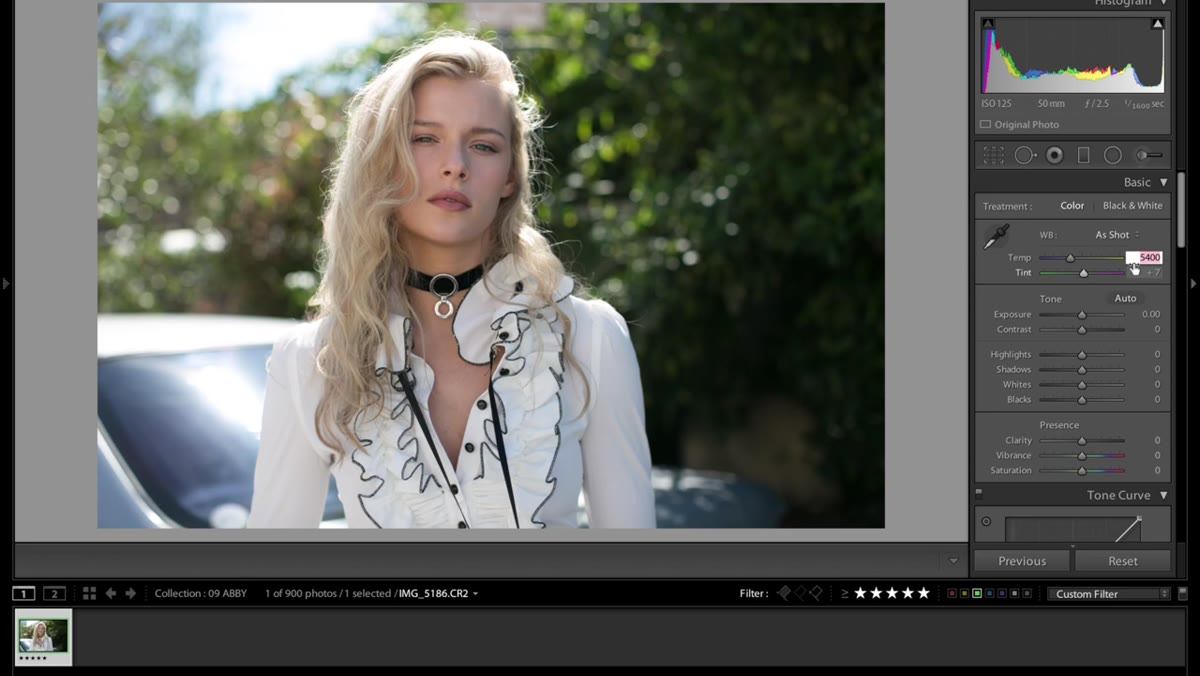 Temperature and Tint sliders being adjusted in Basic panel
Jessica pulls the white balance temperature down slightly to cool the image toward a more neutral reading rather than a warm one. She’s not chasing a cold, clinical look, just removing the golden cast that many cameras add by default. If you prefer warmer portraits, you can leave this or shift it the other direction, but the key idea is that you’re making an active choice rather than accepting the camera’s guess.
Temperature and Tint sliders being adjusted in Basic panel
Jessica pulls the white balance temperature down slightly to cool the image toward a more neutral reading rather than a warm one. She’s not chasing a cold, clinical look, just removing the golden cast that many cameras add by default. If you prefer warmer portraits, you can leave this or shift it the other direction, but the key idea is that you’re making an active choice rather than accepting the camera’s guess.
For tint, she dials in -14, nudging the image slightly green. This is a move that surprises a lot of people because “green tint” sounds unflattering, but at this level it works subtly against magenta skin tones and gives the image a more organic, slightly filmic feel. Pair it with a cooler temperature and it reads as natural rather than strange.
Step 3: Shape the Exposure and Contrast
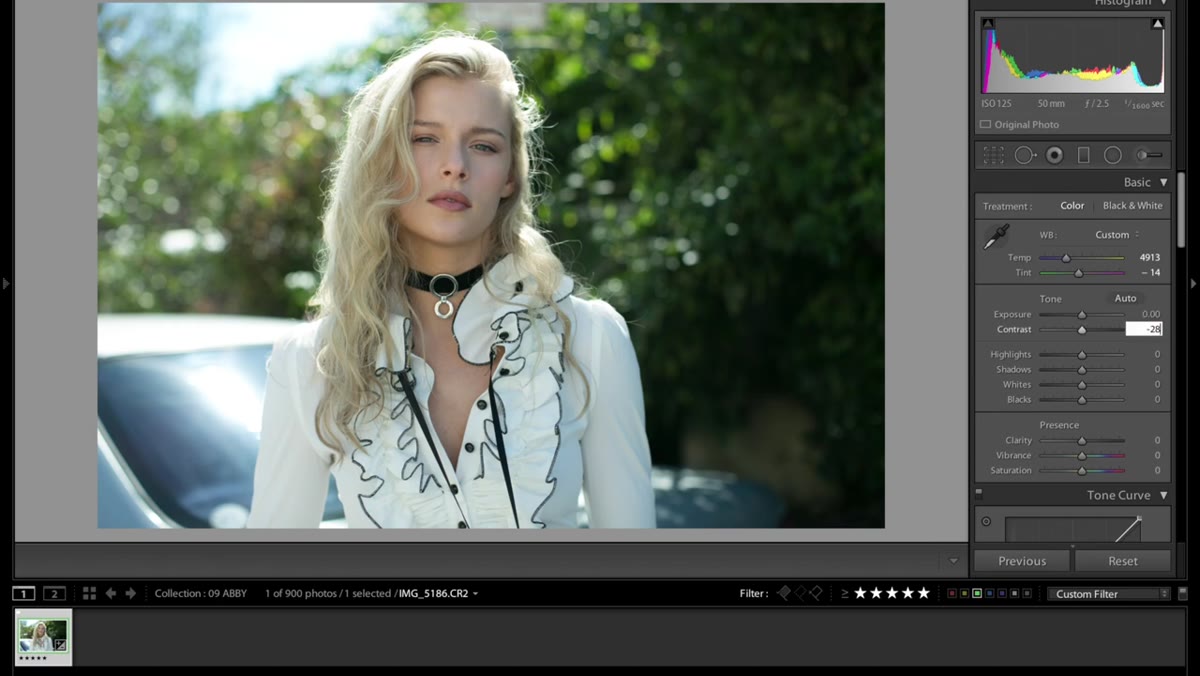 Contrast slider being moved to negative value in Basic panel
Contrast goes to -28. This is the move I see beginners skip because boosting contrast feels like it adds punch, and punch feels good in the moment. But high contrast in portraits tends to read as over-edited, especially in the midtones where skin texture lives. Pulling it back here gives you room to add depth through the tone curve later, where you have far more control over exactly which tones get pushed.
Contrast slider being moved to negative value in Basic panel
Contrast goes to -28. This is the move I see beginners skip because boosting contrast feels like it adds punch, and punch feels good in the moment. But high contrast in portraits tends to read as over-edited, especially in the midtones where skin texture lives. Pulling it back here gives you room to add depth through the tone curve later, where you have far more control over exactly which tones get pushed.
Highlights go to around +12 or +13. Shadows get bumped up significantly, almost all the way, which opens up the darker areas of the image and gives it that bright, airy quality that works especially well in outdoor portraits. Whites come down slightly to preserve highlight detail, and blacks get pushed up to 53. That last move is the one that lifts the shadow floor and prevents the image from going full black anywhere, which is part of what creates the soft, luminous feel of the final result.
Step 4: Build the Tone Curve
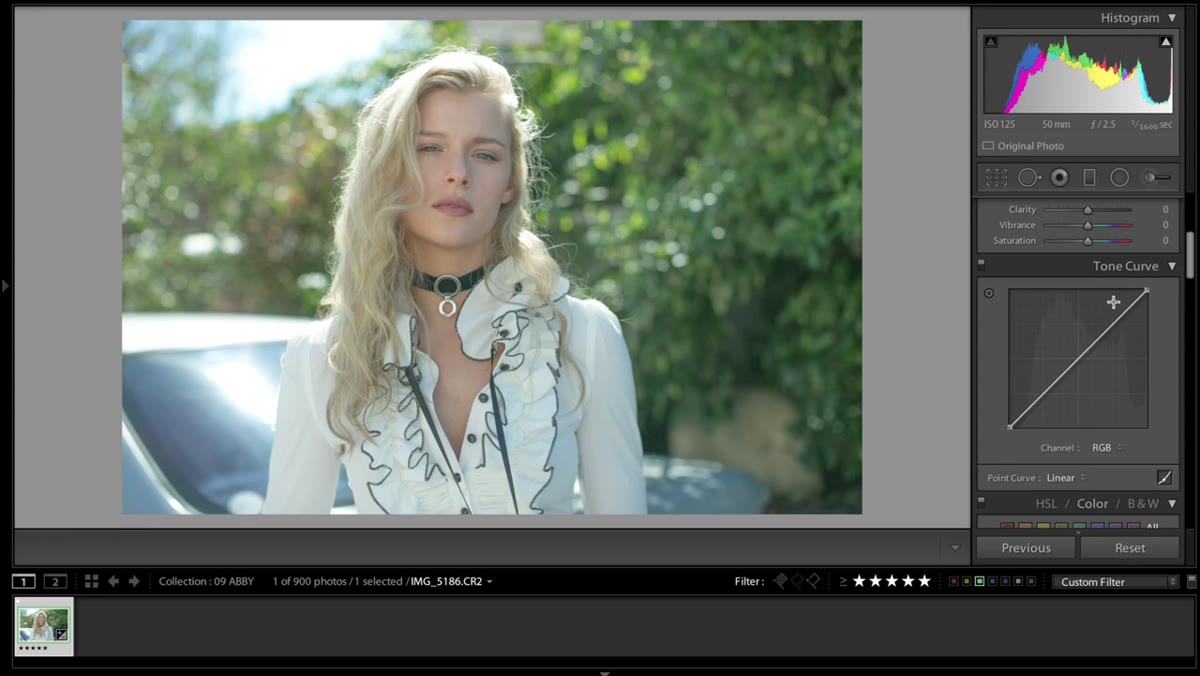 Tone curve panel open with custom S-curve being drawn
This is where things get interesting, and where Jessica spends the most time. She works in the tone curve panel separately from the basic panel, adding points to shape the overall contrast and then switching to the individual RGB channel curves to introduce color toning.
Tone curve panel open with custom S-curve being drawn
This is where things get interesting, and where Jessica spends the most time. She works in the tone curve panel separately from the basic panel, adding points to shape the overall contrast and then switching to the individual RGB channel curves to introduce color toning.
She’s candid that Lightroom’s tone curve is harder to work with than Photoshop’s Curves adjustment, and she’s right. The control points can be finicky and the curve doesn’t always behave as smoothly as you’d like. Her advice is to work slowly and check your changes often. One point in the wrong place can shift the whole feel of the image. If you’re new to tone curves, practice on throwaway shots first. It’s the kind of tool that teaches through mistakes.
Step 5: Dial In the RGB Channel Curves
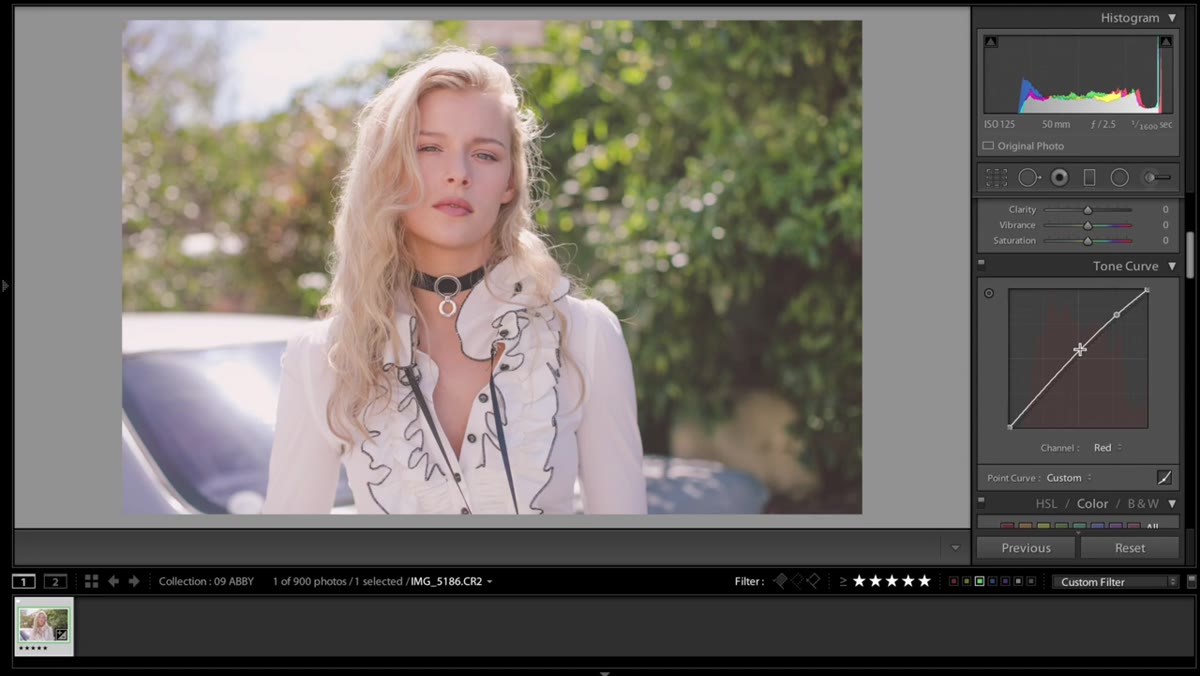 Green channel selected in tone curve with curve being adjusted
After the master curve, Jessica moves into the individual color channels, starting with red and then working through green and blue. These adjustments are where the actual color grading lives. She adjusts the green channel specifically to introduce cooler, bluer tones into the image, which she notes helps the foliage in the background pop without looking artificially saturated.
Green channel selected in tone curve with curve being adjusted
After the master curve, Jessica moves into the individual color channels, starting with red and then working through green and blue. These adjustments are where the actual color grading lives. She adjusts the green channel specifically to introduce cooler, bluer tones into the image, which she notes helps the foliage in the background pop without looking artificially saturated.
The important thing to understand here is that each channel curve controls how much of that color exists across the tonal range. Lifting the green channel in the shadows adds green to your darkest tones. Pulling it down adds magenta. This is how you get split toning that feels integrated rather than slapped on. Jessica built these tones through experimentation, not a formula, and she encourages viewers to do the same. Spend an afternoon just moving these curves around and watching what happens. There’s no faster way to learn.
Step 6: The Exposure Pass
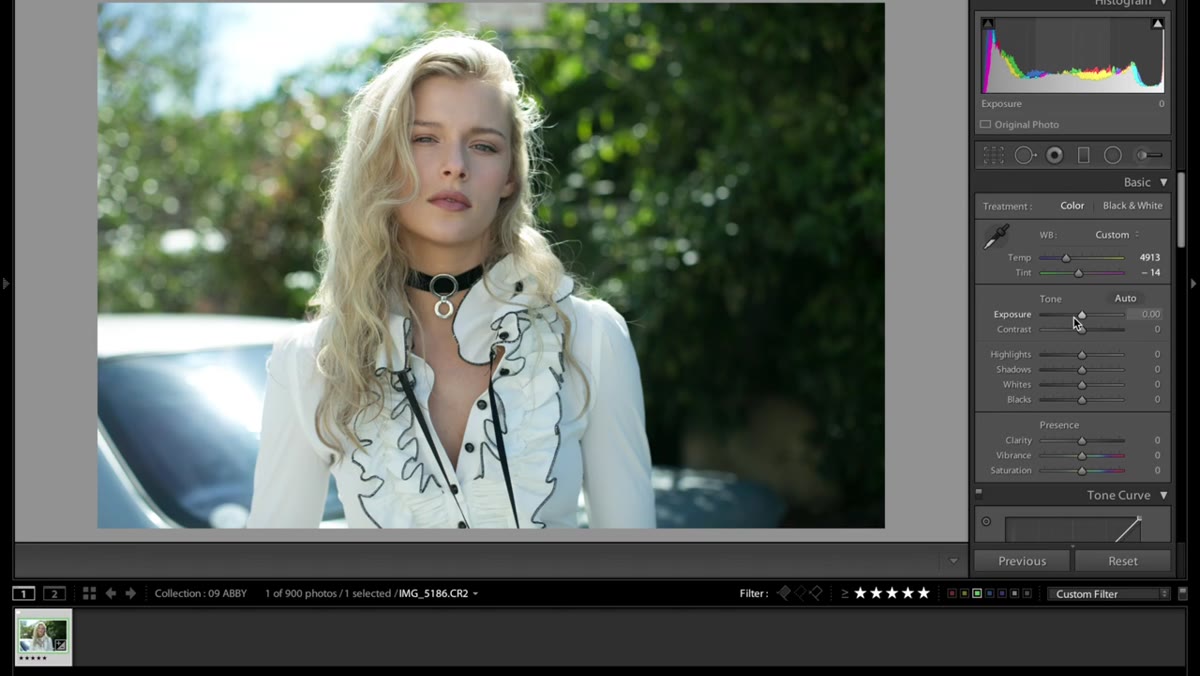 Exposure slider highlighted before adjustment in Basic panel
Jessica deliberately holds off on setting exposure until after most of the other sliders are dialed in. This is smart. Exposure affects every other adjustment, and if you set it first, you’ll likely have to revisit it after your shadows, highlights, and whites are set anyway. By saving it for a final check, you’re making a decision based on how the whole image looks rather than a raw guess. Nudge it until the image feels correctly lit, then stop.
Exposure slider highlighted before adjustment in Basic panel
Jessica deliberately holds off on setting exposure until after most of the other sliders are dialed in. This is smart. Exposure affects every other adjustment, and if you set it first, you’ll likely have to revisit it after your shadows, highlights, and whites are set anyway. By saving it for a final check, you’re making a decision based on how the whole image looks rather than a raw guess. Nudge it until the image feels correctly lit, then stop.
One Thing I’d Add From My Own Workflow
The move I’d layer on top of Jessica’s workflow is a local adjustment to the skin. Even with a beautifully balanced global edit, portraits often benefit from a radial filter or brush over the subject’s face with a slight boost to texture recovery and a tiny orange shift in the hue. It keeps the subject looking present and three-dimensional while the rest of the image leans cooler. Think of the global edit as setting the mood and the local adjustment as keeping your subject from disappearing into it.
The single most transferable lesson here is that restraint in the basic panel is what makes the tone curve matter. If you blow out your contrast early, you have nothing left to shape. Pull back, lift your shadows, keep your whites in check, and then let the curve do the expressive work. That’s the architecture of a portrait edit that holds up.
Watch the full tutorial on YouTube to see Jessica walk through the tone curve in real time, which is genuinely the part you need to see in motion to fully understand.
Comments
Leave a Comment