Client work has a way of pushing you into corners you didn’t expect. A few months ago I had a similar situation to one Scott Kelby describes at the top of this KelbyOne tutorial: someone wants something polished, something that looks like a real deliverable, and they want it fast. Kelby shot an Audi R8 for the car’s owner and turned the session into a proper poster, nine images arranged in a clean grid with the owner’s name set in elegant type at the bottom. When he posted it, people immediately assumed it required some elaborate Illustrator or InDesign workflow. It didn’t. Almost everything happened inside Lightroom’s Print module, which is one of those corners of the software that most people walk past every day without ever opening the door.
What makes this tutorial worth your time is that it reframes a tool you already own. The Print module isn’t just for sending files to a lab. It’s a surprisingly capable layout engine, and once you see Kelby use it to build a 24x30 poster from scratch, you’ll start thinking about it differently. Watch the full tutorial on YouTube and then follow along below with the breakdown.
Step 1: Select Your Images in the Library Module
 Nine Audi R8 images selected in Lightroom Library grid
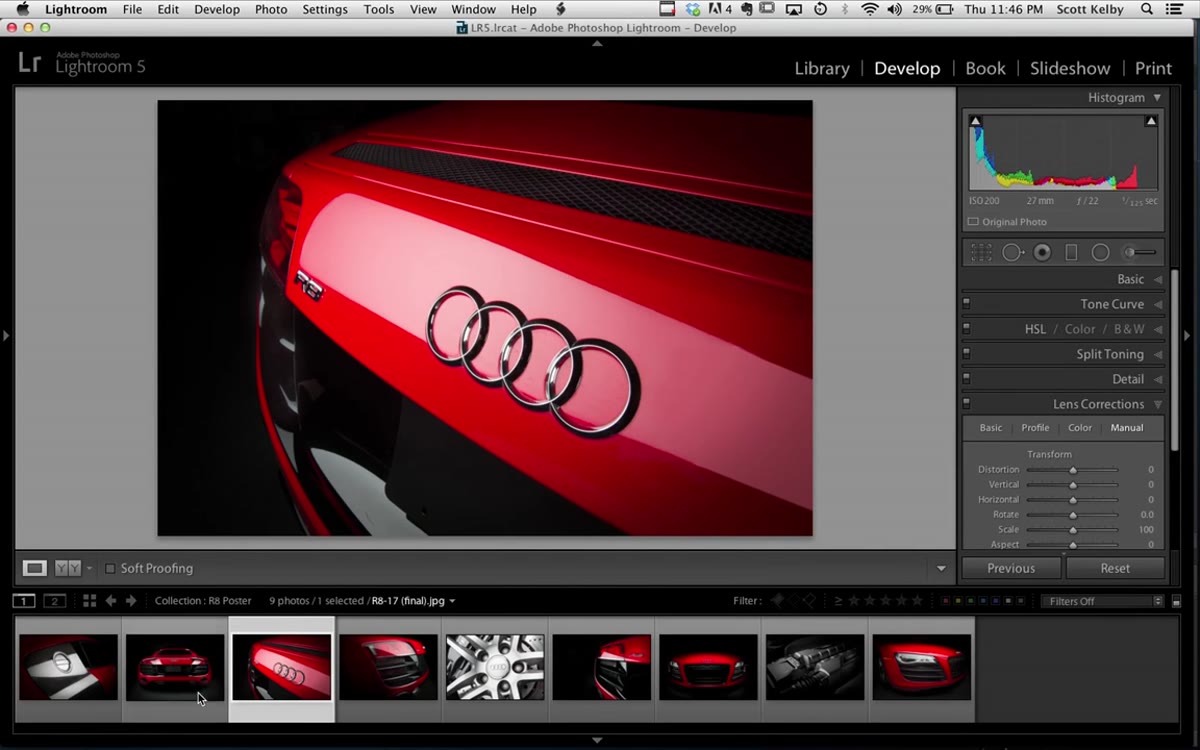
Start by pulling together the images you want to include. Kelby chose nine shots from the R8 session, a number that works cleanly with a 3x3 grid. Select all of them in the Library module before you switch modules. Lightroom carries your selection into the Print module, which is what populates the grid later. If your selection is wrong at this stage, your layout will be wrong too.
Nine Audi R8 images selected in Lightroom Library grid
Start by pulling together the images you want to include. Kelby chose nine shots from the R8 session, a number that works cleanly with a 3x3 grid. Select all of them in the Library module before you switch modules. Lightroom carries your selection into the Print module, which is what populates the grid later. If your selection is wrong at this stage, your layout will be wrong too.
Step 2: Set a Custom Paper Size
 Page Setup dialog with custom 24 by 30 inch dimensions
Switch to the Print module and go straight to the paper size settings. Kelby’s poster was 24 by 30 inches, which isn’t a standard preset, so you need to navigate to “Manage Custom Sizes” and type your dimensions in manually. Click OK and that size becomes your canvas. This is the foundation everything else gets built on, so don’t skip it or assume the default size is close enough. If you’re printing through a lab, check their bleed requirements at this stage too.
Page Setup dialog with custom 24 by 30 inch dimensions
Switch to the Print module and go straight to the paper size settings. Kelby’s poster was 24 by 30 inches, which isn’t a standard preset, so you need to navigate to “Manage Custom Sizes” and type your dimensions in manually. Click OK and that size becomes your canvas. This is the foundation everything else gets built on, so don’t skip it or assume the default size is close enough. If you’re printing through a lab, check their bleed requirements at this stage too.
Step 3: Choose the Right Layout Style
 Layout Style panel showing Single Image Contact Sheet selected
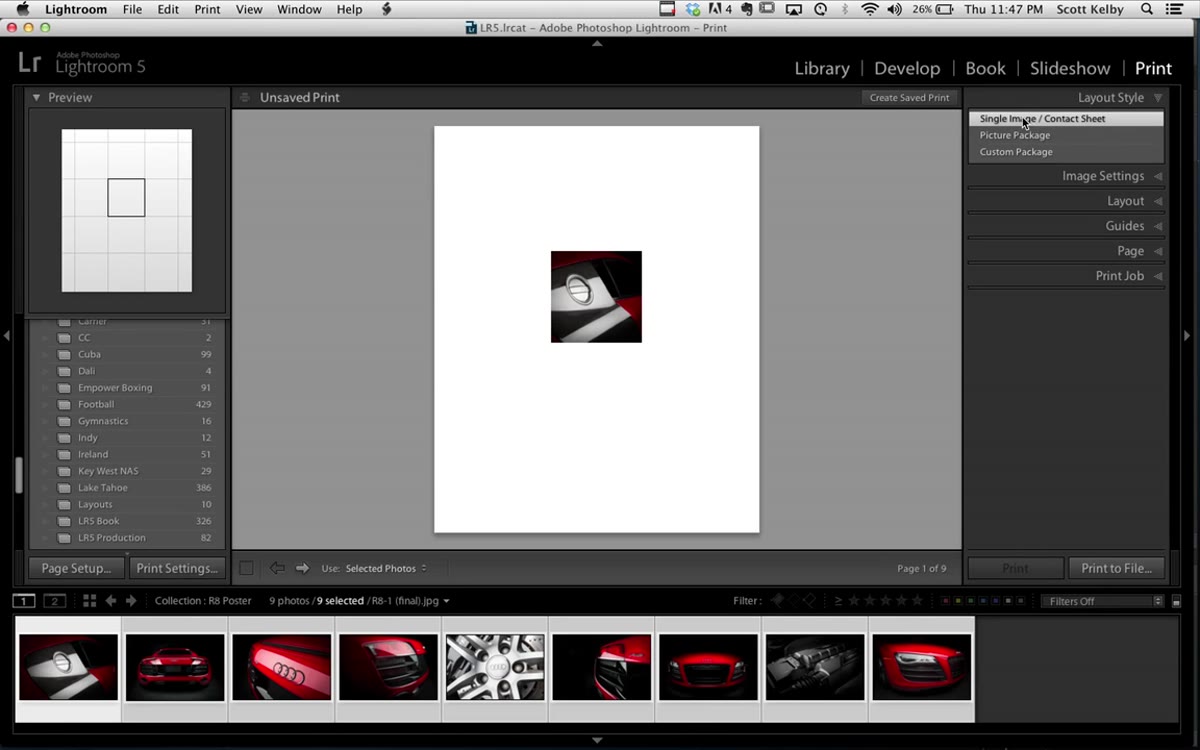
In the Layout Style panel on the right side of the Print module, select “Single Image / Contact Sheet.” This sounds counterintuitive for a poster, but it’s the correct mode. What you’re actually building is a highly customized contact sheet, and this setting unlocks the grid controls that make the whole layout possible. The other layout options in the Print module won’t give you the same kind of fine-grained control over rows, columns, and spacing.
Layout Style panel showing Single Image Contact Sheet selected
In the Layout Style panel on the right side of the Print module, select “Single Image / Contact Sheet.” This sounds counterintuitive for a poster, but it’s the correct mode. What you’re actually building is a highly customized contact sheet, and this setting unlocks the grid controls that make the whole layout possible. The other layout options in the Print module won’t give you the same kind of fine-grained control over rows, columns, and spacing.
Step 4: Configure Margins and the Page Grid
 Layout panel open showing margin fields and page grid row column sliders
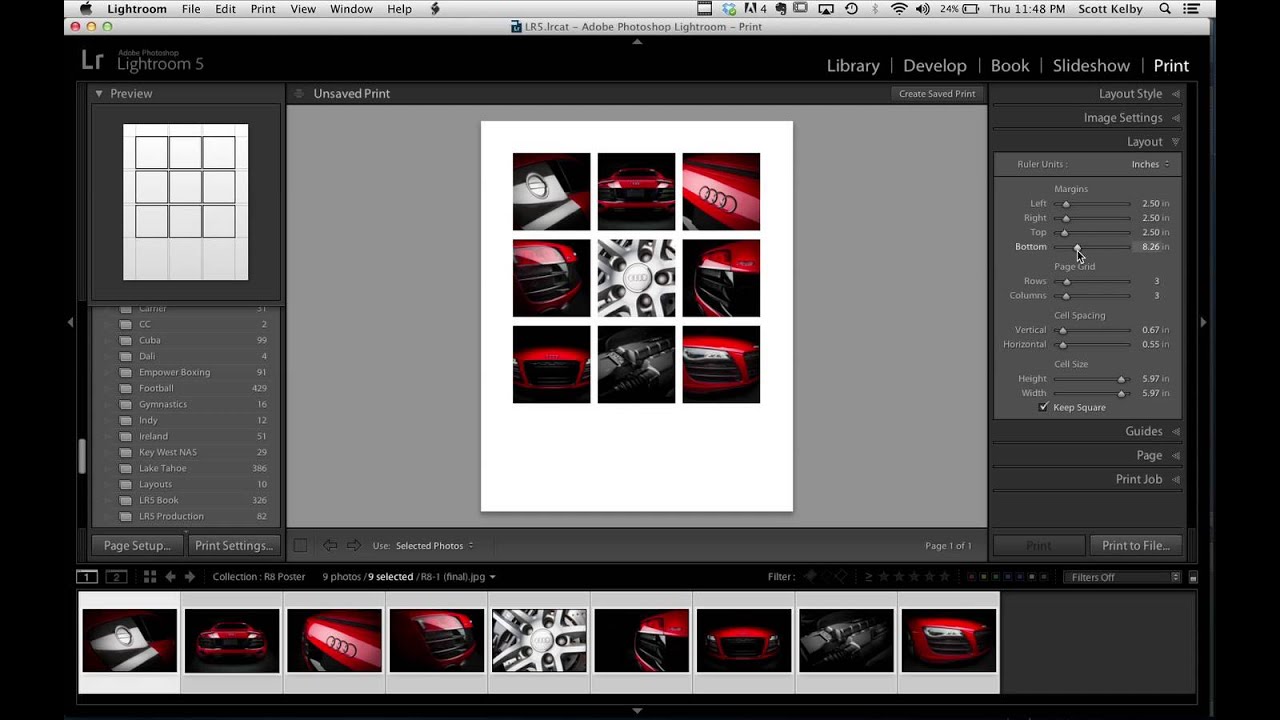
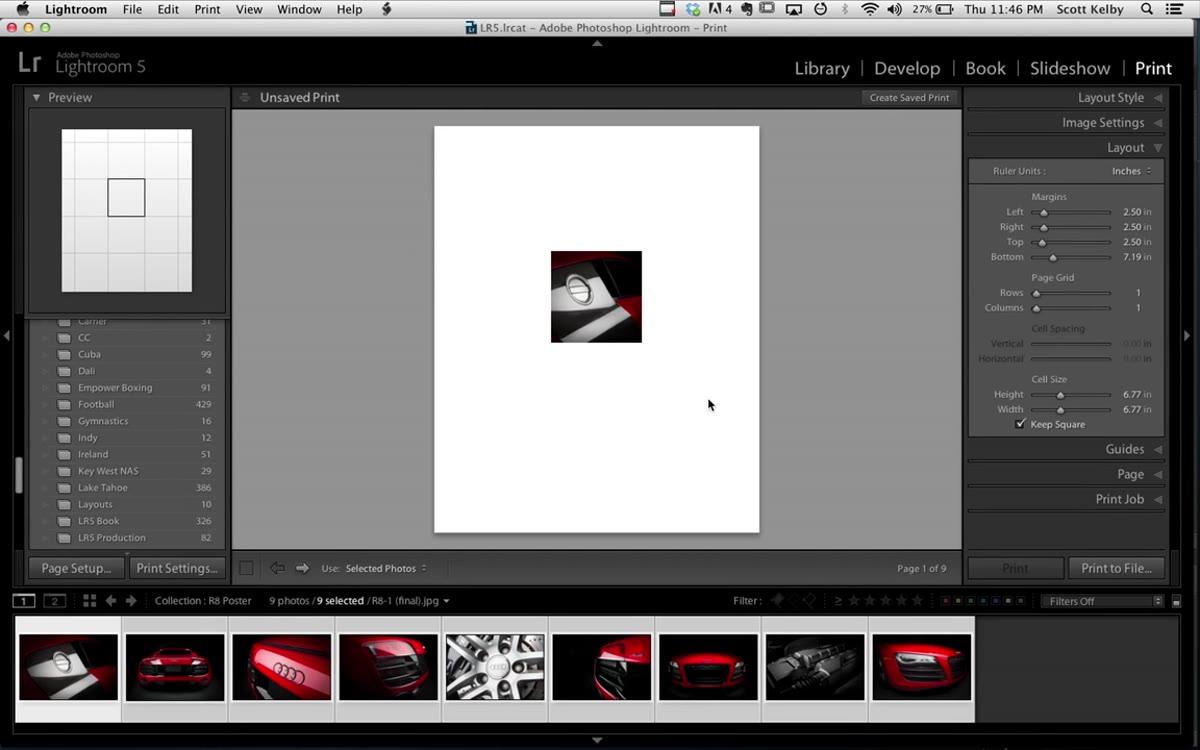
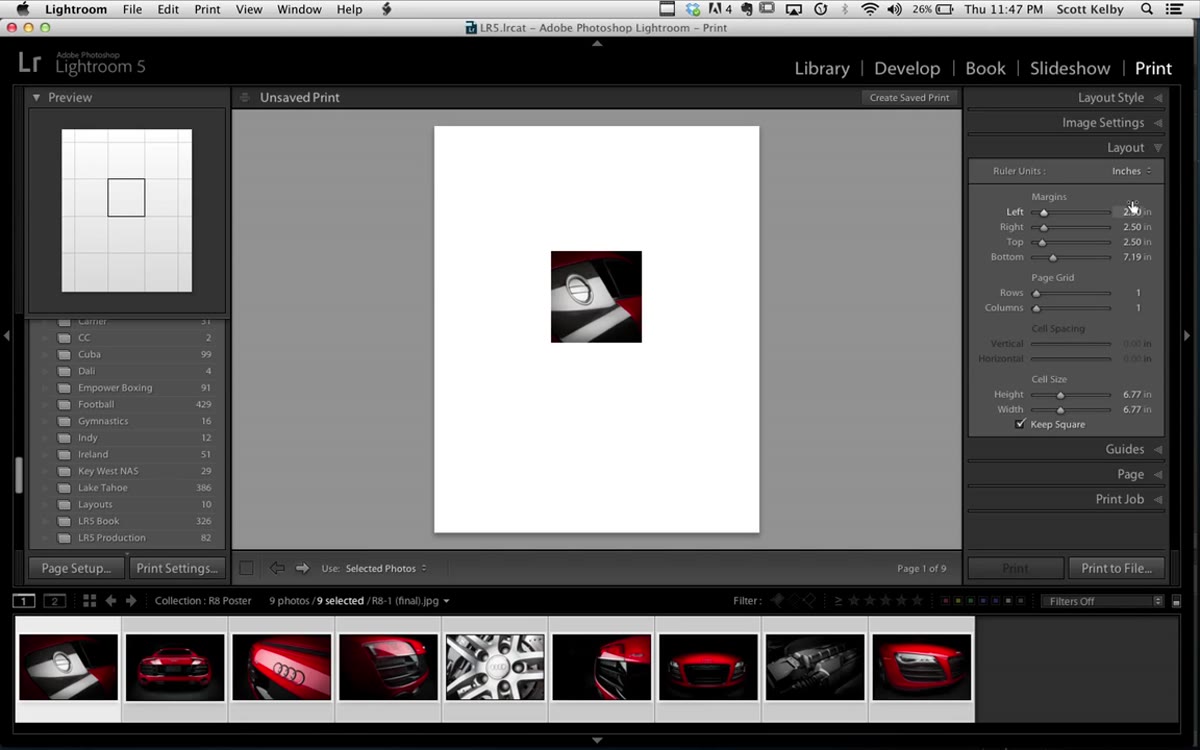
Open the Layout panel and set your margins. Kelby used 2.5 inches on the left, right, and top. The bottom margin is where the design logic gets interesting. He set it to just over 7 inches, deliberately leaving a large blank area at the bottom for the owner’s name, his logo, and any additional text. If you’re building a poster with a title block or branding at the bottom, plan that space before you start adjusting the grid.
Layout panel open showing margin fields and page grid row column sliders
Open the Layout panel and set your margins. Kelby used 2.5 inches on the left, right, and top. The bottom margin is where the design logic gets interesting. He set it to just over 7 inches, deliberately leaving a large blank area at the bottom for the owner’s name, his logo, and any additional text. If you’re building a poster with a title block or branding at the bottom, plan that space before you start adjusting the grid.
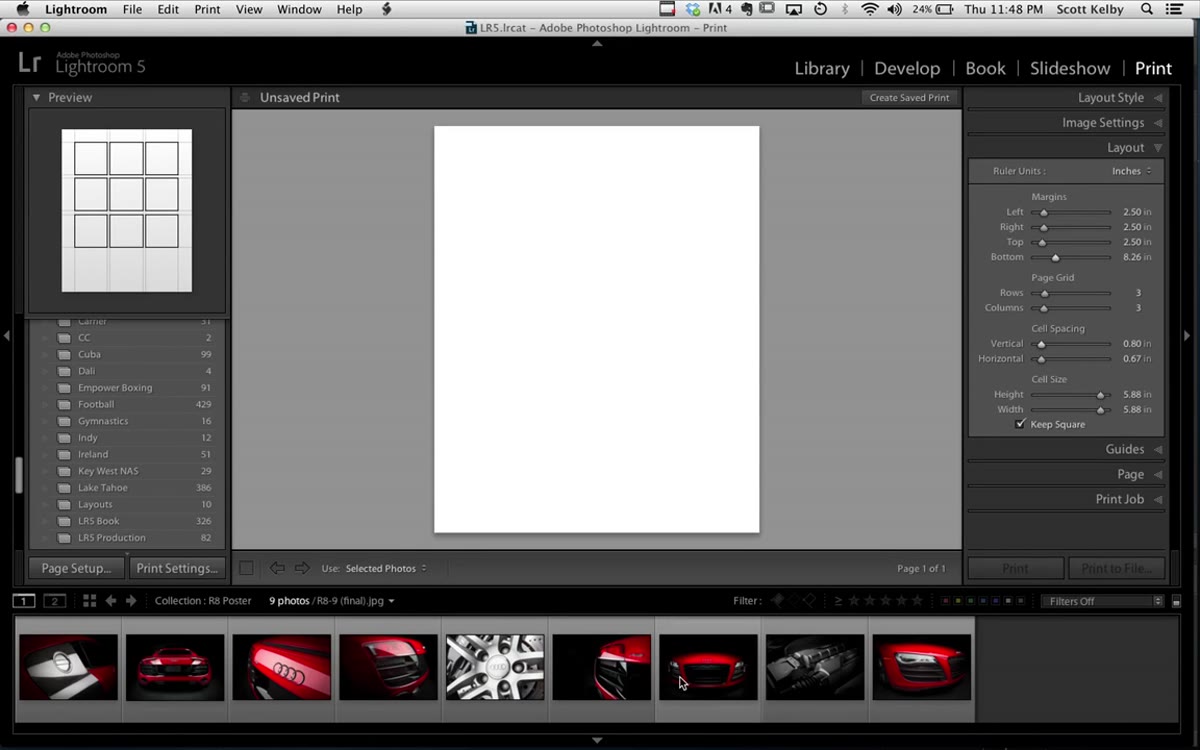
For the grid itself, find the “Page Grid” section and set it to 3 rows and 3 columns. Lightroom will immediately populate the layout with your selected images. The initial spacing will look off, which is expected. The Cell Spacing sliders below the grid controls let you dial in both the horizontal and vertical gaps between images. Kelby had “Keep Square” enabled, which links the spacing values together. Adjust until the gaps feel right visually, and use the bottom margin field to push the grid up or down relative to the text area you’re leaving at the bottom.
Step 5: Reorder Images by Dragging
 Dragging an image thumbnail to a different grid position in Print layout
Lightroom gives you the ability to rearrange which image appears in which cell by clicking and dragging directly in the layout preview. Kelby mentions spending more time on this than any other step, which feels true in my experience too. The “right” image in the center or the top-left corner changes the whole feel of a poster. Move things around until the layout has a visual flow. If you don’t like a change, Command+Z brings you straight back.
Dragging an image thumbnail to a different grid position in Print layout
Lightroom gives you the ability to rearrange which image appears in which cell by clicking and dragging directly in the layout preview. Kelby mentions spending more time on this than any other step, which feels true in my experience too. The “right” image in the center or the top-left corner changes the whole feel of a poster. Move things around until the layout has a visual flow. If you don’t like a change, Command+Z brings you straight back.
Step 6: Export with Print to File
 Print to File dialog with JPEG selected and filename field active
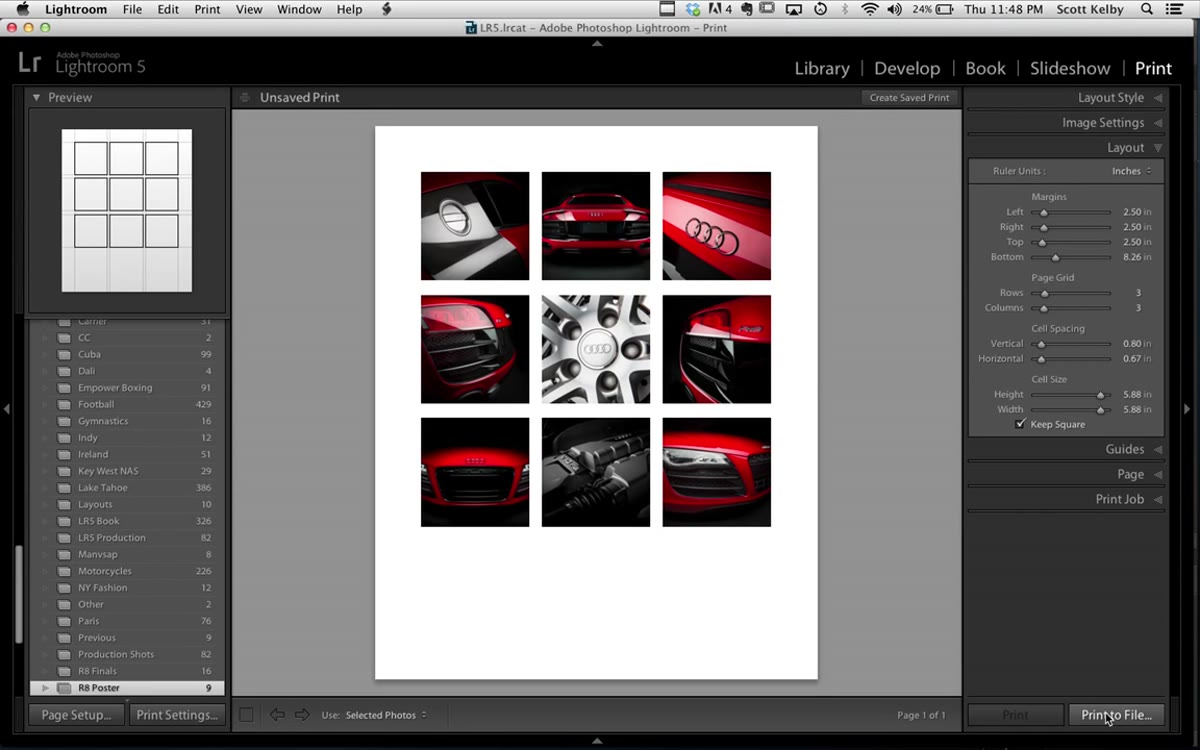
When the layout looks right, don’t hit the regular Print button. Go to “Print to File” instead. This exports your entire poster layout as a high-resolution JPEG. Name the file, confirm the JPEG setting, and let Lightroom render it. The file size will be large given the 24x30 dimensions, but the export is fast. This is your finished layout file, ready for the next stage.
Print to File dialog with JPEG selected and filename field active
When the layout looks right, don’t hit the regular Print button. Go to “Print to File” instead. This exports your entire poster layout as a high-resolution JPEG. Name the file, confirm the JPEG setting, and let Lightroom render it. The file size will be large given the 24x30 dimensions, but the export is fast. This is your finished layout file, ready for the next stage.
Step 7: Add Text in Photoshop
 Photoshop open with poster file and Type tool active on text layer
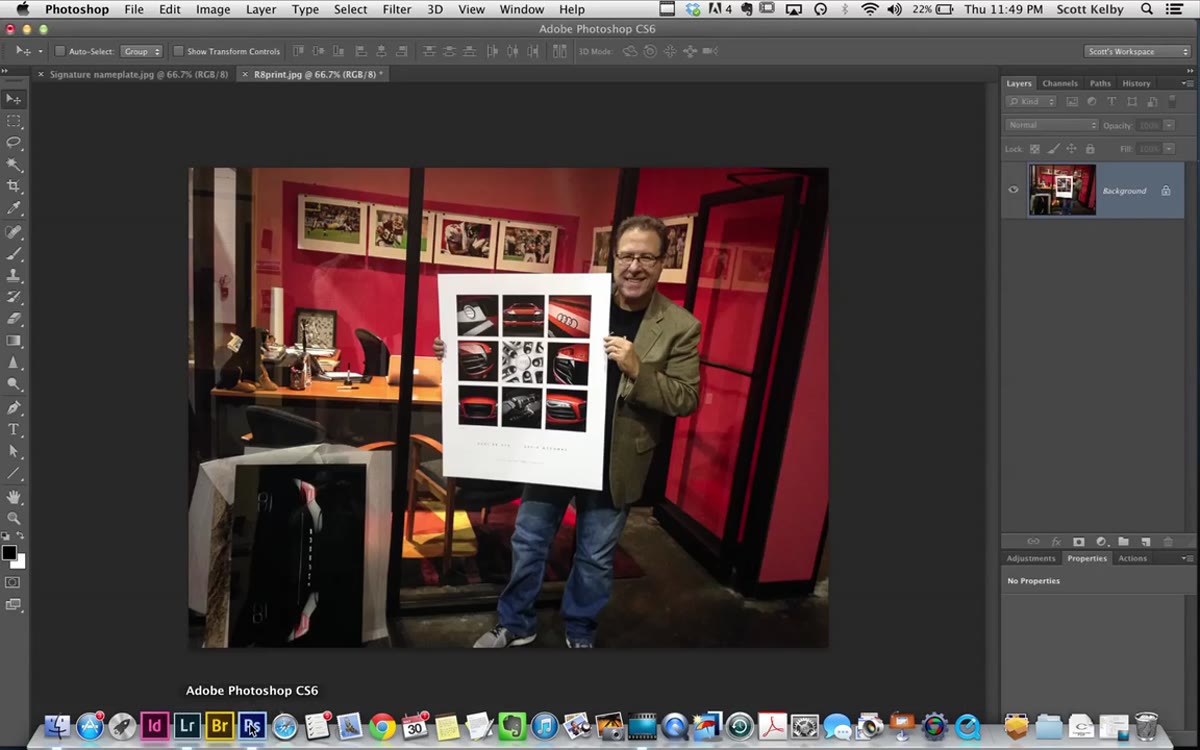
Open the exported JPEG in Photoshop. This is where Kelby adds the text elements that live in that generous bottom margin. He types the car model name, adds a pipe character (Shift + backslash) as a separator, then adds the owner’s name. To spread the letters out and give the type an upscale, editorial feel, he selects the text and uses Option + Right Arrow to increase the tracking one step at a time. Option + Left Arrow tightens it. This is a small detail that makes a real difference. Tight tracking looks casual. Open tracking looks expensive.
Photoshop open with poster file and Type tool active on text layer
Open the exported JPEG in Photoshop. This is where Kelby adds the text elements that live in that generous bottom margin. He types the car model name, adds a pipe character (Shift + backslash) as a separator, then adds the owner’s name. To spread the letters out and give the type an upscale, editorial feel, he selects the text and uses Option + Right Arrow to increase the tracking one step at a time. Option + Left Arrow tightens it. This is a small detail that makes a real difference. Tight tracking looks casual. Open tracking looks expensive.
What I’d Add: Think About the Bottom Space Before You Shoot
The part of this workflow that I keep coming back to is the 7-inch bottom margin. Kelby knew when he was building the layout that he wanted room for text, so he planned for it. That kind of backward planning, designing the deliverable before you’re in post, is a habit worth building early. When I shoot anything that I know might become a composite layout or a poster, I try to capture at least one image with deliberate negative space, or I plan on a border that gives me room to work later. You can’t always predict what a client will want, but if you’re shooting a product or a vehicle with a poster in mind, consider leaving room in the frame or in the layout margins from the start.
Also worth noting: this tutorial was recorded during Lightroom 5’s public beta, but the Print module workflow Kelby demonstrates is identical in current versions of Lightroom Classic. Nothing here is obsolete.
The single biggest thing I took from this tutorial is the reminder that the Print module is a layout tool, not just a printing tool. Most of us ignore it entirely because we send files to labs or deliver digital images. But the contact sheet framework inside it is genuinely flexible, and a 24x30 poster built in twenty minutes is hard to argue with.
Watch the full tutorial on YouTube to see Kelby work through the spacing and text steps in real time. Seeing the margin adjustments happen live makes the layout logic click faster than any description of it will.
Comments
Leave a Comment