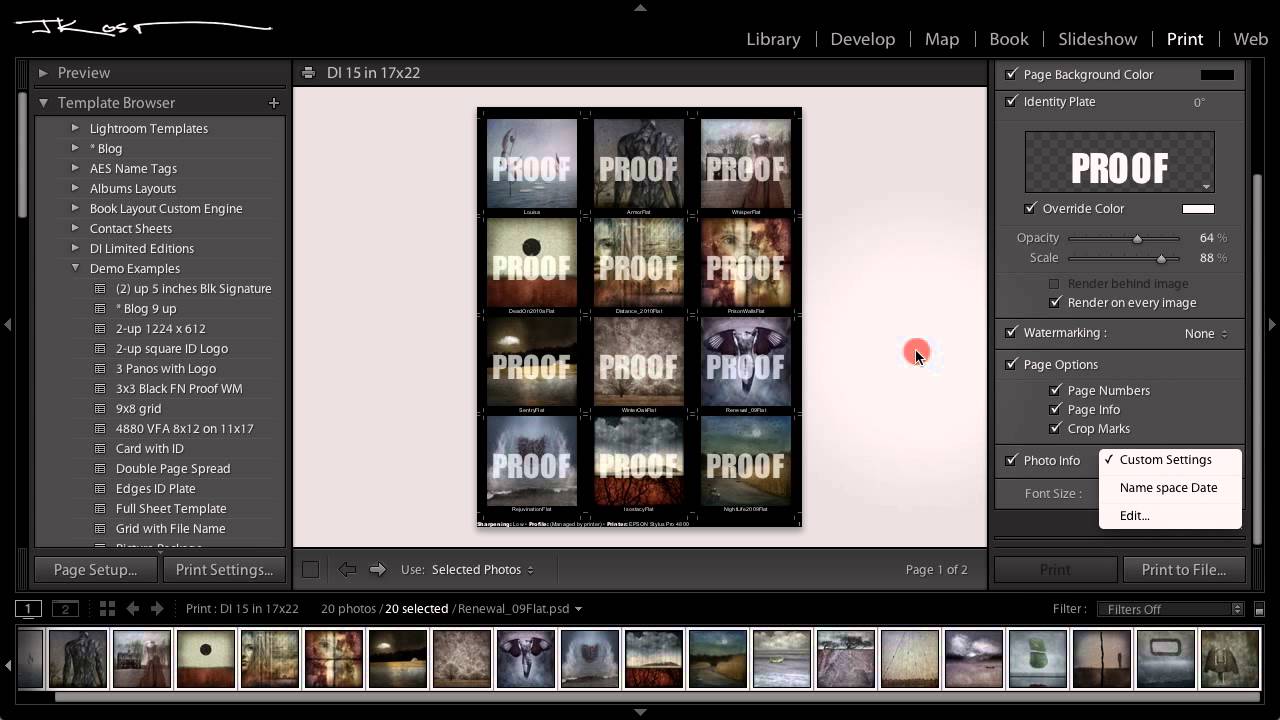
Every time I shoot something even remotely important, I end up with the same problem: I need to share a visual overview of selects with someone who doesn’t live inside Lightroom. A client, a collaborator, my own future self trying to remember which version I actually exported. For years I was screenshotting grid views like some kind of animal. Then I actually dug into Lightroom’s Print module, and I realized I had been ignoring one of the most practical tools in the entire application.
In this CreativeLive tutorial, Julieanne Kost walks through exactly how to build a contact sheet using the Print module, and she goes deeper than just arranging thumbnails on a page. She gets into metadata overlays, page info for test prints, watermarks, and how to save the whole setup as a reusable template. Watch the full tutorial on YouTube if you want to follow along with the visual demo, but everything you need to actually do this is broken down below.
The Print module has a reputation for being the tab nobody opens unless they have a specific reason. This tutorial is the specific reason.
Step 1: Select Your Images and Open the Print Module
 Two selected images loaded in the Print module layout
Start in the Library or Develop module and select the images you want on your contact sheet. You can grab a handful of selects, a full shoot, or just two images if you are testing a layout. Once selected, head to the Print module using the top navigation bar. Lightroom will load your selected images into the layout automatically. If nothing shows up, check that your filmstrip at the bottom is showing the right source.
Two selected images loaded in the Print module layout
Start in the Library or Develop module and select the images you want on your contact sheet. You can grab a handful of selects, a full shoot, or just two images if you are testing a layout. Once selected, head to the Print module using the top navigation bar. Lightroom will load your selected images into the layout automatically. If nothing shows up, check that your filmstrip at the bottom is showing the right source.
Step 2: Choose “Contact Sheet” Under Layout Style
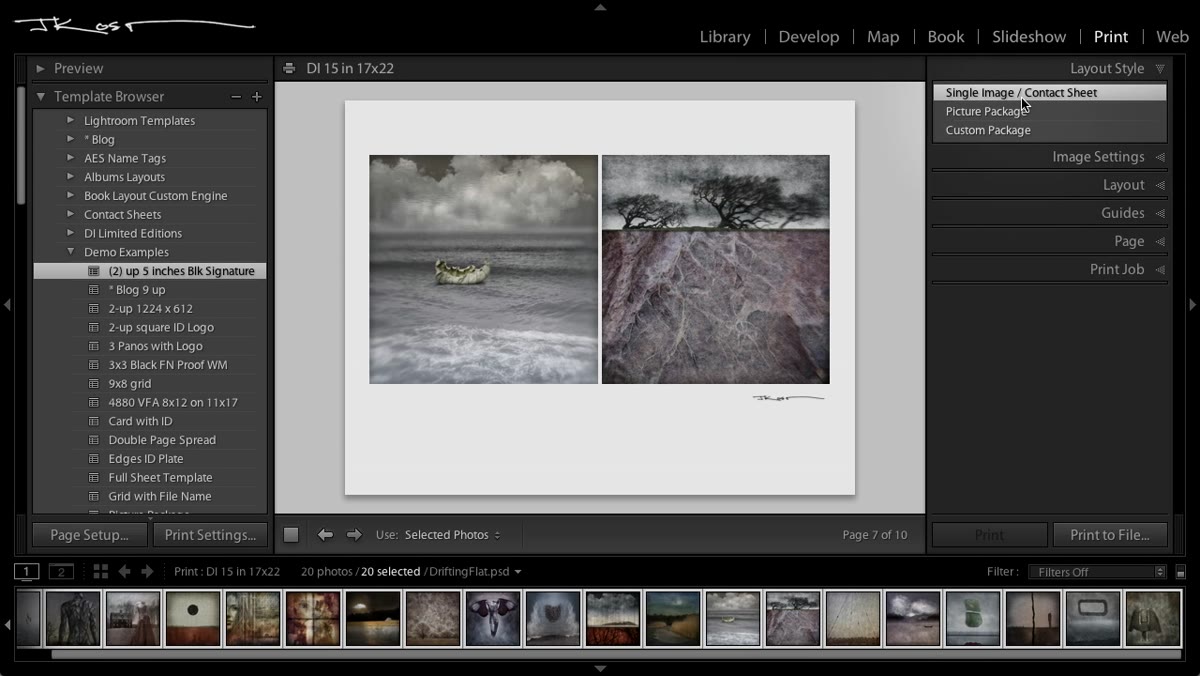 Layout Style panel showing Single Image/Contact Sheet option selected
In the right panel under Layout Style, you will see options including “Single Image / Contact Sheet” and “Picture Package.” For a contact sheet, select “Single Image / Contact Sheet.” This layout mode arranges your images in a uniform grid, and it is the foundation everything else builds on. Julieanne mentions she defaults to a nine-up grid for her own blog work, which gives a clean three-by-three arrangement that reads well both on screen and in print.
Layout Style panel showing Single Image/Contact Sheet option selected
In the right panel under Layout Style, you will see options including “Single Image / Contact Sheet” and “Picture Package.” For a contact sheet, select “Single Image / Contact Sheet.” This layout mode arranges your images in a uniform grid, and it is the foundation everything else builds on. Julieanne mentions she defaults to a nine-up grid for her own blog work, which gives a clean three-by-three arrangement that reads well both on screen and in print.
Step 3: Set Your Grid Rows and Columns
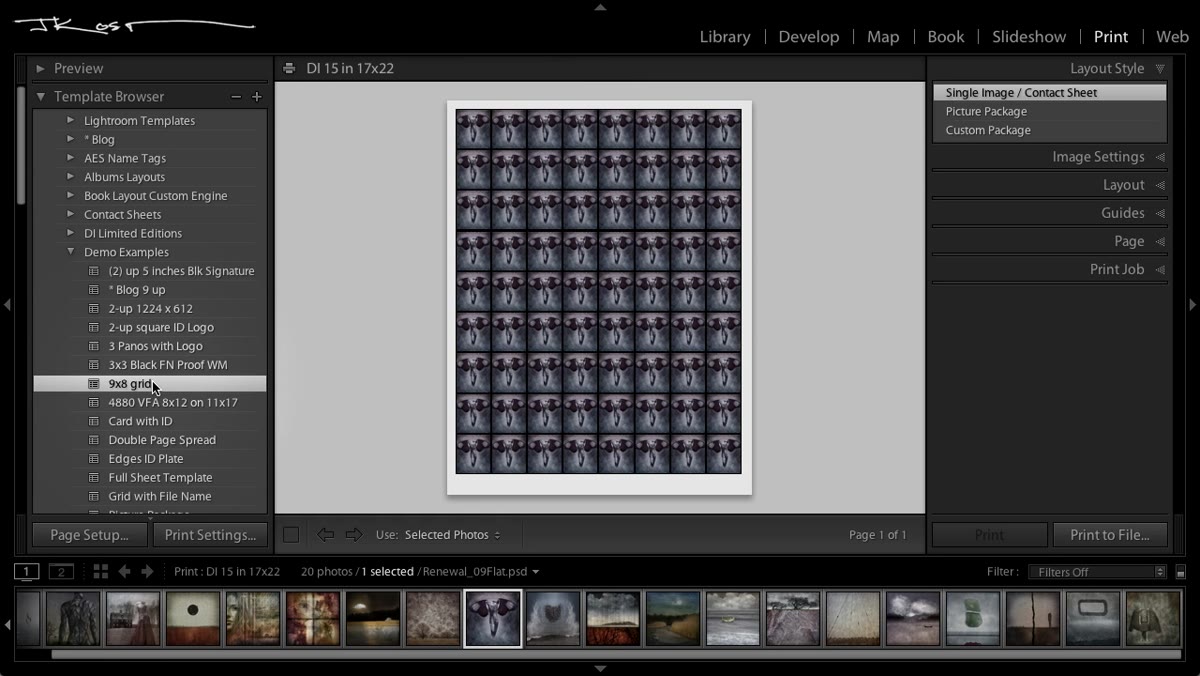 Layout panel with rows and columns sliders adjusted for grid size
Drop down to the Layout panel and use the Rows and Columns sliders to define your grid. Want nine images? Set it to three rows and three columns. Want a simpler two-up comparison? Drop it to one row and two columns. The preview updates in real time, so you can dial this in visually. You can also adjust the cell spacing and margins here if you want more breathing room between images or need to hit a specific print size. Julieanne demonstrates adjusting these to make the metadata underneath each image readable, which is a detail most people skip.
Layout panel with rows and columns sliders adjusted for grid size
Drop down to the Layout panel and use the Rows and Columns sliders to define your grid. Want nine images? Set it to three rows and three columns. Want a simpler two-up comparison? Drop it to one row and two columns. The preview updates in real time, so you can dial this in visually. You can also adjust the cell spacing and margins here if you want more breathing room between images or need to hit a specific print size. Julieanne demonstrates adjusting these to make the metadata underneath each image readable, which is a detail most people skip.
Step 4: Customize the Page Background and Add a Logo
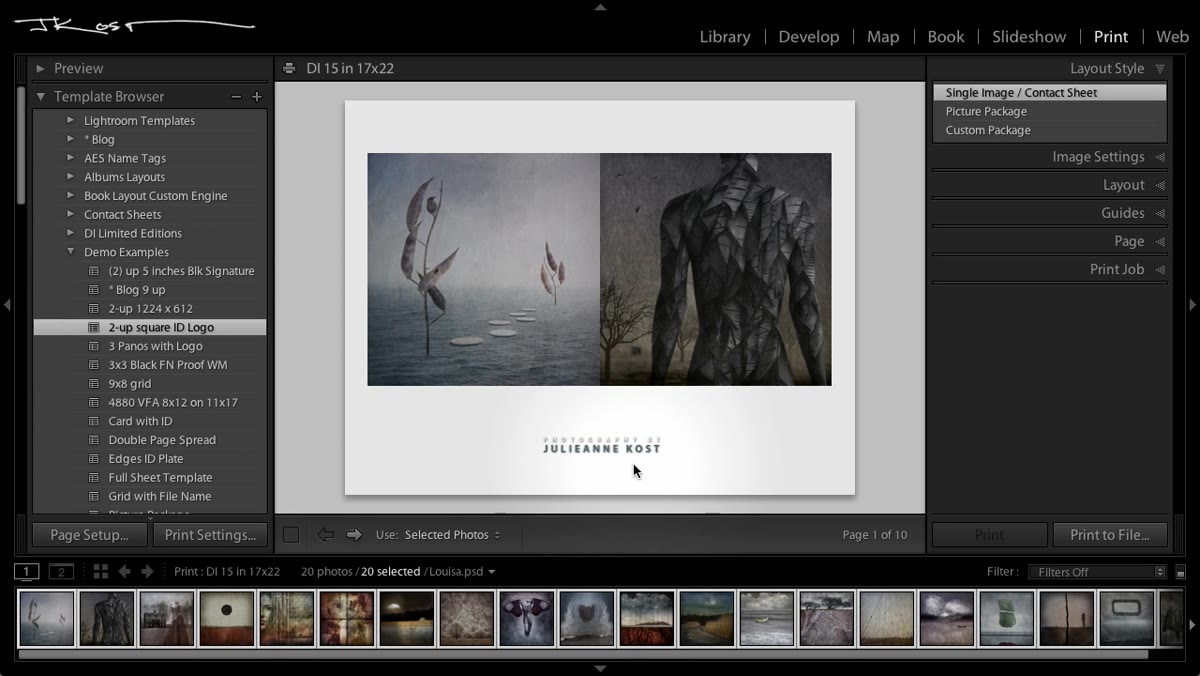 Page panel showing background color set to black with graphic logo watermark
In the Page panel on the right side, you can change the background color of the entire sheet. Julieanne switches hers to black for a cleaner, more portfolio-ready look. You can click the color swatch and choose anything that fits your brand or the context you are sharing in. While you are in the Page panel, you can also add an identity plate (text-based) or swap it out for a graphic, which is effectively how you drop in a logo. For a polished deliverable, this small detail makes a real difference.
Page panel showing background color set to black with graphic logo watermark
In the Page panel on the right side, you can change the background color of the entire sheet. Julieanne switches hers to black for a cleaner, more portfolio-ready look. You can click the color swatch and choose anything that fits your brand or the context you are sharing in. While you are in the Page panel, you can also add an identity plate (text-based) or swap it out for a graphic, which is effectively how you drop in a logo. For a polished deliverable, this small detail makes a real difference.
Step 5: Turn On Page Info for Test Print Tracking
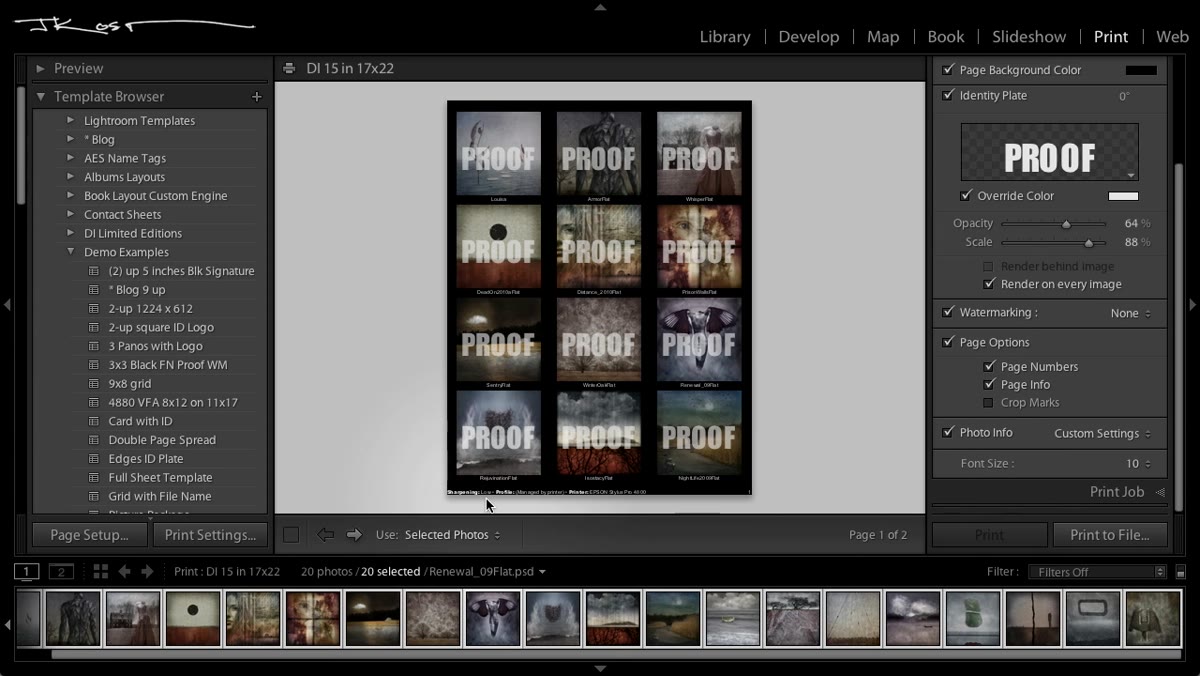 Page options showing Page Info checkbox enabled with printer data visible
This is the feature I wish someone had shown me earlier. Also inside the Page panel, there is a set of Page Options checkboxes. “Page Info” is the one that deserves attention, especially if you are doing test prints. When enabled, Lightroom stamps the bottom of the page with the sharpening level, output resolution, and printer profile used for that specific print job. When you are dialing in print settings and comparing test sheets, that information is the difference between knowing what worked and just guessing. Julieanne describes it as super handy for test prints, and she is not wrong.
Page options showing Page Info checkbox enabled with printer data visible
This is the feature I wish someone had shown me earlier. Also inside the Page panel, there is a set of Page Options checkboxes. “Page Info” is the one that deserves attention, especially if you are doing test prints. When enabled, Lightroom stamps the bottom of the page with the sharpening level, output resolution, and printer profile used for that specific print job. When you are dialing in print settings and comparing test sheets, that information is the difference between knowing what worked and just guessing. Julieanne describes it as super handy for test prints, and she is not wrong.
Step 6: Pull Metadata Into the Layout Using Custom Text
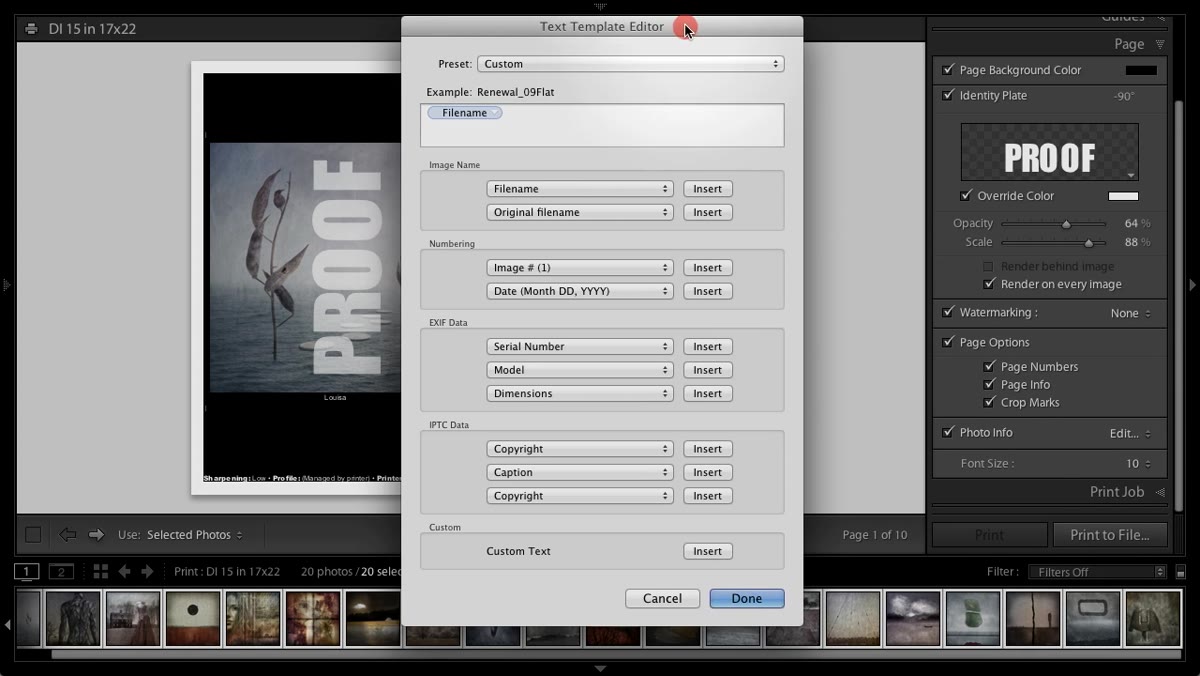 Custom text fields in Page panel with filename and EXIF options selected
This is where the contact sheet stops being a simple thumbnail grid and becomes a genuinely useful reference document. Still inside the Page panel, scroll down to the text overlay section. You can pull metadata fields directly from each file and display them beneath every image individually. Julieanne walks through options like file name, image dimensions, copyright information, captions, keywords, and ISO. Each image gets its own data pulled dynamically, so if you add the ISO field, every thumbnail shows the actual ISO from that specific file’s metadata. For client deliverables or technical review sheets, this is enormous.
Custom text fields in Page panel with filename and EXIF options selected
This is where the contact sheet stops being a simple thumbnail grid and becomes a genuinely useful reference document. Still inside the Page panel, scroll down to the text overlay section. You can pull metadata fields directly from each file and display them beneath every image individually. Julieanne walks through options like file name, image dimensions, copyright information, captions, keywords, and ISO. Each image gets its own data pulled dynamically, so if you add the ISO field, every thumbnail shows the actual ISO from that specific file’s metadata. For client deliverables or technical review sheets, this is enormous.
Step 7: Save Your Setup as a Template
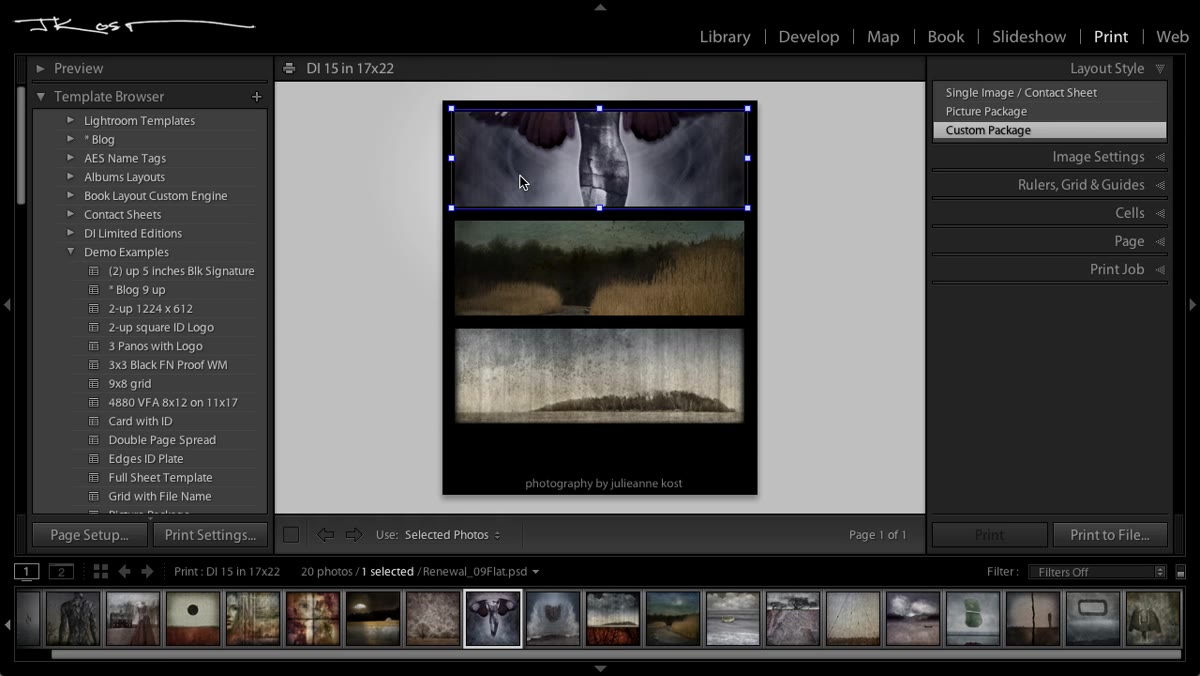 Left panel showing print templates list with custom template options
Once you have a layout you like, save it. In the Template Browser on the left side of the Print module, click the plus icon to add a new template and name it something specific. Julieanne names hers descriptively based on their purpose, and that is the right instinct. A nine-up grid with black background and filename overlay is not the same as a three-up panoramic layout, and you want both available in one click. Building a small library of these templates is one of those low-effort, high-return workflow investments that pays off every single shoot.
Left panel showing print templates list with custom template options
Once you have a layout you like, save it. In the Template Browser on the left side of the Print module, click the plus icon to add a new template and name it something specific. Julieanne names hers descriptively based on their purpose, and that is the right instinct. A nine-up grid with black background and filename overlay is not the same as a three-up panoramic layout, and you want both available in one click. Building a small library of these templates is one of those low-effort, high-return workflow investments that pays off every single shoot.
One Thing the Tutorial Doesn’t Mention: JPEG Output Changes Everything
The Print module has a quiet feature that reframes its entire usefulness: you can print to a JPEG file instead of a physical printer. That means every contact sheet layout you build can be exported as a flat image file, ready to attach to an email, drop into a pitch deck, or post to a client gallery. I use this constantly for sharing selects with collaborators who are not going to open a Lightroom catalog. You hit “Print to File” in the bottom left instead of “Print,” choose your resolution, and you get a clean flat JPEG of the entire contact sheet. Julieanne hints at this use case near the end of the tutorial, but it deserves its own spotlight because it is what makes the Print module relevant even if you never touch an actual printer.
The biggest takeaway here is that the Print module is not just for printing. It is a layout and annotation tool that can produce polished, metadata-rich reference sheets for any part of your workflow. The contact sheet format in particular is something worth having templated and ready to go before you need it.
Watch the full tutorial on YouTube to see Julieanne demonstrate the layout in real time. The visual of watching those metadata fields populate under each image is worth seeing once before you build your own.
Comments
Leave a Comment