Lightroom Isn't Just for Editing — Here's How I Use It to Wrangle and Rename Entire Photo Sets

Lightroom Isn't Just for Editing — Here's How I Use It to Wrangle and Rename Entire Photo Sets

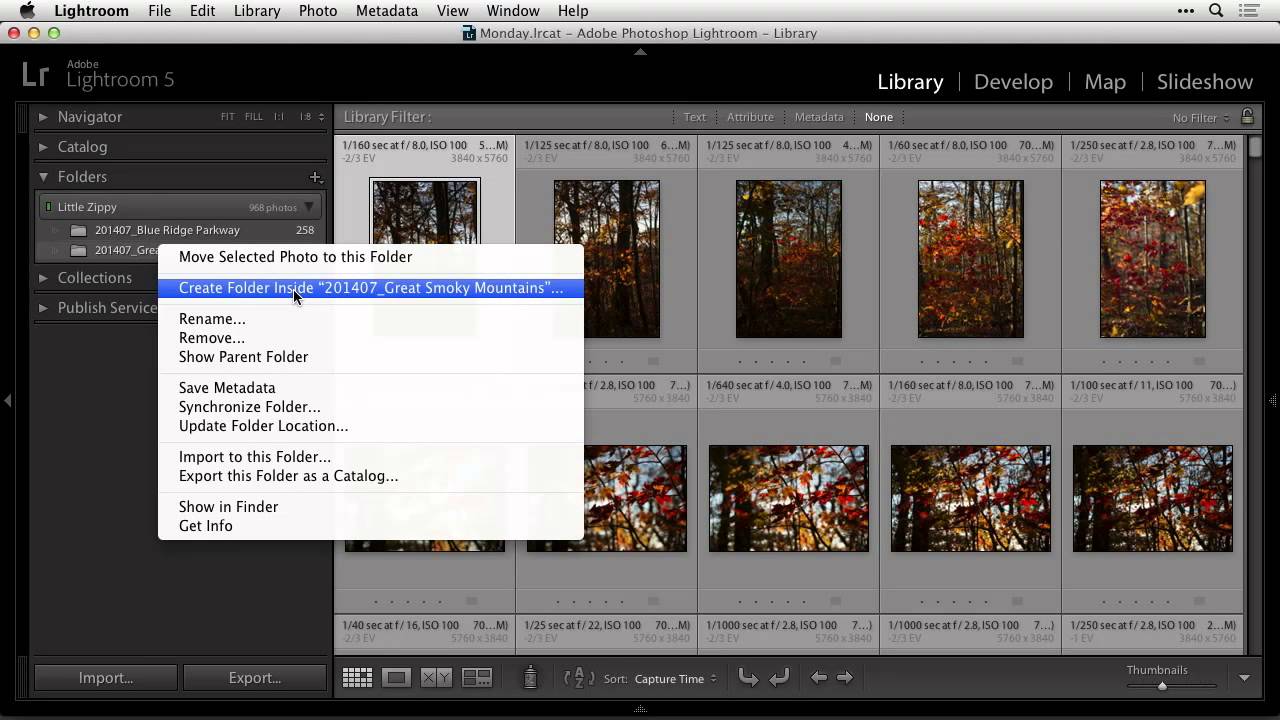
Most photographers treat Lightroom like a one-trick pony. Import, edit, export. Repeat. But I’ve found that some of its most useful features have nothing to do with curves, color grading, or any of the things we usually talk about on this site. I use Lightroom as a full file management hub, and honestly, if I lost access to every other feature tomorrow, the batch rename tool alone would keep me subscribed.


Stop Losing Your Best Shots: How Nigel Danson's Lightroom Folder System Actually Works

Stop Losing Your Best Shots: How Nigel Danson's Lightroom Folder System Actually Works

There’s a specific kind of dread that hits when a client asks you to find “that misty lake shot from a couple years back” and you realize your Lightroom catalog is basically a digital junk drawer. I’ve been there. Folders named “new folder (3)” and dates that made sense at the time but mean nothing now. The whole catalog becomes a place you avoid instead of a tool you trust.

Lightroom vs. Lightroom Classic: A Working Photographer's Tour of the Cloud-Based App

Lightroom vs. Lightroom Classic: A Working Photographer's Tour of the Cloud-Based App

I’ll be honest with you. For years I was a Lightroom Classic loyalist. Classic felt like home base, the place where my catalogs lived, where my presets (named after Wilco songs, naturally) were organized just the way I liked them. The cloud-based version of Lightroom felt like a younger sibling I hadn’t bothered to get to know. Then my editing workflow got messier as I started shooting more on the go, and I needed a way to access and edit images across devices without driving myself crazy.

Question Marks in Lightroom's Folder Panel? Here's How to Stop Losing Your Mind Over Missing Files

Question Marks in Lightroom's Folder Panel? Here's How to Stop Losing Your Mind Over Missing Files

There’s a specific kind of dread that hits when you open Lightroom and your folder panel is suddenly full of question marks. It looks like your photos have vanished. Your carefully organized shoot folders seem to have evaporated overnight. If you’ve felt that cold drop in your stomach, you’re not alone, and more importantly, nothing is actually gone. I ran into this exact situation after reorganizing a hard drive mid-project. I’d renamed and moved some folders outside of Lightroom, which is the classic mistake, and suddenly the catalog had no idea where anything lived.

Stop Drowning in 400,000 Unlabeled Photos — Let AI Find Them for You

Stop Drowning in 400,000 Unlabeled Photos — Let AI Find Them for You

I have a confession that will probably resonate with a lot of you: I have years of photo shoots sitting in Lightroom with zero keywords attached to them. Portraits from 2019, landscapes from a road trip through Montana, a whole session I did at a friend’s horse farm. All of it is technically “organized” in folders by date, which means finding any specific image involves either remembering the exact month I shot it or scrolling through thousands of thumbnails like it’s 2009.

Update Your Lightroom Copyright Metadata Before You Import Another Photo in 2025

Update Your Lightroom Copyright Metadata Before You Import Another Photo in 2025

Every January I do the same thing: I spend way too long organizing my preset folders, rethinking my export settings, and completely forgetting the one administrative task that actually matters legally. I blow past the new year and import hundreds of photos before I realize my copyright metadata still reads the previous year. It’s not a disaster, but it’s also not nothing. Copyright information embedded in your files is your first line of defense if an image gets scraped, stolen, or published without permission.

Stop Using Finder to Review Photos. Use Adobe Bridge Instead.

Stop Using Finder to Review Photos. Use Adobe Bridge Instead.

I’ve been editing photos long enough to have strong opinions about almost every step of the process. Ask me about Lightroom versus Capture One sometime and bring a snack, because that conversation runs long. But here’s something I don’t argue about anymore: the moment between pulling your memory card and opening Lightroom is where most photographers quietly waste an embarrassing amount of time. Scrolling through tiny thumbnails in Finder or File Explorer, importing thousands of RAW files before you’ve even decided which ones are worth keeping, waiting on Lightroom’s import dialog to do its slow, grinding thing.

Stop Scrolling Through 200,000 Photos - Let Lightroom's Map and Face Recognition Do the Work

Stop Scrolling Through 200,000 Photos - Let Lightroom's Map and Face Recognition Do the Work

I have a folder problem. Not a hoarding problem, I want to be clear, just a folder problem. After years of shooting everything from Nashville band press shots to weekend road trips through the Cumberland Plateau, my Lightroom catalog has grown into something that requires genuine strategy to navigate. Searching by date works until it doesn’t. Collections help until you forget to add something. And scrolling the grid view at 2 a.

Stop Drowning in Bracket Photos: A Smarter Way to Manage HDR Shoots in Lightroom

Stop Drowning in Bracket Photos: A Smarter Way to Manage HDR Shoots in Lightroom

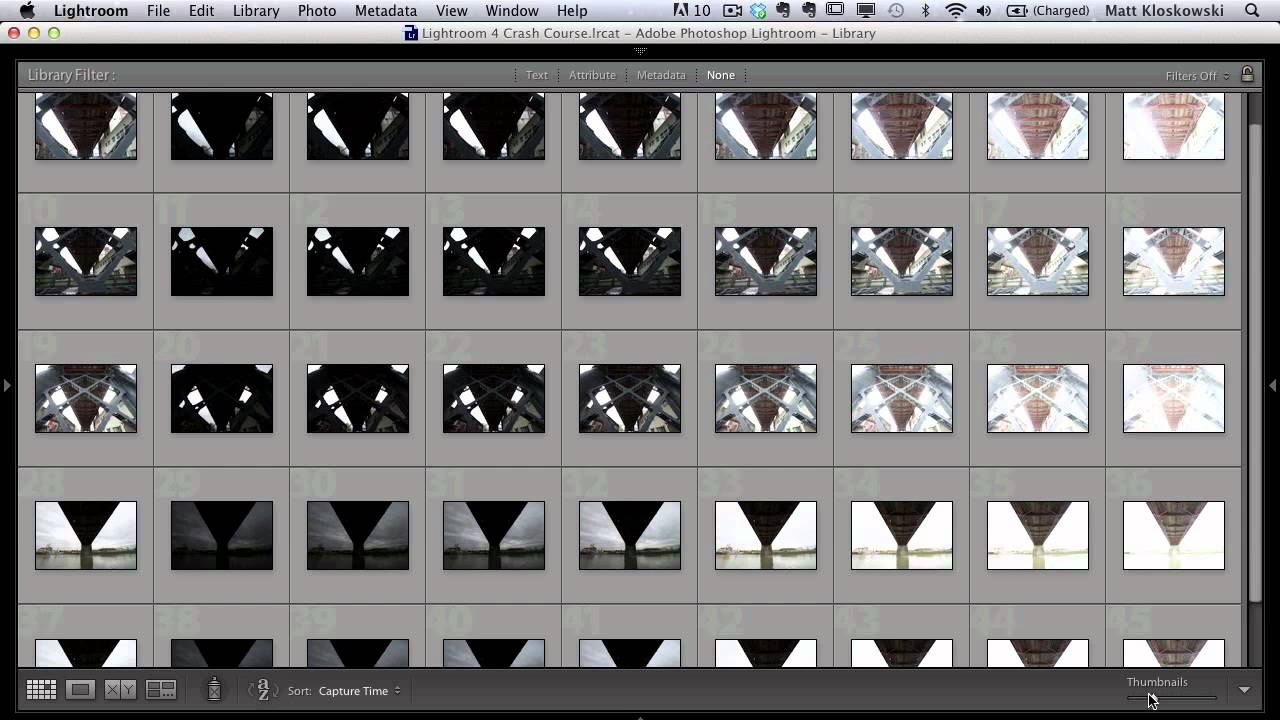
Every time I come back from a shoot with bracketed exposures, I face the same low-grade dread: opening Lightroom to find what feels like a thousand nearly identical frames staring back at me. Nine brackets per scene, multiplied across an afternoon of walking around downtown Nashville, and suddenly I’m not editing photos anymore. I’m just managing files. That’s not why I picked up a camera. This KelbyOne tutorial from Matt Kloskowski landed in my feed at exactly the right moment.

The Smart Collection Trick That Catches the Photos You Forgot to Flag

The Smart Collection Trick That Catches the Photos You Forgot to Flag

There’s a specific kind of frustration that doesn’t get talked about enough in photography circles. You upload a batch of photos, you’re excited about two or three of them, you jump into the Develop module and start pushing sliders around — the image is coming to life, it’s looking good — and then your phone buzzes, your dog needs to go out, life happens. You close Lightroom without flagging the photo, without adding it to a collection, without doing any of the responsible organizational things you know you should do.

Where Did My Photos Go? The Lightroom Import Method That Finally Makes Sense

Where Did My Photos Go? The Lightroom Import Method That Finally Makes Sense

There is one question I heard constantly when I first started helping friends learn Lightroom: “Where did my photos go?” Not “how do I edit this” or “what’s a good preset for skin tones” - just a panicked message asking why an entire shoot had disappeared into the void. The answer, almost every single time, came back to the import step. People skip past it, click through the dialog without reading it, and then spend an hour hunting through their hard drive wondering if they accidentally deleted a whole card full of portraits.

One Catalog to Rule Them All: How to Set Up a Travel Catalog That Actually Merges Back Cleanly

One Catalog to Rule Them All: How to Set Up a Travel Catalog That Actually Merges Back Cleanly

I have a recurring nightmare. Not the one where I show up to a shoot and forgot my memory cards. The one where I get home from a week of shooting, dump everything into my laptop catalog, and then spend two hours Googling “how to merge Lightroom catalogs without losing edits” at midnight. If you’ve been there, you know the specific dread of not being sure whether your metadata survived the trip.