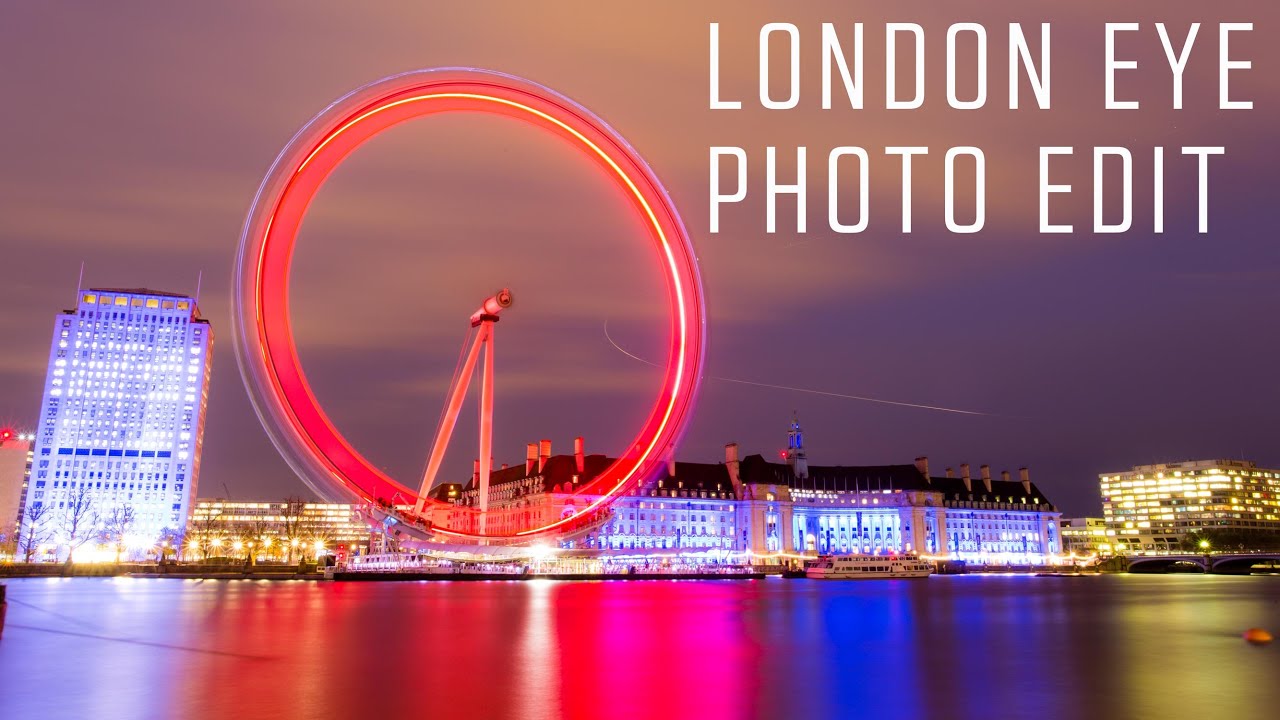
Long exposure cityscapes are one of those shots that look dramatic straight out of camera but can fall apart fast in post if you don’t have a clear editing plan. The silky water, the light trails, the ambient glow of a city at night, all of that can turn muddy and flat if you reach for the wrong sliders first. I’ve been there more times than I want to admit, usually somewhere around 11pm with a raw file open and no idea why the colors look like a bruise.
That’s why I kept coming back to this London Eye tutorial from Adam over at First Man Photography. Watch the full tutorial on YouTube before or after reading this, but either way, what I want to do here is pull out the actual technique, spell out the decisions behind each move, and give you something you can follow in your own Lightroom session without rewinding the video six times.
Adam’s approach is methodical in a way I respect: he cleans the image before he grades it. That order matters more than most people realize. You don’t want to spend twenty minutes dialing in your tone curve and then notice a lens smudge sitting in the middle of your sky. So let’s walk through it the way he does it.
Step 1: First Pass - Read the Image Before You Touch It
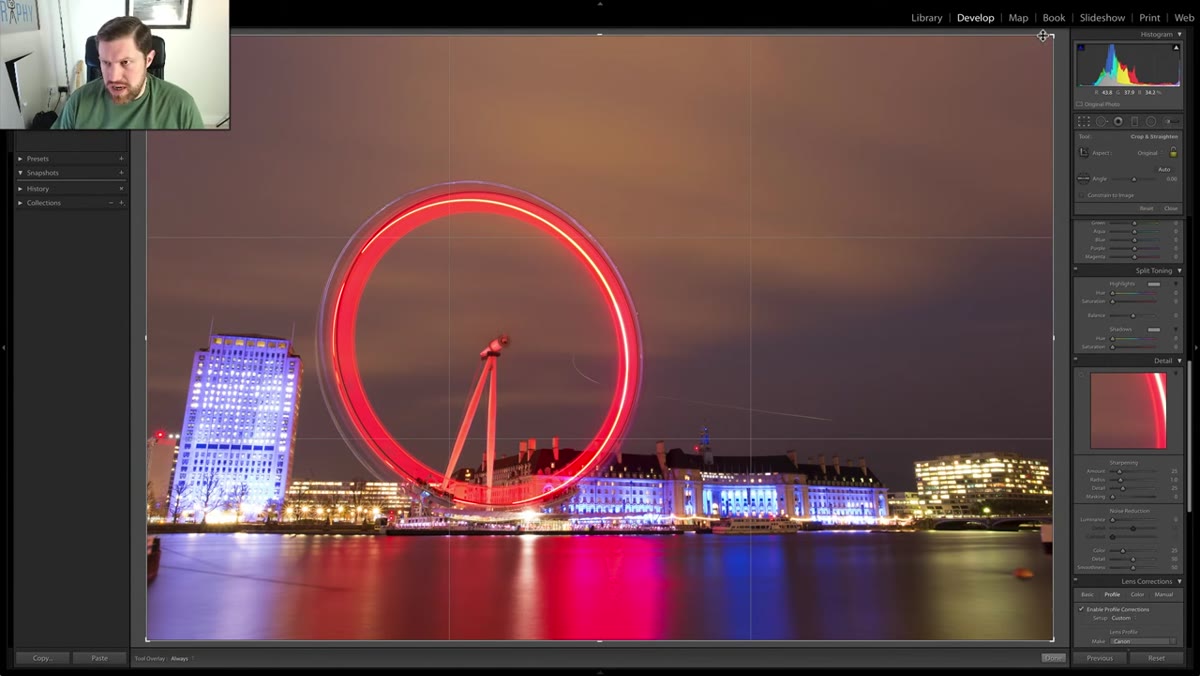
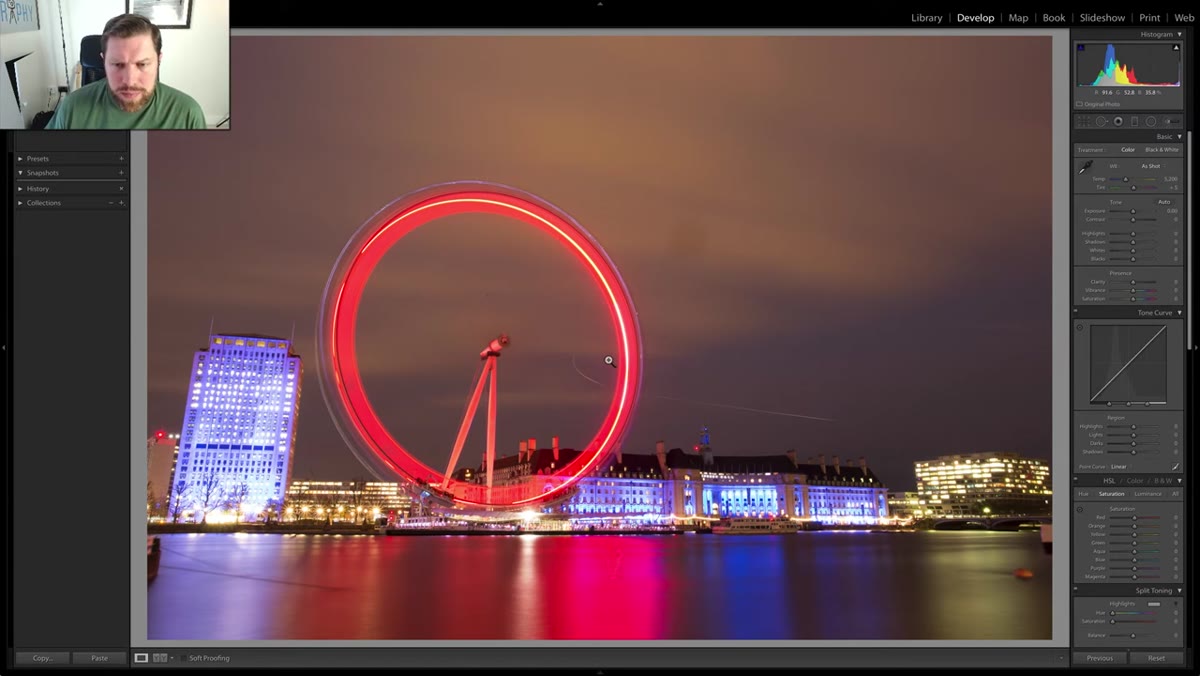 Raw London Eye image open in Lightroom Develop module
Before sliding anything, Adam takes a moment to actually look at the image. What needs fixing? What’s already working? In this case, he spots two things immediately: some small sensor spots and a smudge that’s probably from the front element of the lens. Night and long exposure shooting is brutal for this because any light scatter makes dust and smudges visible in ways daylight shooting hides.
Raw London Eye image open in Lightroom Develop module
Before sliding anything, Adam takes a moment to actually look at the image. What needs fixing? What’s already working? In this case, he spots two things immediately: some small sensor spots and a smudge that’s probably from the front element of the lens. Night and long exposure shooting is brutal for this because any light scatter makes dust and smudges visible in ways daylight shooting hides.
This first-pass habit is worth building into your own workflow. Open the image, zoom to 100%, and do a lap around the frame looking for distractions before your eye gets tunnel vision on the subject. It takes thirty seconds and saves you from the painful moment of discovering a problem after the edit is done.
Step 2: Enable Lens Profile Corrections to Kill Unwanted Vignette
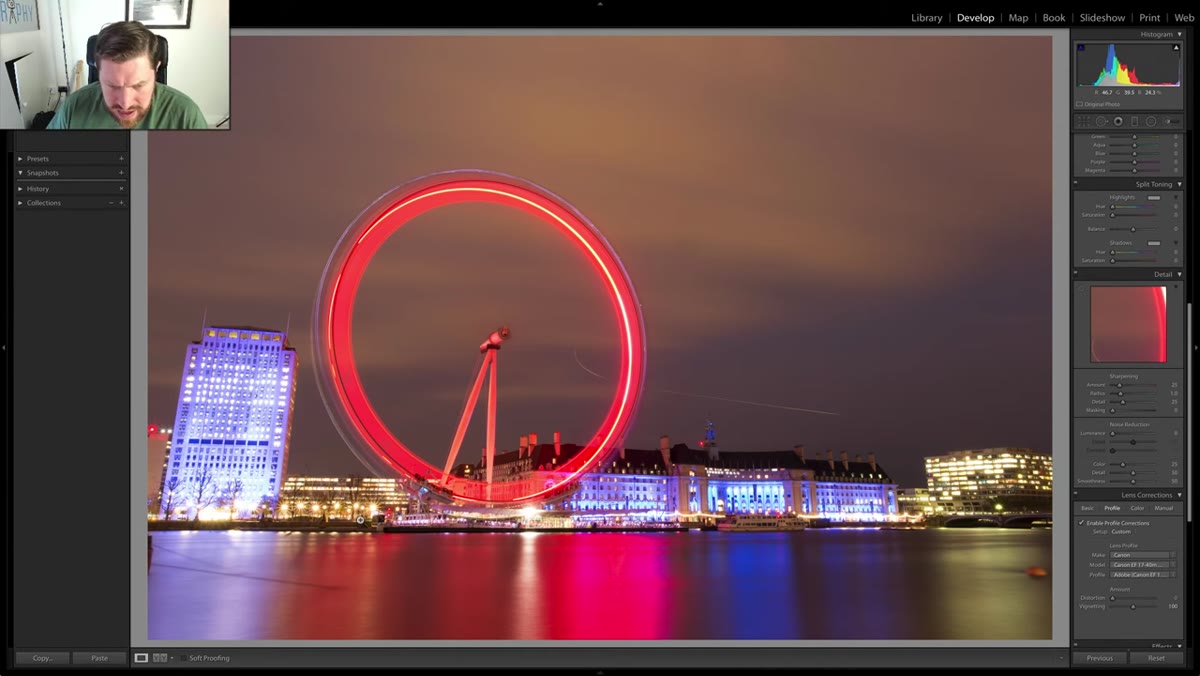
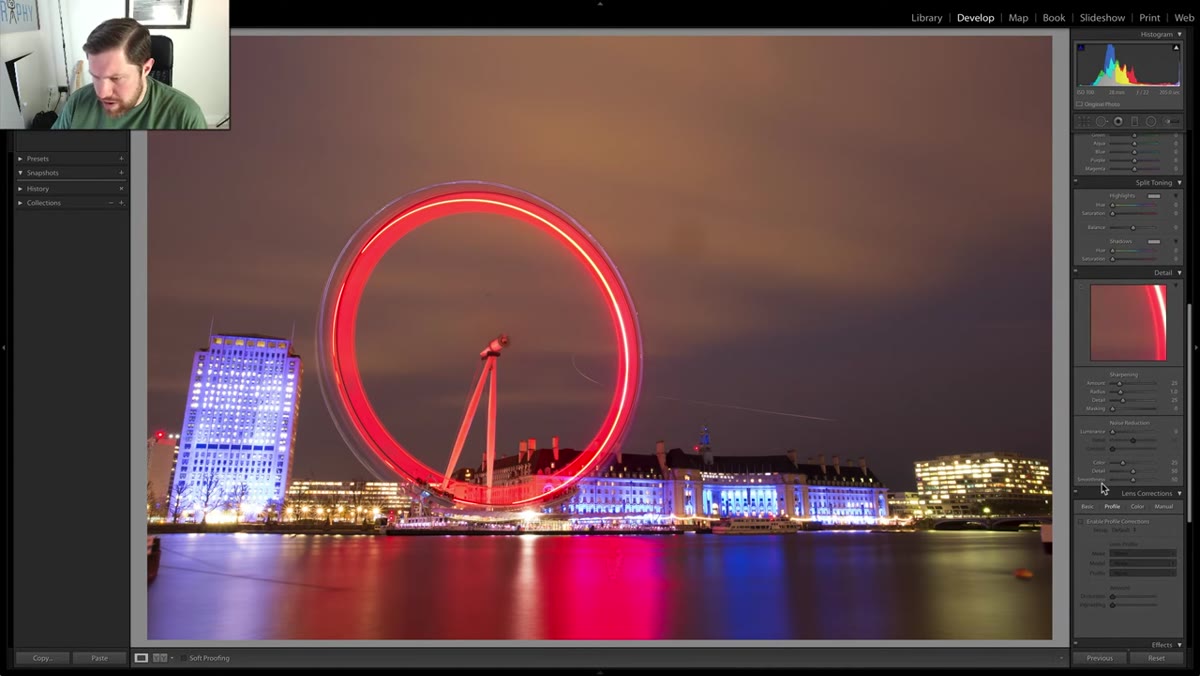 Lens Corrections panel with Enable Profile Corrections checked
Long exposure images shot with certain lenses can pick up a lens-profile vignette that Lightroom applies automatically once you enable corrections. In some images that vignette is useful and flattering. In this one, Adam decides it’s working against him and switches it on just long enough to see the difference, then decides to remove the darkening effect it adds.
Lens Corrections panel with Enable Profile Corrections checked
Long exposure images shot with certain lenses can pick up a lens-profile vignette that Lightroom applies automatically once you enable corrections. In some images that vignette is useful and flattering. In this one, Adam decides it’s working against him and switches it on just long enough to see the difference, then decides to remove the darkening effect it adds.
The practical move here: go to the Lens Corrections panel (or Optics panel in newer Lightroom versions), check Enable Profile Corrections, and then compare the before and after by toggling it. If the vignette it introduces feels heavy or pulls the eye away from your subject, either disable it entirely or dial the Vignetting slider in the correction back toward zero. Don’t just leave it on by default because everyone says you should.
Step 3: Remove Sensor Spots with the Spot Removal Tool
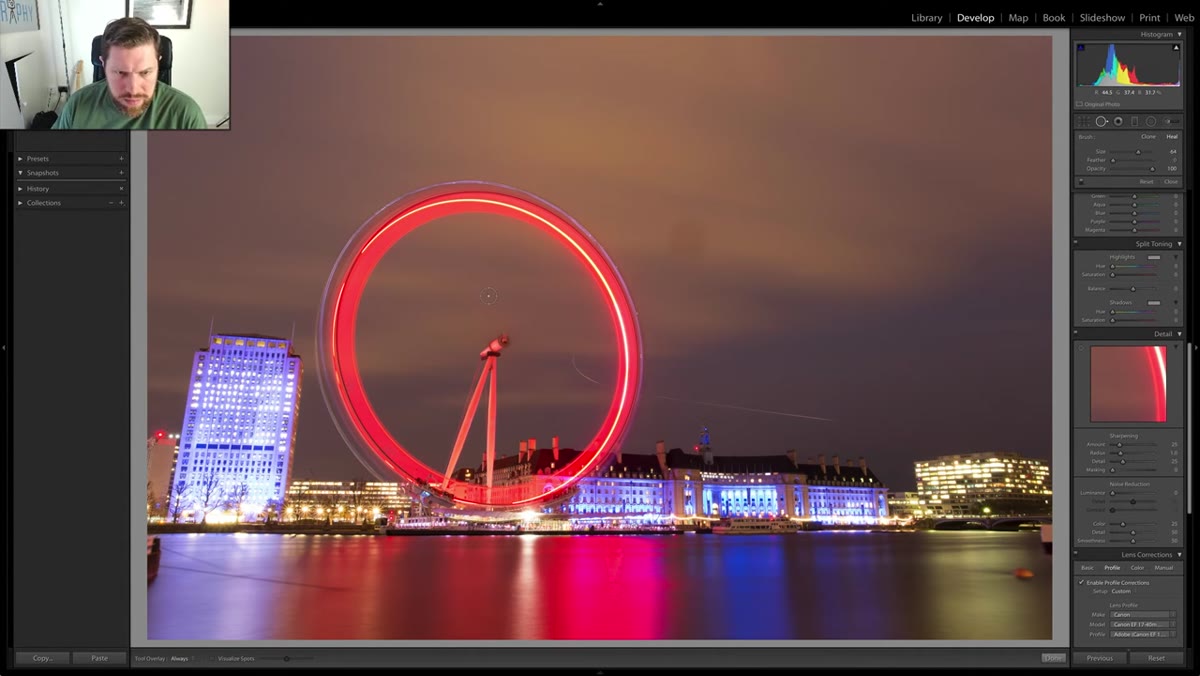 Spot Removal tool active with circle overlays on dust spots
With the lens profile decision made, Adam goes straight for the spot removal tool. In Lightroom, the keyboard shortcut is Q, which jumps you directly into the tool without hunting through panels. He targets the two visible spots and removes them using the Heal mode, which blends texture and tone from the surrounding area rather than just cloning a patch of pixels on top.
Spot Removal tool active with circle overlays on dust spots
With the lens profile decision made, Adam goes straight for the spot removal tool. In Lightroom, the keyboard shortcut is Q, which jumps you directly into the tool without hunting through panels. He targets the two visible spots and removes them using the Heal mode, which blends texture and tone from the surrounding area rather than just cloning a patch of pixels on top.
For long exposure skies especially, use Heal rather than Clone. Clone can leave a repeating pattern that’s obvious against a smooth gradient. Heal is slower to render but gives you a cleaner result. If the auto-sample area Lightroom picks looks off, drag the source circle manually to a cleaner part of the sky.
Step 4: Adjust Exposure and Recover the Highlights
 Basic panel with Exposure and Highlights sliders being adjusted
Once the image is clean, Adam moves into the Basic panel to work on overall exposure. Long exposures at night often clip highlights around artificial light sources, the kind of hard bright spots you get from street lamps, LED signs, or in this case the lit gondolas of the London Eye. The goal is to pull those back without flattening the image.
Basic panel with Exposure and Highlights sliders being adjusted
Once the image is clean, Adam moves into the Basic panel to work on overall exposure. Long exposures at night often clip highlights around artificial light sources, the kind of hard bright spots you get from street lamps, LED signs, or in this case the lit gondolas of the London Eye. The goal is to pull those back without flattening the image.
The approach is to bring the Highlights slider left, often pretty aggressively, while nudging Exposure up slightly to compensate for any overall darkening that creates. Think of it as trading blown highlights for retained detail, then resetting the baseline brightness. Shadows can come up a touch to open the darker foreground areas, but keep it subtle on a night shot or you’ll lose the atmosphere that makes long exposures dramatic in the first place.
Step 5: Work the Whites and Blacks for Contrast and Depth
 Whites and Blacks sliders adjusted in the Basic panel
After exposure, Adam sets the Whites and Blacks to define the tonal range of the image. This is where the image starts to feel like it has genuine depth rather than just being bright or dark. Hold Alt (Option on Mac) while dragging the Whites slider and Lightroom shows you a clipping preview: pull right until you just start to see clipping, then back off slightly. Do the same with Blacks in the opposite direction, pulling left until you set a solid black point.
Whites and Blacks sliders adjusted in the Basic panel
After exposure, Adam sets the Whites and Blacks to define the tonal range of the image. This is where the image starts to feel like it has genuine depth rather than just being bright or dark. Hold Alt (Option on Mac) while dragging the Whites slider and Lightroom shows you a clipping preview: pull right until you just start to see clipping, then back off slightly. Do the same with Blacks in the opposite direction, pulling left until you set a solid black point.
This is a contrast move, but it’s more precise than just grabbing the Contrast slider, which applies a fixed S-curve across the whole tonal range. Setting Whites and Blacks manually gives you control over where the contrast lives in the image.
What I’d Do Differently: Add a Targeted Color Grade After the Basics
Adam keeps his grade clean and restrained, which suits the image. But for long exposure cityscapes with mixed artificial lighting, I’d add one more layer after the basic adjustments: a targeted HSL tweak to the oranges and yellows.
City lights at night almost always cast a warm orange, and that orange can look either golden and cinematic or jaundiced depending on how it sits relative to your blues and cyans. I’ll usually pull the Hue slider on Oranges slightly toward yellow to keep the light sources feeling warm without going chemical, then push the Saturation on Blues up just a few points to make the sky feel intentional rather than accidental. It’s a small move but it’s the difference between a photo that looks edited and one that looks graded.
The single most important thing I took from watching Adam work through this image is the sequencing. Clean first, correct second, grade third. Most editing frustration I’ve seen, including my own early sessions fighting Lightroom at midnight, comes from jumping to creative decisions before the technical foundation is solid. Get the spots out. Set your lens profile. Then and only then start chasing the look you’re after.
Watch the full tutorial on YouTube to see Adam’s complete edit, including his final color decisions and the before-and-after reveal. His channel is a reliable place to learn without getting lost in gear talk.
Comments
Leave a Comment