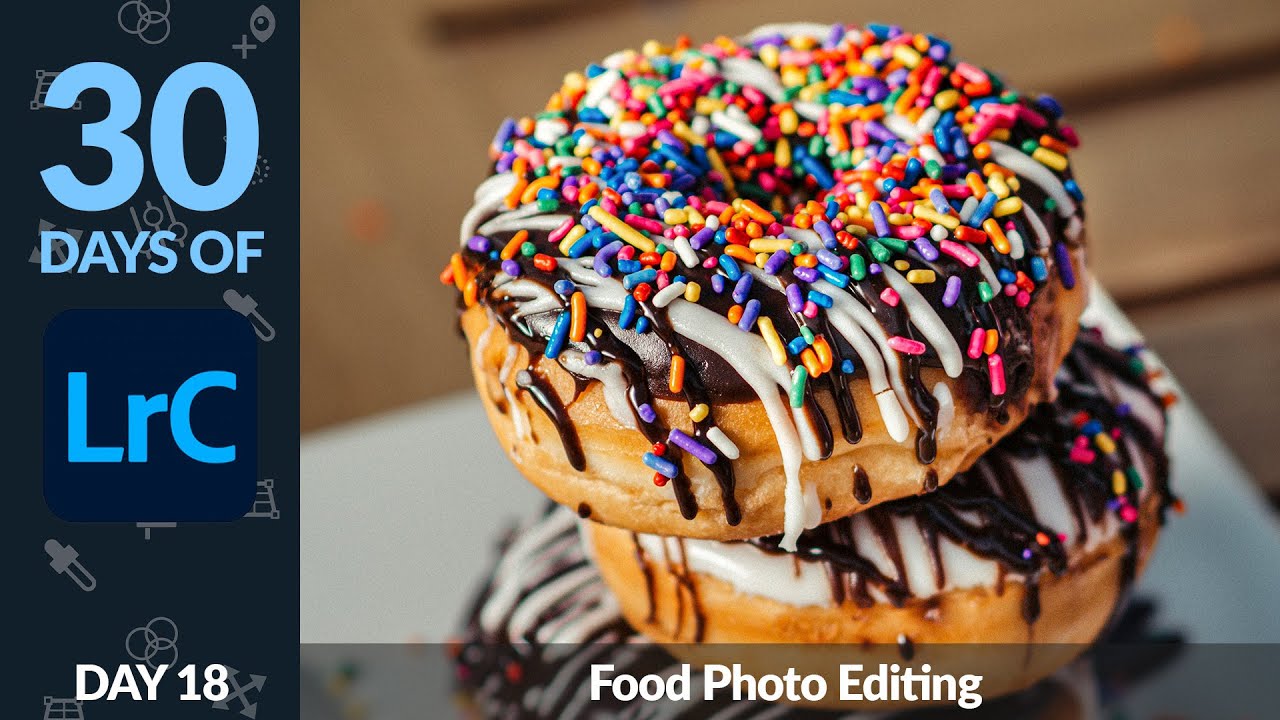
Food photography has a specific problem that portraits and landscapes don’t share quite the same way: everything in the frame is often lit similarly, which means the background competes with the subject for the viewer’s eye. The plate looks great, the sprinkles pop, and then your gaze drifts to the slightly too-bright tablecloth behind it and the whole image loses its pull. I’ve run into this constantly, whether I’m editing client work or just shooting for fun.
In this Aaron Nace (PHLEARN) tutorial from his comprehensive Lightroom Classic series, he walks through a focused workflow for solving exactly that problem using a donut photo as the subject. The core idea is deceptively simple: use Lightroom’s masking tools to treat the background and the subject as separate objects, then push them in opposite directions with exposure and saturation. It sounds obvious once you hear it, but watching the actual execution is where the technique clicks. Watch the full tutorial on YouTube
What I appreciate about Aaron’s approach here is that he’s not reaching for exotic tools. This whole edit lives inside Lightroom Classic’s masking panel, which means you can drop it into any food shoot workflow without building a new system from scratch. Here’s the full walkthrough.
Step 1: Open the Masking Panel and Select the Background
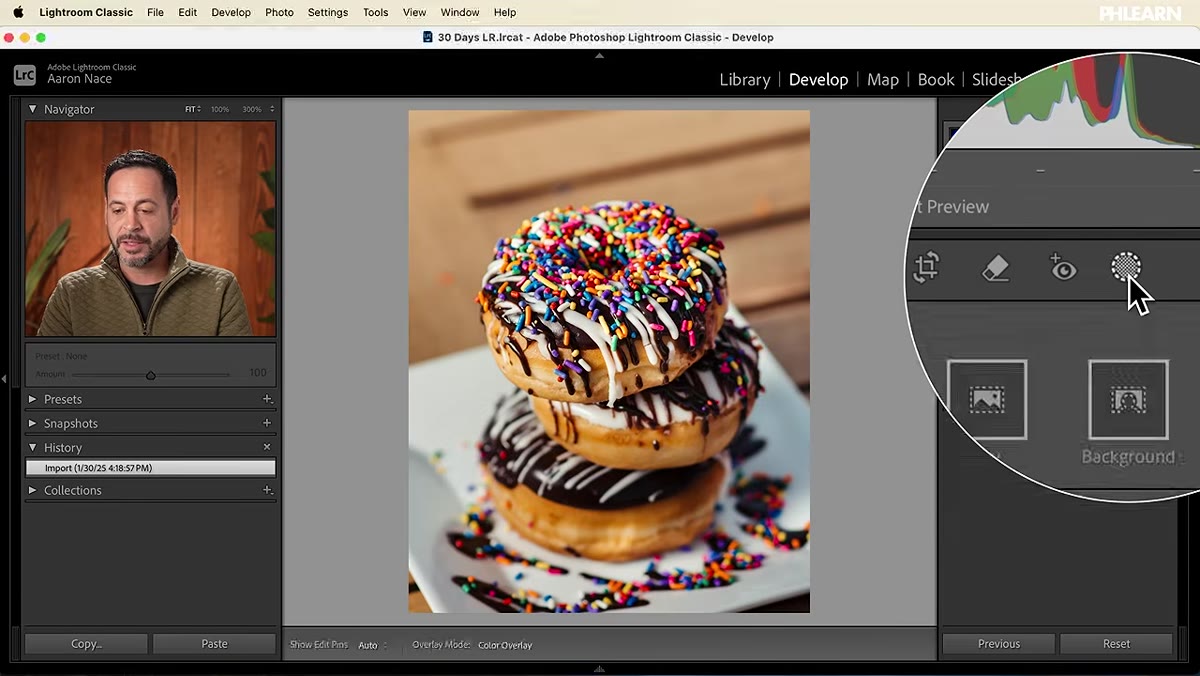 Masking panel open with background selection icon highlighted
Open your image in the Develop module and click the masking icon near the top of the right panel. Lightroom gives you a dedicated “Select Background” option, and for most food photos shot on a clean surface, it does a solid job isolating the background automatically. Click it and let Lightroom do the heavy lifting. You’ll see the overlay show that the main subject has been excluded from the selection. Check the edges around your subject carefully before moving on.
Masking panel open with background selection icon highlighted
Open your image in the Develop module and click the masking icon near the top of the right panel. Lightroom gives you a dedicated “Select Background” option, and for most food photos shot on a clean surface, it does a solid job isolating the background automatically. Click it and let Lightroom do the heavy lifting. You’ll see the overlay show that the main subject has been excluded from the selection. Check the edges around your subject carefully before moving on.
Step 2: Darken and Desaturate the Background
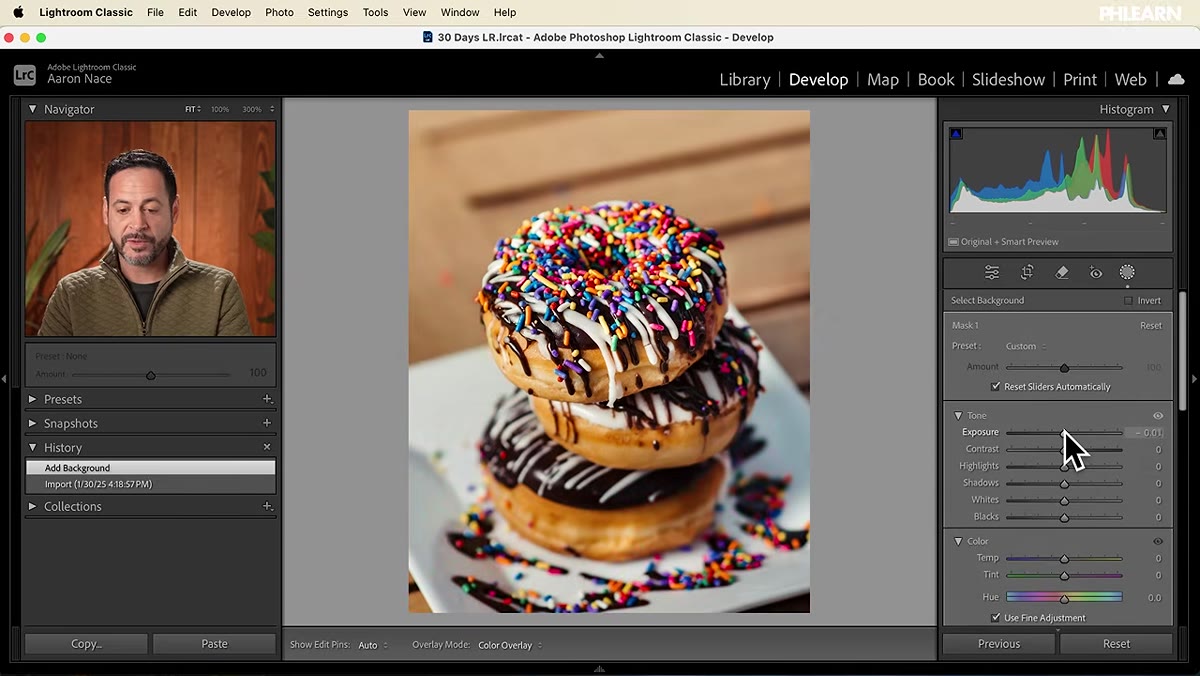 Exposure slider being dragged down with background mask active
With the background mask active, pull the Exposure slider down. You don’t need a dramatic drop here. A subtle reduction, somewhere in the range of minus 0.3 to minus 0.6 depending on your original image, is usually enough to push the background visually behind the subject. Then bring Saturation down by a modest amount as well. Desaturating the background is a quieter trick than darkening it, but it works on a psychological level: the eye naturally moves toward whatever is most colorful and bright in a frame, so you’re steering attention toward the food without making the background look obviously manipulated.
Exposure slider being dragged down with background mask active
With the background mask active, pull the Exposure slider down. You don’t need a dramatic drop here. A subtle reduction, somewhere in the range of minus 0.3 to minus 0.6 depending on your original image, is usually enough to push the background visually behind the subject. Then bring Saturation down by a modest amount as well. Desaturating the background is a quieter trick than darkening it, but it works on a psychological level: the eye naturally moves toward whatever is most colorful and bright in a frame, so you’re steering attention toward the food without making the background look obviously manipulated.
Step 3: Refine the Mask with a Subtract Brush
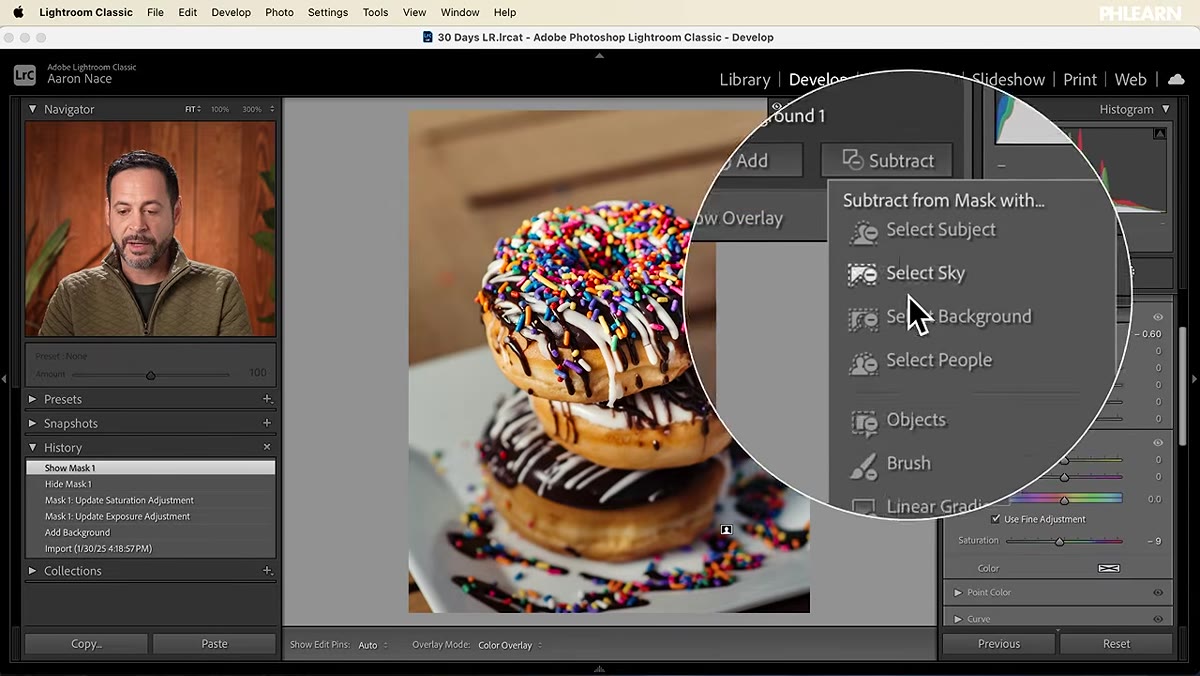 Subtract brush being painted over the donut to refine the mask
Automated selections are rarely perfect, and Aaron points out that the background mask had crept onto the donut itself. To fix this, click “Subtract” in the masking panel and choose the Brush tool. Make sure Feathering is turned on so the edges blend naturally, and bring Flow up to a working level. Use the bracket keys to size the brush to match the area you’re recovering. Paint over any part of the subject that got accidentally included in the background mask. Toggle the mask visibility on and off using the eyeball icon to check your work as you go.
Subtract brush being painted over the donut to refine the mask
Automated selections are rarely perfect, and Aaron points out that the background mask had crept onto the donut itself. To fix this, click “Subtract” in the masking panel and choose the Brush tool. Make sure Feathering is turned on so the edges blend naturally, and bring Flow up to a working level. Use the bracket keys to size the brush to match the area you’re recovering. Paint over any part of the subject that got accidentally included in the background mask. Toggle the mask visibility on and off using the eyeball icon to check your work as you go.
Step 4: Create a New Mask and Select the Subject
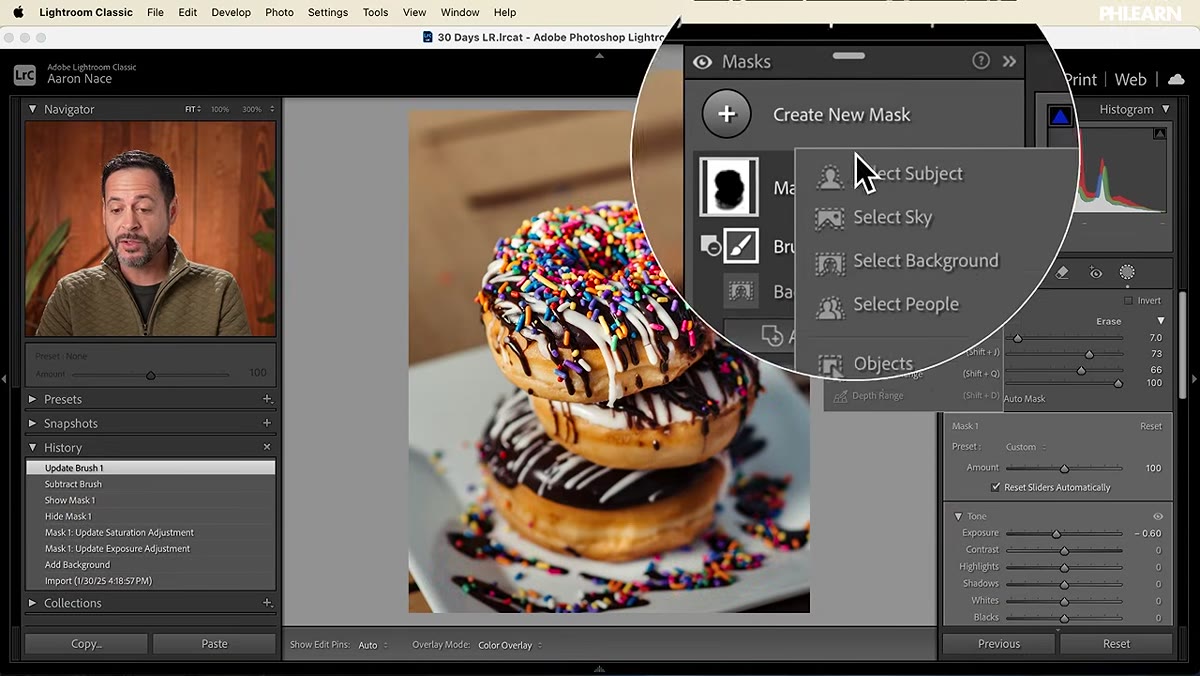 New mask created with Select Subject highlighting the donut
Click “Create New Mask” to start fresh with a separate mask targeting just the food. Use “Select Subject” this time, and Lightroom will identify the main element in the frame. For most food photography shot with reasonable separation from the background, this works well. If it struggles, a Radial Gradient centered on the plate or a manual brush pass are both solid fallbacks. The goal is a clean selection of the food itself, completely separate from the background mask you built in steps one through three.
New mask created with Select Subject highlighting the donut
Click “Create New Mask” to start fresh with a separate mask targeting just the food. Use “Select Subject” this time, and Lightroom will identify the main element in the frame. For most food photography shot with reasonable separation from the background, this works well. If it struggles, a Radial Gradient centered on the plate or a manual brush pass are both solid fallbacks. The goal is a clean selection of the food itself, completely separate from the background mask you built in steps one through three.
Step 5: Brighten the Subject and Protect the Highlights
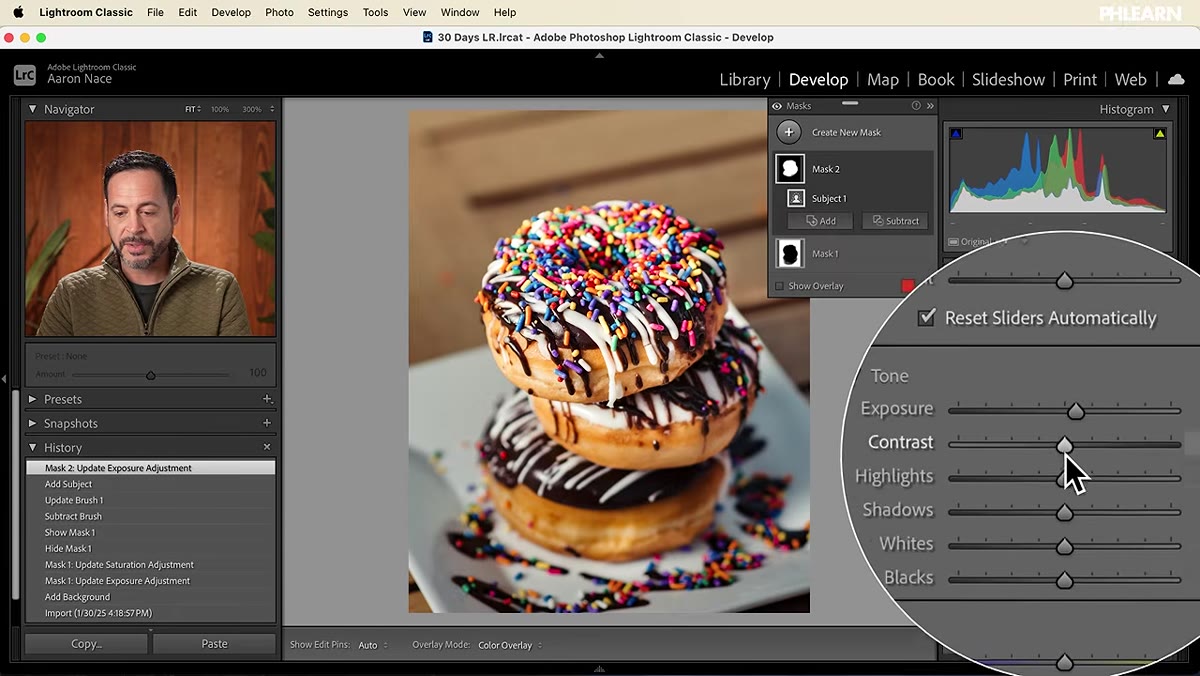 Exposure brought up on subject mask with highlights pulled back down
With the subject mask active, nudge Exposure upward slightly. A small boost here, paired with the background darkening from earlier, creates a sense of natural light falling directly on the food even if the original image didn’t have that. The important follow-up: pull your Highlights slider back down to compensate. Raising exposure lifts everything including the brightest parts of your image, and blown highlights on a glazed donut or a shiny sauce will look fake. Bringing highlights back down preserves the richness of those bright tones without clipping them.
Exposure brought up on subject mask with highlights pulled back down
With the subject mask active, nudge Exposure upward slightly. A small boost here, paired with the background darkening from earlier, creates a sense of natural light falling directly on the food even if the original image didn’t have that. The important follow-up: pull your Highlights slider back down to compensate. Raising exposure lifts everything including the brightest parts of your image, and blown highlights on a glazed donut or a shiny sauce will look fake. Bringing highlights back down preserves the richness of those bright tones without clipping them.
Step 6: Boost Saturation on the Subject
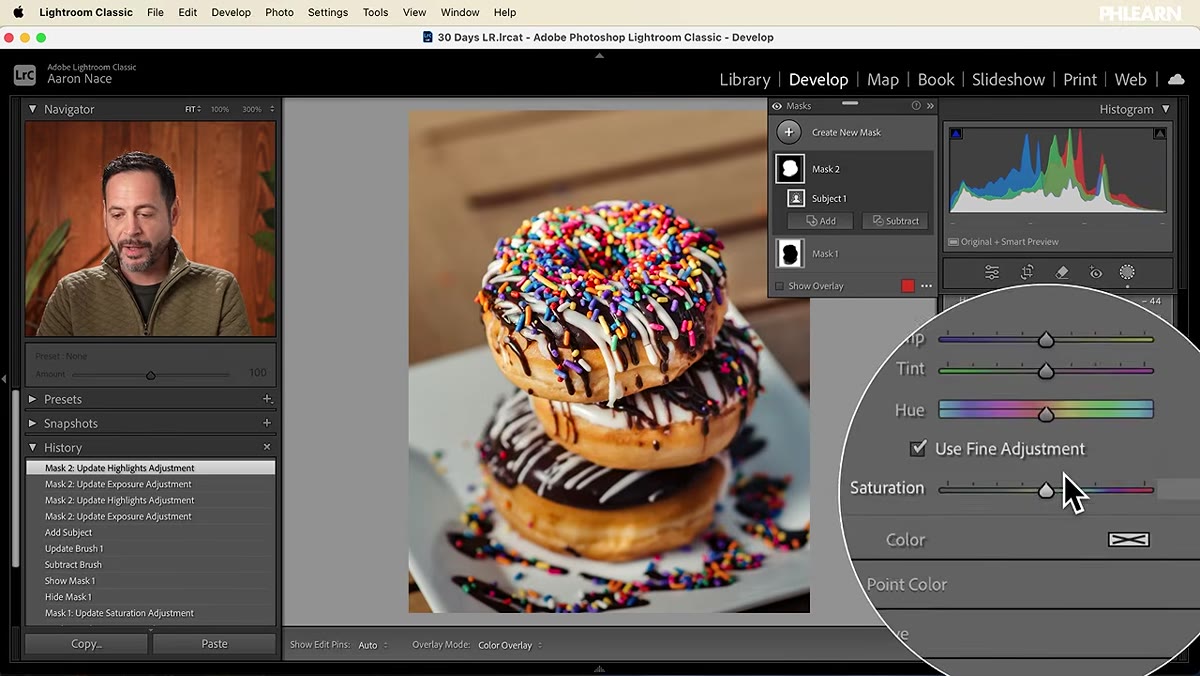 Saturation slider increased on the subject-only mask
Still inside the subject mask, push Saturation up a bit. The contrast between a slightly desaturated background and a more saturated subject amplifies the visual separation you’ve been building across the whole edit. On colorful food like a sprinkle-covered donut this reads immediately. On more muted subjects like a plate of pasta or a coffee shot, keep the boost subtle so it stays believable.
Saturation slider increased on the subject-only mask
Still inside the subject mask, push Saturation up a bit. The contrast between a slightly desaturated background and a more saturated subject amplifies the visual separation you’ve been building across the whole edit. On colorful food like a sprinkle-covered donut this reads immediately. On more muted subjects like a plate of pasta or a coffee shot, keep the boost subtle so it stays believable.
Step 7: Add Texture and Clarity for Detail
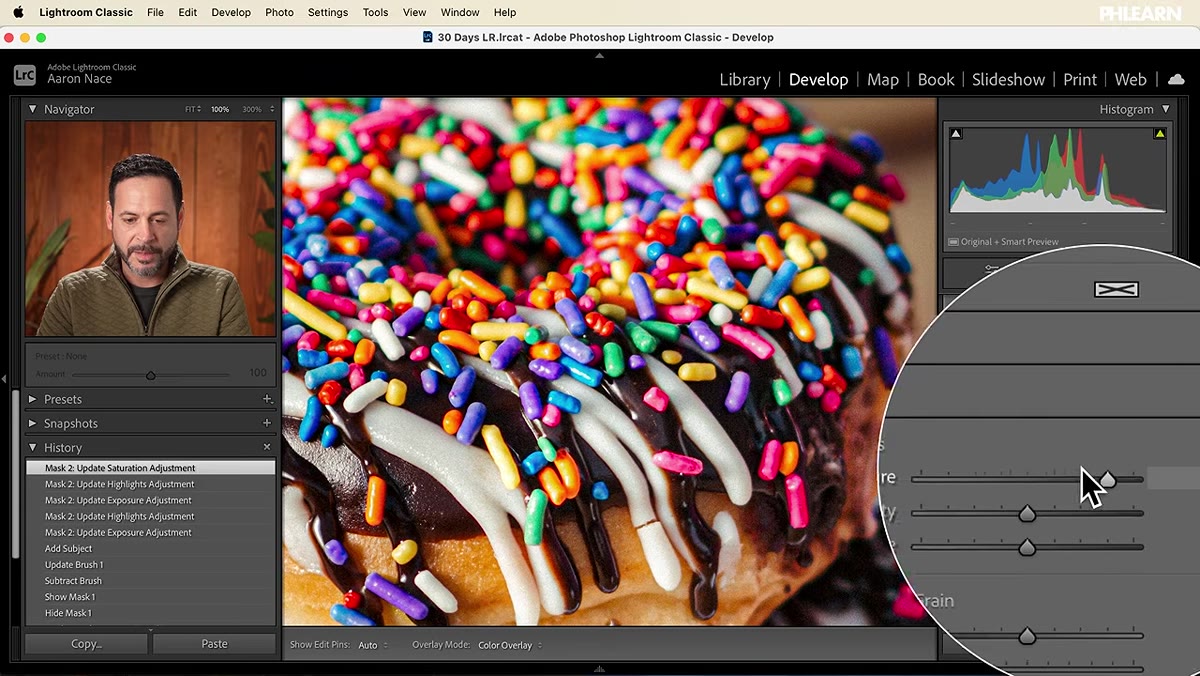 Texture and Clarity sliders increased with zoomed-in view of donut
Zoom in with the spacebar so you can actually see what these adjustments are doing at the pixel level. Inside the Effects section of the masking panel, bring Texture up gradually. Texture works on the mid-frequency detail in an image, meaning it brings out the actual surface of the food without making skin or smooth backgrounds look harsh. Follow it with a modest Clarity boost. Clarity increases local contrast, which makes highlights feel brighter and shadows deeper without affecting the overall tone of the image. On food, this reads as freshness and depth. Go too heavy and it starts to look crunchy and processed, so use your zoom view to calibrate the amount.
Texture and Clarity sliders increased with zoomed-in view of donut
Zoom in with the spacebar so you can actually see what these adjustments are doing at the pixel level. Inside the Effects section of the masking panel, bring Texture up gradually. Texture works on the mid-frequency detail in an image, meaning it brings out the actual surface of the food without making skin or smooth backgrounds look harsh. Follow it with a modest Clarity boost. Clarity increases local contrast, which makes highlights feel brighter and shadows deeper without affecting the overall tone of the image. On food, this reads as freshness and depth. Go too heavy and it starts to look crunchy and processed, so use your zoom view to calibrate the amount.
One Thing I’d Add from My Own Workflow
The background and subject mask combination Aaron builds here is the backbone of the technique, but I’ve found it’s worth a second pass using the Color Range selector on the background mask when the backdrop has a distinctive hue. Nashville light tends to leave warm tones on every surface, and sometimes a simple exposure drop on a background mask still leaves too much warmth competing with the food. Dropping into the HSL panel inside the mask and cooling or neutralizing just the background’s dominant color takes maybe thirty seconds and makes the subject’s natural warmth look intentional. It’s a small add that fits naturally on top of everything Aaron covers here.
The single most useful thing to take away from this tutorial is the directional logic: background goes darker and less saturated, subject goes brighter and more saturated. Every tool in the walkthrough serves that one idea. Once you internalize the direction, the specific slider values become intuitive and fast.
Watch the full tutorial on YouTube to see Aaron walk through the complete edit in real time.
Comments
Leave a Comment