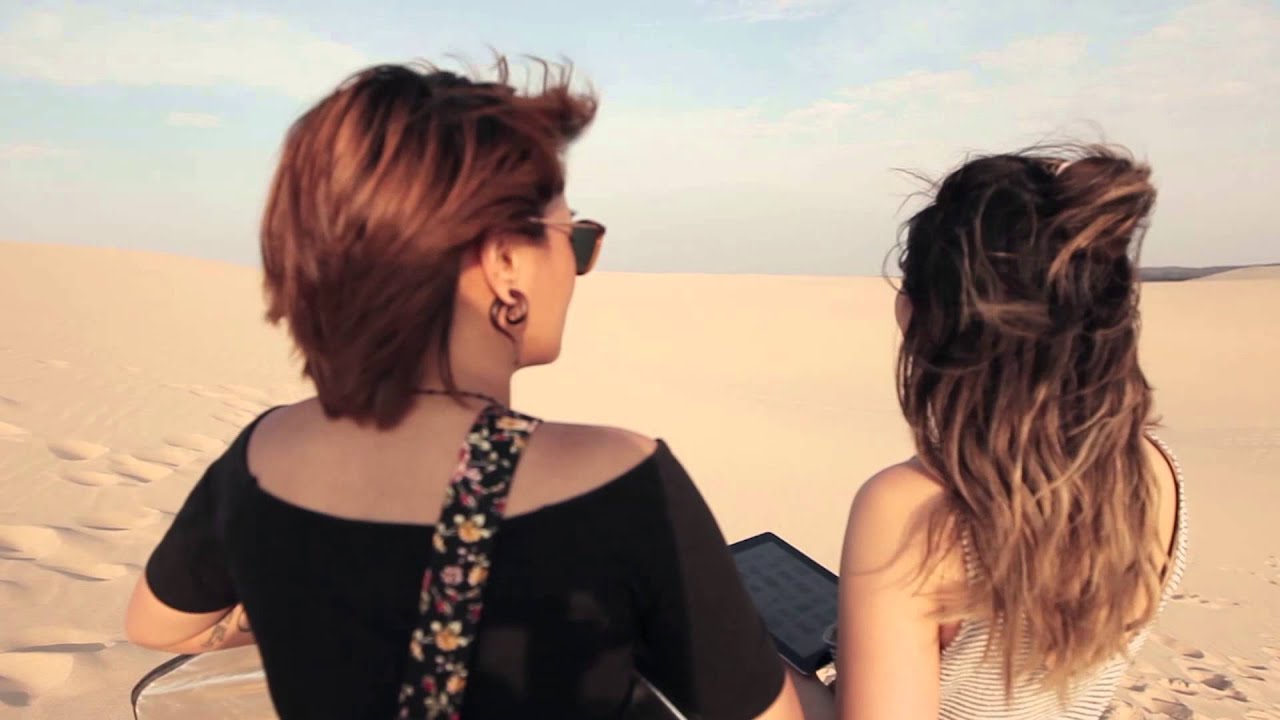
There’s a specific kind of frustration that hits when you’ve got a great set of raw files and no clear editing direction. The shoot went well. The light cooperated. The model nailed it. But then you open Lightroom and just… stare. That used to happen to me constantly until I started paying attention to how photographers plan the edit before the shutter fires. In this Aaron Nace (PHLEARN) tutorial, Watch the full tutorial on YouTube, the behind-the-scenes footage of a desert dunes shoot makes something clear that most Lightroom tutorials skip entirely: the color grade you want should be informing your wardrobe, your location, and your light setup on the day.
The shoot was led by photographer Cat Davis, who went into the location with a deliberate visual language already in mind. Military-styled tones, sand, smoke, deep greens and blacks in the wardrobe. That’s not just an aesthetic mood board. That’s a post-processing roadmap. When you know you’re pulling for muted, earthy tones in Lightroom, you shoot to support that. You avoid blown highlights you can’t recover. You expose for the shadows. The edit and the shoot are one continuous decision. That realization alone is worth the watch time.
Step 1: Establish Your Visual Intent Before You Edit
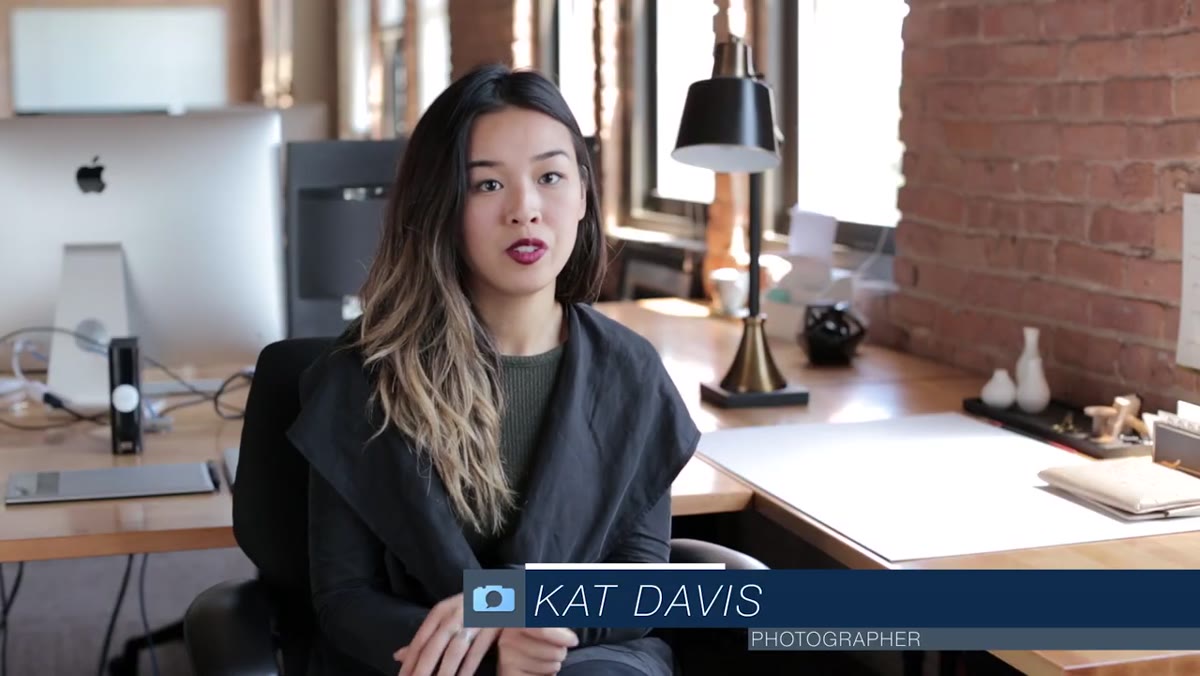 Photographer describing military-themed wardrobe and location choice
Before touching a single slider, Cat’s approach on this shoot demonstrates something I’ve started doing myself: write down three adjectives that describe the finished image. For this project, those would have been something like “gritty,” “warm-muted,” and “cinematic.” Those words become your guardrails in Lightroom. Every adjustment you make should push the image toward those three words or it doesn’t belong in the edit. This sounds abstract until you’re twenty minutes in and you’ve accidentally made your desert shot look like a Wes Anderson film. Having the intent locked in early saves you from chasing your tail.
Photographer describing military-themed wardrobe and location choice
Before touching a single slider, Cat’s approach on this shoot demonstrates something I’ve started doing myself: write down three adjectives that describe the finished image. For this project, those would have been something like “gritty,” “warm-muted,” and “cinematic.” Those words become your guardrails in Lightroom. Every adjustment you make should push the image toward those three words or it doesn’t belong in the edit. This sounds abstract until you’re twenty minutes in and you’ve accidentally made your desert shot look like a Wes Anderson film. Having the intent locked in early saves you from chasing your tail.
Step 2: Build the Foundation in Basic Panel Adjustments
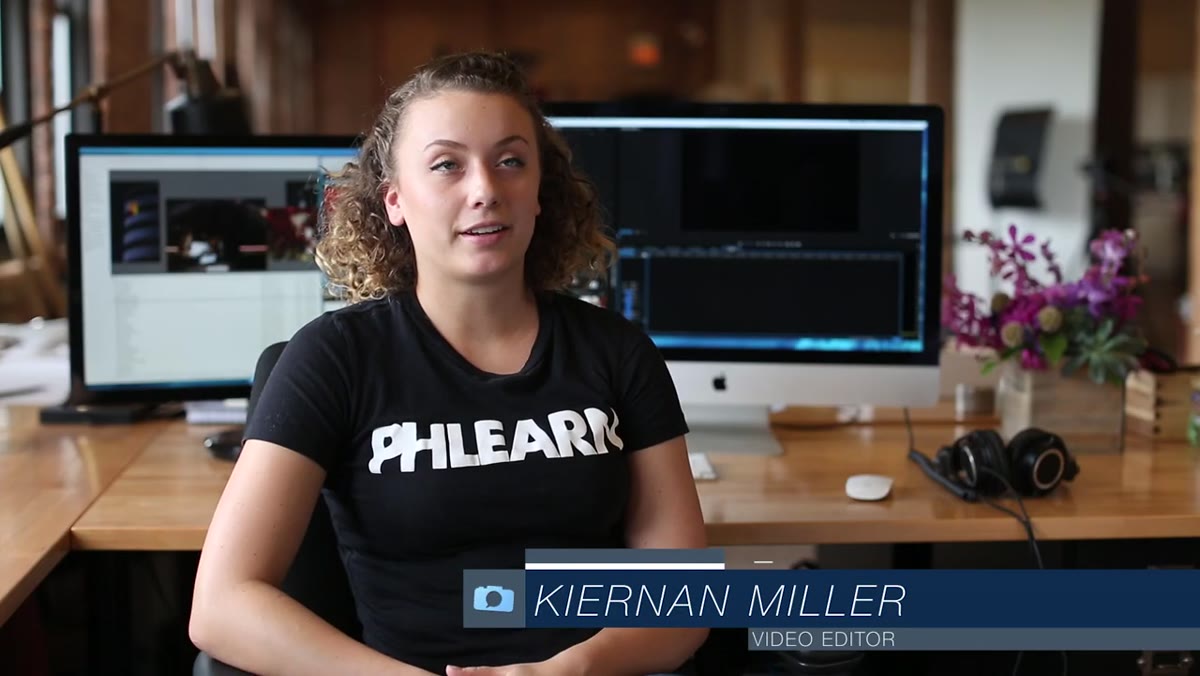 Behind-the-scenes team preparing gear on the sand dunes
With a military, earthy look, the Basic panel work needs to do a few specific things. Pull the highlights down aggressively - dunes in direct sun will clip fast. Lift the shadows slightly to preserve detail in dark fabric and gear without making it look HDR-flat. Drop the whites a touch and raise the blacks just enough to keep the image from feeling crushed. For this kind of muted, filmic look, you generally want contrast that lives in the midtones rather than the extreme ends of the histogram. Set your exposure so the skin tones sit comfortably in the mid-right of the histogram and work outward from there.
Behind-the-scenes team preparing gear on the sand dunes
With a military, earthy look, the Basic panel work needs to do a few specific things. Pull the highlights down aggressively - dunes in direct sun will clip fast. Lift the shadows slightly to preserve detail in dark fabric and gear without making it look HDR-flat. Drop the whites a touch and raise the blacks just enough to keep the image from feeling crushed. For this kind of muted, filmic look, you generally want contrast that lives in the midtones rather than the extreme ends of the histogram. Set your exposure so the skin tones sit comfortably in the mid-right of the histogram and work outward from there.
Step 3: Shape the Tone Curve for a Cinematic Grade
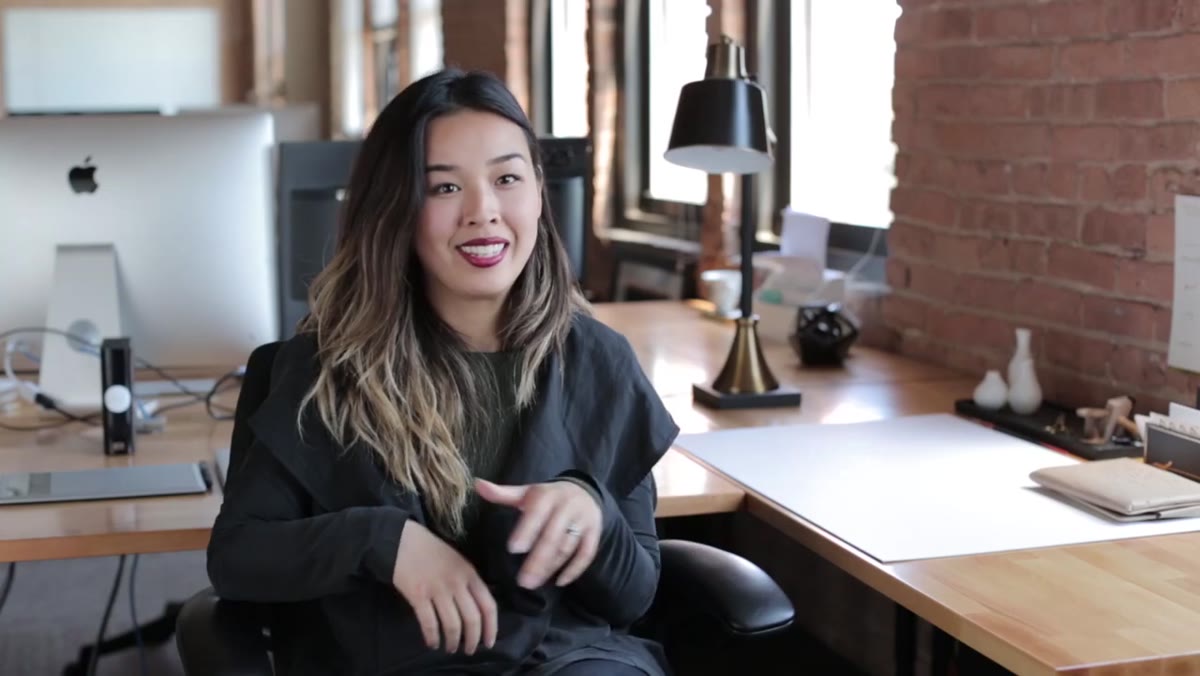 Team working together on location with various equipment roles
The tone curve is where a lot of the “military film” character gets built. Lift the bottom-left anchor point of the curve slightly off true black - this creates a faded shadow look that reads as analog and intentional rather than accidental. Then place a gentle S-curve through the midtones, but keep it subtle. For this warm-earthy palette, you’d also want to go into the individual channel curves. Pull a small amount of red into the shadows, reduce blue in the highlights, and let a bit of yellow-green live in the midtones. That combination is what separates a “brown and dull” edit from a “cinematic and grounded” one.
Team working together on location with various equipment roles
The tone curve is where a lot of the “military film” character gets built. Lift the bottom-left anchor point of the curve slightly off true black - this creates a faded shadow look that reads as analog and intentional rather than accidental. Then place a gentle S-curve through the midtones, but keep it subtle. For this warm-earthy palette, you’d also want to go into the individual channel curves. Pull a small amount of red into the shadows, reduce blue in the highlights, and let a bit of yellow-green live in the midtones. That combination is what separates a “brown and dull” edit from a “cinematic and grounded” one.
Step 4: Use HSL to Control the Earthy Palette
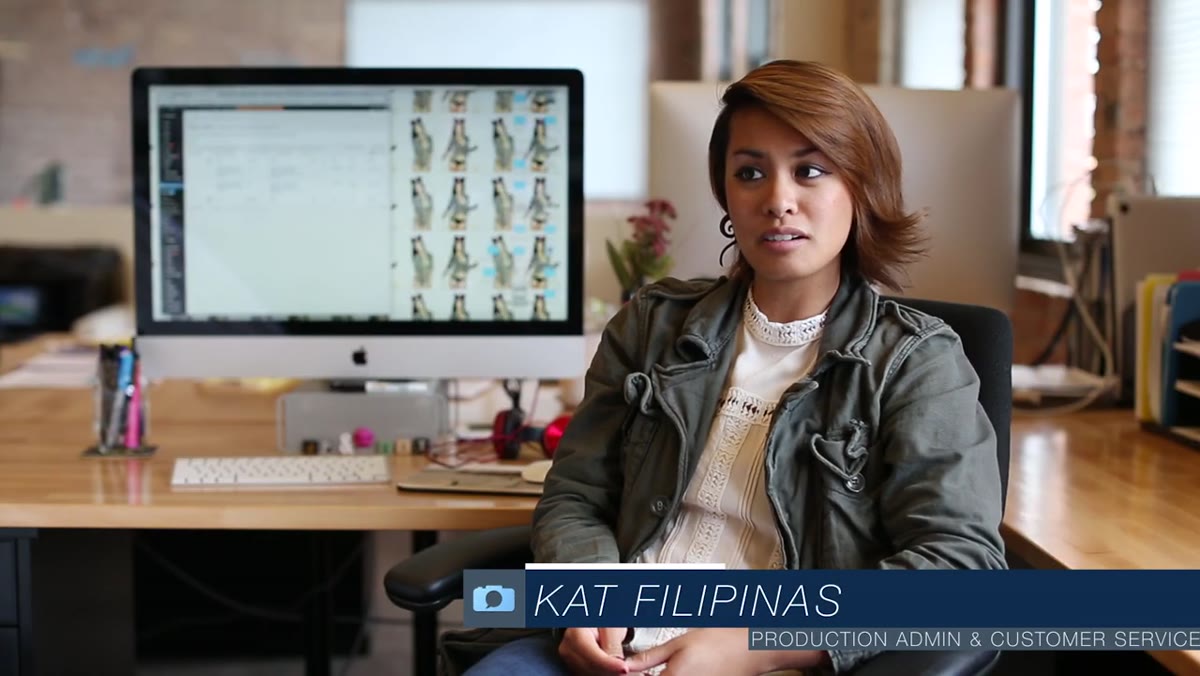 Photographer reviewing planned shots on an iPad between setups
The HSL panel is where you get surgical about the specific colors that define this look. For a military-toned desert image, you want the greens in clothing to feel desaturated and slightly shifted toward olive. Drop the saturation on greens and yellows by 15-25 points, then push their hue sliders toward a more muted, brownish direction. Sand tones live in the orange and yellow channels - reduce their luminance slightly to keep them grounded rather than glowing. If there’s sky in the shot, this is also where you’d cool and deepen the blues without touching anything else. Each color channel is a separate conversation.
Photographer reviewing planned shots on an iPad between setups
The HSL panel is where you get surgical about the specific colors that define this look. For a military-toned desert image, you want the greens in clothing to feel desaturated and slightly shifted toward olive. Drop the saturation on greens and yellows by 15-25 points, then push their hue sliders toward a more muted, brownish direction. Sand tones live in the orange and yellow channels - reduce their luminance slightly to keep them grounded rather than glowing. If there’s sky in the shot, this is also where you’d cool and deepen the blues without touching anything else. Each color channel is a separate conversation.
Step 5: Add Targeted Adjustments With the Gradient and Radial Tools
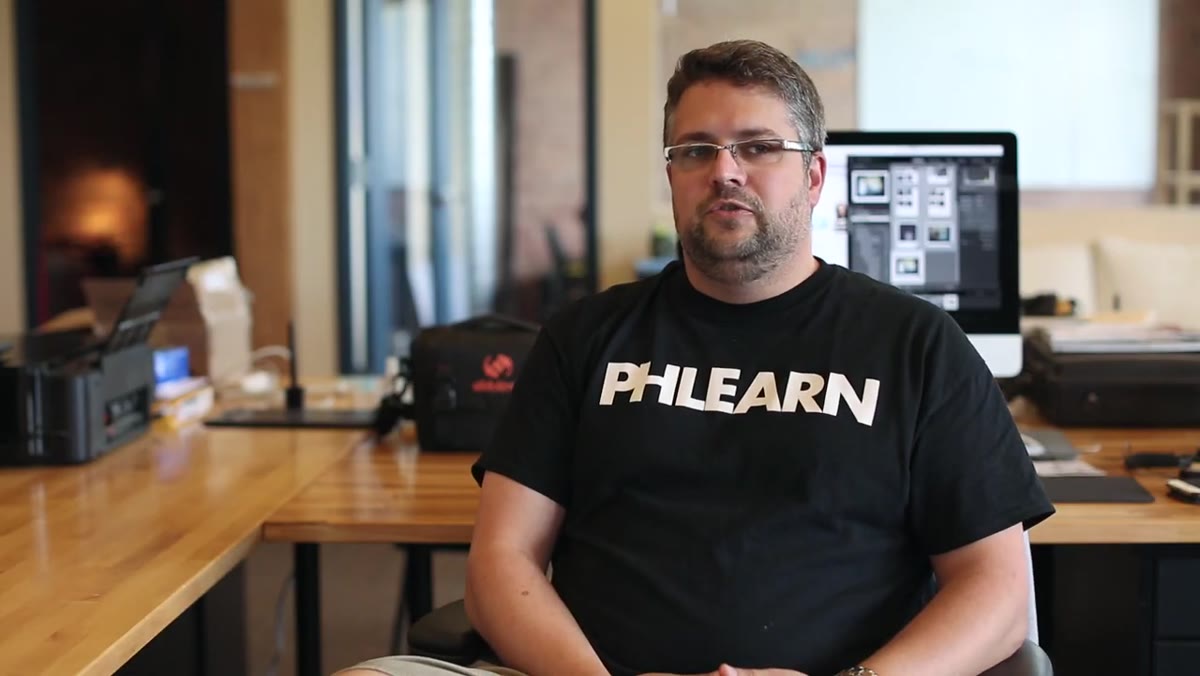 Drone pilot and reflector assistant supporting the main photographer
Aerial and wide-angle dune shots tend to have competing focal points. The gradient filter lets you darken the sky or foreground independently without affecting the subject. For this shoot’s aesthetic, a linear gradient across the lower third with a slight warmth boost helps anchor the image in sand and earth. The radial filter around the subject can add a very subtle vignette-style light falloff that draws the eye in without looking like Instagram 2012. Keep the feathering high and the exposure shift low. If you can see the vignette, it’s too strong.
Drone pilot and reflector assistant supporting the main photographer
Aerial and wide-angle dune shots tend to have competing focal points. The gradient filter lets you darken the sky or foreground independently without affecting the subject. For this shoot’s aesthetic, a linear gradient across the lower third with a slight warmth boost helps anchor the image in sand and earth. The radial filter around the subject can add a very subtle vignette-style light falloff that draws the eye in without looking like Instagram 2012. Keep the feathering high and the exposure shift low. If you can see the vignette, it’s too strong.
Step 6: Apply a Split Tone or Color Grading Finish
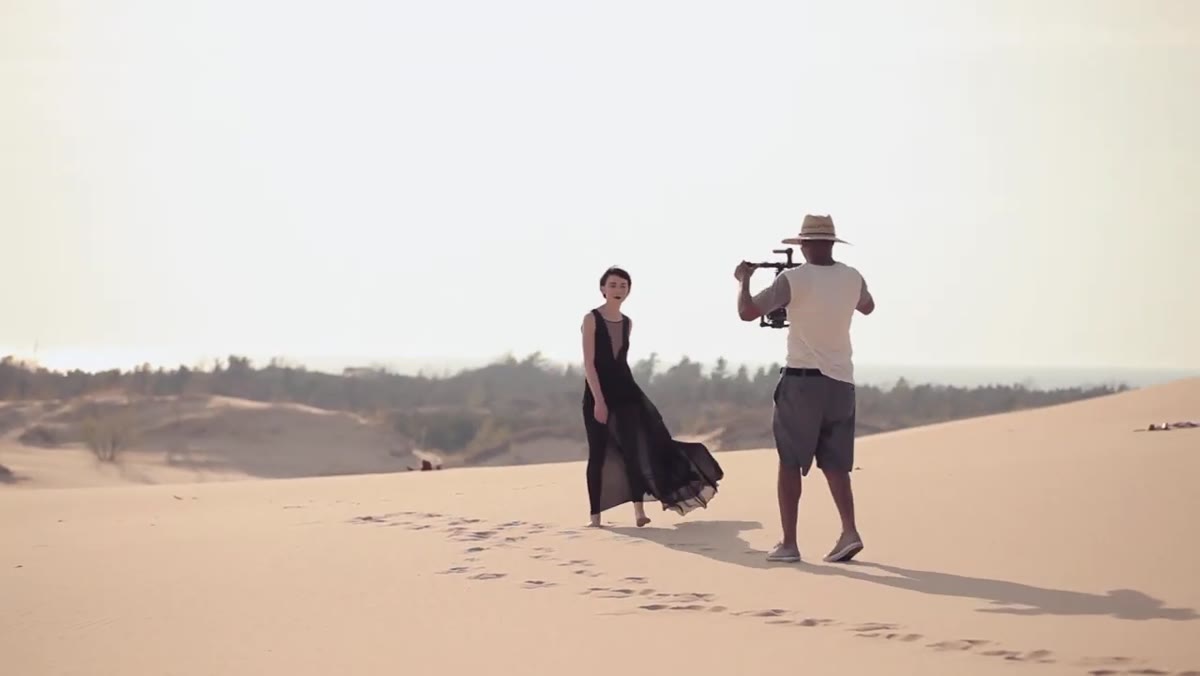 Team celebrating a successfully coordinated group effort on location
In Lightroom’s Color Grading panel (formerly Split Toning), this is the final layer of the look. For a warm military palette, push the shadows slightly toward a cool, desaturated blue-green - just enough hue, almost no saturation. Push the highlights toward a warm amber. This color opposition in shadows versus highlights is what gives the image depth and keeps it from looking flat or monochromatic. The midtones can stay relatively neutral or pick up a faint warm tint. Blend value around 40-50 keeps the transitions from getting muddy. Run a final check against your three adjectives from Step 1 and adjust from there.
Team celebrating a successfully coordinated group effort on location
In Lightroom’s Color Grading panel (formerly Split Toning), this is the final layer of the look. For a warm military palette, push the shadows slightly toward a cool, desaturated blue-green - just enough hue, almost no saturation. Push the highlights toward a warm amber. This color opposition in shadows versus highlights is what gives the image depth and keeps it from looking flat or monochromatic. The midtones can stay relatively neutral or pick up a faint warm tint. Blend value around 40-50 keeps the transitions from getting muddy. Run a final check against your three adjectives from Step 1 and adjust from there.
What I’d Add From My Own Workflow
The tutorial captures something teams don’t talk about enough: when multiple people contribute to a shoot - drone work, reflectors, second shooting - you end up with files that have very different exposures and color temperatures. Before you build out a full look, I’d recommend running a basic batch normalization pass first. Get everything to roughly the same exposure and white balance baseline using Auto Sync on a representative frame. Then apply your creative grade on top of that. Trying to build a cohesive color grade on top of technically inconsistent files is like tuning a guitar that’s been left in a hot car. Fix the fundamentals first, then make it sound good. I once spent a full Sunday applying a complex preset pack to a 200-image shoot before realizing half the files were shot under different clouds with no correction. The preset just amplified the inconsistency. Learn from my mistakes.
The single biggest thing I took from this tutorial is that a great Lightroom edit starts at the location scout, not in front of your monitor. When Cat Davis chose sand dunes and dark military clothing, she was already color grading. The edit was pre-baked into those decisions. If you can start thinking about your post-processing palette before you pick up the camera, you’ll spend less time fighting Lightroom and more time finishing images you’re actually proud of.
Watch the full tutorial on YouTube to see the complete shoot breakdown and Aaron Nace’s editing process from start to finish.
Comments
Leave a Comment