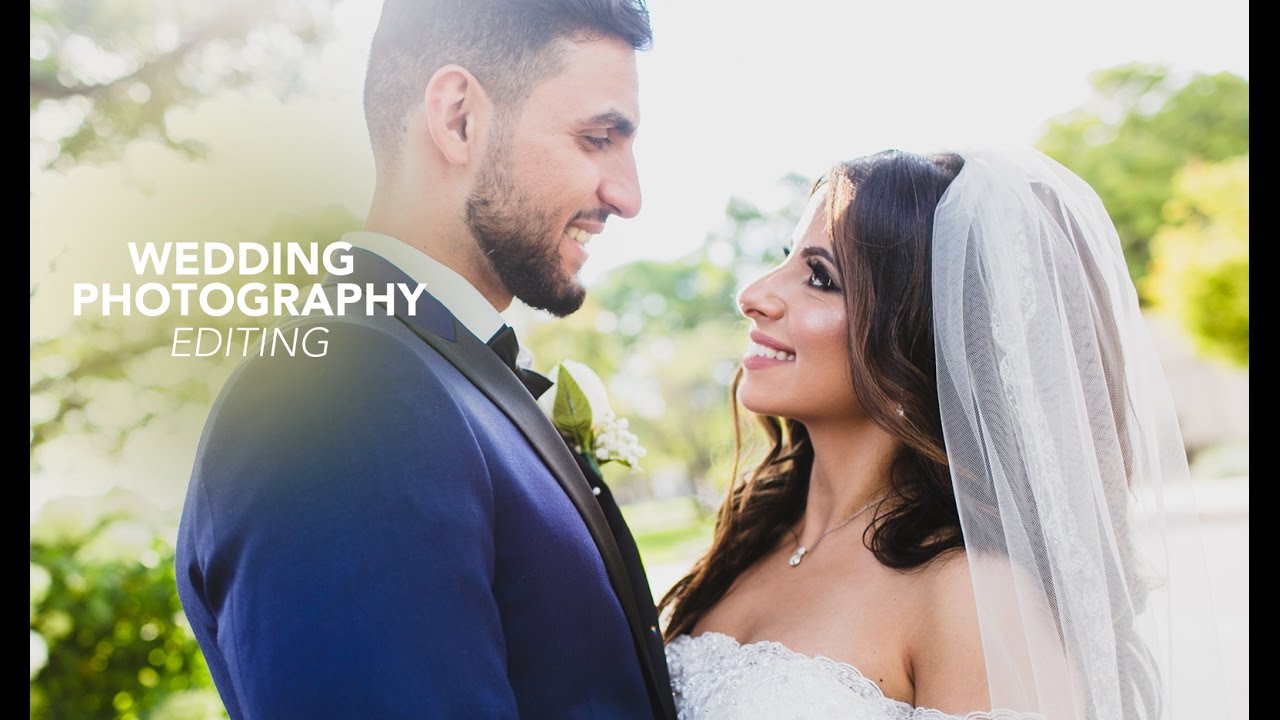
Wedding photography editing has a reputation for being either over-cooked or completely sterile. You see a lot of blown-out whites, plastic skin tones, and that aggressive clarity slider that makes every couple look like they were photographed in front of a wind machine. What actually works, at least in my experience, is restraint. Controlled highlights. Warmth that feels like it belongs to the light rather than the edit.
That’s why this Jessica Kobeissi tutorial stopped me mid-scroll. Watch the full tutorial on YouTube before or after reading this breakdown. Jessica is editing a backlit Detroit wedding photo in real time, completely off the cuff, and the result is exactly the kind of image I’d want to hand a client. Soft, warm, cinematic without screaming “I used a preset.” This walkthrough pulls out each technique so you can follow along in your own catalog, settings and all.
Step 1: Start With Clarity and Contrast, Not Exposure
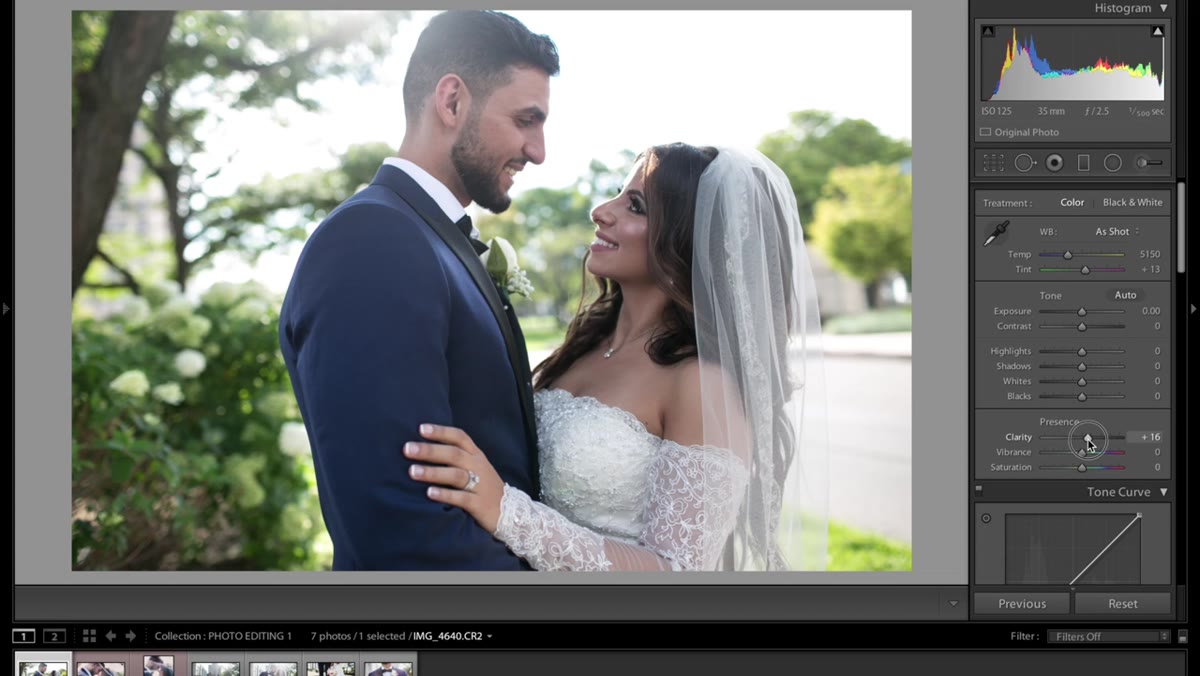 Clarity and contrast sliders being adjusted in the Basic panel
Most people reach for the exposure slider first. Jessica doesn’t. She opens with a small bump to clarity and a modest increase in contrast. It’s counterintuitive, but it makes sense once you try it. Adding clarity before you brighten anything helps you see the actual structure of the image before you start throwing light at it. You’re sharpening the midtones slightly, which gives you a cleaner read on where the real problems are.
Clarity and contrast sliders being adjusted in the Basic panel
Most people reach for the exposure slider first. Jessica doesn’t. She opens with a small bump to clarity and a modest increase in contrast. It’s counterintuitive, but it makes sense once you try it. Adding clarity before you brighten anything helps you see the actual structure of the image before you start throwing light at it. You’re sharpening the midtones slightly, which gives you a cleaner read on where the real problems are.
Contrast comes next, just enough to give the image some backbone. For a backlit shot where the light source is in or near the frame, starting here prevents you from chasing exposure adjustments that fight each other later.
Step 2: Bring Down the Highlights and Whites
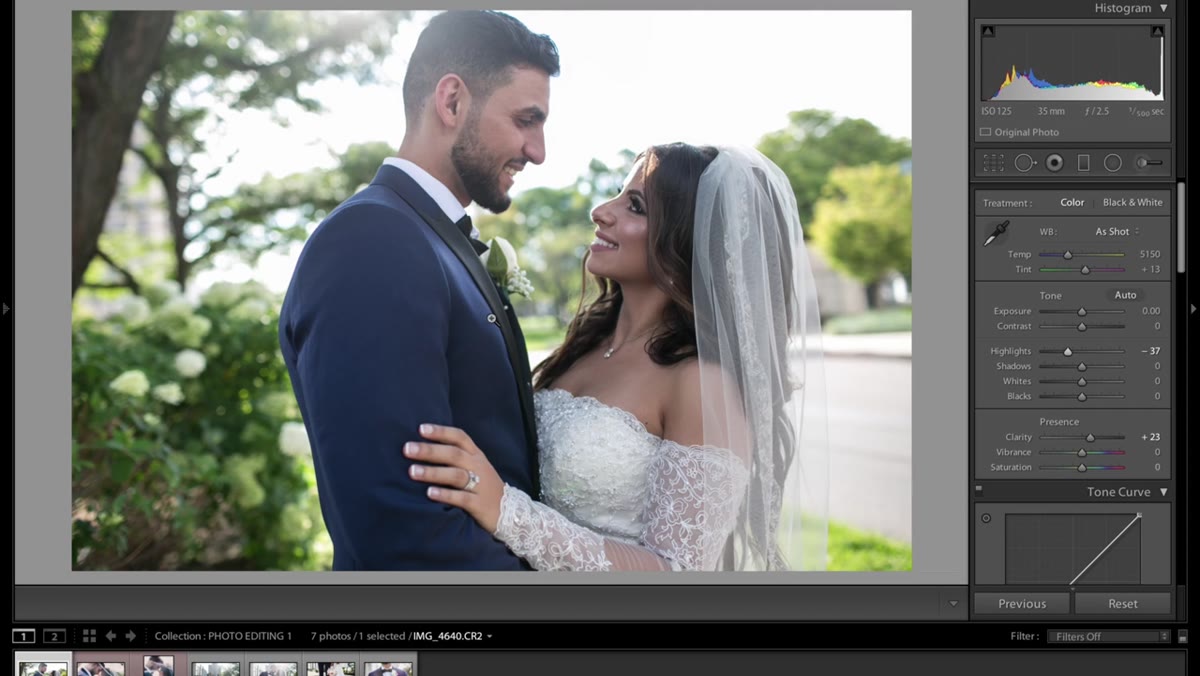 Highlights and whites sliders pulled down in the Basic panel
Backlit images love to blow out, and Jessica deals with that directly by pulling the highlights and whites down early. These are two separate sliders doing two slightly different jobs. Highlights recover the brighter midtones and upper range. Whites handle the absolute ceiling. Pulling both down on a backlit shot keeps detail in areas like the sky and the fabric of a dress that would otherwise go pure white and lose all texture.
Highlights and whites sliders pulled down in the Basic panel
Backlit images love to blow out, and Jessica deals with that directly by pulling the highlights and whites down early. These are two separate sliders doing two slightly different jobs. Highlights recover the brighter midtones and upper range. Whites handle the absolute ceiling. Pulling both down on a backlit shot keeps detail in areas like the sky and the fabric of a dress that would otherwise go pure white and lose all texture.
The values here are modest, not dramatic. You’re not going for that faded, underexposed look. You’re just keeping the image from clipping at the top before you’ve done anything else.
Step 3: Adjust the Tone Curve to Soften the Extremes
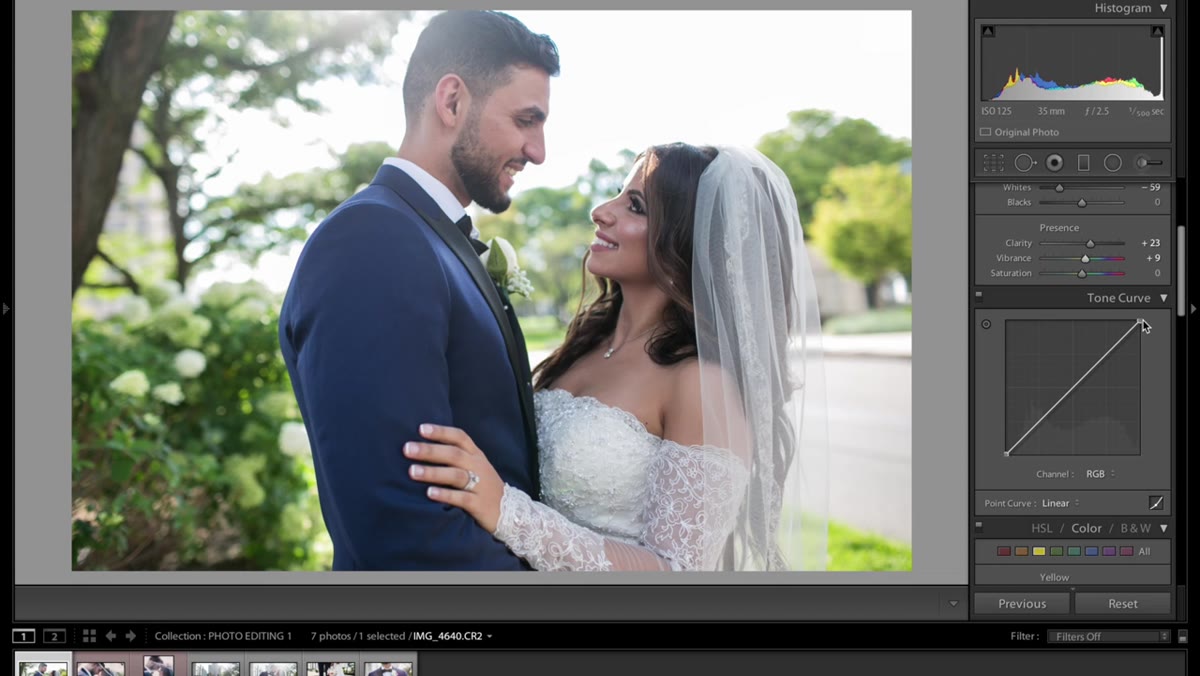 Tone curve with endpoints pulled inward in the RGB channel
This is the move that separates a lot of strong edits from average ones, and it’s one I use constantly. In the tone curve panel, Jessica pulls the top-right endpoint (the whites point) down slightly so that pure white becomes a soft light gray. She also lifts the bottom-left endpoint (the blacks point) upward so that pure black becomes a lifted, smoky dark gray.
Tone curve with endpoints pulled inward in the RGB channel
This is the move that separates a lot of strong edits from average ones, and it’s one I use constantly. In the tone curve panel, Jessica pulls the top-right endpoint (the whites point) down slightly so that pure white becomes a soft light gray. She also lifts the bottom-left endpoint (the blacks point) upward so that pure black becomes a lifted, smoky dark gray.
The result is a soft, slightly matte look that avoids the harshness of a full-contrast edit. You’re compressing the tonal range intentionally. For skin tones and wedding details like lace or flowers, this compression makes everything feel gentler. One thing she’s clear about: she stays in the RGB composite curve only. Touching the individual red, green, and blue channel curves at this stage risks shifting skin tones in ways that are hard to control, especially for wedding work where accurate and flattering color is non-negotiable.
Step 4: Add a Touch of Warmth to the Shadows
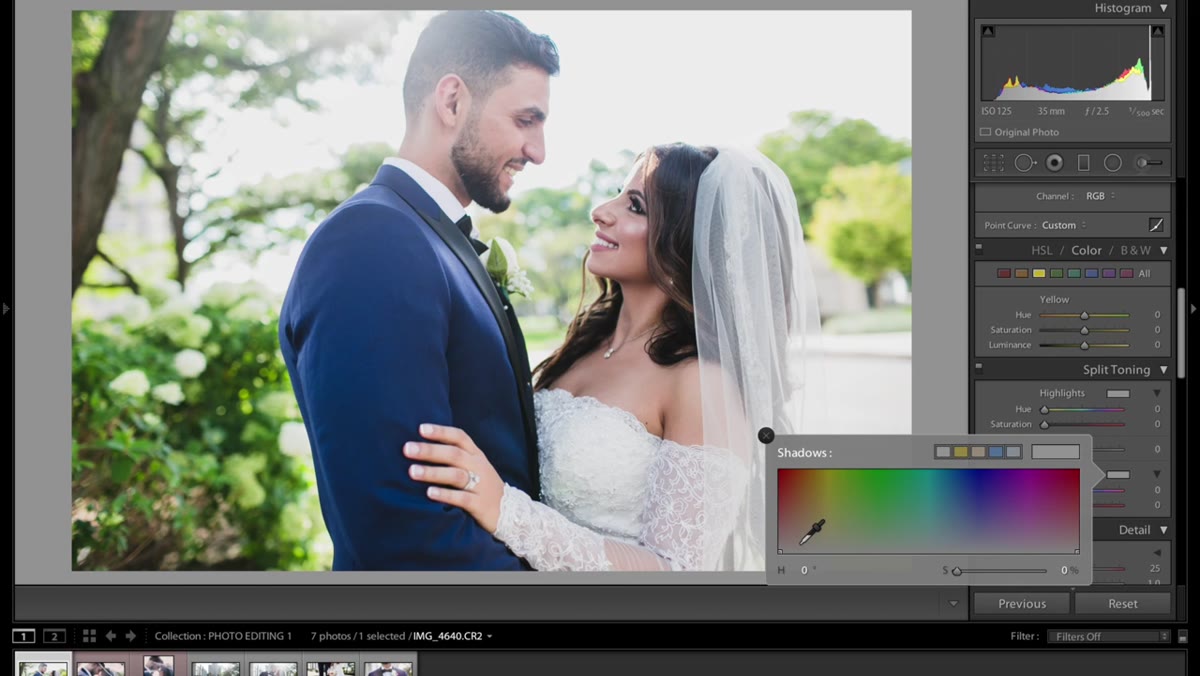 Orange color added to shadows in the color grading or tone curve section
This is subtle, but it’s doing a lot of heavy lifting emotionally. Jessica adds a faint orange tint to the shadow areas of the image. We’re talking around 5% intensity, not something your viewer will consciously register. What it does is give the darker areas of the photo a warmth that reads as candlelight or late afternoon sun rather than cold, flat shadow.
Orange color added to shadows in the color grading or tone curve section
This is subtle, but it’s doing a lot of heavy lifting emotionally. Jessica adds a faint orange tint to the shadow areas of the image. We’re talking around 5% intensity, not something your viewer will consciously register. What it does is give the darker areas of the photo a warmth that reads as candlelight or late afternoon sun rather than cold, flat shadow.
Toggle it on and off in your own edit and you’ll feel the difference immediately, even if you can’t quite name it at first. The image without it feels slightly clinical. With it, the photo has a mood. For wedding photography specifically, that mood matters. Nobody frames a print because it was technically accurate.
Step 5: Sharpen Thoughtfully
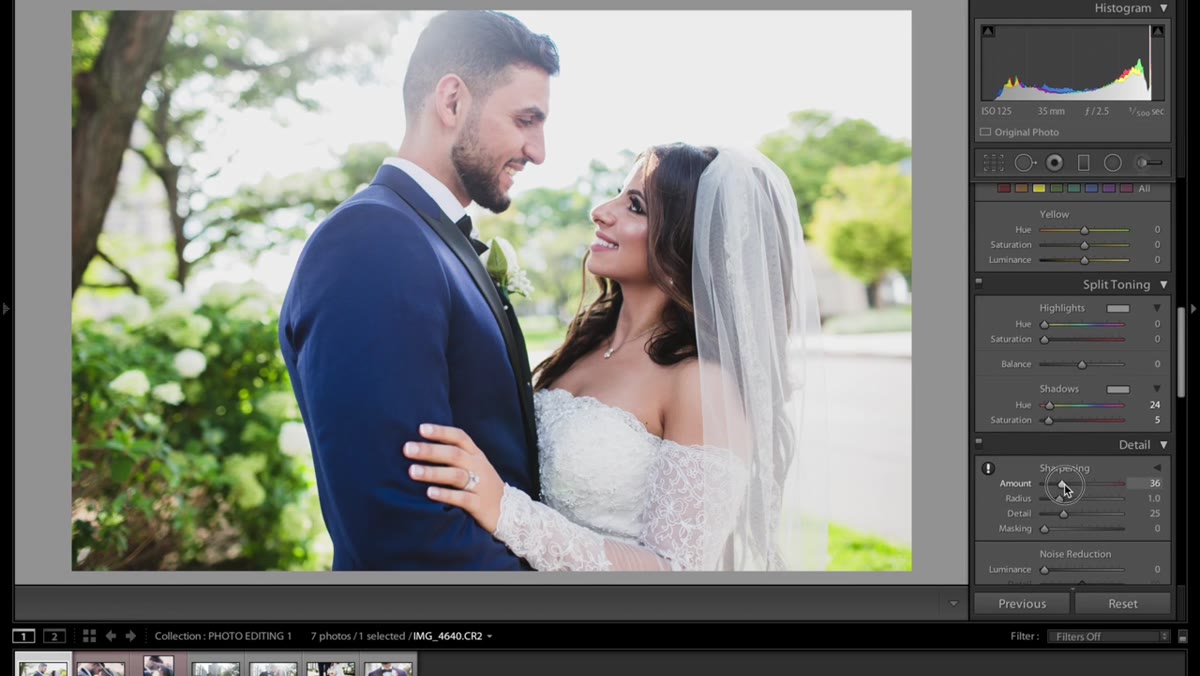 Sharpening slider set to 36 in the Detail panel
Jessica brings sharpening up to around 36, which is moderate. It’s enough to give the image some definition without making skin look textured in an unflattering way. If you’re shooting weddings at high ISOs in low light (and you will be), sharpening interacts with noise in ways that can turn a clean face into something that looks like a stucco wall. Keep it restrained and apply a masking value if needed so the sharpening targets edges rather than smooth skin areas. Hold Alt or Option while dragging the masking slider to see exactly where the sharpening is being applied.
Sharpening slider set to 36 in the Detail panel
Jessica brings sharpening up to around 36, which is moderate. It’s enough to give the image some definition without making skin look textured in an unflattering way. If you’re shooting weddings at high ISOs in low light (and you will be), sharpening interacts with noise in ways that can turn a clean face into something that looks like a stucco wall. Keep it restrained and apply a masking value if needed so the sharpening targets edges rather than smooth skin areas. Hold Alt or Option while dragging the masking slider to see exactly where the sharpening is being applied.
Step 6: Use the Adjustment Brush to Add a Warm Accent Light
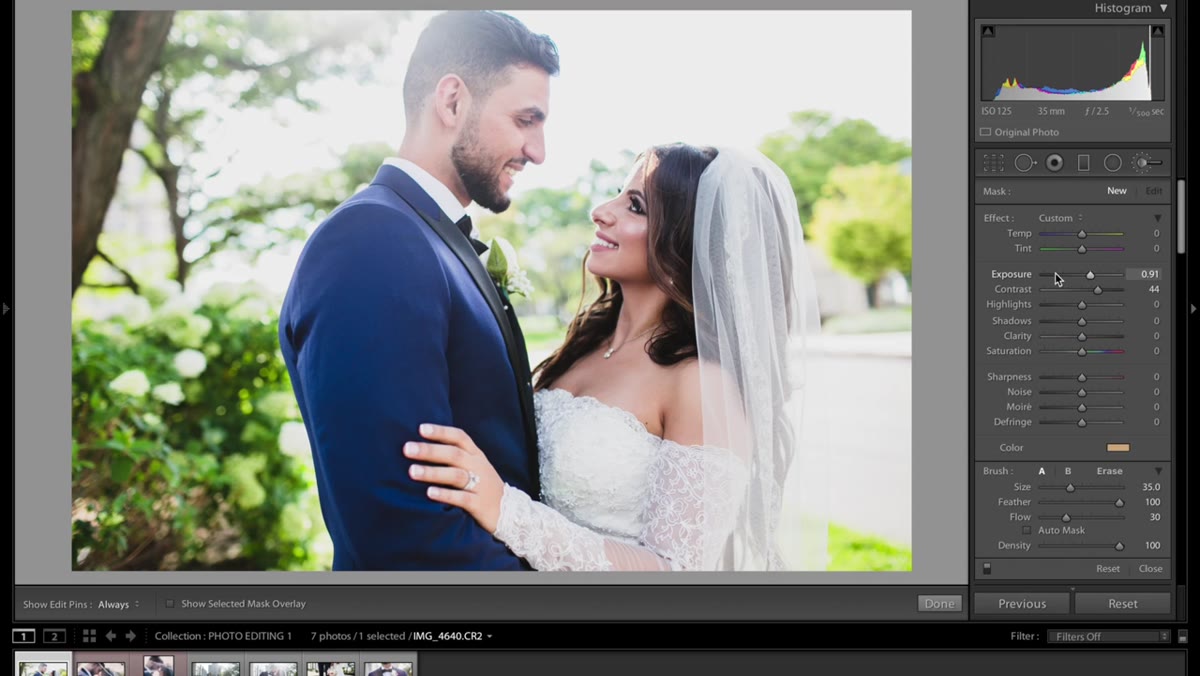 Adjustment brush applied off-face with orange color tint selected
The final touch is the one most people skip because it feels risky. Jessica uses the adjustment brush with a warm orange color selected and a slightly elevated exposure, then paints it into an area of the frame away from the subject’s face. Think of it as adding a fake piece of warm ambient light, a glow from somewhere off-camera that suggests a more interesting lighting setup than what was actually there.
Adjustment brush applied off-face with orange color tint selected
The final touch is the one most people skip because it feels risky. Jessica uses the adjustment brush with a warm orange color selected and a slightly elevated exposure, then paints it into an area of the frame away from the subject’s face. Think of it as adding a fake piece of warm ambient light, a glow from somewhere off-camera that suggests a more interesting lighting setup than what was actually there.
The critical rule she emphasizes: keep this brush off the face entirely. An orange cast on skin looks like a filter gone wrong. Placed on a background area or a patch of open sky, it reads as atmosphere. It’s a small application but it makes the image feel more three-dimensional.
What I’d Add From My Own Workflow
Jessica’s approach here is color-first, which I respect. Where I’d push a little further is in the HSL panel after all of this is done. Once your overall tone and warmth are set, selectively desaturating oranges or yellows slightly in skin tones can prevent that orange shadow warmth from reading as too much on certain complexions. Wedding photography often includes a wide range of skin tones in the same gallery, and a micro-adjustment to the orange and yellow saturation channels helps keep the look consistent without you having to re-edit every photo from scratch.
I’d also flag that Jessica’s freehand approach here, no notes, no preset loaded, is a useful way to actually internalize what each tool does. Load a preset and you get the result. Build the edit from zero and you get the knowledge. Both have their place, but if you’re still figuring out Lightroom, doing what she does here and just starting from scratch on a real photo will teach you more than any slider explanation ever could.
The most important idea in this whole tutorial is the one hiding in the curves step: limiting your tonal range on both ends creates softness that clients respond to, even if they can’t explain why. It’s not about making things look “faded.” It’s about giving the image room to breathe. Master that one move and your wedding edits will feel more expensive immediately.
Watch the full tutorial on YouTube to see Jessica walk through the complete edit in real time.
Comments
Leave a Comment