
The number of photographers I’ve talked to who just dump everything into a folder called “Photos 2023” and pray is genuinely alarming. I was one of them. Back when my band needed press shots and we couldn’t afford to hire someone, I ended up being the guy with the camera — and then the guy who had to figure out what to do with 400 RAW files living on a desktop in complete chaos. Learning Lightroom’s import system was the thing that finally turned a hard drive full of panic into something I could actually work with.
In this Aaron Nace (PHLEARN) tutorial on importing and organizing photos in Lightroom Classic, Aaron walks through the full import workflow from a clean Lightroom install. Watch the full tutorial on YouTube — but if you want a written breakdown you can follow step by step with your own photos open, that’s exactly what this is. The video is part of PHLEARN’s free Lightroom Classic series, and it covers more ground than the title suggests. The metadata section alone is worth your time.
What Aaron gets right is explaining not just how to do each step, but why Lightroom works the way it does. It’s not just a file importer. It’s a catalog system, and understanding that distinction changes how you make decisions inside it.
Step 1: Open the Import Window
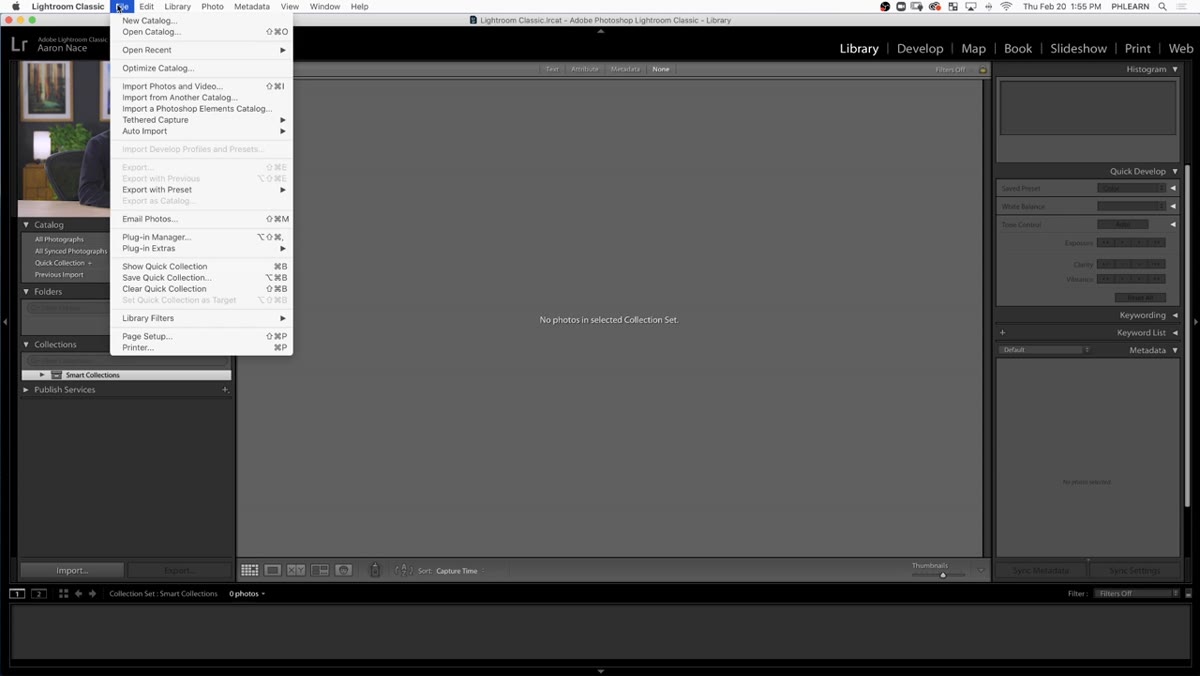 File menu open with Import Photos and Videos highlighted
Go to File, then select “Import Photos and Videos.” That’s your entry point for everything. The import window is split into two functional halves: the left panel is your source (where the photos are coming from), and the right panel is your destination (where they’re going and how they’ll be handled). Getting comfortable with that left-right logic makes the whole interface less intimidating.
File menu open with Import Photos and Videos highlighted
Go to File, then select “Import Photos and Videos.” That’s your entry point for everything. The import window is split into two functional halves: the left panel is your source (where the photos are coming from), and the right panel is your destination (where they’re going and how they’ll be handled). Getting comfortable with that left-right logic makes the whole interface less intimidating.
If you prefer working through your operating system’s file browser rather than Lightroom’s built-in file viewer, Aaron’s approach works well here. On a Mac, open Finder. On Windows, use File Explorer. Navigate to the folder of photos you want to bring in, then drag it directly into Lightroom. You’ll see a small plus icon appear as you drag, which confirms Lightroom is ready to receive it. The program pulls up previews automatically.
Step 2: Navigate to Your Source Images
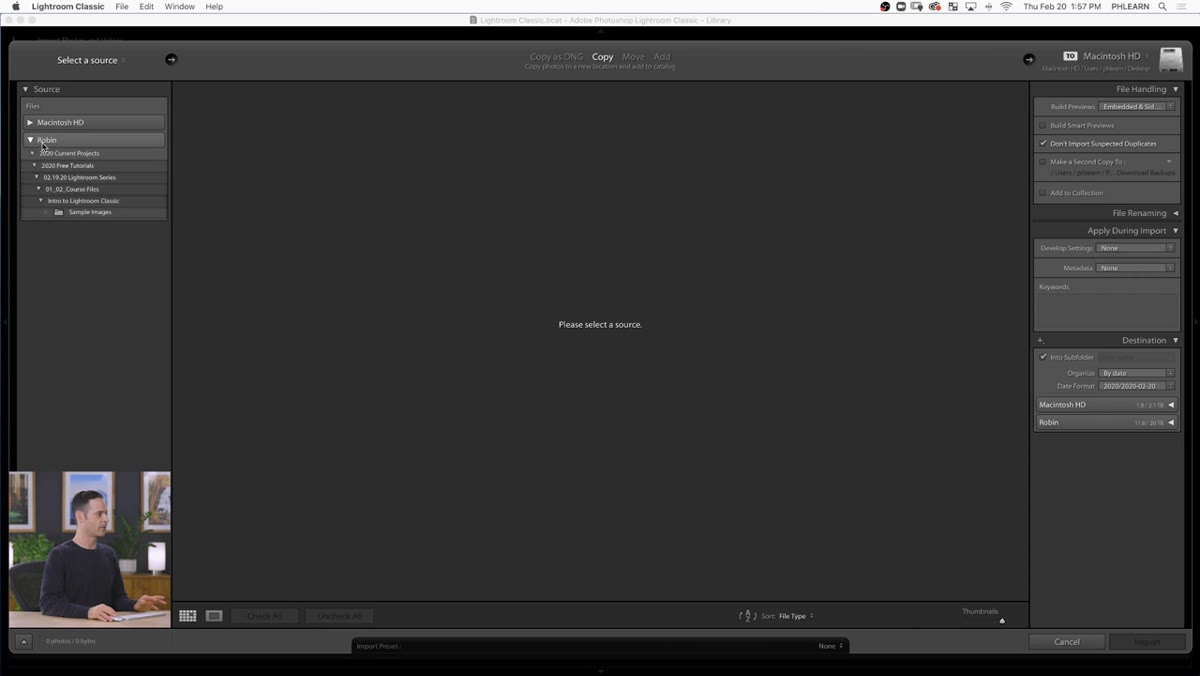 File explorer dragging a photo folder into Lightroom
Whether you’re pulling from a folder already on your computer or from a memory card you just plugged in, Lightroom handles both. For a memory card, your device will appear as a source option in the left panel when you open the import window. Click it and Lightroom shows you what’s on the card, with thumbnail previews ready to review before anything gets moved.
File explorer dragging a photo folder into Lightroom
Whether you’re pulling from a folder already on your computer or from a memory card you just plugged in, Lightroom handles both. For a memory card, your device will appear as a source option in the left panel when you open the import window. Click it and Lightroom shows you what’s on the card, with thumbnail previews ready to review before anything gets moved.
For folders already on your hard drive, dragging directly from the file browser is faster than navigating Lightroom’s built-in tree. Either way, once your source is selected and previews are visible, you’re ready to make the more important decisions about what actually happens to these files.
Step 3: Choose Your Import Method
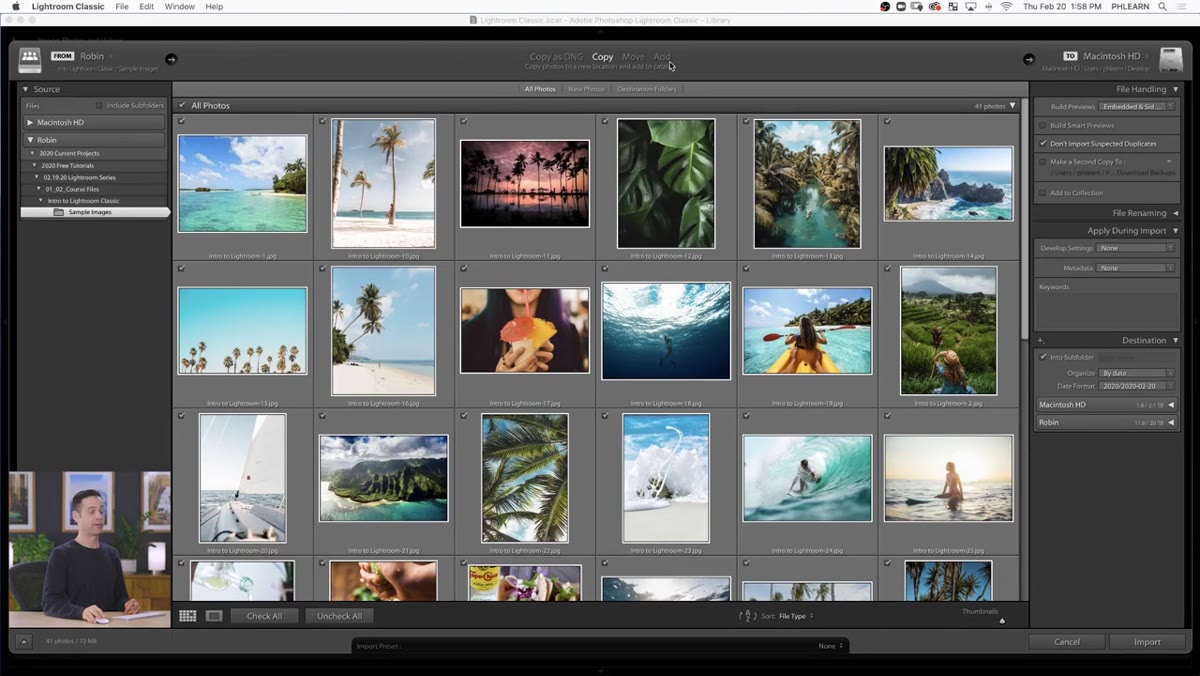 Four import option tabs at top of import window
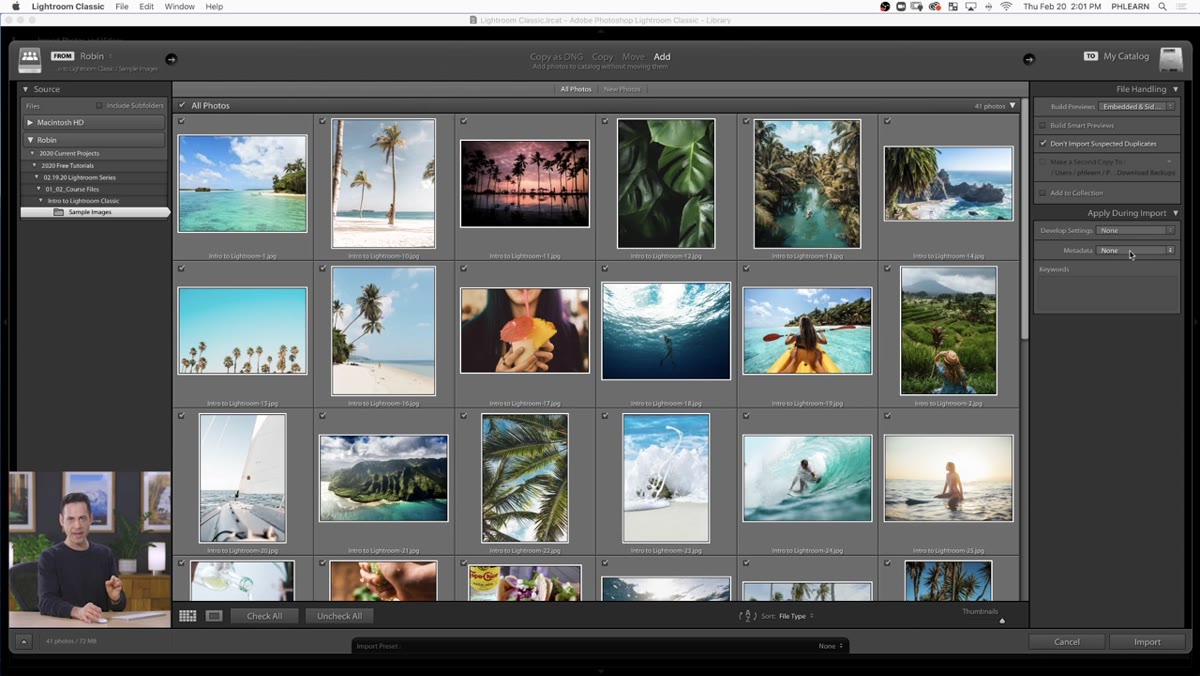
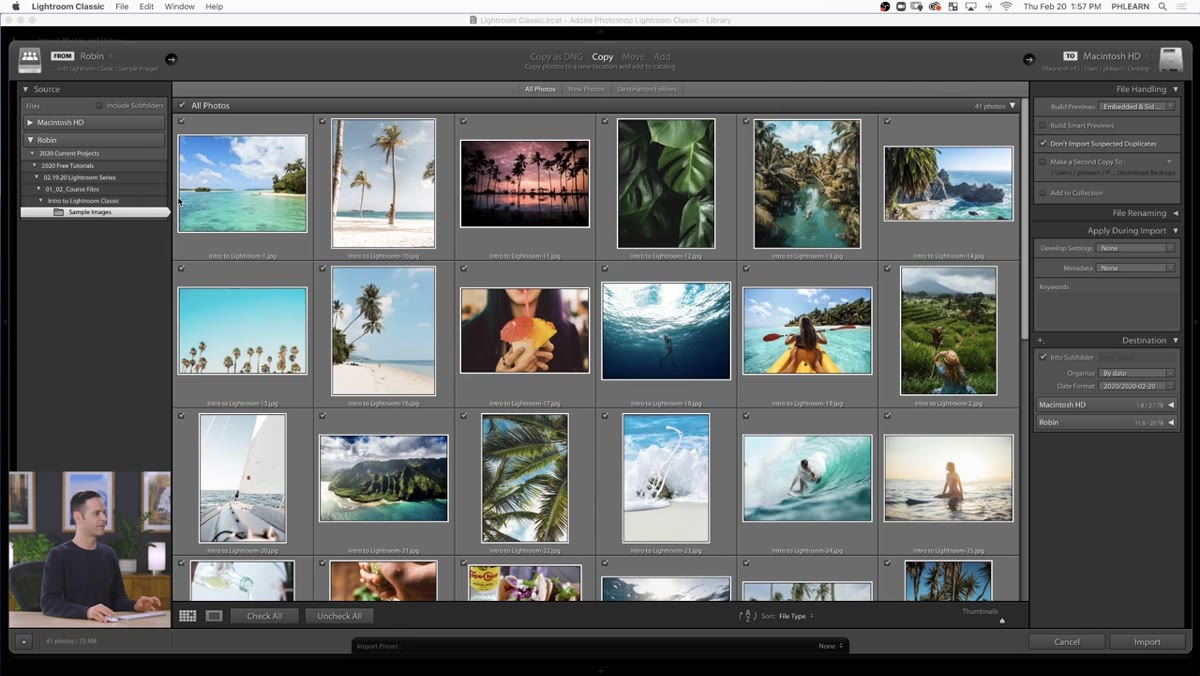
At the top of the import window, you have four options: Copy as DNG, Copy, Move, and Add. These are not interchangeable, and picking the wrong one can cause real headaches.
Four import option tabs at top of import window
At the top of the import window, you have four options: Copy as DNG, Copy, Move, and Add. These are not interchangeable, and picking the wrong one can cause real headaches.
“Copy as DNG” is Aaron’s recommendation if you’re shooting RAW and importing directly from a memory card. DNG is Adobe’s open RAW format. It’s slightly smaller than most proprietary RAW files and more universally readable, which matters if you ever switch software down the road. “Copy” makes a straight duplicate without converting. “Move” transfers files from one location to another and removes them from the source, so use that one carefully. “Add” is the option for photos already living where you want them on your computer. It registers them in Lightroom’s catalog without touching or relocating the actual files. For this walkthrough, Add is the cleanest place to start.
Step 4: Set Your Destination and File Handling Options
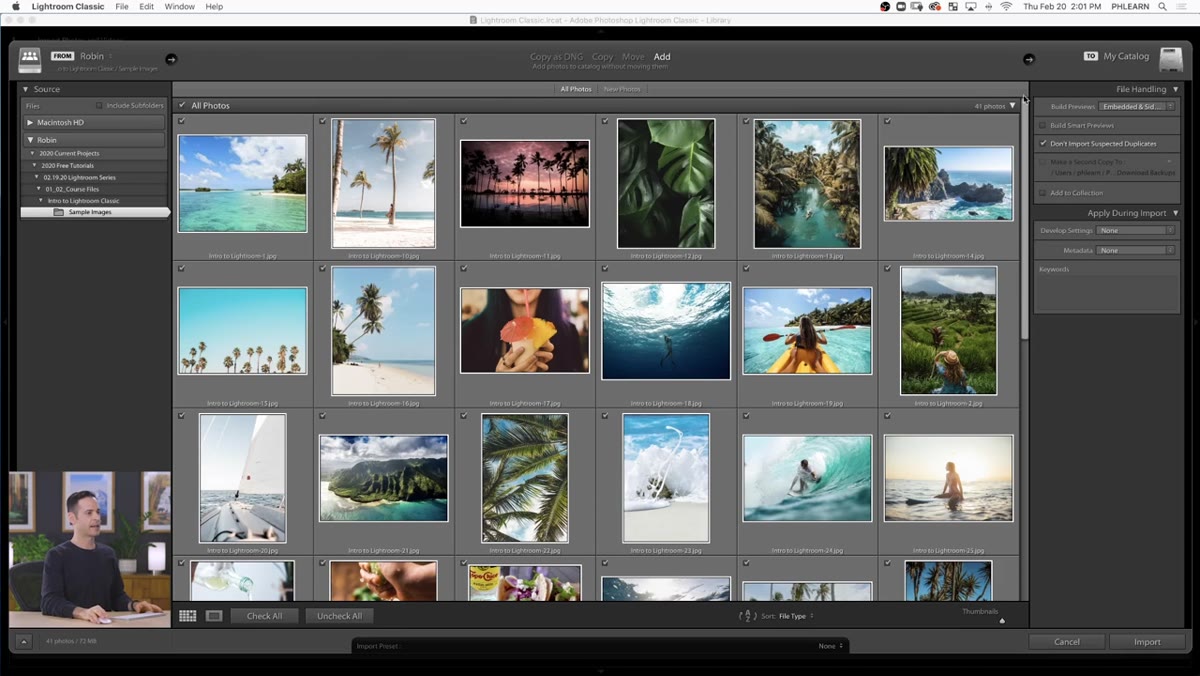 Right panel showing file handling and destination folder options
On the right side of the import window, you choose where copied or moved files will land. If you’re using Add, the destination panel is less critical since files stay put, but it’s worth knowing for future imports. You can select any folder on your system as the destination, and Lightroom will mirror that structure in its own folder panel.
Right panel showing file handling and destination folder options
On the right side of the import window, you choose where copied or moved files will land. If you’re using Add, the destination panel is less critical since files stay put, but it’s worth knowing for future imports. You can select any folder on your system as the destination, and Lightroom will mirror that structure in its own folder panel.
Under File Handling, you’ll see options for preview rendering size. Aaron recommends leaving these at their defaults unless you have a specific reason to change them. Rendering large previews takes longer and eats more disk space. Standard previews are fine for most workflows and can always be rebuilt later if you need higher quality for detailed retouching work.
Step 5: Add Metadata and Copyright Before You Import
 Metadata panel on right side with copyright fields visible
This is the step most people skip, and it’s the one I wish someone had made a bigger deal of when I was starting out. In the right panel, below the file handling options, there’s a Metadata section. Here you can apply a metadata preset to every image in this import batch simultaneously, including your copyright information.
Metadata panel on right side with copyright fields visible
This is the step most people skip, and it’s the one I wish someone had made a bigger deal of when I was starting out. In the right panel, below the file handling options, there’s a Metadata section. Here you can apply a metadata preset to every image in this import batch simultaneously, including your copyright information.
At a minimum, add your name, your website, and copyright status. Lightroom embeds this data directly into the file record, so if one of your images gets downloaded and passed around, your name travels with it. Creating a saved metadata preset with your standard copyright info means you can apply it in one click on every future import. Set it up once, use it forever. It takes about two minutes and it’s one of those professional habits that quietly protects you in ways you won’t notice until you actually need the protection.
Step 6: Import and Verify in the Catalog
 Lightroom catalog showing newly imported photo thumbnails
Once your settings are confirmed, hit Import. Lightroom processes the files and populates your catalog with the images, organized under the folder structure you specified. The Folders panel in the left sidebar of the main Library module reflects your actual computer’s folder structure, so what you see in Lightroom matches what’s on your hard drive.
Lightroom catalog showing newly imported photo thumbnails
Once your settings are confirmed, hit Import. Lightroom processes the files and populates your catalog with the images, organized under the folder structure you specified. The Folders panel in the left sidebar of the main Library module reflects your actual computer’s folder structure, so what you see in Lightroom matches what’s on your hard drive.
From here, Aaron introduces Collections as a separate organizational layer. Unlike folders (which are tied to physical file locations), collections are virtual groupings you create inside Lightroom. One photo can live in multiple collections simultaneously without duplicating the file. This is how you build project-specific groups, client galleries, or mood boards without moving anything around on disk.
One Thing the Tutorial Doesn’t Cover: Name Your Presets and Collections Like They Matter
I’ve been naming my presets after songs since before it was a quirk worth mentioning in an author bio. “Gold Dust Woman” for a warm, slightly hazy look. “Blue Ridge Mountains” for a cool, desaturated landscape treatment. It sounds trivial, but the naming convention forces me to articulate what a preset actually does rather than just calling it “warm2_FINAL.” The same logic applies to collections. “May Session - Portland” beats “New Collection 14” every single time when you’re searching six months later.
The import workflow Aaron walks through is clean and efficient, but your organizational system only stays useful if the naming is consistent and descriptive from the start. Build that habit at the import stage, before the catalog gets unwieldy, and you’ll spend far less time hunting for files you know you have.
The single most important thing to take away from this tutorial is the difference between how Lightroom stores file locations versus how it stores file organization. Folders track where things live on your computer. Collections track how you want to think about them editorially. Once those two concepts click, Lightroom stops feeling like an obstacle and starts feeling like the tool it actually is.
Watch the full tutorial on YouTube to follow along with Aaron’s full walkthrough, including the sample images PHLEARN provides for practice.
Comments
Leave a Comment