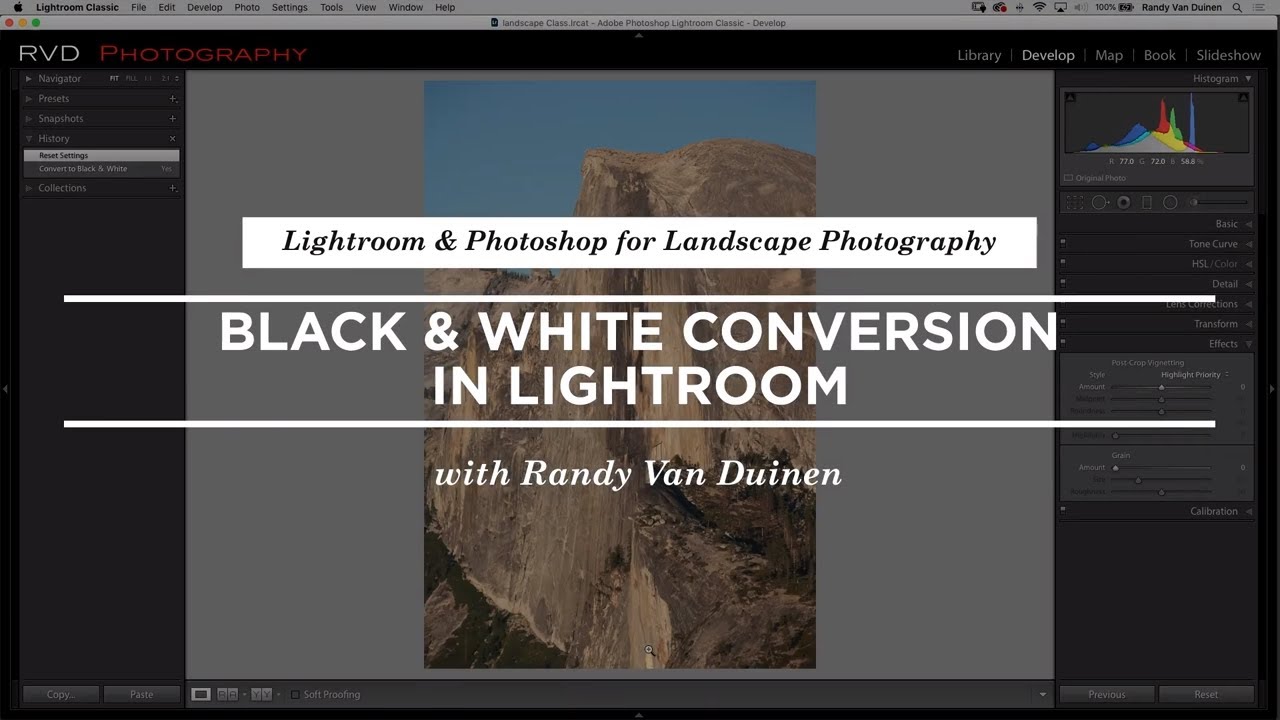
Black and white photography has a way of separating the people who understand light from the people who just shoot in it. I’ve been editing photos long enough to know that clicking the “Black and White” button in Lightroom and calling it done is like tuning a guitar once and never touching the pegs again. The conversion is just the starting point. Everything interesting happens after.
In this CreativeLive tutorial, the instructor walks through a landscape shot, likely a mountain scene at sunset, and transforms it using Lightroom’s black and white tools in a way that genuinely echoes Ansel Adams’ zone system philosophy. Not just aesthetically, but technically. The approach to controlling sky tones through color channel mixing rather than just exposure adjustments is the kind of thinking that changes how you see black and white work entirely.
Watch the full tutorial on YouTube
What follows is my breakdown of every meaningful step, with the reasoning behind each move. You should be able to follow this from start to finish without needing to pause the video every ten seconds.
Step 1: Convert to Black and White First, Then Fix It
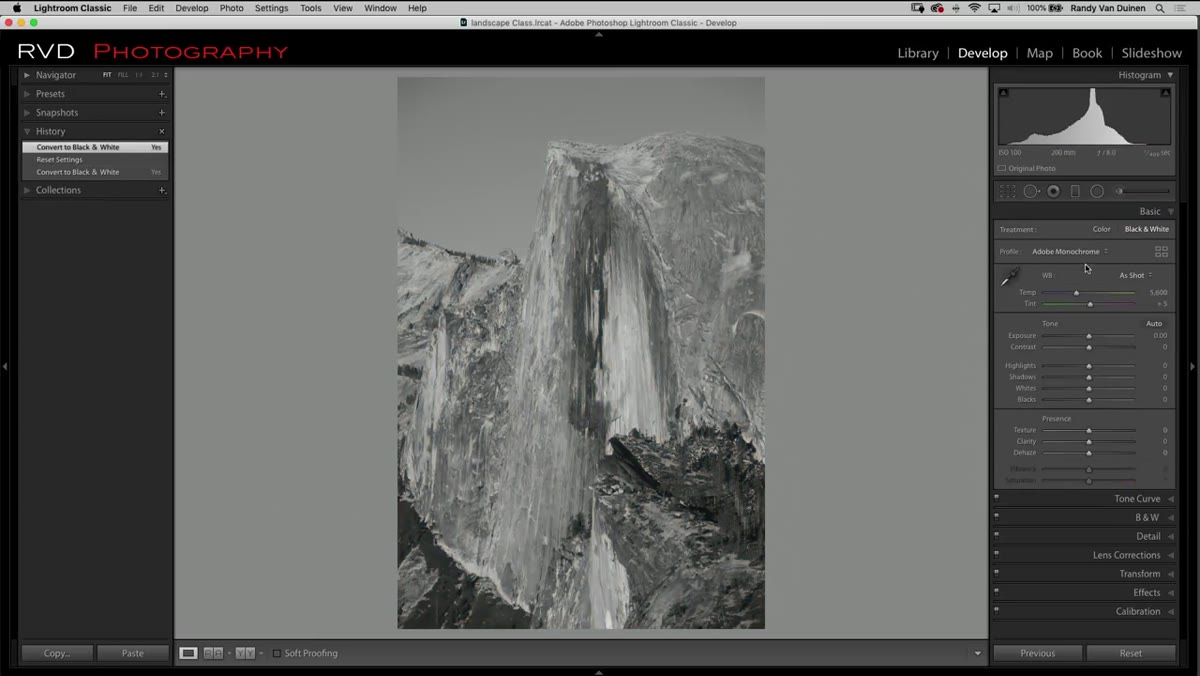 Clicking the black and white conversion button in Lightroom
The tutorial makes a counterintuitive but correct choice early: convert to black and white immediately, then react to what you see. The instructor’s exact words when the conversion lands are essentially “that looks horrible” and that’s the point. A raw black and white conversion almost always looks flat, muddy, and lifeless. If yours looks great on the first click, something is probably off with your source image.
Clicking the black and white conversion button in Lightroom
The tutorial makes a counterintuitive but correct choice early: convert to black and white immediately, then react to what you see. The instructor’s exact words when the conversion lands are essentially “that looks horrible” and that’s the point. A raw black and white conversion almost always looks flat, muddy, and lifeless. If yours looks great on the first click, something is probably off with your source image.
Hit the B&W button (or press V in the Develop module) and resist the urge to fix it with exposure sliders right away. Let it look bad for a moment. That’s your baseline.
Step 2: Add Texture, Clarity, and a Touch of Dehaze
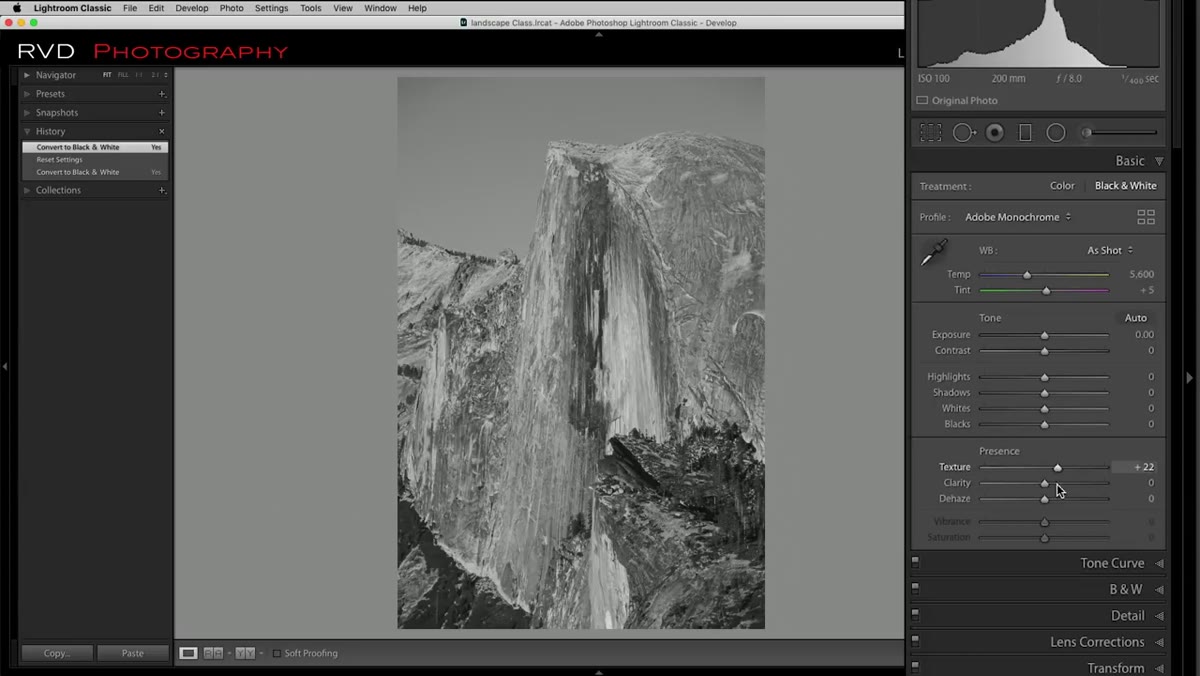 Adjusting texture and clarity sliders in the Basic panel
Before setting blacks or whites, the instructor bumps up Texture and Clarity, and adds a small amount of Dehaze. This ordering matters. You want to build contrast and surface detail before you lock in your tonal range, because the Texture and Clarity adjustments will affect how dark and bright your image reads overall.
Adjusting texture and clarity sliders in the Basic panel
Before setting blacks or whites, the instructor bumps up Texture and Clarity, and adds a small amount of Dehaze. This ordering matters. You want to build contrast and surface detail before you lock in your tonal range, because the Texture and Clarity adjustments will affect how dark and bright your image reads overall.
For a landscape with rough terrain, rock faces, or tree lines, Texture is doing the heavy lifting on mid-frequency detail, the kind your eye notices but your brain can’t always articulate. Clarity adds punch to local contrast. Dehaze is more aggressive and can get heavy-handed fast, so the instructor keeps it subtle. Think of these three as a foundation layer, not a destination.
Step 3: Set Your Black and White Points with the Option/Alt Trick
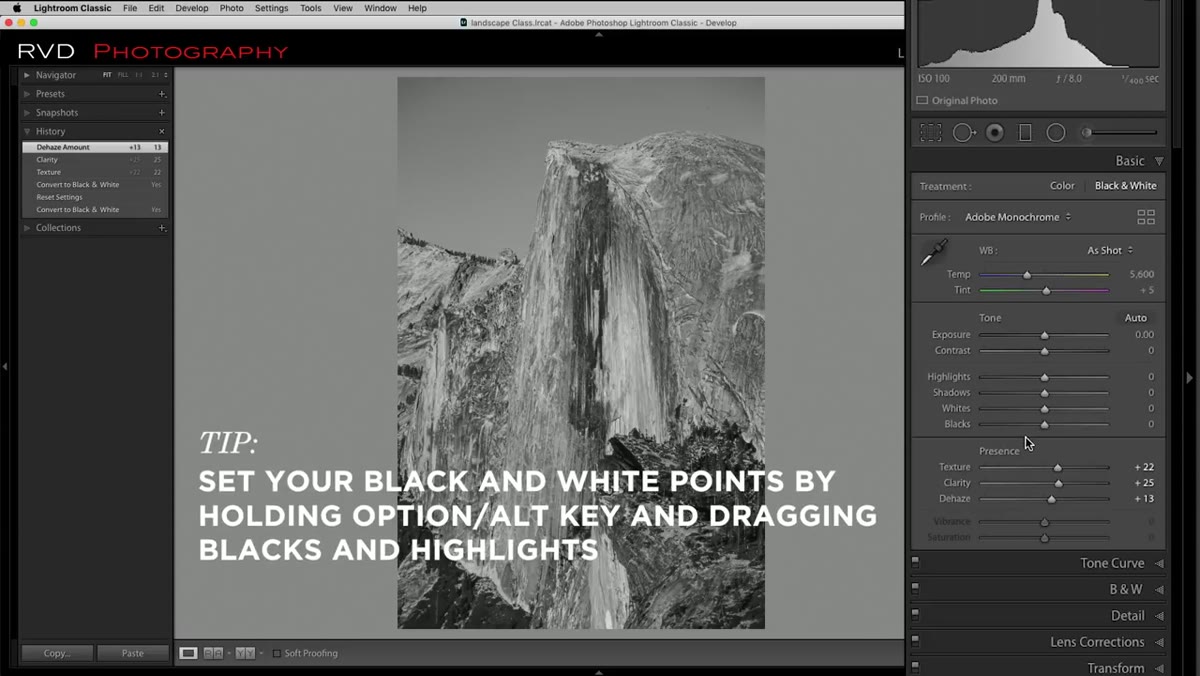 Holding Alt key while dragging Blacks slider in Lightroom
This is a technique I use on almost every edit, color or black and white. Hold Option on Mac (Alt on PC) while dragging the Blacks slider down. The canvas turns white, and pure black pixels appear as you drag, showing exactly where your deepest shadows are clipping. Stop when you see just the beginning of detail you want to keep.
Holding Alt key while dragging Blacks slider in Lightroom
This is a technique I use on almost every edit, color or black and white. Hold Option on Mac (Alt on PC) while dragging the Blacks slider down. The canvas turns white, and pure black pixels appear as you drag, showing exactly where your deepest shadows are clipping. Stop when you see just the beginning of detail you want to keep.
Do the same for the Whites slider, but be more conservative. Blowing out whites in a black and white landscape kills the mood fast. The instructor acknowledges this is partially a visual judgment call. Use the Alt key trick as a guide, then pull back and trust your eye for the final position.
Step 4: Use Color Temperature to Shape the Sky
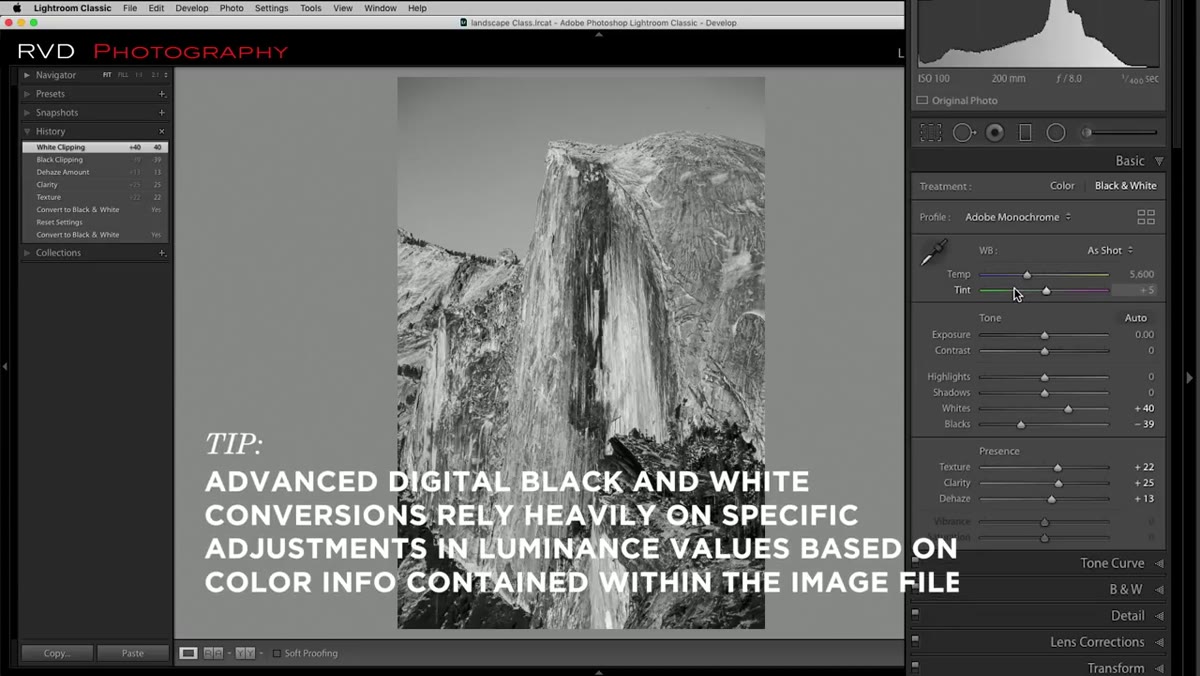 Dragging the color temperature slider to the left toward cool tones
Here’s where the tutorial gets genuinely clever. Even though the image is displaying as black and white, Lightroom is still processing the underlying color information. Pulling the color temperature slider toward cooler/bluer tones darkens the sky in the black and white rendering because blue-tinted areas become underexposed relative to the warm tones in the image.
Dragging the color temperature slider to the left toward cool tones
Here’s where the tutorial gets genuinely clever. Even though the image is displaying as black and white, Lightroom is still processing the underlying color information. Pulling the color temperature slider toward cooler/bluer tones darkens the sky in the black and white rendering because blue-tinted areas become underexposed relative to the warm tones in the image.
It’s essentially a free gradient filter that follows the actual color distribution in your photo. For sky-heavy landscape shots, this single move can add dramatic contrast without touching the foreground at all.
Step 5: Dial In the B&W Mix Panel for Sky and Mountain Separation
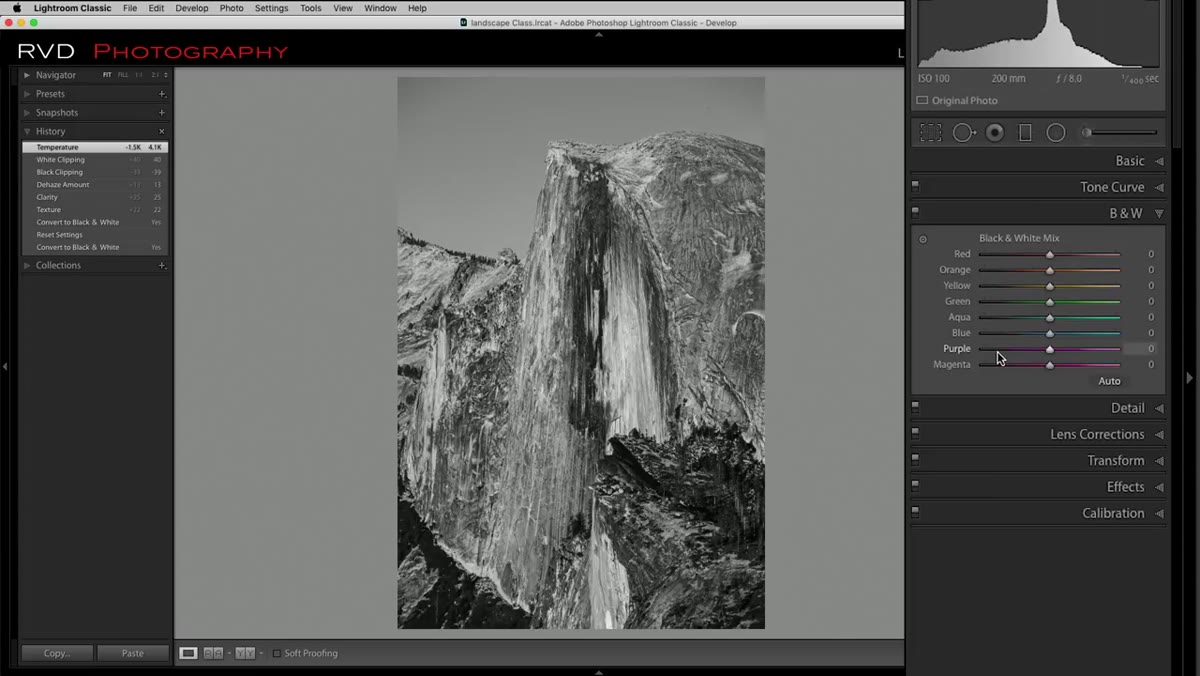 Dragging the Blue channel slider down in the B&W Mix panel
The B&W Mix panel is where Lightroom’s black and white conversion goes from decent to exceptional. The instructor targets the Blue channel and pulls it down significantly, which further darkens the sky without affecting the warmer tones of the mountain. This mimics what Ansel Adams achieved using red and orange filters on film, where certain wavelengths of light were blocked to create those signature dark, dramatic skies.
Dragging the Blue channel slider down in the B&W Mix panel
The B&W Mix panel is where Lightroom’s black and white conversion goes from decent to exceptional. The instructor targets the Blue channel and pulls it down significantly, which further darkens the sky without affecting the warmer tones of the mountain. This mimics what Ansel Adams achieved using red and orange filters on film, where certain wavelengths of light were blocked to create those signature dark, dramatic skies.
On the warmer side, the instructor nudges Orange and Yellow slightly upward. Since the mountain was shot at sunset, those tones were present in the rock face. Lifting them brightens the foreground details selectively, adding separation between sky and subject without blowing anything out. Spend time in this panel. Moving individual color channels in B&W Mix is one of the highest-leverage tools in Lightroom.
Step 6: Add a Careful Vignette
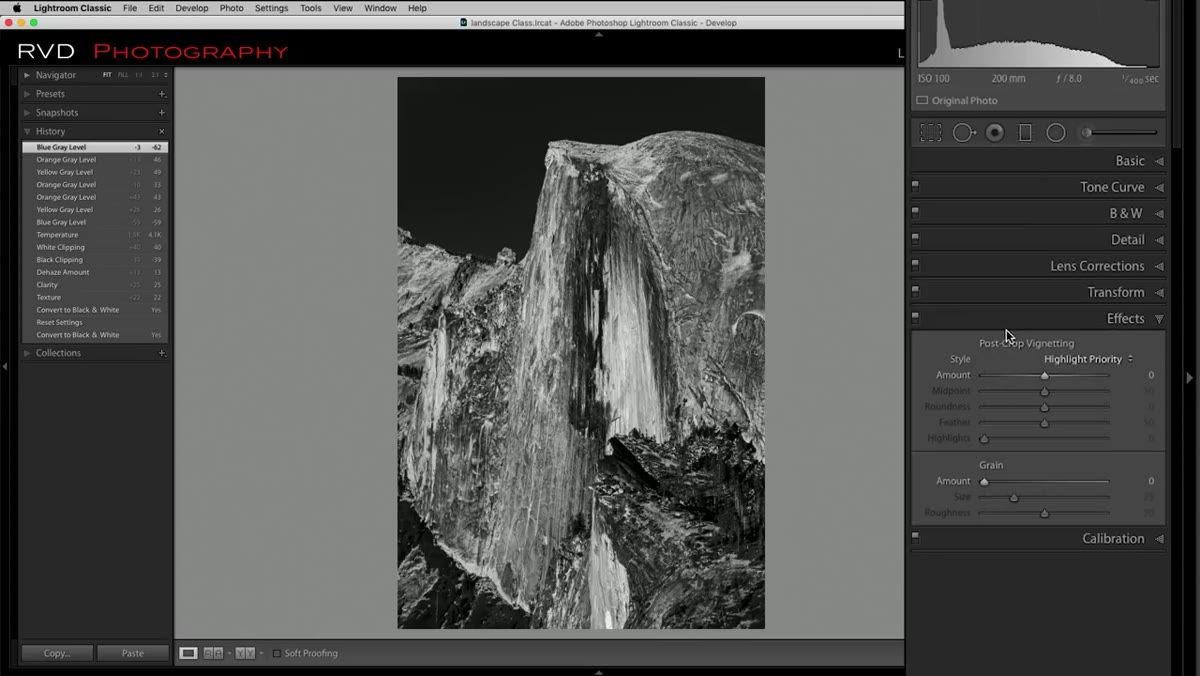 Adjusting vignette sliders in the Effects panel with dark sky present
The instructor adds a vignette but immediately flags the risk: the sky is already very dark from the previous steps. A heavy vignette on top of that turns corners into pure black and flattens everything. The solution is to use a moderate amount, then increase the Midpoint slider to push the vignette effect closer to the edges and away from the subject.
Adjusting vignette sliders in the Effects panel with dark sky present
The instructor adds a vignette but immediately flags the risk: the sky is already very dark from the previous steps. A heavy vignette on top of that turns corners into pure black and flattens everything. The solution is to use a moderate amount, then increase the Midpoint slider to push the vignette effect closer to the edges and away from the subject.
Feathering matters here too. A hard-edged vignette looks artificial and draws attention to itself. You want it to feel like the image just naturally fades at the edges.
Step 7: Recover Shadow Detail with the Adjustment Brush
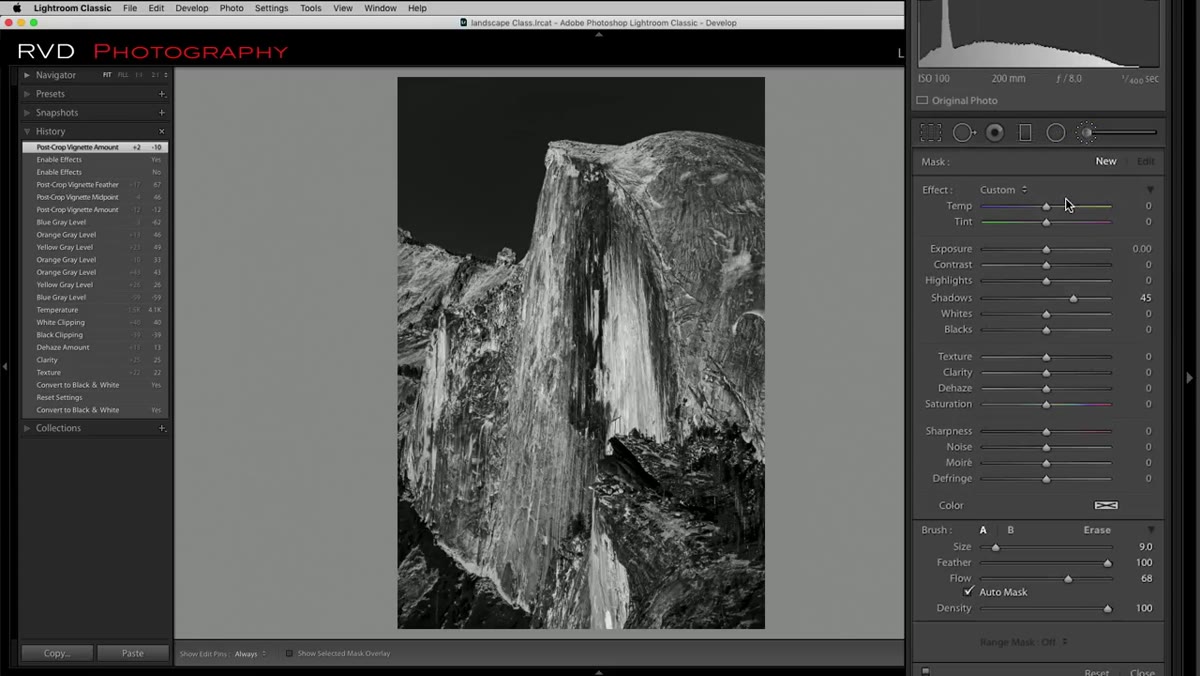 Painting with the adjustment brush over dark shadow areas in the image
After the vignette, the instructor notices some areas in the image have gone too dark, losing texture and detail in the shadows. The fix is the Adjustment Brush with Shadows pushed well into the positive range. Crucially, Auto Mask is turned off so the brush effect flows naturally without snapping to edges, which would look mechanical in a landscape context.
Painting with the adjustment brush over dark shadow areas in the image
After the vignette, the instructor notices some areas in the image have gone too dark, losing texture and detail in the shadows. The fix is the Adjustment Brush with Shadows pushed well into the positive range. Crucially, Auto Mask is turned off so the brush effect flows naturally without snapping to edges, which would look mechanical in a landscape context.
Paint over the problem areas and then pull the flow or effect back if the recovery feels overdone. The goal isn’t to lift the shadows dramatically, it’s to reclaim just enough detail that the image breathes.
A Note from My Own Workflow
I’ve started using this channel-based approach in B&W Mix for portraits too, not just landscapes. Pulling the Red channel down in portraits darkens skin tones, which adds drama in the same way the Blue channel darkens skies. Pushing Green up slightly can help separate neutral clothing from darker backgrounds. The logic is the same as the landscape example in this tutorial. Every black and white image still has color data underneath it, and that data is a tool.
If you’re naming your saved presets after this workflow (I may have one called “Harvest Moon”), the combination of cool temperature shift plus blue channel pull in B&W Mix works especially well for moody autumn landscape shots. It takes about three minutes to apply once you know the order.
The biggest takeaway here is this: black and white conversion is not a single click. It’s a layered process that uses Lightroom’s color engine even after the color is visually gone. Work in order, build your tonal foundation before setting hard limits, and use the B&W Mix panel like the creative instrument it actually is.
Watch the full tutorial on YouTube to see each of these steps demonstrated in real time. The visual difference between the before and after is genuinely worth seeing.
Comments
Leave a Comment