There’s a moment every photographer has experienced at least once, usually early on, usually while muttering something unpleasant under their breath. You nail a shot in the field. The back of your camera shows exactly the image you wanted: punchy colors, good contrast, skin tones that look human. You get home, import into Lightroom, and then watch that image deflate right in front of you. Like someone let the air out of it. That color shift isn’t your imagination, and it’s not a Lightroom bug. It’s actually a pretty logical thing once you understand what’s happening under the hood.
In this KelbyOne tutorial, RC walks through one of the most underrated panels in Lightroom’s Develop module and explains exactly why that color shift happens and what you can do about it. Watch the full tutorial on YouTube if you want to follow along with the video. I’ve been incorporating camera profiles into my own starting-point workflow for years, and I still think this is one of the first things anyone serious about RAW editing needs to understand.
Here’s the short version of the problem: when you shoot RAW, your camera still generates a small JPEG thumbnail for the preview screen. That thumbnail bakes in all your in-camera picture style settings, whether that’s Vivid, Portrait, Landscape, or whatever your brand calls it. Lightroom shows you that thumbnail first when you import. Then, a few seconds later, Lightroom renders its own interpretation of the RAW data and replaces the preview. What you’re left with is a flat, neutral starting point that has nothing to do with what you saw in the field. Camera profiles are how you bridge that gap.
Step 1: Import Your RAW Files as Normal
 Host RC introduces the camera profiles topic
Don’t change anything about your import process yet. Shoot in RAW, import into Lightroom the way you always do. The key here is just being aware of what you’re watching when the previews load. When you first double-click on a file and zoom in, pay attention. You’ll see one version of the image for a second or two, and then it will visibly shift. That second look, the flatter, more muted one, is Lightroom’s default RAW interpretation. That’s your actual starting point.
Host RC introduces the camera profiles topic
Don’t change anything about your import process yet. Shoot in RAW, import into Lightroom the way you always do. The key here is just being aware of what you’re watching when the previews load. When you first double-click on a file and zoom in, pay attention. You’ll see one version of the image for a second or two, and then it will visibly shift. That second look, the flatter, more muted one, is Lightroom’s default RAW interpretation. That’s your actual starting point.
Step 2: Open the Develop Module and Scroll to Camera Calibration
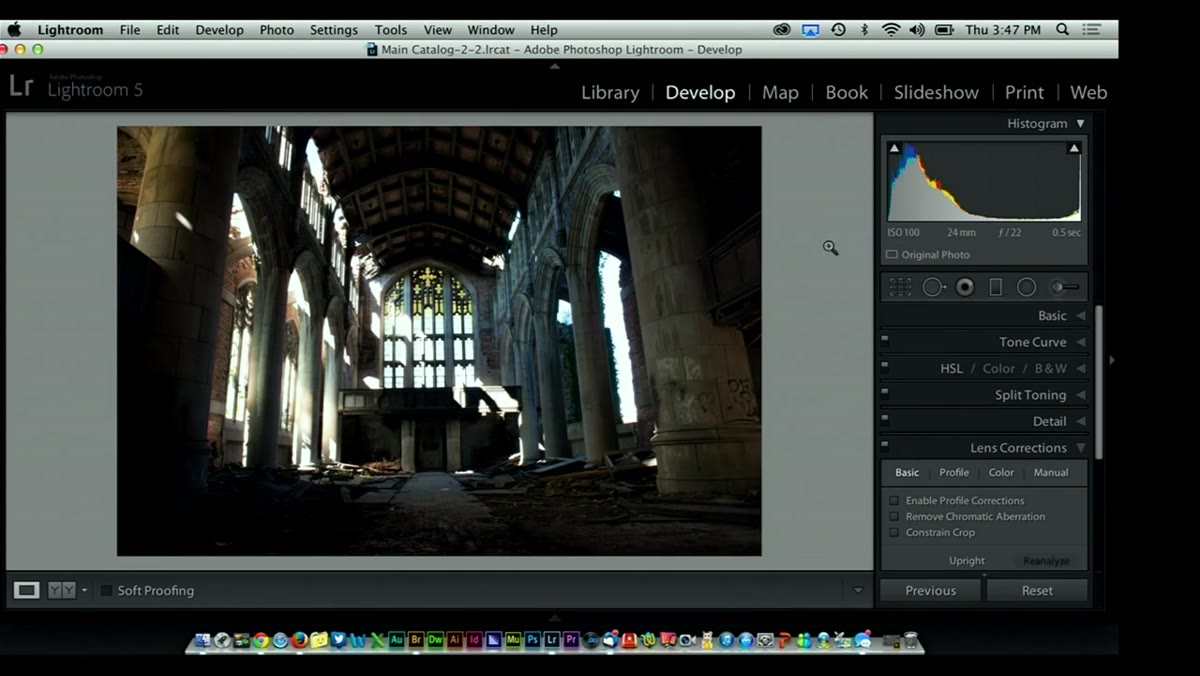 Develop module open, Camera Calibration panel visible at bottom
In the Develop module, the panels on the right side run from Basic at the top all the way down to Camera Calibration at the very bottom. A lot of people never scroll that far down. Camera Calibration is easy to overlook because it sits below the HSL panel, the Color Grading panel, and the Detail panel. Scroll past all of them. You’re looking for the last panel before the panel strip ends.
Develop module open, Camera Calibration panel visible at bottom
In the Develop module, the panels on the right side run from Basic at the top all the way down to Camera Calibration at the very bottom. A lot of people never scroll that far down. Camera Calibration is easy to overlook because it sits below the HSL panel, the Color Grading panel, and the Detail panel. Scroll past all of them. You’re looking for the last panel before the panel strip ends.
Step 3: Locate the Profile Dropdown
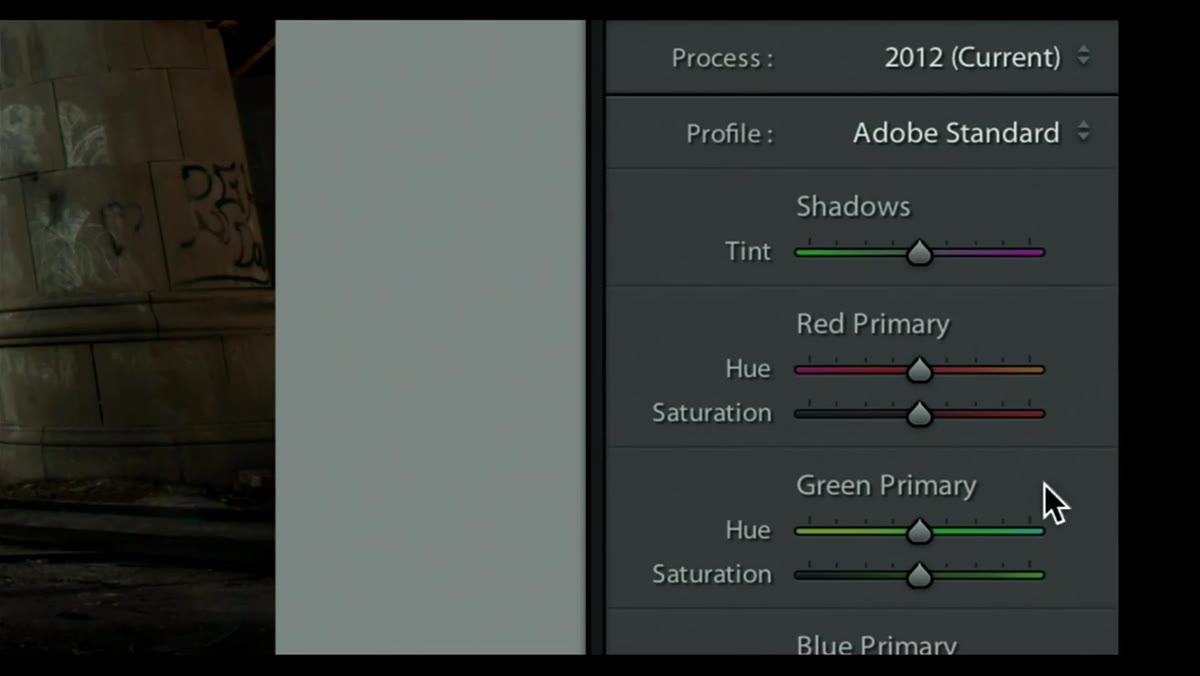 Camera Calibration panel expanded showing Profile dropdown
Inside Camera Calibration, you’ll see two things: Process Version and Profile. Ignore Process Version for now. The Profile dropdown is what you want. By default it’s almost certainly set to “Adobe Standard” or “Camera Standard,” depending on your version of Lightroom and your camera body. Click on it and take a look at what’s available. The profiles you see here are specific to your camera manufacturer. Canon shooters will see options like Camera Portrait, Camera Vivid, Camera Landscape, and Camera Faithful. Nikon shooters will see their own equivalent set. If you’re shooting with a less common camera body, you may see fewer options or none at all.
Camera Calibration panel expanded showing Profile dropdown
Inside Camera Calibration, you’ll see two things: Process Version and Profile. Ignore Process Version for now. The Profile dropdown is what you want. By default it’s almost certainly set to “Adobe Standard” or “Camera Standard,” depending on your version of Lightroom and your camera body. Click on it and take a look at what’s available. The profiles you see here are specific to your camera manufacturer. Canon shooters will see options like Camera Portrait, Camera Vivid, Camera Landscape, and Camera Faithful. Nikon shooters will see their own equivalent set. If you’re shooting with a less common camera body, you may see fewer options or none at all.
Step 4: Compare the Profiles Against Your Default
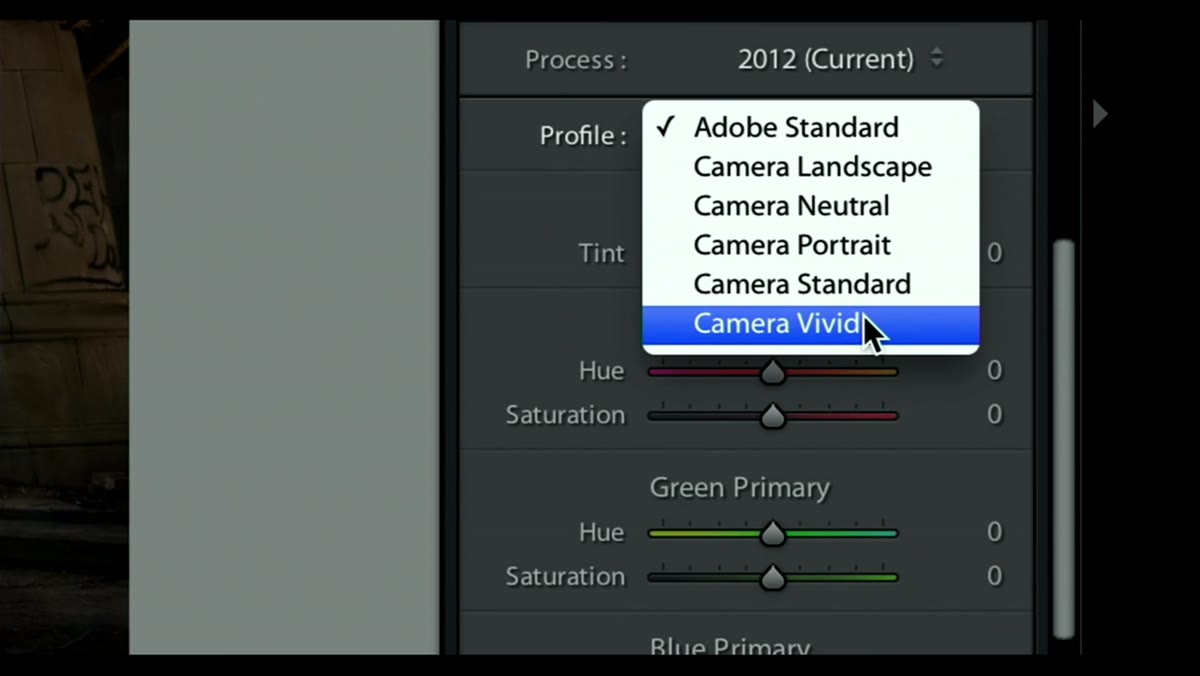 Profile dropdown open showing Camera Vivid selected, color shift visible
Start clicking through the profiles and watch what happens to your image. The changes are not subtle. Switching to Camera Vivid can push yellows and greens significantly warmer and more saturated. Camera Portrait often lifts the overall brightness and softens contrast in a way that works really well for people. Camera Landscape tends to punch up blues and greens. Each one is essentially Lightroom’s attempt to replicate the color science your camera applied to that in-camera JPEG. None of them are “correct” in an absolute sense. They’re just different starting interpretations of the same RAW data.
Profile dropdown open showing Camera Vivid selected, color shift visible
Start clicking through the profiles and watch what happens to your image. The changes are not subtle. Switching to Camera Vivid can push yellows and greens significantly warmer and more saturated. Camera Portrait often lifts the overall brightness and softens contrast in a way that works really well for people. Camera Landscape tends to punch up blues and greens. Each one is essentially Lightroom’s attempt to replicate the color science your camera applied to that in-camera JPEG. None of them are “correct” in an absolute sense. They’re just different starting interpretations of the same RAW data.
Step 5: Match the Profile to Your In-Camera Setting
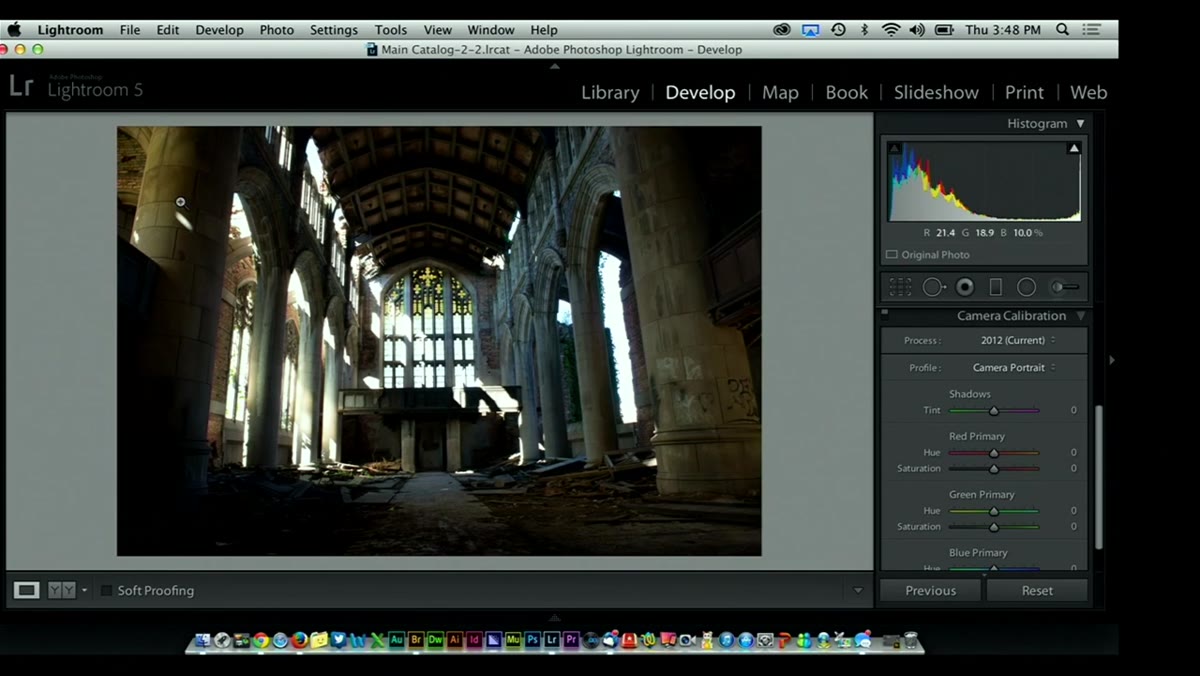 Switching between Standard and Portrait profiles showing brightness difference
If you were shooting with a specific picture style active on your camera, say Portrait mode for a family session, switch your Lightroom profile to Camera Portrait. This won’t be a perfect pixel-for-pixel match, but it’ll get you meaningfully closer to what you were evaluating in the field. That matters more than people realize. When you’re making exposure and composition decisions on location, you’re making them based on what you see on that screen. If your editing starting point looks nothing like that, you’re essentially recalibrating your eye from scratch every single time.
Switching between Standard and Portrait profiles showing brightness difference
If you were shooting with a specific picture style active on your camera, say Portrait mode for a family session, switch your Lightroom profile to Camera Portrait. This won’t be a perfect pixel-for-pixel match, but it’ll get you meaningfully closer to what you were evaluating in the field. That matters more than people realize. When you’re making exposure and composition decisions on location, you’re making them based on what you see on that screen. If your editing starting point looks nothing like that, you’re essentially recalibrating your eye from scratch every single time.
Step 6: Apply the Profile at Import Using a Preset
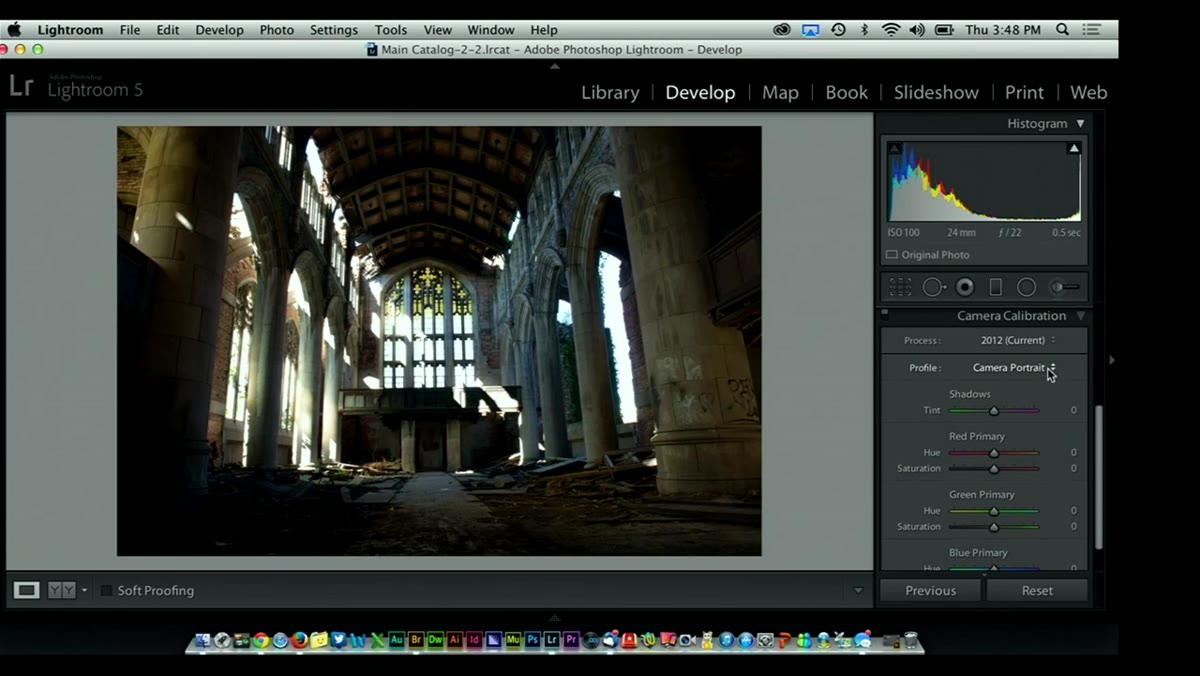 Camera Calibration section highlighted as part of import workflow suggestion
Once you’ve identified a profile that works for your shooting style, the smart move is to stop applying it manually every time. In Lightroom Classic, you can save a Develop preset that includes only the Camera Calibration panel settings, nothing else. Then apply that preset during import through the Import dialog under “Develop Settings.” From the moment your files land in the catalog, they’re already starting from a place that looks like your actual creative intent. For most of my portrait and live music work, I use Camera Portrait as a baseline. I’ve got a preset for it named after a Wilco song, because that’s how I organize these things.
Camera Calibration section highlighted as part of import workflow suggestion
Once you’ve identified a profile that works for your shooting style, the smart move is to stop applying it manually every time. In Lightroom Classic, you can save a Develop preset that includes only the Camera Calibration panel settings, nothing else. Then apply that preset during import through the Import dialog under “Develop Settings.” From the moment your files land in the catalog, they’re already starting from a place that looks like your actual creative intent. For most of my portrait and live music work, I use Camera Portrait as a baseline. I’ve got a preset for it named after a Wilco song, because that’s how I organize these things.
One Thing RC Doesn’t Cover (That I’d Add)
Camera profiles aren’t just a corrective tool. They’re a legitimate creative starting point. If you’re doing intentional color grading work, the profile you choose at the bottom of the panel affects how every other adjustment in Lightroom behaves above it. A Camera Vivid profile will respond differently to a Hue/Saturation tweak than Camera Neutral will. If you’re building a consistent look across a shoot, getting the profile right before you touch anything else means your other adjustments stay more predictable from image to image. I learned this the annoying way while trying to batch-edit a 400-image wedding gallery with mismatched profiles across the RAW files. Getting them all onto the same camera profile first cut my editing time in half.
The single most important idea in this tutorial is that Lightroom’s default view of your RAW file is not a neutral truth. It’s just one interpretation, and it’s often not the one that matches your vision from the field. Camera profiles in the Camera Calibration panel exist specifically to give you a better starting point, one that’s closer to what your camera was showing you when you decided to press the shutter. A two-minute change to your import preset can save you from chasing your tail on every single edit.
Watch the full tutorial on YouTube and pay attention to the before-and-after RC shows at the vivid switch. The color difference is bigger than you’d expect.
Comments
Leave a Comment