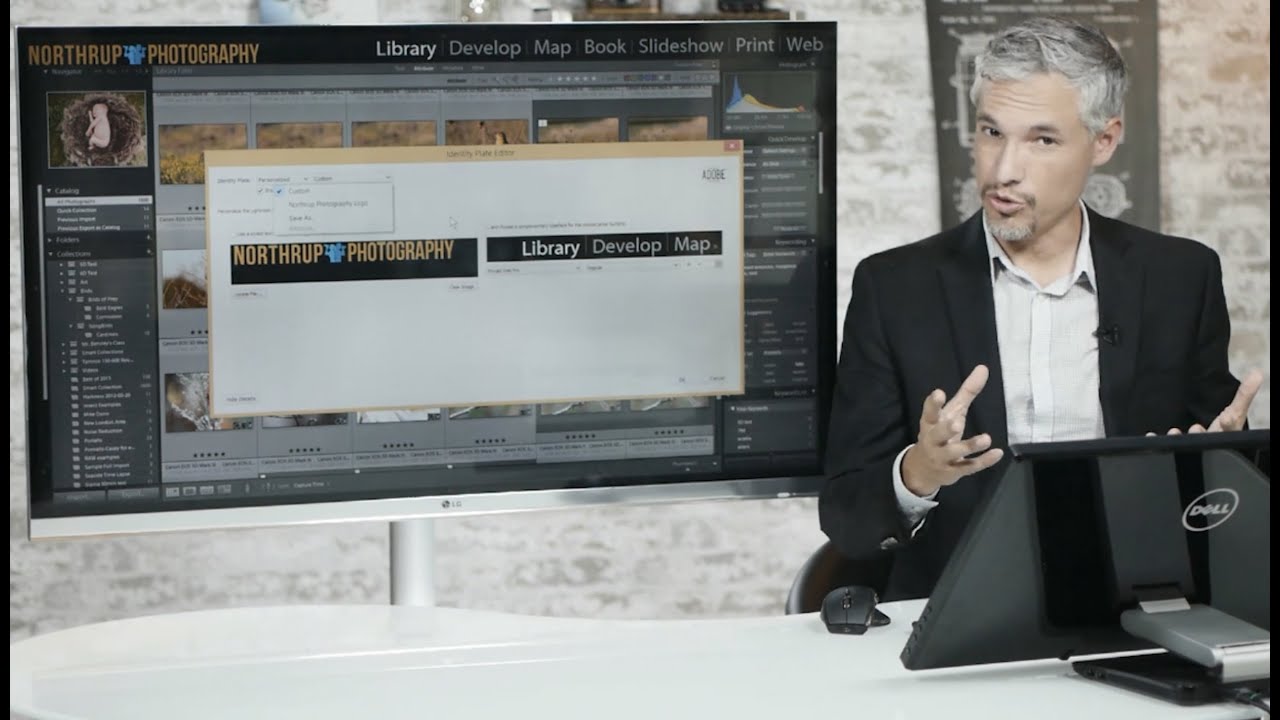
Stop Letting Adobe Advertise in Your Own Software: How to Add Your Logo to Lightroom

Stop Letting Adobe Advertise in Your Own Software: How to Add Your Logo to Lightroom

Every time I open Lightroom in front of a client, I want them to see my name, not Adobe’s. That sounds like a small vanity thing, but think about the moment: someone is sitting next to you, you’re about to show them their wedding portraits or their band’s press shots, and the first thing they clock in the top left corner is a prompt to “Get started with Lightroom Mobile.” Not exactly the professional first impression you were going for.
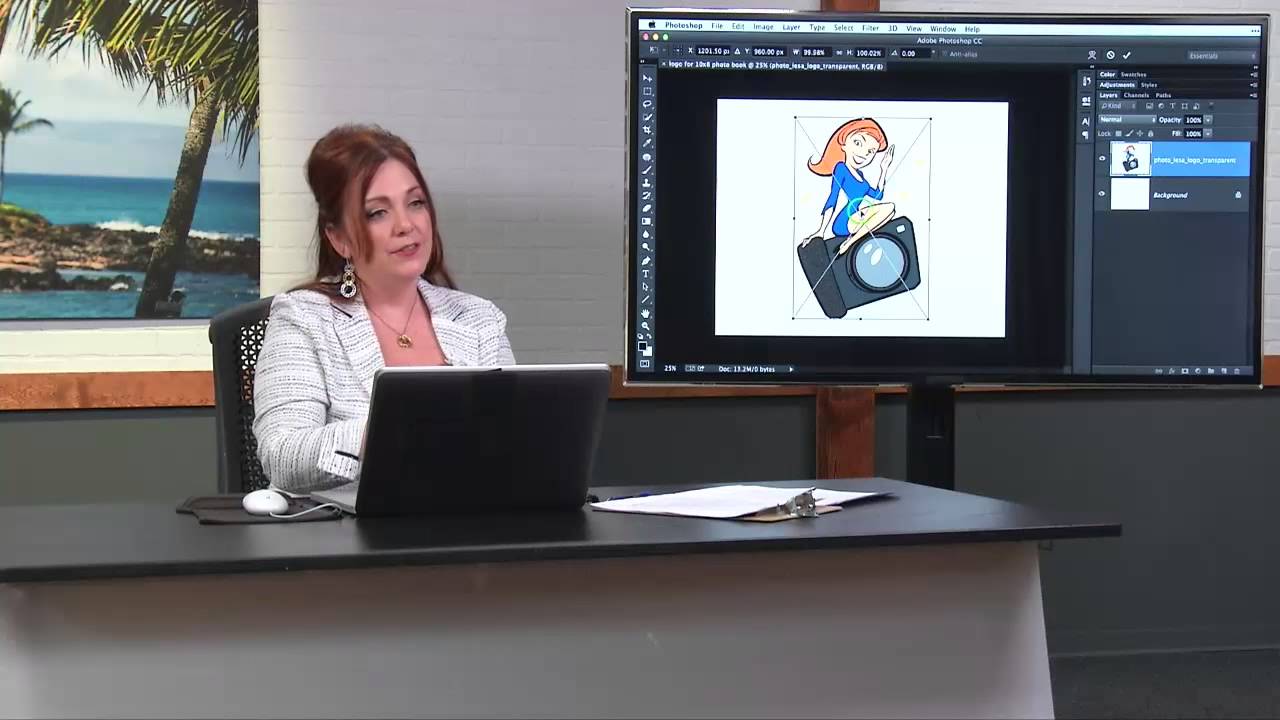
How to Brand Every Page of a Lightroom Photo Book (Without Making It Weird)

How to Brand Every Page of a Lightroom Photo Book (Without Making It Weird)

Client photo books are one of those deliverables that look effortless until you try to build one yourself. The layout tools in Lightroom’s Book module are genuinely solid, but the moment a client asks “can you put our logo on every page?” you hit a wall that isn’t obvious until you’re already staring at it. That wall is this: Lightroom gives you one set of cell padding guides per page, and those guides are already doing the job of positioning your photos.

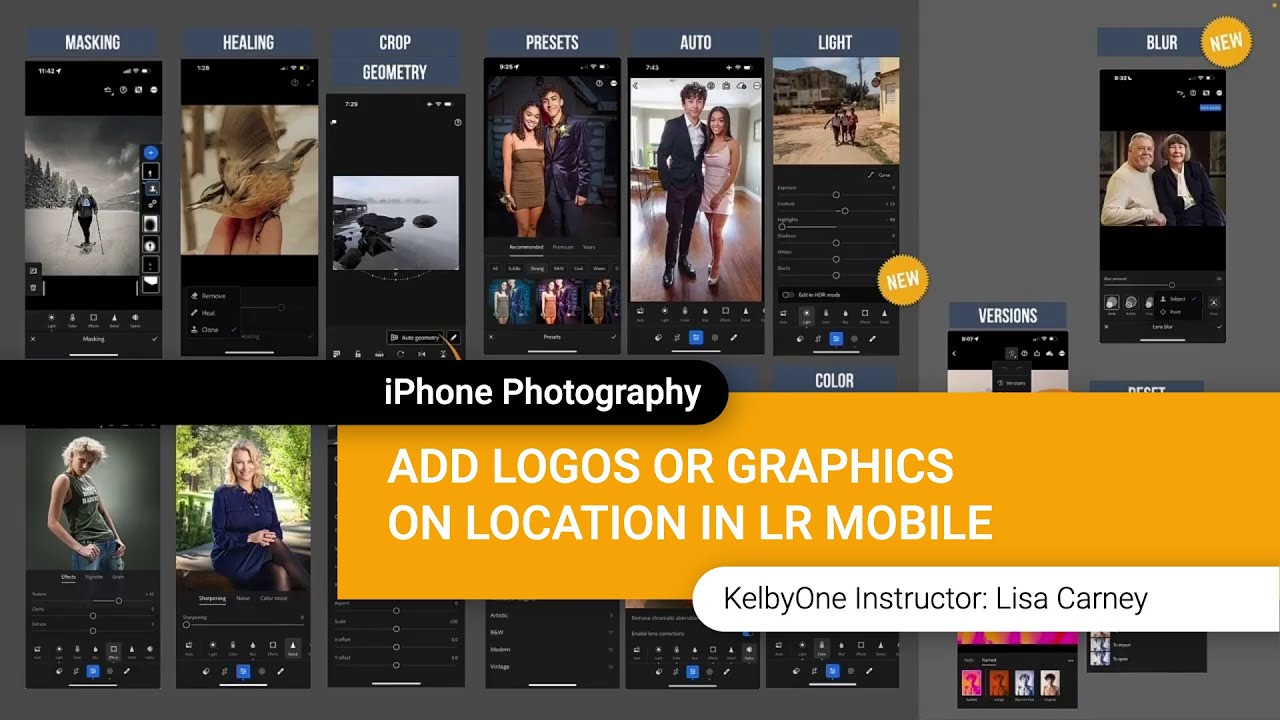
Brand Your Shots on the Spot: How to Add Logos and Textures in Lightroom Mobile

Brand Your Shots on the Spot: How to Add Logos and Textures in Lightroom Mobile

There’s a specific kind of chaos that happens when you’re shooting on location and a client texts asking for a watermarked preview image before you’ve even packed up your gear. I used to handle that by saying “I’ll send it when I’m back at my desk,” which is a perfectly reasonable answer that also makes you look slightly less impressive than the photographer who sends a branded image before they leave the parking lot.