Masking Tools in Lightroom: The Secret Weapon for Selective Editing
I used to think global adjustments were enough. Brighten the whole image, boost saturation everywhere, call it a day. Then I discovered Lightroom’s masking tools, and I realized I’d been editing with one hand tied behind my back.
Masking lets you apply adjustments to specific parts of your image instead of the entire photo. It’s the difference between giving everyone in a room the same haircut versus letting each person walk out looking their best. When you understand masking, your editing transforms from blunt-force trauma into surgical precision.
The Two Types of Masks: Know Your Arsenal
Lightroom offers two primary masking approaches, and both deserve space in your workflow.
Luminance Range masks target specific brightness levels. Say you’ve got a bright sky that needs punch but your foreground is properly exposed. Instead of crushing the entire image, select “Luminance Range” and drag across just the bright areas. I typically work with the Range slider set between 30-60 to avoid harsh transitions. The beauty here? You’re not manually painting anything. You’re mathematically isolating tones.
Color Range masks do exactly what the name suggests—they isolate specific colors. This is a game-changer for portraits where you want to warm up skin tones without affecting the background, or for nature photography where you need to punch up green foliage independently. Click the color picker, sample your target color, and adjust the Range slider. I usually keep mine between 40-75 depending on how pure the color is in my image.
My Favorite Practical Application: The Skin Tone Dodge
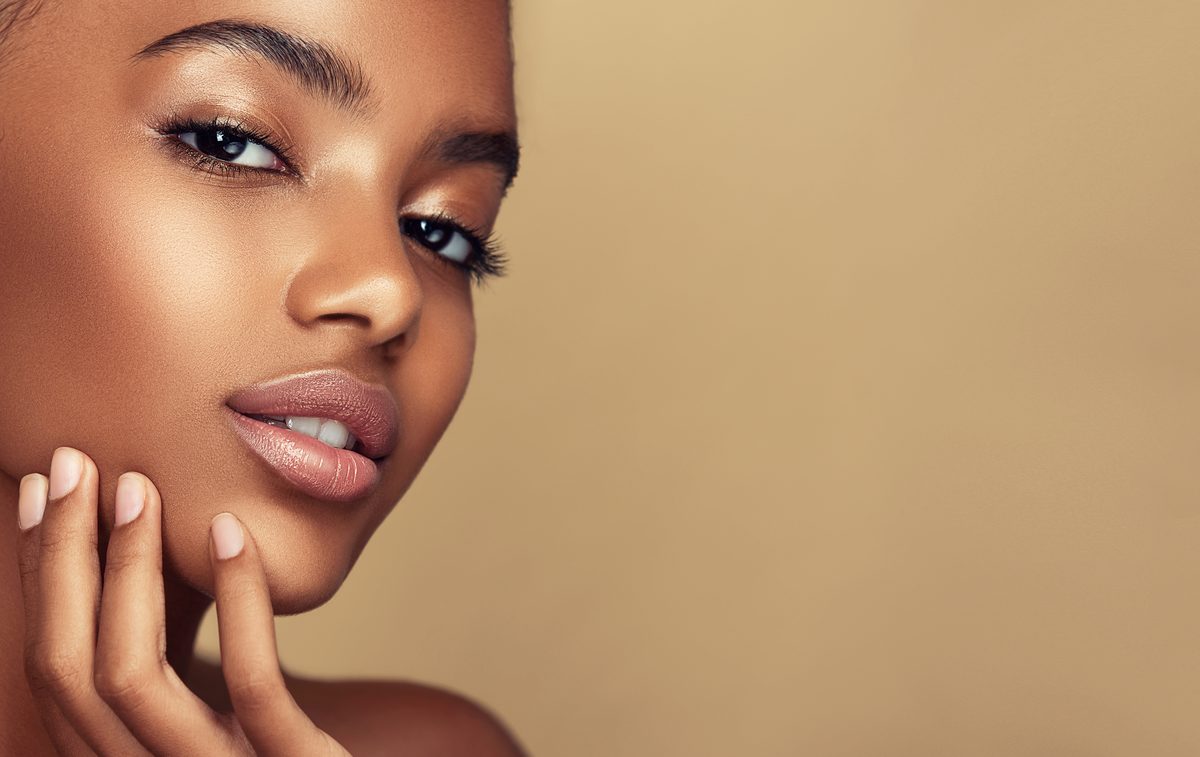
Here’s where masking genuinely changed my portrait workflow. I create a Color Range mask targeting skin tones, then I apply a modest exposure boost (+0.3 to +0.7) combined with a slight clarity reduction (-10 to -15). This creates that coveted luminous skin quality without making anyone look like they’ve been airbrushed into oblivion.
The Range slider is crucial here. Too tight, and you’ll only catch the brightest skin areas, creating an unnatural hotspot effect. Too wide, and you’ll catch the background. I usually start at 50 and adjust from there while watching my image preview.
Combining Masks for Maximum Control
This is where things get interesting. You’re not limited to one mask per adjustment panel. I frequently stack multiple masks to achieve nuanced results.
For a recent landscape shoot, I used three separate masks: one Luminance Range mask to darken the sky, another Color Range mask to saturate the green trees, and finally another Luminance Range mask to lift the shadows in the foreground. Each adjustment was surgical. Each one solved a specific problem.
The order matters too. Lightroom applies masks sequentially, so think about your adjustments like layers in Photoshop. Start broad, then get specific.
Settings I Always Adjust
When you create any mask, you’ll see these controls:
- Range: This determines how broad or narrow your selection is. Start conservative—you can always expand it.
- Feather: This creates soft edges around your mask. For most work, I keep this between 20-40 to avoid hard lines that scream “edited.”
- Mask amount: This is your safety net. If an adjustment feels slightly too aggressive, reduce the mask amount from 100% to 80% or 90%.
The Workflow That Stuck
I now approach every image with this question first: “What needs different treatment?” Before touching global adjustments, I’ve usually already identified 2-3 areas that need masks. This prevents me from over-editing globally just to fix one problem spot.
Masking transforms Lightroom from a tool that makes broad gestures into an instrument of precision. It’s the difference between a good edit and one that makes people ask, “Wait, is that the same photo?”
Comments (1)
Tried this technique this morning. Game changer for real.
Leave a Comment