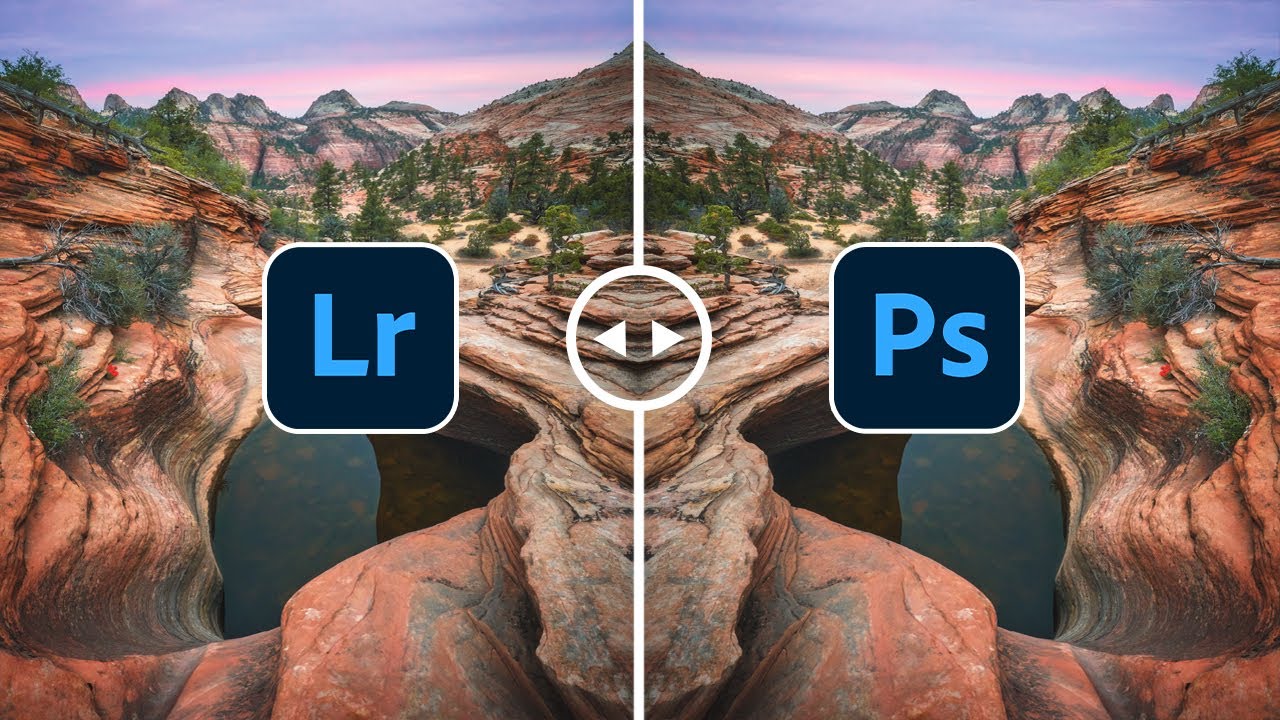
There’s a version of my workflow from a few years ago that I’m a little embarrassed about. I was doing everything inside Lightroom, start to finish, convinced that leaving the app was some kind of defeat. Then my edits started looking like my edits, and not in a good way. Cleanup that left visible patterns. Sharpening that crunched. I kept blaming my eye when the real problem was the tool.
That’s why Mark Denney’s tutorial hit differently when I came across it. He’s a landscape photographer who has spent years narrowing down exactly where Lightroom runs out of road, and he’s identified six specific techniques that consistently require a trip into Photoshop to finish properly. Watch the full tutorial on YouTube if you want to see his Utah landscape footage alongside the breakdown. But what I want to do here is work through the core logic of each point in a way you can actually apply today, because the reasoning behind his decisions is just as useful as the decisions themselves.
Understanding why a tool fails you is more valuable than just knowing which tool to pick. Once you internalize these limitations, you stop fighting Lightroom in areas where it genuinely can’t win.
Step 1: Stop Using Lightroom’s Spot Removal for Serious Cleanup
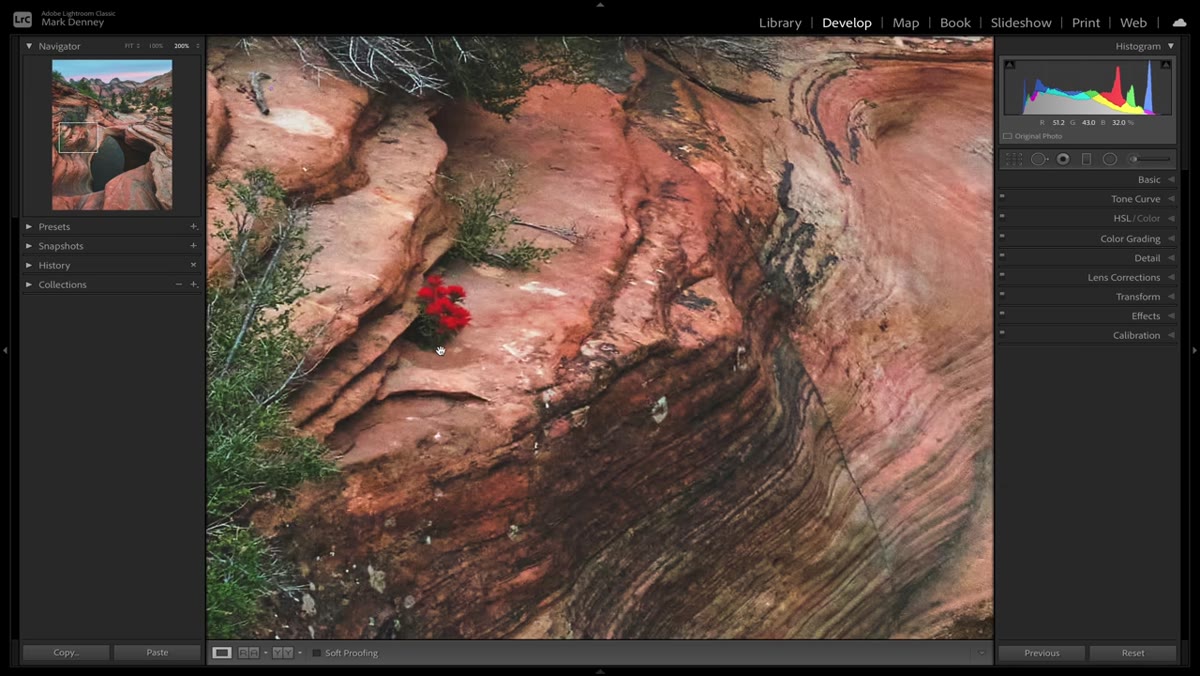 Lightroom spot removal tool selected on Utah landscape image
Lightroom’s Spot Removal tool works in one of two modes, Clone or Heal, and both of them share the same fundamental problem. They copy a region of your image and paste it over the area you want to remove. When you’re pulling a sensor dust spot off a clear sky, that’s fine. When you’re removing a distracting element sitting in front of complex texture, like a bright flower in a field of varied greenery, you end up with a visible mirror stamp that looks exactly like what it is.
Lightroom spot removal tool selected on Utah landscape image
Lightroom’s Spot Removal tool works in one of two modes, Clone or Heal, and both of them share the same fundamental problem. They copy a region of your image and paste it over the area you want to remove. When you’re pulling a sensor dust spot off a clear sky, that’s fine. When you’re removing a distracting element sitting in front of complex texture, like a bright flower in a field of varied greenery, you end up with a visible mirror stamp that looks exactly like what it is.
The pattern repetition is the giveaway. Your eye catches it immediately, even if a viewer can’t name what’s wrong. Lightroom doesn’t synthesize new pixel information. It just rearranges what’s already there.
Step 2: Use Photoshop’s Content-Aware Fill for Cleanup Instead
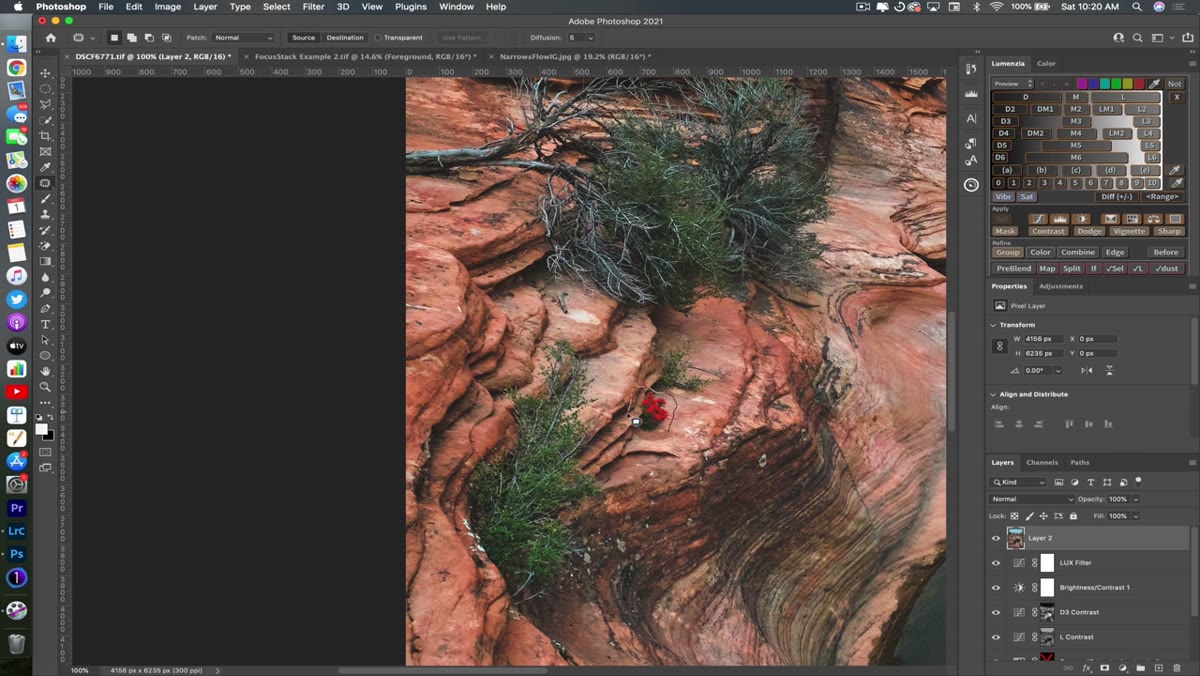 Patch tool selected in Photoshop, lasso drawn around flower
In Photoshop, the workflow that Mark demonstrates is straightforward and the results are genuinely better. Select the Patch Tool from the toolbar, draw a loose selection around the element you want to remove, then go to Edit, Fill, and choose Content-Aware. Hit OK.
Patch tool selected in Photoshop, lasso drawn around flower
In Photoshop, the workflow that Mark demonstrates is straightforward and the results are genuinely better. Select the Patch Tool from the toolbar, draw a loose selection around the element you want to remove, then go to Edit, Fill, and choose Content-Aware. Hit OK.
What Content-Aware Fill does differently is synthesize. Rather than copying a neighboring region and stamping it down, Photoshop analyzes the surrounding texture, tone, and pattern and generates new pixel data to blend into that space. The result reads as natural because it isn’t a duplicate of anything else in your frame. For landscape work where you’re dealing with organic textures like rock, grass, and water, this difference is significant. I’d estimate it saves me ten minutes of cleanup per image just by not having to go back and fix the fix.
Step 3: Recognize Where Lightroom’s Sharpening Hits Its Ceiling
 Lightroom Detail panel open, sharpening sliders visible
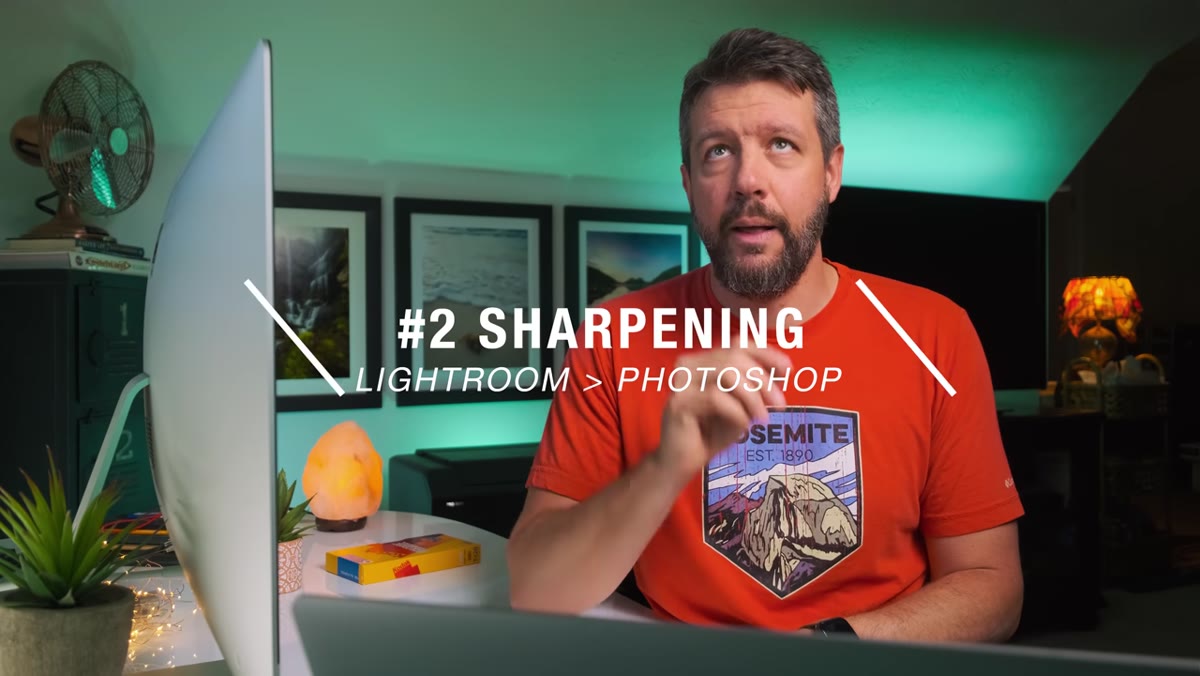
Lightroom’s Detail panel sharpening is genuinely useful for a global pass. Amount, Radius, Detail, Masking - these sliders give you meaningful control and the masking tool in particular helps you avoid sharpening smooth gradients like skies. For most portrait or street work, you might stop here and be fine.
Lightroom Detail panel open, sharpening sliders visible
Lightroom’s Detail panel sharpening is genuinely useful for a global pass. Amount, Radius, Detail, Masking - these sliders give you meaningful control and the masking tool in particular helps you avoid sharpening smooth gradients like skies. For most portrait or street work, you might stop here and be fine.
Landscape photography is different. You often need surgical sharpening, the kind that emphasizes the edge of a rock face or the detail in a pine needle without touching the sky above it. Lightroom’s local adjustment brushes let you paint sharpening into specific areas, but the precision available in Photoshop, especially with Smart Sharpen or High Pass sharpening on a separate layer, gives you control that Lightroom’s architecture simply doesn’t replicate. You can sharpen, mask, blend, and compare at 100% zoom with much more flexibility.
Step 4: Don’t Treat These as Failures, Treat Them as a Workflow Decision
 Lightroom develop module showing partially edited Utah landscape
One thing I want to push back on slightly is the framing of “abandoning Lightroom.” Mark isn’t saying Lightroom is bad. He’s describing a division of labor that matches each application’s actual strengths. Lightroom is exceptional for culling, organizing, global tone and color work, and non-destructive adjustments you might want to revisit across a batch of images. It’s where I spend probably 70% of my editing time.
Lightroom develop module showing partially edited Utah landscape
One thing I want to push back on slightly is the framing of “abandoning Lightroom.” Mark isn’t saying Lightroom is bad. He’s describing a division of labor that matches each application’s actual strengths. Lightroom is exceptional for culling, organizing, global tone and color work, and non-destructive adjustments you might want to revisit across a batch of images. It’s where I spend probably 70% of my editing time.
The move to Photoshop isn’t a failure, it’s a handoff. Think of Lightroom as where you grade the image and Photoshop as where you finish it. The mistake I was making early on was trying to do finishing work inside a grading tool and wondering why the results looked approximate. Sending an image from Lightroom to Photoshop via the “Edit In” command takes about two seconds. The friction isn’t in the software. It’s in deciding when to make the move.
Step 5: Build the Habit of Auditing Each Image Before You Export
 Full landscape image displayed in Lightroom before cleanup
Before I export anything, I now do a quick checklist pass directly related to the kinds of issues Mark outlines. I zoom to 100% and scan for cleanup candidates. I check whether sharpening looks intentional or just noisy. I look at whether any local adjustments left halos or visible brush edges.
Full landscape image displayed in Lightroom before cleanup
Before I export anything, I now do a quick checklist pass directly related to the kinds of issues Mark outlines. I zoom to 100% and scan for cleanup candidates. I check whether sharpening looks intentional or just noisy. I look at whether any local adjustments left halos or visible brush edges.
This audit takes maybe two minutes and it’s caught things I would have exported embarrassed. If I find anything on that list, that image goes to Photoshop before it goes anywhere else. Having a defined trigger condition like that removes the debate about whether something is “good enough.” It either passes the checklist or it doesn’t.
My Own Addition: The Roundtrip File Naming Problem
One thing Mark doesn’t get into but that I’ve had to solve for myself is the file management side of this roundtrip workflow. When you edit in Photoshop from Lightroom, it creates a TIFF or PSD next to your original raw file, and if you’re not organized, that folder gets messy fast. I keep a subfolder called “Finished” inside each shoot folder and move all my roundtrip files there manually after I’m done. It sounds trivial until you’re looking at 400 files from a trip and can’t tell which ones are finals.
I also name the Photoshop file the same as the original with a “-ps” suffix, so “utah-canyon-001-ps.tif” sits clearly next to “utah-canyon-001.CR3” in my catalog. Keeps the relationship obvious when I come back to a project weeks later.
The single most important thing I took from this tutorial is that Lightroom limitations aren’t bugs, they’re boundaries, and knowing where those boundaries are is what separates a polished final image from one that’s almost there. Mark Denney has done the field work of finding exactly where those edges are, and this tutorial is a direct download of that experience.
Watch the full tutorial on YouTube to see all six techniques demonstrated on actual landscape files, including the ones I didn’t cover here.
Comments
Leave a Comment