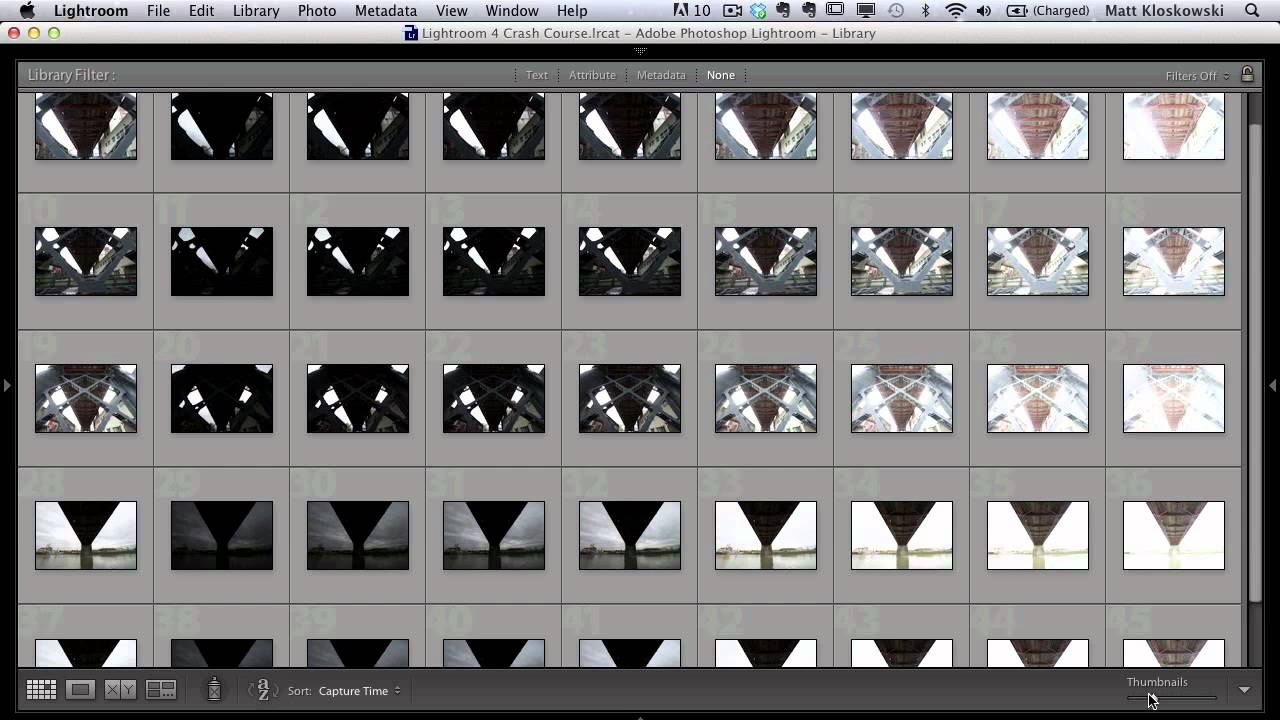
Stop Drowning in Bracket Photos: A Smarter Way to Manage HDR Shoots in Lightroom

Stop Drowning in Bracket Photos: A Smarter Way to Manage HDR Shoots in Lightroom

Every time I come back from a shoot with bracketed exposures, I face the same low-grade dread: opening Lightroom to find what feels like a thousand nearly identical frames staring back at me. Nine brackets per scene, multiplied across an afternoon of walking around downtown Nashville, and suddenly I’m not editing photos anymore. I’m just managing files. That’s not why I picked up a camera. This KelbyOne tutorial from Matt Kloskowski landed in my feed at exactly the right moment.
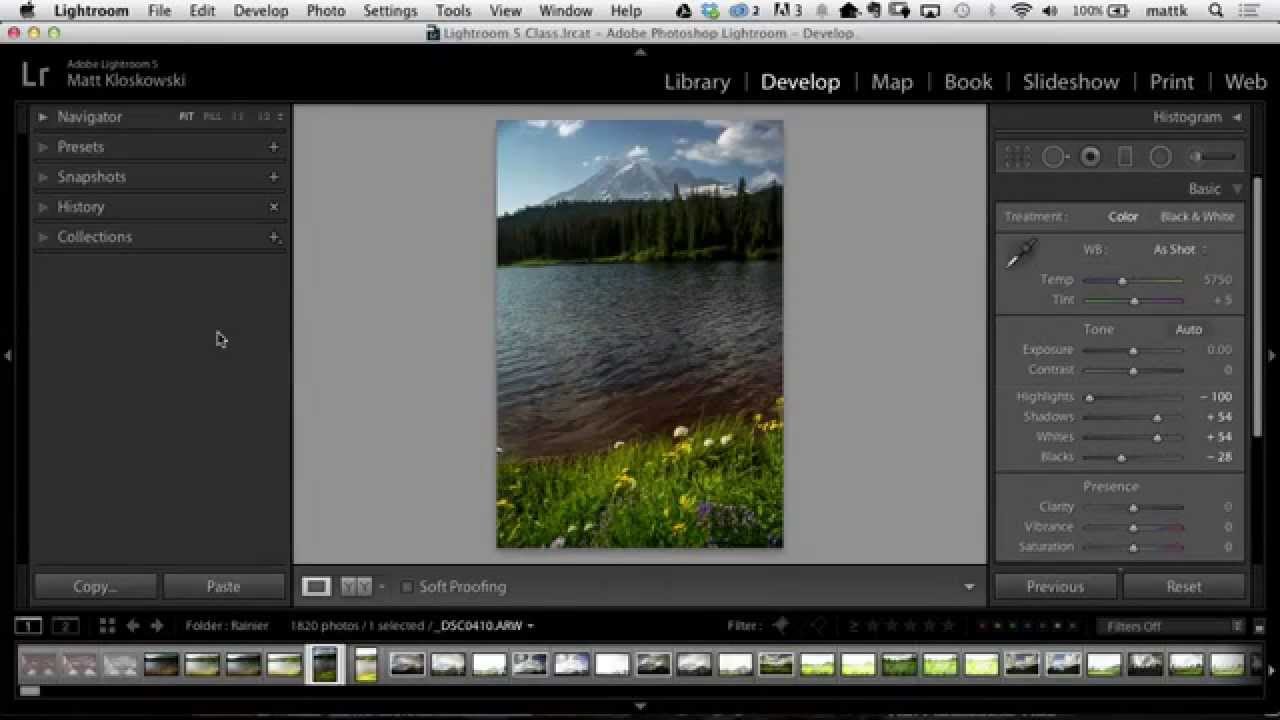

The Smart Collection Trick That Catches the Photos You Forgot to Flag

The Smart Collection Trick That Catches the Photos You Forgot to Flag

There’s a specific kind of frustration that doesn’t get talked about enough in photography circles. You upload a batch of photos, you’re excited about two or three of them, you jump into the Develop module and start pushing sliders around — the image is coming to life, it’s looking good — and then your phone buzzes, your dog needs to go out, life happens. You close Lightroom without flagging the photo, without adding it to a collection, without doing any of the responsible organizational things you know you should do.

Where Did My Photos Go? The Lightroom Import Method That Finally Makes Sense

Where Did My Photos Go? The Lightroom Import Method That Finally Makes Sense

There is one question I heard constantly when I first started helping friends learn Lightroom: “Where did my photos go?” Not “how do I edit this” or “what’s a good preset for skin tones” - just a panicked message asking why an entire shoot had disappeared into the void. The answer, almost every single time, came back to the import step. People skip past it, click through the dialog without reading it, and then spend an hour hunting through their hard drive wondering if they accidentally deleted a whole card full of portraits.

One Catalog to Rule Them All: How to Set Up a Travel Catalog That Actually Merges Back Cleanly

One Catalog to Rule Them All: How to Set Up a Travel Catalog That Actually Merges Back Cleanly

I have a recurring nightmare. Not the one where I show up to a shoot and forgot my memory cards. The one where I get home from a week of shooting, dump everything into my laptop catalog, and then spend two hours Googling “how to merge Lightroom catalogs without losing edits” at midnight. If you’ve been there, you know the specific dread of not being sure whether your metadata survived the trip.

The Lightroom Panic Attack: Why Your Photos Aren't Really Gone (And How to Find Them)

The Lightroom Panic Attack: Why Your Photos Aren't Really Gone (And How to Find Them)

The Lightroom Panic Attack: Why Your Photos Aren’t Really Gone (And How to Find Them) We’ve all been there. You open Lightroom on a Monday morning, coffee in hand, ready to dive into color grading that weekend shoot. But instead of your carefully organized grid of thumbnails, you’re staring at an empty library. Your stomach drops. Where did everything go? Before you start imagining your entire photo collection evaporating into the digital void—take a breath.