9 Single-Key Lightroom Shortcuts That Actually Stick (No Cheat Sheet Required)

9 Single-Key Lightroom Shortcuts That Actually Stick (No Cheat Sheet Required)

There’s a certain kind of editing session where everything flows. You’re moving through a catalog, the music is good (I’m partial to Carole King’s Tapestry on vinyl for landscape edits, if you’re asking), and your hands just know where to go. Then there’s the other kind of session, where you’re hunting through menus for tools you use every single day, clicking around like you’ve never opened the software before. The difference between those two sessions usually comes down to shortcuts.

Lightroom's Number Keys Are Doing More Than You Think — Here's the Full Map

Lightroom's Number Keys Are Doing More Than You Think — Here's the Full Map

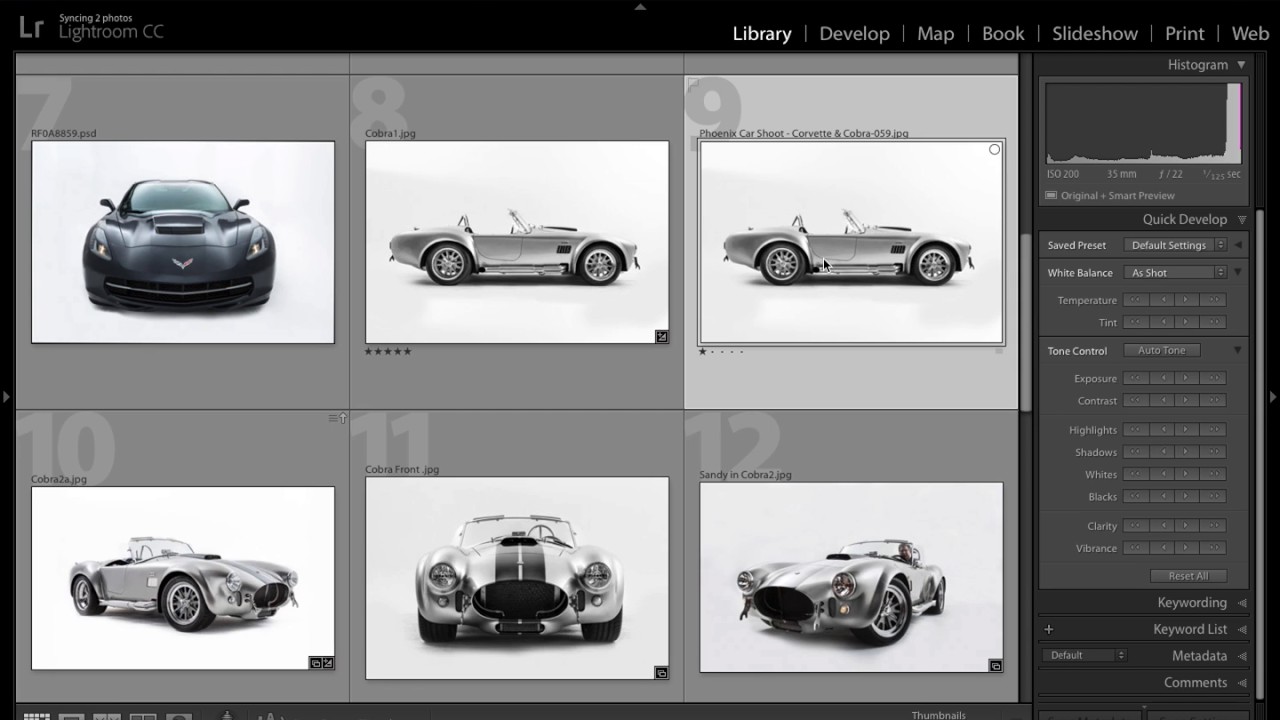
I have a bad habit of clicking things I don’t need to click. I’ll mouse all the way up to the module tabs to switch from Library to Develop, or hunt around for the star rating buttons in the toolbar, when the keyboard has been sitting there the whole time with faster answers built right in. Keyboard shortcuts in Lightroom aren’t exactly hidden, but the number-based ones specifically tend to get overlooked because they don’t show up in obvious places.

7 Lightroom Shortcuts That Actually Changed How I Edit (Breakdown of Pierre T. Lambert's Best Tips)

7 Lightroom Shortcuts That Actually Changed How I Edit (Breakdown of Pierre T. Lambert's Best Tips)

I’ll be honest with you: I spent the first two years of my Lightroom life doing everything the slow way. Clicking through menus, hunting for tools, dragging panels around like I was rearranging furniture. It wasn’t until I started watching other working photographers share their actual workflows that I realized how much time I was bleeding out of every editing session. The fixes were almost embarrassingly simple once I saw them.

RIP to the Done Button: What Lightroom Actually Wants You to Do Instead

RIP to the Done Button: What Lightroom Actually Wants You to Do Instead

Every time Adobe quietly removes something from Lightroom Classic, my inbox fills up like a rain barrel in a Nashville thunderstorm. The Done button is the latest casualty, and honestly, I get it. When something you’ve clicked a thousand times just vanishes, it feels like Adobe rearranged your kitchen while you were sleeping. But after watching this Matt Kloskowski tutorial on exactly that topic, I walked away thinking less about the button itself and more about how many of us were doing things the hard way without even realizing it.

The Alt/Option Key Tricks in Lightroom That Changed How I Edit Every Photo

The Alt/Option Key Tricks in Lightroom That Changed How I Edit Every Photo

There’s a specific kind of frustration that comes from spending twenty minutes dialing in the tone of a photo, getting the shadows exactly right, nailing the contrast, and then realizing you also need to reset just the clarity and texture sliders because you went a little heavy-handed. The Reset button in Lightroom wipes everything. You’re starting over. For a long time, I was clicking through my History panel like it was a time machine, trying to claw back a specific moment in the edit.

The Adjustment Brush Shortcut That Saves Me From Toggling Auto Mask Every 30 Seconds

The Adjustment Brush Shortcut That Saves Me From Toggling Auto Mask Every 30 Seconds

There’s a specific kind of editing frustration that I’ve felt probably a thousand times. You’re painting a local adjustment across a large area of a photo, moving fast, and then you hit an edge. Maybe it’s the rim of a coffee cup, the shoulder of a jacket, a hard line between sky and building. Suddenly you have two bad options: slow everything down by turning on Auto Mask and deal with the lag, or keep painting fast and accept that you’ll bleed color or exposure onto something you didn’t want to touch.